dms
38 Topics
Alternatives After the Deprecation of the Azure SQL Migration Extension in Azure Data Studio
The Azure SQL Migration extension for Azure Data Studio is being deprecated and will be retired by February 28, 2026. As part of our unified and streamlined migration strategy for Azure SQL, we are consolidating all migration experiences into a consistent, scalable platform. If you are currently using the Azure SQL Migration extension, this blog will guide you through recommended replacement options for every phase of migration, whether you are moving to Azure SQL Managed Instance, SQL Server on Azure Virtual Machines, or Azure SQL Database. What is happening to the Azure SQL Migration extension in ADS? As you already know, Azure data studio will officially retire on February 28, 2026. The Azure SQL Migration extension in Azure Data Studio will also retire along with Azure Data Studio on February 28, 2026. The Azure SQL Migration extension will no longer be available in the marketplace of Azure Data Studio. What should you use instead? Below is the updated guidance for the migration tool categorized by migration phase and target. 1) Pre‑Migration: Discovery & Assessments Prior to migration, it is advisable to evaluate the SQL Server environment for readiness and to determine the right-sized Azure SQL SKU. Below are the recommended options: A) SQL Server enabled by Azure Arc Use the SQL Server migration experience in the Azure Arc portal for: Instance discovery at scale Migration assessments at scale, including: Readiness assessment for all Azure SQL targets. Performance-based, right-sized target recommendations. Projected Azure costs with the recommended target configuration. Reference: Steps to get started with the Azure Arc assessments- Deploy Azure Arc on your servers. SQL Server instances on Arc-enabled servers are automatically connected to Azure Arc. See options to optimize this. B) Automated assessments at scale using Azure DMS PowerShell and Azure CLI The Azure DataMigration modules in Azure PowerShell and Azure CLI can be used to automate assessments at scale. Learn more about how to do this. Here are the sample templates to automate the assessment workflow: Azure PowerShell DataMigration cmdlets DMS Azure CLI commands C) Azure Migrate For scenarios where assessments are required at data center level including different types of workloads like Applications, VM Servers and databases, use Azure Migrate to perform discovery and assessments at scale. Learn more about Azure Migrate. References: Review inventory Create SQL Assessment Review SQL Assessment 2) Migrations Based on the migration targets, here are the recommended tools you can use to carry out the migration: A. To Azure SQL Managed Instance The following options are available for migrating data to Azure SQL Managed Instance: 1. SQL Migration experience in Azure Arc For migrations to Azure SQL MI, leverage the streamlined SQL Migration experience in Azure Arc which lets you complete the end-to-end migration journey in a single experience. This experience provides: Evergreen assessments and right-fit Azure SQL target recommendation. Inline Azure SQL Target creation. Free Azure SQL MI Next generation General Purpose service that lets you experience the power of Azure SQL MI for free for 12 months. Near zero downtime migration using Managed Instance link powered by Distributed Availability Group technology. Secure connectivity. Reference blog: SQL Server migration in Azure Arc 2. Automated migration at scale using Azure DMS PowerShell and Azure CLI To Orchestrate migrations to Azure SQL MI at scale programmatically, use: DMS PowerShell cmdlets DMS Azure CLI commands Learn more about how to do this. B. To SQL Server on Azure Virtual Machines To migrate to SQL Server on Azure Virtual Machines, use: 1. Azure Database Migration Service (DMS) DMS supports migrating to SQL Server on Azure Virtual Machines using both online and offline methods. Your SQL Server backups can be in Azure Blob Storage or on a network SMB file share. For details on each option, see: Backups stored in Azure Blob Storage Backups maintained on network SMB file shares Note: The migration experience from SQL Server on-premises to SQL Server on Azure VM will soon be available in SQL Server enabled by Azure Arc. 2. Automated migration at scale using Azure DMS PowerShell and Azure CLI For programmatic migrations to Azure SQL Virtual Machines: DMS PowerShell cmdlets DMS Azure CLI commands Learn more about how to do this. 3. SSMS option: SQL Server Management Studio (SSMS) migration component If you can connect to both SQL Server on-premises and SQL Server running on Azure VM using SQL Server Management Studio, the migration component in SSMS can help you to migrate to SQL Server on Azure VM. For details, see SSMS Migration component. C. To Azure SQL Database Migrating a SQL Server database to Azure SQL Database typically involves migrating schema and data separately. Here are the options to perform offline and online migration to Azure SQL Database: 1. Offline migration to Azure SQL Database a. Azure Database Migration Service (DMS) portal experience Use Azure DMS portal to migrate both schema and data. Azure DMS uses Azure Data Factory and leverages the Self-hosted Integration Runtime (SHIR). Installation steps are here. b. Automated migration at scale using Azure DMS PowerShell and Azure CLI Use Azure DMS PowerShell and Azure CLI command line to orchestrate the schema and data migration to Azure SQL Database at scale: DMS PowerShell cmdlets DMS Azure CLI commands Learn more about how to do this. 2. Online migration to Azure SQL Database Using Striim To enable online migration of your mission critical databases to Azure SQL Database leverage Striim. Microsoft and Striim have entered a strategic partnership to enable continuous data replication from off-Azure SQL Servers to Azure SQL Database with near-zero downtime. For more details, refer to: Zero downtime migration from SQL Server to Azure SQL Database | Microsoft Community Hub Removing barriers to migrating databases to Azure with Striim’s Unlimited Database Migration program... To leverage the Striim program for migrations, please reach out to your Microsoft contact or submit the below feedback to get started. Summary The table below provides a summary of the available alternatives for each migration scenario. Migration Scenario Guided experience Automation experience Pre-Migration (Discovery + Assessment) SQL Migration experience in Azure Arc / Azure Migrate DMS PowerShell / Azure CLI To Azure SQL Managed Instance SQL Migration experience in Azure Arc DMS PowerShell / Azure CLI To SQL Server on Azure Virtual Machine DMS Azure Portal / SSMS migration component DMS PowerShell / Azure CLI To Azure SQL Database DMS Azure portal (offline & schema migration) / Striim (online migration) DMS PowerShell / Azure CLI (offline & schema migration) Final Thoughts Simplify your SQL migration journey and improve migration velocity to all Azure SQL targets, leverage the connected migration experiences in SQL Server enabled by Azure Arc, DMS, and SSMS. For SSMS, as a first step we brought the capabilities to perform assessment and migration to higher versions of SQL Server including to SQL Server on Azure Virtual Machines. As a next step, we are bringing cloud migration capabilities as well into SSMS. Feedback We love hearing from our customers. If you have feedback or suggestions for the product group, please use the following form: Feedback form As you begin your migration to Azure, we welcome your feedback. If you do not see suitable alternatives for any migration phases, use the feedback form to let us know so we can update the options accordingly.2.8KViews1like0Comments
Upgrade Azure Database for MySQL - Single Server to Flexible Server using Azure DMS
With Azure Database for MySQL - Single Server on path for retirement on 16 September 2024, we're now directing all of our energies and feature investments towards Flexible Server. In the interim, you’ll need to upgrade your service by using Azure Database Migration Service (DMS) to migrate to Flexible Server.6.7KViews2likes0CommentsData Migration - Azure SQL MI and Azure SQL DB
Data Migration Between Azure SQL Managed Instance and Azure SQL Database: Methods and Considerations As of this writing, Azure Database Migration Service (DMS) doesn't support SQL MI nor SQL DB as the source database (Supported migration scenarios). As an alternative to use DMS, one of the common support requests we receive from Azure SQL customers is about the best ways to migrate data between Azure SQL Managed Instance (SQL MI) and Azure SQL Database (SQL DB), or vice versa. This post outlines the primary methods available, their pros and cons, and key considerations to help you choose the right approach for your scenario. 1. BACPAC Export/Import Overview: This is a straightforward method where you export your database schema and data to a BACPAC file, then import it into the target environment. Key Points: Simplicity: Easy to use for small to medium-sized databases. Limitations: The BACPAC file size is limited to 200GB when exporting to Azure Blob Storage. Considerations: Larger databases may require splitting or alternative methods. Some features and objects (like certain types of indexes or security settings) may not be fully supported in BACPAC exports/imports. 2. Transactional Replication Overview: If your business requires data to be online during the migration, transactional replication may be your choice. Key Points: Online Migration: Enables near real-time data replication, making it suitable for scenarios where minimal downtime is required. Initialization Challenges: Large tables (having size of hundreds of GBs or more) can make the initial snapshot and data transfer challenging. One-way Only: This method only supports migration from SQL MI to SQL DB, not the other way around. SQL DB cannot act as a publisher due to the lack of Replication Agent (SQL Server Agent) support. 3. Azure Data Factory (ADF) Overview: ADF is a flexible, cloud-based ETL service that can orchestrate data movement between SQL MI and SQL DB. Key Points: Flexibility: Supports both offline and (with limitations) online migrations. Learning Curve: Some initial setup and learning may be required if you’re new to ADF. Online Migration Limitations: Online migration using ADF requires configuring Change Data Capture (CDC) on the source, which is not supported for SQL DB as a source. This means online migration is only feasible from SQL MI to SQL DB, not the reverse Here’s a sample decision matrix to help you choose the best migration method between SQL MI and SQL DB Criteria / Scenario BACPAC Export/Import Transactional Replication Azure Data Factory Direction: SQL MI -> SQL DB ✔️ ✔️ ✔️ Direction: SQL DB -> SQL MI ✔️ ❌ ✔️ Database Size < 200GB ✔️ ✔️ ✔️ Database Size > 200GB ❌ ✔️ ✔️ Minimal Downtime Needed ❌ ✔️ Partial* Online Migration ❌ ✔️ Partial* Learning Curve Low Medium Medium *ADF can support near-online migration if Change Data Capture (CDC) is enabled on the source, but CDC is not supported for SQL DB as a source.947Views0likes0CommentsGeneral Availability - DMS's PowerShell, Azure CLI, and Python SDK
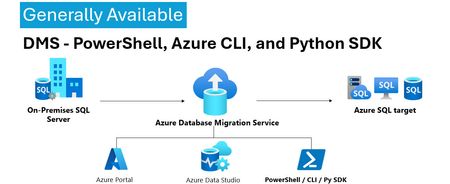
We’re excited to announce the General Availability (GA) of DMS client tools - PowerShell, Azure CLI, Python SDK and more. This milestone unlocks efficient, stable, and scalable automation options for database migration workflows—making it easier than ever to integrate DMS into your DevOps pipelines and enterprise migration strategies. 💡Introduction: With the general availability of DMS client tools - PowerShell, Azure CLI, Python SDK, users can now use stable release of: PowerShell module 1.0.0 (https://www.powershellgallery.com/packages/Az.DataMigration/1.0.0) Azure CLI extension 1.0.0 (https://learn.microsoft.com/en-us/cli/azure/datamigration?view=azure-cli-latest) DMS V2 APIs (version 2025-06-30) SDKs for multiple languages (listed below) SDKs Releases: Language GA Package / Link .Net https://www.nuget.org/packages/Azure.ResourceManager.DataMigration/1.0.0 Java https://central.sonatype.com/artifact/com.azure.resourcemanager/azure-resourcemanager-datamigration/1.1.0 Go https://pkg.go.dev/github.com/Azure/azure-sdk-for-go/sdk/resourcemanager/datamigration/armdatamigration/v2 Python azure-mgmt-datamigration · PyPI JavaScript https://www.npmjs.com/package/@azure/arm-datamigration/v/3.0.0 🔧 What’s New? Three new commands have been introduced in the latest releases of the SDK, PowerShell module, and CLI extension, as outlined below: New CLI Commands: az datamigration sql-db retry - Retry the failed SQL DB migrations. az datamigration sql-managed-instance delete - Delete Azure SQL MI’s Database Migration resource. az datamigration sql-vm delete - Delete Azure SQL VM’s Database Migration resource. New PowerShell Commands: Invoke-AzDataMigrationRetryToSqlDb - Retry the failed SQL DB migrations. Remove-AzDataMigrationToSqlManagedInstance - Delete Azure SQL MI’s Database Migration resource. Remove-AzDataMigrationToSqlVM - Delete Azure SQL VM’s Database Migration resource. 🚀Conclusion: With this GA / stable release, users can now: Use them to configure and execute migrations with full control. Automate migrations: DevOps teams can embed migration steps into CI/CD pipelines. Integrate into custom applications and orchestration tools. These support all the DMS migration scenarios—from simple lift-and-shift operations to complex logical migrations—while ensuring stability, and repeatability. For more details, refer: Documentation: Migrate databases at scale using Azure PowerShell / CLI PowerShell: Az.DataMigration Module Azure CLI: az datamigration Python SDK: azure-mgmt-datamigration · PyPI475Views2likes0CommentsMaking Azure DMS More Secure: Azure Portal Permission Enhancements
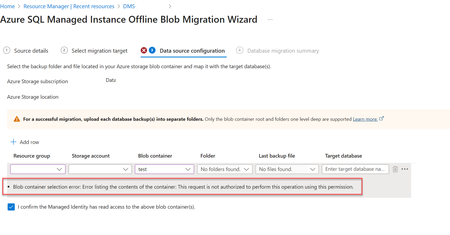
Migrating databases to Azure SQL Managed Instance or Azure SQL Virtual Machine is a critical step in modernizing enterprise infrastructure. With security and compliance top of mind, Azure Database Migration Service (DMS) has introduced key changes to its Azure portal experience—especially around permission for blob container access. Why the Change? Previously, in case of Azure Portal, DMS relied on account key-based access to Azure Blob Storage for listing and accessing backup files on the migration configuration page. While functional, this approach is not best in terms of security, especially for industries which prohibit the use of shared keys. Now, DMS's Azure portal uses security context of the current signed in user on the Azure portal to list and access backup files in the blob container, making it better security approach. Impact of the Change When migrating to Azure SQL Managed Instance or Azure SQL Virtual Machine via Azure portal make sure the current signed in user has Storage Blob Data Reader role on the Blob container that contains the backup files. This permission is needed to list folders and files in the blob container during migration setup via Azure portal only. If the current signed in user lacks the Storage Blob Data Reader role on the Blob container, users will encounter the following error: Error: "Blob container selection error: Error listing the contents of the container: This request is not authorized to perform this operation using this permission." Solution: Make sure the current signed in user has "Storage Blob Data Reader" role on the Blob container that contains the backup files. For more information, refer : Tutorial: Migrate SQL Server to Azure SQL Managed Instance - Azure Database Migration Service | Microsoft Learn Tutorial: Migrate SQL Server to SQL Server on Azure Virtual Machine Using Azure Data Studio - Azure Database Migration Service | Microsoft Learn391Views0likes0CommentsDMS - Support for Managed Identity for Azure SQL Managed Instance migration
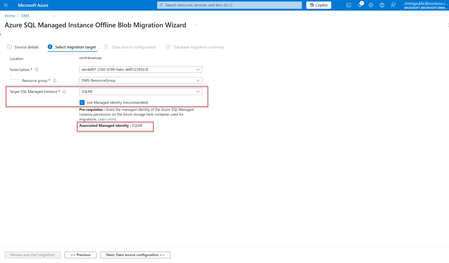
Azure Database Migration Service (DMS) has introduced a new feature that supports the use of Managed Identity for migrating to Azure SQL Managed Instance. This enhancement simplifies the migration process and ensures secure and seamless integration with Azure Database Migration services. In this blog post, we will dive into the prerequisites, permissions or role(s) required, and how to use this associated Managed identity for migrating to Azure SQL Managed Instance. Currently, this feature is supported through Azure Portal, PowerShell, and Az cmdlets. Prerequisites Before you begin the migration to Azure SQL Managed Instance using Managed identity, ensure that following prerequisites are in place: 1. The Target Azure SQL Managed Instance's associated Managed Identity: Azure Database Migration Service only supports Managed Identity that is associated with the target Azure SQL Managed Instance. How to identify the associated Managed Identity? Once you start the migration to Azure SQL Managed Instance using Azure Database Migration Service and on second page, select the target Azure SQL Managed instance, its associated Managed Identity will be displayed if "Use Managed Identity" is selected (default), as highlighted below. Alternatively, you can follow these steps: a) Go to the target Azure SQL Managed Instance's home page. b) On the left menu, under Security > Identity: If User-assigned Managed Identity is present, the associated Managed Identity will be same as selected under the Primary Identity. If there is no User-assigned Managed Identity and only System-assigned Managed Identity is enabled, the associated Managed Identity will be System-assigned Managed Identity and have the same name as the Azure SQL Managed Instance's name. For example, for ABCSQLMI - Azure SQL Managed Instance the System-assigned Managed Identity will be "ABCSQLMI". 2) Permissions: Assign the "Storage Blob Data Reader" role on the storage account to the target instance's associated Managed Identity. Steps to Assign Permissions In the Azure portal, go to the storage account that will be used in migration for keeping the backup files. On the left menu under Access Control (IAM), click on "+Add" > Add role assignment Select or search for builtin role "Storage Blob Data Reader", click Next. Assing this role access to Managed Identity by selecting the associated Managed Identity identified in the previous step as the member. Note: When migrating to Azure SQL Managed Instance or Azure SQL Virtual Machine via Azure portal make sure the signed in user has Storage Blob Data Reader access on the Blob container that contains the backup files. This permission is needed to list folders and files in the blob container during migration setup via Azure portal only. How to use associated Managed identity for migration? Upon initiating the migration to Azure SQL Managed Instance using Azure Database Migration Service, navigate to the second page and select the target Azure SQL Managed Instance. If the "Use Managed Identity" option is selected (default), the associated Managed Identity will be displayed and used for the migration (as shown in the first image above). Once Managed identity is used for the migration, DMS will utilize this Managed identity for reading the backup files on the Azure blob storage and thus removing the need for SAS keys. Limitations: Azure Database Migration Service supports Managed Identity that is associated with the target Azure SQL Managed Instance only. It can be either User assigned, or System assigned Managed identity. Currently, this feature is supported through Azure Portal only. Ensure that the storage account has the "Allow storage account key access" enabled. Benefits of using Managed Identity: Using Managed Identity for Azure SQL Managed Instance migrations offers several security benefits: Enhanced Security: Managed identities eliminate the need to use SAS key, reducing the risk of SAS key token exposure. Simplified Management: As associated Managed Identity of the target Azure SQL MI is used, it allows for seamless integration with Azure Database Migration services, making it easier to manage access permissions and roles. Improved Efficiency: The streamlined authentication process speeds up migrations and reduces the complexity of managing SAS keys. Improved Compliance: By using Managed Identity, user can ensure that they adhere to security best practices and compliance requirements, as it is managed securely by Azure. All the above benefits make Managed Identity better than SAS key token. Learn more. Conclusion The new feature supporting Managed Identity in Azure Database Migration Service for Azure SQL Managed Instance migrations offers a secure and efficient way to manage permissions during the migration process. By following the steps outlined above and leveraging the security benefits of Managed Identity, you can ensure a smooth and secure migration to Azure SQL Managed Instance.1.1KViews0likes0CommentsData Migration - Collation mismatch error during an offline migration
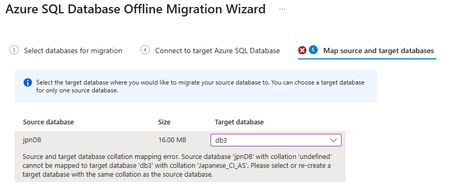
This post explores a collation mismatch error during offline migration from SQL Server Express to Azure SQL. It identifies the root cause—AUTO_CLOSE being enabled—and offers a simple fix to ensure smooth migration using Azure DMS.260Views0likes0CommentsEnhanced SQL Migration Tracking & Bringing SQL Server Arc Assessments to Azure Data Studio
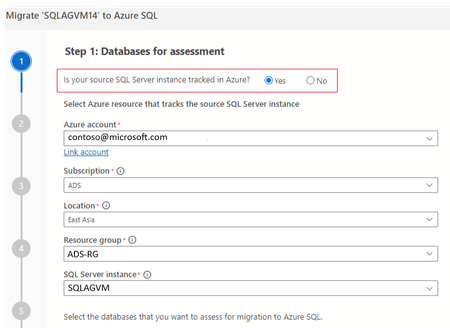
In the ever-evolving landscape of data management, ensuring seamless and efficient migrations is crucial for businesses. Migration is a multi-step process and typically requires multiple tools to complete the migration. To enhance the migration experience, we are bringing a new feature that enhances the migration tracking experience across tools. In this blog post we delve into the benefits this feature offers to streamline the migration tracking process. This feature is available for Azure Data studio users via the latest Azure SQL Migration extension v1.5.8 The Azure SQL migration extension now offers 2 new features in ADS to help users in their migration journey. Ability to view Arc assessments, SKU recommendation in Azure Data Studio Ability to track the migration via SQL Server instance (At no additional cost!) Viewing Arc assessments in Azure Data Studio for SQL Server enabled by Azure Arc If you are planning to migrate SQL Server instances that are Arc-enabled, The Azure Data studio now helps you jump start the migration by providing the ability to view the pre-computed Arc assessments. ADS now provides a link to the pre-computed assessments in the Arc experience Azure portal, which provides migration readiness assessment, SKU recommendation and pricing information (coming soon). Users can continue with rest of their migration journey in the Arc experience. To view the pre-computed assessments computed by Arc, users have to select Yes to the ‘Is your SQL Server instance tracked in Azure? ‘and fill in the Azure resource details of the SQL Server Instance enabled by Azure Arc. The pre-computed assessments and SKU recommendations will be generated as a navigation link to users like below: Ability to streamline the migration tracking process For SQL Server instances which are not Arc-enabled, this feature provides an ability to track the migration by creating an Azure resource with no additional cost associated. Once this resource has been created, users can select this migration resource which is created for their successive migrations that take place for the same source & avail the assessment and readiness benefits. This migration tracking ability is available for both Azure Data Studio and Database migration service portal. Below images show the experience for this ability in Azure DMS portal:Release Announcement of SQL Server Migration Assistant (SSMA) v 10.1
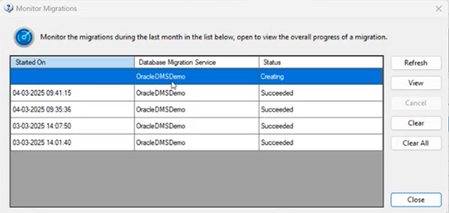
Overview SQL Server Migration Assistant (SSMA) Access, DB2, MySQL, Oracle, and SAP ASE (formerly SAP Sybase ASE) allow users to convert a database schema to a Microsoft SQL Server schema, deploy the schema, and then migrate data to the target SQL Server (see below for supported versions). What’s new? Enhanced monitoring experience for migrations using DMS [ SSMA-Oracle] Migrating Oracle workloads using Azure Database Migration service is in preview, please refer for more details. For Oracle workloads migrating using DMS in SSMA, we are bringing an enhanced monitoring experience through tabular user interface where the users can now view live list of migrations that are in progress or completed phase. Each entry represents a migration activity along with the start time of migration, DMS used for migration and status. Users can view quick brief migration information of individual tables to know more information like Table name, Schema name, copy duration, No. of Rows copied & status real-time. For the sake of users requiring more granular monitoring information about their migration activity, SSMA provides a link to the Azure Database Migration service portal webpage (View Comprehensive Report) where they can view details like Data read, writes, Rows copies, Throughput along with copy duration, etc. Code Conversion Improvements [DB2, Oracle] Conversion enhancements for identity column from Db2 z/OS to SQL Server 2019 Improve conversion of Db2 stored procedure WITH RETURN clause to Azure SQL Database Improve database objects load for Db2 Appropriate error handling for conversion of identifier REPLACE(STRING, CHAR,CHAR) in Db2 Detection of CHAR length in Oracle VARCHAR2 datatype Downloads SSMA for Access SSMA for DB2 SSMA for MySQL SSMA for Oracle SSMA for SAP ASE Supported sources and target versions Source: For the list of supported sources, please review the information on the Download Center for each of the above SQL Server Migration Assistant downloads. Target: SQL Server 2016, SQL Server 2017, SQL Server 2019, Azure SQL Database, an Azure SQL Database managed instance Resources SQL Server Migration Assistant documentation675Views1like0CommentsPublic Preview announcement - Unified migration experience in Azure DMS
We are excited to announce that Azure Database Migration Service (DMS) now supports seamless migration of your MySQL on-premises or Virtual Machine (VM) workloads to Azure Database for MySQL - Flexible Server. This new feature, now available in public preview, allows you to use physical backup files of the MySQL server for migration. By restoring your physical data files directly to your target Flexible Server, you can migrate multi-terabyte workloads quickly and effortlessly with minimal downtime ensuring a smooth and efficient transition to Azure Database for MySQL - Flexible Server, enabling you to take full advantage of the platform's capabilities. To migrate your workloads using the Physical Online Data Migration option in Azure DMS, you need to take backups of your workload on the source server using Percona Xtrabackup utility. After taking a backup, upload the backup files to Azure Blob Storage. DMS can read the uploaded backup files from Azure Blob Storage and apply them on the target flexible server for rapid movement of large workloads to MySQL flexible server. To get started, go to your DMS project and choose "[Preview] Physical Online Data Migration" for migrating your workloads from on-premises or VMs. Limitations: You must create and configure the target Flexible server prior to migrating your physical backup files. Migration for encrypted backups isn't supported. Migration cancellation during the import operation is not supported. For more information about using physical online migration with Azure DMS please follow our detailed step-by-step instructions in our documentation: https://aka.ms/dmsPhysicalImportOnlineMigration If you have any feedback or questions about the information provided above, please leave a comment below or email us at AskAzureDBforMySQL@service.microsoft.com. Thank you!