deadlock
9 TopicsDeadlock Analysis (Examples)
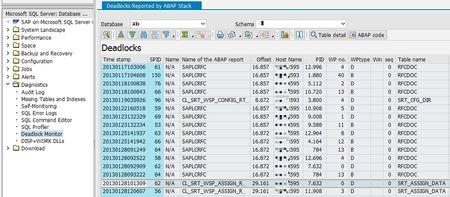
As promised in my former blog about Deadlock Analysis we proceed today with the deadlock serie with examples and their solutions. Update Locks The first example is a Deadlock with two identical statements, doing deletes on table BC_MON_AGREGATES The statements are: DELETE FROM BC_MON_AGREGATES WHERE AGR_INTERVAL = @P0 AND START_TIME < ; As you can see in the deadlock graph both threads are having (at least) a X locks on a index named PK__BC_MON_A__3214EC272B5F6B28, the primary key on this table. And both are requesting an U lock on the same index. As the U locks are only used for checking if the row matches the WHERE condition, this constellation is very often seen when the threads are scanning the table or index instead of seeking through an index to find the rows. In this case the solution was to create an fitting index for the WHERE clause to get the two thread to seek instead to scan the index. RID Locks In the next case we see, that both threads are requesting RID locks on table GENSETC: The statements were: UPDATE GENSETC SET NAME = ,COMPONENT = ,GENSTATUS = @P3 WHERE PGMID = @P4 AND OBJECT = @P5 AND OBJNAME = P6 RID locks are only used if there is no clustered index on that table. If there is an clustered index, we will see KEY locks. The root cause for this deadlock was the missing clustered index as defined in the SAP dictionary (PGMID, OBJECT, OBJNAME). PAGE locks Here we see PAGE locks on table /1OT/FDA12IT2001: Both statements were running a DELETE on that table: DELETE FROM /1OT/FDA12IT2001 WHERE CLIENT = AND ORDID IN ( ,.....,@P101 ) PAGE locks are used when the SQL Server Optimizer expects a lot of rows to process. The PAGE locks are used from the beginning, means this is not an lock escalation, as there are only lock escalations from PAGE to TABLE and from ROW to TABLE, but not from ROW to PAGE. In this case the solution can be to disallow PAGE locks on the table, to reduce the IN clause or to create an fitting index for the WHERE clause (index on ORDID). Deadlock with a SELECT In the next deadlock we have an UPDATE and a SELECT deadlocking each other: The SELECT is easy to identify by the S locks it is using, the right one is the UPDATE using an fitting index (no scanning). How can a SELECT be part of a deadlock, as SAP is reading most of the data in "READ UNCOMMITED" ? The answer is, that this SELECT runs in "READ COMMITED" mode, means it only reads data that is is already committed and it will be blocked through U and X locks. The application that issues the UPDATE and SELECT statement has to analyze this deadlock and to avoid the parallel execution of these two statement by e.g. semaphores. Multiple Tables A deadlock not only happens between two threads, the SQL Server can detect deadlocks in any depth. A deadlock between three threads is looking like: The SQL Server will kill the thread with the least amount of log used, in this case the left one. In some case the remaining threads will deadlock again as a two node deadlock, but most of the time the deadlock is resolved by kill one out of the chain. The most impressive deadlock I saw was this one: This is a deadlock with 103 threads, the left end with the victim looks like: The victim was an UPDATE on BC_JMSQUEUE and all the other waiting ones were a DELETE on the same table. The root cause was, that there was no fitting index for the DELETE statement, which causes the DELETE to scan the table instead using an index. After creating the index, the problem was resolved. Different tables Deadlock can happen not only on the same table, but between different tables as well: We see a deadlock between table CBS_ACCESSQUEUE and CBS_LOCK. The statements are UPDATE statements on each table. These kind of deadlock are not easy to understand as it only shows the end of the deadlock. The two statements that let to the two initial locks (the KEY lock ACCESSQUEUE from the victim and the KEY lock on CBS_LOCK of the winner) are not part of the deadlock, but might be part of the problem. How to analyse such deadlocks will be part of my third post of this deadlock serie.Deadlock Analysis (Advanced)
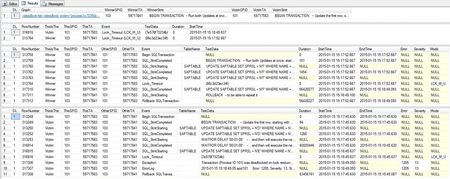
With this blog my small deadlock serie will be completed. We started with the basics , then we discussed several examples and today we will close up with a more advanced approach to solve deadlocks. The intention to build this solution was to get the complete transactions that led to the deadlock, as in some cases the first part of the deadlock (getting the first set of locks) is important to understand and to solve the deadlock. There are three phases in this approach: Collect, Prepare and Analyse, as also described in SAP note 1774085. Collect In the Collect phase we have to set up an SQL Server Profiler trace to get all the statements that belong to the participating threads. Download the attached documents to any directory. To set up and start the profiler trace, proceed as follows: Log on to your SQL Server with the <sid>adm user or any other local administrator Open the registry and navigate to [HKEY_LOCAL_MACHINE\SOFTWARE\Microsoft\Microsoft SQL Server\Instance Names\SQL] and find your SQL Server Instance name on the list (MSSQLSERVER = Default Instance). Keep the Data value of your instance (e.g. MSSQL.1). Change the registry key "NonAlertableErrors" at this place (replace <XXX> with the found data) [HKEY_LOCAL_MACHINE\SOFTWARE\Microsoft\Microsoft SQL Server\<XXX>\SQLServerAgent] Change "NonAlertableErrors"="1204,4002" to "NonAlertableErrors"="4002" Restart the SQL Server Agent Service. Open a new query window and switch to the master Database Load the script from the file Setup Delayed Profilerstop at Deadlock.docx and change the line that starts with set @DirectoryName = N'C:.....' to a file location with enough free space. The default is the directory c:\temp. You need at least 2.5 GB free space in this directory. Save and run the changed script. It will return the ID of the created trace (usually the number 2) and a list of active traces. The trace with the ID = 1 is the built-in default trace in SQL Server 2005 and higher. The script will create and start an SQL Profiler Trace, a SQL Agent Job and an Alert for the SQL Error 1204 (Deadlock). The trace will write 250MB trace files. In SQL 2005 and higher the number of files is limited to 10, under SQL 2000 there is no such limit of files created. Please watch the directory to avoid that the disk is filled up. You can delete older trace files, but you should keep at least the five newest files. As soon the error 1204 occurs in that database, the alert gets fired and will invoke the SQL Server Agent Job. The job will stop the trace after 20 seconds and will clean up all the created stored procedures and the job itself. If you want to stop the trace manually, just start the job with the name 'Stop Profiler at Deadlock'. This will stop the trace and will remove all the objects that the script has created. When done, revert the NonAlertableErrors in the registry to the original value and restart the SQL Server Agent Service. Prepare In this step, the trace is imported into a new database to analyze it. Open the SQL Server Management Studio and connect to the SQL Server instance, where you want to perform the analysis. This does not have to be the instance where the deadlocks occur. It is recommended to NOT run the analysis on the productive SQL Server instance, even when the deadlock occurs there. Open the script 'Step 1 - Read Into a Table.docx' into the query editor and do the following changes: Ensure that the name [DeadlockBlogAdv] is not used on your system as a database name or replace all [DeadlockBlogAdv] entries with a name of a temporary database. Change the path and filename of the line that looks like this: FROM fn_trace_gettable ('C:\Temp\SAP-SQLTrace-2012.10.09-14.11.21', default); Change it to the path and filename of the first file of the collected profiler trace of the Collect step. The SQL Server will then read this file and all subsequent files of the same trace that have the same name and trailing, increasing numbers (e.g. _1, _2 etc.). Execute the script. It creates the database and a trace table and reads the given trace file and all subsequent existing files into this table. Furthermore, it creates some helpful indices on the table to speed up the identification process of the deadlock transactions. If full text search is installed it creates a full text index on the TextData column to enable fuzzy searches. It returns the start and end time of the trace and the number of rows imported. As a last step it will shrink the log of the database as it is no longer needed. Open the script 'Step 2 - Create Data View. sql' and execute it in the same database as the first one. It creates a view over the Trace table to get more readable information from the trace. Analysis As we now have everything prepared, please open and execute the script 'Step 3 - Get Winner and Victims.docx'. It reads the deadlock graph(s) from the trace (the same graph(s) that you get when you follow SAP note 32129 ) and extracts the winner and victims of the deadlock. The result is separated in four sets: The first one gives you a clickable link to open the deadlock in a XML view and a overview over the transactions and their last statements. When you save the XML as a xdl file you can get the same output as in my last blog posts. The second set lists the exact time of the deadlock (when the lock timeout occurs) and the row numbers in the trace file. The third and fourth set gives you the complete transactions of the winner (top) and victim (bottom) transaction. The victim transaction always ends with a 'Lock_Timeout' followed by an exception in the EventClassDesc column which you find close to the bottom. The statement that caused the deadlock is shown before the 'Lock_timeout' as 'Statement Starting' with no matching 'Statement Completed'. The winner also shows a 'Lock_timeout' at the same time, but with the 'Statement Completed' of the Deadlock Statement right after the 'Lock_Timeout'. I have seen multiple victims against one winner. This happens when the winner has already a lot of log generated (see the basics ) and multiple, very fast victims loose against the winner in a short period of time. If the trace contains multiple deadlocks the output looks like this: The different deadlocks can be separated by the column DL (Deadlock) and the matching DL number. In this trace we captured three deadlocks, which are listed here. As an example you can see that in deadlock number 1 the winner and victim deadlocked twice against each other (at 17:22:44.410 and 17:22:44.680). The same is true for deadlock number 2. With this information, you can identify when (Column StartTime) each session (SPID) has acquired locks (TextData) on the given tables (Column TableName). This information can help you to understand the deadlock and then either to modify the application or to create or modify indexes to avoid the deadlock. Have a nice and deadlock free day.
How to setup alerts for deadlocks using Log Analytics
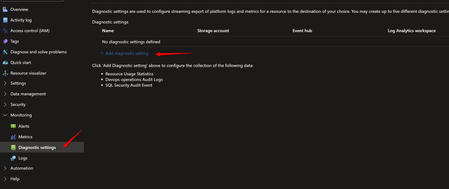
Managed Instance diagnostic events do not support sending deadlock information to Log Analytics. However, through auditing, it's possible to query failed queries along with their reported error messages—though this does not include deadlock XML. We will see how we can send information to Log Analytics and setup an alert for when a deadlock occurs. Step 1 - Deploy Log Analytics Create a Log Analytics workspace if you currently don't have one Create a Log Analytics workspace Step 2 - Add diagnostic setting On the Azure Portal, open the Diagnostic settings of your Azure SQL Managed Instance and choose Add diagnostic setting Select SQL Security Audit Event and choose has destination your Log Analytics workspace Step 3 - Create a server audit on the Azure SQL Managed Instance Run the query below on the Managed Instance Rename the server audit and server audit specification to a name of your choice. CREATE SERVER AUDIT [audittest] TO EXTERNAL_MONITOR GO -- we are adding Login audit, but only BATCH_COMPLETED_GROUP is necessary for query execution CREATE SERVER AUDIT SPECIFICATION audit_server FOR SERVER AUDIT audittest ADD (SUCCESSFUL_LOGIN_GROUP), ADD (BATCH_COMPLETED_GROUP), ADD (FAILED_LOGIN_GROUP) WITH (STATE = ON) GO ALTER SERVER AUDIT [audittest] WITH (STATE = ON) GO Step 4 - Check events on Log Analytics It may take some time for records to begin appearing in Log Analytics. Open your Log Analytics workspace and choose Logs To verify if data is being ingested, run the following query in Log Analytics and wait until you start getting the first results: Make sure that you change servername with your Azure SQL Managed Instance name AzureDiagnostics | where LogicalServerName_s == "servername" | where Category == "SQLSecurityAuditEvents" | take 10 Example: Step 5 - (Optional) Create a deadlock event for testing Create a deadlock scenario so you can see a record on log analytics. Example: Open SSMS and a new query window under the context of a user database (you can create a test database just for this test). create a table on a user database and insert 10 records: create table tb1 (id int identity(1,1) primary key clustered, col1 varchar(30)) go insert into tb1 values ('aaaaaaa') go 10 You can close the query window or reuse for the next step. Open a new query window (or reuse the first query window) and run (leave the query window open after executing): begin transaction update tb1 set col1 = 'bbbb' where id = 1 Open a second query window and run (leave the query window open after executing): begin transaction update tb1 set col1 = 'bbbb' where id = 2 Go back to the first query window opened and run (the query will be blocked - will stay executing): update tb1 set col1 = 'bbbb' where id = 2 Go back to the second query window opened and run (this transaction will be victim of deadlock): update tb1 set col1 = 'bbbb' where id = 1 You can rollback and close all windows after the deadlock exception. Step 6 - (Optional) Check the deadlock exception on Log Analytics Note: the record can take some minutes to appear on Log Analytics Use the query below to obtain the Deadlock events for the last hour (we are looking for Error 1205) Make sure that you change servername with your Azure SQL Managed Instance name AzureDiagnostics | where TimeGenerated > ago(1h) | where LogicalServerName_s == "servername" | where Category == "SQLSecurityAuditEvents" | where succeeded_s == "false" | where additional_information_s contains "Err 1205, Level 13" Step 7 - Use query to Create an Alert Use the query below to create an Alert on Azure Log Analytics Make sure that you change servername with your Azure SQL Managed Instance name. The query checks for deadlocks that occurred on the previous hour. AzureDiagnostics | where TimeGenerated > ago(1h) | where LogicalServerName_s == "servername" | where Category == "SQLSecurityAuditEvents" | where succeeded_s == "false" | where additional_information_s contains "Err 1205, Level 13" Run the query and click on New alert rule Create the alert with the desired settingsTransaction was deadlocked on lock resources with another process ??
Hi, We have a cognos datastage job that updates a table. It fails with an error that the table is locked., see below ini_PerformanceManagement_tblEmployees,0: ODBC function "SQLExecute" reported: SQLSTATE = 40001: Native Error Code = 1,205: Msg = [Microsoft][ODBC Driver 17 for SQL Server][SQL Server]Transaction (Process ID 67) was deadlocked on lock resources with another process and has been chosen as the deadlock victim. Rerun the transaction. (CC_OdbcDBStatement::executeUpdate, file CC_OdbcDBStatement.cpp, line 1,058) Anyone any ideas about how to resolve this? Thanks for your time, Ollie390Views0likes1Comment
Deadlocks on High Frequency Updates
Using SQL Server 2022, I'm stress testing an UPDATE statement. I'm using a python script to send parallel requests to the database. The problem is that, as soon as the number of parallel requests exceed max_workers_count, 576 in my case, I get multiple errors of the form: ('40001', '[40001] [Microsoft][ODBC Driver 17 for SQL Server][SQL Server]Transaction (Process ID 448) was deadlocked on lock | thread resources with another process and has been chosen as the deadlock victim. Rerun the transaction. (1205) (SQLExecDirectW)') I wasn't able to reproduce the error with less requests than max_workers_count. The UPDATE request is the following: UPDATE dbo.UsersAnswer SET UsersSelectionType = ? WHERE For_Question = ? AND For_Quiz = ? AND FK_Answer = ?; Note that, I've tried with and without (UPDLOCK, ROWLOCK) and (UPDLOCK), but it doesn't change the outcome. Also, the updates are done for the same primary key. Finally, the UsersAnswer table is created as follows: CREATE TABLE [dbo].[UsersAnswer]( [For_Question] [smallint] NOT NULL, [For_Quiz] [uniqueidentifier] NOT NULL, [FK_Answer] [int] NOT NULL, [UsersSelectionType] [tinyint] NOT NULL, CONSTRAINT [PK_UsersAnswer] PRIMARY KEY CLUSTERED ( [For_Question] ASC, [For_Quiz] ASC, [FK_Answer] ASC )WITH (PAD_INDEX = OFF, STATISTICS_NORECOMPUTE = OFF, IGNORE_DUP_KEY = OFF, ALLOW_ROW_LOCKS = ON, ALLOW_PAGE_LOCKS = ON, OPTIMIZE_FOR_SEQUENTIAL_KEY = OFF) ON [PRIMARY] ) ON [PRIMARY] GO ALTER TABLE [dbo].[UsersAnswer] WITH CHECK ADD CONSTRAINT [FK_UsersAnswer_Answer_FK_Answer] FOREIGN KEY([FK_Answer]) REFERENCES [dbo].[Answer] ([PK_Answer]) GO ALTER TABLE [dbo].[UsersAnswer] CHECK CONSTRAINT [FK_UsersAnswer_Answer_FK_Answer] GO ALTER TABLE [dbo].[UsersAnswer] WITH CHECK ADD CONSTRAINT [FK_UsersAnswer_QQ_For_Question_For_Quiz] FOREIGN KEY([For_Question], [For_Quiz]) REFERENCES [dbo].[QQ] ([FK_Question], [FK_Quiz]) ON DELETE CASCADE GO ALTER TABLE [dbo].[UsersAnswer] CHECK CONSTRAINT [FK_UsersAnswer_QQ_For_Question_For_Quiz] GO Do you have any idea on what could cause the deadlock? The deadlock graph is huge, you can find it https://drive.google.com/file/d/1cs_-QULtF0yBsqOIzab56l9oYxKypbUV/view?usp=sharing. Thanks for your insights on this.Solved826Views0likes8CommentsLesson Learned #513: Using SQL Copilot and Python Retry Logic to Resolve Deadlocks in Azure SQL DB
A few weeks ago, I worked with a service request where our customer has a Python application that was reporting a deadlock with the following error message: INFO:root:Connected to the Database in dbname - Thread id 21132 - 0.0454 seconds --- INFO:root:Connected to the Database in dbname - Thread id 39856 - 0.4066 seconds --- ERROR:root:Transaction 2 failed: ('40001', '[40001] [Microsoft][ODBC Driver 18 for SQL Server][SQL Server]Transaction (Process ID 84) was deadlocked on lock resources with another process and has been chosen as the deadlock victim. Rerun the transaction. (1205) (SQLExecDirectW)') INFO:root:Transaction 1 completed successfully. In many of our articles and public information like these ones Analyze and prevent deadlocks in Azure SQL Database or Lesson Learned #19: How to obtain the deadlocks of your Azure SQL Database or Managed Instance?, we review ways to detect and resolve deadlocks by analyzing their details. At this time, I would like to share my experience using Copilot in Azure SQL Database to pinpoint the deadlock. After the error received, we started using with several prompts like Give me the deadlock that occurred in my database recently or Provide detailed information about the last deadlock in my database, including involved tables and queries and we got the following information: Based on the internal Azure SQL telemetry, the following deadlock query hashes have been identified in your database within the past 2 hours: Deadlock Details Query Hash 1: 0xD57AFD9584A2C053 Query Text 1: (@2 tinyint,@1 varchar(8000))UPDATE [dbo].[MS_TableA_MS] SET [ValueA] = @1 WHERE [ID]=@2; Query Hash 2: 0xBEAB84B27CE1F534 Query Text 2: (@2 tinyint,@1 varchar(8000))UPDATE [dbo].[MS_TableB_MS] SET [ValueB] = @1 WHERE [ID]=@2; At this point we identified the queries involved on this deadlock and we executed a second prompt that we used was: Suggest options to prevent or mitigate the recent deadlock in my database and we got very useful information about multiple options to prevent or mitigate the deadlock, like, Index Optimization, Force a Query Plan, Rewriting Transactions, Retry Logic in Application or T-SQL Code, etc.. For application retry logic, we traced the source code that triggered the issue and added a retry mechanism to handle the deadlock. Here’s a simple example of what we implemented. Basically, this small code, creates two tables, runs two transactions in two different threads and depending on the value of retry parameter retry or not the deadlock operation. # Constants for table name used in the deadlock scenario TABLE_A_NAME = "dbo.MS_TableA_MS" TABLE_B_NAME = "dbo.MS_TableB_MS" TABLE_A_COLUMN = "ValueA" TABLE_B_COLUMN = "ValueB" ITEM_ID = 1 TABLE_A_INITIAL_VALUE = 'Value A1' TABLE_B_INITIAL_VALUE = 'Value B1' def simulate_deadlock(retry=False, retry_attempts=3): """ Simulates a deadlock by running two transactions in parallel that lock resources. If retry is enabled, the transactions will attempt to retry up to a specified number of attempts. """ setup_deadlock_tables() thread1 = threading.Thread(target=run_transaction_with_retry, args=(deadlock_transaction1, retry_attempts,retry)) thread2 = threading.Thread(target=run_transaction_with_retry, args=(deadlock_transaction2, retry_attempts,retry)) thread1.start() thread2.start() thread1.join() thread2.join() def run_transaction_with_retry(transaction_func, attempt_limit,retry): attempt = 0 while attempt < attempt_limit: try: transaction_func(retry) break except pyodbc.Error as e: if 'deadlock' in str(e).lower() and retry: attempt += 1 logging.warning(f"Deadlock detected. Retrying transaction... Attempt {attempt}/{attempt_limit}") time.sleep(1) else: logging.error(f"Transaction failed: {e}") break def setup_deadlock_tables(): """ Sets up the tables required for the deadlock simulation, using constants for table and column names. """ conn, dbNameReturn = ConnectToTheDB() if conn is None: logging.info('Error establishing connection to the database. Exiting setup.') return cursor = conn.cursor() try: cursor.execute(f""" IF OBJECT_ID('{TABLE_A_NAME}', 'U') IS NULL CREATE TABLE {TABLE_A_NAME} ( ID INT PRIMARY KEY, {TABLE_A_COLUMN} VARCHAR(100) ); """) cursor.execute(f""" IF OBJECT_ID('{TABLE_B_NAME}', 'U') IS NULL CREATE TABLE {TABLE_B_NAME} ( ID INT PRIMARY KEY, {TABLE_B_COLUMN} VARCHAR(100) ); """) cursor.execute(f"SELECT COUNT(*) FROM {TABLE_A_NAME}") if cursor.fetchone()[0] == 0: cursor.execute(f"INSERT INTO {TABLE_A_NAME} (ID, {TABLE_A_COLUMN}) VALUES ({ITEM_ID}, '{TABLE_A_INITIAL_VALUE}');") cursor.execute(f"SELECT COUNT(*) FROM {TABLE_B_NAME}") if cursor.fetchone()[0] == 0: cursor.execute(f"INSERT INTO {TABLE_B_NAME} (ID, {TABLE_B_COLUMN}) VALUES ({ITEM_ID}, '{TABLE_B_INITIAL_VALUE}');") conn.commit() logging.info("Tables prepared successfully.") except Exception as e: logging.error(f"An error occurred in setup_deadlock_tables: {e}") conn.rollback() finally: conn.close() def deadlock_transaction1(retry=False): conn, dbNameReturn = ConnectToTheDB() if conn is None: logging.info('Error establishing connection to the database. Exiting transaction 1.') return cursor = conn.cursor() try: cursor.execute("BEGIN TRANSACTION;") cursor.execute(f"UPDATE {TABLE_A_NAME} SET {TABLE_A_COLUMN} = 'Transaction 1' WHERE ID = {ITEM_ID};") time.sleep(2) cursor.execute(f"UPDATE {TABLE_B_NAME} SET {TABLE_B_COLUMN} = 'Transaction 1' WHERE ID = {ITEM_ID};") conn.commit() logging.info("Transaction 1 completed successfully.") except pyodbc.Error as e: logging.error(f"Transaction 1 failed: {e}") conn.rollback() if 'deadlock' in str(e).lower() and retry: raise e # Rethrow the exception to trigger retry in run_transaction_with_retry finally: conn.close() def deadlock_transaction2(retry=False): conn, dbNameReturn = ConnectToTheDB() if conn is None: logging.info('Error establishing connection to the database. Exiting transaction 2.') return cursor = conn.cursor() try: cursor.execute("BEGIN TRANSACTION;") cursor.execute(f"UPDATE {TABLE_B_NAME} SET {TABLE_B_COLUMN} = 'Transaction 2' WHERE ID = {ITEM_ID};") time.sleep(2) cursor.execute(f"UPDATE {TABLE_A_NAME} SET {TABLE_A_COLUMN} = 'Transaction 2' WHERE ID = {ITEM_ID};") conn.commit() logging.info("Transaction 2 completed successfully.") except pyodbc.Error as e: logging.error(f"Transaction 2 failed: {e}") conn.rollback() if 'deadlock' in str(e).lower() and retry: raise e # Rethrow the exception to trigger retry in run_transaction_with_retry, finally: conn.close()432Views0likes0CommentsLesson Learned #424:Detecting and Notifying Deadlocks in Azure SQL Managed Instance
Deadlocks in any database system can be a performance nightmare, leading to transactions getting blocked and ultimately terminated. Azure SQL Managed Instance is no different. Thankfully, with Extended Events and Database Mail, we can monitor and promptly react to such occurrences. Today, we got a new service request that our customer request to have an example how to detect a deadlock and receive an email with the details. I would like to share an example, please, feel free to customize this code.4.4KViews0likes0Comments