datasync
9 TopicsLesson Learned #428: SqlError Number:229 provisioning DataSync in Azure SQL Database
We got a new issue when our customer found provisioning a Sync Group named 'XXX' failed with error: Database re-provisioning failed with the exception 'SqlException ID: XX-900f-42a5-9852-XXX, Error Code: -2146232060 - SqlError Number:229, Message: SQL error with code 229.'. Following I would like to share some details what is the error and the solution to fix it.8.6KViews0likes0CommentsLesson Learned #353: Sync failed with Inner exception: Exception of type System.OutOfMemoryException
Our customer reported today that Data Sync failed is failing with the following inner exception: System.OutOfMemoryException error. Sync failed with the exception 'An unexpected error occurred when applying batch file C:\\XXX\\XXXX\\AppData\\Local\\Temp\\XXX\\sync_zyz\\ec53ddeb-xxxx.batch. See the inner exception for more details.Inner exception: Exception of type 'System.OutOfMemoryException' was thrown. For more information, provide tracing ID ‘XXX9’ to customer support.'1.9KViews1like0CommentsUnderstanding Azure SQL Data Sync Firewall Requirements
Why IP Whitelisting Is Required and What Customers Should Know Azure SQL Data Sync is commonly used to synchronize data between on‑premises SQL Server databases and Azure SQL Database. While the setup experience is generally straightforward, customers sometimes encounter connectivity or configuration issues that are rooted in network security and firewall behavior. This blog explains why Azure SQL Data Sync requires firewall exceptions, what type of IP addresses may appear in audit logs, and how to approach this topic from a security and documentation standpoint—based on real troubleshooting discussions within the Azure SQL Data Sync ecosystem. The Scenario: Sync Agent Configuration Fails Despite Valid Setup A frequently reported issue occurs when the Azure SQL Data Sync Agent (installed on an on‑premises server) fails to save its configuration. The error typically indicates that a valid agent key is required—even when: The agent key was freshly generated from the Azure SQL Data Sync portal Connection tests succeed The agent has been reinstalled or the server restarted New sync groups were created Despite these efforts, synchronization does not proceed until a specific public IP address is allowed through the Azure SQL Database firewall. Why Firewall Rules Matter for Azure SQL Data Sync Azure SQL Database is protected by a server‑level firewall that blocks all inbound traffic by default. Any external client—including the Data Sync Agent—must be explicitly allowed to connect. In Azure SQL Data Sync: The Data Sync Agent runs on‑premises It connects outbound over TCP port 1433 It uses the public endpoint of the Azure SQL logical server The Azure SQL firewall must allow the public IP address used by the agent If this IP is not allowed, the agent cannot complete configuration or perform synchronization operations—even if authentication and permissions are otherwise correct. Identifying the Required IP Address In the referenced discussion, the required IP address was identified by reviewing Azure SQL audit logs, which revealed connection attempts being blocked at the firewall layer. Once this IP address was added to the Azure SQL server firewall rules, synchronization completed successfully. This highlights an important point: Audit logs can be a reliable way to identify which IP address must be whitelisted when Data Sync connectivity fails. Is This IP Address Owned by Microsoft? Can It Change? A natural follow‑up question is whether the observed IP address is Microsoft‑owned, and whether it can change. From the discussion: Azure SQL Data Sync relies on Microsoft‑managed service infrastructure Some outbound connectivity may originate from Azure service IP ranges Microsoft publishes official IP ranges and service tags for transparency However, documentation does not guarantee that a single static IP will always be used. Customers should therefore treat firewall configuration as a network security requirement, not a one‑time exception. Related Microsoft Resources While Azure SQL Data Sync documentation focuses on setup and troubleshooting, firewall requirements are often implicit rather than explicitly called out. The following Microsoft resources were referenced in the discussion to help customers understand Azure service IP ownership and ranges: Gateway IP addresses – Azure Synapse Analytics Download Azure IP Ranges and Service Tags – Public Cloud These resources can help security teams validate Microsoft‑owned IPs and plan firewall policies accordingly. Key Takeaways for Customers ✅ Azure SQL Data Sync requires firewall access to Azure SQL Database ✅ The public IP used by the Data Sync Agent must be explicitly allowed ✅ Audit logs are useful for identifying blocked IPs ✅ IP addresses may belong to Microsoft infrastructure and can change over time ✅ Firewall configuration is a security prerequisite, not an optional step Closing Thoughts Azure SQL Data Sync operates securely by design, leveraging Azure SQL Database firewall protections. While this can introduce configuration challenges, understanding the network flow and firewall requirements can significantly reduce setup friction and troubleshooting time. If you're implementing Azure SQL Data Sync in a locked‑down network environment, we recommend involving your network and security teams early and validating firewall rules as part of the initial deployment checklist.Troubleshooting Azure SQL Data Sync Groups Stuck in Progressing State
Azure SQL Data Sync is commonly used to synchronize data across Azure SQL Databases and on‑premises SQL Server environments. While the service works well in many scenarios, customers may occasionally encounter a situation where a Sync Group remains stuck in a “Progressing” state and cannot be started, stopped, or refreshed. This blog walks through a real-world troubleshooting scenario, highlights the root cause, and outlines practical remediation steps based on actual support investigation and collaboration. Problem Overview In this scenario, the customer reported that: The Sync Group was stuck in “Progressing” for multiple days Sync operations could not be started or stopped Tables could not be refreshed or reconfigured Azure Activity Logs showed operations as Succeeded, yet sync never progressed Our backend telemetry showed the Sync Group as Active, while hub and member databases were in Reprovisioning state The last successful sync occurred on XX day, after which the sync pipeline stopped making progress. Initial Investigation Findings During the investigation, several key observations were made: 1. High DATA IO Utilization Telemetry and backend checks revealed that DATA IO utilization was pegged at 100% on one of the sync member databases starting XX day. Despite no noticeable change in application workload, the database was under sustained IO pressure, which directly impacted Data Sync operations. 2. Deadlocks During Sync Processing Our backend telemetry showed repeated deadlock errors: Transaction was deadlocked on lock resources with another process and has been chosen as the deadlock victim. These deadlocks were observed for multiple Sync Member IDs starting the same day IO saturation began. This aligned with the hypothesis that resource contention, not a Data Sync service failure, was the underlying issue. 3. Metadata Database Was Healthy The Sync metadata database was running on a serverless Azure SQL Database (1 vCore) and showed healthy resource usage, ruling it out as a bottleneck. Recommended Troubleshooting Steps Based on the findings, the following steps were recommended and validated: ✅ Step 1: Address Database Resource Constraints First Before attempting to recreate or reset the Sync Group, the focus was placed on resolving DATA IO saturation on the affected database. Actions included: Scaling up the database (DTUs / vCores) Monitoring IO utilization after scaling Ensuring sufficient headroom for sync operations This was identified as the primary remediation step. ✅ Step 2: Use the Azure SQL Data Sync Health Checker The Azure SQL Data Sync Health Checker was recommended to validate: Sync metadata integrity Table-level configuration issues Agent and connectivity status GitHub tool: AzureSQLDataSyncHealthChecker ✅ Step 3: Validate Sync Group and Agent State via PowerShell PowerShell was used to confirm: Sync Group state Last successful sync time On‑premises Sync Agent connectivity Example commands used: Get-AzureRmSqlSyncGroup ` -ResourceGroupName "ResourceGroup01" ` -ServerName "Server01" ` -DatabaseName "Database01" | Format-List Get-AzureRmSqlSyncAgent ` -ResourceGroupName "ResourceGroup01" ` -ServerName "Server01" | Select ResourceGroupName, SyncState, LastSyncTime Resolution After the customer increased the database size, DATA IO utilization dropped, sync operations resumed normally, and the customer confirmed that the issue was resolved.200Views0likes0CommentsAzure SQL Data Sync Fails with "Cannot Insert NULL": Understanding the Root Cause
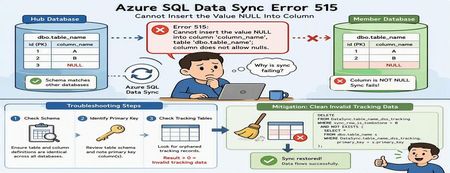
Azure SQL Data Sync is a powerful service that enables data synchronization across multiple Azure SQL Databases. While synchronization failures are relatively uncommon, one error that administrators occasionally encounter is SQL Server Error 515, indicating that a NULL value cannot be inserted into a non-nullable column. At first glance, this appears to be a straightforward data-quality problem. However, in many cases, the actual root cause lies elsewhere: inconsistencies between Azure SQL Data Sync tracking metadata and the underlying source data. This article explains: Common causes of Error 515 during synchronization How to troubleshoot the issue How to identify invalid tracking records Safe mitigation approaches to restore synchronization The Error A synchronization operation may fail with an error similar to the following: SqlException Error Code: -2146232060 SqlError Number: 515 Message: Cannot insert the value NULL into column 'column_name', table 'dbo.table_name'; column does not allow nulls. INSERT fails. SqlError Number: 3621 The statement has been terminated. Although the error references a NULL value being inserted into a destination table, the root cause is not always missing data. In many cases, the issue originates from synchronization metadata maintained by Azure SQL Data Sync. How Azure SQL Data Sync Tracks Changes Azure SQL Data Sync relies on internal tracking tables to detect and replicate data changes between Hub and Member databases. Whenever rows are inserted, updated, or deleted, synchronization metadata is recorded in tracking tables. Data Sync uses this metadata to determine what changes need to be propagated to other databases. If the tracking metadata becomes inconsistent with the actual source table contents, Data Sync may attempt to synchronize invalid records, resulting in failures such as: Cannot insert the value NULL into column... Common Root Causes Scenario 1: Schema Mismatch Between Databases One of the most common causes of synchronization failures is a schema mismatch between synchronized databases. For example: Database Column Definition Hub NULL Allowed Member A NOT NULL Member B NOT NULL If Data Sync replicates a row containing a NULL value from the Hub database, synchronization will fail when the destination database does not allow NULL values. Areas to Validate Ensure the following are identical across all synchronized databases: Column nullability (NULL vs NOT NULL) Data types Column length Constraints Primary key definitions Even small schema differences can cause synchronization failures. Scenario 2: Invalid Tracking Metadata A less obvious but frequently encountered scenario involves orphaned records in Data Sync tracking tables. This can occur when: Primary key values are updated directly Data is modified outside expected application workflows Historical tracking records become disconnected from source data Synchronization metadata references rows that no longer exist When Data Sync processes these stale entries, synchronization may fail with Error 515 even though the source data itself appears valid. Troubleshooting Process Step 1: Verify Column Definitions Begin by examining the affected table and column identified in the error message. For example: sp_help 'dbo.table_name' Review the schema on both Hub and Member databases and verify that: The affected column has the same definition everywhere NULL settings are identical Data types and lengths match If discrepancies exist, align the schemas across all synchronized databases before proceeding. Step 2: Review the Table Schema If the schema appears consistent, review the complete definition of the affected table. Pay particular attention to: Primary key columns Identity columns Constraints Nullable settings Identifying the primary key is especially important for the next validation step. Step 3: Check for Orphaned Tracking Records Run the following query against both Hub and Member databases. Replace: table_name primary_key with the actual table and primary key column names. SELECT COUNT(*) FROM DataSync.table_name_dss_tracking t WHERE sync_row_is_tombstone = 0 AND NOT EXISTS ( SELECT * FROM dbo.table_name s WHERE t.primary_key = s.primary_key ); For tables with composite primary keys, include all key columns in the comparison. How to Interpret the Results Result > 0 One or more orphaned tracking records exist. This indicates that the tracking table contains entries that reference records no longer present in the source table. This is a strong indicator that invalid synchronization metadata is causing the failure. Result = 0 No orphaned records were detected. If the synchronization error persists, further investigation should focus on schema consistency, data quality, and additional synchronization diagnostics. Mitigation Option 1: Correct Schema Differences If schema inconsistencies are found: Align the table definition across all synchronized databases. Ensure NULL and NOT NULL settings are consistent. Verify primary key definitions match. Reinitialize synchronization if necessary. After schema alignment, synchronization can typically resume successfully. Mitigation Option 2: Clean Invalid Tracking Data If orphaned tracking records are identified, remove the invalid synchronization metadata. Important: Always validate and test cleanup operations in a non-production environment before executing them in production. The following query removes tracking entries that no longer correspond to records in the source table: DELETE FROM DataSync.table_name_dss_tracking WHERE sync_row_is_tombstone = 0 AND NOT EXISTS ( SELECT * FROM dbo.table_name s WHERE DataSync.table_name_dss_tracking.primary_key = s.primary_key ); Replace: table_name primary_key with the appropriate values for your environment. After cleanup, Data Sync can rebuild valid change tracking information and synchronization typically returns to a healthy state. Additional Validation Query The following query can help identify historical deletion records that exist in tracking tables: SELECT tr.id1 FROM DataSync.table2_dss_tracking tr LEFT JOIN dbo.table2 orig ON tr.id1 = orig.id1 WHERE tr.sync_row_is_tombstone = 1 AND orig.id1 IS NULL AND tr.last_change_datetime > DATEADD(day, -20, GETUTCDATE()); This can provide additional insight into how synchronization metadata is tracking deleted records. Understanding the Underlying Cause The most important takeaway is that the NULL value reported in the synchronization error is often not the actual problem. A common sequence looks like this: A primary key value is modified directly. UPDATE dbo.table_name SET primary_key = new_value; Data Sync tracking metadata continues to reference the original key value. The source table and tracking table become inconsistent. During synchronization, Data Sync attempts to process the stale tracking record. The synchronization operation fails and surfaces a "Cannot insert the value NULL into column" error. In these scenarios, cleaning invalid tracking records resolves the inconsistency and restores successful synchronization. Best Practices to Prevent Recurrence To minimize the likelihood of synchronization failures: Keep schemas identical across all synchronized databases Avoid updating primary key values whenever possible Use surrogate keys for synchronized tables Validate schema consistency before deploying schema changes Periodically investigate Data Sync tracking tables when troubleshooting synchronization failures Test schema modifications in non-production environments before deployment Conclusion When Azure SQL Data Sync reports a: Cannot insert the value NULL into column... error, it is important not to assume that the problem is caused by missing data in the source table. A structured troubleshooting approach should include: Verifying schema consistency across synchronized databases Reviewing primary key definitions Investigating Data Sync tracking tables for orphaned records Cleaning invalid synchronization metadata when appropriate In many real-world cases, stale tracking records are the true root cause. Identifying and removing these invalid entries can restore synchronization quickly and avoid unnecessary application or schema changes. Have you encountered similar Azure SQL Data Sync issues in your environment? Share your experience and troubleshooting techniques in the comments below.199Views0likes0CommentsAzure Data Sync: Fixing “Cannot find the user ‘DataSync_executor’” When Creating a New Sync Group
Summary When creating a new Azure SQL Data Sync group, customers may encounter the following error during setup—even when no active sync groups exist: “Failed to perform data sync operation: Cannot find the user 'DataSync_executor', because it does not exist or you do not have permission.” This failure typically occurs during certificate and symmetric key creation as Azure attempts to grant permissions to the DataSync_executor role. In this post, we’ll walk through: The common scenario where this issue appears Why cleanup scripts alone may not fix it A supported, reliable resolution approach to restore Data Sync successfully The Problem Scenario A customer attempts to create a brand-new Azure SQL Data Sync group (hub + members), but the operation fails with an error similar to: Cannot find the user 'DataSync_executor', because it does not exist or you do not have permission. Creating certificate Creating symmetric key Granting permission to [DataSync_executor] on certificate Key observations from affected cases: No active sync group exists Cleanup scripts (including Data Sync complete cleanup.sql) were already executed The failure persists even after retrying the setup Why This Happens Azure SQL Data Sync depends on system-managed database roles that must be created and configured only by the Azure Data Sync service itself. If these roles (or related permissions) are: Missing Partially deleted Left in an inconsistent state then Data Sync may fail while attempting to create certificates or grant required permissions. Important: Manually creating or partially restoring these roles is not supported and often leads to repeated failures. How to Detect the Issue Before troubleshooting further, confirm whether the required Data Sync roles are missing. 1. Run the Data Sync Health Checker Ask the customer to run Data Sync Health Checker, then review SyncDB_Log. Common warnings include: DataSync_reader IS MISSING DataSync_executor IS MISSING Missing EXECUTE/SELECT permissions on dss and TaskHosting schemas This confirms the root cause is role and permission inconsistency. Supported and Effective Resolution Step 1: Verify Roles Are Missing Run the following query on each affected database (hub and members): SELECT name FROM sys.database_principals WHERE name IN ('DataSync_executor', 'DataSync_reader'); If no rows are returned, the roles are missing and must be recovered by Azure Data Sync itself - not manually. Step 2: Fully Clean Up Leftover Data Sync Objects Do this only if the database is not actively syncing -- Remove roles if partially present DROP ROLE IF EXISTS DataSync_executor; DROP ROLE IF EXISTS DataSync_reader; -- Drop DataSync schema IF EXISTS (SELECT 1 FROM sys.schemas WHERE name = 'DataSync') BEGIN DROP SCHEMA DataSync; END This ensures there are no partial or orphaned Data Sync objects left behind that could interfere with setup. Step 3: Recreate the Sync Group (Critical Step) Do not manually recreate roles or permissions Instead: Delete the existing (failed) Sync Group from the Azure Portal Recreate the Sync Group from scratch Re-add the hub and member databases During this process, Azure will automatically: Recreate DataSync_executor and DataSync_reader Assign all required permissions Deploy the correct schemas, certificates, and procedures Key Takeaways DataSync_executor and DataSync_reader are service-managed roles Cleanup scripts alone may not fully reset a broken state Manual role creation is not supported Deleting and recreating the Sync Group is the only reliable recovery method once roles are missing Final Recommendation If you encounter Data Sync setup failures referencing DataSync_executor, always: Validate role existence Fully clean up broken artifacts Let Azure Data Sync recreate everything by rebuilding the Sync Group This approach consistently resolves the issue and restores a healthy Data Sync deployment.199Views0likes0CommentsMonitoring Azure SQL Data Sync Errors Using PowerShell
Azure SQL Data Sync is a powerful service that enables data synchronization between multiple databases across Azure SQL Database and on‑premises SQL Server environments. It supports hybrid architectures and distributed applications by allowing selected data to synchronize bi‑directionally between hub and member databases using a hub‑and‑spoke topology. However, one of the most common operational challenges faced by support engineers and customers using Azure SQL Data Sync is: ❗ Lack of proactive monitoring for sync failures or errors By default, Azure SQL Data Sync does not provide native alerting mechanisms that notify administrators when synchronization operations fail or encounter issues. This can result in silent data drift or synchronization delays that may go unnoticed in production environments. In this blog, we’ll walk through how to monitor Azure SQL Data Sync activity and detect synchronization errors using Azure PowerShell commands. Why Monitoring Azure SQL Data Sync Matters Azure SQL Data Sync works by synchronizing data between: Hub Database (must be Azure SQL Database) Member Databases (Azure SQL Database or SQL Server) Sync Metadata Database (stores sync configuration and logs) All synchronization activity—including errors, failures, and successes—is logged internally within the Sync Metadata Database and exposed through Azure SQL Sync Group logs. Monitoring these logs enables: Detection of sync failures Identification of schema mismatches Validation of sync completion Troubleshooting of sync group issues Verification of last successful sync activity Prerequisites Before monitoring Azure SQL Data Sync activity, ensure the following: Azure PowerShell module (Az.Sql) is installed You have access to the Azure SQL Data Sync resources Proper authentication and subscription context are configured Install and import the required module if not already available: # Install Azure PowerShell module if not already installed Install-Module -Name Az -Repository PSGallery -Force # Import the SQL module Import-Module Az.Sql Authenticate to Azure: # Login to Azure Connect-AzAccount -TenantId "<tenant-id>" # Set subscription context Set-AzContext -SubscriptionId "<subscription-id>" These commands enable access to Azure SQL Sync Group monitoring operations. Monitoring Sync Group Status To retrieve Sync Group details, define the required variables: # Define variables $resourceGroup = "rg-datasync-demo" $serverName = "<hub-server-name>" $databaseName = "HubDatabase" $syncGroupName = "SampleSyncGroup" # Get sync group details Get-AzSqlSyncGroup -ResourceGroupName $resourceGroup ` -ServerName $serverName ` -DatabaseName $databaseName ` -SyncGroupName $syncGroupName | Format-List Note: The LastSyncTime property returned by Get-AzSqlSyncGroup may sometimes display a value such as 1/1/0001, even when synchronization operations are completing successfully. To obtain accurate synchronization timestamps, it is recommended to use Sync Group Logs instead. Monitoring Sync Activity Using Logs (Recommended) To monitor synchronization activity and retrieve detailed sync status, use: # Get sync logs for the last 24 hours $startTime = (Get-Date).AddHours(-24).ToString("yyyy-MM-ddTHH:mm:ssZ") $endTime = (Get-Date).ToString("yyyy-MM-ddTHH:mm:ssZ") Get-AzSqlSyncGroupLog -ResourceGroupName $resourceGroup ` -ServerName $serverName ` -DatabaseName $databaseName ` -SyncGroupName $syncGroupName ` -StartTime $startTime ` -EndTime $endTime This command retrieves: Sync operation timestamps Sync status Error messages Activity details Sync Group Logs provide more reliable monitoring information than the Sync Group status output alone. Retrieving the Last Successful Sync Time To determine the most recent successful synchronization operation: # Get the most recent successful sync timestamp $startTime = (Get-Date).AddDays(-7).ToString("yyyy-MM-ddTHH:mm:ssZ") $endTime = (Get-Date).ToString("yyyy-MM-ddTHH:mm:ssZ") Get-AzSqlSyncGroupLog -ResourceGroupName $resourceGroup ` -ServerName $serverName ` -DatabaseName $databaseName ` -SyncGroupName $syncGroupName ` -StartTime $startTime ` -EndTime $endTime | Where-Object { $_.Details -like "*completed*" -or $_.Type -eq "Success" } | Select-Object -First 1 Timestamp, Type, Details This helps administrators validate whether synchronization is occurring as expected across the sync topology. Filtering for Synchronization Errors To identify failed or problematic sync operations: # Get only error logs Get-AzSqlSyncGroupLog -ResourceGroupName $resourceGroup ` -ServerName $serverName ` -DatabaseName $databaseName ` -SyncGroupName $syncGroupName ` -StartTime $startTime ` -EndTime $endTime | Where-Object { $_.LogLevel -eq "Error" } Filtering logs by error type allows for: Rapid identification of failed sync attempts Analysis of failure causes Early detection of data consistency risks Key Takeaways Azure SQL Data Sync does not provide native alerting for sync failures Sync Group Logs offer detailed monitoring of sync operations Get-AzSqlSyncGroupLog provides accurate timestamps and status Monitoring logs enables detection of silent sync failures PowerShell can be used to proactively monitor synchronization health References Azure SQL Data Sync Error Monitoring GitHub Repository What is SQL Data Sync for Azure?199Views0likes0CommentsTroubleshooting Azure SQL Data Sync Failure: SQL Error 8106 During Bulk Insert
Azure SQL Data Sync is widely used to maintain consistency across distributed databases in hub–member topologies. However, synchronization may occasionally fail due to schema mismatches between participating databases — even when everything appears correctly configured at first glance. In this post, we’ll walk through a real-world troubleshooting scenario involving a Data Sync failure caused by a schema inconsistency related to an IDENTITY column, and how it was mitigated. Sample Error: sync_7726d6cb22124c0f901192c434f49106bd618f8ab16343b2adc03250f8367ff4\3953fb7d-1dba-4656-8150-83153d5d019b.batch. See the inner exception for more details. Inner exception: Failed to execute the command 'BulkInsertCommand' for table 'schema.table_name'; the transaction was rolled back. Ensure that the command syntax is correct. Inner exception: SqlException ID: e19b3677-d67e-4c8e-bc49-13d3df61ad0e, Error Code: -2146232060 - SqlError Number:8106, Message: SQL error with code 8106 For more information, provide tracing ID ‘92e76130-f80a-4372-9a48-ec0ede8b0288’ to customer support." Scenario Overview A synchronization operation began failing for a specific table within an Azure SQL Data Sync group. The failure was observed during the sync process when applying changes using a batch file. The error surfaced as part of a failed BulkInsertCommand execution on a synced table, causing the transaction to roll back. Further investigation revealed the following SQL exception: SqlError Number: 8106 Table does not have the identity property. Cannot perform SET operation. Initial Troubleshooting Steps Before identifying the root cause, the following actions were taken: The affected table was removed from the sync group. A sync operation was triggered. The table was re-added to the sync group. Sync was triggered again. Despite performing these steps, the issue persisted with the same error. This indicated that the failure was not related to sync metadata or temporary configuration inconsistencies. Root Cause Analysis After reviewing the table definitions across the sync topology, it was discovered that: The synchronized table had an IDENTITY column defined on one side of the topology (Hub or Member) but not on the other. This schema mismatch led to the sync service attempting to apply SET IDENTITY_INSERT operations during the bulk insert phase — which failed on the database where the column lacked the identity property. Azure SQL Data Sync relies on consistent schema definitions across all participating databases. Any deviation — particularly involving identity columns — can interrupt data movement operations. Mitigation Approach To resolve the issue, the following corrective steps were applied: Remove the affected table from the sync group and save the configuration. Refresh the sync schema. Recreate the table to include the appropriate IDENTITY property. Add the corrected table back to the sync group. Trigger a new sync operation. These steps ensured that the table definitions were aligned across all sync participants, allowing the synchronization process to proceed successfully. Best Practices to Avoid Similar Issues To prevent identity-related sync failures in Azure SQL Data Sync: ✅ Ensure table schemas are identical across all participating databases before onboarding them into a sync group. ✅ Pay special attention to: IDENTITY properties Primary keys Data types Nullable constraints ✅ Always validate schema consistency when: Adding new tables to a sync group Modifying existing table definitions Final Thoughts Schema mismatches — especially those involving identity columns — are a common but often overlooked cause of Data Sync failures. By ensuring consistent table definitions across your hub and member databases, you can significantly reduce the risk of synchronization errors and maintain reliable data movement across regions.100Views0likes0CommentsAzure SQL Data Sync After a Database Restore: Troubleshooting Leftover Sync Metadata
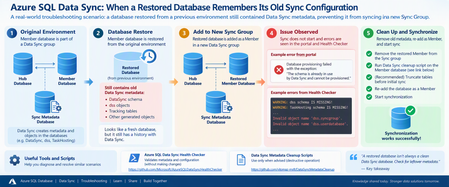
Recently, I worked on an interesting Azure SQL Data Sync issue that I thought was worth sharing with the community. The scenario looked straightforward at first: a database had been restored from another environment and was being configured as a Member database in a new Data Sync group. However, synchronization wasn't working as expected. The interesting part was not the new Sync Group itself. It was what the restored database had brought with it from its previous Data Sync configuration. The scenario The Member database was a restored copy of a database that had previously participated in another Azure SQL Data Sync group. After the restored database was configured as a Member in the new environment, synchronization wasn't working as expected. During troubleshooting, another important clue emerged. The restored database still had a history with Azure SQL Data Sync, so we needed to determine whether metadata and generated objects from its previous configuration were still present. This became one of the key areas of the investigation. Understand the Data Sync architecture first Before jumping into scripts, it's important to clearly distinguish the three database roles involved in Azure SQL Data Sync: Hub Database: The central database containing the application data being synchronized. Member Database: A database that synchronizes with the Hub. Sync Metadata Database: A separate Azure SQL Database containing Data Sync metadata and logs. Microsoft's documentation explains that Data Sync follows a hub-and-spoke topology and that the Sync Metadata Database contains Data Sync metadata and logs. This distinction became particularly important during this investigation because the initial diagnostic configuration wasn't pointing to the expected Sync Metadata Database. Troubleshooting approach Here is the troubleshooting flow we followed. Step 1: Run the Azure SQL Data Sync Health Checker One of the first tools I recommend for this type of investigation is the public Azure SQL Data Sync Health Checker: Azure SQL Data Sync Health Checker on GitHub [github.com] The tool validates whether metadata associated with the Hub and Member is in place and compares the scopes against information in the Sync Metadata Database. Importantly, the Health Checker repository states that it performs validation without changing Data Sync or user objects. The tool requires the relevant connection details for: Sync Metadata Database Hub Database Member Database The GitHub repository contains the current script and execution instructions. What we observed In our investigation, the initial Health Checker output included messages similar to: WARNING: dss schema IS MISSING! WARNING: TaskHosting schema IS MISSING! Invalid object name 'dss.syncgroup'. Invalid object name 'dss.userdatabase'. Those errors were important clues, but they needed to be interpreted together with the database roles. Microsoft's documentation states that the DataSync schema is used for system-created objects in Hub and Member databases, while the dss and TaskHosting schemas are used for system-created objects in the Sync Metadata Database. That distinction helped us recognize that we first needed to validate which database was actually being supplied to the Health Checker as the Sync Metadata Database. Lesson learned Before treating a missing dss or TaskHosting schema as corruption, first make sure you're actually connected to the Sync Metadata Database. That simple validation can save a lot of investigation time. Step 2: Check the Member database for Data Sync artifacts Once we had clarified the topology, the investigation moved to the restored Member database. Because this database had previously participated in Data Sync, we wanted to understand what Data Sync objects were still present. One of the queries used during troubleshooting was: SELECT name FROM sys.tables WHERE SCHEMA_NAME(schema_id) = 'DataSync' AND name NOT LIKE '%_tracking%'; We also inspected: SELECT * FROM DataSync.schema_info_dss; And, when checking the Member database's Data Sync scope information: SELECT * FROM DataSync.scope_info_dss; These checks helped us understand the Data Sync metadata state of the restored Member database and whether it still contained artifacts associated with its previous configuration. Why this matters Microsoft's current Data Sync best-practices documentation confirms that the DataSync schema is used for system-created objects in Hub and Member databases. So, when investigating a database restored from an environment where it previously participated in Data Sync, the DataSync schema is an important part of the investigation. Step 3: Consider the history of the restored database This was really the turning point in the investigation. Instead of treating the database simply as a "new Member", we started looking at it as: A restored database that had previously been provisioned for another Data Sync configuration. That's an important difference. When troubleshooting a restored database, ask early: Was this database previously part of another Azure SQL Data Sync group? If the answer is yes, the database's previous Data Sync state should be considered during the investigation. Step 4: Remove the Member before cleanup In our scenario, the remediation sequence was essentially: Remove the restored database from the current Sync Group. Clean up the previous Data Sync metadata from the restored Member database. Re-add the database as a Member. Trigger synchronization again. For the cleanup portion, we used the following publicly available repository: SQL Data Sync Cleanup Scripts on GitHub [github.com] The repository contains several scripts for different purposes, including: Data Sync complete cleanup.sql Data Sync cleanup hub or member.sql cleanup data sync object V2.sql The specific complete-cleanup script is available here: Data Sync complete cleanup.sql Important warning about the cleanup script Please do not treat this as a general-purpose Data Sync troubleshooting script. The script itself contains a very clear warning. It immediately cleans Data Sync-related objects associated with the database and says it should be used only for the scenarios specified in the script, including when advised by the support team during a support request. The repository also explains the different purposes of its cleanup scripts. For example, the complete-cleanup script has more restrictive usage guidance, while the Hub/Member cleanup and object cleanup scripts target different scenarios. My recommendation: use the Health Checker and read-only diagnostic queries first. Do not jump directly to metadata cleanup without understanding the database topology and existing Data Sync configuration. Step 5: Validate with one table After cleaning up the previous Data Sync artifacts, we didn't immediately assume that everything was resolved. Instead, we validated with a controlled test. A test table on the Member side was truncated, the synchronization was started again, and the table began synchronizing successfully. That provided the confirmation we needed that the previous Data Sync state of the restored Member was an important part of the issue. Root cause The troubleshooting pointed to the fact that the restored Member database had previously participated in another Data Sync configuration and retained Data Sync-related metadata/artifacts from that previous state. After cleaning up the old Data Sync state and reprovisioning the restored database as a Member, synchronization was successfully validated again. The important lesson for me wasn't simply the cleanup itself. It was recognizing that restoring a database does not necessarily mean you're starting with a clean Data Sync state. A practical troubleshooting flow For similar scenarios, I would approach the investigation in this order: Confirm the architecture Identify the: Hub Database Member Database Sync Metadata Database Run the Health Checker Use: Microsoft Azure SQL Data Sync Health Checker [github.com] Review its output before making changes. Inspect the restored Member Check whether Data Sync-related objects exist: SELECT name FROM sys.tables WHERE SCHEMA_NAME(schema_id) = 'DataSync' AND name NOT LIKE '%_tracking%'; Then, where applicable to the database's current state, inspect: SELECT * FROM DataSync.schema_info_dss; and: SELECT * FROM DataSync.scope_info_dss; Ask about the database history Was the database: restored from another environment? previously a Data Sync Member? previously associated with another Sync Group? That historical context can completely change the direction of the investigation. Consider cleanup only after understanding the environment The public cleanup scripts are available here: SQL Data Sync Cleanup Scripts [github.com] These scripts make changes to Data Sync objects and should not be the first troubleshooting step. Validate using a controlled test Once the environment has been correctly cleaned/reconfigured, validate synchronization on a controlled scope before assuming the entire configuration is healthy. My key takeaways This troubleshooting experience reinforced a few lessons for me. A restored database isn't necessarily a clean Data Sync database Restoring the application data doesn't mean you should ignore the database's previous synchronization configuration. Always distinguish Hub, Member, and Sync Metadata databases This is especially important when interpreting Health Checker output. The DataSync schema is associated with system-created objects in Hub and Member databases, while dss and TaskHosting are associated with system-created objects in the Sync Metadata Database. Use diagnostics before cleanup The Azure SQL Data Sync Health Checker is designed to validate Data Sync metadata and objects without making changes. That makes it a much better starting point than immediately removing objects. Database history matters One of my favorite questions after this investigation is now: "Was this database ever part of another Data Sync Group?" It's a simple question, but in restore or copy scenarios it can reveal an important part of the troubleshooting story. Be very careful with metadata cleanup The public cleanup repository itself provides specific guidance about when each script should be used, and the complete-cleanup script includes an explicit warning before execution. Always understand the environment and protect your data before performing destructive operations. One more important consideration: SQL Data Sync retirement There is also an important longer-term architecture consideration. Microsoft currently documents that SQL Data Sync retires on September 30, 2027. Existing Sync Groups can continue operating until the retirement date, but Microsoft recommends migrating to alternative data replication and synchronization solutions before then. So, while troubleshooting existing Data Sync environments remains necessary, organizations using the service should also begin considering their migration strategy. References and useful tools Microsoft documentation Best practices for Azure SQL Data Sync [learn.microsoft.com] Troubleshooting tools Azure SQL Data Sync Health Checker [github.com] SQL Data Sync Metadata Cleanup repository [github.com] Data Sync complete cleanup.sql