data sync
8 TopicsAzure SQL BACPAC Export Failure with CDC & db_cdcreader (SQL71501)
Overview Exporting an Azure SQL Database to a BACPAC using SqlPackage / SSMS may fail when Change Data Capture (CDC) is enabled and database users (or Entra groups) are assigned to CDC-related roles such as db_cdcreader. A common error observed: Error SQL71501: Error validating element: Role Membership: has an unresolved reference to Role [db_cdcreader]. This issue can be confusing because: The database is healthy CDC is functioning correctly The error occurs only during export Scenario From a real customer case: Azure SQL Database with CDC enabled An Entra (AAD) group added to db_cdcreader Export attempted via SqlPackage (v170+) Export fails during schema validation phase Root Cause Explained 1. SqlPackage performs strict schema modeling During export, SqlPackage (via DacFx) builds a logical schema model of the database. Every object must be fully resolvable Roles and role memberships are validated Any missing/unsupported object → export fails This is why the error appears as: SQL71501 – unresolved reference 2. CDC introduces system-managed objects When CDC is enabled, SQL automatically creates: cdc schema System tables Special roles: db_cdcreader cdc_admin These objects are not treated as regular user-defined objects: They are system-managed Some are implicitly created Some are not fully modeled/exported by DacFx 3. Role membership is the breaking point The failure does not happen because the role exists It happens because: The role membership exists (e.g., Entra group → db_cdcreader) But the role itself is not included or resolved in the export model Result: Membership → cannot resolve target role → validation failure (SQL71501) This behavior aligns with documented patterns where CDC roles are excluded or not recognized during BACPAC export. Reproducing the Issue You are likely impacted if: CDC is enabled Users or Entra groups are assigned to: db_cdcreader cdc_admin Export is attempted via: SqlPackage SSMS “Export Data-tier Application” Workarounds Option 1: Temporarily remove role membership Remove the CDC role membership before export: ALTER ROLE db_cdcreader DROP MEMBER [your_user_or_group]; Run export, then reassign: ALTER ROLE db_cdcreader ADD MEMBER [your_user_or_group]; This is the simplest and most reliable workaround Confirmed in Microsoft Q&A guidance for CDC roles Option 2: Export from a cleaned database copy If you cannot modify production (e.g., tooling restrictions): Create a database copy Remove CDC-related role memberships Export from the copy Recommended when: Using automation tools (e.g., Commvault) Production changes are restricted Option 3: Cleanup unsupported references General best practice: Remove unsupported / system-bound references before export Especially: CDC role memberships Legacy system objects Option 4: Use SqlPackage with ExtractAllTableData=True Another practical workaround is to leverage the SqlPackage option ExtractAllTableData=True, which allows you to extract all data from all user tables. When set to True: Data is extracted from all user tables You cannot specify individual tables When set to False (default): You can selectively extract data from specific tables only This reduces exposure to unsupported or problematic objects during validation Example SqlPackage /Action:Extract /SourceServerName:<server> /SourceDatabaseName:<database> /TargetFile:<output.bacpac> /p:ExtractAllTableData=True When to use this option When the export fails due to CDC roles or related schema validation issues (SQL71501) As a targeted workaround when full export is blocked Important Considerations This is not a runtime database issue It is a schema validation limitation in DacFx / SqlPackage CDC itself is supported, but: Certain security objects are not fully exportable Key Takeaways SQL71501 during export is often a model validation issue, not a data issue CDC roles (db_cdcreader, cdc_admin) can break export due to partial modeling The failure is triggered by role membership, not CDC itself Workarounds involve: Removing memberships Exporting from a cleaned copyFixing “There is not enough space on the disk” during Azure Data Sync initial sync (On‑prem ➜ Azure)
When you run an initial (first-time) sync from an on‑premises SQL Server database to Azure SQL Database using SQL Data Sync, the local agent may fail with a disk-space error—even when the disk “looks” like it has free space. The reason is that the initial sync can generate large temporary files in the Windows TEMP location used by the Data Sync Agent. This post explains the symptom, what’s happening under the hood, and the most practical mitigation: move the Data Sync Agent’s TEMP/TMP to a drive with sufficient space and restart the service. Symptom During an initial sync (commonly on-premises ➜ Azure), the sync fails while applying a batch file. Error You may see an error similar to: Sync failed with the exception: “An unexpected error occurred when applying batch file … .batch. See the inner exception for more details. Inner exception: There is not enough space on the disk …” Microsoft Learn also calls out “disk insufficient space” scenarios for SQL Data Sync and points to the %TEMP% directory as the key location to check. What’s actually happening (Root Cause) 1) Initial sync uses temp files on the agent machine During initialization, the local agent can load data and store it as temp files in the system temp folder. This is explicitly called out in the Azure SQL Data Sync scalability guidance. 2) The agent can generate more than “just the batch files” In practice, you’ll often see: Batch files (e.g., sync_*.batch) Extra temp files under folders like MAT_ / MATS_ that are used for internal processing (commonly described as “sorting”/intermediate work). Internal field experience shared in the Data Sync support channel highlights that the MAT/MATS files can be much larger than the batch files—sometimes 8–10× larger than the data being synced for that table (especially during initialization). 3) Why “I still have free disk space” can be misleading If your Data Sync Agent’s TEMP points to a system drive (often C:), it can fill quickly with temp batches + MAT/MATS files during the first sync—particularly for large tables or many tables being initialized. The Azure SQL Data Sync “large scale” guidance recommends ensuring the temp folder has enough space before starting initialization and notes you can move TEMP/TMP to another drive. Mitigation (Recommended) Option A — Move TEMP/TMP to a larger drive (recommended) The Microsoft Azure Blog guidance for large-scale initialization is clear: move the temp folder by setting TEMP and TMP environment variables and restart the sync service. Key point: change the variables for the same account running the Data Sync Agent service Environment variables exist at user scope and machine scope, and the effective TEMP location depends on which account the agent service runs under. A simple PowerShell approach (run elevated) is to read and set the variables at the appropriate scope. (Example shown below uses the standard .NET environment APIs.) # Run in Administrator mode # Get current values [Environment]::GetEnvironmentVariable("TEMP","User") [Environment]::GetEnvironmentVariable("TEMP","Machine") # Set new values (examples) [Environment]::SetEnvironmentVariable("TEMP","D:\TempUser","User") [Environment]::SetEnvironmentVariable("TMP" ,"D:\TempUser","User") # or machine scope: [Environment]::SetEnvironmentVariable("TEMP","D:\TempMachine","Machine") [Environment]::SetEnvironmentVariable("TMP" ,"D:\TempMachine","Machine") Important: After updating TEMP/TMP, restart the SQL Data Sync agent service so it picks up the new environment settings. Option B — If you can’t log in as the service account: update TEMP/TMP in the registry for that account If you need to change TEMP/TMP for a specific account without interactive logon, you can update the user environment variables stored in the registry. General Windows guidance indicates: User environment variables live under HKEY_CURRENT_USER\Environment (and for other users, under that user’s SID hive loaded under HKEY_USERS). A common approach is: Identify the service account SID (example commands such as WMIC are often used in practice). Open Registry Editor Navigate to: HKEY_USERS\<SID>\Environment Update TEMP and TMP to a path on a drive with sufficient space. Restart the Data Sync service. Option C — Clean up leftover sync temp files (when sync is NOT running) In some cases, the “disk out of space” condition is caused by leftover sync files that were not removed (for example, if something had files open during deletion). Microsoft Learn suggests manually deleting sync files from %temp% and cleaning subdirectories only when sync is not in progress. Validation checklist (after the change) After moving TEMP/TMP and restarting the service, confirm: New temp path is being used Initiate sync and check that new sync_*.batch / temp artifacts appear under the new folder. Sufficient free space exists for initialization Especially for large tables, ensure the chosen drive can accommodate temp growth during the first sync. Rerun initial sync Retry the initial sync after making the change. Classification Symptom type: Agent side / initialization failure Primary root cause: Insufficient disk space on the TEMP location used by the Data Sync Agent during initial sync temp-file generation Fix type: Configuration / operational (move TEMP/TMP to a larger drive + restart agent service) a { text-decoration: none; color: #464feb; } tr th, tr td { border: 1px solid #e6e6e6; } tr th { background-color: #f5f5f5; } Helpful references Troubleshoot SQL Data Sync (Microsoft Learn) Sync SQL data in large scale using Azure SQL Data Sync (Microsoft Azure Blog) Data Sync Agent for SQL Data Sync (Microsoft Learn)152Views0likes0CommentsAzure SQL Database Data Sync Retirement: Migration Scenarios and Recommended Alternatives
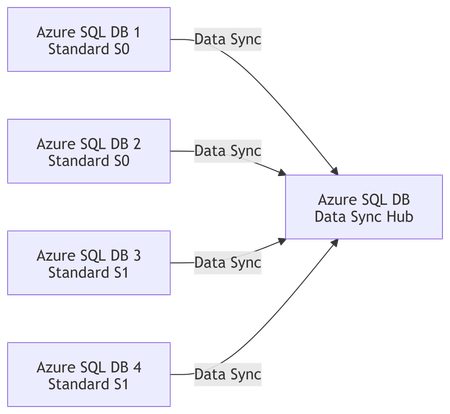
Azure SQL Database Data Sync has long been used to keep data consistent across multiple Azure SQL databases. However, as the service moves toward retirement, many customers are now asking an important question: How do we replace Azure SQL Data Sync with a supported, future‑proof solution—without significant data loss or downtime? In this article, we’ll walk through: What Data Sync retirement means in practice Typical migration challenges A real-world customer scenario Recommended alternatives A step‑by‑step migration approach from DEV to PROD Useful references and documentation Why Azure SQL Data Sync Retirement Matters Azure SQL Data Sync relies on: Triggers Metadata tables Hub-and-spoke topology While functional, this architecture introduces complexity, performance overhead, and operational risks, especially as data volumes and workloads grow. Microsoft’s long-term direction favors scalable, resilient, and observable data integration services, such as Azure Data Factory (ADF) and event-driven replication patterns. If you are currently using Data Sync, planning a migration early is strongly recommended. Official guidance: https://learn.microsoft.com/azure/azure-sql/database/sql-data-sync-data-sql-server-sql-database Sample Customer Scenario Let’s consider a real scenario commonly seen in the field: 4 Azure SQL Databases Subscription: Contoso-DEV Current topology: Azure SQL Data Sync Target state: Consolidate all data into one Azure SQL Database Environment flow: DEV → UAT → PROD Database tiers: Standard (S0 / S1) Size: Below 250 GB per database Key requirements: Minimal data loss Quick replication Azure-native and supported replacement Clear operational model Migration Design Considerations Before selecting a tool, several factors must be evaluated: ✅ Latency tolerance (near real-time vs scheduled sync) ✅ Write patterns (conflicts, bidirectional vs unidirectional) ✅ Schema compatibility ✅ Operational overhead ✅ Long-term supportability For most consolidation scenarios, unidirectional replication (many → one) provides the best balance of simplicity and reliability. Diagram 1: Current State – Azure SQL Data Sync (Before Retirement) This diagram represents the existing topology, where multiple databases are synchronized using Azure SQL Data Sync into a single consolidated database. Characteristics Trigger‑based synchronization Additional metadata tables Limited observability Service approaching retirement Diagram 2: Target State – Azure Data Factory Based Consolidation This diagram shows the recommended replacement architecture using Azure Data Factory. Advantages No triggers or sync metadata tables Parallel ingestion Built‑in retry, monitoring, and alerting Fully supported and future‑proof Diagram 3: Incremental Replication Logic (ADF) This diagram explains how minimal data loss is achieved using incremental replication. Key Points No continuous connection required Typical RPO: 1–5 minutes Safe restart after failures Diagram 4: DEV → PROD Migration Flow This diagram highlights the recommended rollout approach starting with POC in DEV. Best Practices Build once, reuse across environments Parameterize connection strings Enable monitoring before PROD cutover Recommended Alternatives to Azure SQL Data Sync ✅ Option 1: Azure Data Factory (ADF) – Primary Recommendation Azure Data Factory provides a fully supported and scalable replacement for Data Sync when consolidating databases. Architecture Overview One pipeline per source database Initial full load Incremental replication using: Change Tracking, or CDC (if applicable), or Watermark columns (ModifiedDate / identity) Why ADF? Microsoft’s strategic data integration platform Built-in monitoring and retry logic Parallel ingestion Schema mapping and transformation support 📌 Best fit when: You need consolidation Near real‑time (minutes) is acceptable You want a future‑proof design 📘 References: https://learn.microsoft.com/azure/data-factory/copy-activity-overview https://learn.microsoft.com/azure/data-factory/incremental-copy-overview https://learn.microsoft.com/azure/data-factory/connector-azure-sql-database ⚠️ Option 2: SQL Transactional Replication (Limited Use) Transactional replication can still work in narrow scenarios, but: Adds operational complexity Limited flexibility for schema changes Not recommended for new designs 📘 Reference: https://learn.microsoft.com/azure/azure-sql/database/replication-to-sql-database 🧭 Option 3: Azure SQL Managed Instance Link (Future‑Facing) If your long-term roadmap includes Azure SQL Managed Instance, the MI Link feature enables near real-time replication. However: Not applicable if your target remains Azure SQL Database Requires infrastructure change 📘 Reference: https://learn.microsoft.com/azure/azure-sql/managed-instance/link-feature Recommended Migration Approach (DEV → PROD) Phase 1 – Assessment Review schema overlaps and key conflicts Identify identity and primary key strategies Confirm availability of: Change Tracking ModifiedDate / watermark columns 📘 Change Tracking: https://learn.microsoft.com/sql/relational-databases/track-changes/about-change-tracking-sql-server Phase 2 – Initial Seeding (DEV) Use ADF Copy Activity for full loads Ingest each source DB into: Dedicated schemas, or Logical partitions Validate: Row counts Referential integrity Performance impact Phase 3 – Incremental Replication Enable incremental pipelines Recommended frequency: every 1–5 minutes Use parallelism for scalability Simulate Data Sync behavior without triggers Phase 4 – Cutover Optional short write freeze Final delta sync Application validation Promote pipelines to PROD Data Loss and Performance Expectations Metric Expected Outcome RPO Minutes (configurable) Downtime Near‑zero Performance impact Predictable and controllable Observability Built‑in via ADF monitoring Final Recommendation Summary ✅ Azure Data Factory with initial full load + incremental replication ✅ Azure-native, strategic, and supported ✅ Ideal for Data Sync retirement scenarios ✅ Scales from DEV to PROD with minimal redesign Azure SQL Data Sync retirement is an opportunity—not a setback. With services like Azure Data Factory, customers can move toward: Better observability Cleaner architectures Easier production operations Long-term platform alignment If you are still relying on Azure SQL Data Sync, now is the right time to assess, plan, and migrate. Helpful Resources Azure SQL Data Sync overview https://learn.microsoft.com/azure/azure-sql/database/sql-data-sync-data-sql-server-sql-database Azure Data Factory incremental copy https://learn.microsoft.com/azure/data-factory/incremental-copy-overview Azure SQL change tracking https://learn.microsoft.com/sql/relational-databases/track-changes/about-change-tracking-sql-server339Views0likes0CommentsAzure SQL Database Data Sync Retirement: Migration Scenarios and Recommended Alternatives
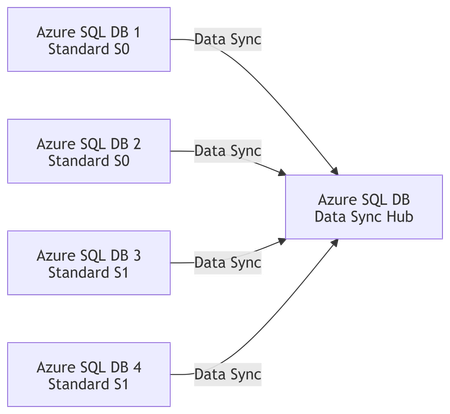
Why Azure SQL Data Sync Retirement Matters Azure SQL Data Sync relies on: Triggers Metadata tables Hub-and-spoke topology While functional, this architecture introduces complexity, performance overhead, and operational risks, especially as data volumes and workloads grow. Microsoft’s long-term direction favors scalable, resilient, and observable data integration services, such as Azure Data Factory (ADF) and event-driven replication patterns. If you are currently using Data Sync, planning a migration early is strongly recommended. Official guidance: https://learn.microsoft.com/azure/azure-sql/database/sql-data-sync-data-sql-server-sql-database Sample Customer Scenario Let’s consider a real scenario commonly seen in the field: 4 Azure SQL Databases Subscription: Contoso-DEV Current topology: Azure SQL Data Sync Target state: Consolidate all data into one Azure SQL Database Environment flow: DEV → UAT → PROD Database tiers: Standard (S0 / S1) Size: Below 250 GB per database Key requirements: Minimal data loss Quick replication Azure-native and supported replacement Clear operational model Migration Design Considerations Before selecting a tool, several factors must be evaluated: ✅ Latency tolerance (near real-time vs scheduled sync) ✅ Write patterns (conflicts, bidirectional vs unidirectional) ✅ Schema compatibility ✅ Operational overhead ✅ Long-term supportability For most consolidation scenarios, unidirectional replication (many → one) provides the best balance of simplicity and reliability. Diagram 1: Current State – Azure SQL Data Sync (Before Retirement) This diagram represents the existing topology, where multiple databases are synchronized using Azure SQL Data Sync into a single consolidated database. Characteristics Trigger‑based synchronization Additional metadata tables Limited observability Service approaching retirement Diagram 2: Target State – Azure Data Factory Based Consolidation This diagram shows the recommended replacement architecture using Azure Data Factory. Advantages No triggers or sync metadata tables Parallel ingestion Built‑in retry, monitoring, and alerting Fully supported and future‑proof Diagram 3: Incremental Replication Logic (ADF) This diagram explains how minimal data loss is achieved using incremental replication. Key Points No continuous connection required Typical RPO: 1–5 minutes Safe restart after failures Diagram 4: DEV → PROD Migration Flow This diagram highlights the recommended rollout approach starting with POC in DEV. Best Practices Build once, reuse across environments Parameterize connection strings Enable monitoring before PROD cutover Recommended Alternatives to Azure SQL Data Sync ✅ Option 1: Azure Data Factory (ADF) – Primary Recommendation Azure Data Factory provides a fully supported and scalable replacement for Data Sync when consolidating databases. Architecture Overview One pipeline per source database Initial full load Incremental replication using: Change Tracking, or CDC (if applicable), or Watermark columns (ModifiedDate / identity) Why ADF? Microsoft’s strategic data integration platform Built-in monitoring and retry logic Parallel ingestion Schema mapping and transformation support 📌 Best fit when: You need consolidation Near real‑time (minutes) is acceptable You want a future‑proof design 📘 References: https://learn.microsoft.com/azure/data-factory/copy-activity-overview https://learn.microsoft.com/azure/data-factory/incremental-copy-overview https://learn.microsoft.com/azure/data-factory/connector-azure-sql-database ⚠️ Option 2: SQL Transactional Replication (Limited Use) Transactional replication can still work in narrow scenarios, but: Adds operational complexity Limited flexibility for schema changes Not recommended for new designs 📘 Reference: https://learn.microsoft.com/azure/azure-sql/database/replication-to-sql-database 🧭 Option 3: Azure SQL Managed Instance Link (Future‑Facing) If your long-term roadmap includes Azure SQL Managed Instance, the MI Link feature enables near real-time replication. However: Not applicable if your target remains Azure SQL Database Requires infrastructure change 📘 Reference: https://learn.microsoft.com/azure/azure-sql/managed-instance/link-feature Recommended Migration Approach (DEV → PROD) Phase 1 – Assessment Review schema overlaps and key conflicts Identify identity and primary key strategies Confirm availability of: Change Tracking ModifiedDate / watermark columns 📘 Change Tracking: https://learn.microsoft.com/sql/relational-databases/track-changes/about-change-tracking-sql-server Phase 2 – Initial Seeding (DEV) Use ADF Copy Activity for full loads Ingest each source DB into: Dedicated schemas, or Logical partitions Validate: Row counts Referential integrity Performance impact Phase 3 – Incremental Replication Enable incremental pipelines Recommended frequency: every 1–5 minutes Use parallelism for scalability Simulate Data Sync behavior without triggers Phase 4 – Cutover Optional short write freeze Final delta sync Application validation Promote pipelines to PROD Data Loss and Performance Expectations Metric Expected Outcome RPO Minutes (configurable) Downtime Near‑zero Performance impact Predictable and controllable Observability Built‑in via ADF monitoring Final Recommendation Summary ✅ Azure Data Factory with initial full load + incremental replication ✅ Azure-native, strategic, and supported ✅ Ideal for Data Sync retirement scenarios ✅ Scales from DEV to PROD with minimal redesign Azure SQL Data Sync retirement is an opportunity—not a setback. With services like Azure Data Factory, customers can move toward: Better observability Cleaner architectures Easier production operations Long-term platform alignment If you are still relying on Azure SQL Data Sync, now is the right time to assess, plan, and migrate. Helpful Resources Azure SQL Data Sync overview https://learn.microsoft.com/azure/azure-sql/database/sql-data-sync-data-sql-server-sql-database Azure Data Factory incremental copy https://learn.microsoft.com/azure/data-factory/incremental-copy-overview Azure SQL change tracking https://learn.microsoft.com/sql/relational-databases/track-changes/about-change-tracking-sql-serverLesson Learned #432: Resolving DataSync Failures in Azure SQL Database Caused by Custom Triggers
Azure SQL Database provides a robust DataSync service to synchronize data across multiple Azure SQL databases or between on-premises SQL Server and Azure SQL databases. While generally reliable, some exceptions can disrupt the smooth flow of data synchronization. One such error occurs when custom-defined triggers interfere with DataSync's internal processes, resulting in a failure like the one described below: Sync failed with the exception 'An unexpected error occurred when applying batch file sync_XXX\\XX-XXX-XYZ-afb1-XXXX.batch. See the inner exception for more details.Inner exception: Index was outside the bounds of the array. For more information, provide tracing ID ‘NNNN-3414-XYZ-ZZZ-NNNNNNNX’ to customer support.'Lesson Learned #369:Size NNN from table 'XYZ' cannot fit within the specified batch size of 24576KB
Today we had a new case where our client encountered the following error message when synchronizing tables using DataSync "The row of size 42530KB from table 'dbo.XYZ' cannot fit within the specified batch size of 24576KB". Following, I would like to share a possible workaround for it, moving the data to blob storage and reducing the size of the database and backups.1.4KViews0likes0Comments