copilot
1213 Topics
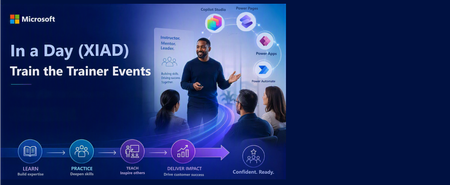
In a Day (XIAD) Partner Events Program - Train the Trainer Events (AgIAD, AIAD, AuIAD, PPIAD)
We invite you to attend an upcoming Train the Trainer session for Microsoft Partners to learn more about the In a Day (XIAD) Partner Events Program and how to lead workshops that empower customers to use and adopt Microsoft products. Our Train the Trainer events are designed to provide you with the knowledge and tools necessary to deliver successful Microsoft In a Day (XIAD) sessions. *Please note, participation is restricted to individuals representing a Microsoft Partner organization. You must register using your corporate email address that is associated with your Partner ID. Personal emails will not be approved. ✨ Why Attend? Expert Guidance: Learn from experienced trainers and get your questions answered. Comprehensive Resources: Access all the content and support you need to succeed. 📅 Upcoming Events: Agent in a Day Discover the basics of building agents with Microsoft Copilot Studio, including generative AI orchestration and integrating external data sources. Full day session (8 hours): Thursday, June 25 | 09:00–17:00 GMT+2 (Central European Summer Time) Trainer ready session (1.5 hours): Tuesday, June 30 | 09:00–10:30 GMT-5 (Central Daylight Time) Recordings available on-demand. Inquire at xiadevents@microsoft.com App in a Day Explore the fundamentals of building apps with Microsoft Power Apps, including creating custom business applications without writing code. Full day session (8 hours): Tuesday, June 23 | 09:00–17:00 GMT+2 (Central European Summer Time) Trainer ready session (1.5 hours): Tuesday, June 30 | 11:00–12:30 GMT-5 (Central Daylight Time) Recordings available on-demand. Inquire at xiadevents@microsoft.com Automation in a Day Explore automation solutions with Power Automate, including creating workflows and automating business processes. Trainer ready session (1.5 hours): Tuesday, June 30 | 14:00–15:30 GMT-5 (Central Daylight Time) Recordings available on-demand. Inquire at xiadevents@microsoft.com Power Pages in a Day Get hands-on building simple, secure business websites with Microsoft Power Pages. More sessions coming soon! Recordings available on-demand. Inquire at xiadevents@microsoft.com 👉 Register for all upcoming sessions at https://aka.ms/xiadTTT/pp Partner with us! Are you a Microsoft Partner interested in the opportunity to join the program and deliver In a Day (XIAD) events? 🔍 Learn more about the program and review partner eligibility criteria: https://aka.ms/xiadpartneropportunity. 📧 Contact the XIAD Program team: xiadevents@microsoft.com 🚀 Get started today: https://aka.ms/XIADGetStarted 📤 Submit requests to deliver events: https://aka.ms/xIAD/PartnerEvents369Views2likes2CommentsCopilot, Microsoft 365 & Power Platform Community call
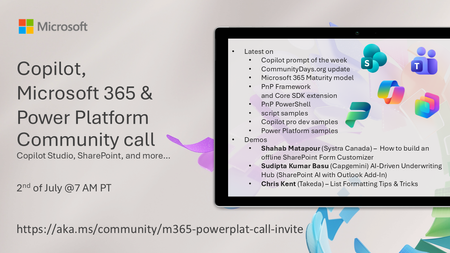
💡 Copilot, Microsoft 365 & Power Platform weekly community call focuses on different use cases and features within the Copilot, Microsoft 365 and Power Platform - across Microsoft 365 Copilot, Copilot Studio, SharePoint, Power Apps and more. 👏 Looking to catch up on the latest news and updates, including cool community demos, this call is for you! 📅 On 2nd of July we'll have following agenda: Copilot prompt of the week CommunityDays.org update Microsoft 365 Maturity model Latest on PnP Framework and Core SDK extension Latest on PnP PowerShell Latest on script samples Latest Copilot pro dev samples Latest on Power Platform samples Picture time with the Together Mode! Shahab Matapour (Systra Canada) – How to build an offline SharePoint Form Customizer Sudipta Kumar Basu (Capgemini) AI-Driven Underwriting Hub (SharePoint AI with Outlook Add‑In) Chris Kent (Takeda) – List Formatting Tips & Tricks 📅 Download recurrent invite from https://aka.ms/community/m365-powerplat-dev-call-invite 📞 & 📺 Join the Microsoft Teams meeting live at https://aka.ms/community/m365-powerplat-dev-call-join 👋 See you in the call! 💡 Building something cool for Microsoft 365 or Power Platform (Copilot, SharePoint, Power Apps, etc)? We are always looking for presenters - Volunteer for a community call demo at https://aka.ms/community/request/demo 📖 Resources: Previous community call recordings and demos from the Microsoft Community Learning YouTube channel at https://aka.ms/community/youtube Microsoft 365 & Power Platform samples from Microsoft and community - https://aka.ms/community/samples Microsoft 365 & Power Platform community details - https://aka.ms/community/home 🧡 Sharing is caring!8Views0likes0CommentsCopilot, Microsoft 365 & Power Platform Community call
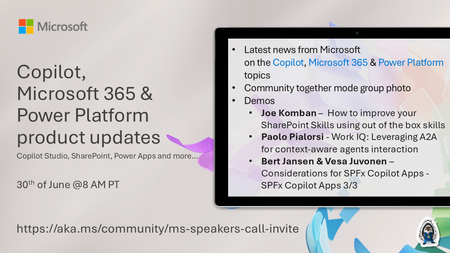
💡Copilot, Microsoft 365 & Power Platform product updates call concentrates on the different use cases and features within the Microsoft 365 and in Power Platform. Call includes topics like Microsoft 365 Copilot, Copilot Studio, Microsoft Teams, Power Platform, Microsoft Graph, Microsoft Viva, Microsoft Search, Microsoft Lists, SharePoint, Power Automate, Power Apps and more. 👏 Weekly Tuesday call is for all community members to see Microsoft PMs, engineering and Cloud Advocates showcasing the art of possible with Microsoft 365 and Power Platform. 📅 On the 30th of June we'll have following agenda: News and updates from Microsoft Together mode group photo Joe Komban – How to improve your SharePoint Skills using out of the box skills Paolo Pialorsi - Work IQ: Leveraging A2A for context-aware agents interaction Bert Jansen & Vesa Juvonen – Considerations for SPFx Copilot Apps - SPFx Copilot Apps 3/3 📞 & 📺 Join the Microsoft Teams meeting live at https://aka.ms/community/ms-speakers-call-join 🗓️ Download recurrent invite for this weekly call from https://aka.ms/community/ms-speakers-call-invite 👋 See you in the call! 💡 Building something cool for Microsoft 365 or Power Platform (Copilot, SharePoint, Power Apps, etc)? We are always looking for presenters - Volunteer for a community call demo at https://aka.ms/community/request/demo 📖 Resources: Previous community call recordings and demos from the Microsoft Community Learning YouTube channel at https://aka.ms/community/youtube Microsoft 365 & Power Platform samples from Microsoft and community - https://aka.ms/community/samples Microsoft 365 & Power Platform community details - https://aka.ms/community/home 🧡 Sharing is caring!8Views0likes0Comments
Mind the Specs: Grading formal specifications and KPIs as artefacts for LLM-driven code generation
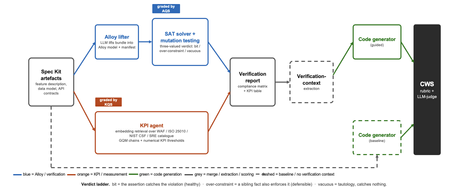
Large language models now write code straight from a prompt, but the specification in between is never checked, and a model asked to judge its own work brings the same blind spots to the review. We built a pipeline that lifts a plain-language requirements bundle into two graded specifications (a formal Alloy model and a set of numerical KPI targets), scores both before a single line of code is written, and hands the graded result to the code generator. It starts from GitHub Spec Kit and the Azure Well-Architected Framework. Here is what we built, and what we learned from running it at scale. The problem Writing software used to be four separate activities: gathering requirements, writing a specification, verifying it, and implementing it. A language model collapses all four into a single step. Two of those activities used to give us a quality signal before any code existed: a formal specification you could inspect, and measurable targets an implementation had to hit. The prompt-to-code loop inherits neither. There is no externally observable signal, before a line of code is written, that the requirements a model received are even well-formed enough to drive a correct implementation. You might think the model could just check its own work. It cannot do so reliably. Ask a language model to check the logic it just wrote: not only will it bring the same blind spot to the review, but its stochastic nature will make it produce different answers on each run. A SAT solver does not behave this way. Its verdict is deterministic: the same specification produces the same verdict every time. The thing that historically kept formal specification out of everyday development was never its rigour, it was the cost of writing the specification by hand. And that is exactly the step a language model can now do. What we built We built an agentic pipeline that sits between the requirements and the generated code. In plain terms it takes the requirements once, turns them into two things that can be checked by a machine: a precise description of rules that the system must obey, and a set of measurable targets that the system must hit. These artefacts are both graded, and are handed to the code generator. We split the work in two and gave each half to the tool that is good at it. The language model does the creative part, turning messy prose into formal structure. Deterministic checks, not the model's own opinion, grade what it produces. From a single Spec Kit artefacts bundle the pipeline builds two graded specifications before any code exists, and then carries both into code generation. Since these grades are computed deterministically rather than just generated, you can actually trust them. The input is a GitHub Spec Kit bundle. Spec Kit is an open-source, specification-first toolkit: instead of prompting for code directly, you describe what you want to build, and it produces a set of structured artefacts, a feature specification, a data model, and a set of API contracts. Our pipeline reads that bundle and turns it into the two graded specifications in parallel. overview. Spec Kit artefacts on the left. The Alloy lifter (with SAT solver and the attack step) and the KPI agent run in parallel. Their graded outputs are merged into a verification report that feeds the guided code generator. A dashed baseline path feeds the goal alone to the generator for comparison. Lift the requirements into a formal model The first half is structural. An Alloy lifter translates the requirements into a formal model written in Alloy, a specification language whose rules a SAT solver can check exhaustively, and whose verdict is deterministic, so the grade never depends on asking an LLM what it thinks. A banking requirement like "zero balance discrepancies" becomes a precise, checkable rule: the money leaving one account and the money arriving in another must always add up to the balances you started with, so a transfer can never quietly create or destroy money. The solver searches for any scenario that would break the rule. We modified Spec Kit's templates to force the model to output functional requirements and their corresponding Alloy code blocks in a structured format. Against the stock templates, that change alone nearly doubled the Alloy code compilation rate, jumping from 40 to 74 percent. A machine-written specification cannot be trusted, though, so the lifter does more than write it: it attacks it. Each load-bearing rule is deliberately broken by clearing its body and injecting a clause that forces a violation and the solver is re-run on the broken model. If the solver fails after this mutation, the original rule genuinely caught the violation it was meant to catch. If it still passes, the rule never really constrained anything on its own. Mutation testing usually grades a test suite against a specification that is assumed correct; here the roles are reversed, and the specification itself is on trial. Turn the requirements into measurable targets The second half is measurable. A KPI agent takes the same Spec Kit bundle, retrieves the most relevant principles from the Azure Well-Architected Framework, and derives numerical targets in the Goal-Question-Metric style. Each target carries an explicit threshold, a direction, and a measurement method, the kind of target a monitoring tool could actually track. Where earlier automated approaches stopped at describing quality in words, this half emits the actual numbers an implementation has to satisfy. And the knowledge base is a setting, not a fixture: swapping the Well-Architected Framework for ISO 25010, the NIST Cybersecurity Framework, or Google's SRE workbook requires zero changes to the underlying code. Review the report before any code Both graded halves merge into one human-readable verification report: the patterns the model applied, which rules passed, the counterexamples the solver found, the attack results, and the KPI threshold table. A developer reads it first and can see exactly where the specification is weak: a rule that passed for the wrong reason, or a requirement that nothing covers. After revising the specification, they re-run the lifting phase. Because the process is cached, re-runs are cheap, allowing the developer to loop until the report looks perfect, all before any code exists. The work shifts from reviewing generated code after the fact to curating a specification and reading a report before anything is built. Carry the graded context into code generation Only then does the report do its real job. In the guided pipeline, the merged report becomes the context handed to a code generator, which is asked to implement each rule, requirement, and KPI threshold and to leave markers tracing the code back to them. A baseline generator gets only the plain-language goal. Same generator, same settings; the only difference is whether it can see the graded specification. Feeding graded artefacts, rather than raw prose, into code generation is the piece that ties the whole pipeline together. So three choices separate this from simply asking a model for a spec: the specification is attacked rather than trusted, the targets are numbers rather than prose, and what reaches the code generator is graded evidence rather than raw text. How we tested it We ran the pipeline at scale: 270 Alloy lifts and 1,930 KPI records, across three application domains chosen to differ sharply (banking, software-as-a-service, and healthcare), three levels of requirement detail, four knowledge bases, and three model tiers, with ten runs of each combination so a real effect could be told apart from noise. For the code-generation half, we generated two codes for each case, once with the graded report as context and once from the plain-language goal alone, and compared the two. What we found First, the foundation: the specifications proved gradeable. The rubric cleanly separated sound specifications from degenerate ones. Because it returned the same verdict run after run, the grades are reliable enough to act on. The three key observations are as follows: The model matters more than the prompt Of the two knobs a practitioner controls, the model you choose and the amount of detail you write, the model dominated by roughly nine to one. A weak model could not be rescued by richer requirements. But you do not need the most expensive one: a mid-tier model delivered about 98 percent of the best model's quality at under a third of the cost and about half the time. The cheapest tier was a false economy, producing a model the analyser could even load only 23 percent of the time. More detail can backfire More requirements are not always better. Sparse and standard requirements scored the same, but over-specified requirements collapsed: KPI quality fell from about 0.89 to about 0.73, and the effect held across all four knowledge bases. Pile in too much numerical detail and the pipeline starts echoing the numbers it was handed instead of deriving sound ones, which is the opposite of what more detail is supposed to buy. Graded context produces far better code This is the payoff, and it is the point of the whole pipeline. Across all nine combinations of domain and detail, code generated with the graded verification context scored about 8 out of 10, against about 1 out of 10 for the same generator given only the plain-language goal. The guided code carried the traceability back to each requirement, the named rules, and the structural patterns that a bare prompt gives us no way to know about. This part of the study is a single run per combination, so we report the size and the consistency of the gap rather than a precise average, but the gap was large and it held in every case. What this means for you Four things to take from our study into your own work: Write requirements at a standard, middle level of detail. Not sparse, and not exhaustively numerical. The middle is the sweet spot on both halves of the specification. Reach for a capable mid-tier model before you invest in heavy prompt engineering. Model choice moves quality more than requirement detail does, and the mid tier is the value leader. Give the code generator externally graded context instead of letting it specify for itself. That is where most of the quality gain came from. Treat the knowledge base as a setting worth tuning, not a fixed ingredient. Each is a recommendation that data supports under the conditions we tested, not a universal law. The limit Every grade measures structure, not meaning. A high score says the specification is well-formed, discriminating, and stable. It does not say whether the invariants are the right ones, or the thresholds are the right ones for your deployment. A specification can be perfectly well-formed and still describe the wrong system. That judgement stays with a human, which is where we think it belongs. The pipeline is built to make that judgement efficient by moving it earlier, to curating the specification and reading the report, rather than to remove it. Generated code should not be shipped end to end without human validation. Try it The full pipeline, every input, and the artefacts behind every figure are in the project repository. If you want the Microsoft tools it builds on, start here: Project repository: https://github.com/RadaanMadhan/Specification-Led-Development GitHub Spec Kit: https://github.com/github/spec-kit Azure Well-Architected Framework: https://learn.microsoft.com/en-us/azure/well-architected/ If you'd like to explore the work in more detail, we've included the full technical report in the project repository, covering the related work, methodology, pipeline design, experimental setup, and extended results. About the team This project was carried out by six students at Imperial College London: Leon Hausmann, Charlotte Maxwell, Radaan Madhan, Keshav Das, Anson Huang, and Ander Cobo, in collaboration with Microsoft and supervised by Lee Stott (Microsoft) and Max Cattafi (Imperial College London)82Views1like0Comments
Microsoft 365 Outlook Classic Latest Update Copilot issues
Hello to all, we are currently using the Microsoft 365 Outlook Classic, using version Version 2604 Build 16.0.19929.20172 (Current Channel) Copilot works as expected; However ever since the next update was released (Version 2605 (Build 20026.20076)) some users including me, have been getting the below error: I have tried uninstalling and installing the latest version directly, with the same issue. Scanned for any corrupted system files with no issues,but still get the error; I have tried the update Licence from the Outlook application, with no issues but the copilot something went wrong error keeps on persisting. Internet searches are very vague and the I have found some registry suggestions which I have also tried with no solution. The only way to get Copilot working on Outlook Classic was to revert to a previous working version, only then Copilot works as expected. This only happens in Outlook Classic; Copilot works fine on the latest version of Microsoft Office 365 with Word, Excel, etc. For those that maybe might ask why not switch to the New Outlook, we have had issues with it and it has been recommended to use the Classic Outlook for the time being. Has anyone been experiencing such issues please? Thanks for any help.3.1KViews5likes13CommentsOversharing Control at Enterprise Scale | Updates for Microsoft 365 Copilot in Microsoft Purview
Minimize risks that come with oversharing and potential data loss. Use Microsoft Purview and its new Data Security Posture Management (DSPM) for AI insights, along with new Data Loss Prevention policies for Microsoft 365 Copilot, and SharePoint Advanced Management, which is now included with Microsoft 365 Copilot. Automate site access reviews at scale and add controls to restrict access to sites if they contain highly sensitive information. Erica Toelle, Microsoft Purview Senior PM, shows how to control data visibility, automate site access reviews, and fine-tune permissions with Pilot, Deploy, Optimize phases. Protect your data from unwanted exposure. Find and secure high-risk SharePoint sites with Microsoft Purview’s oversharing report. Start here. Secure Microsoft 365 Copilot adoption at scale. Check out the Pilot-Deploy-Optimize approach, to align AI use with your organization’s data governance. Watch here. Boost security, compliance, and governance. Scoped DLP policies enable Microsoft 365 Copilot to respect data labels. Take a look. Watch our video here. QUICK LINKS: 00:00 — Minimize risk of oversharing 01:24 — Oversharing scenarios 04:03 — How oversharing can occur 05:38 — Restrict discovery & limit access 06:36 — Scope sites 07:15 — Pilot phase 08:16 — Deploy phase 09:17 — Site access reviews 10:00 — Optimize phase 10:54 — Wrap up Link References Check out https://aka.ms/DeployM365Copilot Watch our show on the basics of oversharing at https://aka.ms/SMBoversharing Unfamiliar with Microsoft Mechanics? As Microsoft’s official video series for IT, you can watch and share valuable content and demos of current and upcoming tech from the people who build it at Microsoft. Subscribe to our YouTube:https://www.youtube.com/c/MicrosoftMechanicsSeries Talk with other IT Pros, join us on the Microsoft Tech Community:https://techcommunity.microsoft.com/t5/microsoft-mechanics-blog/bg-p/MicrosoftMechanicsBlog Watch or listen from anywhere, subscribe to our podcast:https://microsoftmechanics.libsyn.com/podcast Keep getting this insider knowledge, join us on social: Follow us on Twitter:https://twitter.com/MSFTMechanics Share knowledge on LinkedIn:https://www.linkedin.com/company/microsoft-mechanics/ Enjoy us on Instagram:https://www.instagram.com/msftmechanics/ Loosen up with us on TikTok:https://www.tiktok.com/@msftmechanics Video Transcript: -Are you looking to deploy Microsoft 365 Copilot at scale, but concerned that your information is overshared? Ultimately, you want to ensure that your users and teams can only get to the data required to do their jobs and nothing more. For example, while using Microsoft 365 Copilot and interacting with work data, you don’t want information surfaced that users should not have permissions to view. So, where do you even start to solve for this? You might have hundreds or thousands of SharePoint sites to assess and right-size information access. Additionally, knowing where your sensitive or high value information resides and making sure that the policies you set to protect information continuously and avoid returning to an oversharing state, can come with challenges. -The good news is there are a number of updated tools and resources available to help you get a handle on all this. In the next few minutes, I’ll unpack the approach you can take to help you minimize the risks that come with oversharing and potential data loss using Microsoft Purview and its new Data Security Posture Management for AI insights, along with new Data Loss Prevention policies for Microsoft 365 Copilot and more. And SharePoint Advance Management, which is now included with Microsoft 365 Copilot. This helps you automate site access reviews at scale and adds controls to restrict access to sites even if they contain highly sensitive information. First, let’s look at how information oversharing can inadvertently occur just as it would with everyday search when using Microsoft 365 Copilot. -I’ll explain how it works. When you submit a prompt before presenting that to a large language model, the prompt is interpreted by Copilot and using a process called Retrieval Augmented Generation it then finds and retrieves grounding information that you are allowed to access in places like SharePoint, OneDrive, Microsoft Teams, your email and calendar, and optionally the internet, as well as other connected data sources. The retrieved information is appended to your prompt as additional context. Then that larger prompt is presented to the large language model. With that added grounding information, the response is generated then formatted for the app that you’re using. For this to work well, that information retrieval step relies on accurate search. And what’s important here is as you use Copilot it can only retrieve information that you explicitly have access to and nothing else. This is how search works in Microsoft 365 and SharePoint. The controls you put in place to achieve just enough access will reduce data security risk, whether you intend to use Microsoft 365 Copilot or not. -So, let me show you a few examples you may have experienced where content is overshared. I’ll start in Business Chat. I’m logged in is Adele Vance from the sales team. Her customers are pressuring her for information about new products that haven’t been internally or externally announced. She submits a prompt for 2025 product plans and the response returns a few clearly sensitive documents that she shouldn’t have access to, and the links in the response and in the citations take Adele right to those files. -Now, I’m going to switch perspectives to someone on the product planning team building the confidential plan stored in a private SharePoint site. I’m working on the 2025 product plan on a small team. This is the same doc that Adele just found in Business Chat, and if you look at the top of the document right now, there was one other person who I expect in the document. Then suddenly a few more people appear to have the document open and I don’t know who these people are and they shouldn’t be here. So, this file is definitely overshared. -Now, I’m going to switch back to Adele’s perspective as beyond the product planning doc. The response also describes a new project with the code name Thunderbolt. So, I’ll choose the Copilot recommended prompt to provide more details about Project Thunderbolt, and we can see a couple of recent documents with information that I as Adele should not have access to as a member of the sales team. In fact, if I open the file, I can get right to the detailed specifications and pricing information. -Now, let’s dig into the potential reasons why this is happening, and then I’ll cover how you discover and correct these conditions at enterprise scale. First, privacy settings for SharePoint sites can be set to public or private. These settings are most commonly configured as sites are created. Often sites are set to public, which means anyone in your organization can find content contained within those sites, and by extension, so can Microsoft 365 Copilot. -Next, is setting the default sharing option to everyone in an organization. One common misperception here is just by creating the link, you’re enabling access to that file, folder, or site automatically. That’s not how these links work though. Once a sharing link is redeemed or clicked on by the recipient, that person will have access to and be able to search for the shared content. There are, however, sharing approaches, which auto-redeem sharing links, such as pasting the link into an email and sending that to lots of people. In that case, those recipients have access to the content and will be able to search for it immediately. -Related to this is granting permissions to the everyone except external users group, as you define membership for your SharePoint sites. This group gives everyone in your organization access and the ability to search for that information too. And you’ll also want to look into permissions granted to other large and inclusive groups, which are often maintained using dynamic group membership. And if you’re using Data Loss Prevention, information protection, or other classification controls from Microsoft Purview, labeled content can also trigger sharing restrictions. -So, let’s move on to addressing these common issues and the controls you will use in Microsoft 365, Microsoft Purview, and SharePoint Advance Management. At a high level, there are two primary ways to implement protections. The first approach is to restrict content discovery so that information doesn’t appear in search. Restricting discovery still allows users to access content they’ve previously accessed as well as the content shared with them. The downsides are that content people should not have access to is still accessible, and importantly, Copilot cannot work with restricted content even if it’s core to a person’s job. So, we recommend restricting content discovery as a short-term solution. -The second approach is to limit information access by tightening permissions on sites, folders, and individual files. This option has stronger protections against data loss and users can still request access, if they need it to do their jobs. Meaning only people who need access have access. We recommend limiting access as an ongoing best practice. Then to scope the sites that you want to allow and protect, we provide a few options to help you know where to start. First, you can use the SharePoint Active sites list where you can sort by activity to discover which SharePoint sites should be universally accessible for all employees in your organization. Then as part of the new Data Security Posture Management for AI reporting in Microsoft Purview, the oversharing report lets you easily find the sites with higher risk containing the most sensitive information that you want to protect. The sites you define to allow access and limit access will be used in later steps. Now, let’s move on to the steps for repairing your data from Microsoft 365 Copilot. We’ve mapped best practices and tools for Copilot adoption across Pilot, Deploy, and Optimize phases. -First, in the Pilot phase, we recommend organization-wide controls to easily restrict discovery when using Copilot. This means taking your list of universally accessible sites previously mentioned, then using a capability called Restricted SharePoint search, where you can create and allow list of up to 100 sites, then allow just those sites to be used with search in Copilot. Then in parallel in Microsoft Purview, we’ll configure ways to get visibility into Copilot usage patterns where you can enable audit mode using Data Loss Prevention policies to detect sharing of labeled or unlabeled sensitive content. And likewise, you’ll enable analysis of Copilot interactions as a part of communication compliance. Again, these approaches do not impact information access only discoverability via Copilot and search. -Now, let’s move on to the broader Deploy phase where you will enable Copilot for more users. Here you’ll use the list of identified sites from Microsoft Purview’s oversharing report to identify sites with the most sensitive information. Controls in Microsoft Purview provide proactive information protection with sensitivity labels for your files, emails, meetings, groups, and sites. For each item, you can use more targeted controls to right-size site access by assigning permissions to specific users and groups. And when applied, these controls on the backend will move public sites to private and control access to defined site members based on the permissions you set. Next, you can enable new Data Loss Prevention from Microsoft 365 Copilot policies to exclude specific labels from Copilot prompts and responses. And you can change your DLP policies from the audit mode that you set during the Pilot phase to start blocking unnecessary sharing of labeled content where you’ll now turn on the policies in order to enforce them. -Then, two options from SharePoint Advance Management are to use restricted access control to limit access to individual sites. That way only members in defined security groups will have access, and to limit site access by operationalizing site owner access reviews. Then as an additional fine-tuning option, you can target restricted content discovery on individual sites, like you see here with our leadership site to prevent Copilot from using their content as you continue to work through access management controls. And as part of the Deploy phase, you’ll disable restricted SharePoint search once you have the right controls in place. Together, these options will impact both access permissions, as well as discovery via Copilot and search. -Next, the final Optimize phase is about setting your organization up for the long term. This includes permissioning, information classifications, and data lifecycle management. Here you’ll continually monitor your data security risks using oversharing reports. Then implement auto-labeling and classification strategies using Microsoft Purview, and ensure that as new sites are created, site owners and automated provisioning respect access management principles. These processes help ensure that your organization doesn’t drift back into an oversharing state to keep your data protected and ongoing permissions in check. Now, if we switch back to our initial user examples in Business Chat with our controls in place, if we try the same prompts as before, you’ll see that Adele can no longer access sensitive information, even if she knows exactly what to look for in her prompts. The data is now protected and access has been right-sized for everyone in the organization. -So, those are the steps and tools to prepare your information from Microsoft 365 Copilot at enterprise scale, and help ensure that your data is protected and that everyone has just enough access to do their jobs. To learn more, check out aka.ms/DeployM365Copilot. Also, watch our recent show on the basics of oversharing at aka.ms/SMBoversharing for more tips to rightsize permissions for SharePoint site owners. Keep watching Microsoft Mechanics for the latest updates and thanks for watching.2.5KViews0likes1Comment
Are Microsoft partners using the Business Process Catalog? Looking for real-world adoption insights
Hi community, I'm curious to hear from Microsoft partners about your experience with the Business Process Catalog (BPC)- Microsoft's structured library of end-to-end business processes for D365 implementations. Specifically, I'd love to understand: Are you actively using the BPC in your D365 engagements? If yes, how and where does it fit into your delivery methodology? If not, what's holding adoption back — awareness, tooling, client readiness, or something else? We're seeing increasing attention on BPC as a foundation for structured implementation approaches, and I'm interested in how partners are (or aren't) integrating it into their practice. Would love to hear honest takes from the field. -Ellie9Views0likes0Comments