cloudsecurity
7 TopicsGetting Started with Azure SQL Data Sync Using User-Assigned Managed Identity (UAMI)
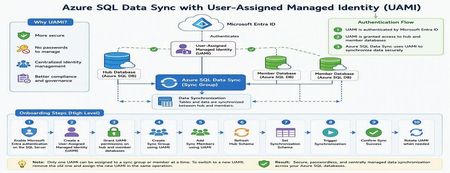
Azure SQL Data Sync is a powerful service that enables data synchronization across multiple Azure SQL Databases. Traditionally, Data Sync relied on SQL Authentication, requiring administrators to manage usernames and passwords for both hub and member databases. With the introduction of User-Assigned Managed Identity (UAMI) support, Azure SQL Data Sync now provides a more secure and modern authentication model built on Microsoft Entra ID. This enhancement reduces credential management overhead, eliminates password storage concerns, and helps organizations strengthen their security posture. In this article, we'll explore how to onboard Azure SQL Data Sync with UAMI, configure the required permissions, create synchronization components, and review best practices for long-term management. Why Use UAMI with Azure SQL Data Sync? User-Assigned Managed Identity offers several advantages over traditional SQL authentication: Eliminates password storage and rotation requirements Reduces credential exposure risks Integrates with Microsoft Entra ID authentication Supports centralized identity management Improves compliance and security posture Simplifies operational maintenance Whether you're deploying a new synchronization topology or modernizing an existing Data Sync environment, UAMI provides a secure cloud-native alternative to password-based authentication. Architecture Overview A typical UAMI-enabled Azure SQL Data Sync deployment looks like this: Authentication Method: Microsoft Entra ID via User-Assigned Managed Identity The same managed identity can be used by Data Sync to authenticate against all participating databases. Prerequisites Before configuring Azure SQL Data Sync with UAMI, ensure the following prerequisites are completed: 1. Enable Microsoft Entra Authentication The Azure SQL Server hosting both Hub and Member databases must have Microsoft Entra authentication enabled and an Entra administrator configured. 2. Create a User-Assigned Managed Identity Create a UAMI within Azure and collect the following information: Managed Identity Name Client ID Resource ID These values will be required during configuration. 3. Install the Required PowerShell Module UAMI support requires the Azure SQL preview PowerShell module: Install-Module Az.Sql -RequiredVersion 6.6.0-preview ` -AllowPrerelease ` -Force ` -AllowClobber Or a later version that includes Data Sync UAMI support. Phase 1: Configure Database Access Before Data Sync can use a managed identity, the identity must be granted access to all databases participating in synchronization. Connect to each Hub and Member database using a Microsoft Entra administrator account and create a user for the managed identity. Example: DECLARE @MSIname SYSNAME = '<UAMI_NAME>'; DECLARE @dbName SYSNAME = DB_NAME(); DECLARE @clientId UNIQUEIDENTIFIER = '<CLIENT_ID>'; -- Create User -- Grant db_datareader -- Grant db_datawriter -- Grant CONTROL permissions The UAMI must be created and granted permissions on every database participating in synchronization. Phase 2: Create the Sync Group After permissions are configured, create the Sync Group using UAMI authentication. Example PowerShell: New-AzSqlSyncGroup ` -ResourceGroupName $resourceGroup ` -ServerName $serverName ` -DatabaseName $hubDatabase ` -Name $syncGroup ` -HubDatabaseAuthenticationType UserAssigned ` -ResourceId $identityResourceId Key Parameters Parameter Description HubDatabaseAuthenticationType Authentication method for Hub Database UserAssigned Enables UAMI authentication ResourceId Full ARM Resource ID of the UAMI Phase 3: Add Sync Members Once the Sync Group is created, add member databases and specify UAMI authentication. Example: New-AzSqlSyncMember ` -ResourceGroupName $resourceGroup ` -ServerName $serverName ` -DatabaseName $hubDatabase ` -SyncGroupName $syncGroup ` -Name $memberName ` -MemberDatabaseAuthenticationType UserAssigned ` -ResourceId $identityResourceId At this stage, both Hub and Member databases are configured to authenticate using the managed identity. Phase 4: Configure Synchronization Refresh Hub Schema Refresh the schema metadata before selecting tables for synchronization. Update-AzSqlSyncSchema ` -ResourceGroupName $resourceGroup ` -ServerName $serverName ` -DatabaseName $hubDatabase ` -SyncGroupName $syncGroup Configure the Synchronization Schema Data Sync requires an explicit schema definition specifying which tables and columns will participate in synchronization. Example schema: { "Tables": [ { "QuotedName": "[dbo].[contacts]", "Columns": [ { "QuotedName": "[id]" }, { "QuotedName": "[name]" } ] } ] } Apply the schema: Update-AzSqlSyncGroup ` -ResourceGroupName $resourceGroup ` -ServerName $serverName ` -DatabaseName $hubDatabase ` -Name $syncGroup ` -HubDatabaseAuthenticationType UserAssigned ` -ResourceId $identityResourceId ` -SchemaFile "C:\schema.json" Trigger Synchronization After configuration is complete, trigger the initial synchronization. Start-AzSqlSyncGroupSync ` -ResourceGroupName $resourceGroup ` -ServerName $serverName ` -DatabaseName $hubDatabase ` -SyncGroupName $syncGroup Phase 5: Rotating UAMIs Over time, organizations may need to replace an existing managed identity. UAMI_v1 → UAMI_v2 Only one UAMI can be assigned to a Sync Group or Sync Member at a time. To rotate identities: Grant required database permissions to the new UAMI. Remove the current UAMI. Assign the new UAMI in the same operation. Update Sync Group Update-AzSqlSyncGroup ` -HubDatabaseAuthenticationType UserAssigned ` -ResourceId $newUamiResourceId ` -RemoveIdentityResourceId $oldUamiResourceId Update Sync Member Update-AzSqlSyncMember ` -MemberDatabaseAuthenticationType UserAssigned ` -ResourceId $newUamiResourceId ` -RemoveIdentityResourceId $oldUamiResourceId Common Pitfalls During implementation, the following issues are commonly encountered: Pitfall #1: Missing Entra Administrator If the SQL Server does not have an Entra administrator configured, UAMI authentication will fail. Pitfall #2: Missing Database Permissions The managed identity must be created and granted permissions in every participating database. Pitfall #3: Multiple UAMIs Assigned Azure SQL Data Sync supports only one UAMI per Sync Group or Sync Member at a time. Pitfall #4: Identity Included During PATCH Updates When updating schemas through REST APIs, avoid re-submitting the identity block if the managed identity is already assigned. This may result in a DataSyncMultipleIdentities error. Validation Checklist Before moving to production, verify the following: Microsoft Entra administrator configured UAMI created successfully UAMI user created in all Hub and Member databases Required permissions granted Sync Group configured with UserAssigned authentication Sync Members configured with UserAssigned authentication Schema refreshed successfully Synchronization schema applied Initial synchronization completed successfully Data synchronized correctly between Hub and Member databases Best Practices For secure and scalable deployments: Prefer UAMI over SQL Authentication for new deployments. Use dedicated managed identities for Data Sync workloads. Follow least-privilege access principles where possible. Test configuration changes in non-production environments first. Maintain documentation for identity ownership and rotation procedures. Monitor synchronization health after identity updates. Standardize naming conventions for managed identities. References The following Microsoft resources provide additional details for implementing Azure SQL Data Sync with User-Assigned Managed Identities: 1. Configure Microsoft Entra Authentication for Azure SQL Database Configure an Entra administrator for Azure SQL Database, which is a prerequisite for UAMI-based authentication. https://learn.microsoft.com/azure/azure-sql/database/authentication-aad-configure 2. Manage User-Assigned Managed Identities Learn how to create and manage User-Assigned Managed Identities in Azure. Managed identities eliminate the need to manage credentials in code and can be reused across multiple Azure resources. Manage user-assigned managed identities using the Azure portal explains the process and prerequisites. [Manage use...soft Learn | Learn.Microsoft.com] 3. Connect to Azure SQL Using Microsoft Entra Authentication Configure and validate Entra-based connectivity for Azure SQL Database before granting permissions to the managed identity. https://learn.microsoft.com/azure/azure-sql/database/authentication-microsoft-entra-connect-to-azure-sql 4. Azure SQL Data Sync PowerShell Documentation Review PowerShell cmdlets used to create Sync Groups, Sync Members, refresh schemas, and trigger synchronization. 5. Azure SQL REST API Documentation Use REST APIs for automation and Infrastructure-as-Code deployment scenarios involving Azure SQL Data Sync. Conclusion User-Assigned Managed Identity support represents a significant security enhancement for Azure SQL Data Sync. By eliminating dependency on stored credentials and leveraging Microsoft Entra authentication, organizations can improve security, simplify operations, and reduce administrative overhead. Whether you're building a new synchronization topology or migrating from SQL Authentication, UAMI provides a modern, scalable, and cloud-native authentication model for Azure SQL Data Sync. As cloud environments continue to adopt identity-first security practices, implementing UAMI for Azure SQL Data Sync is an important step toward a more secure and manageable data platform.754Views0likes0CommentsTurning Azure Policy Signals into Actionable Governance Insights
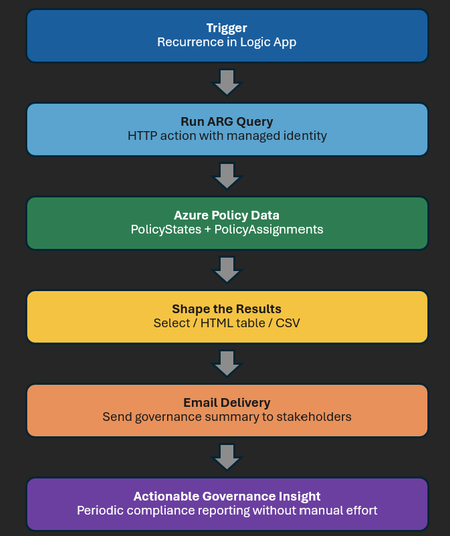
Most Azure Policy reporting stops at compliance status. Useful, yes — but not enough. When a control fails, teams need to know what failed, why it matters, and who should act. That gap becomes obvious at enterprise scale. A failed policy evaluation is only a signal. By itself, it does not tell you whether the issue affects recovery, auditability, telemetry, or another control leaders care about. That is why joining PolicyStates with PolicyAssignments matters. One tells you the outcome. The other tells you which control was applied, where, and in what governance context. Together, they turn Azure Policy from a compliance feed into a control intelligence layer. The problem: PolicyStates alone tells you what is non-compliant, but not always why it matters Microsoft’s sample ARG queries quickly show which resources are non-compliant. Helpful, but still incomplete. They show the result, not the business meaning. At enterprise scale, that distinction matters. A storage account without blob soft delete is a recovery risk. Missing Azure Activity logs creates an audit gap. A virtual machine without Azure Monitor Agent creates a telemetry blind spot. Azure Policy shows the state. The join to PolicyAssignments explains why it matters. There is also a technical reason to care about assignments. The same PolicyDefinitionId can appear in multiple assignments across different scopes. That makes PolicyAssignmentId the operational key. How Azure Policy compliance data flows Azure Policy evaluates resources against JSON-based rules. Those rules are packaged as policy definitions and can be grouped into initiatives. Once assigned to a scope, the policy engine evaluates matching resources during creation, updates, assignment changes, and regular compliance cycles. The results are exposed through PolicyStates and PolicyEvents, and can also be queried through Azure Resource Graph. This is the architecture flow for turning the ARG query into a scheduled governance report through Logic App: The key shift is operational. A Logic App can run the ARG query on a schedule, format the results, and email them to stakeholders. That turns a manual check into a repeatable governance report. The analytical pattern: enrich compliance with assignment context The analytical flow is straightforward: Configure a Recurrence trigger in Logic App so the report runs on the schedule you need. Use an HTTP action with managed identity to run the ARG query against PolicyStates and join it to PolicyAssignments. Filter on the control assignments that matter to your organisation and shape the response into a compact HTML table or CSV. Send the output by email to governance, engineering, or audit stakeholders so the insight reaches people without requiring them to open the portal. In practice, the query starts with non-compliant resources and enriches them with assignment details such as the assignment name and optional metadata like owner. That is the shift from raw signal to governance insight. A simple implementation pattern is: schedule the Logic App, run the ARG query with managed identity, format the output, and send the report. HTML works well for leadership emails; CSV is better for downstream analysis. ARM template for the Logic App If you want to deploy this pattern instead of building it step by step, I have also published an ARM template for the Logic App in my GitHub repository. The template is intended to help you stand up the scheduled policy compliance workflow faster and then customise the query, email recipients, and formatting for your own environment. This makes the architecture in this post directly reusable: schedule the Logic App, run the ARG query, shape the output, and send a control-focused report without having to assemble the workflow from scratch. See the repository for the template and related Microsoft Sentinel automation content. Reference ARG query policyResources | where type =~ 'microsoft.policyinsights/policystates' | where properties.complianceState == 'NonCompliant' | extend ResourceId = tostring(properties.resourceId), PolicyAssignmentId = tolower(trim(@" ", tostring(properties.policyAssignmentId))), SubscriptionId = tostring(subscriptionId), LastEvaluated = todatetime(properties.timestamp) | extend ResourceName = tostring(extract(@"[^/]+$", 0, ResourceId)) | extend ResourceProvider = tostring(extract(@"providers/([^/]+)/", 1, ResourceId)) | extend ResourceCategory = case( ResourceId has "Microsoft.Compute/virtualMachines", "VM", ResourceId has "Microsoft.Storage/storageAccounts", "Storage", ResourceId has "Microsoft.Network/virtualNetworks", "Network", ResourceId has "Microsoft.Sql/servers", "SQL", ResourceId has "Microsoft.KeyVault/vaults", "Key Vault", ResourceProvider =~ "Microsoft.Compute", "Compute", ResourceProvider =~ "Microsoft.Storage", "Storage", ResourceProvider =~ "Microsoft.Network", "Network", ResourceProvider =~ "Microsoft.KeyVault", "Key Vault", "Other" ) | project ResourceId, ResourceName, ResourceCategory, SubscriptionId, PolicyAssignmentId, LastEvaluated | join kind=inner ( policyResources | where type =~ 'microsoft.authorization/policyassignments' | extend AssignmentName = tostring(properties.displayName), AssignmentId = tolower(trim(@" ", tostring(id))), Scope = tostring(properties.scope), PolicyOwner = tostring(properties.metadata.owner) | where AssignmentName has "CSTM--Configure blob soft delete on a storage account" or AssignmentName has "Configure Azure Activity logs to stream to specified Log Analytics workspace" or AssignmentName has "Audit diagnostic setting for selected resource types" | project AssignmentId, AssignmentName, Scope, PolicyOwner ) on $left.PolicyAssignmentId == $right.AssignmentId | project SubscriptionId, ResourceId, ResourceName, ResourceCategory, AssignmentName, AssignmentId, Scope, ['LastEvaluated[UTC]'] = LastEvaluated What this query is doing — in plain English This query finds Azure resources that are currently NonCompliant with Azure Policies by reading data from the PolicyStates table in Azure Resource Graph. It extracts useful details such as Resource ID, Resource Name, Resource Type/Category, Subscription ID, Policy Assignment ID, and the last evaluation timestamp. Resources are categorized into groups like VM, Storage, Network, SQL, and Key Vault based on their resource type/provider. It then joins the non-compliant resources with specific policy assignments (three named policies) to show which policy caused the non-compliance, along with the policy scope, and evaluation time. Why CISOs and governance leaders should care For a CISO, this is not about counting failed evaluations. It is about knowing whether critical controls are drifting, where the risk sits, and who owns the response. Three use cases stand out: Audit readiness: show control-focused evidence instead of a flat list of resource IDs. Ownership: enrich assignments with metadata so findings can be routed to the right team faster. Prioritization: focus on the controls that matter now, not every non-compliant resource in the estate. Operational benefits: scalable, repeatable, and security-friendly From an engineering perspective, this pattern is attractive because it is repeatable, scalable, and aligned to the native Azure Policy data model. It also fits naturally into operational tooling. The enriched output can feed workbooks, dashboards, Sentinel content, and alerting workflows. Closing thought At small scale, Azure Policy can be reviewed in the portal. At enterprise scale, that quickly becomes noise. The better question is not Which resources are non-compliant? It is Which important controls are failing, where, and who should act? That is what makes this pattern powerful: it turns Azure Policy from a compliance dashboard into a control intelligence layer that works for both engineers and executives.Understanding Microsoft Entra ID Group Membership Caching and Azure SQL Authentication Timing
Contributor: hudajazmawi Executive Summary Organizations frequently use Microsoft Entra ID groups to manage access to Azure SQL databases. This approach simplifies administration, improves security, and supports just-in-time access models. In some scenarios, users may experience temporary authentication failures shortly after being granted access through a Microsoft Entra ID group. These failures can appear inconsistent, especially when access succeeds to one database while failing against another. Understanding how group membership caching works during authentication can help explain this behavior and reduce unnecessary troubleshooting efforts. This article explains a real-world scenario involving temporary authentication failures after group assignment, describes the underlying authentication behavior, and provides practical recommendations for validation and mitigation. Issue Description A user was granted access to Azure SQL through membership in a Microsoft Entra ID group. Shortly afterward, the user attempted to connect using Microsoft Entra authentication. The observed behavior was: Authentication to certain databases succeeded immediately. Authentication to other databases failed temporarily. The issue appeared shortly after the group membership was granted. Access eventually began working without any configuration changes. The behavior resolved after a period of time without additional intervention. At first glance, the results appeared inconsistent because some connection attempts were successful while others failed, even though the same user credentials and group assignments were being used. Technical Background Azure SQL supports Microsoft Entra authentication, allowing access to be granted through users, groups, and service principals managed within Microsoft Entra ID. When a user authenticates, Azure SQL must determine the user's effective permissions. For users who belong to many Microsoft Entra groups, membership information may be cached to improve authentication efficiency and reduce repeated directory lookups. Caching is a common design pattern used throughout distributed systems to improve performance, scalability, and reliability. However, because caches contain information retrieved at a specific point in time, there can be a temporary delay before recently changed security information becomes visible to all authentication requests. This behavior is particularly important to understand when organizations use: Just-in-time access workflows Privileged access management processes Temporary group assignments Automated access provisioning Frequent permission validation testing Root Cause The investigation determined that the authentication failures were caused by Microsoft Entra ID group membership caching. A login attempt occurred before the user was added to the required Microsoft Entra ID group. During that earlier authentication attempt, the user's group memberships were retrieved and cached. After the user was added to the required group, subsequent authentication attempts continued using the previously cached membership information until the cache expired. As a result, authentication requests temporarily evaluated permissions using outdated group membership data. Because the newly assigned group membership had not yet been reflected in the cached information, authentication failed even though access had already been granted. Once the cached membership information expired and fresh group membership data was retrieved, authentication succeeded without any additional configuration changes. Detailed Explanation To understand the behavior, consider the following simplified sequence: Step 1: Initial Authentication A user attempts to connect to Azure SQL before being added to the required Microsoft Entra ID group. During this process: The user's current group memberships are evaluated. Membership information is cached. The required access group is not yet present. Authentication behavior reflects the permissions available at that moment. Step 2: Group Membership Change The user is added to the appropriate Microsoft Entra ID group. From an administrative perspective, the access assignment has been completed successfully. However, any previously cached authentication information may still reflect the user's earlier membership state. Step 3: Immediate Retesting The user immediately attempts another connection. Although the directory now contains the new group membership, the authentication process may still reference cached membership information created before the change occurred. The result can be a temporary authentication failure. Step 4: Cache Expiration After the cached data expires or is refreshed, authentication retrieves updated membership information. The newly assigned group is now visible during authorization evaluation. At this point, authentication succeeds as expected. Why Some Databases May Behave Differently One of the most confusing aspects of these scenarios is that different databases may appear to behave differently even when they use identical group assignment models. This typically occurs because authentication state and cache usage can differ depending on the sequence and timing of connection attempts. For example: Database A may be accessed for the first time after the group assignment occurs. Database B may have received a connection attempt before the group assignment occurred. As a result: Database A may evaluate fresh membership information and allow access. Database B may continue referencing previously cached membership information until the cache expires. This can create the appearance of inconsistent behavior even though the system is operating as designed. Mitigation and Recommendations The following practices can help reduce the likelihood of encountering similar authentication timing scenarios. 1. Assign Access Before Testing Whenever possible, add users to the required Microsoft Entra ID groups before any authentication attempts are made against Azure SQL resources. This helps ensure that fresh membership information is used during the first authentication request. 2. Avoid Immediate Validation After Permission Changes If a user has recently been granted group-based access, consider allowing time for authentication cache refresh behavior before conducting validation testing. Immediate testing can sometimes produce results based on older membership information. 3. Plan for Temporary Authentication Delays Organizations implementing just-in-time access should account for the possibility of short propagation and cache refresh intervals when designing operational procedures. 4. Use DBCC FLUSHAUTHCACHE When Appropriate For controlled testing and validation scenarios, administrators may use: DBCC FLUSHAUTHCACHE; DBCC FLUSHAUTHCACHE; This command can help refresh authentication cache behavior during troubleshooting and validation activities. As with any administrative operation, testing should be performed according to organizational change-management procedures. 5. Capture Precise Timing Information When investigating authentication behavior, collecting exact timestamps is extremely valuable. Recommended data points include: Time the user was added to the Microsoft Entra ID group Time of each authentication attempt Database target of each connection attempt Time any cache refresh operation was performed Time authentication eventually succeeded Accurate timestamps help establish a clear correlation between group membership changes and authentication behavior. Validation Guidance If you need to verify whether group membership caching is influencing authentication results, consider the following approach: Record the exact time a user is added to the required Microsoft Entra ID group. Record the time of every authentication attempt. Identify whether any login attempts occurred before the group membership change. Observe whether successful authentication occurs after a period of time without configuration changes. Where appropriate, perform controlled tests using authentication cache refresh procedures. Compare authentication outcomes against the timeline of group membership updates. This structured approach often helps determine whether the observed behavior is related to authentication caching rather than a permission configuration issue. Key Takeaways Temporary authentication failures immediately after group-based access assignment do not necessarily indicate a configuration problem. Authentication behavior may be influenced by previously cached Microsoft Entra ID group membership information. Login attempts that occur before a group membership change can affect subsequent authentication behavior until cached data expires. Different databases may appear to behave differently if they are accessed at different points in the authentication timeline. Capturing precise timestamps significantly improves troubleshooting accuracy. Proper testing practices and awareness of cache behavior can reduce confusion and accelerate issue resolution. Closing Summary Microsoft Entra ID group-based authorization provides a powerful and scalable way to manage Azure SQL access. However, like many modern cloud authentication systems, caching is used to optimize performance and improve efficiency. When group memberships change immediately before authentication testing, temporary differences between cached and current membership information may lead to short-lived authentication failures. Understanding this behavior can help administrators accurately interpret results, design effective validation procedures, and avoid unnecessary troubleshooting. By assigning permissions before authentication attempts, allowing appropriate time for cache refresh behavior, and capturing precise timing information during investigations, organizations can more effectively manage Microsoft Entra-based access and streamline their operational workflows. As always, when troubleshooting authentication scenarios, focusing on the exact sequence and timing of events often provides the clearest path to identifying the underlying cause and validating a successful resolution. Further Reading To learn more about Microsoft Entra authentication and Azure SQL security, review the following Microsoft documentation: Microsoft Entra authentication for Azure SQL https://learn.microsoft.com/azure/azure-sql/database/authentication-aad-overview Explains how Microsoft Entra authentication works with Azure SQL and the benefits of group-based access management. DBCC FLUSHAUTHCACHE (Transact-SQL) https://learn.microsoft.com/sql/t-sql/database-console-commands/dbcc-flushauthcache-transact-sql Describes how to clear the database authentication cache and notes that it clears cached Microsoft Entra group membership data stored in the database.1.1KViews0likes0CommentsWhen Arc Goes Silent: Turning Visibility Gaps into SOC Action
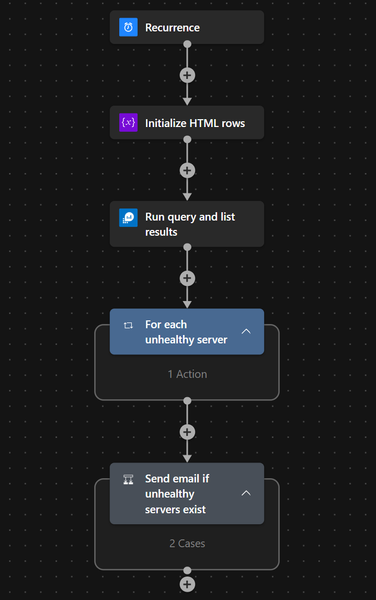
Hybrid blind spots rarely announce themselves. They appear when an Azure Arc-enabled server drops out, health signals go stale, and the SOC loses confidence in monitoring coverage. This playbook uses Microsoft Sentinel and Logic Apps to turn that noise into one clear daily signal the team can act on. The problem: too much noise, not enough assurance One unhealthy server, one alert, one more email—at scale, that does not help the SOC. What leaders need is assurance: where visibility is weakening, which systems matter, and when action is needed. The use case: daily assurance for hybrid monitoring coverage The use case is simple: identify Arc-enabled servers that stay unhealthy beyond a set threshold, such as 30 minutes, and send one consolidated summary each day. For a CISO, this improves assurance. For a SOC Manager, it cuts noise and helps teams prioritize faster. Solution overview: simple automation, stronger operational signal The workflow runs on a schedule, queries Log Analytics, filters Arc health issues, formats the results into a clean HTML report, and sends a single email through Office 365 Outlook. The outcome is not more telemetry—it is a better operational signal. Prerequisites One or more Azure Arc-enabled servers connected to Azure. Azure Monitor Agent installed and sending heartbeat data to a Log Analytics workspace. Microsoft Sentinel enabled on the target workspace if the playbook is being used as part of SOC operations. A Logic App with permissions to run the query and send email through Office 365 Outlook. A reviewed threshold, recipient list, and notification cadence aligned to your operating model. How the workflow creates decision-ready visibility In practice, this becomes a daily control: check Arc health, isolate persistent issues, and route one concise summary to the right teams. That gives the SOC a cleaner way to review monitoring gaps before they become bigger operational problems. Why this matters to a CISO and SOC Manager For security leadership, this is about confidence. If Arc health degrades on systems tied to monitoring, policy, or data collection, the risk is not just technical—it is a visibility gap. This playbook helps surface that gap early and in a form teams can act on quickly. Three practical scenarios where this playbook delivers value Reduce SOC noise.Replace scattered alerts with one daily summary. Strengthen executive assurance.Highlight persistent blind spots before they turn into escalations. Improve team coordination.Give security and infrastructure teams one shared view of the issue. Sample KQL to identify persistent Arc monitoring gaps This sample query uses the Heartbeat table to identify Azure Arc-connected machines whose latest heartbeat is older than the defined threshold. It is a practical starting point and can be tuned further based on the environment and data collection design. let ThresholdTime = 30; AzureActivity | where TimeGenerated > ago(1d) | where CategoryValue == "ResourceHealth" | where parse_json(Properties).currentHealthStatus == "Unavailable" | where ActivityStatusValue == "Active" | extend ResourceType = Properties_d.resourceProviderValue | where ResourceType == "MICROSOFT.HYBRIDCOMPUTE" | extend StartTime = TimeGenerated | extend ServerName = Properties_d.resource | join kind=leftouter ( AzureActivity | where ActivityStatusValue == "Resolved" | extend ResourceType = Properties_d.resourceProviderValue | where ResourceType == "MICROSOFT.HYBRIDCOMPUTE" | extend EndTime = TimeGenerated ) on CorrelationId | extend Minutes_OfflineTillResolve = datetime_diff('minute', EndTime, StartTime) | project ServerName, StartTime, EndTime, CorrelationId, Minutes_OfflineTillResolve, Level, ActivityStatusValue1, ResourceGroup, OperationNameValue, SubscriptionId, ResourceProvider, Type, CategoryValue, ActivityStatusValue | extend TotalMinutes_Offline = datetime_diff('minute', now(), StartTime) | where TotalMinutes_Offline >= ThresholdTime and ActivityStatusValue1 !has "Resolved" | order by TotalMinutes_Offline desc Operational flow ARM Template: microsoft-security-operations-toolkit/Microsoft Sentinel/Automation/Playbooks/AzureArcServerMonitoring.playbook.json at 1e3aeff329e0d9b1d7caf2e4bfbc8476dfdb2ff2 · Abhishek-Sharan/microsoft-security-operations-toolkit Customization Ideas: Adjust the heartbeat threshold based on server criticality or business hours. Route summaries to different teams based on subscription, resource group, or server tags. Send notifications to Microsoft Teams in addition to, or instead of, email. Enrich the output with owner, business service, or environment metadata. Trigger incident creation only for high-priority or repeated visibility gaps. Closing perspective The best SOC automations do not just collect signals—they create clarity. This playbook helps security teams spot Arc-related monitoring gaps early, reduce noise, and act with more confidence.Understanding Azure SQL Data Sync Firewall Requirements
Why IP Whitelisting Is Required and What Customers Should Know Azure SQL Data Sync is commonly used to synchronize data between on‑premises SQL Server databases and Azure SQL Database. While the setup experience is generally straightforward, customers sometimes encounter connectivity or configuration issues that are rooted in network security and firewall behavior. This blog explains why Azure SQL Data Sync requires firewall exceptions, what type of IP addresses may appear in audit logs, and how to approach this topic from a security and documentation standpoint—based on real troubleshooting discussions within the Azure SQL Data Sync ecosystem. The Scenario: Sync Agent Configuration Fails Despite Valid Setup A frequently reported issue occurs when the Azure SQL Data Sync Agent (installed on an on‑premises server) fails to save its configuration. The error typically indicates that a valid agent key is required—even when: The agent key was freshly generated from the Azure SQL Data Sync portal Connection tests succeed The agent has been reinstalled or the server restarted New sync groups were created Despite these efforts, synchronization does not proceed until a specific public IP address is allowed through the Azure SQL Database firewall. Why Firewall Rules Matter for Azure SQL Data Sync Azure SQL Database is protected by a server‑level firewall that blocks all inbound traffic by default. Any external client—including the Data Sync Agent—must be explicitly allowed to connect. In Azure SQL Data Sync: The Data Sync Agent runs on‑premises It connects outbound over TCP port 1433 It uses the public endpoint of the Azure SQL logical server The Azure SQL firewall must allow the public IP address used by the agent If this IP is not allowed, the agent cannot complete configuration or perform synchronization operations—even if authentication and permissions are otherwise correct. Identifying the Required IP Address In the referenced discussion, the required IP address was identified by reviewing Azure SQL audit logs, which revealed connection attempts being blocked at the firewall layer. Once this IP address was added to the Azure SQL server firewall rules, synchronization completed successfully. This highlights an important point: Audit logs can be a reliable way to identify which IP address must be whitelisted when Data Sync connectivity fails. Is This IP Address Owned by Microsoft? Can It Change? A natural follow‑up question is whether the observed IP address is Microsoft‑owned, and whether it can change. From the discussion: Azure SQL Data Sync relies on Microsoft‑managed service infrastructure Some outbound connectivity may originate from Azure service IP ranges Microsoft publishes official IP ranges and service tags for transparency However, documentation does not guarantee that a single static IP will always be used. Customers should therefore treat firewall configuration as a network security requirement, not a one‑time exception. Related Microsoft Resources While Azure SQL Data Sync documentation focuses on setup and troubleshooting, firewall requirements are often implicit rather than explicitly called out. The following Microsoft resources were referenced in the discussion to help customers understand Azure service IP ownership and ranges: Gateway IP addresses – Azure Synapse Analytics Download Azure IP Ranges and Service Tags – Public Cloud These resources can help security teams validate Microsoft‑owned IPs and plan firewall policies accordingly. Key Takeaways for Customers ✅ Azure SQL Data Sync requires firewall access to Azure SQL Database ✅ The public IP used by the Data Sync Agent must be explicitly allowed ✅ Audit logs are useful for identifying blocked IPs ✅ IP addresses may belong to Microsoft infrastructure and can change over time ✅ Firewall configuration is a security prerequisite, not an optional step Closing Thoughts Azure SQL Data Sync operates securely by design, leveraging Azure SQL Database firewall protections. While this can introduce configuration challenges, understanding the network flow and firewall requirements can significantly reduce setup friction and troubleshooting time. If you're implementing Azure SQL Data Sync in a locked‑down network environment, we recommend involving your network and security teams early and validating firewall rules as part of the initial deployment checklist.Unlocking Private IP for Azure Application Gateway: Security, Compliance, and Practical Deployment
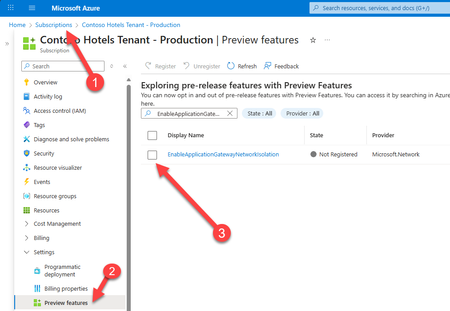
If you’re responsible for securing, scaling, and optimizing cloud infrastructure, this update is for you. Based on my recent conversation with Vyshnavi Namani, Product Manager on the Azure Networking team, I’ll break down what private IP means for your environment, why it matters, and how to get started. Why Private IP for Application Gateway? Application Gateway has long been the go-to Layer 7 load balancer for web traffic in Azure. It manages, routes, and secures requests to your backend resources, offering SSL offloading and integrated Web Application Firewall (WAF) capabilities. But until now, public IPs were the norm, meaning exposure to the internet and the need for extra security layers. With Private IP, your Application Gateway can be deployed entirely within your virtual network (VNet), isolated from public internet access. This is a huge win for organizations with strict security, compliance, or policy requirements. Now, your traffic stays internal, protected by Azure’s security layers, and only accessible to authorized entities within your ecosystem. Key Benefits for ITPRO 🔒 No Public Exposure With a private-only Application Gateway, no public IP is assigned. The gateway is accessible only via internal networks, eliminating any direct exposure to the public internet. This removes a major attack vector by keeping traffic entirely within your trusted network boundaries. 📌 Granular Network Control Private IP mode grants full control over network policies. Strict NSG rules can be applied (no special exceptions needed for Azure management traffic) and custom route tables can be used (including a 0.0.0.0/0 route to force outbound traffic through on-premises or appliance-based security checkpoints). ☑️ Compliance Alignment Internal-only gateways help meet enterprise compliance and data governance requirements. Sensitive applications remain isolated within private networks, aiding data residency and preventing unintended data exfiltration. Organizations with “no internet exposure” policies can now include Application Gateway without exception. Architectural Considerations and Deployment Prerequisites To deploy Azure Application Gateway with Private IP, you should plan for the following: SKU & Feature Enablement: Use the v2 SKU (Standard_v2 or WAF_v2). The Private IP feature is GA but may require opt-in via the EnableApplicationGatewayNetworkIsolation flag in Azure Portal, CLI, or PowerShell. Dedicated Subnet: Deploy the gateway in a dedicated subnet (no other resources allowed). Recommended size: /24 for v2. This enables clean NSG and route table configurations. NSG Configuration: Inbound: Allow AzureLoadBalancer for health probes and internal client IPs on required ports. Outbound: Allow only necessary internal destinations; apply a DenyAll rule to block internet egress. User-Defined Routes (UDRs): Optional but recommended for forced tunneling. Set 0.0.0.0/0 to route traffic through an NVA, Azure Firewall, or ExpressRoute gateway. Client Connectivity: Ensure internal clients (VMs, App Services, on-prem users via VPN/ExpressRoute) can reach the gateway’s private IP. Use Private DNS or custom DNS zones for name resolution. Outbound Dependencies: For services like Key Vault or telemetry, use Private Link or NAT Gateway if internet access is required. Plan NSG and UDRs accordingly. Management Access: Admins must be on the VNet or connected network to test or manage the gateway. Azure handles control-plane traffic internally via a management NIC. Migration Notes: Existing gateways may require redeployment to switch to private-only mode. Feature registration must be active before provisioning. Practical Scenarios Here are several practical scenarios where deploying Azure Application Gateway with Private IP is especially beneficial: 🔐 Internal-Only Web Applications Organizations hosting intranet portals, HR systems, or internal dashboards can use Private IP to ensure these apps are only accessible from within the corporate network—via VPN, ExpressRoute, or peered VNets. 🏥 Regulated Industries (Healthcare, Finance, Government) Workloads that handle sensitive data (e.g., patient records, financial transactions) often require strict network isolation. Private IP ensures traffic never touches the public internet, supporting compliance with HIPAA, PCI-DSS, or government data residency mandates. 🧪 Dev/Test Environments Development teams can deploy isolated environments for testing without exposing them externally. This reduces risk and avoids accidental data leaks during early-stage development. 🌐 Hybrid Network Architectures In hybrid setups where on-prem systems interact with Azure-hosted services, Private IP gateways can route traffic securely through ExpressRoute or VPN, maintaining internal-only access and enabling centralized inspection via NVAs. 🛡️ Zero Trust Architectures Private IP supports zero trust principles by enforcing least-privilege access, denying internet egress, and requiring explicit NSG rules for all traffic—ideal for organizations implementing segmented, policy-driven networks. Resources https://docs.microsoft.com/azure/application-gateway/ https://learn.microsoft.com/azure/application-gateway/configuration-overview https://learn.microsoft.com/azure/virtual-network/network-security-groups-overview https://learn.microsoft.com/azure/virtual-network/virtual-network-peering-overview Next Steps Evaluate Your Workloads: Identify apps and services that require internal-only access. Plan Migration: Map out your VNets, subnets, and NSGs for a smooth transition. Enable Private IP Feature: Register and deploy in your Azure subscription. Test Security: Validate that only intended traffic flows through your gateway. Final Thoughts Private IP for Azure Application Gateway is an improvement for secure, compliant, and efficient cloud networking. If you’re an ITPRO managing infrastructure, now’s the time check out this feature and level up your Azure architecture. Have questions or want to share your experience? Drop a comment below. Cheers! Pierre757Views1like0Comments
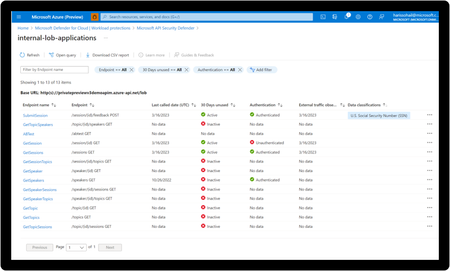
New blog post | Microsoft bolsters cloud-native security in Defender for Cloud with new API security
Application Programming Interfaces (APIs) power modern applications, fuel digital experiences, and enable faster business growth. APIs are at the heart of communication between users, cloud services, and data – more and more so as organizations move from monolithic to microservice based application architectures. But the interesting challenge is that APIs are loved by developers and threat actors alike. Threat actors increasingly use APIs as their primary attack vector to breach data from cloud applications, which means API security is now a critical priority for CISOs. Microsoft bolsters cloud-native security in Defender for Cloud with new API security capabilities - Microsoft Community Hub