cloud native
164 TopicsMaking Azure Container Registry Activity Visible at Scale
Learn More Use Grafana dashboards in Azure Container Registry Monitor Azure Container Registry Azure Container Registry (ACR) now publishes two new metrics: Transactions and Data Transfer. For the first time, you can see which operations your registry serves, which region serves them, and how much data (egress) they move, for each registry and each of its geo-replicas. ACR often serves as a shared distribution point for containerized workloads. Build systems push container images and other artifacts, Kubernetes clusters pull images during deployments, and security and lifecycle tools scan artifacts throughout the day. As those environments grow, high-level signals such as a total pull count or storage used can tell you that activity changed, but not why. Transactions and Data Transfer fill that gap, so you can explain a traffic spike, catch a failing or throttled pipeline, and see where your data goes. A customer-facing metric is a stream of data points, attributed to one resource, that you can chart, split, and alert on in Azure Monitor. Building these metrics meant producing data points for very high-throughput signals, counting them accurately, attributing each one to the right registry in every region, and not exhausting the metrics system underneath. In this post, we'll cover what these metrics show you, what it took to deliver them at scale, and the sharded design that made it possible. What you couldn't see before Before this work, push and pull counts, alongside storage used, were the only registry traffic metrics we published. They showed that activity happened, but not what kind of operations drove it, whether each operation succeeded, or where it was served. Take a sudden jump in pulls: Before: total pull count is up, with no way to tell which geo-replication drove the traffic. Now: the extra requests are blob downloads in one geo-replication region, many of them Throttled, while Data Transfer from that geo-replication stays flat. Those gaps matter most when traffic changes. An increase may come from a deployment, a retry loop, metadata polling, a regional workload shift, or larger image layers, and each looks different underneath: a surge in manifest and blob reads, repeated errors or throttled responses, a steady stream of tag and listing calls, traffic moving between replicas, or more bytes per pull without more requests. To tell them apart, you need to know which operations are changing, how much artifact data is moving, where requests are being served, and whether the pattern matches the workload you intended to run. Push and pull counts summarize outcomes. Transactions and Data Transfer describe behavior, and describing behavior takes far more data. Why scale is the hard part These signals are high throughput by nature, because every counted request becomes its own data point: a single sampled registry's activity can exceed 100,000 transactions and hundreds of gigabytes of data transferred (egress) in one hour. All of those data points land in internal metrics accounts, and each account has a finite budget for how much data it can take in and process. Our previous emission strategy sent metrics to a single backing account. That worked for the metrics we already had but signals this large would eventually exhaust that account's quota. Scale wasn't an optimization we could add later. It was a prerequisite for launching these metrics at all. Sharding the metrics without splitting the view The answer to the capacity problem is to stop relying on one account. Instead, we shard our metrics across multiple internal metrics accounts. A shard is one slice of a larger system that holds part of the data and has its own capacity. Each shard has its own headroom, which we monitor and manage independently, so no single account caps growth. Geo-replication complicates this. A geo-replicated registry is served from many regions at once, and a single request can pass through more than one component: one answering API calls, another serving blob bytes, another delivering webhooks. However capacity is divided, every data point from every region and every component still has to be attributed to the registry it belongs to. Otherwise, you'd see your registry's activity in pieces and have to stitch it back together yourself. Activity from every geo-replication and component is attributed to its registry and counted once. Each registry's metrics land on one shard, different registries are spread across shards, and you still query one registry in the portal. When you open the Azure portal or query Azure Monitor, you query your registry. You never see or choose where that information is coming from. Counting each request once. Multi-hop requests raise the same question for accuracy. One blob pull can touch more than one component: the registry may answer with a redirect, and a different component serves the bytes. Each step is counted once, by the component that handled it: the redirect appears as its own Redirect transaction, the download as a Success transaction, and the bytes appear once in Data Transfer. Failed requests count as Transactions, so errors stay visible, but not as Data Transfer, because no bytes were delivered. Every emitting component uses the same ApiName and ResponseType vocabulary, and we verify that each counted request produces exactly one data point. Each step is counted once, by the component that handled it, and bytes count only when they're served. The result is one view of each registry, across every region and component, with each step of a request counted exactly once. What customers get Both metrics appear where you already look: Azure portal > your registry > Monitoring > Metrics, and through Azure Monitor for programmatic queries and alerts. Transactions counts registry API operations, with three dimensions: ApiName: the registry operation, such as manifest, tag, and blob operations, referrer and catalog listings, token requests, etc. ResponseType: Success, Redirect, ClientErrorUnauthorized, ClientErrorNotFound, Throttled, etc. Region: the geo-replication of the registry that served the request Data Transfer reports the total outbound data your registry transfers, in bytes, when it serves content such as blob and manifest downloads. You can split it by ApiName and Region. ApiName: the flow that moved the data, such as layer downloads, manifest downloads, image imports, replicating content to your geo-replicas, etc. Region: the geo-replication of the registry that served the request A typical investigation takes a few steps. Open Monitoring > Metrics, choose Transactions, and split by ResponseType to see successes, redirects, throttling, and errors at a glance. Switch the split to Region to see which geo-replication is serving the change. Then select New alert rule from the same chart. For example, filter to Throttled and alert when the total over 5 minutes exceeds a threshold you choose. To understand egress by region, chart Data Transfer over time and split it by Region to see how much data each geo-replication serves and whether that data transfer traffic is growing. Match the view to what you suspect: A deployment or metadata polling: split Transactions by ApiName to see whether blob and manifest reads or tag and listing calls are driving the change. A retry loop: filter ResponseType to Throttled, ClientErrorUnauthorized, or ServerErrorOther. A regional workload shift: split metric by Region. Larger image layers: compare the two metrics. Data Transfer rising while Transactions stays flat points to bigger artifacts, not more requests. Transactions split by ResponseType: successes, redirects, throttling, and errors at a glance. Built for the metrics that come next Transactions and Data Transfer run on the same sharded metrics path, and we built it so future metrics onboard onto that same path instead of competing for one account's capacity. The design scales with customer workloads and with the metrics we add next, without a redesign. Conclusion Transactions and Data Transfer give you a direct view of what your registry is doing: which operations it serves, whether they succeed, where they're served, and how much data moves. Sharding is how we delivered that view at scale without giving up accuracy, and it's the path future metrics will onboard onto. A few lessons generalize beyond metrics: Design for scale before you launch a high-throughput signal, not after. Attribute by resource, not by location. Activity spread across many regions still needs one source of truth per resource. Keep the complexity on the service side. Customers query a registry, not a shard, so how we manage capacity can evolve without changing what you query. Get started with Transactions and Data Transfer in Monitor Azure Container Registry and the supported metrics reference for Azure Container Registry.50Views1like0CommentsData Transfer and Transactions metrics now generally available for Azure Container Registry
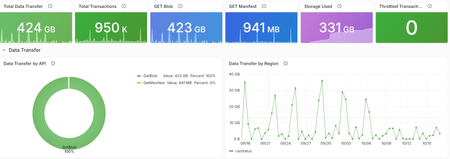
Azure Container Registry now provides two new platform metrics that make it easier to understand outbound data transfer, inspect API traffic, and investigate throttled or failed requests without first opening a support request. We're excited to share the general availability of the Data Transfer and Transactions metrics for Azure Container Registry (ACR). Both metrics are emitted automatically through Azure Monitor and include dimensions that help you move from “something changed” to the operation, response, and region that explain the change. Available to all ACR customers today: The Data Transfer and Transactions metrics are available automatically for every registry, with no additional configuration or cost for the metrics themselves. Deeper visibility into registry activity ACR's existing platform metrics provide useful high-level signals such as total and successful pull and push counts, along with storage usage. However, those aggregate signals don't tell you which API operation changed, which region served the traffic, or whether requests were successful, rejected, or throttled. Answering those questions often required you to configure diagnostic settings, query logs, correlate client-side telemetry, or contact support. The new metrics add built-in dimensions for common operational investigations, so you can identify the traffic pattern first and then decide whether to tune clients, adjust deployment behavior, change capacity, or investigate a failure. Before What the new metrics unlock Aggregate pull and push counts Transaction volume split by registry API operation. HTTP 429 responses visible primarily from client failures Throttled transactions filtered by response type and split by API or region. Limited attribution for outbound transfer Outbound bytes split by operation and serving registry region. Separate log and client-side investigations Built-in metric charts, alerts, and Grafana dashboards without custom instrumentation. This visibility is especially useful for shared registries and geo-replicated environments. If request volume increases, outbound transfer changes, or clients begin receiving HTTP 429 responses, you can investigate the activity directly in Azure Monitor or the integrated Grafana experience. What is new Data Transfer: understand outbound registry traffic The Data Transfer metric measures total outbound data transferred from your registry in bytes. Split the metric by ApiName to distinguish client blob and manifest downloads, geo-replication traffic, and data read when another registry imports content from this registry. Split by Region to see where that transfer originated. Transactions: understand registry API activity The Transactions metric counts registry API operations. Use its dimensions to identify which operations are generating traffic, where requests are served, and whether the response succeeded, redirected, failed, or was throttled. Dimension Available on What it tells you ApiName DataTransfer/Transactions The registry operation represented by the metric. Region DataTransfer/Transactions The region that served the request or from which data was transferred. ResponseType Transactions The request outcome, including success, redirect, authorization failure, not found, throttled, and other client or server errors. For the complete list of API names and response classifications, see the Azure Container Registry monitoring data reference . Questions you can answer Which APIs are busiest? Split Transactions metric by ApiName to compare manifest, layer, metadata, and authentication operations. How is traffic distributed across my registry geo-replications? Split Transactions and DataTransfer metrics by Region to monitor transaction volume and outbound data transfer across the registry's geo-replications. Are my requests being throttled? Filter Transactions by ResponseType = Throttled, then split by ApiName or Region to find the affected traffic. What operations are driving outbound data transfer from my registry? Split DataTransfer by ApiName to compare client downloads, replication, and import-source traffic. You can explore these new insights in two ways. Start with the integrated Grafana dashboard for a curated, customizable view of registry health and activity. For quick questions or focused investigations, use Azure Monitor Metrics to filter and split the underlying metrics by API, region, and response type. Start with the integrated Grafana dashboard Alongside these metrics, we're introducing a new visualization experience for ACR customers: Dashboards with Grafana. The experience is enabled by Azure Managed Grafana and brings a prebuilt, customizable Grafana dashboard into the registry's Azure portal experience. The dashboard provides out-of-the-box panels for key operational insights, including transaction activity and request outcomes by region, outbound data transfer, throttled requests, and storage consumption. To get started, open your registry in the Azure portal and select Monitoring > Dashboards with Grafana. The gallery includes the Azure Container Registry observability dashboard with views for data transfer, transaction trends, throttling, and storage consumption. You don't need to deploy or manage a separate Grafana instance. For teams that already use Grafana, the ACR Observability dashboard is also available in the public Grafana dashboard gallery, where it can be imported and customized for existing monitoring environments. Use the prebuilt dashboard as a starting point, then add panels and customize the views to surface and save the insights most important to your team. You can also use Grafana Explore for ad hoc analysis. The integrated observability dashboard brings key registry metrics together in one view. The dashboard is broken down into sections: Overview, Data Transfer, Transactions, and Storage. Explore the dashboard sections, including Transactions, to view overall request breakdown and audit throttle activity. For dashboard creation, customization, access, and deployment guidance, see Use Grafana dashboards in Azure Container Registry. Run ad hoc metric queries in Azure Monitor For a quick question or focused investigation, open your registry and select Monitoring > Metrics. Select Data Transfer or Transactions, then use filtering and splitting to analyze the relevant API, region, or response dimensions. Investigating throttling? Start with Transactions, filter ResponseType to Throttled, and split by ApiName. After you identify the traffic pattern, review the mitigation guidance in Azure Container Registry SKU features and limits . Use the Transactions dimensions to investigate operation volume, regional traffic, and outcomes. Use Data Transfer dimensions to identify the operations and regions generating outbound transfer. Learn more Monitor Azure Container Registry Azure Container Registry monitoring data reference Use Grafana dashboards in Azure Container Registry Azure Container Registry API request rate limits Engineering deep dives For a closer look behind the scenes, these engineering deep dives explain how our team designed and implemented the capabilities that make these new insights possible. Making ACR Data Transfer Visible: The Storage Activity Platform Behind GetBlob Metrics Making Registry Activity Visible at Scale Start exploring the metrics today Open your registry in the Azure portal and select Monitoring > Dashboards with Grafana to explore transaction trends, outbound data transfer, throttling, and storage in one integrated view. Use the built-in dashboard as a starting point, then add panels and customize the views to surface and save the insights most important to your team. This integrated experience gives registry teams a self-service path from signal to explanation, helping you understand usage patterns and investigate failed or throttled requests before turning to logs or opening a support request.277Views4likes1CommentMaking ACR Data Transfer Visible: The Storage Activity Platform Behind GetBlob Metrics
Learn More Use Grafana dashboards in Azure Container Registry - Use Grafana dashboards in Azure Container Registry - Azure Container Registry | Microsoft Learn Monitor Azure Container Registry - Monitor Azure Container Registry - Azure Container Registry | Microsoft Learn Introduction Azure Container Registry (ACR) can now show customers something it never could before: how much data leaves their registry, and which operations caused it. A new customer-facing Data Transfer metric in Azure Monitor breaks egress down by API Name, GetManifest, GetBlob, GeoReplication, and ImportSource so customers can finally attribute and plan for traffic that used to be invisible. The hard part of that metric is GetBlob. Blob and layer downloads, the bulk of pull traffic, are redirected to Azure Storage, so the registry serving path never sees those bytes. Making that redirected egress observable, fresh, and attributable is what required real engineering investment. To close that gap we built a Storage Activity Platform: a reusable, scalable ingestion foundation that turns raw storage activity into fresh, attributable telemetry in minutes instead of days. The Data Transfer metric GetBlob registry path is the first customer-facing capability it unlocks. What Customers Can Now See: The Data Transfer Metric For the first time, ACR exposes a customer-facing Data Transfer metric in Azure Monitor. It measures egress, the bytes actually transferred out of a registry, in bytes, captured per operation. What makes it useful is the ApiName dimension, which attributes every byte to the operation that generated it. The operations visible today include: GetManifest - manifest retrieval. GetBlob - blob and layer downloads (the bulk of pull traffic). GeoReplication - data transferred during geo-replication sync across regions as well as geo-replication initial sync. ImportSource - traffic pulled from a source registry during import. Because egress is split this way, customers can finally answer questions they never could before, for example "How much of my egress is geo-replication sync versus pulls?" The metric is: Dimensioned by Region and ApiName, consistent with the Transaction metric. Inclusive of service-initiated egress such as geo-replication sync, not just customer pulls. Reported on a PT1M time grain, aligned with Azure Storage metrics. Why customers care: Egress can be significant and hard to predict, especially for geo-replicated registries with large initial syncs. Attributing it by operation is the foundation for cost planning, capacity planning, and faster troubleshooting. The Engineering Challenge: GetBlob Is Invisible to the Registry Most of these operations are straightforward to measure: the registry serves them directly, so it can emit the metric as it does the work. GetBlob is the exception, and it is the hard one. When a client pulls an image, the registry does not stream the blob and layer bytes itself. It redirects the client to Azure Storage, which serves the download directly. That redirect is great for performance and scale, but it means the registry never observes the transferred bytes. The single largest component of egress is invisible to the very service that would normally report it. Before: a client pull is redirected from ACR to Azure Storage, so the transferred bytes are invisible to the registry; after: storage activity flows through the Storage Activity Platform into the Data Transfer metric in Azure Monitor That is the observability gap. To turn GetBlob into a customer-facing metric, we needed those redirected bytes to be: Observable - captured from where the transfer actually happens (Azure Storage), not the registry serving path. Fresh - available in minutes, not days, so the metric reflects current behavior. Attributable - tied back to the right registry, region, and operation. None of that existed. Closing this gap is what motivated the Storage Activity Platform built by the Azure Container Registry team. The Freshness Problem Even where storage activity was available, it was too slow to build on. Our previous storage log ingestion pipeline could not keep up. In several regions, telemetry arrived in days rather than minutes. By the time data reached our analytics platform it was frequently no longer actionable, which made troubleshooting harder and, just as importantly, blocked entire classes of customer-facing metrics that simply cannot exist on stale data, GetBlob egress among them. Why customers care: Fresh, trustworthy storage telemetry is the prerequisite for faster troubleshooting, better planning, and every new customer-facing metric that depends on it. Why It Was Hard ACR operates globally at significant scale, serving a large and continuously growing volume of registry traffic. Rebuilding the telemetry ingestion foundation under that load, without affecting the core service, was the central challenge. Finding the real bottleneck. We knew telemetry was slow, but not where the delay came from, log generation, delivery, ingestion, processing, aggregation, or persistence. Without that answer, any fix would be a guess. Sustaining production-scale volume continuously. The platform had to keep up with the highest-volume regions all the time, not just in a benchmark. Producing trustworthy data. For egress to become a customer-facing metric, the underlying data had to be accurate and correctly attributable per operation. The Engineering Story: A Platform, Not a Pipeline Design principles Rather than patching the old pipeline, we rebuilt ingestion around a small set of principles: Decouple ingestion from analytics. Getting storage activity in quickly should not be entangled with how any single downstream scenario consumes it. This separation is what lets new metrics attach later without touching ingestion. Instrument every stage independently. We built visibility into the pipeline itself, measuring latency at each stage separately, so we could locate the real bottleneck instead of guessing. Design for reuse from day one. The target was a scalable ingestion platform, not a bespoke path for one metric. New telemetry should inherit the infrastructure, not rebuild it. Scale and reliability without core-service impact. Ingestion had to sustain production volume continuously and independently of the registry's serving path. Measuring what matters We instrument the platform across a few conceptual signals: The surprise. We expected the consumer to be the scaling challenge. The data showed the opposite: once events are available, the platform processes them almost immediately, even under production load. The overwhelming majority of remaining latency lives upstream, in log delivery, which redirected our optimization focus to where it will actually help. The outcome is telemetry that now arrives in minutes instead of days in many regions, and more durably, a foundation the next capability can build on. High-Level Architecture The platform is one path among several into Azure Monitor. The registry still emits most metrics directly as it serves requests. The storage activity platform runs alongside that direct path, specialized for the redirected-download (GetBlob) egress the registry cannot see for itself. It is an addition to the metric pipeline, not a replacement for it. Why customers care: A reusable ingestion platform means new metrics - starting with the previously-invisible redirected-download egress - can be onboarded faster, with far less engineering overhead, so observability keeps improving over time. The Payoff: GetBlob Data Transfer Is Now Visible The clearest proof that this was a platform investment, not just a latency fix, is what it closed: the GetBlob observability gap. The redirected blob and layer downloads that make up the bulk of egress, and that the registry never sees, are now populated entirely from the storage activity platform and surfaced through the Data Transfer metric in Azure Monitor. For the first time, customers can see that egress, attributed by ApiName. Critically, exposing that redirected-download egress required no new ingestion infrastructure of its own. It attached to the storage activity platform we had already built, which is exactly the point: the platform did the hard part once, and the metric inherited it. The Customer Experience Both the freshness improvement and the new metric surface through tools customers already use, no new workflow to learn. Fresher telemetry flows into the analytics and dashboards teams already rely on, so what they see reflects what is happening now rather than days ago. The Data Transfer metric appears in Azure Monitor alongside existing registry metrics, and can be charted, alerted, and forecast like any other Azure Monitor metric, split by Region and ApiName. Why customers care: Egress attribution leads directly to better cost and capacity planning and faster troubleshooting, and it is only the first of many capabilities the platform can now serve. Engineering Lessons Learned Instrument the pipeline before optimizing it. Measuring each stage independently turned a guessing game into a targeted fix and revealed the bottleneck was not where we assumed. Invest in the platform, not the feature. Building ingestion as a reusable foundation meant the first customer-facing metric attached in a fraction of the time it would have otherwise taken. Outcomes & What's Next What changes for customers is the bottom line: Egress is no longer invisible. Customers can see how much data leaves their registry and attribute it by operation, including the redirected GetBlob downloads that were never observable before. What they see reflects now, not days ago. Telemetry that arrives in minutes instead of days means troubleshooting, cost planning, and capacity planning act on current reality. The platform matters because of what it lets customers observe next. Because new metrics can now be onboarded on top of this foundation, the Data Transfer metric is a beginning, not an endpoint, richer analytics and additional customer-facing metrics follow, each one deepening the visibility customers have into their own registries. Learn More Use Grafana dashboards in Azure Container Registry - Use Grafana dashboards in Azure Container Registry - Azure Container Registry | Microsoft Learn Monitor Azure Container Registry - Monitor Azure Container Registry - Azure Container Registry | Microsoft Learn178Views2likes0CommentsIntroducing a Guided Copilot Experience for Building Azure Apps in VS Code
Today we're previewing a new way to build cloud apps with GitHub Copilot in VS Code: a guided Copilot experience that takes you from idea to a deployed Azure app through a structured, predictable workflow instead of a free-form chat session that may or may not land where you need it to. The problem: Copilot is powerful, but unpredictable Ask Copilot to "build me a Node.js API on Azure Functions with a Postgres database" today, and you might get a working project, or you might not. Sometimes Copilot scaffolds the app but skips infrastructure. Sometimes it generates a deployment script that fails halfway through. Sometimes it forgets what you were building three prompts later. The underlying model is capable. The problem is the shape of the experience: an open-ended chat with no checkpoints, no guardrails, and no consistent path from "I have an idea" to "it's running in Azure." How it works The guided Copilot experience adds to that open-ended flow with three clear, explicit stages: 1. Project scaffolding: Describe your app in plain language. Copilot proposes an architecture and asks for anything that is missing (e.g., language, app type, Azure services) through simple forms and pickers, not more back-and-forth chat. You review and approve the plan before any code is written. 2. Local development: Your project is scaffolded then Copilot checks for the runtimes, emulators, and tools you'll need and helps you install what's missing, so the project runs locally from the very first launch. Debug configurations are wired up automatically, so you can test and iterate on your app before it ever touches Azure. 3. Deployment: Copilot shows the tools that will be used for deployment along with a summary of all resources that will be created and a cost estimate so you can be confident in what you're getting. Infrastructure files are created for your app to ensure a consistent and reproducible deployment environment for testing and staging before going to production. Deployment runs through the same reliable tooling used across Azure (az and azd), so if something goes wrong, you get a clear explanation and a concrete next step instead of a wall of CLI output. Once your app is live, the guided experience doesn't disappear, Copilot retains context about your project's architecture, so coming back later to add a service or make a change picks up right where you left off. 🎉 What this means for how you work Determinism over guesswork. The same input reliably produces the same kind of outcome, so no more wondering which "mode" Copilot is going to be in. First try success. Projects are built to run and deploy on the first attempt, not after several rounds of manual repair. Structure over chat walls. Decisions that matter such as architecture choices, missing configuration, and deployment targets are surfaced through real UI, so you're not parsing paragraphs of text to figure out what Copilot needs from you. Stay in VS Code. The entire journey, from planning through deployment, happens without leaving your editor. What's in the initial preview The first version focuses on JavaScript and TypeScript projects, including web apps, Azure Functions, Container Apps, and Static Web Apps, with support for PostgreSQL, Azure Storage, Azure Key Vault, and Azure OpenAI. .NET and Python support are on the roadmap for a future release. Nothing about your existing Copilot workflows changes, the guided experience is an additional, opinionated path alongside the free form chat you already know, for when you want a reliable, structured way to go from zero to deployed. What's next This is an early look at a broader shift in how we think about AI-assisted development on Azure: less "ask and hope," more structured collaboration with clear checkpoints and real UI where it counts. We're continuing to expand language support, refine the deployment experience, and incorporate feedback from developers using it in the wild. Install the Azure Tools extension pack and open an empty folder to try the guided Copilot experience and let us know what you think. File issues or share feedback on the GitHub repo.1.4KViews2likes1CommentIntroducing Azure Container Apps Sandboxes: Secure Infrastructure for Agentic Workloads
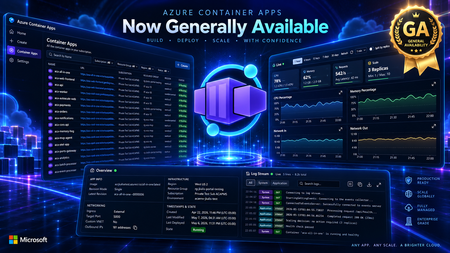
Today we are announcing the public preview of Azure Container Apps Sandboxes - a new first-class resource type that gives you fast, secure, ephemeral compute environments with built-in suspend and resume. This is the underlying infrastructure on which products like Cloud sandboxes in GitHub Copilot, Foundry Hosted Agents, and Azure Container Apps Express are built, you now have the opportunity to build your solutions leveraging this infrastructure. Azure Container Apps Sandboxes unlocks two massive opportunities. For platform developers and ISVs, sandboxes give you the same isolated compute fabric that powers many Microsoft products. You get the building blocks to create your own multi-tenant platform on proven, enterprise-scale infrastructure. For AI agents, sandboxes become a self-configurable tool that lets agents extend their own capabilities on the fly. An agent can spin up a fresh sandbox in milliseconds and use it to execute untrusted code, compile source, test HTTP requests against a live app, launch a browser session, or tackle whatever needs a quick and scalable infrastructure. On one side it empowers humans to build platforms, on the other it empowers agents to build their own capabilities. Both get enterprise-grade isolation, instant startup, and snapshot-based persistence out of the box. We'll walk through the resource model, sandbox lifecycle, the features that set Sandboxes apart - like snapshots, lifecycle policies, network egress controls, volumes, and managed identities - and show you how to get started with the portal and CLI. What Are Container Apps Sandboxes? Container Apps Sandboxes are secure, isolated compute environments that start in sub-second time, scale to thousands, and cost nothing when idle. Each sandbox runs in its own hardware-isolated microVM boundary - fully separated from the host, the platform, and every other sandbox. You bring your own Open Container Initiative (OCI) image, and Sandboxes handle the rest: provisioning from prewarmed pools, strong multi-tenant isolation, and snapshot-based suspend/resume that preserves full memory and disk state across sessions. There are many ways Sandboxes can help you build your next project - here are a few: Your own build & test systems - wire a Sandbox into your CI/CD flow to run builds while your laptop stays cool. Agents that can run anything safely - an agent spawns a sandbox, executes work inside it, and returns the output with no agent host privileges required. Agent swarms - decompose a research question, spawn N sandbox workers in parallel (each pinned to its own image and egress policy), and synthesize the result. Early access customers are already unlocking significant benefits by leveraging Azure Container Apps Sandboxes. "With Azure Container Apps sandboxes, SitecoreAI can safely enable agents to take real action. The combination of multi-tenant isolation, rapid scale-out, and full automation allows Sitecore to run long-lived, autonomous agents that securely execute code, manage workflows, and interact with enterprise systems within secure, governed environments. With this foundation, we can build agents that do real work: assembling content, personalizing experiences, and optimizing campaigns in production. Agents that operate continuously, learn from results, and improve over time, so our customers get better outcomes without giving up control." - Mo Cherif, VP of AI and Innovation, Sitecore "We got early access to Azure Container Apps Sandboxes, and got the first prototype integrated with Atlas AI in hours, and it's already shaping a new Atlas AI capability that we plan to launch in preview in Q3. It gives every Atlas AI agent a safe, sandboxed workspace (file system, terminal, code execution) on a customer's live data in Cognite Data Fusion. The value: Industrial process, reliability, and production engineers spend days and weeks on questions like "which wells are underperforming and why?" These questions are tractable but expensive, so they are asked rarely and decisions are made on gut feel. With this, an agent pulls the data, runs the analysis, cross-references maintenance and inspection records, and returns a cited draft in minutes. Sandboxes make it practical: Aligned feature set, per-customer isolation, pause/resume across multi-day investigations, scale-to-zero economics." - Kelvin Sundli, Product manager, Atlas AI, Cognite Resource Model: Sandbox Groups and Sandboxes The top-level ARM resource is Microsoft.App/SandboxGroups. A Sandbox Group is the management boundary for a collection of sandboxes that share configuration - think of it like a Container Apps Environment, but purpose-built for sandboxes. When you create a Sandbox Group, you specify: Subscription, Resource Group, and Region Sandbox defaults (optional): default CPU, memory, disk, max sandbox count, and default idle timeout Networking: optionally deploy into a custom VNet with a dedicated subnet for private networking Identity: System or user assigned Entra identity. Individual sandboxes are created within a Sandbox Group. Each sandbox has its own source (disk image or snapshot), resource tier, lifecycle policy, network egress policy, environment variables, ports, volumes, and connections. Sandbox Lifecycle Sandboxes have a well-defined lifecycle with the following states: State Description Creating Provisioning the sandbox from a disk image or snapshot Running Actively executing - backed by a live microVM Idle System-suspended after inactivity; can auto-resume on the next request Suspended Full state (memory + disk) preserved as a snapshot; no compute costs Resuming Restoring from a suspended or idle state - sub-second for most workloads Stopped User-initiated stop; can be resumed Stopping Graceful shutdown in progress Deleting Teardown in progress The key insight here is the distinction between Idle and Suspended. When a sandbox goes idle (e.g., no traffic for a configured timeout), the system can automatically suspend it and capture a snapshot. When a new request arrives, the sandbox resumes transparently. This gives you scale-to-zero economics with stateful compute - something that wasn't possible before without significant custom engineering. Disk Images: Bring Your Own Container Sandboxes boot from Disk Images - Open Container Initiative (OCI) images converted into an optimized root filesystem format. You point to any OCI image (public or private registry), and the platform builds a bootable disk image from it. You can start with public, pre-built images maintained by the platform (for example, Ubuntu base images), or bring your own private images. For private registries, you can authenticate with username/token or use a user-assigned managed identity for Azure Container Registry (ACR) – integrated with Azure as you expect. Snapshots: Full-State Persistence Snapshots capture the complete state of a running sandbox - memory, disk, and all running processes. When you resume a sandbox from a snapshot, every process, open file handle, and in-memory data structure is restored exactly as it was. A snapshot captures the full state of a running sandbox: memory pages, disk, processes. Two ways to make one - automatically on suspend, or manually on demand. Three things they're great for: Checkpointing mid-task so a long-running agent can resume exactly where it left off Cloning an environment that's already warm - dependencies installed, caches populated, services running Shipping a "ready-to-go" state that resumes in sub-second instead of cold-booting Snapshots are free during the preview, after which they will be stored as Azure Blob Storage at standard rates. Each snapshot records the source sandbox, resource allocation (CPU, memory, disk), and container metadata - so what you get back is exactly what you snapshotted. Resource Tiers Every sandbox is assigned to a resource tier that determines its CPU, memory, and disk allocation: Tier CPU Memory Disk XS 0.25 vCPU 0.5 GiB 5 GiB S 0.5 vCPU 1 GiB 10 GiB M (default) 1vCPU 2 GiB 20 GiB L 2 vCPU 4 GiB 40 GiB XL 4 vCPU 8 GiB 80 GiB When creating a sandbox from a snapshot, the resource tier is inherited from the snapshot and cannot be changed - this ensures the restored environment has the exact resources it was running with when the snapshot was taken. Lifecycle Policies: Auto-Suspend and Auto-Delete Every sandbox can be configured with lifecycle policies that automate state transitions and cleanup: Auto-Suspend Idle timeout: How long a sandbox can sit idle before being suspended (configurable: 1m, 2m, 5m, 10m, 30m, 60m) Suspend mode: Disk + Memory (default): Full snapshot including memory state - resume picks up exactly where you left off, with all processes and in-memory data intact. Disk: Only the disk is preserved; the VM restarts fresh on resume. Useful when you only need file persistence, not process continuity. Auto-Delete Automatically delete sandboxes after a configurable number of days of inactivity Prevents accumulation of abandoned sandboxes that consume snapshot storage These lifecycle policies are what make Sandboxes economically viable at scale. A platform serving thousands of tenants can configure aggressive idle timeouts (say, 60 seconds) with Memory suspend mode, and each tenant's sandbox disappears from the billing meter almost immediately - but resumes in sub-second time the moment they return. Network Egress Policy For scenarios involving untrusted code - AI agents executing LLM-generated scripts, multi-tenant SaaS with user-submitted workloads - controlling outbound network access is critical. Sandboxes provide a per-sandbox Network Egress Policy: Default action: Allow or Deny all outbound traffic Host rules: Domain-pattern rules (e.g., *.github.com → Allow) to permit specific destinations Custom CIDR rules: Network-level rules for IP ranges (e.g., 10.0.0.0/8 → Deny) Skip egress proxy: Option to bypass the egress proxy entirely when custom VNet routing handles policy enforcement This means you can run a sandbox in a deny-by-default posture and allowlist only the specific endpoints it needs (your API server, a package registry, etc.) - without setting up NSGs or firewall appliances. Managed Volumes: Persistent and Shared Storage Sandboxes support two types of mountable volumes, both managed by Microsoft: Volume Type Backed By Best For Managed Azure Blob Azure Blob Storage Shared data across sandboxes, file uploads/downloads, persistent artifacts Managed Data Disk Azure Disk Storage High-performance storage for databases, build caches, large working sets - only available to one sandbox at a time Blob volumes come with a built-in file explorer in the portal - you can browse, upload, download, create folders, and drag-and-drop files directly. Data Disk volumes provide dedicated block storage with configurable sizes. Secrets and Identity Secrets Sandbox Groups support key-value secrets scoped to the group. Secrets can be created, edited, and referenced by sandboxes within the group. These secrets can be used in egress policies to modify requests with transform or header-injection rules, without exposing the secrets to code running inside the sandbox. Managed Identity Sandbox Groups support both system-assigned and user-assigned managed identities, with full RBAC role assignment management. This means your sandboxes can authenticate to Azure services (Key Vault, Storage, Cosmos DB, etc.) without managing credentials - the same identity model you use everywhere else in Azure. MCP Connectors and Triggers ACA Sandboxes now supports managed connectors through the Model Context Protocol (MCP), giving sandboxes access to external APIs - including Microsoft 365, Salesforce, ServiceNow, GitHub, and 1,400+ other systems - without managing credentials directly. Attach a Connector Gateway to your sandbox group, and every sandbox in the group can call external APIs through a standardized MCP interface at runtime. Pair connectors with triggers to build event-driven automation: route an Outlook email to a sandbox that triages it with an AI agent, or react to a SharePoint file upload by extracting and processing the document all without writing glue code. Triggers can fire a shell command inside a sandbox or invoke an HTTP endpoint the sandbox exposes, so your automation shapes fit naturally around your workload. The integration is built on the new Connector Namespace service (az connector-namespace), the same runtime behind Logic Apps and Power Platform connectors, now available as a programmable layer for sandboxes. See the end-to-end samples for runnable azd up-deployable examples covering email triage and document automation scenarios. The Portal Experience Azure Container Apps Sandboxes are only available in the new Azure Container Apps portal that provides a rich, IDE-like experience for working with sandboxes. Creating a Sandbox The portal offers multiple creation paths: Standard Sandbox - full configuration control over source, resources, lifecycle, networking, and volumes GitHub Copilot Sandbox - preset, Copilot CLI ready to go, GitHub credentials can be wired through the Access Token before the sandbox is created Claude Sandbox - Claude CLI pre-installed, ready for agentic coding inside the sandbox Using Coding Agents (Copilot CLI / Claude Code) If you live inside Copilot CLI or Claude Code, you don't need to learn a new CLI. Install the azure-sandbox skill once and your agent picks up the right skills: # GitHub Copilot CLI # Add as a plugin marketplace /plugin marketplace add microsoft/azure-container-apps # Install all skills /plugin install sandboxes@Azure-Container-Apps # Claude Code claude plugin add microsoft/azure-container-apps The skill runs prerequisite checks silently (az --version, az account show, node --version, aca --version), prompts only if something's missing, and maps natural-language asks to the right aca commands. Bundled runbooks cover Copilot CLI BYOK (bring your own Azure OpenAI key), the deploy-a-web-app walkthrough, and shell setup. Sandbox Detail Page Once your sandbox is running, the detail page gives you immediate access to the sandbox terminal and additional details, such as - Network Audit - real-time egress traffic log showing allowed and denied requests Monitor - live CPU, memory, disk, and network utilization charts Connectors - attached connections with an "Add" action Volumes - mounted volumes with an "Add" action Log Stream - streaming container logs Processes - running process list inside the sandbox Files - file explorer to browse the sandbox filesystem The toolbar actions let you manage the state of the sandbox - Resume or Stop. In the Ellipsis menu (⁝) you can find additional settings to manage network Egress Policy and ingress (Add port), take a Snapshot of the sandbox, Commit (save disk state as a new disk image), set Lifecycle Policy or permanently Delete the sandbox. Finally, you can see additional Details in a side panel. Getting Started with the CLI and Python SDK All sandbox and sandbox-group operations go through the aca CLI. There are no az containerapp sandbox commands, - az is only used for az login, az account show, and resource-group management. Install (CLI) # Mac, Linux curl -fsSL https://aka.ms/aca-cli-install | sh # Windows irm https://aka.ms/aca-cli-install-ps | iex Run aca --help to get started. Install (Python SDK) pip install azure-containerapps-sandbox For more details, quick start and examples on ACA CLI and Python SDK, please go to https://sandboxes.azure.com Evolution from Dynamic Sessions If you've used Azure Container Apps Dynamic Sessions, Sandboxes are the next evolution of that capability. Everything Sessions can do, Sandboxes can do - and significantly more: Capability Dynamic Sessions Sandboxes Sub-second startup ✓ ✓ Strong isolation ✓ ✓ Custom container images ✓ ✓ Custom VNet integration ✓ (Partial) ✓ Suspend/resume with Memory and Disk snapshots - ✓ Lifecycle policies (auto-suspend, auto-delete) - ✓ Network egress policy (per-sandbox) - ✓ Persistent managed volumes (Blob, Data Disk) - ✓ Managed identity (system + user-assigned) - ✓ Secrets management - ✓ Configurable resource tiers - ✓ Direct access to sandbox in Portal experience - ✓ We will continue to support Dynamic Sessions, but all new investment goes into Sandboxes. If you're building new workloads on isolated ephemeral compute, start with Sandboxes. How It All Fits Together ACA Sandboxes is a platform primitive. It's the foundation on which multiple Microsoft products are already built - including ACA Express, Cloud sandboxes in GitHub Copilot, and Foundry Hosted Agents. When you build on Sandboxes, you're building on the same infrastructure that powers Microsoft's own portfolio. This is the evolution of what we shared with Project Legion in 2024. Legion described the internal infrastructure; Sandboxes exposes it as a customer-facing primitive that you can use directly. What's Next • Deeper Azure integrations - first-class connectivity with Azure networking, identity, storage, and AI services • Enhanced SDK and CLI - richer programmatic experiences for managing sandboxes at scale • More Microsoft services built on Sandboxes - this is just the beginning Get Started Today • Portal: https://sandboxes.azure.com/ • Documentation: Azure Container Apps Sandboxes • Pricing: Azure Container Apps Pricing (per-second vCPU/memory billing, scale-to-zero, snapshots at Blob Storage rates) We'd love to hear your feedback. You can ask questions, or file issues on the Azure Container Apps GitHub (prefix with [Sandbox] for Sandboxes-specific issues).9.5KViews3likes1CommentAzure Container Apps Sandboxes, Now Generally Available
Agents Act. You Set the Limits. Your platform needs to run untrusted code. Agents choose actions at runtime, from installing packages to calling APIs. In a multi-tenant service, you have to support both without letting one customer's code reach another customer's data. That requires an execution environment you control for each tenant, session, or task. Azure Container Apps Sandboxes is that execution environment, as a service. Each sandbox is a hardware-isolated microVM with its own Linux kernel. It starts in under a second, and you decide per sandbox what it can reach, how large it is, and how long it lives. For each user, controlling which credentials their agent can use and what it can reach is key. Untrusted code must stay isolated from other workloads and the host kernel. Preserving a session state without giving up scale to zero or instant startup is important, as is visibility into what each agent did. Let's unpack these one at a time. Control What Your Agents Can Reach The first question about an agent is not what it can do, but what it can reach. Per-sandbox egress policies answer that: an external proxy evaluates every outbound request against rules you set - by host, domain pattern, or CIDR. You can start with a default 'Deny' action and allow only the endpoints the task needs, so a prompt injection or a compromised dependency has nowhere to go. Network Audit shows you what was allowed and what was denied. Approved endpoints usually need credentials, and handing an API key to an agent means the key can be logged, echoed into a response, or carried off somewhere you did not intend. Transform rules can inject authentication headers outside the sandbox. The agent sends a request with no secret in it, the proxy adds the credential outside the sandbox, and the call goes through. The agent gets access to the service without ever getting the API key. When a static allowlist cannot express the rule you need, an egress webhook hands each request to your own service before it leaves. You can build a service that reviews all outbound calls, approves some and rejects others. Good results depend on the agent reaching the right data, and the data that matters usually sits on your private network. Outbound, VNet integration places the sandbox group on a dedicated subnet, so agents can reach internal APIs, databases, and services behind private endpoints. Egress rules are still enforced: routing is chosen per rule, so a call to an internal database is filtered, transformed, and recorded in Network Audit exactly like a call to the open internet. Inbound, a Private Endpoint brings the sandbox service into your VNet, so your own applications reach into your sandboxes without crossing the public internet. Run Untrusted Code Without Sharing a Kernel Each sandbox runs in a hardware-isolated microVM with its own Linux kernel and virtual hardware, with memory separation enforced through CPU virtualization. In contrast, typical container runtimes isolate processes while sharing the host kernel. In a sandbox, code calls into its own guest kernel, so the blast radius of a kernel exploit is one sandbox. You get that boundary with ACA Sandboxes. Inside that boundary, the filesystem is yours to choose. The quickest way to start is by creating a sandbox based on a platform-provided disk image: Public image Ready for ubuntu General-purpose Linux execution and development tools nginx Running a web server copilot, claude GitHub Copilot CLI or Claude Code workflows azure-dev Azure development with CLI tools and multiple language runtimes python-3.12-code-interpreter Isolated Python execution through REST and MCP python-3.11 to python-3.14 Python workloads node-22, node-24 Node.js workloads dotnet-8 to dotnet-10 .NET workloads php-8.3, php-8.4 PHP-FPM workloads Availability and versions change over time, please check the portal's catalog for the current list. Images are provided as is. For a custom environment with your own code and dependencies, you can bring a container image from a public or private registry. The platform converts it into an optimized, bootable disk image containing your application, agent harness, runtimes, and toolchain. For a private registry, you authenticate with registry credentials or a managed identity for Azure Container Registry. You can also start from a sandbox you already have running. A disk snapshot captures the filesystem as a new disk image, while a memory snapshot captures disk and memory together, so a sandbox created from it resumes where the original left off. Installed dependencies, or a cloned repo, are set up once, and every sandbox created from the snapshot starts with them. Give Every Task Its Own Sandbox A sandbox starts in under a second, and that is why it is practical to give every task its own machine. When a machine takes minutes to come up, everything ends up sharing that same space. When it starts instantly, each task, user, or tool call runs in isolation, and gets deleted when the work is done. Thousands at a time. Sandboxes are sized when created by selecting a resource tier. These range from 0.25 vCPU with 0.5 GiB of memory and a 5 GiB disk, enough for a short script or a quick evaluation, to 4 vCPU with 8 GiB of memory and an 80 GiB disk for compilation and heavier analysis, with multiple steps in between. Programmatically you can go up to 16 vCPU with 32 GiB of memory and a 320 GiB disk for the most demanding work. Sandboxes do not have to be discarded by hand. Lifecycle policies stop a sandbox once it goes idle, capturing the disk and optionally the memory. It can resume on a start command or automatically on arriving network traffic. A policy can also auto-delete a sandbox that has been stopped long enough, so abandoned work does not linger. Keep State and Bring Your Data Most agent tasks are short - run a script, or return a result. That is not the limit. A long-running agent needs state that outlives single runs, and volumes attach persistent storage to a sandbox at a path you choose. Code reads and writes to it through ordinary filesystem calls, and the data stays after the sandbox is deleted. There are three kinds: A Data Disk mounts to one sandbox at a time and gives it a fast, fully POSIX-compatible filesystem on local disk, which suits a working database, a build cache, or an agent's accumulated memory. An Azure Blob volume mounts to many sandboxes at once, for sharing a large read-heavy dataset rather than supporting concurrent writers. Azure Blob BYO volume (bring your own) does the same for blob storage you already own, referenced by resource ID. See What Your Sandboxes Are Doing Observability is how you know what a fleet of short-lived sandboxes did. Telemetry is opt-in and configured per sandbox when you create it, and it streams out while the sandbox runs, so you can go back to a run that finished hours ago. A sandbox emits four categories of data, and you choose which of them to collect: Category What it carries Console logs The stdout and stderr streams from each sandbox Sandbox metrics (platform) Platform-managed CPU usage, memory consumption, and network I/O per sandbox, sampled on an interval you set OpenTelemetry Signals emitted by your own application; the sandbox injects the OTLP endpoint, so an SDK you already use exports with no extra configuration Network egress decisions One record per outbound request, with the allow or deny decision the egress policy made Each category is then pointed at a destination: any OTLP-compatible collector, Log Analytics through the Logs Ingestion API, or Application Insights. They mix freely, so console logs can go to your collector while egress decisions go to Log Analytics. The credential that writes to the destination never enters the sandbox. OTLP resolves their from a sandbox-group secret, Log Analytics authenticates with a managed identity on the group. Separate from what a sandbox exports, the platform publishes cores and memory to Azure Monitor on the sandbox group, and that is what the portal shows for a Sandbox group. Sandbox group totals come by default, and you can opt-in for per sandbox details if you need that level of granularity. Use It From Code, a Shell, or a Browser Every one of these operations is available from code, a shell, a template, or a browser, so the choice comes down to what you are doing at the time. When the sandbox is part of your application, use an SDK. Today available for Python and TypeScript, with .NET on the way. An app or service you build creates sandboxes, writes and reads files, runs commands, mounts volumes, and captures snapshots as native objects in the language you use. When the work is scripted, the ACA CLI covers the same surface from Bash or PowerShell: aca sandbox create --disk ubuntu or aca sandbox snapshot. Commands accept label selectors, so automation and CI act on -l name=build-agent instead of tracking generated IDs. When the group itself is managed in source control, define it as infrastructure as code. Microsoft.App/sandboxGroups is a first-class ARM resource, so a Bicep template attaches a managed identity, links a delegated VNet subnet, and assigns data-plane roles. An ACA Terraform provider (Preview) covers the same group-level controls for teams standardized on Terraform. Sandboxes portal Designing a new resource type from scratch let us rethink the portal experience along with it. The creation flow asks the minimal set of questions - a disk image and resource tier - and you have a running sandbox. The Advanced section allows you to go deeper to ports, volumes, lifecycle policies, egress policies, logging and more. All there when you need it. What you see afterward is tailored the same way. A sandbox group gives you the overview of all sandboxes in that group: how many exist and how many are running, cores and memory in use over time. The most recent sandboxes with their state and size, and the disk images and snapshots the group can build from. A single sandbox gives you the machine: a terminal, live CPU, memory, storage, and network, a log stream, running processes, the files on disk, mounted volumes, and the egress traffic it generated with each request marked allowed or denied. You get that same experience wherever you start. Reach sandboxes from the Azure portal, alongside the rest of your resources and under the same subscriptions, RBAC, and policies, or go straight to the standalone ACA Sandboxes portal. It is the same experience either way, so there is nothing to relearn and nothing you can only do in one of them. How Much Does It Cost? Three types of charges: vCPU, per core-second while the sandbox runs. Memory, per GiB-second while the sandbox runs. Storage, per GiB stored, for as long as you keep it. The resource tier of the sandbox determines the amount of vCPU and GiB of memory. These rates are on the Container Apps pricing page. Storage is charged (coming soon) at Premium Azure Blob ZRS rates and covers: Custom Disk Images, including Disk Snapshots. The platform converts your OCI container image into a bootable disk image. You pay to store one copy of that image for as long as you keep it, regardless of how many sandboxes boot from it. The OS disk each of those sandboxes runs on is not billed. Snapshots are the combined memory and disk snapshots of your sandboxes, including those taken automatically when a sandbox stops. Optional Data Disk Volumes and Azure Blob Volumes that can be attached to sandboxes. Thank You and What Comes Next General availability is not the destination, it is where many more of you get to start. During public preview that we announced in June 2026, the usage surpassed quickly a million sandboxes created every day. Our team worked closely with early customers that provided valuable feedback that shaped the product as it's today. From teams running real workloads on sandboxes ranging from cloud-native SaaS companies like Templafy to global organizations like KPMG and Cognite. KPMG built their Cowork AI Agent for their global workforce on ACA Sandboxes. Cognite uses ACA Sandboxes in their industrial Atlas AI system. Lastly, the Department for Education, South Australia - uses ACA sandboxes to power their EdChat - A safe place for every learner. We run the EdChat so students can learn by writing code and exploring data alongside AI, across 60,000 students and more than 40,000 staff. That model only works if every student gets an environment of their own, with clear guardrails, and can come back later to find their work exactly as they left it. Building that in house meant owning the machinery behind it. We estimate that moving to Azure Container Apps Sandboxes lets us retire close to 50,000 lines of code written to manage custom code interpreter and state ourselves. It is the per-user execution model that scales for our school system, and a lower maintenance burden for us. Cody Little, AI Technical Lead, Department for Education, South Australia In addition, many internal customers at Microsoft adopted ACA Sandboxes to build and enhance their products for their customers. Among those Microsoft Foundry built hosted agents, Copilot Studio hosts agents you create - both on ACA Sandboxes and – our very own Azure Container Apps Express built a modern and fast serverless container platform on sandboxes. Their feedback and your feedback set the next priorities, and we are grateful to you for it. Three focus areas of work that follow: Sandbox groups get more control and visibility, so a platform team can observe sandboxes, audit and enforce policies at the sandbox group level. Broad extensibility with more SDKs and tighter integration with VS Code. Lastly, extensive interoperability with Connectors and Triggers (now in preview) that will provide even larger customizability and on-behalf-of authentication (OBO), so agents securely reach the systems needed to do their job. Next Steps Open the ACA Sandboxes portal and create a group with a sandbox. Clone the samples repo and start with the working code. Read the documentation for the quick starts and the reference behind everything above. We appreciate your feedback, please submit it in the ACA Sandboxes portal, or open an issue in the Azure Container Apps repo Issues · microsoft/azure-container-apps.2.5KViews3likes0CommentsAnyscale on Azure is now Generally Available
Anyscale on Azure is now Generally Available. Enterprises can run the Ray distributed runtime as a managed service on Azure Kubernetes Service (AKS), with workloads running in the customer’s own Azure subscription, network, and identity boundary. With General Availability, Anyscale on Azure is ready for production workloads and comes with the commitments enterprises need. It is backed by a service level agreement and production support from both Microsoft and Anyscale. Customer workloads, datasets, and model artifacts run in their Azure subscription, while Anyscale operates the control plane in its own Azure tenant. Customers can use their Azure identity and governance controls for the resources in their subscription. Xoople is already using Anyscale on Azure to turn planetary-scale satellite imagery into decision-ready intelligence. AI systems need more than a good model Model quality is only part of the challenge. Enterprises must also connect, secure, and operate the stages around the model. A typical stack assembles one tool for data preparation, another for distributed training, a third for evaluation, and a fourth for serving. Each tool solves part of the problem. Connecting them can require custom integration code, separately provisioned compute, and security controls that teams must maintain across systems. The resulting challenges fall into four areas: Utilization: GPUs provisioned per stage can sit idle while another stage waits for capacity. Reserved capacity that is idle is still billed. Security and governance: Teams must manage who can access data and models, where they are processed, and how security controls are configured across each system and handoff. Engineering time: Integration code requires ongoing maintenance, monitoring, and troubleshooting alongside the tools themselves. Development cycle time: Handoffs between stages can slow the path from experimentation to production. Anyscale on Azure addresses this fragmentation by bringing data preparation, training, evaluation, and inference into a common runtime and operational model. Shared infrastructure can reduce idle compute capacity, while managed Ray cluster lifecycles reduce the infrastructure work teams perform themselves. Workloads, datasets, and model artifacts remain in the customer’s Azure subscription, where teams configure access and networking controls. Using a common runtime across stages can also reduce the need to maintain separate compute stacks. The goal is to support an AI learning loop, not just inference: production feedback informs data curation, training or post-training, and evaluation before updated models return to serving. Anyscale provides the common compute platform; teams remain responsible for their models, evaluation criteria, application workflows, and security configuration. How Anyscale on Azure works Anyscale on Azure is an Azure Native Integration with an Anyscale-operated control plane and a customer data plane that keeps core resources in the customer’s Azure tenant, helping teams maintain their security and data-residency requirements. Anyscale hosts and operates the control plane in Azure. You reach it from the Azure Portal, the Anyscale console, or the Anyscale CLI and SDK. The data plane runs entirely inside your own Azure subscription: Anyscale deploys an operator into your AKS cluster, which manages Ray cluster lifecycles on your behalf. This keeps Ray workloads, datasets, and model artifacts in your Azure subscription, while the Anyscale-hosted control plane processes operational metadata. Workloads run on AKS within your virtual network and use your existing Microsoft Entra ID, Azure RBAC, and private networking controls. The Anyscale operator and Ray clusters initiate outbound connections to the Anyscale control plane, so Anyscale does not require inbound firewall access to AKS nodes for those connections. Anyscale on Azure integrates with Azure Managed Identities for authentication, Azure Blob Storage and ADLS for data, Azure Key Vault for secrets, and Azure Container Registry for images. Use familiar Azure identity and resource controls Anyscale on Azure is backed by Azure Resource Manager, allowing platform teams to apply Azure Policy and discover Anyscale resources through Azure Resource Graph, just as they do with other Azure resources. Control How it works on Anyscale on Azure Provisioning A guided Azure Portal flow provisions storage, managed identity, container registry, and service account, then installs the Anyscale operator. ARM templates and Terraform are supported. Identity Sign-in runs through Microsoft Entra SSO. Conditional Access policies that govern Azure portal sign-in govern Anyscale sign-in too. Authorization Azure RBAC against your existing role assignments, with three built-in Anyscale roles as a starting point. Policy Platform teams can apply Azure Policy to supported Azure resource types. Validate policy coverage for the Anyscale resource and its underlying infrastructure. Private connectivity Connect the Anyscale operator and Ray clusters on AKS to Anyscale control plane through a private endpoint in the customer’s virtual network. Outbound traffic travels over the Microsoft backbone rather than the public internet. Cost visibility Usage appears in Microsoft Cost Management and on the same Azure invoice, drawing down against MACC. Data boundary Ray workloads run on AKS, with datasets and model artifacts in your subscription; operational metadata is managed separately. For regulated industries such as financial services, healthcare, and public sector, Anyscale on Azure makes in-tenant AI attainable. In production: Xoople Xoople is building what it calls Earth's system of record, a continuously updated and AI-ready picture of how the planet's surface is changing. The workload is a useful illustration of why a unified runtime matters. Turning raw spectral data from satellite constellations into decision-ready measurements is not primarily a model problem. It is continuous, large-scale, heterogeneous computation: ingest and reprojection, calibration, feature extraction, model training, and inference, each at a different shape and each needing different hardware. With Anyscale on Azure, Xoople can reliably run massively distributed AI workloads over planetary-scale satellite imagery, transforming complex spectral data into decision-ready intelligence. Anyscale lets our teams focus on models and outcomes rather than infrastructure, dramatically accelerating the path from experimentation to deployment. — Milos Colic, VP of Engineering, Xoople Workloads teams run on Anyscale on Azure Workload What it's used for Why it fits a unified runtime Multimodal data preparation Curating and preparing image, video, text, and sensor datasets for training CPU decoding and GPU model-based processing run in one pipeline, with no handoff between systems Distributed training and fine-tuning Scaling distributed training across available GPU capacity Checkpointing and, when using Ray Data for data loading, mid-epoch resume can reduce repeated work after interruptions Composite AI serving Deploying and orchestrating multi-model AI applications in production Ray Serve runs multiple models and steps as a single service Embedding generation Producing embeddings at scale for search and retrieval CPU preprocessing and GPU inference share one cluster and one scheduler Reinforcement learning for LLMs Coordinating parallel reinforcement-learning post-training workloads Rollouts, reward scoring, and training are coordinated in one Ray program Physical AI simulation Running thousands of concurrent simulation environments Ray schedules large numbers of parallel simulations alongside training One runtime for the entire AI lifecycle One Ray runtime supports data preparation, training and fine-tuning, batch and online inference, and long-running agentic workloads. When each stage has its own compute, capacity reserved for one can sit idle while another waits. A shared scheduler reallocates compute as demand shifts, which can reduce idle capacity and lower infrastructure costs. Model choice also matters. Fine-tuned, task-specific models can cut serving costs when they meet quality requirements, so weigh total cost, not inference alone. The Anyscale Runtime supports Ray APIs, so existing Ray code needs fewer changes to move over. Customers should validate dependencies, data access, networking, and deployment configuration. Get started Anyscale on Azure is provisioned from the Azure Portal onto an AKS cluster in your own subscription. You manage and monitor deployments from Portal, and use the Anyscale console, CLI, and SDK for cluster-level work. Review the Anyscale on Azure overview on Microsoft Learn for architecture and prerequisites. Check regional availability against where your data resides. Create an Anyscale cloud on an existing AKS cluster from the Azure Portal, then configure managed identities for access to Blob Storage, Key Vault, and Container Registry. Move an existing Ray workload using compatible Ray APIs, after validating dependencies and deployment configuration, or start from the Anyscale on Azure quickstart. Check current Azure pricing and offer eligibility before assuming free-account credits apply to Anyscale on Azure usage. Resources Anyscale on Azure architecture and overview Anyscale on Azure pricing Anyscale on Azure solution page Anyscale on AKS Terraform reference deployment Anyscale on Azure public preview announcement Anyscale on Azure press release, June 2, 2026 Announcing Anyscale Runtime Ray on AKS overview860Views0likes0CommentsRun an Ollaya decision model on Azure Container Apps
Many AI calls are not really conversations. A support message needs an intent. A workflow needs a route. A policy check needs a yes or no. An agent needs to select its next action from a known list. These are bounded decisions, but they are often sent to a general-purpose LLM. The LLM reads the request, generates an answer token by token, and then the application validates and parses the response. That is useful when the task needs reasoning or language generation. It is more machinery than necessary when the only valid answer is one of 60 labels. On September 15, 2026, TypeSafe released Jev, its first public System One Model, in early access. Jev has helped bring attention to models built specifically for decisions: structured state goes in, and typed choices with probabilities come out. Ollaya approaches the same problem from a self-hosted direction. It is a model runtime that can serve open decision models, including the winnow:e4b model used here. Jev and Ollaya are not connected products. Jev is a hosted model from TypeSafe; Ollaya provides a way to run decision models in infrastructure you control. They are related by the kind of work they target. What decision models are good at A decision model scores predefined options rather than generating open-ended text: Decision model Traditional LLM Selects from allowed choices Generates text Returns a probability for each decision Usually returns one generated answer Has a bounded, typed output Needs schema constraints and validation Supports confidence thresholds Often needs a separate confidence strategy Fits classification, routing, scoring, policy, and prioritization Fits generation, summarization, coding, and open-ended reasoning That narrower interface creates several practical benefits: Predictable outputs: the application receives an allowed value rather than text that must be repaired or parsed. Lower decision latency: there is no autoregressive output sequence to generate. Token savings: a decision can be returned without generating output tokens. Useful uncertainty: calibrated probabilities let the application act, reject, or escalate. Smaller infrastructure: a specialized model can fit on hardware that would be modest for a general LLM. Decision models are not replacements for every LLM call. They make sense when the possible outcomes are known before the request arrives. An LLM remains the better tool when the output itself is language, code, or open-ended reasoning. Why Azure Container Apps serverless GPU Azure Container Apps serverless GPUs make self-hosted inference feel much closer to consuming a managed API. You bring the container and model; Azure manages the underlying GPU infrastructure. The Consumption GPU profile provides: NVIDIA T4 or A100 GPUs without managing GPU nodes or a Kubernetes cluster. Automatic scaling with the option to scale to zero. Per-second GPU billing while replicas are running. Container Apps networking, identity, ingress, logging, and revision management. A private inference path where the model and request data stay inside your Azure environment. That last point matters for data-sensitive decisions. In the Ollaya-only configuration, text is sent to an internal Ollaya endpoint rather than an external model API. The model, API, persistent cache, and operational controls remain in the application's Azure environment. Serverless does not remove the need to think about cold starts. A model still needs to be loaded into VRAM. For low or sporadic traffic, scaling to zero can avoid idle GPU cost. For latency-sensitive traffic, a warm minimum replica avoids making a user wait for the model to load. Azure Files can retain the model layers across revisions so a new deployment does not download the full model again. The T4 is also an important part of this experiment. It is not the largest GPU available, but the goal is not to run the largest model. The goal is to match the hardware to a model designed for the task. A focused decision model on a T4 can compete with a hosted API when the workload is a bounded classification rather than text generation. The experiment I deployed winnow:e4b through Ollaya on an Azure Container Apps Consumption-GPU-NC8as-T4 workload profile. An authenticated API exposed the classifier while Ollaya remained on internal-only ingress. A second path sent the same requests to GPT-5.4 Nano through Azure OpenAI using managed identity. The evaluation used the complete 2,974-record test partition from Amazon MASSIVE 1.1. It contains 18 scenarios and 60 intents. Both providers received the same records, labels, and descriptions. The benchmark measured latency at concurrency 1 and throughput at concurrency 8. Providers and modes ran sequentially so one measurement did not load the service used by another. This was not a direct benchmark of Jev; it tested the same decision-model pattern with an open model that could run inside the Azure environment. What the results showed The benchmark ran on September 30, 2026. Provider Successful Intent accuracy Macro-F1 p50 p95 Winnow on T4 2,974 / 2,974 75.59% 76.40% 946 ms 960 ms GPT-5.4 Nano 2,974 / 2,974 79.12% 78.07% 1,369 ms 2,489 ms Nano led intent accuracy by 3.53 percentage points. Winnow was 30.9% faster at p50 and 61.4% faster at p95. This is the useful T4 result: a smaller GPU running the right specialized model matched and beat the hosted endpoint on response latency, though not on accuracy. At concurrency 8, Nano delivered 1.367 requests per second compared with Winnow's 1.120. Nano also had 25 requests fail after eight retries because the deployment exceeded its token-rate limit. Winnow completed all 2,974 requests, but its single loaded runner serialized work and increased queue time. The token comparison shows what the decision-only path removes: Provider, both benchmark passes Input tokens Cached input tokens Output tokens Winnow on T4 9,252,872 0 0 GPT-5.4 Nano 8,501,200 7,564,800 122,759 Winnow returned every decision without generating output tokens. Nano generated 122,759 output tokens across the latency and throughput passes. The rows do not represent equivalent billing models: Winnow consumes self-hosted GPU time, while Nano is metered by hosted token usage. The comparison isolates the generated tokens that a bounded decision did not need. Winnow also returned calibrated probabilities. At a 0.90 threshold, it accepted 53.73% of the records and was correct on 94.43% of those accepted decisions. An application could handle that high-confidence group locally and send only the uncertain remainder to an LLM or human reviewer. In brief A decision model is useful when software needs a bounded answer rather than generated language. In this experiment, Winnow on a serverless T4 traded some accuracy for lower latency, zero generated output tokens, private inference, and an explicit confidence signal. The practical design is often a combination: use the decision model for fast, high-confidence choices and reserve LLM calls for uncertain or open-ended work. Try it with the template The Azure Developer CLI template packages the Container Apps environment, T4 workload profile, authenticated API, internal Ollaya service, persistent model cache, GPU readiness checks, and benchmark. It supports two deployment modes: Mode What it deploys ollaya-only Private Winnow inference on a serverless T4 plus the authenticated API full The Ollaya deployment, GPT-5.4 Nano, and the comparison benchmark Read the deployment guide Inspect every benchmark prediction and retry Review the shared MASSIVE taxonomy738Views0likes0CommentsAzure Container Apps Express is now Generally Available
For many web apps and APIs, a container image should be enough to get started. Developers should not have to choose and configure an environment before the first deployment. Today, Azure Container Apps Express reaches general availability. It is the fastest way to go from a container image to a production-ready app on Azure, with instant provisioning, startup optimized for sub-second performance, and scale-from-zero. Customers created many thousands of Express apps during public preview and told us, clearly and often, what was missing. That feedback set the priorities for general availability, and it continues to guide what comes next. From container image to running app Express starts with the application. Bring a container image, choose a region, add the configuration your app needs, and deploy. In the Express experience, there is no environment to stand up first. Azure provisions the underlying compute, ingress, and scaling. That shorter path matters when you are shipping a web app or API. It matters even more when the thing doing the shipping is an agent: AI-assisted workflows can create and update apps far faster than anyone can configure infrastructure by hand. Speed continues after deployment. Express apps can scale to zero when idle and are optimized for sub-second startup when traffic returns. For a measured look at that experience, see Express scale from zero. Broad regional availability At general availability, Express is available in more than 40 Azure regions, covering almost every public region where Azure Container Apps is offered. You get the same direct deployment experience while placing applications close to users and data. See the current list in the Express region availability documentation. Built on Azure Container Apps Sandboxes Azure Container Apps Express runs on Azure Container Apps Sandboxes, the isolated compute layer behind its provisioning and startup speed. Developers can also use Sandboxes directly to build agent platforms, secure code-execution services, and other systems that need isolated compute on demand. The Azure Container Apps Sandboxes announcement covers the compute platform underneath Express. Where Express goes next We launched Express in public preview while its focused feature set was still taking shape. That gave customers access sooner and let real usage shape the work that followed. Since preview, we have expanded regional availability, strengthened Express for production workloads, and added capabilities that fit its direct application model. General availability makes Express ready for production use. We will continue adding features while preserving its focus on fast, simple deployment. Express offers a focused subset of Azure Container Apps capabilities. Choose Express when speed and simplicity matter most. Choose a standard Container Apps environment when you need greater control over networking, GPU compute, advanced configuration, or environment-level capabilities such as Dapr. Deploy your first Express app Ready to try it? Create an Azure Container Apps Express app. Then read the Express documentation, see Express scale from zero, or learn about Azure Container Apps Sandboxes.1.4KViews0likes0Comments