browser automation tool
1 Topic
Bring managed browser automation to your agent applications
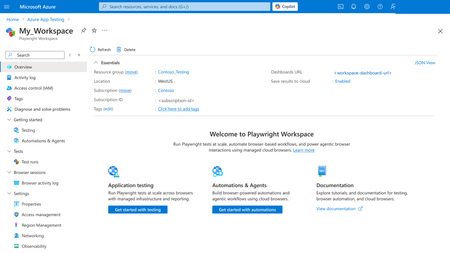
AI agents become more useful when they can move beyond conversation and complete real workflows. Playwright Cloud Browsers provides managed, on-demand browser capacity that agent applications can access through Model Context Protocol (MCP). You can connect Playwright Cloud Browsers to agent applications, including coding agents such as the GitHub Copilot app and Visual Studio Code: when they support custom remote MCP servers. Once connected, an agent can navigate an approved application, complete forms, verify results, capture evidence, and close the managed browser session. Your team gets browser automation without maintaining browsers in every user or agent environment. In this example, we use the GitHub Copilot app to show the connection and workflow. You can extend the same approach to other compatible applications by adding the Playwright workspace endpoint through their custom remote MCP configuration. Example: Follow one registration request from start to finish If your team processes employee registrations for approved training programs, each request can involve several repetitive steps: open the portal, enter employee and course information, check required fields, review the details, submit the form, and retain confirmation evidence. After you connect the workspace MCP endpoint, you can ask your agent application to handle the browser steps. In the GitHub Copilot app, for example, you could use this prompt: "Use Playwright Cloud Browsers to open <approved-registration-portal-url> and process case <number>. Enter the employee and course information I provide, validate all required fields, and show me a structured summary. Do not submit until I approve it. After approval, submit once, verify the confirmation number and success message, capture a screenshot, and close the browser session. If submission times out, inspect the page before deciding whether a retry is safe." The prompt defines the outcome, approved destination, human decision point, evidence, and cleanup expectation. The agent handles repetitive browser interaction while you remain in control of the consequential submission. Connect managed browser capacity in minutes Every Playwright workspace provides a workspace-scoped MCP endpoint: https://<region>.mcp.playwright.microsoft.com/playwrightworkspaces/<workspace-id>/mcp Provision a Playwright workspace in the Azure portal. Open the workspace and copy its MCP endpoint. In the GitHub Copilot app, open Customize, select Add, and then select MCP. Choose HTTP, enter a server name, paste the endpoint, and select Save. For this illustrated setup, only the server name and workspace endpoint are entered. Follow your organization's authentication and access policies for the workspace. Figure 1. Open the Playwright workspace Overview page in the Azure portal Figure 2. Copy the workspace-scoped MCP endpoint Figure 3. Open Customize in the GitHub Copilot app Figure 4. Select 'MCP' Tab, and add the workspace endpoint as a custom HTTP MCP server This article demonstrates Add > MCP in the GitHub Copilot app. Other compatible applications use their own custom remote MCP configuration. Using another compatible application? In Visual Studio Code or another client that supports custom remote MCP servers, add the same workspace endpoint through that application’s MCP configuration. The interface can differ, but the endpoint and connection model remain the same. Features of Playwright Cloud Browsers 1. Watch the agent complete the form When the task begins, the agent creates a managed browser session and uses its browserSessionId throughout the registration flow. Session creation might also return a liveViewUrl; Live View availability depends on the session. When available, Live View lets you watch while the agent opens the portal, finds the registration fields, and enters the supplied information. The agent follows an observe-act-verify loop: inspect the page, enter the required values, wait for validation or dependent fields, and observe the page again. If you need to intervene rather than observe, Playwright Cloud Browsers provides Take Control for supported active sessions. An authorized operator can interact directly with the running browser to address an unexpected page state, complete an action that requires human judgment, or help troubleshoot the flow. Control can then return to automation. 2. Review before the consequential action Before submission, the agent presents a structured summary with the case ID, employee name, selected course, date, contact information, required acknowledgements, and any validation warning. It waits for explicit approval. Automation removes repetitive entry and navigation, while you retain authority over the action that creates the registration. After approval, the agent submits once. It verifies the success message and confirmation identifier, captures a screenshot when evidence is required, and reports the outcome. 3. Investigate errors before retrying A timeout or disconnected caller does not prove that submission failed. Repeating a non-idempotent action can create a duplicate registration. If the result is unclear, the agent first checks the page for a confirmation number, success message, changed status, or validation error. It retries only when the page state shows that repeating the action is safe. Console messages and network activity can explain client-side errors, failed requests, authentication problems, or validation behavior. Playwright Cloud Browsers also provides built-in observability and browser session data, including logs, traces, screenshots, recordings, and execution artifacts. Availability depends on the workflow, session, and configuration. 4. Close the session and monitor the result The agent closes the browser session whether the registration succeeds, fails, or is cancelled. Closed or expired sessions cannot be reopened. Explicit cleanup releases browser capacity promptly and reduces unexpected activity. Figure 5. Review MCP created sessions in the Azure portal Browser activity log Use Browser sessions > Browser activity log to review MCP-created sessions, source, start time, and duration. The result is one connected workflow: your agent application provides the conversational or coding experience, MCP provides the connection, and Playwright Cloud Browsers provides managed execution, visibility, human intervention, evidence, diagnostics, and auditability. Responsible use: Use browser automation only with approved websites, accounts, and data. Retain human review before consequential submissions, and never place workspace credentials, access tokens, or sensitive form data in prompts, source control, screenshots, or logs. Learn more Azure portal: https://portal.azure.com/ What is Playwright Workspaces?: https://learn.microsoft.com/azure/app-testing/playwright-workspaces/overview-what-is-microsoft-playwright-workspaces Create and manage a workspace: https://learn.microsoft.com/azure/app-testing/playwright-workspaces/how-to-manage-playwright-workspace Playwright Workspaces remote MCP server: https://learn.microsoft.com/en-us/azure/app-testing/playwright-cloud-browsers/quickstart-automate-browser-tasks-remote-mcp Manage workspace access tokens: https://learn.microsoft.com/azure/app-testing/playwright-workspaces/how-to-manage-access-tokens Customize the GitHub Copilot app: https://docs.github.com/copilot/how-tos/github-copilot-app/customize-github-copilot-app Add and manage MCP servers in Visual Studio Code: https://code.visualstudio.com/docs/agent-customization/mcp-servers52Views0likes0Comments