bacpac
17 TopicsWhy Your BACPAC Import Is Slow: Finding the Real Bottleneck
A slow BACPAC import is not automatically an Azure SQL performance problem. When an import runs for hours or days, people usually blame the target database. Often, they're wrong. The import could be waiting on the workstation running it, the network between that machine and Azure, SqlPackage settings, or the target database. The progress bar won't tell you which one it is. Before you scale up or restart a two-day import, work out where the slowdown actually is. Where the work actually happens A BACPAC import is not a server-side restore. A client tool (SqlPackage, SSMS, or the Import/Export service acting as the client) does this: Opens and unpacks the BACPAC file Builds the schema model in memory and creates the objects in the target Reads the table data from the file and bulk-inserts it across the network Rebuilds indexes and enables constraints Any of these steps can be the slow one. That's why you need to look at four things: the client, the network, the target, and the method itself. Use SqlPackage, not the portal For a database of any real size, run the import with SqlPackage rather than the portal. You get control over parameters and proper logs. Use the latest .NET version, because performance improvements ship regularly. A good baseline command with logging turned on: ./SqlPackage /Action:Import \ /sf:"C:\bacpac\mydb.bacpac" \ /tsn:"myserver.database.windows.net" \ /tdn:"MyDb" \ /ua:true /tid:"contoso.onmicrosoft.com" \ /df:"C:\bacpac\import.log" \ /DiagnosticsLevel:Verbose If you're investigating performance, also turn on performance tracing before you run it: Set-Item -Path Env:DACFX_PERF_TRACE -Value true It makes the log much bigger, so only use it while you're diagnosing. 1. Check the client The machine running SqlPackage does more work than people expect. Memory: the schema model is built in memory, and a large schema can use a lot of it. Disk: the BACPAC file has to be unpacked, so make sure there's enough fast local disk space. CPU: check whether any cores are maxed out during the data phase. Watch Task Manager or Performance Monitor while the import runs. If the client is maxed out while the target database is idle, scaling up the database won't help. 2. Check the network Running an import from an on-premises laptop over a VPN is the most common reason it's slow. High latency and connections that drop now and then slow down every batch of rows. Watch how much the client is sending over the network. If it stays at a low, steady level while the client and target both have spare capacity, the network is probably the limit. The quickest test is to copy the BACPAC file to an Azure VM in the same region as the target and run SqlPackage from there. Use SSD storage and enable accelerated networking on the VM. If the import gets much faster, you've found the cause. 3. Check the target Run this on the target database while the import is running: SELECT TOP (30) end_time, avg_cpu_percent, avg_data_io_percent, avg_log_write_percent, max_worker_percent FROM sys.dm_db_resource_stats ORDER BY end_time DESC; How to read it: What you see What it means avg_log_write_percent near 100% Log throughput is the limit. Scale up for the import. avg_data_io_percent near 100% Data I/O is the limit. Scale up for the import. avg_cpu_percent high Compute is the limit, especially during index rebuilds. Everything low the target isn't the problem. Look at the client and network or try increasing parallelism. Microsoft's guidance is to temporarily scale the target to a higher service tier for the import and scale back down afterwards. Business Critical or Premium gives the best import performance. Treat the scale-up as an experiment: record the numbers before and after so you know whether it helped. If the target is barely busy, SqlPackage may simply not be sending enough work in parallel. The default is 8. You can raise it with MaxParallelism:16. Increase it gradually and keep watching the target. For large tables with many indexes, p:RebuildIndexesOfflineForDataPhase=True can also speed up the index rebuild phase. 4. Is it slow, or stuck? A progress bar that hasn't moved doesn't mean nothing is happening. Run these checks on the target. Is there still activity? SELECT r.session_id, s.program_name, r.status, r.command, r.wait_type, r.wait_time, r.total_elapsed_time FROM sys.dm_exec_requests AS r JOIN sys.dm_exec_sessions AS s ON s.session_id = r.session_id WHERE r.session_id <> @@SPID; Are row counts going up? Run this twice, a few minutes apart: SELECT OBJECT_SCHEMA_NAME(object_id) AS schema_name, OBJECT_NAME(object_id) AS table_name, SUM(row_count) AS rows_loaded FROM sys.dm_db_partition_stats WHERE index_id IN (0, 1) GROUP BY object_id ORDER BY rows_loaded DESC; If rows are still being added, the import is slow but alive. If you see no sessions and no rows being added, the client has probably lost its connection. Scaling up won't fix that. You'll need to fix the connection and run the import again into an empty database. 5. Should you be using a BACPAC at all? A BACPAC is a logical copy of your schema and data. That works well for small and medium databases, but it gets painful for large ones that can only be offline for a short time. If your pilot shows the import won't fit your downtime window even with the best setup, look at a migration service such as Azure Database Migration Service instead. Run a pilot before you promise a time Don't promise a fixed speed like "X GB per hour". Results depend on schema complexity, the number and size of indexes, data types, the network and the target tier. Instead: Import a representative sample, or the full BACPAC into a non-production target. Try it from a remote workstation and from an Azure VM close to the target. Try it on the current tier and on a temporarily higher tier. Try it with the default parallelism and with a higher value. Record how long each run takes, how long the largest tables take (you can get this from the log), and what the target's resource use was. Base your cutover estimate on these measurements and allow some extra time. After the import Check for disabled indexes. If an import was interrupted after the data loaded but before the index rebuild finished, some indexes can be left disabled: SELECT OBJECT_SCHEMA_NAME(object_id) AS schema_name, OBJECT_NAME(object_id) AS table_name, name AS index_name FROM sys.indexes WHERE is_disabled = 1; Compare row counts between the source and the target. Update statistics. Scale the database back down to its normal production size. Quick checklist Latest SqlPackage (.NET version), not the portal Diagnostic log enabled (/df), plus the perf trace if you're investigating Client CPU, memory and disk checked Network ruled in or out (test from an Azure VM in the same region) sys.dm_db_resource_stats checked during the import Target scaled up for the import, with numbers recorded before and after Parallelism tuned only if the target is underused Slow vs stuck confirmed with row counts Indexes, row counts and statistics checked afterwards, and the tier scaled back down When an import is slow, find out which part is slow before you change anything. References: Troubleshoot issues and performance with SqlPackage Import a BACPAC file to Azure SQL DatabaseLessons Learned #536: Error the database type is not understood by the data reader.
This week we have been working on a support case where our customer had the following message 50006: Error the database type is not understood by the data reader when exporting using SQL Server Management Studio to a bacpac. We also observed that other tools showed the same message Checking SQL Server Management Studio, we faced the following error screen: Could not export schema and data from database. (Microsoft.SqlServer.Dac) ADDITIONAL INFORMATION: 50006: Error the database type '' is not understood by the data reader. (Microsoft.Data.Tools.Schema.Sql) As part of our investigation, we validated that the native export tool SQLPackage did not produce the same error. This indicated that the issue was not directly related to the database itself, but rather to the version of SSMS (or the specific client tool being used). After further analysis, we identified the root cause: This error occurs due to a limitation in SSMS v20 (and some third-party export/backup tools). Specifically, these tools do not support the JSON data type in SQL database columns. As a result, any attempt to export or back up a database containing JSON columns with these versions will fail. After the analysis, we've found to be a limitation in the SSMS v.20 and other third-party backup/export tool, which does not support the JSON data type in SQL database columns. As a result, any attempt to export or back up a database containing JSON columns using this tool would fail. In our case, the issue was resolved after the customer upgraded to SSMS v21, which includes support for JSON data types during bacpac exports. Afterthe upgrade, the export process worked as expected.273Views0likes0CommentsLessons Learned #535: BACPAC Import Failures in Azure SQL Database Due to Incompatible Users
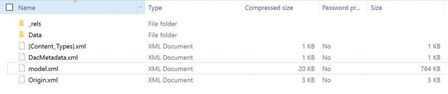
We recently worked on a support case where a customer was trying to import a BACPAC file, generated on a different server and subscription, into their Azure SQL Database. The process kept failing with the following errors: "Could not import package. Error SQL72014: Framework Microsoft SqlClient Data Provider: Msg 33159 - Only connections established with Active Directory accounts can create other Active Directory user" At first glance, this looked like a permissions issue, but digging deeper we realized that the error was triggered when the import process tried to create Entra ID (Azure AD) users while the connection was being made with a SQL Login, We checked several things in the BACPAC: The BACPAC contained references to external Active Directory users that were valid in the source environment but not in the target. Both the Azure portal and SQL Server Management Studio (SSMS) failed with the same error. Since BACPAC files include both schema and user objects, incompatible users were being carried over and breaking the import. After thorough investigation, the following resolution path was established: We created a dummy copy of the source database. We removed the external AD/Entra users from that copy. We generated a new BACPAC from this cleaned database. We imported it into the target Azure SQL Database — and this time it worked. We explained several details: BACPAC files included both schema and security objects, including users. If external Active Directory users are not present in the target environment can cause import failures. Before exporting, review and remove or adjust user objects to avoid this issue — particularly when migrating across subscriptions, servers, or organizations with different Azure AD tenants.528Views0likes0CommentsLesson Learned #523: Measuring Import Time -Parsing SqlPackage Logs with PowerShell
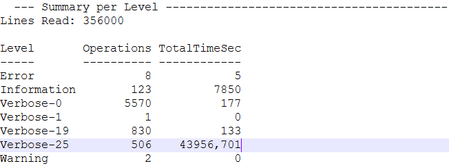
This week I'm working on a service request who was experiencing long import times when restoring a large BACPAC into Azure SQL Database, I need to understand where time was being spent inside SqlPackage.exe. I rely on the diagnostics log and the PowerShell to analyze this time. The file contains valuable information that we can extract and summarize using PowerShell. I developed a small PowerShell Script with the following idea: Classifies every entry (Information, Verbose‑25, Verbose‑19, …). Tracks cumulative time for each class. Flags any operation whose delta exceeds 10 seconds with a warning. Produces two tables at the end: Summary per Level (counts + total seconds). Verbose‑25 Operations sorted by elapsed time. I used Verbose-25 (Verbose Operation plus operation ), because I identified that the lines contains the elapsed-time of the operation done. Those are usually the slowest parts. How the Script Works Read the content 5000 lines at a time. Parser every line running Process‑Line function to obtain 3 variables Level, Id, Timestamp, Message. If the level is not Verbose-25 (operation finished), the time is measured against the previous timestamp otherwise for Perf: text Operation ended we use elapsed ms. I added a line that when the delta > 10 s triggers Write‑Warning. $logPath = "C:\temp\Exampledf.txt" $prevStamp = $null $Salida = $null [int]$Lines= 0 $stats = @{} $Verbose25 = @{} function Process-Line { param ( [string]$line, [ref]$prevStamp ) if ($line -notmatch 'Microsoft\.Data\.Tools\.Diagnostics\.Tracer') { return "" } $tail = $Line.Substring($Line.IndexOf('Tracer') + 6).Trim() $c1 = $tail.IndexOf(':') if ($c1 -lt 0) { return "" } $level = $tail.Substring(0, $c1).Trim() $rest = $tail.Substring($c1 + 1).Trim() $c2 = $rest.IndexOf(':') if ($c2 -lt 0) { return "" } $id = $rest.Substring(0, $c2).Trim() $rest = $rest.Substring($c2 + 1).Trim() if ($rest.Length -lt 19) { return "" } $stamp = $rest.Substring(0, 19) $msg = $rest.Substring(19).Trim() if ($msg.StartsWith(':')) { $msg = $msg.Substring(1).Trim() } If($Level -eq "Verbose") { $levelKey = "$level-$id" # Verbose-25, Verbose-19… } else { $levelKey=$level } $delta = 0 if ($msg -like 'Perf: Operation ended*' -and $Level -eq "Verbose") { # Ej.: "...elapsed in ms): StartImportTable,[schema].[table],58" $elapsedMs = ($msg.Split(',')[-1]).Trim() if ($elapsedMs -match '^\d+$') { $delta = [double]$elapsedMs / 1000 } $Verbose25[$msg] = @{ ElapsedTime = [double]$elapsedMs / 1000 } $prevStamp.Value = [datetime]$stamp } else { $curr = [datetime]$stamp if ($prevStamp.Value) { $delta = ($curr - $prevStamp.Value).TotalSeconds } $prevStamp.Value = $curr } # ---- Update the summary ----------------------------------------------- if (-not $stats.ContainsKey($levelKey)) { $stats[$levelKey] = @{ Count = 0; Total = 0 } } $stats[$levelKey].Count++ $stats[$levelKey].Total += $delta return "$levelKey $delta $($msg.Trim())" } # Read and show line (every 5000) Get-Content -Path $logPath -ReadCount 5000 | ForEach-Object { foreach ($line in $_) { $Lines++ $Salida = Process-Line -line $line -prevStamp ([ref]$prevStamp) if ($Salida) { $deltaToken = [double]($Salida.Split()[1]) if ($deltaToken -gt 10) { Write-Warning "$Lines $Salida" } if ($Lines % 5000 -eq 0 -and $Salida) { Write-Output "$Lines Text: $Salida" } } } } Write-Output "`n--- Summary per Level -----------------------------------------" Write-Output "Lines Read: $Lines" $stats.GetEnumerator() | Sort-Object Name | ForEach-Object { [pscustomobject]@{ Level = $_.Name Operations = $_.Value.Count TotalTimeSec = [math]::Round($_.Value.Total, 3) } } | Format-Table -AutoSize Write-Output "`n--- Verbose-25 Operations -------------------------------------" $Verbose25.GetEnumerator() | Sort-Object @{ Expression = { [double]$_.Value.ElapsedTime }; Descending = $true } | ForEach-Object { [pscustomobject]@{ Operation = $_.Name ElapsedTimeSec = [double]$_.Value.ElapsedTime } } | Format-Table -AutoSize Examples:Lesson Learned #362: Keyword or statement option 'default_language' is not supported in this version
Today, we got a new service request that our customer faced the following error message: Error SQL72014: .Net SqlClient Data Provider: Msg 40517, Level 16, State 1, Line 2 Keyword or statement option 'default_language' is not supported in this version of SQL Server. Error SQL72045: Script execution error. The executed script: CREATE LOGIN [XYZ\\User1] FROM WINDOWS WITH DEFAULT_LANGUAGE = [us_english];2.4KViews0likes0CommentsLesson Learned #29: Getting the error message : The login already has an account under a different user name while importing a bacpac
First published on MSDN on Aug 10, 2017 Today, I worked in a service request where our customer got the error message: Msg 15063, Level 16, State 1, Line 1 The login already has an account under a different user name, each time that they are importing a bacpac file.