azurenetworking
7 TopicsJSON Web Token (JWT) Validation in Azure Application Gateway: Secure Your APIs at the Gate
Hello Folks! In a Zero Trust world, identity becomes the control plane and tokens become the gatekeepers. Recently, in an E2E conversation with my colleague Vyshnavi Namani, we dug into a topic every ITPro supporting modern apps should understand: JSON Web Token (JWT) validation, specifically using Azure Application Gateway. In this post we’ll distill that conversation into a technical guide for infrastructure pros who want to secure APIs and backend workloads without rewriting applications. Why IT Pros Should Care About JWT Validation JSON Web Token (JWT) is an open standard token format (RFC 7519) used to represent claims or identity information between two parties. JWTs are issued by an identity provider (Microsoft Entra ID) and attached to API requests in an HTTP Authorization: Bearer <token> header. They are tamper-evident and include a digital signature, so they can be validated cryptographically. JWT validation in Azure Application Gateway means the gateway will check every incoming HTTPS request for a valid JWT before it forwards the traffic to your backend service. Think of it like a bouncer or security guard at the club entrance: if the client doesn’t present a valid “ID” (token), they don’t get in. This first-hop authentication happens at the gateway itself. No extra custom auth code is needed in your APIs. The gateway uses Microsoft Entra ID (Azure AD) as the authority to verify the token’s signature and claims (issuer/tenant, audience, expiry, etc.). By performing token checks at the edge, Application Gateway ensures that only authenticated requests reach your application. If the JWT is missing or invalid, the gateway could deny the request depending on your configuration (e.g. returns HTTP 401 Unauthorized) without disturbing your backend. If the JWT is valid, the gateway can even inject an identity header (x-msft-entra-identity) with the user’s tenant and object ID before passing the call along 9 . This offloads authentication from your app and provides a consistent security gate in front of all your APIs. Key benefits of JWT validation at the gateway: Stronger security at the edge: The gateway checks each token’s signature and key claims, blocking bad tokens before they reach your app. No backend work needed: Since the gateway handles JWT validation, your services don’t need token‑parsing code. Therefore, there is less maintenance and lower CPU use. Stateless and scalable: Every request brings its own token, so there’s no session management. Any gateway instance can validate tokens independently, and Azure handles key rotation for you. Simplified compliance: Centralized JWT policies make it easier to prove only authorized traffic gets through, without each app team building their own checks. Defense in depth: Combine JWT validation with WAF rules to block malicious payloads and unauthorized access. In short, JWT validation gives your Application Gateway the smarts to know who’s knocking at the door, and to only let the right people in. How JWT Validation Works At its core, JWT validation uses a trusted authority (for now it uses Microsoft Entra ID) to issue a token. That token is presented to the Application Gateway, which then validates: The token is legitimate The token was issued by the expected tenant The audience matches the resource you intend to protect If all checks pass, the gateway returns a 200 OK and the request continues to your backend. If anything fails, the gateway returns 403 Forbidden, and your backend never sees the call. You can check code and errors here: JSON Web Token (JWT) validation in Azure Application Gateway (Preview) Setting Up JWT Validation in Azure Application Gateway The steps to configure JWT validation in Azure Application Gateway are documented here: JSON Web Token (JWT) validation in Azure Application Gateway (Preview) Use Cases That Matter to IT Pros Zero Trust Multi-Tenant Workloads Geolocation-Based Access AI Workloads Next Steps Identify APIs or workloads exposed through your gateways. Audit whether they already enforce token validation. Test JWT validation in a dev environment. Integrate the policy into your Zero Trust architecture. Collaborate with your dev teams on standardizing audiences. Resources Azure Application Gateway JWT Validation https://learn.microsoft.com/azure/application-gateway/json-web-token-overview Microsoft Entra ID App Registrations https://learn.microsoft.com/azure/active-directory/develop/quickstart-register-app Azure Application Gateway Documentation https://learn.microsoft.com/azure/application-gateway/overview Azure Zero Trust Guidance https://learn.microsoft.com/security/zero-trust/zero-trust-overview Azure API Management and API Security Best Practices https://learn.microsoft.com/azure/api-management/api-management-key-concepts Microsoft Identity Platform (Tokens, JWT, OAuth2 https://learn.microsoft.com/azure/active-directory/develop/security-tokens Using Curl with JWT Validation Scenarios https://learn.microsoft.com/azure/active-directory/develop/v2-oauth2-client-creds-grant-flow#request-an-access-token Final Thoughts JWT validation in Azure Application Gateway is a powerful addition to your skills for securing cloud applications. It brings identity awareness right into your networking layer, which is a huge win for security and simplicity. If you manage infrastructure and worry about unauthorized access to your APIs, give it a try. It can drastically reduce the “attack surface” by catching invalid requests early. As always, I’d love to hear about your experiences. Have you implemented JWT validation on App Gateway, or do you plan to? Let me know how it goes! Feel free to drop a comment or question. Cheers! Pierre Roman 1.1KViews1like1Comment
Supercharging NVAs in Azure with Accelerated Connections
Hello folks, If you run firewalls, routers, or SD‑WAN NVAs in Azure and your pain is connection scale rather than raw Mbps, there is a feature you should look at: Accelerated Connections. It shifts connection processing to dedicated hardware in the Azure fleet and lets you size connection capacity per NIC, which translates into higher connections‑per‑second and more total active sessions for your virtual appliances and VMs. This article distills a recent E2E chat I hosted with the Technical Product Manager working on Accelerated Connections and shows you how to enable and operate it safely in production. The demo and guidance below are based on that conversation and the current public documentation. What Accelerated Connections is (and what it is not) Accelerated Connections is configured at the NIC level of your NVAs or VMs. You can choose which NICs participate. That means you might enable it only on your high‑throughput ingress and egress NICs and leave the management NIC alone. It improves two things that matter to infrastructure workloads: Connections per second (CPS). New flows are established much faster. Total active connections. Each NIC can hold far more simultaneous sessions before you hit limits. It does not increase your nominal throughput number. The benefit is stability under high connection pressure, which helps reduce drops and flapping during surges. There is a small latency bump because you introduce another “bump in the wire,” but in application terms it is typically negligible compared to the stability you gain. How it works under the hood In the traditional path, host CPUs evaluate SDN policies for flows that traverse your virtual network. That becomes a bottleneck for connection scale. Accelerated Connections offloads that policy work onto specialized data processing hardware in the Azure fleet so your NVAs and VMs are not capped by host CPU and flow‑table memory constraints. Industry partners have described this as decoupling the SDN stack from the server and shifting the fast‑path onto DPUs residing in purpose‑built appliances, delivered to you as a capability you attach at the vNIC. The result is much higher CPS and active connection scale for virtual firewalls, load balancers, and switches. Sizing the feature per NIC with Auxiliary SKUs You pick a performance tier per NIC using Auxiliary SKU values. Today the tiers are A1, A2, A4, and A8. These map to increasing capacity for total simultaneous connections and CPS, so you can right‑size cost and performance to the NIC’s role. As discussed in my chat with Yusef, the mnemonic is simple: A1 ≈ 1 million connections, A2 ≈ 2 million, A4 ≈ 4 million, A8 ≈ 8 million per NIC, along with increasing CPS ceilings. Choose the smallest tier that clears your peak, then monitor and adjust. Pricing is per hour for the auxiliary capability. Tip: Start with A1 or A2 on ingress and egress NICs of your NVAs, observe CPS and active session counters during peak events, then scale up only if needed. Where to enable it You can enable Accelerated Connections through the Azure portal, CLI, PowerShell, Terraform, or templates. The setting is applied on the network interface. In the portal, export the NIC’s template and you will see two properties you care about: auxiliaryMode and auxiliarySku. Set auxiliaryMode to AcceleratedConnections and choose an auxiliarySku tier (A1, A2, A4, A8). Note: Accelerated Connections is currently a limited GA capability. You may need to sign up before you can configure it in your subscription. Enablement and change windows Standalone VMs. You can enable Accelerated Connections with a stop then start of the VM after updating the NIC properties. Plan a short outage. Virtual Machine Scale Sets. As of now, moving existing scale sets onto Accelerated Connections requires re‑deployment. Parity with the standalone flow is planned, but do not bank on it for current rollouts. Changing SKUs later. Moving from A1 to A2 or similar also implies a downtime window. Treat it as an in‑place maintenance event. Operationally, approach this iteratively. Update a lower‑traffic region first, validate, then roll out broadly. Use active‑active NVAs behind a load balancer so one instance can drain while you update the other. Operating guidance for IT Pros Pick the right NICs. Do not enable on the management NIC. Focus on the interfaces carrying high connection volume. Baseline and monitor. Before enabling, capture CPS and active session metrics from your NVAs. After enabling, verify reductions in connection drops at peak. The point is stability under pressure. Capacity planning. Start at A1 or A2. Move up only if you see sustained saturation at peak. The tiers are designed so you do not pay for headroom you do not need. Expect a tiny latency increase. There is another hop in the path. In real application flows the benefit in fewer drops and higher CPS outweighs the added microseconds. Validate with your own A/B tests. Plan change windows. Enabling on existing VMs and resizing the Auxiliary SKU both involve downtime. Use active‑active pairs behind a load balancer and drain one side while you flip the other Why this matters Customers in regulated and high‑traffic industries like health care often found that connection scale forced them to horizontally expand NVAs, which inflated both cloud spend and licensing, and complicated operations. Offloading the SDN policy work to dedicated hardware allows you to process many more connections on fewer instances, and to do so more predictably. Resources Azure Accelerated Networking overview: https://learn.microsoft.com/azure/virtual-network/accelerated-networking-overview Accelerated connections on NVAs or other VMs (Limited GA): https://learn.microsoft.com/azure/networking/nva-accelerated-connections Manage accelerated networking for Azure Virtual Machines: https://learn.microsoft.com/azure/virtual-network/manage-accelerated-networking Network optimized virtual machine connection acceleration (Preview): https://learn.microsoft.com/azure/virtual-network/network-optimized-vm-network-connection-acceleration Create an Azure Virtual Machine with Accelerated Networking: https://docs.azure.cn/virtual-network/create-virtual-machine-accelerated-networking Next steps Validate eligibility. Confirm your subscription is enabled for Accelerated Connections and that your target regions and VM families are supported. Learn article Select candidate workloads. Prioritize NVAs or VMs that hit CPS or flow‑table limits at peak. Use existing telemetry to pick the first region and appliance pair. 31 Pilot on one NIC per appliance. Enable on the data‑path NIC, start with A1 or A2, then stop/start the VM during a short maintenance window. Measure before and after. 32 Roll out iteratively. Expand to additional regions and appliances using active‑active patterns behind a load balancer to minimize downtime. 33 Right‑size the SKU. If you observe sustained headroom, stay put. If you approach limits, step up a tier during a planned window. 34320Views0likes0CommentsUnlocking Private IP for Azure Application Gateway: Security, Compliance, and Practical Deployment
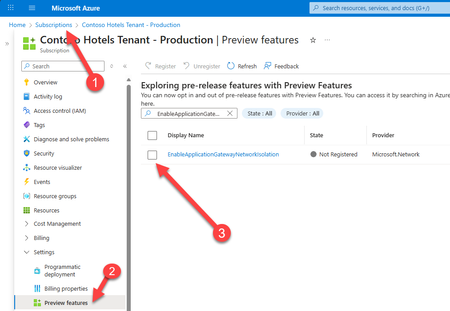
If you’re responsible for securing, scaling, and optimizing cloud infrastructure, this update is for you. Based on my recent conversation with Vyshnavi Namani, Product Manager on the Azure Networking team, I’ll break down what private IP means for your environment, why it matters, and how to get started. Why Private IP for Application Gateway? Application Gateway has long been the go-to Layer 7 load balancer for web traffic in Azure. It manages, routes, and secures requests to your backend resources, offering SSL offloading and integrated Web Application Firewall (WAF) capabilities. But until now, public IPs were the norm, meaning exposure to the internet and the need for extra security layers. With Private IP, your Application Gateway can be deployed entirely within your virtual network (VNet), isolated from public internet access. This is a huge win for organizations with strict security, compliance, or policy requirements. Now, your traffic stays internal, protected by Azure’s security layers, and only accessible to authorized entities within your ecosystem. Key Benefits for ITPRO 🔒 No Public Exposure With a private-only Application Gateway, no public IP is assigned. The gateway is accessible only via internal networks, eliminating any direct exposure to the public internet. This removes a major attack vector by keeping traffic entirely within your trusted network boundaries. 📌 Granular Network Control Private IP mode grants full control over network policies. Strict NSG rules can be applied (no special exceptions needed for Azure management traffic) and custom route tables can be used (including a 0.0.0.0/0 route to force outbound traffic through on-premises or appliance-based security checkpoints). ☑️ Compliance Alignment Internal-only gateways help meet enterprise compliance and data governance requirements. Sensitive applications remain isolated within private networks, aiding data residency and preventing unintended data exfiltration. Organizations with “no internet exposure” policies can now include Application Gateway without exception. Architectural Considerations and Deployment Prerequisites To deploy Azure Application Gateway with Private IP, you should plan for the following: SKU & Feature Enablement: Use the v2 SKU (Standard_v2 or WAF_v2). The Private IP feature is GA but may require opt-in via the EnableApplicationGatewayNetworkIsolation flag in Azure Portal, CLI, or PowerShell. Dedicated Subnet: Deploy the gateway in a dedicated subnet (no other resources allowed). Recommended size: /24 for v2. This enables clean NSG and route table configurations. NSG Configuration: Inbound: Allow AzureLoadBalancer for health probes and internal client IPs on required ports. Outbound: Allow only necessary internal destinations; apply a DenyAll rule to block internet egress. User-Defined Routes (UDRs): Optional but recommended for forced tunneling. Set 0.0.0.0/0 to route traffic through an NVA, Azure Firewall, or ExpressRoute gateway. Client Connectivity: Ensure internal clients (VMs, App Services, on-prem users via VPN/ExpressRoute) can reach the gateway’s private IP. Use Private DNS or custom DNS zones for name resolution. Outbound Dependencies: For services like Key Vault or telemetry, use Private Link or NAT Gateway if internet access is required. Plan NSG and UDRs accordingly. Management Access: Admins must be on the VNet or connected network to test or manage the gateway. Azure handles control-plane traffic internally via a management NIC. Migration Notes: Existing gateways may require redeployment to switch to private-only mode. Feature registration must be active before provisioning. Practical Scenarios Here are several practical scenarios where deploying Azure Application Gateway with Private IP is especially beneficial: 🔐 Internal-Only Web Applications Organizations hosting intranet portals, HR systems, or internal dashboards can use Private IP to ensure these apps are only accessible from within the corporate network—via VPN, ExpressRoute, or peered VNets. 🏥 Regulated Industries (Healthcare, Finance, Government) Workloads that handle sensitive data (e.g., patient records, financial transactions) often require strict network isolation. Private IP ensures traffic never touches the public internet, supporting compliance with HIPAA, PCI-DSS, or government data residency mandates. 🧪 Dev/Test Environments Development teams can deploy isolated environments for testing without exposing them externally. This reduces risk and avoids accidental data leaks during early-stage development. 🌐 Hybrid Network Architectures In hybrid setups where on-prem systems interact with Azure-hosted services, Private IP gateways can route traffic securely through ExpressRoute or VPN, maintaining internal-only access and enabling centralized inspection via NVAs. 🛡️ Zero Trust Architectures Private IP supports zero trust principles by enforcing least-privilege access, denying internet egress, and requiring explicit NSG rules for all traffic—ideal for organizations implementing segmented, policy-driven networks. Resources https://docs.microsoft.com/azure/application-gateway/ https://learn.microsoft.com/azure/application-gateway/configuration-overview https://learn.microsoft.com/azure/virtual-network/network-security-groups-overview https://learn.microsoft.com/azure/virtual-network/virtual-network-peering-overview Next Steps Evaluate Your Workloads: Identify apps and services that require internal-only access. Plan Migration: Map out your VNets, subnets, and NSGs for a smooth transition. Enable Private IP Feature: Register and deploy in your Azure subscription. Test Security: Validate that only intended traffic flows through your gateway. Final Thoughts Private IP for Azure Application Gateway is an improvement for secure, compliant, and efficient cloud networking. If you’re an ITPRO managing infrastructure, now’s the time check out this feature and level up your Azure architecture. Have questions or want to share your experience? Drop a comment below. Cheers! Pierre534Views1like0CommentsFortifying Your Cloud: Mastering Azure Networking Services to Protect Your Applications
🔐 Fortifying Your Cloud: Mastering Azure Networking Services to Protect Your Applications In today’s cloud-first world, securing applications is not optional—it’s mission-critical. Join us for an in-depth exploration of Azure network security services and learn how to: ✅ Review and compare networking application delivery services, their features, and limitations ✅ Identify the right security layers for hosting applications in Azure ✅ See a hands-on demo with Azure Front Door and other powerful services in action 📅 Don’t miss this opportunity to strengthen your Azure skills and boost your cloud security expertise. 👉 Register now and take your cloud knowledge from Zero to Hero! 🗓️ Date: 4 September 2025 ⏰ Time: 19:00 (AEST) 🎙️ Speaker: Santhosh Anandakrishnan 📌 Topic: Fortifying Your Cloud: Mastering Azure Networking Services to Protect Your Applications100Views0likes0Comments