azuredatabaseforpostgresql
4 TopicsAzure PostgreSQL Lesson #15: Private DNS in Another Subscription Causing Server Deployment Failures
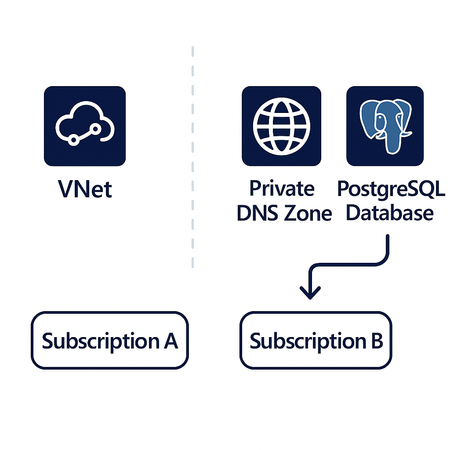
Co‑authored with angesalsaa Case Overview A customer attempted to deploy Azure Database for PostgreSQL – Flexible Server using private networking (VNet injection + Private DNS). The deployment failed with a generic “Internal error”, offering no clear indication of what was wrong. At first glance, networking looked correct: VNet was properly peered Subnet delegation was in place Private DNS zone existed Permissions appeared sufficient Yet, the deployment consistently failed. Root Cause (What We Found) The Virtual Network and Private DNS zone were hosted in a different subscription than the PostgreSQL server. While the PostgreSQL subscription had Microsoft.DBforPostgreSQL registered, the subscription hosting the VNet / Private DNS zone did NOT. Azure requires the Microsoft.DBforPostgreSQL resource provider to be registered in every subscription involved not just where the PostgreSQL server lives. This applies to: VNets used for VNet injection Private DNS zones linked to those VNets If the provider is missing, the deployment fails silently with an internal error. Key Insight Cross‑subscription networking for Azure PostgreSQL Flexible Server is not passive. Azure actively validates resource providers in all referenced subscriptions. Resolution Once Microsoft.DBforPostgreSQL was registered in the network/DNS subscription, the deployment completed successfully without any other changes. Troubleshooting & Validation Steps STEP 1 – Identify Cross‑Subscription Dependencies Check whether: VNet is in a different subscription Private DNS zone is in a different subscription STEP 2 – Validate Resource Provider Registration In every involved subscription, ensure: Microsoft.DBforPostgreSQL is registered. Azure Portal path: Subscription → Resource Providers → Microsoft.DBforPostgreSQL → Register Azure resource providers and types - Azure Resource Manager | Microsoft Learn STEP 3 – Retry Deployment After registration: Re-run PostgreSQL Flexible Server deployment Internal error should no longer occur Best Practices (Avoid This in Future) Always register Microsoft.DBforPostgreSQL in: PostgreSQL subscription VNet subscription Private DNS subscription Validate provider registration before private deployments Document cross‑subscription prerequisites in landing zones Include this check in IaC / ARM / Bicep pipelines References Azure Database for PostgreSQL – Flexible Server Networking overview with private access (virtual network) | Microsoft Learn Takeaway If your PostgreSQL Flexible Server deployment fails with an Internal error in a private network setup check resource provider registration across subscriptions before touching networking.289Views0likes0Comments
Azure PostgreSQL Lesson Learned #14: Hitting the Max Storage Limits Blocking Further Scale‑Up
Co‑authored with HaiderZ-MSFT Case Overview A customer attempted to increase storage for their Azure Database for PostgreSQL Flexible Server but was unable to exceed 32 TiB. Investigation confirmed that the server was deployed in a region where the maximum supported storage is capped at 32 TiB, meaning no additional scale‑up was possible. This limitation required exploring alternative storage options and potential redeployment strategies to support growing workload demands. Symptoms: How the Problem Appears Storage size maxes out at 32 TiB Portal does not allow selecting any higher value This behavior is expected because the platform enforces the maximum storage supported by the region and tier. Root Cause: Regional Storage Limit of 32 TiB Reached Azure Database for PostgreSQL Flexible Server supports up to 32 TiB of storage on Premium SSD within the customer’s region. Once this limit is reached: Further storage growth is not possible Storage cannot be downgraded or changed in-place The customer must migrate to a tier that supports larger disks (e.g., Premium SSD v2, where available) Premium SSD v2 supports: Up to 64 TiB 1 GiB granular sizing Higher throughput and IOPS However, its availability and supported capabilities can vary by region. Step‑By‑Step Troubleshooting & Migration Guidance STEP 1 — Validate Current Storage Azure Portal → Server → Compute + Storage Confirms storage is already at the maximum the region can offer STEP 2 — Confirm Tier Limitations Check documentation for storage caps by tier and region from Storage options | Microsoft Learn STEP 3 — Attempt a PITR‑Based Redeployment Migration from Premium SSD → Premium SSD v2 is possible via following these steps: https://learn.microsoft.com/en-us/azure/postgresql/compute-storage/concepts-storage-migrate-ssd-to-ssd-v2?tabs=portal-restore-custom-point ⚠ Important: The PITR wizard always deploys the restored server in the same region as the source server. There is no option to change regions during PITR. Therefore, customers must check if Premium SSD v2 becomes selectable during PITR within that same region. If SSD v2 is not listed in the dropdown, it means: The region does not support SSD v2 for PostgreSQL Flexible Server The customer cannot exceed 32 TiB on Flexible Server in that region Final Outcome The server reached the maximum supported storage (32 TiB) for its region and storage could not be increased further. To exceed this limit, the customer needs to move to Premium SSD v2 (if supported) Migration must be done via following these steps: https://learn.microsoft.com/en-us/azure/postgresql/compute-storage/concepts-storage-migrate-ssd-to-ssd-v2?tabs=portal-restore-custom-point Tip: Alternative Path — Use Dump & Restore to a New Server With Larger Storage If Premium SSD v2 does not appear as an available storage option during the Migration from Premium SSD → Premium SSD v2 workflow, our customer still has another viable path to exceed the 32 TiB limit: ➡ Option: Perform a pg_dump / pg_restore to a New Server with Higher Storage Capacity Data can be migrated by creating a brand‑new Flexible Server in a region that supports higher storage tiers (including Premium SSD v2), then migrating the data using standard PostgreSQL backup tools Best Practices Add proactive storage alerts (70%, 80%, 90%). Validate regional storage limits before provisioning servers. Architect for growth by selecting a region/tier that aligns with future capacity needs. Request Premium SSD v2 quota increases early when planning large workloads. Helpful References Premium SSD v2 for Azure PostgreSQL Flexible Server https://learn.microsoft.com/azure/postgresql/compute-storage/concepts-storage-premium-ssd-v2 How to Migrate from Premium SSD → Premium SSD v2 (PITR) https://learn.microsoft.com/en-us/azure/postgresql/compute-storage/concepts-storage-migrate-ssd-to-ssd-v2?tabs=portal-restore-custom-point225Views0likes0CommentsAzure PostgreSQL Lesson Learned #13: Major Version Upgrade Failure Due to HypoPG Extension
Co-authored with angesalsaa Case Overview We investigated a customer case where a Major Version Upgrade (MVU) from PostgreSQL 11 to 17 on Azure Database for PostgreSQL Flexible Server consistently failed during the pre-check phase. The upgrade was triggered through the Azure Portal, but the process was blocked due to the presence of the HypoPG extension installed across multiple databases. Symptoms: How the Failure Appears When attempting a Major Version Upgrade in Azure Portal, customers typically encounter: Immediate failure during pre-check validation. Portal error indicating failed at pre-check. Upgrade does not proceed beyond validation. This is expected behavior because Azure validates extension compatibility before performing any in-place upgrade. Root Cause: HypoPG Extension Blocks MVU Azure Database for PostgreSQL Flexible Server supports only a specific list of extensions during major version upgrades. HypoPG is not part of the allow-listed extensions for MVU. If your source server contains HypoPG in any database, the upgrade will fail. Step-by-Step Troubleshooting & Resolution Guide STEP 1 — Audit All Extensions on the Server Azure PostgreSQL does not allow cross-database queries, so you must inspect each database individually. Option A: Check Extensions in Current Database SELECT current_database() AS database_name, extname AS extension_name, extversion AS version FROM pg_extension; 👉 In our case, HypoPG appeared in 4 databases, causing the pre-check failure. STEP 2 — Enable HypoPG Temporarily in Azure Portal Before removing the extension, we had to re-enable HypoPG in Server Parameters because it was previously disabled at Azure Portal level as customer disabled as precaution step but removing part was not enough here: Azure Portal → Server → Server Parameters → azure.extensions → Add hypopg STEP 3 — Remove HypoPG Extension from All Databases Once enabled the extension, remove the extension from each affected database using following command: DROP EXTENSION hypopg CASCADE; ⚠️ CASCADE will drop dependent objects verify impact before execution. After running this command on all affected databases, HypoPG was successfully removed. STEP 4 — Validate Allowed Extensions In Azure Portal: Server → Server Parameters → azure.extensions Ensure only supported extensions are listed. Remove unsupported entries. Make sure hypopg is removed STEP 5 — Re-Run MVU With HypoPG removed and supported extensions validated: Server was in Ready state. Trigger MVU again via Portal: Portal → Server → Overview → Upgrade → Select PostgreSQL 17 Upgrade completed successfully. a { text-decoration: none; color: #464feb; } tr th, tr td { border: 1px solid #e6e6e6; } tr th { background-color: #f5f5f5; } Final Outcome After removing HypoPG and validating the server parameters: MVU completed without errors. Server upgraded from PostgreSQL 11 to 17. Best Practices to Avoid Future Upgrade Failures Audit Extensions Regularly — Especially before major version upgrades. Limit Extensions via azure.extensions — Only enable what you actively use. Clean Up Deprecated Extensions — Remove unused or legacy extensions early. Align with Azure’s Supported Extension List — Check official documentation. Automate Extension Validation — Prevent last-minute surprises. Helpful References Major Version Upgrades | Microsoft Learn366Views1like0CommentsAzure PostgreSQL Lesson Learned#11: Major Version Upgrade Failure Due to Unsupported Extensions
Co-authored with HaiderZ-MSFT Symptoms: How the Failure Appears When attempting a Major Version Upgrade in Azure Portal, customers typically encounter upgrade fails immediately or gets stuck and sometimes, portal error indicating unsupported extensions detected This is an expected behavior as Azure validates extension compatibility before performing any in‑place upgrade. Root Cause: Unsupported PostgreSQL Extensions Block MVU Azure Database for PostgreSQL Flexible Server only supports a specific list of extensions during major version upgrades. If your source server contains any extension outside that allowlist, the major version upgrade will be blocked. Step-by-Step Troubleshooting & Resolution Guide STEP 1 — Audit All Extensions on the Server Azure PostgreSQL does not allow cross-database queries, so you must inspect each database individually. ➤ Option A: Check Extensions in Current Database SELECT current_database() AS database_name, extname AS extension_name, extversion AS version FROM pg_extension; ➤ Option B: Auto-Generate Extension Check Queries for All Databases SELECT 'SELECT ''' || datname || ''' AS database_name, extname, extversion FROM pg_extension ORDER BY extname;' AS query_to_run FROM pg_database WHERE datistemplate = false; Copy the generated queries and run them to produce a server-wide extension inventory. 👉 If ANY unsupported extension appears, the upgrade will fail. STEP 2 — Remove Unsupported PostgreSQL Extensions To unblock the Azure PostgreSQL MVU: DROP EXTENSION IF EXISTS <extension_name> CASCADE; ⚠️ The CASCADE option may drop dependent objects — always verify impact prior to execution. STEP 3 — Validate Allowed Extensions in Server Parameters In Azure Portal: Server → Server Parameters → azure.extensions Ensure only supported extensions are listed Remove or correct unsupported entries Reference: Allow extensions STEP 4 — Re-Run MVU With unsupported extensions removed and supported ones validated: The server was in Ready state Free storage exceeded Azure’s 10–20% pre‑upgrade requirement Major Version Upgrades - Azure Database for PostgreSQL | Microsoft Learn Trigger MVU again via Portal: Portal → Server → Overview → Upgrade Select your target PostgreSQL major version. If all extension issues are resolved, the upgrade completes successfully. Final Outcome After removing unsupported PostgreSQL extensions and validating the azure.extensions parameter: ✔️ MVU completed without errors ✔️ Server upgraded to the desired PostgreSQL version Best Practices to Avoid Future Upgrade Failures These recommendations help maintain a healthy Azure PostgreSQL Flexible Server environment: Audit Extensions Regularly Especially before major version upgrades. Limit Extensions via azure.extensions Only enable what you actively use. Clean Up Deprecated Extensions Remove unused or legacy extensions before they accumulate. Align with Azure's supported extension list Automate Extension Validation This reduces last-minute deployment surprises. Helpful References Concepts - Major Version Upgrades in Azure Database for PostgreSql Major Version Upgrades in Azure PostgreSQL PostgreSQL Extensions on Azure242Views2likes0Comments