azuredatabase
9 Topics
Thursday Architecture Lesson #3
Azure Networking Architecture: VNet vs Subnet vs NSG vs Private Endpoint. When designing an Azure solution, choosing the right compute or storage service is only part of the architecture. A common question is: “How should my Azure resources communicate securely?” This is where Azure networking architecture becomes important. Let’s break down four foundational concepts: 1️⃣ Azure Virtual Network (VNet) A VNet is the private network boundary for your Azure resources. Think of it as your organization’s private network inside Azure. A VNet provides: Network isolation IP address space Connectivity between Azure resources Connectivity to on-premises environments A foundation for secure application architecture Example: VNet ├── Web Subnet ├── Application Subnet └── Database Subnet 2️⃣ Subnet A subnet divides a VNet into smaller network segments. Instead of putting every resource into one network segment, we separate workloads based on their role. For example: VNet │ ├── Web Subnet │ └── Web Apps / VMs │ ├── App Subnet │ └── Application Services │ └── Data Subnet └── Database Services This segmentation helps create clearer security boundaries and makes the architecture easier to manage. 3️⃣ Network Security Group (NSG) An NSG controls network traffic using rules. You can define rules based on: Source Destination Port Protocol Allow/Deny For example: Internet → Web Subnet → Allowed Internet → Database Subnet → Denied The important architectural principle is: Do not expose resources simply because they need to communicate. Instead, define the minimum network access required. 4️⃣ Private Endpoint A Private Endpoint allows supported Azure services to be accessed through a private IP address within your VNet. This is especially useful when you want services such as Azure Storage or Azure SQL Database to communicate privately without relying on public network access. For example: Application ↓ Private Endpoint ↓ Private IP ↓ Azure Storage / Azure SQL Now connect the concepts: Azure VNet ↓ ├── Web Subnet │ └── Web Tier │ └── App Subnet └── App Services ↓ Private Endpoint ↓ Azure Storage / Azure SQL NSGs provide traffic control. Subnets provide segmentation. Private Endpoints provide private connectivity to supported Azure services. The VNet provides the overall network boundary. 🏗️ Architecture Principle A strong Azure architecture is not simply about connecting everything. It is about connecting the right things, in the right way, with the minimum required access. Think: VNet → Network boundary Subnet → Segmentation NSG → Traffic control Private Endpoint → Private service connectivity 💡 Architecture Question of the Week Suppose you have: A web application An application/API tier Azure SQL Database Azure Storage Would you put everything into one subnet? Or would you design separate network segments with controlled communication between them? That decision can significantly affect the security, scalability, and maintainability of the solution. What would your architecture look like?20Views0likes0CommentsAzure SQL Data Sync Fails with "Cannot Insert NULL": Understanding the Root Cause
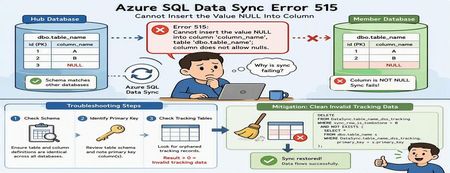
Azure SQL Data Sync is a powerful service that enables data synchronization across multiple Azure SQL Databases. While synchronization failures are relatively uncommon, one error that administrators occasionally encounter is SQL Server Error 515, indicating that a NULL value cannot be inserted into a non-nullable column. At first glance, this appears to be a straightforward data-quality problem. However, in many cases, the actual root cause lies elsewhere: inconsistencies between Azure SQL Data Sync tracking metadata and the underlying source data. This article explains: Common causes of Error 515 during synchronization How to troubleshoot the issue How to identify invalid tracking records Safe mitigation approaches to restore synchronization The Error A synchronization operation may fail with an error similar to the following: SqlException Error Code: -2146232060 SqlError Number: 515 Message: Cannot insert the value NULL into column 'column_name', table 'dbo.table_name'; column does not allow nulls. INSERT fails. SqlError Number: 3621 The statement has been terminated. Although the error references a NULL value being inserted into a destination table, the root cause is not always missing data. In many cases, the issue originates from synchronization metadata maintained by Azure SQL Data Sync. How Azure SQL Data Sync Tracks Changes Azure SQL Data Sync relies on internal tracking tables to detect and replicate data changes between Hub and Member databases. Whenever rows are inserted, updated, or deleted, synchronization metadata is recorded in tracking tables. Data Sync uses this metadata to determine what changes need to be propagated to other databases. If the tracking metadata becomes inconsistent with the actual source table contents, Data Sync may attempt to synchronize invalid records, resulting in failures such as: Cannot insert the value NULL into column... Common Root Causes Scenario 1: Schema Mismatch Between Databases One of the most common causes of synchronization failures is a schema mismatch between synchronized databases. For example: Database Column Definition Hub NULL Allowed Member A NOT NULL Member B NOT NULL If Data Sync replicates a row containing a NULL value from the Hub database, synchronization will fail when the destination database does not allow NULL values. Areas to Validate Ensure the following are identical across all synchronized databases: Column nullability (NULL vs NOT NULL) Data types Column length Constraints Primary key definitions Even small schema differences can cause synchronization failures. Scenario 2: Invalid Tracking Metadata A less obvious but frequently encountered scenario involves orphaned records in Data Sync tracking tables. This can occur when: Primary key values are updated directly Data is modified outside expected application workflows Historical tracking records become disconnected from source data Synchronization metadata references rows that no longer exist When Data Sync processes these stale entries, synchronization may fail with Error 515 even though the source data itself appears valid. Troubleshooting Process Step 1: Verify Column Definitions Begin by examining the affected table and column identified in the error message. For example: sp_help 'dbo.table_name' Review the schema on both Hub and Member databases and verify that: The affected column has the same definition everywhere NULL settings are identical Data types and lengths match If discrepancies exist, align the schemas across all synchronized databases before proceeding. Step 2: Review the Table Schema If the schema appears consistent, review the complete definition of the affected table. Pay particular attention to: Primary key columns Identity columns Constraints Nullable settings Identifying the primary key is especially important for the next validation step. Step 3: Check for Orphaned Tracking Records Run the following query against both Hub and Member databases. Replace: table_name primary_key with the actual table and primary key column names. SELECT COUNT(*) FROM DataSync.table_name_dss_tracking t WHERE sync_row_is_tombstone = 0 AND NOT EXISTS ( SELECT * FROM dbo.table_name s WHERE t.primary_key = s.primary_key ); For tables with composite primary keys, include all key columns in the comparison. How to Interpret the Results Result > 0 One or more orphaned tracking records exist. This indicates that the tracking table contains entries that reference records no longer present in the source table. This is a strong indicator that invalid synchronization metadata is causing the failure. Result = 0 No orphaned records were detected. If the synchronization error persists, further investigation should focus on schema consistency, data quality, and additional synchronization diagnostics. Mitigation Option 1: Correct Schema Differences If schema inconsistencies are found: Align the table definition across all synchronized databases. Ensure NULL and NOT NULL settings are consistent. Verify primary key definitions match. Reinitialize synchronization if necessary. After schema alignment, synchronization can typically resume successfully. Mitigation Option 2: Clean Invalid Tracking Data If orphaned tracking records are identified, remove the invalid synchronization metadata. Important: Always validate and test cleanup operations in a non-production environment before executing them in production. The following query removes tracking entries that no longer correspond to records in the source table: DELETE FROM DataSync.table_name_dss_tracking WHERE sync_row_is_tombstone = 0 AND NOT EXISTS ( SELECT * FROM dbo.table_name s WHERE DataSync.table_name_dss_tracking.primary_key = s.primary_key ); Replace: table_name primary_key with the appropriate values for your environment. After cleanup, Data Sync can rebuild valid change tracking information and synchronization typically returns to a healthy state. Additional Validation Query The following query can help identify historical deletion records that exist in tracking tables: SELECT tr.id1 FROM DataSync.table2_dss_tracking tr LEFT JOIN dbo.table2 orig ON tr.id1 = orig.id1 WHERE tr.sync_row_is_tombstone = 1 AND orig.id1 IS NULL AND tr.last_change_datetime > DATEADD(day, -20, GETUTCDATE()); This can provide additional insight into how synchronization metadata is tracking deleted records. Understanding the Underlying Cause The most important takeaway is that the NULL value reported in the synchronization error is often not the actual problem. A common sequence looks like this: A primary key value is modified directly. UPDATE dbo.table_name SET primary_key = new_value; Data Sync tracking metadata continues to reference the original key value. The source table and tracking table become inconsistent. During synchronization, Data Sync attempts to process the stale tracking record. The synchronization operation fails and surfaces a "Cannot insert the value NULL into column" error. In these scenarios, cleaning invalid tracking records resolves the inconsistency and restores successful synchronization. Best Practices to Prevent Recurrence To minimize the likelihood of synchronization failures: Keep schemas identical across all synchronized databases Avoid updating primary key values whenever possible Use surrogate keys for synchronized tables Validate schema consistency before deploying schema changes Periodically investigate Data Sync tracking tables when troubleshooting synchronization failures Test schema modifications in non-production environments before deployment Conclusion When Azure SQL Data Sync reports a: Cannot insert the value NULL into column... error, it is important not to assume that the problem is caused by missing data in the source table. A structured troubleshooting approach should include: Verifying schema consistency across synchronized databases Reviewing primary key definitions Investigating Data Sync tracking tables for orphaned records Cleaning invalid synchronization metadata when appropriate In many real-world cases, stale tracking records are the true root cause. Identifying and removing these invalid entries can restore synchronization quickly and avoid unnecessary application or schema changes. Have you encountered similar Azure SQL Data Sync issues in your environment? Share your experience and troubleshooting techniques in the comments below.128Views0likes0CommentsUnderstanding Microsoft Entra ID Group Membership Caching and Azure SQL Authentication Timing
Contributor: hudajazmawi Executive Summary Organizations frequently use Microsoft Entra ID groups to manage access to Azure SQL databases. This approach simplifies administration, improves security, and supports just-in-time access models. In some scenarios, users may experience temporary authentication failures shortly after being granted access through a Microsoft Entra ID group. These failures can appear inconsistent, especially when access succeeds to one database while failing against another. Understanding how group membership caching works during authentication can help explain this behavior and reduce unnecessary troubleshooting efforts. This article explains a real-world scenario involving temporary authentication failures after group assignment, describes the underlying authentication behavior, and provides practical recommendations for validation and mitigation. Issue Description A user was granted access to Azure SQL through membership in a Microsoft Entra ID group. Shortly afterward, the user attempted to connect using Microsoft Entra authentication. The observed behavior was: Authentication to certain databases succeeded immediately. Authentication to other databases failed temporarily. The issue appeared shortly after the group membership was granted. Access eventually began working without any configuration changes. The behavior resolved after a period of time without additional intervention. At first glance, the results appeared inconsistent because some connection attempts were successful while others failed, even though the same user credentials and group assignments were being used. Technical Background Azure SQL supports Microsoft Entra authentication, allowing access to be granted through users, groups, and service principals managed within Microsoft Entra ID. When a user authenticates, Azure SQL must determine the user's effective permissions. For users who belong to many Microsoft Entra groups, membership information may be cached to improve authentication efficiency and reduce repeated directory lookups. Caching is a common design pattern used throughout distributed systems to improve performance, scalability, and reliability. However, because caches contain information retrieved at a specific point in time, there can be a temporary delay before recently changed security information becomes visible to all authentication requests. This behavior is particularly important to understand when organizations use: Just-in-time access workflows Privileged access management processes Temporary group assignments Automated access provisioning Frequent permission validation testing Root Cause The investigation determined that the authentication failures were caused by Microsoft Entra ID group membership caching. A login attempt occurred before the user was added to the required Microsoft Entra ID group. During that earlier authentication attempt, the user's group memberships were retrieved and cached. After the user was added to the required group, subsequent authentication attempts continued using the previously cached membership information until the cache expired. As a result, authentication requests temporarily evaluated permissions using outdated group membership data. Because the newly assigned group membership had not yet been reflected in the cached information, authentication failed even though access had already been granted. Once the cached membership information expired and fresh group membership data was retrieved, authentication succeeded without any additional configuration changes. Detailed Explanation To understand the behavior, consider the following simplified sequence: Step 1: Initial Authentication A user attempts to connect to Azure SQL before being added to the required Microsoft Entra ID group. During this process: The user's current group memberships are evaluated. Membership information is cached. The required access group is not yet present. Authentication behavior reflects the permissions available at that moment. Step 2: Group Membership Change The user is added to the appropriate Microsoft Entra ID group. From an administrative perspective, the access assignment has been completed successfully. However, any previously cached authentication information may still reflect the user's earlier membership state. Step 3: Immediate Retesting The user immediately attempts another connection. Although the directory now contains the new group membership, the authentication process may still reference cached membership information created before the change occurred. The result can be a temporary authentication failure. Step 4: Cache Expiration After the cached data expires or is refreshed, authentication retrieves updated membership information. The newly assigned group is now visible during authorization evaluation. At this point, authentication succeeds as expected. Why Some Databases May Behave Differently One of the most confusing aspects of these scenarios is that different databases may appear to behave differently even when they use identical group assignment models. This typically occurs because authentication state and cache usage can differ depending on the sequence and timing of connection attempts. For example: Database A may be accessed for the first time after the group assignment occurs. Database B may have received a connection attempt before the group assignment occurred. As a result: Database A may evaluate fresh membership information and allow access. Database B may continue referencing previously cached membership information until the cache expires. This can create the appearance of inconsistent behavior even though the system is operating as designed. Mitigation and Recommendations The following practices can help reduce the likelihood of encountering similar authentication timing scenarios. 1. Assign Access Before Testing Whenever possible, add users to the required Microsoft Entra ID groups before any authentication attempts are made against Azure SQL resources. This helps ensure that fresh membership information is used during the first authentication request. 2. Avoid Immediate Validation After Permission Changes If a user has recently been granted group-based access, consider allowing time for authentication cache refresh behavior before conducting validation testing. Immediate testing can sometimes produce results based on older membership information. 3. Plan for Temporary Authentication Delays Organizations implementing just-in-time access should account for the possibility of short propagation and cache refresh intervals when designing operational procedures. 4. Use DBCC FLUSHAUTHCACHE When Appropriate For controlled testing and validation scenarios, administrators may use: DBCC FLUSHAUTHCACHE; DBCC FLUSHAUTHCACHE; This command can help refresh authentication cache behavior during troubleshooting and validation activities. As with any administrative operation, testing should be performed according to organizational change-management procedures. 5. Capture Precise Timing Information When investigating authentication behavior, collecting exact timestamps is extremely valuable. Recommended data points include: Time the user was added to the Microsoft Entra ID group Time of each authentication attempt Database target of each connection attempt Time any cache refresh operation was performed Time authentication eventually succeeded Accurate timestamps help establish a clear correlation between group membership changes and authentication behavior. Validation Guidance If you need to verify whether group membership caching is influencing authentication results, consider the following approach: Record the exact time a user is added to the required Microsoft Entra ID group. Record the time of every authentication attempt. Identify whether any login attempts occurred before the group membership change. Observe whether successful authentication occurs after a period of time without configuration changes. Where appropriate, perform controlled tests using authentication cache refresh procedures. Compare authentication outcomes against the timeline of group membership updates. This structured approach often helps determine whether the observed behavior is related to authentication caching rather than a permission configuration issue. Key Takeaways Temporary authentication failures immediately after group-based access assignment do not necessarily indicate a configuration problem. Authentication behavior may be influenced by previously cached Microsoft Entra ID group membership information. Login attempts that occur before a group membership change can affect subsequent authentication behavior until cached data expires. Different databases may appear to behave differently if they are accessed at different points in the authentication timeline. Capturing precise timestamps significantly improves troubleshooting accuracy. Proper testing practices and awareness of cache behavior can reduce confusion and accelerate issue resolution. Closing Summary Microsoft Entra ID group-based authorization provides a powerful and scalable way to manage Azure SQL access. However, like many modern cloud authentication systems, caching is used to optimize performance and improve efficiency. When group memberships change immediately before authentication testing, temporary differences between cached and current membership information may lead to short-lived authentication failures. Understanding this behavior can help administrators accurately interpret results, design effective validation procedures, and avoid unnecessary troubleshooting. By assigning permissions before authentication attempts, allowing appropriate time for cache refresh behavior, and capturing precise timing information during investigations, organizations can more effectively manage Microsoft Entra-based access and streamline their operational workflows. As always, when troubleshooting authentication scenarios, focusing on the exact sequence and timing of events often provides the clearest path to identifying the underlying cause and validating a successful resolution. Further Reading To learn more about Microsoft Entra authentication and Azure SQL security, review the following Microsoft documentation: Microsoft Entra authentication for Azure SQL https://learn.microsoft.com/azure/azure-sql/database/authentication-aad-overview Explains how Microsoft Entra authentication works with Azure SQL and the benefits of group-based access management. DBCC FLUSHAUTHCACHE (Transact-SQL) https://learn.microsoft.com/sql/t-sql/database-console-commands/dbcc-flushauthcache-transact-sql Describes how to clear the database authentication cache and notes that it clears cached Microsoft Entra group membership data stored in the database.312Views0likes0CommentsAzure SQL (LTR): You Don’t Need to Copy LTR Backups Across Regions to Restore Them
Summary Customers sometimes attempt to copy Azure SQL Long-Term Retention (LTR) backups across regions using Copy-AzSqlDatabaseLongTermRetentionBackup, only to hit the error: LongTermRetentionMigrationRequestNotSupported LTR backup migration copy feature is not supported on subscription This blog clarifies why this happens, when LTR backup copy is actually supported, and most importantly the correct and supported way to restore an LTR backup into a different region without copying it. The Common Scenario A customer has: An LTR backup stored in Region A A need to restore the database into Region B The assumption that the LTR backup must first be copied cross-region They attempt: Copy-AzSqlDatabaseLongTermRetentionBackup and immediately receive a platform validation error stating the feature isn’t supported on their subscription. Why This Error Happens The key misunderstanding is what the LTR backup copy API is actually for. Copy-AzSqlDatabaseLongTermRetentionBackup is NOT a general-purpose feature This API is: Backend-gated Allowlist-only Intended only for region decommissioning scenarios In other words: It is not supported for normal customer-driven migrations There is no portal toggle or feature registration Subscriptions are only allowlisted when Microsoft is retiring a region, and LTR backups must be preserved elsewhere. Because of this, most subscriptions - will receive: LongTermRetentionMigrationRequestNotSupported The Correct & Supported Solution Good news: You do NOT need to copy the LTR backup to another region to restore it there. Azure SQL allows you to: Restore an LTR backup directly to any Azure SQL logical server, in any region. Supported Approach: Restore LTR Backup Directly Use Restore-AzSqlDatabase with the -FromLongTermRetentionBackup switch. Example (PowerShell) Restore-AzSqlDatabase ` -FromLongTermRetentionBackup ` -ResourceId $ltrBackup.ResourceId ` -ServerName $serverName ` -ResourceGroupName $resourceGroup ` -TargetDatabaseName "Test" ` -ServiceObjectiveName P1 This works across regions No backend enablement required Fully supported and documented How This Works (Important Concept) LTR backups are stored in geo-redundant storage The restore operation does not depend on the original region The platform automatically handles data access and restores placement So, while the backup physically originated in Region A, you are free to restore it to Region B, C, or any supported Azure region without copying it first. When Is LTR Backup Copy Actually Used? Only in this scenario: Microsoft-initiated region decommissioning In that case: LTR backups must be relocated to remain available Subscriptions are temporarily allowlisted Copy-AzSqlDatabaseLongTermRetentionBackup is enabled at the backend Outside of this scenario, the API is intentionally restricted. Key Takeaways You can restore an LTR backup to any region directly You do not need (and usually cannot use) LTR backup copy Backup copy is gated and reserved for region retirement scenarios Use Restore-AzSqlDatabase -FromLongTermRetentionBackup instead Final Recommendation for Customers If customers encounter this error: Reassure them this is not a misconfiguration or permission issue Explain that LTR restore is the correct solution Avoid escalation for feature enablement unless a region retirement is involved164Views0likes0CommentsAzure Data Sync: Fixing “Cannot find the user ‘DataSync_executor’” When Creating a New Sync Group
Summary When creating a new Azure SQL Data Sync group, customers may encounter the following error during setup—even when no active sync groups exist: “Failed to perform data sync operation: Cannot find the user 'DataSync_executor', because it does not exist or you do not have permission.” This failure typically occurs during certificate and symmetric key creation as Azure attempts to grant permissions to the DataSync_executor role. In this post, we’ll walk through: The common scenario where this issue appears Why cleanup scripts alone may not fix it A supported, reliable resolution approach to restore Data Sync successfully The Problem Scenario A customer attempts to create a brand-new Azure SQL Data Sync group (hub + members), but the operation fails with an error similar to: Cannot find the user 'DataSync_executor', because it does not exist or you do not have permission. Creating certificate Creating symmetric key Granting permission to [DataSync_executor] on certificate Key observations from affected cases: No active sync group exists Cleanup scripts (including Data Sync complete cleanup.sql) were already executed The failure persists even after retrying the setup Why This Happens Azure SQL Data Sync depends on system-managed database roles that must be created and configured only by the Azure Data Sync service itself. If these roles (or related permissions) are: Missing Partially deleted Left in an inconsistent state then Data Sync may fail while attempting to create certificates or grant required permissions. Important: Manually creating or partially restoring these roles is not supported and often leads to repeated failures. How to Detect the Issue Before troubleshooting further, confirm whether the required Data Sync roles are missing. 1. Run the Data Sync Health Checker Ask the customer to run Data Sync Health Checker, then review SyncDB_Log. Common warnings include: DataSync_reader IS MISSING DataSync_executor IS MISSING Missing EXECUTE/SELECT permissions on dss and TaskHosting schemas This confirms the root cause is role and permission inconsistency. Supported and Effective Resolution Step 1: Verify Roles Are Missing Run the following query on each affected database (hub and members): SELECT name FROM sys.database_principals WHERE name IN ('DataSync_executor', 'DataSync_reader'); If no rows are returned, the roles are missing and must be recovered by Azure Data Sync itself - not manually. Step 2: Fully Clean Up Leftover Data Sync Objects Do this only if the database is not actively syncing -- Remove roles if partially present DROP ROLE IF EXISTS DataSync_executor; DROP ROLE IF EXISTS DataSync_reader; -- Drop DataSync schema IF EXISTS (SELECT 1 FROM sys.schemas WHERE name = 'DataSync') BEGIN DROP SCHEMA DataSync; END This ensures there are no partial or orphaned Data Sync objects left behind that could interfere with setup. Step 3: Recreate the Sync Group (Critical Step) Do not manually recreate roles or permissions Instead: Delete the existing (failed) Sync Group from the Azure Portal Recreate the Sync Group from scratch Re-add the hub and member databases During this process, Azure will automatically: Recreate DataSync_executor and DataSync_reader Assign all required permissions Deploy the correct schemas, certificates, and procedures Key Takeaways DataSync_executor and DataSync_reader are service-managed roles Cleanup scripts alone may not fully reset a broken state Manual role creation is not supported Deleting and recreating the Sync Group is the only reliable recovery method once roles are missing Final Recommendation If you encounter Data Sync setup failures referencing DataSync_executor, always: Validate role existence Fully clean up broken artifacts Let Azure Data Sync recreate everything by rebuilding the Sync Group This approach consistently resolves the issue and restores a healthy Data Sync deployment.127Views0likes0CommentsUnderstanding and Monitoring Class 2 Transactions in Azure SQL Database
During a recent customer engagement, we investigated sustained transaction log growth in Azure SQL Database without obvious large user transactions. The customer was familiar with PostgreSQL diagnostics and wanted to understand how similar insights can be obtained in Azure SQL Database—especially around Class 2 (system) transactions. This post summarizes what we discussed, explains why Azure SQL behaves differently, and walks through practical DMV‑based monitoring patterns you can use today. Azure SQL Database vs. PostgreSQL: Diagnostic Model Differences One of the first clarifications we made is that Azure SQL Database does not expose diagnostic settings equivalent to PostgreSQL’s system‑level log diagnostics. Azure SQL Database is a fully managed PaaS service, and many internal operations—such as checkpoints, version store cleanup, and background maintenance—are abstracted from direct control. Instead of low‑level engine logs, Azure SQL provides cumulative Dynamic Management Views (DMVs) that expose the effects of system activity rather than the internal implementation. What Are Class 2 Transactions? In Azure SQL Database, Class 2 transactions generally refer to system‑generated transactions, not directly initiated by user workloads. These commonly include: Checkpoint operations Version store cleanup Ghost record cleanup Background metadata maintenance Although they are not user‑driven, these transactions still generate transaction log activity, which can be surprising when log usage grows steadily without large user transactions. Key DMVs to Monitor Class 2 Activity 1. Transaction Log Usage SELECT * FROM sys.dm_db_log_space_usage; This DMV provides: Total log size Used log space Used log percentage If log usage grows steadily without large user transactions, it is often a signal that background system activity (Class 2 transactions) is responsible. Checkpoint Activity SELECT * FROM sys.dm_exec_requests WHERE command = 'CHECKPOINT'; Frequent checkpoints result in: More frequent log flushes Increased system log writes In Azure SQL Database, checkpoint frequency is system‑managed and cannot be tuned through configuration or diagnostic settings. Version Store Usage (Common Class 2 Contributor) SELECT * FROM sys.dm_tran_version_store_space_usage; High version store usage often leads to: Background cleanup tasks Increased system transactions Additional transaction log generation This is especially common in workloads using: Snapshot Isolation Read Committed Snapshot Isolation (RCSI) Long‑running transactions or readers Automating Monitoring with Azure Elastic Jobs Because these DMVs are cumulative, capturing them over time is key. During the call, we discussed automating data collection using Azure Elastic Jobs. Elastic Jobs allow you to: Schedule DMV snapshots Store historical trends Correlate spikes with workload patterns Microsoft provides full guidance on creating and managing Elastic Jobs using T‑SQL here: Create and manage Elastic Jobs using T‑SQL Index Management and Class 2 Impact Index maintenance can indirectly increase Class 2 activity by: Increasing version store usage Triggering additional background cleanup Instead of manual index tuning, we recommended enabling Query Performance Insight – Index recommendations in the Azure Portal. This allows Azure SQL Database to automatically: Suggest index creation Suggest index removal based on real workload patterns. Why Checkpoints Cannot Be Tuned A common question is whether checkpoint frequency can be reduced to lower system log activity. In Azure SQL Database: Checkpoints are engine‑managed There is no diagnostic or configuration setting to control their frequency This design ensures platform stability and predictable recovery behavior As a result, monitoring—not tuning—is the correct approach. Practical Takeaways From this case, the key lessons are: Not all transaction log growth is user‑driven Class 2 transactions are a normal part of Azure SQL Database DMVs provide the best visibility into system behavior Trend‑based monitoring is more valuable than point‑in‑time checks Automation via Elastic Jobs is essential for long‑term analysis Conclusion Class 2 transactions are often misunderstood because they operate quietly in the background. By using the right DMVs and collecting data over time, you can clearly distinguish expected system behavior from genuine workload issues. If you’re coming from PostgreSQL or on‑prem SQL Server, the key mindset shift is this: Azure SQL Database exposes outcomes, not internals—and that’s by design.137Views0likes0CommentsTroubleshooting Azure SQL Data Sync Groups Stuck in Progressing State
Azure SQL Data Sync is commonly used to synchronize data across Azure SQL Databases and on‑premises SQL Server environments. While the service works well in many scenarios, customers may occasionally encounter a situation where a Sync Group remains stuck in a “Progressing” state and cannot be started, stopped, or refreshed. This blog walks through a real-world troubleshooting scenario, highlights the root cause, and outlines practical remediation steps based on actual support investigation and collaboration. Problem Overview In this scenario, the customer reported that: The Sync Group was stuck in “Progressing” for multiple days Sync operations could not be started or stopped Tables could not be refreshed or reconfigured Azure Activity Logs showed operations as Succeeded, yet sync never progressed Our backend telemetry showed the Sync Group as Active, while hub and member databases were in Reprovisioning state The last successful sync occurred on XX day, after which the sync pipeline stopped making progress. Initial Investigation Findings During the investigation, several key observations were made: 1. High DATA IO Utilization Telemetry and backend checks revealed that DATA IO utilization was pegged at 100% on one of the sync member databases starting XX day. Despite no noticeable change in application workload, the database was under sustained IO pressure, which directly impacted Data Sync operations. 2. Deadlocks During Sync Processing Our backend telemetry showed repeated deadlock errors: Transaction was deadlocked on lock resources with another process and has been chosen as the deadlock victim. These deadlocks were observed for multiple Sync Member IDs starting the same day IO saturation began. This aligned with the hypothesis that resource contention, not a Data Sync service failure, was the underlying issue. 3. Metadata Database Was Healthy The Sync metadata database was running on a serverless Azure SQL Database (1 vCore) and showed healthy resource usage, ruling it out as a bottleneck. Recommended Troubleshooting Steps Based on the findings, the following steps were recommended and validated: ✅ Step 1: Address Database Resource Constraints First Before attempting to recreate or reset the Sync Group, the focus was placed on resolving DATA IO saturation on the affected database. Actions included: Scaling up the database (DTUs / vCores) Monitoring IO utilization after scaling Ensuring sufficient headroom for sync operations This was identified as the primary remediation step. ✅ Step 2: Use the Azure SQL Data Sync Health Checker The Azure SQL Data Sync Health Checker was recommended to validate: Sync metadata integrity Table-level configuration issues Agent and connectivity status GitHub tool: AzureSQLDataSyncHealthChecker ✅ Step 3: Validate Sync Group and Agent State via PowerShell PowerShell was used to confirm: Sync Group state Last successful sync time On‑premises Sync Agent connectivity Example commands used: Get-AzureRmSqlSyncGroup ` -ResourceGroupName "ResourceGroup01" ` -ServerName "Server01" ` -DatabaseName "Database01" | Format-List Get-AzureRmSqlSyncAgent ` -ResourceGroupName "ResourceGroup01" ` -ServerName "Server01" | Select ResourceGroupName, SyncState, LastSyncTime Resolution After the customer increased the database size, DATA IO utilization dropped, sync operations resumed normally, and the customer confirmed that the issue was resolved.155Views0likes0CommentsWhy Long-Term Retention (LTR) Backups Don’t Attach After a PITR Restore in Azure SQL Database
Summary Customers sometimes expect that after performing a Point‑in‑Time Restore (PITR) and renaming the restored database back to its original name, existing Long‑Term Retention (LTR) backups will automatically appear and continue from where they left off. This behavior may have worked in older or legacy environments, but in modern Azure SQL Database deployments—especially across new servers or subscriptions—this expectation can lead to confusion. This article explains why LTR backups do not attach to restored databases, even if the database name is reused, and what customers should expect instead. The Scenario The discussion originated from a common migration pattern: A customer has an Azure SQL Database with LTR policies configured (for example, monthly backups retained for 10 years). The customer performs a Point‑in‑Time Restore (PITR) of that database. After the restore, the database is renamed to match the original database name. The customer expects the existing LTR backups to appear under the restored database. In legacy environments, this behavior appeared to work. However, in newer Azure SQL Database deployments, the LTR backups are not visible after the restore and rename process. Key Technical Detail: LTR Is Not Based on Database Name The most important concept to understand is this: LTR backups are associated with the database’s logical database ID—not the database name. Each Azure SQL Database is assigned a unique logical database ID at creation time. When a PITR restore is performed: A new database is created It receives a new logical database ID Even if you rename the database to match the original name, the logical ID remains different As a result, the restored database is treated as a completely new database from an LTR perspective, and it does not inherit the historical LTR backup chain. Why Renaming the Database Does Not Help Renaming a database only changes its display name. It does not change: The logical database ID The internal association used by the LTR system Because LTR configuration and backup visibility are tied to the logical database ID, renaming alone cannot reattach historical LTR backups. Subscription Boundaries Matter Another important clarification raised in the discussion: LTR backups are scoped to the subscription where the database was created While you can restore LTR backups to a different server within the same subscription, you cannot carry historical LTR backups across subscriptions If a customer migrates to a new subscription, the historical LTR chain from the old subscription cannot be reused or reattached. Only new LTR backups created after the move will exist in the new subscription. What Customers Will Observe After a PITR restore and rename: ✅ The database is successfully restored ✅ LTR policies can be configured again ❌ Historical LTR backups from the original database are not visible ❌ The restored database does not inherit old LTR backups, even if the name matches This is expected behavior and aligns with the current Azure SQL Database architecture. How to Validate LTR Backups Correctly To avoid confusion caused by portal caching or UI expectations, customers can list LTR backups programmatically using PowerShell or Azure CLI, as documented in Microsoft Learn: Azure SQL Database: Manage long-term backup retention Azure SQL Database: Manage long-term backup retention - Azure SQL Database | Microsoft Learn This confirms whether LTR backups exist for a specific logical database ID. Best Practices and Recommendations Do not rely on database renaming to preserve LTR history. Treat any PITR restore as a new database from an LTR perspective. If historical LTR backups must remain accessible: Keep the original database intact Restore LTR backups directly from the original database when needed Plan migrations carefully, especially when moving across subscriptions, as LTR history cannot be migrated. Final Thoughts LTR backups are a powerful compliance and recovery feature in Azure SQL Database, but they are intentionally designed to be immutable and identity‑based, not name‑based. Understanding that logical database ID—not database name—controls LTR association helps set correct expectations and avoids surprises during restores or migrations. Frequently Asked Questions (FAQ) Q1: Why don’t my existing LTR backups appear after I restore a database using PITR? Because a Point‑in‑Time Restore (PITR) creates a new database with a new logical database ID. Long‑Term Retention (LTR) backups are associated with the database’s logical ID—not its name—so the restored database does not inherit the historical LTR backup chain. Q2: If I rename the restored database to the original name, shouldn’t the LTR backups reappear? No. Renaming a database only changes its display name. It does not change the logical database ID, which is what LTR uses to associate backups. As a result, renaming does not reattach existing LTR backups. Q3: This used to work in our legacy environment—why is it different now? In older environments, the behavior may have appeared to work due to differences in platform implementation. In current Azure SQL Database architecture, LTR association is strictly identity‑based, which ensures immutability, compliance, and predictable backup behavior. Q4: Can I attach historical LTR backups to a restored database manually? No. LTR backups are immutable and cannot be reattached or reassigned to a different logical database ID. This behavior is by design. Q5: What happens if I move my database to a new subscription? LTR backups are scoped to the subscription where the database was created. If you migrate to a new subscription: Historical LTR backups from the old subscription cannot be carried over Only new LTR backups created after the move will exist in the new subscription Q6: Can I still restore from my old LTR backups? Yes. As long as the original database (or its logical identity) still exists in the original subscription, you can restore directly from those LTR backups—even if a newer database with the same name exists elsewhere. Q7: How can I verify which LTR backups actually exist? The most reliable way is to list LTR backups programmatically using Azure PowerShell or Azure CLI, which queries backups by logical database ID rather than relying solely on portal views. Refer to the official documentation: Azure SQL Database – Manage long‑term backup retention Q8: What is the recommended approach if we need long‑term recoverability after PITR? Treat every PITR restore as a new database from an LTR perspective Keep the original database intact if historical LTR backups must remain accessible Plan subscription migrations carefully, as LTR history cannot be migrated228Views0likes0Comments