azurecloud
1 TopicCalling API Management using Entra ID authentication and testing with PowerShell
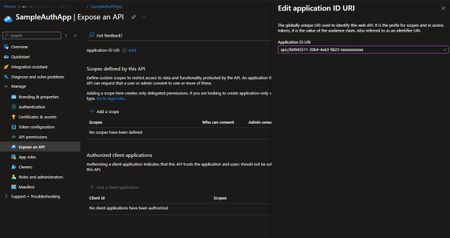
Integrating Entra ID or other compatible identity providers with Azure API Management is both easy and a great way to enhance security for your APIs. However, when you enforce authentication with the Validate JWT policy in API Management, you now have the extra step of obtaining a JWT token from your identity provider and supplying it to API Management. If you are writing code, this is fairly straight forward to achieve with the Azure Identity libraries, and there are great API testing tools such as Postman which support integrating with an identity provider and obtaining a token and presenting it for authentication. But what happens if you happen to be in a restricted environment where tools like Postman, or even VS Code, are not available and you need to test an API? The good news is that with just a few short lines of PowerShell we can achieve the same results. Setting up the App Registration The first step in enabling Entra ID authentication for your app is creating an App Registration in Entra ID. There is an excellent Learn article here describing the process of setting up an App Registration and enabling the JWT validation policy in API Management, but I'll go over the rough steps here: Open the Azure Portal Navigate to the Entra ID blade Go to App registrations and select New registration Enter a name for the app registration and click register Go to Certificates & secrets and create a new client secret Make note of the client secret, client ID, and tenant ID Click on the "Expose an API" blade Click "Add" next to "Application ID URI" Take the default URI and save the Application ID URI. The Learn article discusses setting up scopes in the Expose an API blade but we will use the default scope in the interests of simplicity. Setting up the validate-jwt policy In API Management, setup the validate-jwt policy by adding the policy expression at the appropriate scope, e.g. global, workspace, product, API or operation in the Inbound policies section. While there are many options for JWT validation, e.g using claims, for the purposes of this example we'll evaluate the issuer and audience. The validate-jwt policy will look like this: <validate-jwt header-name="Authorization" failed-validation-httpcode="401" failed-validation-error-message="Unauthorized. Access token is missing or invalid."> <openid-config url="https://login.microsoftonline.us/{your-tenant-id}/v2.0/.well-known/openid-configuration" /> <audiences> <audience>{your-client-id}</audience> </audiences> <issuers> <issuer>https://sts.windows.net/{your-tenant-id}/</issuer> </issuers> </validate-jwt> It's important to note two things here: Even though we are in Azure Government, the issuer is still sts.windows.net (that took me down a rabbit hole once upon a time). The "/" at the end of the issuer string is important. Failure to include the "/" will result in your validation to fail because the issuer does not match. After you save your policy, you can test that it's working by trying an Invoke-WebRequest to your API endpoint. You should receive a 401 Unauthorized message. Testing with PowerShell The PowerShell script essentially has two parts. The first part obtains the JWT token from Entra ID. $tenantId = "your-tenant-id" $clientId = "your-client-id" $clientSecret = "your-client-secret" $scope = "api://$clientId/.default" $subscriptionKey = "your-subscription-key" $tokenUrl = "https://login.microsoftonline.us/$tenantId/oauth2/v2.0/token" $body = @{ client_id = $clientId scope = $scope client_secret = $clientSecret grant_type = "client_credentials" } $response = Invoke-RestMethod -Method Post -Uri $tokenUrl -Body $body -ContentType "application/x-www-form-urlencoded" $token = $response.access_token The second part builds the request to include the token in the Authorization header. $headers = @{ Authorization = "Bearer $token" "Ocp-Apim-Subscription-Key" = $subscriptionKey } $outputValue = Invoke-RestMethod -Uri "https://apim.yourdomain.com/apiName/operationName" -Headers $headers -Method Get And that's it, a simple script that will allow you to grab a token and test your APIs with Entra ID or other identity provider authentication. Link to the script here.574Views0likes0Comments