azurecli
53 Topics
Is it possible to import CSV into Azure Test Plans using Azure CLI.
Hello All, I have prepared test cases and exported them into a CSV format following the Azure Test Plan import template. I would like to know whether it is possible to import this CSV into Azure Test Plans using Azure CLI. I have "BASIC + TEST PLAN" access6Views0likes0CommentsAzure Key Vault Control Plane API Update: Required Upgrade for Azure CLI and Azure PowerShell Users
Deadline: February 27, 2027 All Azure Key Vault control plane (management) API versions released before 2026-02-01 will stop working on February 27, 2027. This does NOT affect the data plane (getting/setting secrets, keys, and certificates) — only vault and access-control management operations are impacted. TL;DR — What you need to do Upgrade Azure CLI to 2.90.0 or later (run az upgrade). Upgrade Az PowerShell's Az.KeyVault module to 6.6.1 or later, or upgrade the Az package to 16.3.0 or later. Do this before February 27, 2027 to avoid any interruption to vault management operations. No data plane changes are required — reading/writing secrets, keys, and certificates is unaffected. For details, see Prepare for Key Vault API version 2026-02-01 and later. What is changing Current releases of Azure CLI 2.90.0 or later and Az PowerShell 16.3.0 or later (including Az.KeyVault 6.6.1 or later) already use Key Vault control plane API version 2026-02-01. Upgrade to these versions before February 27, 2027; after that date, earlier control plane API versions will no longer be served. Who is affected You are affected if you use either of the following: Azure CLI scripts or automation that call az keyvault management commands (create, update, network-rule, access-policy, etc.). Az PowerShell scripts that use the Az.KeyVault module's management cmdlets (New-AzKeyVault, Set-AzKeyVault, Update-AzKeyVault, etc.). Minimum versions to upgrade to Tool / SDK Minimum version How to upgrade Azure CLI 2.90.0 or later az upgrade Az PowerShell (Az.KeyVault module) Az.KeyVault 6.6.1 or later; or Az 16.3.0 or later Update-Module Az -Force Impact if you take no action What breaks on and after February 27, 2027 if you have not upgraded Key Vault management operations (create/update/delete vault, change network rules, change access policies or RBAC settings, etc.) issued with a pre-2026-02-01 API version will fail. You’ll get the following error message: “Due to an RBAC security default, Key Vault's Resource Manager API versions older than 2026-02-01 will retire on 2027-04-01.” Your vaults are NOT deleted and existing secrets/keys/certificates remain fully accessible via the data plane — only management (control plane) operations are blocked. There is no way to opt out or request an extension once the retirement takes effect on February 27, 2027. How to check your installed versions Check your Azure CLI version Run the following command: az version Check the azure-cli value. If the installed version is earlier than 2.90.0, upgrade Azure CLI before February 27, 2027 by running az upgrade. Check your Az PowerShell version Run the following commands: Get-InstalledModule Az, Az.KeyVault | Select-Object Name, Version If Az.KeyVault is earlier than 6.6.1, or the installed Az package is earlier than 16.3.0, upgrade before February 27, 2027. To upgrade the complete Az package, run: Update-Module Az -Force Alternatively, to update only the Az.KeyVault module to the latest version, run: Update-Module Az.KeyVault -Force Timeline Date Milestone March 2026 Control plane API version 2026-02-01 generally available across public Azure regions, Azure Government, and Azure operated by 21Vianet. Today → February 27, 2027 Preparation window. Upgrade to Azure CLI 2.90.0 or later, Az.KeyVault 6.6.1 or later, or Az 16.3.0 or later before February 27, 2027. February 27, 2027 All control plane API versions released before 2026-02-01 are retired and stop being served. Questions? For any questions about Azure CLI or Azure PowerShell, please submit feedback through GitHub: Azure CLI GitHub issues Azure PowerShell GitHub issues466Views0likes0CommentsAzure CLI on macOS got security upgrade: native broker authentication
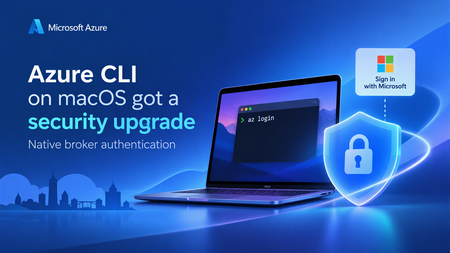
Why we built this If you manage Azure resources from a Mac today, az login opens a browser tab, you sign in, and a token comes back to the CLI. That's worked well for a long time. As security requirements become more stringent, many enterprise organizations are adopting secure authentication brokers to strengthen identity protection and reduce authentication-related risks. Many organizations require broker-based authentication as a matter of security policy. A broker is the operating system's own credential broker — on Windows this is the Web Account Manager (WAM), and it's what lets az login reuse your existing signed-in Windows account instead of opening a browser every time. Depending on the broker, device configuration, and policies applied by the organization, broker-based authentication can provide: Device-bound refresh tokens, which help protect tokens from exfiltration and misuse Support for Conditional Access and device compliance checks where those capabilities are configured and available Single sign-on using accounts known to the operating system, reducing repeated credential prompts Azure CLI has supported broker authentication on Windows for a while. Beginning with Azure CLI 2.91.0, organizations with stringent security requirements can also use broker-based authentication with Azure CLI on macOS. What changed Beginning with Azure CLI 2.91.0, broker-based authentication is available in preview on macOS. The feature uses MSAL's native macOS broker support and is disabled by default, so you remain in control of when to enable it. After you opt in and run az login, Azure CLI opens a native macOS account picker instead of starting the sign-in flow in a browser. You can select an account already known to the broker or add another account. If a compatible broker isn't available, Azure CLI falls back to the existing browser-based sign-in flow. How Homebrew Cask supports broker authentication The core MSAL library is open source, but the macOS broker runtime is not. It is subject to strict internal compliance and intellectual property protection requirements and must also satisfy Apple-specific requirements such as notarization. Azure CLI is now available through Homebrew Cask, a supported installation method that can accommodate these requirements and support broker-based authentication on macOS. The familiar package name continues to work for new installations: brew update brew install azure-cli You can also select the Cask explicitly: brew update brew install --cask azure-cli We tested the migration on a Mac that had Azure CLI 2.90.0 installed through the former Homebrew Formula. After brew update, Homebrew detected that azure-cli had moved to homebrew/cask, unlinked the existing Formula, downloaded Azure CLI 2.91.0 or later, and linked the az executable and shell completions from the Cask. The final output confirmed: azure-cli was successfully installed! azure-cli has been moved to homebrew/cask. The existing keg has been unlinked. Homebrew detects the package migration, installs Azure CLI from Cask, and preserves the az command. Homebrew also recommended removing the old Formula record when convenient: brew uninstall --formula --force azure-cli This means scripts that use brew install azure-cli can continue to use the same package name. If you previously used the Azure CLI preview tap and Homebrew still resolves stale Formula metadata, remove that tap and retry: brew untap azure/azure-cli brew update brew install azure-cli What the broker sign-in experience looks like Install Azure CLI 2.91.0 or later and make sure a compatible authentication broker, such as Microsoft Company Portal, is available on your Mac. Enable broker-based authentication: az config set core.enable_broker_on_mac=true az account clear You can confirm the setting with: az config get core.enable_broker_on_mac 3. Start a new sign-in: az login 4. Azure CLI opens the native single sign-on account picker. Select an existing account and choose Continue or use the add-account button to sign in with another account. After broker authentication is enabled, az login opens the native account picker instead of starting in a browser. 5. Run az account show to confirm that you're signed in with the expected account and tenant. The broker changes how Azure CLI acquires credentials; it doesn't change Azure CLI's subscription or tenant selection model. If your account belongs to multiple tenants, you might still need to select the intended tenant explicitly: az login --tenant <tenant-id> To opt out and return to browser-based authentication: az account clear az config set core.enable_broker_on_mac=false az login If a compatible broker isn't installed or available, Azure CLI automatically falls back to browser-based authentication. What's next This is one part of a broader push to bring Azure CLI's macOS experience up to parity with Windows and Linux — including packaging improvements (to keep pace with Apple's tightening notarization requirements). If you run Azure CLI on macOS in an enterprise environment, we'd love to hear from you — file feedback or ask questions at Azure/azure-cli on GitHub. References Install Azure CLI on macOS Sign in with an authentication broker on macOS Azure CLI issues on GitHub205Views0likes0CommentsAzure AD Graph API retirement: action required for older versions of Azure CLI and Azure PowerShell
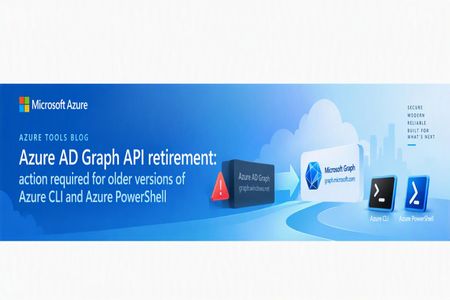
Summary Azure AD Graph API (the legacy graph.windows.net API, not to be confused with Microsoft Graph) entered its retirement process in September 2024, with the general shutdown completed on July 1, 2025. Azure CLI and Azure PowerShell completed their migration away from Azure AD Graph well ahead of that deadline. az ad and the Az module's Microsoft Entra ID (Azure AD) cmdlets have been backed by Microsoft Graph for some time now. If you're running a current version of Azure CLI or Azure PowerShell, no action is required on your part for this specific retirement. Because Azure CLI and Azure PowerShell are Microsoft first-party clients, their Azure AD Graph application identities have remained available temporarily to provide a transition path for legacy releases that still call Azure AD Graph. However, those legacy releases have long been out of maintenance and are no longer supported; the temporary availability of the application identities does not mean the old releases remain supported. Beginning after October 6, 2026, the Microsoft Entra team will progressively disable this remaining legacy access over a two-month buffer period. Users of current versions are not affected, but anyone still running an old release should upgrade now. This post explains what changed, why, and how to confirm you're unaffected. Terminology This post uses the following terms: Azure AD Graph API (https://graph.windows.net) — the legacy, now-retired API for reading and writing Microsoft Entra ID (formerly Azure Active Directory) objects: users, groups, applications, service principals, and directory roles. Microsoft Graph (https://graph.microsoft.com) — Microsoft's current, unified API surface for Entra ID and the broader Microsoft 365 ecosystem, and the only supported path going forward for any identity/directory operation. If your Azure CLI or Azure PowerShell still uses legacy Azure AD Graph, migrate as soon as possible Azure CLI has used Microsoft Graph for az ad commands since version 2.37.0, and the identity-related cmdlets in Azure PowerShell have used Microsoft Graph since Az.Resources version 5.1.0. These migrations were completed years before the Azure AD Graph retirement. Azure CLI releases earlier than 2.37.0 and Az.Resources releases earlier than 5.1.0 have long been out of maintenance and are no longer supported. The temporary availability of the tools' first-party Azure AD Graph application identities was retained only to provide a transition path for those legacy releases; it does not mean that the releases are maintained or supported. We are notifying users who still use legacy Azure AD Graph versions We are sending notifications in phases to tenants where telemetry indicates that calls may still be reaching Azure AD Graph endpoints. Some of this traffic comes from legacy Azure CLI or Azure PowerShell releases using the tools' temporarily retained first-party Azure AD Graph identities; other cases typically trace back to one of the following: An old, unsupported version of Azure CLI or the Az/AzureAD/MSOnline PowerShell modules still in use (for example, pinned in a long-lived CI/CD image or automation runbook that hadn't been updated). Custom scripts or tooling calling the legacy graph.windows.net endpoint directly via Invoke-RestMethod/curl/a hand-rolled SDK client, independent of az/Az entirely. The standalone legacy AzureAD or MSOnline PowerShell modules (distinct from the Az module), which were already deprecated separately from this effort and have their own migration path to Microsoft.Graph PowerShell cmdlets. These notifications are intended to help close out any remaining migration gaps and continue the original retirement communication. Beginning after October 6, 2026, the Microsoft Entra team will progressively disable the remaining legacy first-party access over a two-month buffer period. Old Azure CLI or Azure PowerShell releases that still depend on Azure AD Graph may stop working at any point during this phased shutdown. How to check whether your automation still uses Azure AD Graph Checking the version actually running in each environment is the most reliable way to identify legacy Azure CLI or Azure PowerShell usage. Check developer machines as well as CI/CD agents, automation runbooks, scheduled jobs, and container images, which often remain pinned to an older version after interactive environments have been updated. You may need to work with your tenant, subscription, infrastructure, or automation administrators to locate the system that is generating the legacy traffic. The source may be a developer machine, VM, self-hosted build agent, automation worker, scheduled task, or container host that you do not manage directly. Use the tenant information from any targeted notification together with your organization's sign-in logs, automation inventory, pipeline logs, and VM or container inventory to identify the execution environment, then upgrade it or stop the obsolete job. Azure CLI Run the following command in the same environment and execution account used by your automation: az version Azure CLI 2.37.0 replaced the Azure AD Graph implementation used by az ad with Microsoft Graph. If the reported version is lower than 2.37.0, upgrade to the latest Azure CLI release and test your scripts before the phased shutdown begins. Also check pipeline definitions, package installation steps, and container image tags for an explicitly pinned Azure CLI version; checking only the version on your local workstation does not verify the version used by automation. For installations that support the built-in updater, run: az upgrade Otherwise, update Azure CLI through the same package manager or installation method originally used, then run the version check again. After upgrading, review the documented Microsoft Graph migration changes because some command arguments, behavior, and output properties changed. For example, Microsoft Graph directory object output uses id, while the corresponding Azure AD Graph property was objectId. This can affect scripts that parse command output. If you encounter a problem after upgrading, report it in the Azure CLI GitHub repository and include the output of az version, the affected command, and a minimal reproduction with secrets removed. Azure PowerShell The Entra ID cmdlets discussed in this post are provided by Az.Resources, so check that module's version rather than relying only on the version of PowerShell itself: Get-Module Az.Resources -ListAvailable | Sort-Object Version -Descending | Select-Object -First 1 Name, Version, Path Az.Resources 5.1.0 introduced the Microsoft Graph implementation for the identity-related cmdlets. If the reported version is lower than 5.1.0, update to the latest Az module, restart the PowerShell session, and test your scripts. Check automation accounts, hosted agents, module caches, and container images separately. Also look for scripts that load a specific old version with Import-Module Az.Resources -RequiredVersion or declare a fixed module version in #Requires. If Az was installed from the PowerShell Gallery, update it with: Update-Module -Name Az -Force Restart PowerShell after the update so that the session does not continue using an older module already loaded in memory. To confirm which module version provides a cmdlet in the current session, run: (Get-Command Get-AzADUser).Module | Select-Object Name, Version, Path After upgrading, review the documented Azure PowerShell migration changes because parameter names, input and output types, and object properties changed. If you encounter a problem after upgrading, report it in the Azure PowerShell GitHub repository and include the Az.Resources version, PowerShell version, affected cmdlet, and a minimal reproduction with secrets removed. Check for direct endpoint calls Tool versions do not identify custom code that bypasses az ad or the Az cmdlets. Search your repositories, pipeline definitions, runbooks, and configuration files for graph.windows.net. Pay particular attention to calls made through az rest, curl, Invoke-RestMethod, or custom HTTP and SDK clients. Any direct call to that host must be migrated to Microsoft Graph regardless of the installed Azure CLI or Azure PowerShell version. If you need help upgrading, locating the source of Azure AD Graph traffic, or troubleshooting an issue related to the retirement, you can ask a question in the Azure CLI GitHub repository or the Azure PowerShell GitHub repository, as appropriate. Include the available version information, affected command or cmdlet, execution environment, error message, and a minimal reproduction or relevant logs with all secrets and personal or tenant-sensitive information removed. The Azure CLI and Azure PowerShell teams can then help you investigate and provide guidance. What you should do Make sure you're on a current, supported version of Azure CLI or Azure PowerShell. Run the checks above and update if you're on an old release. Do not rely on the two-month buffer period: legacy access will be progressively disabled after October 6, 2026, so an old release may stop working before the end of that period. If you use the standalone legacy AzureAD or MSOnline PowerShell modules, these are a separate deprecation track from Az and need their own migration to the Microsoft.Graph PowerShell SDK. This is not something updating the Az module alone resolves — see the dedicated migration guidance referenced below. If you have custom code or scripts calling graph.windows.net directly, those calls will fail outright post-retirement regardless of what version of Azure CLI/PowerShell you run, since this isn't a CLI/PowerShell-specific concern — it's any direct caller of the retired endpoint. Migrate those calls to the Microsoft Graph SDK/API directly. If you received a targeted notification referencing a specific tenant ID, that means telemetry showed residual traffic from that tenant specifically — check any automation, scheduled scripts, or older images/containers associated with that tenant for one of the causes above. References Migrate from Azure AD Graph to Microsoft Graph - Microsoft 365 Developer Blog Azure AD Graph to Microsoft Graph migration FAQ - Microsoft Graph | Microsoft Learn Impact of Microsoft Graph migration in Azure CLI Azure AD to Microsoft Graph migration changes in Azure PowerShell Install Azure CLI / Install Azure PowerShell Migrate from the AzureAD and MSOnline PowerShell modules to Microsoft Graph PowerShell434Views0likes0Comments
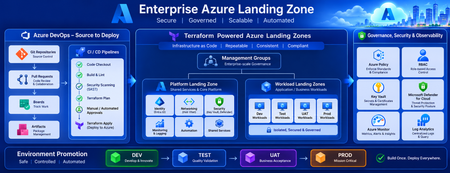
Building a Fully Automated Azure Landing Zone Deployment Using Azure DevOps and Terraform
Discover how to build a fully automated Azure Landing Zone using Azure DevOps and Terraform. This article walks through real-world Git workflows, CI/CD automation, environment promotion strategies, and governance integration to create secure, scalable, and enterprise-ready Azure environments.1.4KViews1like0CommentsFaster az login: introducing --skip-subscription-discovery and targeted --subscription
TL;DR — If you belong to many tenants, or a tenant holds hundreds or thousands of subscriptions, az login can crawl — it tries to enumerate every subscription in every tenant before it returns. Two flags now let you skip that enumeration and make login near-instant: az login --tenant <TENANT_ID> --skip-subscription-discovery az login --subscription <SUB_ID_OR_NAME> az login --tenant <TENANT_ID> --subscription <SUB_ID_OR_NAME> --skip-subscription-discovery Available in Azure CLI 2.86.0 and later. Both --skip-subscription-discovery (and its --skip-sub alias) ship in az CLI v2.86.0. Run az version to check, and az upgrade if you're on an older build. Note: --skip-subscription-discovery requires --tenant. Because you're skipping the tenant/subscription enumeration, the CLI can't infer which tenant to sign in to, so you must name it explicitly. Running az login --skip-subscription-discovery on its own fails with usage error: '--skip-subscription-discovery' requires '--tenant'. The problem: login enumerates every subscription in every tenant This post is about one specific pain point: what happens when you have a large number of tenants, and tenants that each contain hundreds or thousands of subscriptions. When you run az login, the CLI doesn't just authenticate you. After auth, it walks every tenant you can access and calls ARM to list every subscription in each one, then caches the full catalog locally. The cost of that step scales with (number of tenants) × (subscriptions per tenant) — so it's roughly invisible for a developer with one tenant and a couple of subscriptions, but it falls off a cliff at enterprise scale: A user who is a member or guest of dozens of tenants pays a separate ARM round trip per tenant. A single tenant with hundreds or thousands of subscriptions means one giant (often paged) enumeration just to build a list you may never look at. Put both together — many tenants, each dense with subscriptions — and the enumeration dominates everything. The interactive sign-in is fast; the post-auth subscription discovery is what makes you wait. In these high-scale tenant/subscription topologies, az login taking 30 seconds to several minutes is common — and almost all of that time is the discovery walk, not authentication. That is exactly the cost these flags remove. Other situations (CI/CD pinned to one known subscription, conditional-access tenants, etc.) benefit too, but they're secondary. The flags exist first and foremost to rescue the many-tenants / many-subscriptions case. What's new 1. --skip-subscription-discovery (alias --skip-sub) Authenticate only. Skip the subscription enumeration entirely. No tenant fan-out, no ARM GET /subscriptions calls per tenant. This flag requires --tenant — since discovery is skipped, you must tell the CLI which tenant to authenticate against. az login --tenant <TENANT_ID> --skip-subscription-discovery # or the short form az login --tenant <TENANT_ID> --skip-sub After this, az account list will be empty until you explicitly populate it (e.g. by az login --subscription <id> later, or by running a command that targets a subscription you know). The flag is independent of how you authenticate — interactive (the WAM account picker or browser), device code, service principal, or managed identity all work the same way. You complete your normal sign-in, just without the subscription enumeration afterward. Best for: Users who belong to many tenants, or tenants with hundreds-to-thousands of subscriptions — this is where the win is biggest, because you skip the enumeration that scales with (tenants) × (subscriptions per tenant). Pin the one subscription you need via --subscription or AZURE_SUBSCRIPTION_ID. Local developers who hit az login dozens of times a day and only ever work in one subscription. (You'll still get the interactive WAM account picker — that's the auth step; only the post-auth subscription enumeration is skipped.) Secondary: CI/CD with service principals or managed identities that already know the exact subscription, and cross-tenant guests who don't need the full catalog every login. What you'll see: --skip-subscription-discovery does not suppress the interactive sign-in prompt — it only skips the post-auth tenant/subscription enumeration. On an interactive login (no cached or still-valid token), the Web Account Manager (WAM) account picker still appears so you can authenticate; the flag simply skips the catalog fetch after you've signed in. The screenshot below is Windows, where the broker (WAM) drives sign-in. On Linux and macOS there's no WAM — the interactive step is a browser redirect (or a device code in headless/SSH environments) instead. The flag's behavior, and the performance win, are identical on every platform; only this sign-in UI differs. 2. Targeted --subscription <id-or-name> on az login Sign in and set a specific subscription as the active context in one step. az login --subscription 00000000-0000-0000-0000-000000000000 az login --subscription "Contoso Production" The CLI authenticates and sets the subscription you named as active. But note: on its own, --subscription does not skip discovery — the CLI still enumerates every tenant and every subscription you have access to, and only then selects the one you named as active. So if you have many subscriptions, this is still slow; you've just saved yourself a follow-up az account set. To actually skip the full fetch, combine it with --skip-subscription-discovery (see below). 3. The combo az login --tenant <TENANT_ID> --subscription <SUB_ID> --skip-subscription-discovery You get: authenticated session + active subscription set + zero tenant fan-out. With both flags, the CLI fetches only the subscription you named and skips the global enumeration entirely — this is the only way to get both a pinned subscription and a fast login. It's the fastest path to a working CLI for a known target. How much faster? Real-world impact scales with how many tenants you belong to and how many subscriptions each tenant holds — the bigger that product, the more you save. Order-of-magnitude observations from the field: Profile Typical az login time With --skip-subscription-discovery 1 tenant, 1–3 subs (typical dev) ~3–5 s ~2–3 s 1 tenant, hundreds–thousands of subs 20–60+ s ~2–3 s Many tenants, each with hundreds+ subs (the headline case) 1–several minutes ~2–3 s CI/CD with service principal, 1 known sub 5–10 s ~1 s The savings come entirely from cutting the per-tenant ARM enumeration — and they grow the more tenants and subscriptions you have. When not to use these flags You genuinely don't know which subscription you need and rely on az account list / az account set after login to pick. Plain az login is still the right call. You manage resources across many subscriptions in one session. Without discovery, az account list will be empty and tab-completion of subscriptions won't work. (Tip: run a one-time az account list --refresh later to populate.) First-time setup on a new machine where you want to see what you have access to. Try it now Make sure you're on a recent az CLI: az version az upgrade # if needed Then: az login --tenant <your-tenant> --subscription <your-sub> --skip-subscription-discovery az group list -o table Links & references az login reference (official docs) — full flag list including --skip-subscription-discovery / --skip-sub and --subscription: https://learn.microsoft.com/en-us/cli/azure/reference-index?view=azure-cli-latest#az-login Sign in with Azure CLI (how-to) — https://learn.microsoft.com/en-us/cli/azure/authenticate-azure-cli Azure CLI release notes — https://learn.microsoft.com/en-us/cli/azure/release-notes-azure-cli Feedback wanted If this changes your day-to-day login experience — especially if you live across many tenants with hundreds or thousands of subscriptions — we'd love to hear from you. Concrete before/after timings for those high-scale topologies are gold. Found a bug or have a feature request? File an issue on the Azure CLI repo: https://github.com/Azure/azure-cli/issues/new/choose968Views0likes0CommentsAzure CLI on macOS: Upcoming Installation Changes
From Homebrew Core to a new installation model for macOS Over the past few years, Azure CLI usage on macOS has continued to grow—across individual developers, open source contributors, and large enterprises. As adoption increases, so do expectations around security, reliability, and enterprise readiness. Starting with Azure CLI 2.86.0, we are beginning an important evolution of the macOS experience by introducing new installation options, initially available as Preview: Homebrew Cask (recommended) Offline / air-gapped tarball (.tar.gz) This post explains why these changes are necessary, what is different from before, and how we recommend customers think about the transition. Detailed installation and usage steps are documented on Microsoft Learn. Why are we changing how Azure CLI is installed on macOS? Historically, Azure CLI on macOS has been distributed via Homebrew Core. This model has worked well for many years, especially for developer-focused, source-based tooling. However, as macOS and enterprise security requirements continue to evolve, this distribution model introduces real technical and compliance constraints. To support future enterprise-grade security scenarios on macOS, Azure CLI must be able to rely on: Precompiled, verified binaries Code signing and notarization requirements enforced by macOS These requirements represent a fundamental shift from how Homebrew Core is designed to operate. Why Homebrew Core is no longer sufficient Homebrew Core is optimized for source-driven and fully open-source software distribution. Formulae in Homebrew Core are typically built from source or rely on build processes that are fully transparent and reproducible within the Homebrew ecosystem. As Azure CLI evolves, this model is no longer sufficient for several reasons: Future macOS authentication capabilities depend on platform-level components, not just Python code. These components integrate with the macOS Keychain and system-level security features. Such components must be distributed as precompiled binaries, rather than built from source during installation. On macOS, these binaries must be cryptographically signed and notarized to meet security and compliance requirements. Because of these constraints, continuing to rely solely on Homebrew Core would limit Azure CLI’s ability to support important enterprise scenarios on macOS going forward. Why Homebrew Cask Homebrew Cask is designed to distribute prebuilt, signed software on macOS. It provides a packaging model that aligns with modern macOS security expectations while preserving a familiar Homebrew experience. By moving to Homebrew Cask, Azure CLI can: Ship precompiled, signed artifacts Better align with evolving macOS security requirements Enable future support for more secure authentication scenarios on macOS, such as broker-based authentication This change is about establishing a durable installation foundation, not forcing changes to users’ current authentication experience. New installation options in Azure CLI 2.86.0 (Preview) Starting with Azure CLI 2.86.0, we are introducing two new installation options on macOS, both initially available in Preview. Homebrew Cask (recommended) Homebrew Cask is the recommended installation path moving forward. It provides: A familiar Homebrew-based workflow A self-contained, prebuilt bundle A distribution model aligned with evolving macOS security requirements During the Preview period, Homebrew Core remains available. We recommend users explore and adopt Homebrew Cask where appropriate and share feedback during this phase. Offline / air-gapped tarball For environments where Homebrew is not available or permitted—such as restricted or air-gapped enterprise environments—we are also introducing an offline tarball installation option. This option: Uses the same Azure CLI artifact as Homebrew Cask Supports both Apple Silicon and Intel Macs Allows full control over installation paths and Python runtimes The difference between these two options lies in how the same artifact is installed and managed, not in Azure CLI functionality. Preview now, GA later Both installation options are currently in Preview as part of Azure CLI 2.86.0. During this phase, we are focused on: Collecting feedback from real-world usage Validating behavior across macOS versions and architectures Identifying and addressing issues before broader rollout The timeline for General Availability is not finalized. We will communicate clearly with customers ahead of any GA transition or required changes. How we recommend customers proceed We recommend customers start adopting the new installation options during the Preview phase. Homebrew Cask is expected to become the standard installation model for Azure CLI on macOS. Adopting it early helps ensure a smoother transition as we move toward that model. During Preview, we encourage users to try the new experience and share feedback to help us refine it before broader rollout. Detailed installation and configuration steps are available on Install Azure CLI on macOS - Preview | Microsoft Learn Feedback: https://github.com/Azure/azure-cli/issues581Views0likes0CommentsAzure CLI and Azure PowerShell Build 2025 Announcement
The key investment areas for Azure CLI and Azure PowerShell in 2025 are quality and security. We’ve also made meaningful efforts to improve the overall user experience. In parallel, we've enhanced the quality and performance of Azure CLI and Azure PowerShell responses in Copilot, ensuring a more reliable user experience. We encourage you to try out the improved Azure CLI and Azure PowerShell in the Copilot experience and see how it can help streamline your Azure workflows. At Microsoft Build 2025, we're excited to announce several new capabilities aligned with these priorities: Improvements in quality and security. Enhancements to user experience. Ongoing improvements to Copilot's response quality and performance. Improvements in quality and security Azure CLI and Azure PowerShell Long Term Support (LTS) releases support In November 2024, Azure PowerShell became the first to introduce both Standard Term Support (STS) and Long-Term Support (LTS) versions, providing users with more flexibility in managing their tools. At Microsoft Build 2025, we are excited to announce that Azure CLI now also supports both STS and LTS release models. This allows users to choose the version that best fits their project needs, whether they prefer the stability of LTS releases or want to stay up to date with the latest features in STS releases. Users can continue using an LTS version until the next LTS becomes available or choose to upgrade more frequently with STS versions. To learn more about the definitions and support timelines for Azure CLI and Azure PowerShell STS and LTS versions, please refer to the following documentation: Azure CLI lifecycle and support | Microsoft Learn Azure PowerShell support lifecycle | Microsoft Learn Users can choose between the Long-Term Support (LTS) and Short-Term Support (STS) versions of Azure CLI based on their specific needs. It is important to understand the trade-offs: LTS versions provide a stable and predictable environment with a support cycle of up to 12 months, making them ideal for scenarios where stability and minimal maintenance are priorities. STS versions, on the other hand, offer access to the latest features and more frequent bug fixes. However, this comes with the potential need for more frequent script updates as changes are introduced with each release. It is also worth noting that platforms such as Azure DevOps and GitHub Actions typically default to using newer CLI versions. That said, users still have the option to pin to a specific version if greater consistency is required in their CI/CD pipelines. When using Azure CLI to deploy services like Azure Functions within CI/CD workflows, the actual CLI version in use will depend on the version selected by the pipeline environment (e.g., GitHub Actions or Azure DevOps), and it is recommended to verify or explicitly set the version to align with your deployment requirements. SecureString update for Azure PowerShell Our team is gradually transitioning to using SecureString for tokens, account keys, and secrets, replacing the traditional string types. In November 2024, we offered an opt-in method for the Get-AzAccessToken cmdlet. At the 2025 Build event, we’ve made this option mandatory, which is a breaking change: Get-AzAccessToken Get-AzAccessToken Token : System.Security.SecureString ExpiresOn : 5/13/2025 1:09:15 AM +00:00 TenantId : 00000000-0000-0000-0000-000000000000 UserId : user@mail.com Type : Bearer In 2026, we plan to implement this secure method in more commands, converting all keys, tokens, and similar data from string types to SecureString. Please continue to pay attention to our upcoming breaking changes documentation. Install Azure PowerShell from Microsoft Artifact Registry (MAR) Installing Azure PowerShell from Microsoft Artifact Registry (MAR) brings several key advantages for enterprise users, particularly in terms of security, performance, and simplified artifact management. Stronger Security and Supply Chain Integrity Microsoft Artifact Registry (MAR) enhances security by ensuring only Microsoft can publish official packages, eliminating risks like name squatting. It also improves software supply chain integrity by offering greater transparency and control over artifact provenance. Faster and More Reliable Delivery By caching Az modules in your own ACR instances with MAR as an upstream source, customers benefit from faster downloads and higher reliability, especially within the Azure network. You can try installing Azure PowerShell from MAR using the following PowerShell command: $acrUrl = 'https://mcr.microsoft.com' Register-PSResourceRepository -Name MAR -Uri $acrUrl -ApiVersion ContainerRegistry Install-PSResource -Name Az -Repository MAR For detailed installation instructions and prerequisites, refer to the official documentation: Optimize the installation of Azure PowerShell | Microsoft Learn Enhancements to user experience Azure PowerShell Enhancements at Microsoft Build 2025 As part of the Microsoft Build 2025 announcements, Azure PowerShell has introduced several significant improvements to enhance usability, automation flexibility, and overall user experience. Real-Time Progress Bar for Long-Running Operations Cmdlets that perform long-running operations now display a real-time progress bar, offering users clear visual feedback during execution. Smarter Output Formatting Based on Result Count Output formatting is now dynamically adjusted based on the number of results returned: A detailed list view is shown when a single result is returned, helping users quickly understand the full details. A table view is presented when multiple results are returned, providing a concise summary that's easier to scan. JSON-Based Resource Creation for Improved Automation Azure PowerShell now supports creating resources using raw JSON input, making it easier to integrate with infrastructure-as-code (IaC) pipelines. When this feature is enabled (by default in Azure environments), applicable cmdlets accept: JSON strings directly via *ViaJsonString External JSON files via *ViaJsonFilePath This capability streamlines scripting and automation, especially for users managing complex configurations. We're always looking for feedback, so try the new features and let us know what you think. Improved for custom and disconnected clouds: Azure CLI now reads extended ARM metadata In disconnected environments like national clouds, air-gapped setups, or Azure Stack, customers often define their own cloud configurations, including custom dataplane endpoints. However, older versions of Azure CLI and its extensions relied heavily on hardcoded endpoint values based only on the cloud name, limiting functionality in these isolated environments. To address this, Azure CLI now supports reading richer cloud metadata from Azure Resource Manager (ARM) using API version 2022-09-01. This metadata includes extended data plane endpoints, such as those for Arc-enabled services and private registries previously unavailable in older API versions. When running az cloud register with the --endpoint-resource-manager flag, Azure CLI automatically parses and loads these custom endpoints into its runtime context. All extensions, like connectedk8s, k8s-configuration, and others, can now dynamically use accurate, environment-specific endpoints without needing hardcoded logic. Key Benefits: Improved Support for Custom Clouds: Enables more reliable automation and compatibility with Azure Local. Increased Security and Maintainability: Removes the need for manually hardcoding endpoints. Unified Extension Behavior: Ensures consistent behavior across CLI and its extensions using centrally managed metadata. Try it out: Register cloud az cloud register -n myCloud --endpoint-resource-manager https://management.azure.com/ Check cloud az cloud show -n myCloud For the original implementation, please refer to https://github.com/Azure/azure-cli/pull/30682. Azure PowerShell WAM authentication update Since Azure PowerShell 12.0.0, Azure PowerShell supports Web Authentication Manager (WAM) as the default authentication mechanism. Using Web Account Manager (WAM) for authentication in Azure enhances security through its built-in identity broker and default system browser integration. It also delivers a faster and more seamless sign-in experience. All major blockers have been resolved, and we are actively working on the pending issues. For detailed announcements on specific issues, please refer to the WAM issues and Workarounds issue. We encourage users to enable WAM functionality using the command: Update-AzConfig -EnableLoginByWam $true. under Windows operating systems to ensure security. If you encounter issues, please report them in Issues · Azure/azure-powershell. Improve Copilot's response quality and performance Azure CLI/PS enhancement with Copilot in Azure In the first half of 2025, we improved the knowledge of Azure CLI and Azure PowerShell commands for Azure Copilot end-to-end scenarios based on best practices to answer questions related to commands and scripts. In the past six months, we have optimized the following scenarios: Introduced Azure concept documents to RAG to provide more accurate and comprehensive answers. Improved the accuracy and relevance of knowledge retrieval query and chunking strategies Support more accurate rejection of the out-of-scope questions. AI Shell brings AI to the command line, enabling natural conversations with language models and customizable workflows. AI Shell is in public preview and allows you to access Copilot in Azure. All the optimizations apply to AI Shell. For more information about AI Shell releases, see: AI Shell To learn more about Microsoft Copilot for Azure and how it can help you, visit: Microsoft Copilot for Azure Breaking Changes You can find the latest breaking change guidance documents at the links below. To learn more about the breaking changes, ensure your environment is ready to install the newest version of Azure CLI and Azure PowerShell, see the release notes and migration guides. Azure CLI: Release notes & updates – Azure CLI | Microsoft Learn Azure PowerShell: Migration guide for Az 14.0.0 | Microsoft Learn Milestone timelines: Azure CLI Milestones Azure PowerShell Milestones Thank you for using the Azure command-line tools. We look forward to continuing to improve your experience. We hope you enjoy Microsoft Build and all the great work released this week. We'd love to hear your feedback, so feel free to reach out anytime. GitHub: o https://github.com/Azure/azure-cli o https://github.com/Azure/azure-powershell Let's stay in touch on X (Twitter) : @azureposh @AzureCli1.8KViews3likes2CommentsAzure CLI Windows MSI Upgrade Issue: Root Cause, Mitigation, and Performance Improvements
Azure CLI on Windows MSI Upgrade Issue Summary About six months ago, some Windows users experienced an Azure CLI crash after upgrading via the MSI installer from Azure CLI 2.76.0 (or earlier) to 2.77.0 (or later). The failure occurred immediately on startup with: “ImportError: DLL load failed while importing win32file: The specified module could not be found.” This post explains what happened, why upgrades were affected (while clean installs typically worked), and what you can do to recover. Who is affected? You are likely affected if: You installed Azure CLI using the Windows MSI installer. You upgraded from Azure CLI 2.76.0 (or earlier) to 2.77.0 (or later) without fully uninstalling first. After the upgrade, any az command fails with the win32file ImportError on startup. Symptoms Typical error output (Azure CLI/Azure PowerShell): ImportError: DLL load failed while importing win32file: The specified module could not be found. Immediate recovery Upgrade to the latest version 2.83.0 If you want to install other versions of Azure CLI, perform a clean reinstall by uninstalling Microsoft Azure CLI from Windows Settings → Apps, deleting any remaining install folder (such as the CLI2 directory), reinstalling the latest Azure CLI using MSI or winget, and then verifying the installation with az --version. Root cause analysis During an affected MSI upgrade, the Azure CLI installation directory ended up missing a set of native Python extension files (.pyd files) required by the Windows integration layer. MSI logging showed components being blocked with messages indicating MSI believed the existing (older) key file was “newer” than the incoming one. The root cause was an interaction between Windows Installer file versioning rules and a third‑party dependency packaging change. Azure CLI 2.76.0/2.77.0 consumed pywin32 311, whose .pyd binaries were missing Windows version resource metadata. When upgrading from a previous Azure CLI build that contained version-stamped pywin32 binaries (e.g., pywin32 306), MSI could treat the older versioned files as higher priority than the incoming non-versioned files. As a result, MSI could remove the old files during upgrade but skip installing the new ones, leaving the install incomplete. Version mapping observed Azure CLI version Python pywin32 pywin32 .pyd version resource ≤ 2.75.0 3.12 306 Present (e.g., 3.12.306.0) 2.76.0 3.12 311 Missing / empty 2.77.0+ 3.13 311 Missing / empty If you need to collect MSI logs (for support) Run the installer with verbose logging (example): msiexec /i "azure-cli-2.77.0.msi" /l*vx "C:\temp\azure-cli-install.log" References https://github.com/Azure/azure-cli/issues/32045#issuecomment-3669161120 Windows MSI Upgrade Performance Optimization The MSI upgrade process for Azure CLI on Windows has been significantly improved. Previously, Windows Installer performed per‑file version comparisons—particularly expensive for Python runtime files—which made upgrades slow and sometimes inconsistent. With the new logic, which skips the comparison and performs an overwrite installation. Upgrades now use a streamlined clean‑install process, resulting in faster and more reliable MSI upgrades. Performance Improvements Scenario Before After Improvement Fresh Install Baseline ~5% faster 5% faster Upgrade Long due to file-by-file version comparison ~23% faster 23% faster This update makes upgrades noticeably faster and more reliable by removing old files first and skipping slow per‑file version checks. For more details, please refer to: [Packaging] Optimize MSI upgrade performance by simplifying file replacement logic by wangzelin007 · Pull Request #32678 · Azure/azure-cli We encourage you to upgrade to the latest version of the Azure CLI. This will not only resolve the issue but also improve installation performance. Here is our release note. If you encounter any problems, please feel free to report them on Azure CLI GitHub.533Views0likes0CommentsGaining Confidence with Az CLI and Az PowerShell: Introducing What if & Export Bicep
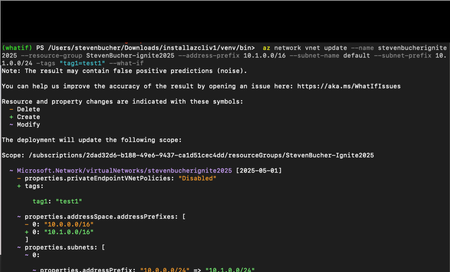
Ever hesitated before hitting Enter on a command, wondering what changes it might make? You’re not alone. Whether you’re deploying resources or updating configurations, the fear of unintended consequences can slow you down. That’s why we’re introducing new powerful features in Azure CLI and Azure PowerShell to preview the changes the commands may make: the What if and Export Bicep features. These capabilities allow you to preview the impact of your commands and allow you to export them as Bicep templates, all before making any changes to your Azure environment. Think of them as your safety net: you can validate actions, confirm resource changes, and even generate reusable infrastructure-as-code templates with confidence. Currently, these features are in private preview, and we’re excited to share how you can get early access. Why This Matters Reduce risk: Avoid accidental resource deletions or costly misconfigurations. Build confidence: Understand exactly what your command will do before execution. Accelerate adoption of IaC: Convert CLI commands into Bicep templates automatically. Improve productivity: Validate scripts quickly without trial-and-error deployments. How It Works What if preview of commands All you have to do is add the `--what-if` parameter to Azure CLI commands and then the `-DryRun` command to Azure PowerShell commands like below. Azure CLI: az storage account create --name "mystorageaccount" --resource-group "myResourceGroup" --location "eastus" --what-if Azure PowerShell: New-AzVirtualNetwork -name MyVNET -ResourceGroupName MyResourceGroup -Location eastus -AddressPrefix "10.0.0.0/16" -DryRun Exporting commands to Bicep To generate bicep from the command you will have to add the `--export-bicep` command with the --what-if parameter to generate a bicep file. The bicep code will be saved under the `~/.azure/whatif` directory on your machine. The command will specific exactly where the file is saved on your machine. Behind the scenes, AI translates your CLI command into Bicep code, creating a reusable template for future deployments. After generating the Bicep file, the CLI automatically runs a What-If analysis on the Bicep template to show you the expected changes before applying them. Here is a video of it in action! Here is another example where there is delete, modify and create actions happening all together. Private Preview Access These features are available in private preview. To sign up: Visit the aka.ms/PreviewSignupPSCLI Submit your request for access. Once approved, you’ll receive instructions to download the preview package. Supported Commands (Private Preview) Given these features are in a preview we have only added support for a small set of commands for the time being. Here’s a list of commands that will support these features during the private preview: Azure CLI Az vm create Az vm update az storage account create az storage container create az storage share create az network vnet create az network vnet update az storage account network-rule add az vm disk attach az vm disk detach az vm nic remove Azure PowerShell New-AzVM Update-AzVM New-AzStorageAccount New-AzRmStorageShare New-AzRmStorageContainer New-AzVirtualNetwork Set-AzVirtualNetwork Add-AzStorageAccountNetworkRule Next Steps Sign up for the private preview. Install the packages using the upcoming script. Start using --what-if, -DryRun, and --export-bicep to make safer, smarter decisions and accelerate your IaC journey. Give us feedback on what you think of the feature! At https://aka.ms/PreviewFeedbackWhatIf Thanks so much! Steven Bucher PM for Azure Client Tools1.1KViews2likes0Comments