azuread
39 Topics
From Domain-Joined to Microsoft Entra Joined: A Low-Disruption Migration Framework
How the right in-place migration approach can preserve eligible user profiles, establish Intune management, and accelerate the move away from on-premises Active Directory. Cloud-native endpoint management is relatively straightforward when a Windows device is new. The harder problem is the installed base: hundreds or thousands of working laptops and desktops that already contain user profiles, local files, applications, certificates, security controls, and years of configuration. Resetting and re-provisioning those devices is a valid route, but it can introduce significant coordination, user downtime, application rebuilding, and service-desk demand. This often creates a practical gap between an organisation's cloud strategy and its ability to move the existing fleet. Can an existing domain-joined or hybrid Microsoft Entra joined Windows device move to Microsoft Entra join without being wiped or re-imaged? For eligible devices, the technical answer can be yes, when specialized migration tooling, careful preparation, and a controlled recovery model are used. However, an important support distinction must be made at the outset. The Microsoft support boundary matters Microsoft recommends Microsoft Entra joined, cloud-managed endpoints as the strategic direction for organisations that are ready to reduce their reliance on on-premises infrastructure. Microsoft also states that its supported path for converting an existing Active Directory-joined or hybrid Microsoft Entra joined device to Microsoft Entra join requires a Windows reset; it does not provide a Microsoft-supported, no-reset conversion path for that scenario. See Microsoft's guidance on Microsoft Entra join and hybrid join. A no-reset migration is therefore not a hidden Microsoft feature. It is a vendor-supported, tool-assisted workflow that orchestrates Windows, Microsoft Entra ID, Microsoft Intune, and Microsoft Graph capabilities and adds the missing profile-continuity and recovery layers. Microsoft may support the underlying platform components, but not the end-to-end no-reset conversion. That distinction does not put the approach in conflict with Microsoft's direction. The destination, Microsoft Entra joined devices managed by Intune, is aligned with Microsoft's cloud-native endpoint strategy. The bridge used to move the existing fleet is specialized and must be validated through a representative proof of concept, with clear ownership for support and recovery. The strategic destination can be Microsoft-native even when the migration bridge is specialized. What “seamless” should mean in practice “Seamless” should not mean that nothing changes. A credible low-disruption migration may still require a user sign-out, controlled restarts, a first sign-in with Microsoft Entra credentials, Windows Hello re-provisioning, and re-authentication to some applications. Instead, a successful in-place migration should aim to achieve the following: Retain the same physical device and Windows installation. Keep the eligible local Windows profile, local files, installed applications, and compatible settings in place. Re-associate that profile with the correct Microsoft Entra identity. Establish or re-establish Intune management in a controlled manner. Restore the intended application and policy targeting. Protect BitLocker and local-administrator recovery throughout the transition. Limit the interactive cutover to a predictable maintenance window. Produce verifiable evidence that identity, management, security, and user productivity are working after the change. The join operation is a milestone; it is not the entire migration. A device is truly migrated only when the user can work and the required security controls are demonstrably active. A step-by-step framework for an in-place migration Step 1: Define the complete target state Do not define success simply as “Microsoft Entra joined.” The target state should cover four connected layers: Device trust The endpoint is Microsoft Entra joined in the correct tenant and is no longer joined to the on-premises domain where that is the intended outcome. Management The endpoint is enrolled in Intune, has the correct corporate/personal ownership classification and primary user, has the required Microsoft Entra registered owner where applicable, and receives the required applications and configurations. User continuity The correct user can sign in to the existing eligible profile and access the files, applications, and services needed for work. Security and recovery Compliance is evaluated, Conditional Access behaves as designed, and BitLocker, Windows LAPS, Defender, certificates, and recovery access are validated. For new designs, a supported Windows 11 edition capable of Microsoft Entra join should be the forward-looking baseline; Windows Home editions cannot be Microsoft Entra joined. Windows 10 reached end of support on 14 October 2025; ESU, LTSC, or other exceptional servicing scenarios should be assessed separately against Microsoft's lifecycle information. Step 2: Discover dependencies and segment the estate An accurate inventory determines which devices are suitable for an in-place path. At a minimum, collect: Current join and management state. Windows version, edition, servicing status, disk health, free space, and pending restarts. Primary and additional local profiles, including profile health and size. Source account, target user principal name, and any identity-mapping exceptions. BitLocker status, recovery-key location, and local-administrator or LAPS recovery route. Applications that use AD computer authentication, legacy protocols, device certificates, or domain service accounts. GPO-delivered settings, mapped drives, printers, folder redirection, logon scripts, Wi-Fi, VPN, and certificate delivery. Windows Hello, Credential Manager, EFS, private keys, and other identity-bound data. Network location, proxy behavior, endpoint security controls, and remote-worker constraints. Use the findings to classify devices into practical groups: Ready for a tool-assisted in-place migration. Ready after remediation. Better suited to reset and Windows Autopilot. Better suited to hardware replacement. Temporarily retained as a managed hybrid exception because a dependency remains. This segmentation prevents a small number of unsuitable devices from setting the risk profile for the entire project. Step 3: Replace the policy dependencies—not merely the join state Once a device leaves Active Directory, Group Policy no longer refreshes. Existing registry-based settings may remain on the device, while mapped drives, printers, folder redirection, scripts, certificates, Wi-Fi, and VPN configuration may require a cloud-management replacement. Microsoft's Group Policy analytics in Intune can help identify which GPO settings have a cloud-management equivalent. The goal should not be to copy every historical setting. It should be to rebuild the controls the organisation still requires through Intune, rationalizing old policies along the way. Applications that rely on an AD computer account or machine authentication deserve particular attention. Device migration cannot make an application cloud-ready; application and infrastructure modernization remain separate work streams. Step 4: Prepare Microsoft Entra ID and Intune before touching a device The destination must be ready before the source trust is removed. Confirm: Target user identities exist, are enabled, and use the intended sign-in names. Required Microsoft Entra ID and Intune licences are active. Device-join permissions, device limits, MDM authority, enrollment restrictions, and ownership rules are correct. The correct users are included in the Intune MDM user scope. Required applications, configuration profiles, security baselines, certificates, Wi-Fi, VPN, and update policies are assigned. Compliance policies and Conditional Access rules include a safe enrollment and bootstrap path. Access to required on-premises resources has been tested from a Microsoft Entra joined device. Microsoft documents that eligible corporate devices can automatically enroll in Intune when they join Microsoft Entra ID, provided licensing and MDM scope are configured correctly. Conditional Access deserves careful sequencing. A device may need time to enroll, receive policy, and report compliance. Temporary exceptions, if required, should be narrow, documented, monitored, time-bound, and removed as soon as the migration wave is complete. Compliance does not migrate from the old device record; it must be evaluated again in the target state. Step 5: Secure the migration control plane A mature migration design should use a customer-controlled Microsoft Entra application with only the Microsoft Graph permissions required for the enabled functions. Application credentials should be protected, rotated, audited, and revoked when no longer required. Microsoft recommends applying the principle of least privilege to Microsoft Graph permissions. Where the selected workflow requires credentials to update, disable, or delete source AD computer objects, use a dedicated identity with narrowly delegated permissions rather than broad domain administration. If the workflow uses a Windows Configuration Designer provisioning package, treat it as a privileged credential. Microsoft's bulk enrollment documentation notes that the embedded bulk token can be valid for up to 180 days and that MFA is not supported in that particular token flow. Microsoft documents bulk provisioning for new devices, not as a native in-place profile-migration method, so any orchestration around it remains part of the specialized workflow. Protect the package, scope any necessary policy exception tightly, test it on a non-production device, and revoke it after use. Endpoint security controls also need advance preparation. Any approved migration executable and the system actions it performs must be tested against EDR, antivirus, WDAC, AppLocker, hardening policies, and proxy controls. A good architecture should not require a persistent endpoint agent after the migration is complete. Step 6: Build recovery into the design Changing device trust crosses several systems and is not one atomic transaction. A credible plan therefore starts with recovery, not optimism. Before migration: Confirm that critical user data is backed up or successfully synchronized to an approved location. Keeping files on the same disk is not a substitute for backup. Confirm that a working BitLocker recovery password is available through an approved location. Confirm a tested local-administrator or Windows LAPS break-glass route. Keep source recovery information available until target escrow is verified. Record the source join state, device identifiers, user-to-profile mapping, primary user, group assignments, and management state. Define stop points and avoid irreversible source cleanup until the target state has been validated, where the workflow permits. Document who owns endpoint recovery, identity recovery, and user support. Microsoft recommends storing BitLocker recovery information for Microsoft Entra joined devices in Microsoft Entra ID; see the BitLocker recovery overview. Windows LAPS can back up managed local-administrator passwords to Microsoft Entra ID on Microsoft Entra joined devices. Do not accept a vague “rollback” promise. Look for phase-aware, checkpoint-based recovery that can identify the failure stage, preserve administrative access, and safely resume or repair the workflow. Reset or re-image should remain the documented last-resort recovery path. Step 7: Run a representative proof of concept A pilot built only from clean IT laptops proves very little. Include representative devices and users, such as: AD-joined and hybrid Microsoft Entra joined endpoints. Office-based and fully remote users. Different hardware models and supported Windows builds. BitLocker-protected devices. Large or multiple eligible local profiles. Certificate-based Wi-Fi or VPN. Business-critical and internally developed applications. Users who still require on-premises file, print, or application access. Define success before the pilot begins. Measure device join, Intune enrollment, policy receipt, compliance evaluation, BitLocker escrow, pre-cutover local-administrator or LAPS recovery, post-migration Windows LAPS policy and backup operation, application access, profile continuity, user downtime, failure rate, and recovery effort. The purpose of the pilot is not merely to prove that a device can join Microsoft Entra ID. It is to prove that a real user can remain productive afterward. Step 8: Apply a strict per-device readiness gate Immediately before cutover, an automated preflight should verify: Supported source and target states. A healthy, supported Windows installation and local profile. A valid source-user-to-target-user mapping. Intune enrollment eligibility and available device capacity. Stable power, internet, DNS, and non-interactive system connectivity. Sufficient privileges for the required system operations. Accessible BitLocker and local-administrator recovery. No blocking restart, disk, encryption, proxy, or security-software condition. An unloaded profile during the identity-re association stage. Valid target-join material and required API access. Unsafe devices should be blocked and routed to remediation rather than allowed to fail halfway through the trust transition. Step 9: Capture the state that must be reconstructed Before changing identity, a capable workflow should record the data required to rebuild the intended management relationship, including: Source user, target user, profile path, and security identifiers used for correlation. Existing Microsoft Entra, Intune, and Autopilot device identifiers where relevant. Intune primary user and ownership information where applicable. Assigned device-group memberships and any groups that must not be recreated. Device attributes or tags used for policy and application targeting. BitLocker recovery-key identifiers and administrative recovery status. Local execution logs and a central audit record. In a cross-tenant migration, group object IDs and device records are different. Memberships cannot simply be copied; source intent must be mapped to equivalent target groups, while dynamic membership must recalculate from target-tenant attributes. Step 10: Execute a protected identity transition The exact order varies by tool and environment. The following three phases are an illustrative orchestration model, not a universal sequence for every tool. Prepare and detach The workflow confirms readiness, protects the starting state, prevents sign-in during sensitive operations, and removes or transitions the former domain, registration, or management relationship in the planned sequence. Establish the target identity The selected tooling establishes the target Microsoft Entra join using Windows join or provisioning interfaces. Use of documented platform interfaces does not make the overall no-reset conversion a Microsoft-supported migration path. Controlled restarts and state checks confirm that the target trust was created before the workflow continues. Re-associate and finalize While the old user profile is fully unloaded, specialized tooling associates the existing eligible local profile with the correct target Microsoft Entra identity and aligns the necessary permissions. The local files do not need to be copied to an intermediate location simply to maintain the profile. After the protected stage, the user signs in with the Microsoft Entra account and final management, recovery, and cleanup tasks complete. This is the specialized part of the process. Microsoft does not provide a native supported AD-to-Entra profile-conversion utility, and its documentation states that, USMT does not support moving profiles from AD-joined devices to Microsoft Entra joined devices. The capability, support, and recovery obligations therefore belong to the chosen migration method. Profile continuity must also be described honestly. Windows Hello, passkeys, cached authentication tokens, Credential Manager entries, user-bound certificates and private keys, EFS-encrypted files, application licences, and some Outlook, OneDrive, or browser state may require re-authentication, re-provisioning, or separate recovery. Installed software can remain on the device without every identity-bound secret remaining usable. Endpoint migration does not migrate Exchange mailboxes, OneDrive or SharePoint content, Teams data, or other Microsoft 365 workloads; cross-tenant data migration requires a separate plan. Step 11: Re-establish management and policy intent Following the identity transition, the workflow should ensure that the endpoint: Enrolls in the correct Intune tenant and obtains valid management certificates. Has the correct primary user and ownership classification where applicable. Receives the intended device-group assignments, attributes, applications, and configuration. Re-onboards to Microsoft Defender for Endpoint where required. Escrows BitLocker recovery information to the intended target record. Receives the target Windows LAPS policy and proves administrative recoverability. Registers with Windows Autopilot for future reset, re-purpose, or replacement workflows where that is part of the lifecycle design. Removes obsolete source objects or management components only after the target state is proven. Be precise with the language: the same physical Windows installation may be retained, but new Microsoft Entra and Intune objects can be created. Intune enrollment is re-established, not magically “preserved,” and compliance must be recalculated after check-in. Step 12: Validate, observe, and scale in waves Validation should cover four dimensions. Identity Correct Microsoft Entra tenant and device record. AzureAdJoined : YES, DomainJoined : NO where intended, and successful device authentication in dsregcmd /status. A Primary Refresh Token for the signed-in user where expected. Microsoft documents these checks in its dsregcmd troubleshooting guidance. Management and security Intune check-in, correct primary user, policy delivery, Defender status, and compliance evaluation. Expected Conditional Access behaviour. Verified BitLocker recovery escrow and Windows LAPS operation. Required security baselines, certificates, updates, Wi-Fi, and VPN profiles. User continuity Desktop, documents, permitted local data, and compatible application settings. Microsoft 365, OneDrive, browser, Outlook, printers, mapped resources, and line-of-business applications. Expected reauthentication and Windows Hello provisioning. Business productivity SaaS access, required on-premises access, collaboration tools, and help-desk acceptance tests. Scale only after results are visible per device. A capable platform should provide central status, phase-level telemetry, error details, local Windows event logging, retry or recovery controls, and auditable outcomes. Migration can then proceed through technical validation, representative pilot, early adopters, departmental or location-based waves, broad rollout, and an exception queue. Depending on the operating model, deployment may use Intune, Group Policy, another endpoint-management platform, or a controlled manual process. Suitable endpoint-local architectures can also avoid a dedicated on-premises migration server. Define pause thresholds for first-pass failures, Intune enrollment delays, compliance delays, application incidents, and manual-recovery volume. Both centrally scheduled and guided self-service execution can be useful, depending on the user population and support model. Remote migration may be possible over the internet, but “no VPN required” should never be treated as universal. The answer depends on the domain-leave method, deployment channel, proxy, certificates, Wi-Fi, applications, and source-cleanup requirements. Remote scenarios need stable power, reliable connectivity, clear user communication, and a tested break-glass channel. What capable migration tooling should provide Automated readiness assessment Stops unsuitable devices before they enter a sensitive transition. Explicit identity mapping Connects the correct existing profile to the correct target user. In-place profile reassociation Preserves eligible local user state without rebuilding or copying the entire profile. Eligible multi-user profile handling Supports shared devices only when every profile and identity mapping is explicitly supported and proven in the pilot. Controlled sign-in and restart handling Prevents a user or background process from loading the profile during reassociation. Join and enrollment orchestration Coordinates domain departure, Microsoft Entra join, and Intune enrollment in the correct order. Primary-user, group, and attribute handling Reconstructs policy and application targeting without claiming that compliance state transfers. BitLocker and administrative recovery controls Maintains a usable recovery path throughout the identity gap. Source and target object hygiene Reduces duplicate, orphaned, or stale identity and management records. Remote and wave-based deployment Supports distributed workforces, schedules, rings, pauses, and exceptions. IT-driven and guided user modes Allows the operating model to match different user groups and support capacity. Central telemetry and local logs Gives IT evidence of each phase rather than relying on user reports. Checkpoint-based recovery Resumes or repairs partial transitions without promising an unrealistic one-click rollback. Least-privilege and transparent data handling Limits tenant access and makes it clear what device, identity, recovery, and diagnostic data is processed. No persistent endpoint agent after completion Avoids adding a permanent management dependency solely for a one-time transition. The right question is not, “Can the tool run a join command?” It is, “Can it safely coordinate identity, profile, management, recovery, and validation at enterprise scale?” How this complements Windows Autopilot Windows Autopilot and in-place migration solve different lifecycle problems. Microsoft describes Autopilot as a set of technologies for setting up and pre-configuring new devices and for resetting, re-purposing, and recovering existing devices. It should remain a core part of the future device lifecycle; see the Windows Autopilot overview. Device situation - Sensible approach New, replacement, or intentionally reset device - Use Microsoft Entra join through Windows Autopilot. Healthy existing device where eligible working state must remain substantially intact - Evaluate a vendor-supported, tool-assisted in-place migration through a representative proof of concept. Unhealthy, unsupported, or end-of-life device - Reset, rebuild, or replace it. Device with an unresolved legacy dependency - Remediate the dependency first or retain the device temporarily as a controlled hybrid exception. Windows Autopilot Reset should also be described accurately. On supported Microsoft Entra joined devices it removes personal files, apps, and settings while maintaining the Microsoft Entra and Intune connections; it does not support hybrid Microsoft Entra joined devices. Microsoft's Autopilot Reset documentation explains that use case. In-place migration does not replace Autopilot. It can help modernize the installed fleet, after which Autopilot can support the device's future reset, repurpose, recovery, and replacement lifecycle. When an in-place path may not be the right choice Reset or replacement may be safer when a device has: An unhealthy Windows installation, damaged disk, or corrupted profile. An unsupported edition or servicing state. A roaming, mandatory, temporary, VDI, FSLogix, or other containerized profile that the selected method does not explicitly support. EFS-encrypted content or critical private keys without a verified recovery plan. Business applications that require the AD computer account or cannot operate from a Microsoft Entra joined device. Kiosk, shared, laboratory, privileged-access, or other specialized configurations that require a separate design. So much historical configuration debt that a clean baseline is more valuable than preserving the current state. Low disruption is an eligibility-based design choice, not a guarantee for every endpoint. The practical way forward Reducing dependency on on-premises Active Directory does not have to be a big-bang rebuild of every Windows device. With the right discovery, target preparation, specialized migration tooling, security controls, and phased validation, eligible devices can move to a Microsoft Entra joined and Intune-managed state while keeping much of the user's familiar working environment in place. The most successful programs treat the change as more than a device join. They coordinate device trust, endpoint management, user continuity, and recovery as one controlled process. They use Windows Autopilot for new and reset devices, a vendor-supported in-place path where preserving the existing working state has clear business value and reset or replacement where it is technically safer. That is the practical path to faster endpoint modernization: align the destination with Microsoft's cloud-native strategy, choose the migration route according to device condition and business need, and declare success only after both security and user productivity have been verified. Microsoft Resources Cloud-native Windows endpoints overview Microsoft Entra joined versus hybrid Microsoft Entra joined endpoints High-level planning guide for cloud-native endpoints Plan a Microsoft Entra device deployment Set up automatic enrollment for Windows devices What USMT migrates—and does not migrate Windows Autopilot overview BitLocker recovery overview Windows LAPS overview197Views0likes0CommentsSigning in to Microsoft Foundry from OpenClaw using Azure AD: a smoother way to bring your models in
This post is a quick update to walk through the new flow. If you read the previous one, think of this as the easier path I wish I had the first time round. If you have not seen the original, you can find it here: Integrating Microsoft Foundry with OpenClaw: Step by Step Model Configuration | Microsoft Community Hub Pre-requisite: You will need the Azure CLI (azure-cli) installed on your machine. The official install guide for Linux is here: https://learn.microsoft.com/en-us/cli/azure/install-azure-cli-linux?view=azure-cli-latest I am on Linux so I went the Homebrew route, which keeps things simple. The formula is here: https://formulae.brew.sh/formula/azure-cli Microsoft also has official docs covering the Homebrew/Linuxbrew install: https://learn.microsoft.com/en-us/cli/azure/install-azure-cli-macos?view=azure-cli-latest#install-with-homebrew Once Homebrew is ready, run this in your terminal: brew install azure-cli Why this matters: Before this update, every Foundry model you wanted to use in OpenClaw needed its own API key and endpoint pasted into the config. It worked, but it was tedious, and keys are easy to leak if you are copying them around. The Azure AD path solves both problems. You authenticate as yourself (or a service principal), OpenClaw asks Azure for the list of Foundry resources you have access to, and it brings the models in automatically. Signing in to Microsoft Foundry from OpenClaw via Azure AD A device-code OAuth handshake replaces the old static-API-key flow. OpenClaw delegates auth to the local Azure CLI; the CLI handles the browser-side sign-in, holds the resulting tokens, and refreshes them silently. OpenClaw then walks the Azure resource graph, subscriptions → Foundry resources → model deployments and registers each model into its own config. No API keys move through OpenClaw at any point. Sequence diagram of the OAuth 2.0 device-authorization flow as orchestrated by OpenClaw. Phases 1–3 establish identity (the developer authenticates once, in a real browser, against Azure AD). Phases 4–5 perform service discovery (OpenClaw walks the ARM resource hierarchy, subscriptions → Foundry accounts → model deployments and persists the result to a local provider config). After registration, every model call OpenClaw makes against Foundry reuses the same Azure-CLI-managed token cache: tokens refresh transparently, and access is gated by the Foundry resource's RBAC assignments rather than a static API key. Dashed lines denote return values; the teal line in step 7 marks the single token-issuance event the rest of the system pivots on. Walking through the new flow: Start with the command to onboard openclaw as if you were setting up OpenClaw for the first time: openclaw onboard Kick things off with the OpenClaw onboard command, the same one you would use when setting up OpenClaw for the first time. When it prompts you, choose update values. Next, you will be asked to configure your models. Scroll down a little and you will see Microsoft Foundry listed as a supported provider. Pick it. From here, you have two options. You can sign in with an API key, which is what I covered in the previous blog post, or you can sign in through Azure AD. The Azure AD path is easier and more secure, so that is the one we will use. OpenClaw will give you a URL and a device code. Copy the URL into your browser and use the code to complete the sign in. (This is where the az CLI from the pre-requisite section earns its keep.) If everything worked, you should see a success prompt similar to this: Once you are signed in, OpenClaw will ask you to pick the Azure subscription that your Microsoft Foundry resource lives in. Pick the subscription, then pick the Foundry resource where your models are deployed. And that is pretty much it. All the models you have deployed to that Foundry resource get pulled into OpenClaw automatically. Compared to the old way of pasting API keys and endpoints one by one, this is a huge time saver, and you do not have to babysit any keys. From here you can start using your Foundry-deployed models inside OpenClaw straight away: Wrapping up The Azure AD sign-in option in OpenClaw is one of those small updates that quietly removes a real pain point. If you have ever juggled multiple Foundry endpoints and rotated keys across them, you already know why. With this flow, you sign in once, your models show up, and you can get back to actually building. If you have not tried OpenClaw with Microsoft Foundry yet, this is a good time to give it a go. And if you were holding off because of the key management overhead, that excuse is gone now. References Previous post on integrating Microsoft Foundry with OpenClaw using API keys: Integrating Microsoft Foundry with OpenClaw: Step by Step Model Configuration | Microsoft Community Hub Install the Azure CLI on Linux: https://learn.microsoft.com/en-us/cli/azure/install-azure-cli-linux?view=azure-cli-latest Install the Azure CLI on macOS: https://learn.microsoft.com/en-us/cli/azure/install-azure-cli-macos?view=azure-cli-latest#install-with-homebrew Homebrew formula for azure-cli: https://formulae.brew.sh/formula/azure-cli403Views0likes0CommentsStrengthening Identity Resilience: A Deep Dive into Microsoft Entra Backup and Recovery
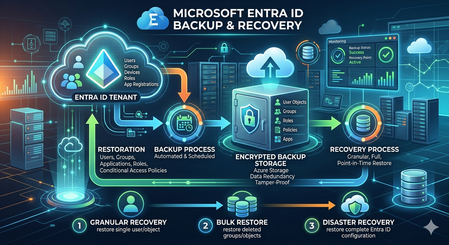
In the modern security landscape, we often say that "Identity is the new perimeter." We spend significant resources on Conditional Access, Phishing-Resistant MFA, and Identity Protection to keep the "bad guys" out. But what happens when the threat is already inside, or when a legitimate administrative action goes sideways? If our identity data the "brain" of our Microsoft 365 and Azure ecosystem is corrupted or maliciously altered, usr entire security posture collapses. Today, we’re exploring the new Microsoft Entra Backup and Recovery capability, a native safety net designed to ensure usr identity infrastructure remains resilient against both accidents and attacks. Why Native Backup Matters For years, Entra ID administrators relied on the Recycle Bin for deleted objects. However, a major gap existed: Attribute Corruption. If a script accidentally wipes the department and manager attributes for 10,000 users, or if a malicious actor modifies our most restrictive Conditional Access policies to create a backdoor, the Recycle Bin can't help us the objects aren't deleted; they are just wrong. Restoring these specific states previously required complex PowerShell scripting or expensive third-party tools. Entra Backup and Recovery closes this gap by providing a native, automated way to "roll back" the state of usr objects. Core Capabilities: How it Works The service is currently available in Public Preview for customers with Entra ID P1 or P2 licenses. It operates on a simple yet powerful "Snapshot" model: Automated Daily Snapshots The system automatically captures a point-in-time view of our tenant every day. Currently, the service maintains a 5-day retention window. This allows us to look back at the state of our environment from yesterday or earlier in the week to find a "known good" configuration. Visibility via Difference Reports One of the most powerful features is the Difference Report. Before committing to a restoration, we can compare a specific snapshot against the live state of our tenant. The report provides a granular view of: Object ID: Exactly which user, group, or policy is affected. Attribute Changes: A side-by-side comparison showing the "Old Value" (from the backup) versus the "Current Value" (live in the tenant). Metadata Loading: While the first report may take a moment to load metadata, subsequent reports are lightning-fast, allowing for quick triaging during an incident. Granular Restoration We aren't forced into an "all or nothing" recovery. We can choose to restore: An entire object class (e.g., all Conditional Access Policies). Specific object types (e.g., only Service Principals). Individual Object IDs for targeted fixes. The "Defense in Depth" Identity Strategy Entra Backup and Recovery is not a standalone silo; it is the third pillar of a complete identity resilience strategy. To truly harden our tenant, we must coordinate these three features: Pillar 1: Soft Delete (The Recycle Bin) Used for Deleted Objects. If a user or Microsoft 365 group is deleted, it sits in the Recycle Bin for 30 days. We can restore these easily via the portal or Graph API to maintain the original Object ID and SID. Pillar 2: Protected Actions (The Vault) To prevent an attacker from "hard deleting" our objects (purging them from the Recycle Bin so they can't be recovered), we must implement Protected Actions. How it works: we assign a "Conditional Access Authentication Context" to sensitive actions like Microsoft.Directory/deletedItems/delete. The Result: Even a Global Admin cannot permanently purge an object unless they meet strict requirements, such as using a Phishing-Resistant MFA key or working from a Secure Access Workstation (SAW). Pillar 3: Backup and Recovery (The Time Machine) Used for Corruption and Configuration Drift. When the object exists but its properties are compromised, this is our "Time Machine" to revert attributes and policy logic to a functional state. Real-World Scenario: Recovering from a Bulk Logic Error Imagine an admin runs a bulk update script intended to update the JobTitle for the Sales team. Due to a logic error in the CSV, the script instead clears the SecurityGroup memberships and ExtensionAttributes for the entire department. Detection: Users lose access to apps because their group memberships are gone. Analysis: The Admin generates a Difference Report between today and yesterday’s snapshot. Validation: The report confirms that 500 users now have "null" values for the affected attributes. Recovery: The Admin selects those 500 User IDs and hits Restore. Within minutes, the attributes are repopulated, and dynamic group memberships begin to recalculate automatically. Conclusion and Next Steps The preview of Microsoft Entra Backup and Recovery is a significant step forward in native tenant protection. By combining it with Protected Actions and the Recycle Bin, organizations can finally achieve a "circular" protection model for identity. Ready to try it? Navigate to the Microsoft Entra Admin Center, look for Backup and Recovery in the left-hand navigation, and explore usr first snapshot today.Power Up Your Open WebUI with Azure AI Speech: Quick STT & TTS Integration
Introduction Ever found yourself wishing your web interface could really talk and listen back to you? With a few clicks (and a bit of code), you can turn your plain Open WebUI into a full-on voice assistant. In this post, you’ll see how to spin up an Azure Speech resource, hook it into your frontend, and watch as user speech transforms into text and your app’s responses leap off the screen in a human-like voice. By the end of this guide, you’ll have a voice-enabled web UI that actually converses with users, opening the door to hands-free controls, better accessibility, and a genuinely richer user experience. Ready to make your web app speak? Let’s dive in. Why Azure AI Speech? We use Azure AI Speech service in Open Web UI to enable voice interactions directly within web applications. This allows users to: Speak commands or input instead of typing, making the interface more accessible and user-friendly. Hear responses or information read aloud, which improves usability for people with visual impairments or those who prefer audio. Provide a more natural and hands-free experience especially on devices like smartphones or tablets. In short, integrating Azure AI Speech service into Open Web UI helps make web apps smarter, more interactive, and easier to use by adding speech recognition and voice output features. If you haven’t hosted Open WebUI already, follow my other step-by-step guide to host Ollama WebUI on Azure. Proceed to the next step if you have Open WebUI deployed already. Learn More about OpenWeb UI here. Deploy Azure AI Speech service in Azure. Navigate to the Azure Portal and search for Azure AI Speech on the Azure portal search bar. Create a new Speech Service by filling up the fields in the resource creation page. Click on “Create” to finalize the setup. After the resource has been deployed, click on “View resource” button and you should be redirected to the Azure AI Speech service page. The page should display the API Keys and Endpoints for Azure AI Speech services, which you can use in Open Web UI. Settings things up in Open Web UI Speech to Text settings (STT) Head to the Open Web UI Admin page > Settings > Audio. Paste the API Key obtained from the Azure AI Speech service page into the API key field below. Unless you use different Azure Region, or want to change the default configurations for the STT settings, leave all settings to blank. Text to Speech settings (TTS) Now, let's proceed with configuring the TTS Settings on OpenWeb UI by toggling the TTS Engine to Azure AI Speech option. Again, paste the API Key obtained from Azure AI Speech service page and leave all settings to blank. You can change the TTS Voice from the dropdown selection in the TTS settings as depicted in the image below: Click Save to reflect the change. Expected Result Now, let’s test if everything works well. Open a new chat / temporary chat on Open Web UI and click on the Call / Record button. The STT Engine (Azure AI Speech) should identify your voice and provide a response based on the voice input. To test the TTS feature, click on the Read Aloud (Speaker Icon) under any response from Open Web UI. The TTS Engine should reflect Azure AI Speech service! Conclusion And that’s a wrap! You’ve just given your Open WebUI the gift of capturing user speech, turning it into text, and then talking right back with Azure’s neural voices. Along the way you saw how easy it is to spin up a Speech resource in the Azure portal, wire up real-time transcription in the browser, and pipe responses through the TTS engine. From here, it’s all about experimentation. Try swapping in different neural voices or dialing in new languages. Tweak how you start and stop listening, play with silence detection, or add custom pronunciation tweaks for those tricky product names. Before you know it, your interface will feel less like a web page and more like a conversation partner.2.7KViews3likes2CommentsRetain the same email address value across two objects in Azure AD (Guest and Local)
Howdy Techies! This might sound stupid but thought to throw it here anyway to see if anyone managed to work around this in any possible alternative ways. I have a very specific need to retain the same email address across two Azure AD accounts. One is a guest and the other is a local account in the same tenancy. The purpose is to allow one of the SaaS app to use the local account while the other Guest Account will be used to access Teams channel. I have tried to create a separate accounts and some other workarounds but failed due to conflicts. Why not a single account for both purposes!, you may ask. Its a very specific scenario and could not afford to use a single account due to multiple business reasons. Really appreciate any thoughts/ideas !! Thank you! Manoj K726Views0likes1CommentThe Future of Identity: Self-Service Account Recovery (Preview) in Microsoft Entra
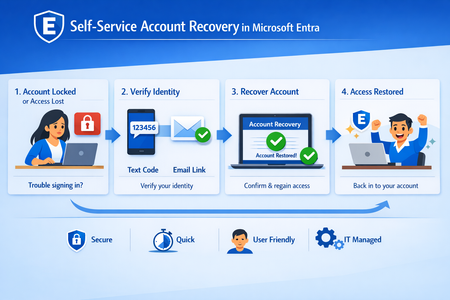
In the modern enterprise, the "Help Desk" is paradoxically both a vital resource and a massive security liability. As organizations move toward phishing-resistant, passwordless environments using passkeys and FIDO2 tokens, a critical question remains: What happens when a user loses their only authentication device? Historically, this required a phone call to a support agent. However, in an era of sophisticated social engineering and AI-generated deepfakes, a human agent is often the easiest point of entry for an attacker. Microsoft Entra’s new Self-Service Account Recovery solves this by replacing manual verification with high-assurance, automated identity proofing. The Fatal Flaw in Traditional Recovery Most organizations currently rely on one of two methods for recovery, both of which have significant drawbacks: Self-Service Password Reset (SSPR): Often relies on "weak" factors like SMS codes or security questions. These are easily intercepted or guessed and don't help a user who is trying to move away from passwords entirely. The Help Desk: Requires an agent to "vouch" for a user. Attackers can impersonate employees, use voice-cloning technology, or provide leaked personal information to trick an agent into issuing a Temporary Access Pass (TAP). The new Entra flow removes the human element from the validation process, ensuring that the person regaining access is exactly who they claim to be. How the New Recovery Flow Works: The recovery process is built on the concept of "identity proofing," utilizing government-issued documents and biometric liveness checks. Integration with Verification Partners Microsoft doesn’t store your passport or driver's license. Instead, Entra integrates with specialized Third-Party Identity Verification providers (such as True Credential, IDEMIA, AU10TIX). These services are experts in forensic document analysis. The Verification Process When a user begins a recovery, they are redirected to the partner service. The process typically involves: Document Capture: The user takes a photo of a government ID (Passport, Driver’s License, etc.). Forensic Analysis: The service checks for security features like holograms, fonts, and watermarks to ensure the ID is genuine. Liveness Check: The user takes a "selfie" or video. The system uses "Face Check" technology projecting specific light patterns or colors on the user’s face to ensure it is a live person and not a photo, video, or deepfake. Issuance of a Verified ID Once the third party confirms the user's identity, Microsoft Entra issues Verified ID. This is a decentralized, digital credential that sits in the user's Microsoft Authenticator app. It serves as digital proof of their identity that Entra can trust. The Final Handshake: Face Check To bridge the gap between the digital credential and the person at the keyboard, Entra performs a Face Check. It compares the live user's face against the photo contained within the Verified ID. If they match, Entra considers the identity "proven." Bootstrapping the New Device Once verified, Entra automatically issues a Temporary Access Pass (TAP). This allows the user to log in and immediately register their new device, passkey, or Authenticator app, effectively "bootstrapping" their new secure environment without ever speaking to a human. Strategic Advantages for IT Leaders Zero Trust Maturity: This process fulfills the Zero Trust requirement of "explicit verification" even during the recovery phase. Scalability: By automating the most time-consuming part of help desk tickets identity verification IT teams can focus on more complex tasks. Phishing Resistance: Because the recovery is tied to physical ID and biometrics, there is no "code" for an attacker to phish. Global Compliance: Leveraging government-issued IDs allows organizations to meet high-bar regulatory requirements for identity assurance (such as NIST IAL2). Deployment and Prerequisites To implement this, administrators need to ensure a few things are in place: Verified ID Setup: You must configure Microsoft Entra Verified ID within your tenant. Matching Logic: Entra uses attributes like First Name and Last Name to match the Verified ID to the user account. Ensuring your HR data is clean and synchronized is essential. License & Costs: While the recovery flow is a feature of Entra, the verification partners and the Face Check service (typically a per-check fee) must be provisioned through the Microsoft Security Store. Conclusion The transition to a passwordless world is incomplete if the "back door" (recovery) remains open and insecure. By integrating government-grade identity verification directly into the login flow, Microsoft Entra provides the final piece of the puzzle: a recovery method that is as secure as the primary login itself.
How to add a new domain controller to an existing Active Directory domain?
The specific situation is as follows: The company has one forest and domain, and two Active Directory (AD) servers. These two servers communicate and synchronize data. One server is deployed in the local data center, and the other is deployed on Azure Cloud. The forest and domain functional levels are both Windows Server 2008 R2. Both servers are running Windows Server 2016 Standard. Because there are computers running Windows XP and Windows 7 in the domain, upgrading the forest and domain functional levels is not possible. Windows Server 2008 R2 must be retained. The company now needs to add a new AD server on Huawei Cloud and join it to the company's forest and domain. The main questions are: How do I determine which operating system the new server should run? Excluding Windows Server 2016. How should I choose between Windows Server 2019, 2022, and 2025? How do I determine how to allocate CPU, memory, disk, and network resources during system deployment? How to determine which operating system is best suited for running a domain controller without conflicts or incompatibility? What preparations should be made before deploying a new server?228Views0likes1CommentConditional Access for Agent Identities in Microsoft Entra
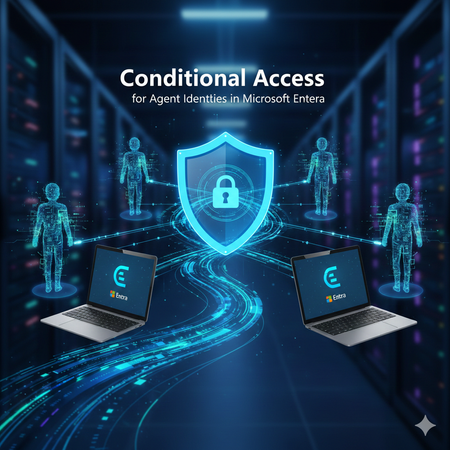
AI agents are rapidly becoming part of everyday enterprise operations summarizing incidents, analyzing logs, orchestrating workflows, or even acting as digital colleagues. As organizations adopt these intelligent automations, securing them becomes just as important as securing human identities. Microsoft Entra introduces Agent Identities and extends Conditional Access to them but with very limited controls compared to traditional users and workload identities. This blog breaks down what Agent Identities are, how Conditional Access applies to them, and what are current limitations. What Exactly Are Agent Identities? Microsoft Entra now supports a new identity type designed specifically for AI systems: Agent Identity – like an app/service principal but specialized for AI Agent User – an identity that behaves more like a human user Agent Blueprint – a template used to create agent identities This model exists because AI systems behave differently than humans or applications: they can act autonomously, operate continuously, and make decisions without user input. AI-driven automation must be governed and that’s where Conditional Access comes in. Conditional Access for Agents, but with Important Limitations Today, Conditional Access for agent identities is purposely minimal. Microsoft clearly states: Conditional Access applies only when: An agent identity requests a token An agent user requests a token It does NOT apply when: A blueprint acquires a token to create identities An agent performs intermediate token exchange What Controls Are Actually Available Today? ✔ Supported Today Category Supported? Details Identity Targeting ✔ Yes You can include/exclude agent identities & agent users Block Access ✔ Yes This is the only Grant control currently available Agent Risk (Preview) ✔ Yes Early stage risk evaluation Sign-in evaluation ✔ Yes Token acquisition governed by CA ❌NOT Supported Today These CA controls do not apply to Agent Identities: MFA Authentication strength Device compliance Approved client apps App protection policies Session controls User sign-in frequency Terms of Use Location conditions (network/device-based) Client apps (legacy/modern access) Why? Because agents do not perform interactive authentication and do not use device signals or session context like humans. Their authentication is purely machine‑driven. How Conditional Access Works for Agents When an agent identity (or agent user) requests a token, Microsoft Entra: Identifies the requesting agent Checks CA policy assignments Evaluates any agent-risk conditions Allow/Blocks token issuance if conditions meet That’s it. No MFA prompt. No device check. No authentication strength evaluation. This makes CA for agents fundamentally different from CA for humans. Why Is Conditional Access So Limited for Agents? Two major reasons: Agents cannot satisfy user-based controls AI agents cannot: Perform MFA Use biometrics Run on compliant devices Follow session prompts These are human-driven processes. Agents authenticate via secure credential flows They use: Client credentials Federated identity credentials Token exchange flows So CA is limited to identity-level allow/block and risk-based token decisions. Practical Use Cases (Given Today’s Limitations) Even with limited controls, CA for agents is still important. Stop compromised agents from continuing to operate If Microsoft Entra detects high agent risk: CA can block token issuance This halts the agent’s ability to act immediately Enforce separation of duties for AI agents Even though you cannot apply MFA or auth strength, you can: Separate agents into “allowed” vs “blocked” groups Apply different CA rules per department or system Prevent AI sprawl Large enterprises may generate hundreds of AI agents. CA gives central admin control: Only approved, vetted agents can operate Others are blocked at token-request time Why Agent Blueprints Cannot Be Governed by CA Blueprints are templates, not active identities. Blueprint token flows are system-level operations, not access attempts. Therefore: ❌ No CA evaluation ❌ No controls applied ❌ Not counted as agent activity Only actual agent identities are governed by CA. What the Future Might Include Microsoft hints the capabilities will expand: Agent risk scoring Agent behaviour analytics More granularity in CA for agents Additional grant controls Policy scoping at task or capability level But as of today, CA for agents remains intentionally constrained to allow safe onboarding of the new identity type without accidental disruption. Final Summary Conditional Access for Agent Identities is currently a lightweight enforcement mechanism designed to block unauthorized or risky agents, not a full policy suite like we have for human users. ✔ What it does: Controls whether an agent identity can acquire a token Allows blocking specific agents Implements early agent‑risk logic Applies Zero Trust principles at the identity perimeter ❌ What it does not do: Enforce MFA Enforce authentication strength Enforce device or location conditions Apply session controls Govern blueprints As organizations adopt more autonomous agents, this foundational layer keeps AI identities visible and controllable and sets the stage for richer governance in the future.Platform SSO for macOS
Introduction As organizations accelerate their journey to passwordless authentication, Microsoft’s Platform SSO for macOS offers a seamless, secure, and user-friendly experience for device and application sign-in. Built on Apple’s SSO framework and tightly integrated with Microsoft Entra ID, Platform SSO empowers users to leverage modern authentication methods Touch ID, smart cards, and passkeys across their macOS devices, enterprise apps, and browsers. In this blog, we’ll walk through the essentials of Platform SSO, supported authentication methods, configuration steps, and best practices for deployment in enterprise environments. What is Platform SSO for macOS? Platform SSO is a Microsoft feature for macOS (13+) that leverages Apple’s SSO framework to enable single sign-on using Entra ID credentials. Users benefit from passwordless authentication, enhanced security, and a consistent experience whether logging into their device, enterprise applications, or web browsers. Key highlights: Passwordless sign-in: Use Touch ID (Secure Enclave), smart cards, or passwords for device and app authentication. Enterprise SSO plug-in: Activated for both application and browser-based sign-in, ensuring centralized identity management. No agent required: Utilizes built-in macOS platform capabilities for easy deployment and management. Authentication Methods Supported by Platform SSO Platform SSO supports three primary authentication methods on macOS: Feature Secure Enclave Smart Card Password Passwordless (phishing resistant) ✅ ✅ ❌ Touch ID supported for unlock ✅ ✅ ✅ Can be used as passkey ✅ ❌ ❌ Local Mac password synced with Entra ID ❌ ❌ ✅ Supported on macOS 14.x+ ✅ ✅ ✅ MFA mandatory for setup ✅ ✅ ❌ Secure Enclave: Recommended for most users, Secure Enclave uses hardware-bound cryptographic keys for app and web sign-ins, enabling passwordless and phishing-resistant MFA. After a reboot, users enter their local password once, then Touch ID can be used for subsequent unlocks. The device receives a hardware-backed Primary Refresh Token (PRT) for device-wide SSO. Smart Card: Ideal for high-security or compliance-driven environments, Smart Card authentication provides complete passwordless sign-in and unlock. After sign-in, the device receives a PRT and Workplace Join (WPJ) certificate for seamless SSO to Microsoft 365, Safari, and Entra-protected apps. Password: Users sign in with their Entra ID password, which syncs to the local account for SSO across apps. Intune password policies ensure alignment with Entra ID password rules, preventing sync or sign-in issues. How Platform SSO Works When a Mac device joins a Microsoft Entra ID tenant, it receives a hardware-bound WPJ certificate accessible only by the Microsoft Enterprise SSO plug-in. Apps and browsers require this certificate to access resources protected by Conditional Access policies. Platform SSO is configured using the Intune settings catalog and should ideally be assigned at device enrollment, but can also be applied to existing devices. Deployment Steps Device Enrollment in Intune: Organization-owned devices use Apple Business Manager or Apple Configurator; personally-owned devices enroll via Company Portal. Prerequisites: macOS 13+, Intune Company Portal app v5.2404.0+, supported browsers (Edge, Chrome with SSO extension, Safari), Intune RBAC permissions. Create Platform SSO Policy in Intune: Enable Platform SSO, select authentication method (Secure Enclave, Password, Smart Card), assign to user groups. Define Policies in Platform SSO Settings: Assign to users or groups with user affinity; avoid assigning to device groups to prevent Conditional Access issues. Enable MDM Push Certificate: Required for macOS enrollment in Intune. Deploy Company Portal App: Via Intune or manually from https://aka.ms/EnrollMyMac. Enroll Device and Validate Profiles: Sign in to Company Portal with Entra ID credentials and confirm device management profile. Customizing the macOS Login Experience Platform SSO allows administrators to push Login Window Text and Show Full Name settings from Intune, enabling a personalized and informative login experience for users. These settings help display the user’s full name and custom messages during sign-in, improving clarity and branding. Best Practices Assign Platform SSO policies during device enrollment for a seamless experience. Ensure password policies in Intune and Entra ID are aligned. Use Secure Enclave for most users; Smart Card for compliance scenarios. Regularly review group memberships and issuer assignments for certificate-based authentication. Document all scoped policies for compliance and troubleshooting. Conclusion Microsoft Platform SSO for macOS is a game-changer for organizations seeking secure, passwordless authentication across devices and applications. By leveraging Entra ID credentials, Touch ID, smart cards, and passkeys, IT teams can deliver a modern, seamless, and secure experience for users while maintaining compliance and reducing operational overhead. Ready to get started? Explore the official documentation and accelerate your passwordless journey today!Azure Entra Security Copilot: How It’s Changing Identity Protection
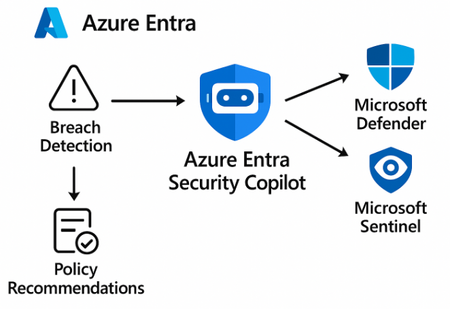
Overview Azure Entra Security Copilot is revolutionizing how organizations approach identity protection. By combining the power of generative AI with Microsoft’s deep security insights, it enables faster threat detection, smarter policy recommendations, and simplified incident response. Hands-On Experience After integrating Security Copilot into our Azure Entra environment, here’s what stood out: Natural Language Queries: You can ask things like “Show me risky sign-ins from last week” and get instant, actionable insights. Automated Investigations: It correlates signals across Entra ID, Defender, and Sentinel to surface threats. Policy Recommendations: Based on your environment, it suggests Conditional Access policies to reduce risk. Use Cases 1. Breach Detection Detects anomalies like impossible travel, unfamiliar sign-in patterns, and token theft. Automatically flags high-risk users and suggests remediation steps. 2. Policy Optimization Recommends Conditional Access policies tailored to your org’s risk profile. Helps reduce over-permissive access and enforce least privilege. 3. Incident Response Generates incident summaries and timelines. Suggests next steps and integrates with Microsoft Sentinel for deeper investigation. Comparison with Traditional SIEM Workflows Discussion Starter Have you tried Security Copilot in your environment yet? What use cases have you explored? How does it compare with your existing SIEM or XDR tools? Let’s share insights and build a stronger identity protection strategy together!163Views0likes0Comments