azure web pubsub
18 TopicsAnnouncing Azure Web PubSub chat in public preview
Chat is becoming a standard interaction model across customer support, collaboration, gaming, marketplaces, healthcare, financial services, and AI-powered applications. But building a production-ready chat system involves much more than opening a WebSocket connection. Teams also need to manage rooms and membership, deliver and order messages, retain conversation history, recover from connection interruptions, and enforce permissions. Today, we are excited to announce that Azure Web PubSub chat is available in public preview. Azure Web PubSub chat is a managed capability built on Azure Web PubSub. It provides chat-focused client and server APIs so developers can work directly with familiar concepts such as rooms, messages, members, users, and roles, while Azure manages the underlying real-time messaging infrastructure. Focus on the chat experience, not the messaging plumbing Azure Web PubSub already helps developers build large-scale, real-time applications. The new chat capability adds a higher-level abstraction for applications whose primary interaction model is conversation. Instead of defining custom events, message schemas, membership logic, persistence workflows, and reconnect behavior, developers can use built-in chat operations to: Create one-to-one or group rooms. Add and remove room members. Send ordered messages in real time. Retrieve persistent room message history. Apply built-in or custom roles and permissions. Reconnect clients and recover messages after temporary connection loss. These capabilities run on Azure Web PubSub infrastructure and inherit its automatic scaling, geo-replication, security, and compliance foundations. Chat-native APIs for clients and servers Azure Web PubSub chat provides two complementary ways to build. The JavaScript client SDK, available through the `@azure/web-pubsub-chat-client` npm package, connects applications to a chat hub. Clients can create rooms, exchange messages, load history, manage members, and subscribe to chat events. The Chat REST API supports trusted server-side and administrative workflows, including managing rooms, users, members, messages, roles, and permissions. This separation lets client applications deliver responsive real-time experiences while backend services retain control over identity, moderation, governance, and business rules. For example, after connecting a `ChatClient`, creating a room and sending a message takes only a few calls: const room = await client.createRoom("Project Falcon", ["bob", "carol"]); client.on("message", ({ message }) => { console.log(`${message.createdBy}: ${message.content.text}`); }); await client.sendToRoom(room.roomId, "Welcome to the project room!"); Applications can also read message history through an asynchronous iterator, making it straightforward to implement initial conversation loading or incremental history as a user scrolls. Keep chat data in your Azure Storage account Persistent chat data remains in an Azure Storage account selected by the application owner. Azure Web PubSub chat uses the Web PubSub resource's managed identity to access that storage, avoiding storage connection strings or keys in the chat configuration. The stored data includes: Messages and conversation history Rooms and room membership Users Roles and permissions Your data stays in your storage account, and the service keeps no separate copy. This model gives organizations direct ownership of their persisted chat data while the managed service handles real-time delivery and chat operations. Built-in access control with room-level flexibility Chat applications often need different privileges for participants, moderators, room owners, support agents, or automated services. Azure Web PubSub chat includes a role and permission model for these scenarios. Built-in room roles distinguish between members and operators. Both can send messages, read history, and invite members by default, while operators can also remove users. Developers can define custom user or room roles when an application needs a different permission set. Role administration is performed through the Chat REST API, keeping permission management in trusted server-side code. Reliable conversations across connections and devices Users expect chat to continue working when a laptop changes networks, a mobile connection briefly drops, or the same account is open in multiple browser tabs or devices. Azure Web PubSub chat runs on Azure Web PubSub's reliable WebSocket connection. The client reconnects and recovers automatically after an interruption, while the service fans messages out to a user's active connections. Persistent history also allows users to load earlier messages after reconnecting or joining a room later. Choose the right Web PubSub capability The new chat capability complements the existing standard Web PubSub hub. Use a chat hub when the application is centered on conversations and benefits from built-in rooms, membership, history, roles, and chat-focused APIs. Use a standard hub when the application needs full control over its protocol or supports a different real-time workload, such as telemetry, device signaling, multiplayer state, notifications, or live dashboards. Both options use Azure Web PubSub, allowing teams to select the abstraction that best fits each real-time scenario. Get started To try Azure Web PubSub chat: Create or open an Azure Web PubSub resource. Link an Azure Storage account under Persistent Storages. Add a Chat Hub and associate it with that storage. Generate a client access URL for testing. Install the JavaScript client SDK: npm install azure/web-pubsub-chat-client Connect a client, create a room, and send your first message. The portal-generated client URL is intended for experimentation. In production, issue client access URLs from an authenticated backend and derive the chat user ID from the signed-in application identity. Managed identity and Microsoft Entra ID can be used for keyless server authentication. Azure Web PubSub chat is available now in public preview. Start with the Azure Web PubSub chat overview, follow the quickstart, or explore the client SDK and REST API. We look forward to seeing the customer conversations, collaboration experiences, and AI-powered applications you build with it.548Views0likes0CommentsIntroducing Wildcard Roles in Azure Web PubSub: simpler, smarter permissions for real-time apps
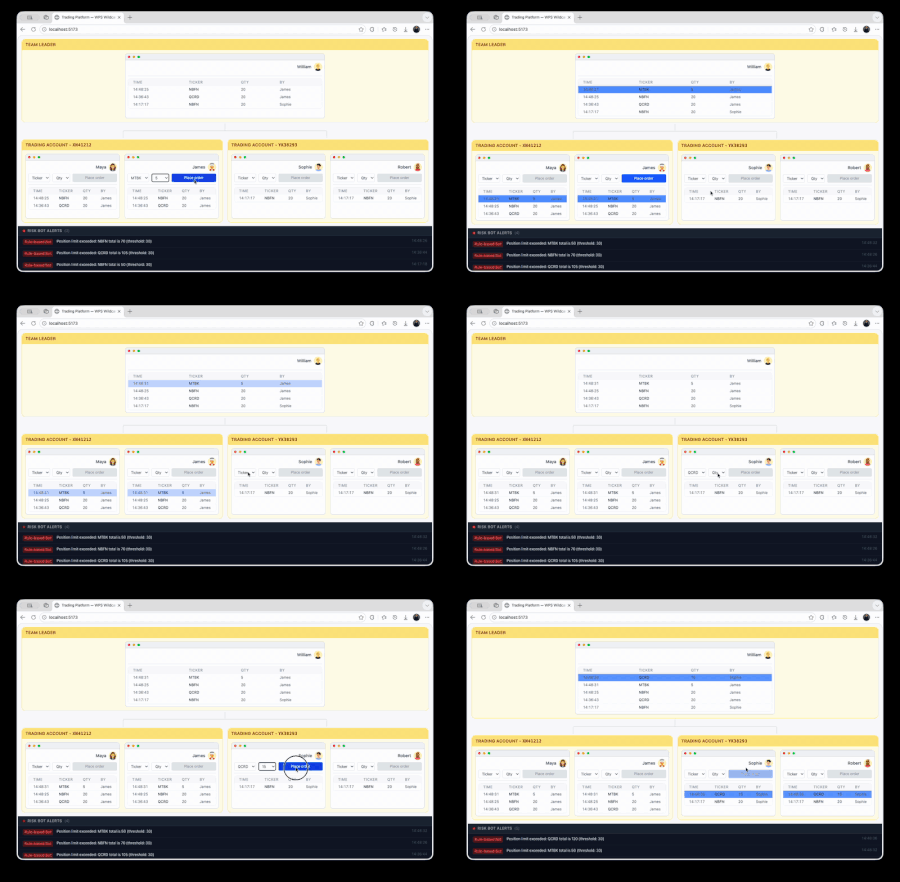
Real-time interactivity is now a baseline expectation across industries, from collaborative dashboards to trading platforms, IoT monitoring, and live data visualizations. Developers need a way to broadcast data instantly to connected clients without worrying about connection management, scaling, or infrastructure. That’s where Azure Web PubSub comes in. It provides a fully managed service that enables real-time messaging over WebSocket. Your applications can send and receive live updates instantly, without managing servers or message fan-out manually. Now Azure Web PubSub is introducing a new capability that makes permission management simpler and more scalable: using wildcard pattern to define client permissions in groups. Understanding Azure Web PubSub Azure Web PubSub allows you to add real-time capabilities to your app. At a high level: Your backend generates a client access token and hands it to a connecting client. The client connects to Azure Web PubSub over WebSocket using that token. Once connected, both the backend and client can send and receive messages through the service. Clients can be organized into groups (for example, all clients in the same trading room or dashboard). Groups allow you to target specific audiences efficiently: sending messages to all users in `dashboard.operations` or receiving updates from `market.NASDAQ.MSFT`. To maintain security, every token defines a set of roles that specify what the client can do. The code illustrates what your backend needs to specify when generating a client access token for the scenarios mentioned. // Arguments omitted for simplicity const WebPubSubServiceClient = new WebPubSubServiceClient(); WebPubSubServiceClient.getClientAccessToken({ roles: [ "webpubsub.joinLeaveGroup.dashboard.operations", "webpubsub.sendToGroups.dashboard.operations", "webpubsub.sendToGroups.market.NASDAQ.MSFT", ], }); The Current Permission Model: literal roles Until now, Azure Web PubSub used literal group roles to define client permissions precisely. For example: roles: ["webpubsub.joinLeaveGroup.room123", "webpubsub.sendToGroup.room123"]; These roles are clear and secure: the client can only join and send to a specific group, `room123`. However, as your application scales and dynamically creates many groups — for example, hundreds of trading accounts, projects, or classrooms — issuing one role per group becomes cumbersome. Your backend needs to: Track all the groups a user is authorized for Generate large tokens containing many role strings Refresh those tokens every time group access changes The New Capability: wildcard patterns for group roles Wildcard roles let you express permissions using patterns instead of individual hardcoded names. With a single role, you can authorize access to many related groups. For example: roles: ["webpubsub.joinLeaveGroups.room.*", "webpubsub.sendToGroups.room.*"]; This allows the client to join or send messages to any group whose name starts with `room:`. Real-World Examples Industry Example Benefit of wildcard roles Finance Risk monitoring bots subscribing to all trading accounts One role covers `account:*` groups Gaming Matchmaking service observing all `lobby:*` rooms Simplifies admin tools Education Teacher dashboard viewing all `class:*` groups Fewer roles, easier permission management Collaboration Logging all messages across `project:*` for auditing purpose Centralized monitoring without large tokens Read the documentation for all supported wildcard patterns. Why This Matters for Developers Wildcard roles simplify the permission model for dynamic or large-scale systems: Simpler token management – You no longer need to issue or refresh tokens every time a client’s group list changes. Smaller tokens – One pattern replaces many literal roles, reducing token size. Dynamic authorization – When permissions for a client change (for example, they’re assigned to new groups that match existing patterns), there’s no need to regenerate tokens. Deep Dive: financial trading platform Let’s look at how wildcard roles can simplify real-time event management in a trading platform where financial assets, like stocks, are traded. See the complete code here. The Setup The platform includes: A trading dashboard for managers of a trading team A trading dashboard for human traders on a trading team Two risk analysis bots: A hardcoded risk bot that applies strict predefined rules An LLM-based risk bot that uses AI to detect unusual behavior On the platform, each trading account managed by one or more human traders, is given its own Web PubSub group: `account.1234.trades` – Trade updates `account.1234.orders` – Order events `market.NYSE` – Market data The backend publishes events to these groups whenever a new order or trade occurs and clients that subscribe to these groups can receive real-time data. Before: literal roles Previously, each risk bot would need literal roles for every account: roles: [ "webpubsub.joinLeaveGroup.account.1234.trades", "webpubsub.joinLeaveGroup.account.5678.trades", "webpubsub.joinLeaveGroup.account.9012.orders", ]; If new accounts were created, new tokens had to be issued to include their roles. Now: wildcard roles With the new feature, each risk bot can receive a single, compact token: roles: [ "webpubsub.joinLeaveGroups.account.*", "webpubsub.joinLeaveGroups.market.*", ]; Now, the bot automatically gains access to all existing and future account and market groups matching those patterns, without any token regeneration. How the Risk Bots Work Component Behavior Hardcoded risk bot Implements deterministic rules: e.g., if position size > 100 of a company's stock, trigger alert. LLM risk bot Uses AI models to identify anomalies, fraudulent behavior, or market stress. Backend publisher Emits order and trade events to `account:*` and `market:*` groups. When a trade event is published: Both bots receive it in real time through wildcard subscriptions. Each evaluates the event differently. If a risk is detected, they publish an alert to `alerts.risk.*`. Traders still receive messages for only their specific account group — using literal roles to ensure isolation: roles: ["webpubsub.joinLeaveGroup.account.1234.trades"]; This demonstrates a clean separation: Automation and monitoring use wildcard roles for flexibility. End users use literal roles for strict access control. Developer Experience: cleaner and more scalable With wildcard roles, developers can design real-time architectures that are both expressive and efficient: Simplified token issuance Reduced backend logic for permission changes Better scalability for dynamic environments Flexible system-level actors (bots, dashboards, monitors) Together, these improvements reduce operational complexity while keeping access control transparent and secure. Whether you’re building a trading platform, a game server, or a collaborative dashboard, this new capability helps you scale real-time systems with less friction and more control.261Views1like0CommentsBuilding scalable, cost-effective real-time multiplayer games with Azure Web PubSub
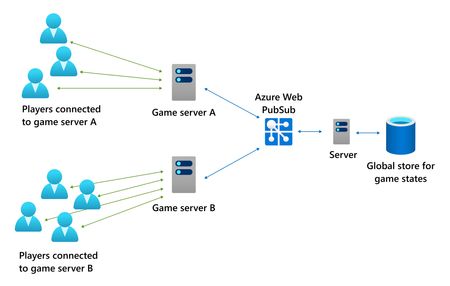
Modern multiplayer games demand more than fast servers - they require persistent, reliable, low-latency communication at massive scale, often under highly unpredictable traffic patterns. Launch days, seasonal events, and promotions can generate connection spikes that dwarf steady-state traffic, while players still expect real-time responsiveness and stability. In this post, we’ll explore how a game studio building a large-scale online RPG addressed these challenges using Azure Web PubSub, and what lessons other game developers can apply when designing their own real-time backend architectures. The challenge: from polling to real-time multiplayer The studio began with a backend architecture that relied heavily on polling a centralized data store to synchronize multiplayer state - such as party invitations, friend presence, and session updates - across geographically distributed game servers. This approach worked initially, but it came with clear drawbacks: High latency (5 seconds or more for critical interactions) Wasted compute resources due to constant polling A difficult trade-off between cost and responsiveness Limited flexibility to introduce richer real-time features As multiplayer adoption grew and concurrency increased into the hundreds of thousands, these limitations became increasingly painful - especially during major releases and promotional events. “Building multiplayer games is very different from building typical business APIs. Small timing and synchronization issues are immediately visible to players.” The team needed a solution that could: Maintain persistent connections at scale Deliver near real-time updates without polling Handle spiky traffic patterns without over-provisioning Minimize operational complexity Why a managed real-time service? The initial instinct was to build a custom WebSocket infrastructure in-house. But persistent connections, failover, reconnection logic, scaling behavior, and regional distribution quickly added up to a large and risky engineering effort. Instead, the team opted for Azure Web PubSub, a fully managed service designed for large-scale, real-time messaging over WebSockets. What stood out wasn’t just performance but the operational simplicity and cost model. Architecture shift: event-driven, not poll-driven After adopting Azure Web PubSub, the backend architecture changed fundamentally: Game servers maintain persistent WebSocket connections to Web PubSub Backend services publish messages only when state changes Database change feeds trigger real-time updates Messages are routed efficiently using groups, targeting only relevant servers or players This eliminated polling entirely and unlocked new real-time capabilities with minimal additional complexity. Key benefits for multiplayer games Push-based real-time updates State changes - such as party invites or presence updates - are delivered immediately instead of waiting for polling intervals. What once took seconds now arrives in tens of milliseconds. Massive, elastic scalability Azure Web PubSub supports: Up to 1 million concurrent connections per resource Auto-scaling based on actual demand Geo-replication for resilience and global reach This makes it well-suited for launch-day spikes, where traffic may surge for a few weeks and then settle to a much lower baseline. Low-latency at global scale In practice, backend-to-service latency stays in single-digit milliseconds, with end-to-end delivery typically under 100 ms - a dramatic improvement over polling-based designs. For asynchronous game features, even modest latency differences can significantly improve perceived responsiveness. Cost efficiency for spiky traffic A critical insight for game workloads is how Azure Web PubSub pricing works: Billing is based on units × time used (in seconds), aggregated daily Short-lived spikes don’t incur full-day costs You don’t pay for unused capacity once traffic drops This makes Web PubSub particularly attractive for games with: Large launch peaks Periodic promotional spikes Lower steady-state concurrency Designing for launch peaks without overpaying One of the most common questions game teams ask is: "How do we handle massive launch traffic without locking ourselves into long-term costs?" Recommended approach During launch or major promotions Provision a fixed capacity with ~20% headroom Avoid auto-scaling delays during critical windows Use multiple regional P1-tier resources instead of a single large P2 After traffic stabilizes Enable auto-scale Reduce baseline units Keep capacity aligned with real usage This strategy balances reliability, latency, and cost, while avoiding unnecessary complexity during the most critical periods. Reliability, geo-distribution, and sharding Rather than relying on one large global endpoint, the recommended pattern is to: Deploy multiple Web PubSub resources per continent Shard users by geography Use geo-replicas primarily for disaster recovery Optionally implement lightweight routing logic when multiple resources exist in a single region This improves fault isolation, reduces blast radius, and aligns well with how large game backends already segment players. Security considerations for WebSocket-based games Persistent connections introduce different threat models than traditional REST APIs. Key protections include: Authenticated connection tokens Enforcing one connection per user Rate limiting connection attempts Message size and throughput controls For additional protection, Azure Web PubSub can be combined with services like Azure Front Door, which natively supports WebSockets. Why this matters for game developers What this real-world scenario highlights is a broader trend: multiplayer games increasingly resemble real-time distributed systems, not just applications with APIs. By adopting a managed real-time service like Azure Web PubSub, teams can: Ship features faster Reduce operational risk Scale confidently through unpredictable demand Pay only for what they actually use Instead of spending engineering effort reinventing infrastructure, teams can focus on what truly differentiates their game: player experience.1KViews0likes0CommentsBuild an AI-Powered Chat App in Minutes with AI Toolkit
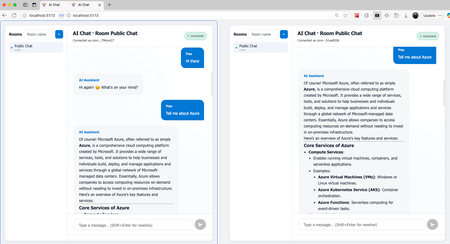
AI Toolkit VS Code extension is a great place for developers to experiment, prototype, and learn about AI workflows. Developers exploring AI often start in "Model Playground" — experimenting with models, testing prompts, and iterating on ideas. But turning those experiments into real applications can take time. That’s why we partnered with the AI Toolkit team to introduce a new project scaffold experience. With just a few clicks, you can now generate a complete AI-powered chat app. From playground to real app — in one click AI Toolkit helps developers learn, prototype, and experiment with AI workflows. Until now, it provided code snippets — great for exploration, but still a few steps away from a runnable project. To bridge that gap, the latest release introduces project scaffolding. Once you’ve explored model responses in Model Playground, click View Code. You’ll now see a new option: > OpenAI SDK. The support for other SDKs are coming. After choosing a local folder, AI Toolkit will scaffold a full project — including both backend and frontend code and you’re ready to run. What’s inside the chat app The scaffolded project, named AI Chat, provides a complete end-to-end example of an AI + real-time chat application. Key features: Multi-room, real-time chat, AI bot replies powered by GitHub LLM models via your token, Same React frontend and Python backend code in both local or cloud modes, (Optional) Azure Web PubSub integration for scale and message broadcasting. You can start locally in minutes — no Azure setup required. When you’re ready to scale, deploy to Azure with no code changes. Run locally in minutes Prerequisites: Python 3.12+ Node.js 18+ GitHub Personal Access Token with Models – Read permission pip install -r requirements.txt export GITHUB_TOKEN=<your_pat> python start_dev.py Then open http://localhost:5173 — and you’re chatting! You can open a second browser window to see real-time message streaming between rooms. From local to cloud: scale without rewrites One of the best parts about this sample is its flexibility. You can run it entirely locally, with no Azure setup or dependencies. Everything — frontend, backend, and real-time messaging — works out of the box. This makes it perfect for experimentation, quick demos, or internal prototypes. But when you’re ready to go beyond local, Azure steps in to take care of scalability, reliability, and lifecycle management — with no code changes. Why run it on Azure? Deploying to Azure offers several advantages: Built-in scalability — Move from a handful of users to thousands of concurrent connections without changing your architecture, Managed infrastructure — Azure App Service, Azure Web PubSub, Azure Storage are fully managed services; you don’t manage servers or maintain WebSocket connections, Security and access control — Use Azure identity integration for production-grade protection, Dev-friendly automation — Provision everything with a single command using Azure Developer CLI (azd). To deploy the sample app to Azure, you only need one command. azd up Everything — including Azure App Service, Azure Web PubSub and Azure Storage — is provisioned automatically. Real-time, managed: Azure Web PubSub At the heart of the cloud setup is Azure Web PubSub, a fully managed service for building real-time, bi-directional messaging applications using WebSockets. Developers can focus on application logic and leaving infra-related concerns to the service. In the AI Chat Demo, Azure Web PubSub powers the real-time messaging and multi-room architecture, while LLMs via GitHub Models handle the intelligence layer. Specifically, Azure Web PubSub handles: Message broadcasting across chat rooms, Group management (join, leave, and isolate rooms), Event handling through CloudEvents for flexible server integration, Client negotiation via tokens for secure, scoped access. This means your chat app can support large numbers of simultaneous users and global traffic — without you managing connection state or scaling infrastructure. Next Steps Try the new project scaffold in AI Toolkit VS Code, Explore advanced options in docs/ADVANCED.md, Deploy your app with: azd up Learn more about Azure Web PubSub Explore, build and scale The new AI Toolkit + Azure Web PubSub experience helps developers go from model exploration to real-time AI application in minutes — no boilerplate, no setup friction. Start experimenting today and bring your AI chat ideas to life.861Views0likes0CommentsBuilding Real-Time AI Apps with Model Context Protocol (MCP) and Azure Web PubSub
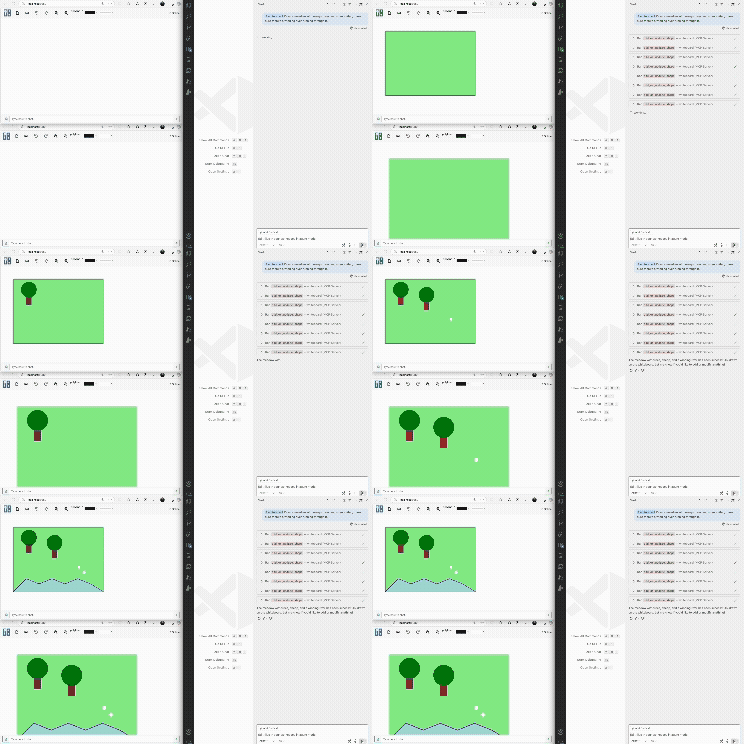
Overview Model Context Protocol (MCP) is an open, standardized protocol that allows Large Language Models (LLMs) to interact with external tools and data sources in a consistent, extensible way. It gives models access to capabilities beyond their training data—such as calling APIs or querying databases. MCP builds on the idea of function calling, which lets LLMs invoke external operations by generating JSON payloads that match predefined schemas. While function calling was initially tied to proprietary formats (like OpenAI’s schemas), MCP unifies these patterns under a common JSON-RPC-based protocol. This makes it easier for developers to write tools once and expose them to many LLMs, regardless of vendor. In short: Function calling gave LLMs actions. MCP gives those actions structure, discoverability, and interoperability. In this article, we demonstrate how to give LLMs the ability to broadcast messages to connected web clients through MCP. As going through the article, you will discover that when LLMs have to the ability to publish messages it unlocks useful, real-time app scenarios. An LLM as a collaborative partner in co-editing applications (The app scenario this article explains). An LLM as a proactive, smart data analyst that publishes time-sensitive analysis or alerts. About the whiteboard app The whiteboard this article is based on lets multiple users draw with basic shape tools on a shared canvas. The support for integration with LLMs via MCP even allows users to invite AI as an active participant, unlocking new possibilities for interactive teamwork. Technologies used Web frontend: Vue.js app Backend: Node app using Express Sync drawing activities among web clients: Azure Web PubSub MCP server: Implemented in JavaScript MCP host: VS Code (What this article uses, but you are not limited to it.) For the complete code, please visit GitHub repo. Requirements for following along Node.js, VS Code, An Azure Web PubSub resource. Follow this link to create a resource if you don't have one already. Roadmap ahead Considering the many concepts and moving parts, we break down the article into two parts. Part 1: Run the whiteboard app locally Set up and run the whiteboard app (single user) Run the whiteboard app (multiple users) Part 2: Add MCP support Set up a whiteboard MCP server Configure VS Code to discover the MCP server Part 1: Run the whiteboard app locally Run the whiteboard with a single user Clone the repo, change directory into the whiteboard sample, install app dependencies and build the project git clone https://github.com/Azure/azure-webpubsub.git cd azure-webpubsub/samples/javascript/whiteboard npm install npm run build Provide Azure Web PubSub connection string This applications uses Azure Web PubSub to sync drawing activities among web clients. More on that later. For now, since it's a dependency of the app, we need to supply it. The app uses a connection string to authenticate with Azure Web PubSub. Locate your Azure Web PubSub resource on Azure Portal to find the "connection string" under "Settings > Keys". On Linux, set the environment variable: export Web_PubSub_ConnectionString="<connection_string>" Or, on Windows: SET Web_PubSub_ConnectionString="<connection_string>" Start the app npm run start If you inspect the `server.js` file, you will see that this app is an Express project which serves the web frontend at `port:8080` and handles syncing whiteboard drawing activities among users using Azure Web PubSub. We will explain the syncing part shortly. But for now, you can open your web browser and visit `localhost:8080`, you should see the web frontend. After entering a username, you can play with the whiteboard by drawing a few shapes. Syncing drawing activities When the web frontend is successfully loaded, it goes to the `/negotiate` endpoint to fetch an access token from the Express server to connect with Azure Web PubSub service. The underlying connection between a web client and Azure Web PubSub is a WebSocket connection. This persistent connection allows the web client to send and receive messages to and from Azure Web PubSub service. When you draw on the whiteboard, the client code is written in such a way that it sends every action as a message to the `draw` group in Azure Web PubSub service. Upon receiving the message, Azure Web PubSub broadcasts it to all the connected clients in the `draw` group. In effect, Azure Web PubSub syncs the drawing states of the whiteboard for all the users. // Client code snippets from public/src.index.js // The code uses the `sendToGroup` API offered by Azure Web PubSub diagram.onShapeUpdate((i, m) => ws.sendToGroup('draw', { name: 'updateShape', data: [author, i, m] }, "json")); diagram.onShapePatch((i, d) => ws.sendToGroup('draw', { name: 'patchShape', data: [author, i, d] }, "json", {fireAndForget: true})); In the browser's network panel, you can inspect the WebSocket messages. Run the whiteboard with multiple users To simulate multiple users collaborating on the whiteboard locally, you can open another browser tab. You would expect that the drawing activities in one browser tab should be synced on the other since both whiteboard apps or web clients are connected with Azure Web PubSub service. However, you don't see the syncing happening at the moment. There's nothing wrong with your expectations. The gotcha here is that Azure Web PubSub being a cloud service doesn't know how to reach your web frontend which is running on `localhost`. This is a common pain point experienced by Azure Web PubSub customers. To ensure a smoother developer experience, the team introduced a command line tool to expose localhost so that it's reachable from the internet. Install the tool npm install -g /web-pubsub-tunnel-tool Configure the tool Locate your Web PubSub resource on Azure portal and under "Settings > Settings" to create a new hub named `sample_draw` and configure an event handler as such. URL Template: `tunnel:///eventhandler/{event}` User Event Pattern: `message` System Events: `connect`, `connected`, `disconnected` You should see something like this when you're finished with the configuration. Run the awps-tunnel tool export WebPubSubConnectionString="<connection_string>" awps-tunnel run --hub sample_draw --upstream http://localhost:8080 Now when draw on one whiteboard, the drawing activities should be synced between the two browser tabs. Part 2: Add MCP support Now that we managed to get the collaborative whiteboard running, let's invite an LLM as another collaborator. For an LLM to participate on the whiteboard, the LLM needs the drawing capabilities that human users have access to. As mentioned earlier, MCP makes it easy to provide these capabilities to LLMs. MCP follows the familiar client-server architecture. The server offers capabilities for the clients to request. The MCP client and server communicate following a specially defined protocol. Another important concept is MCP host. An MCP host contains a MCP client and has access to LLMs. The MCP host we are going to use is VS Code Copilot. The flow for the whiteboard looks like the following: We use VS Code Copilot as the MCP host. (No work on our end.) We ask an LLM to draw on the whiteboard. (Using natural language, for example, "draw a house with many trees around it".) The LLM decodes the user's intent, looks at the capabilities included in the prompt as additional context, comes up with a drawing sequence. (No work on our end. VS Code Copilot handles the interactions with LLMs.) The MCP client receives the drawing sequence from the LLM. (No work on our end.) The MCP client requests the MCP server to carry out the drawing sequence. (No work on our end.) The MCP server draws on the whiteboard using Azure Web PubSub. (We need to create the MCP server.) As you can see from the items above, the bulk of the work is done for us by VS Code Copilot's support for MCP. We only need to create the MCP server whose responsibility is to fulfill MCP client requests. Set up MCP server In the whiteboard directory, you will find a `mcpserver` directory. Make sure you are at the root of the whiteboard directory. cd mcpserver npm install If you inspect `mcpserver/index.js`, you will see the server makes one tool, `add_or_update_shape`, available. // Code snippet from `mcpserver/index.js` server.tool( "add_or_update_shape", "Add or update a shape on the whiteboard" // Code omitted for brevity ) The callback provided when registering this tool is the code that will get run when a MCP client requests `add_or_udpate_shape`. It uses Azure Web PubSub's `sendToGroup` API, the same as we saw in Part 1. ws.sendToGroup( "draw", { name: "updateShape", data: ["AI", id, message], }, "json", ); That's it. After installing the dependencies, this server is ready to run and serve MCP clients. Since VS Code Copilot can automatically start the server for us, we don't need to do anything other than installing the dependencies. Configure VS Code to discover the whiteboard MCP server VS Code has great support for MCP. In the command panel, follow the UI to add an MCP server. Select `Command (stdio)` as the type of MCP server to add. In our example, the MCP server and MCP client communicates over standard input/output. As you can see from the dropdown, you can also add MCP servers that communicate with MCP clients over HTTP. But that's beyond the scope of this article. Paste in the full path to `mcpserver/index.js`. When you are finished, you will see a new file is created for you. VS Code Copilot will use this file to discover MCP servers and run them if necessary. Since the whiteboard MCP server is a Node project, the command is set to `node` with the path to the server code file as an argument. Open VS Code Copilot panel and switch to agent mode. MCP is available under agent mode. The model I chose is `GPT-4o`. Click on the wrench icon to configure tools. You will see a dropdown appearing from the command panel, which lists the tools VS Code has discovered. After clicking "OK", VS Code will start the MCP server for you if it's not already. You can verify that the whiteboard MCP server is running by listing the servers. Enjoy the fruit of labor If you've come this far in the article, it's time to enjoy our fruit of labor. One thing to highlight is that the actual drawing actions are performed by the MCP servers and the drawing instructions are delivered through Azure Web PubSub service which maintains a persistent connection with every whiteboard web client. VS Code Copilot as the MCP host facilitates the communication among model, MCP Client and MCP Server. Here's a drawing GPT-4o produced for the ask "Draw a meadow with many trees and sheep. Also, make sure there's a winding river running through it." Impressive! Recap In this article, we demonstrated a scenario where an LLM can be invited by human users to participate on a whiteboard. But one can imagine that LLM can take a more proactive role or as people like to say to exhibit more agentic behaviors. Take a typical monitoring system as an example. Existing monitoring systems are based on “fixed metrics” - when certain pre-defined rules are met, alerts are sent out as notifications or to a dashboard. An agent can complem ent the fixed metric approach with a more flexible and potentially more powerful workflow – intelligently analyzing fresh and historical data, deriving insights or alerts, and delivering them to users in real-time.2.3KViews5likes2CommentsAnnouncing Serverless Support for Socket.IO in Azure Web PubSub service
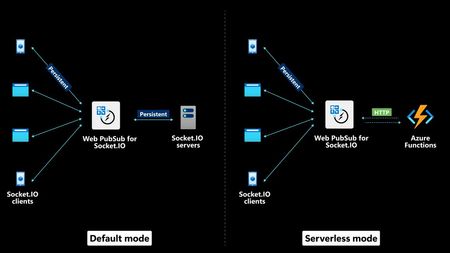
Socket.IO Serverless Mode in Azure Web PubSub service is now available. This new mode eliminates the need for developers to maintain persistent connections on their application servers, offering a more streamlined and scalable approach. In addition to the existing default mode, developers can now deploy Socket.IO applications in a serverless environment using Azure Functions1.7KViews0likes0CommentsAnnouncing MQTT Support in Azure Web PubSub Service (public preview)
We're excited to announce the long-requested release of MQTT support in Azure Web PubSub service, now available in preview! This added capability allows developers to leverage the lightweight and widely used MQTT protocol for messaging, making it easier to connect and communicate with devices that have constrained resources.2.8KViews1like0CommentsDon't miss the 2024 Azure Developers JavaScript Day!
Do you want to discover the latest services and features in Azure designed specifically for JavaScript developers? Are you looking for cutting-edge cloud development techniques that can save you time and money, while providing your customers with the best experience possible?2.6KViews1like2CommentsSocket.IO support on Azure
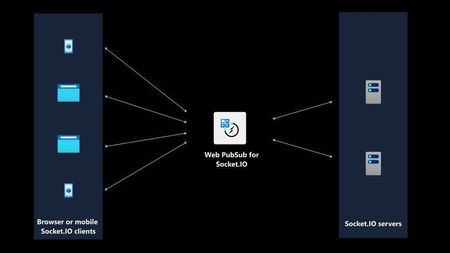
Socket.IO is a wildly popular open-source library for client-server real-time communication. While Socket.IO user love the intuitive APIs, scaling out a Socket.IO app is not something developers are particularly fond of. I am happy to share that with the input from the open-source community we brought support for Socket.IO on Azure. With this support, Azure hosts and manages client connections so that Socket.IO developers don't have to. For developers who are familiar with Socket.IO, it means you dont need to develop, deploy or maintainer an "adapter" component. Getting a Socket.IO app running locally to Azure takes only a few lines of code.5.1KViews1like1CommentWith geo-replica, Web PubSub resources are fault tolerant and can communicate across regions
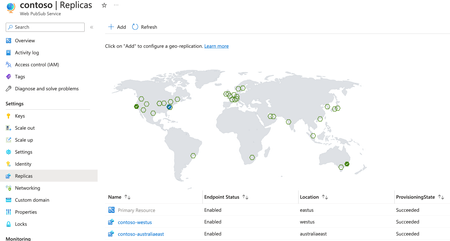
Azure Web Pub announces the GA status of the geo-replia feature. Having a failover strategy in place is a must for enterprise-grade applications. What used to take much effort and time can now be configured quicky with a few clicks. Plus, end users from geographically distant locations can benefit from low latency they expect from a real-time system.2.1KViews1like0Comments