azure sql monitoring
2 TopicsSeconds of Downtime, Hours of Confusion: Handling Transient Azure SQL Disconnects
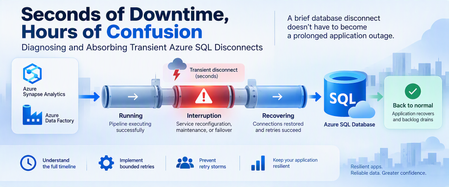
A database can recover in seconds while an application remains unavailable for much longer. Brief connectivity interruptions are expected failure modes that cloud applications should be designed to tolerate. With Azure SQL Database, transient connectivity errors can occur during short-lived service reconfiguration events. Microsoft notes that many such reconfiguration events complete in less than 60 seconds and recommends that applications implement retry logic rather than immediately surfacing transient failures to users. But the database interruption is only part of the story. An application might continue experiencing problems because of: Failed connections. Lost in-flight operations. Retry behavior. Connection-pool recovery. Authentication or token issues. Queued requests. Application instances retrying simultaneously. Backlogs that must drain after connectivity returns. This leads to an important troubleshooting principle: Database recovery and application recovery are separate milestones. Understanding that difference can turn a confusing availability incident into a defensible timeline and, more importantly, a more resilient application design. 1. Transient Does Not Mean Harmless A transient interruption is temporary, but its application impact doesn't have to be. Consider a simplified timeline: Time Event T0 Application healthy T1 Database connectivity is interrupted T2 Database connectivity becomes available again T3 Applications reconnect T4 Request backlog begins draining T5 Application returns to normal The actual database connectivity event is: T1 → T2 But users might experience impact across: T1 → T5 Calling the entire T1-to-T5 period a continuous database outage would be inaccurate unless evidence proves that the database itself remained unavailable. Instead, investigate the periods separately. 2. Build a Three-Layer Timeline A good post-incident investigation should correlate three timelines. Layer 1: Database/connectivity behavior Capture: Connection failures. Successful reconnections. Relevant Azure monitoring signals. Azure Service Health information when applicable. Database resource behavior. Layer 2: Client connectivity Capture: SQL exception number. Exception timestamp in UTC. Connection timeout. Retry attempts. Retry delays. Authentication failures. Network errors. Azure SQL troubleshooting guidance recommends logging failure timestamps and notes that SQL Database can return tracing information helpful during connectivity investigations. Layer 3: Application recovery Capture: Application health. Request failures. Queue depth. Retry volume. Connection-pool recovery. Backlog drain time. Time when users actually recovered. The timelines might reveal: Database connectivity restored │ ▼ Applications reconnect │ ▼ Backlog continues │ ▼ Application fully recovered That distinction is essential. 3. Classify the Failure Before Retrying It Not every SQL connectivity error means the same thing. Classify the symptom into categories such as: Transient availability/connectivity failure. Authentication failure. Token-related failure. Network-path problem. DNS problem. Firewall/configuration issue. Resource-governance condition. Application timeout. Long application recovery after SQL connectivity returns. Azure SQL Database documents multiple connectivity failure categories, including transient fault errors such as 40197 and 40613, authentication failures such as 18456, network termination conditions, firewall issues, and connection timeouts. The classification matters because: Not every failure should be retried in the same way. 4. Use Azure SQL Connectivity History Carefully Azure SQL Database exposes connectivity-event information through system views in the logical server's master database. One useful view is: sys.database_connection_stats It provides aggregated connection success and failure information in five-minute intervals. Connect to the logical server's master database and run: DECLARE @StartTime datetime2 = DATEADD(HOUR, -2, SYSUTCDATETIME()); SELECT database_name, start_time, end_time, success_count, total_failure_count, connection_failure_count FROM sys.database_connection_stats WHERE start_time >= @StartTime ORDER BY start_time DESC; This can help answer: Did connection failures occur? Which database was affected? In which five-minute interval? Were successful connections also occurring? But there's an important limitation. This is aggregated historical information, not a second-by-second outage trace. The data can also arrive later, with Microsoft documenting that it can take up to 24 hours for all information to appear. Therefore, don't use one five-minute bucket containing failures to claim: "The database was unavailable for five minutes." The evidence only tells you connection failures were recorded during that interval. 5. Look Deeper With sys.event_log For additional connectivity-event information, Azure SQL Database exposes: sys.event_log This view records successful database connections and connection failures and is intended to help track and troubleshoot Azure SQL Database connectivity activity. Again, connect to master. DECLARE @StartTime datetime2 = DATEADD(HOUR, -2, SYSUTCDATETIME()); SELECT database_name, start_time, end_time, event_category, event_type, event_subtype, event_subtype_desc, severity, event_count, description FROM sys.event_log WHERE start_time >= @StartTime AND event_category = N'connectivity' ORDER BY start_time DESC; Useful columns include: start_time end_time event_category event_type event_subtype_desc severity event_count description Microsoft cautions that querying sys.event_log can consume significant resources on logical servers with many databases or high login volumes, so keep the time range and other filters appropriately narrow. 6. Correlate SQL Evidence With Application Errors Now correlate the Azure SQL evidence with client telemetry. For every important application-side SQL exception, capture: UTC timestamp. SQL error number. Error message. Application instance. Operation. Retry attempt. Retry delay. Final outcome. Correlation or request ID when available. For example: UTC Layer Observation 10:00:02 Application SQL connection exception 10:00:04 Application Retry 1 fails 10:00:08 Application Retry 2 fails 10:00:15 SQL Connectivity succeeds 10:00:18 Application New connection succeeds 10:01:30 Application Queue still processing 10:05:00 Application Normal service restored Now you can separate: Connectivity interruption. Reconnection period. Application recovery period. That's substantially more useful than describing the full period as: "SQL was down." 7. Understand Connectivity and Reconfiguration Applications connect to the Azure SQL Database gateway, after which traffic is handled according to the effective connection policy and directed to the appropriate database environment. In a managed database service, applications must be designed for transient connectivity interruption. Microsoft specifically describes transient faults as conditions whose underlying cause resolves itself and notes that service reconfiguration can temporarily affect database connectivity. The application therefore shouldn't depend on one connection remaining valid indefinitely. Design for: Connections occasionally being terminated. New connection attempts occasionally failing. In-flight work requiring recovery. DNS and network paths needing to remain correctly configured. Authentication credentials or tokens remaining valid. Retry behavior that allows the system time to recover. Avoid guessing at undocumented platform internals when investigating an event. If evidence establishes only: "Connections failed briefly." Don't convert that into an unsupported explanation of why the platform changed state. 8. Retry Smartly, Not Aggressively Retry logic is essential for cloud applications that connect to Azure SQL Database. Microsoft explicitly recommends retry logic for transient connection failures. But a retry strategy needs boundaries. A good strategy considers: Number of attempts. Delay between attempts. Increasing delay. Random jitter. Maximum interval. Total retry budget. Whether the operation can safely be repeated. A bad strategy looks like: Failure ↓ Retry immediately ↓ Failure ↓ Retry immediately ↓ Failure ↓ Retry immediately... Across hundreds of application instances, this behavior can make recovery harder. A better pattern is: Failure ↓ Wait + jitter ↓ Retry ↓ Longer wait + jitter ↓ Retry ↓ Stop after bounded attempts 9. Use Microsoft.Data.SqlClient Retry Logic For .NET applications using Microsoft.Data.SqlClient, configurable retry logic is available in version 3.0 and later. Microsoft documents providers for configuring connection and command retries. A connection retry provider can be configured like this: var options = new SqlRetryLogicOption() { NumberOfTries = 5, DeltaTime = TimeSpan.FromSeconds(1), MaxTimeInterval = TimeSpan.FromSeconds(20) }; SqlRetryLogicBaseProvider provider = SqlConfigurableRetryFactory.CreateExponentialRetryProvider(options); using var connection = new SqlConnection(connectionString); connection.RetryLogicProvider = provider; connection.Open(); With this configuration: NumberOfTries = 5 Allows one initial attempt and up to four retries. DeltaTime Influences the delay between attempts. MaxTimeInterval Caps an individual retry delay. The exponential provider adds randomized jitter to retry intervals. The actual values should be tested against your application's: Latency requirements. Failure budget. Traffic volume. Concurrency. User experience. They're not universal service recommendations. 10. Connection Retry and Command Retry Are Different This is one of the most important resiliency distinctions. Suppose this fails: connection.Open(); Retrying the connection after an appropriate delay is generally straightforward for a transient connection condition. But suppose this fails: UPDATE dbo.Orders SET ProcessingStatus = N'Completed' WHERE OrderID = @OrderID; The application now has a harder question: Did the UPDATE execute before the connection was lost? Blindly repeating the command isn't always safe. Microsoft's Azure SQL guidance recommends establishing a fresh connection after a transient command failure before retrying, and retry logic must correctly account for the transaction's outcome. 11. Idempotency Matters Different operations require different retry treatment. Read-only operation For example: SELECT OrderID, ProcessingStatus FROM dbo.Orders WHERE OrderID = @OrderID; Repeating a read is often relatively straightforward, subject to your application's consistency requirements. Update operation For example: UPDATE dbo.Orders SET ProcessingStatus = N'Completed' WHERE OrderID = @OrderID; The client must determine whether repeating this operation is safe. Insert operation Consider: INSERT dbo.PaymentRequests ( RequestID, AccountID, Amount ) VALUES ( @RequestID, @AccountID, @Amount ); If the connection disappears after the server commits but before the client receives confirmation, an unconditional retry could create duplicate business activity unless the application and schema provide an idempotency mechanism. For example, a unique request identifier can make duplicate detection possible. The important principle is: Retryability is a business-operation property, not simply a SQL error property. 12. Transactions Need Special Treatment Be particularly careful with multi-statement transactions. Consider: BEGIN TRANSACTION; UPDATE dbo.Inventory SET Quantity = Quantity - @Quantity WHERE ProductID = @ProductID; INSERT dbo.ShipmentQueue ( RequestID, ProductID, Quantity ) VALUES ( @RequestID, @ProductID, @Quantity ); COMMIT TRANSACTION; If connectivity is interrupted, don't simply reconnect and retry the last statement. Your application needs a strategy that protects the integrity of the entire unit of work. Microsoft's retry documentation specifically cautions that if a transient failure invalidates an active transaction, the application should retry the entire transaction rather than only the failed statement. 13. Prevent the Retry Storm Imagine 500 application instances lose connectivity simultaneously. If every instance retries immediately: 500 requests fail ↓ 500 immediately retry ↓ Another synchronized wave ↓ Another synchronized wave Recovery traffic itself can become disruptive. Exponential backoff with jitter helps spread retries across time instead of concentrating them into synchronized bursts. The configurable retry provider in Microsoft.Data.SqlClient supports exponential retry behavior with randomized jitter. Also consider application-level resilience mechanisms such as: Circuit breakers. Back-pressure. Queueing. Controlled concurrency. Connection-pool recovery. Rate limiting. Load shedding where appropriate. The objective isn't: "Retry until SQL succeeds." It's: Recover gracefully without creating a second problem. 14. Don't Ignore the Network Path Not every SQL connection failure originates from the database. Azure SQL Database connectivity includes several components between the application and database, with connection behavior also influenced by the configured connection policy. Troubleshooting may need to include: DNS. Firewall configuration. Private endpoints. Network security rules. Client outbound connectivity. Connection policy. Authentication. Application host health. Azure SQL supports Redirect, Proxy, and Default connection-policy configurations depending on the environment and configuration. In Redirect mode, clients establish connections directly to the node hosting the database after the initial gateway interaction, which requires appropriate network access. This is another reason not to classify every connection exception as: "Azure SQL outage." 15. Test Resiliency Before an Incident Don't wait for a real platform event to discover whether your application's recovery logic works. Test controlled failure scenarios involving: New connections. Existing connections. Read-only requests. Writes. Multi-statement transactions. Multiple application instances. Queued workloads. Connection pools. Measure: Time to detect failure. First retry delay. Number of attempts. Time to establish a new connection. Failed user requests. Queue growth. Queue drain time. Full application recovery. The real success metric isn't merely: "Can I connect to the database again?" It's: "How quickly can the application return to normal service without compromising correctness?" 16. Write a Defensible Post-Incident Report A strong post-incident report separates facts, inferences, and unknowns. Confirmed facts Examples: Client connection failures were recorded during a specific UTC interval. Successful connections later resumed. Certain client instances continued failing after initial connectivity returned. Application backlog persisted beyond the connectivity event. Retry activity increased during recovery. Supported inference Example: Aggressive retry behavior likely contributed to slower application recovery. Use this classification only when application telemetry supports the relationship. Unknowns Examples: The exact internal platform operation responsible for a transient event. Whether an unrelated network event contributed. Whether a capacity change affected recovery. Don't fill gaps in telemetry with assumptions. 17. A Practical Decision Tree When an application reports an Azure SQL connectivity incident: 1. Is the database reachable now? No Check current Azure status and application connectivity. Validate networking, DNS, firewall, authentication, and Azure SQL availability. Yes Continue reconstructing the historical incident. 2. Did Azure SQL record connection failures? Yes Correlate: sys.event_log. sys.database_connection_stats. Application timestamps. Azure monitoring evidence. No or evidence isn't yet available Continue investigating application and network telemetry. Remember that historical connectivity data can arrive later. 3. Did the application retry? No Implement a bounded transient-fault handling strategy. Yes Evaluate: Retry count. Delay. Backoff. Jitter. Error classification. 4. Did many instances retry simultaneously? Yes Investigate: Retry synchronization. Circuit breaking. Back-pressure. Queue recovery. Connection pools. 5. Were writes or transactions interrupted? Yes Validate: Transaction outcome. Idempotency. Duplicate prevention. Whole-transaction retry behavior. 6. Did the application remain unhealthy after connections succeeded? Yes Measure application recovery separately from the original database connectivity event. Final Takeaway The hardest part of a transient Azure SQL event isn't always the interruption itself. Sometimes it's the application's response. A resilient architecture recognizes three separate timelines: Connectivity interruption Database/connectivity recovery Application recovery Azure SQL Database is designed as a cloud service where applications should expect and tolerate transient connectivity conditions. Microsoft recommends implementing retry logic rather than exposing appropriate transient failures directly to users. But resilient retry logic must be: Bounded. Delayed. Appropriately randomized. Error-aware. Transaction-aware. Idempotency-aware. Observable. And post-incident analysis should distinguish: What is confirmed. What is inferred. What remains unknown. Because: A brief database disconnect doesn't have to become a prolonged application outage. The objective isn't to design an application that never experiences a disconnected connection. The objective is to design an application that absorbs the interruption, recovers safely, and returns to normal operation predictably. Further reading Working with Transient Errors in Azure SQL Database Troubleshoot Common Connection Issues in Azure SQL Configure Retry Logic in Microsoft.Data.SqlClient Azure SQL Database Connectivity Architecture sys.event_log for Azure SQL Database sys.database_connection_stats for Azure SQL DatabaseThe Pipeline Is Slow, or Is SQL Waiting? Diagnosing Synapse-to-Azure SQL Regressions
A query can consume very little CPU and still keep a pipeline waiting for hours. A pipeline activity that normally finishes in minutes suddenly starts taking hours. Nothing obvious has changed: The pipeline definition looks the same. The stored procedure looks the same. Azure SQL Database isn't showing sustained high CPU. Pipeline monitoring still points toward the SQL activity. At this point, saying "SQL is slow" isn't enough. The request may actually be: Executing expensive work. Waiting for memory. Blocked by another transaction. Reading more data than before. Running with a different execution plan. Competing with concurrent pipeline activities. Experiencing different cardinality because of different parameter values. The key is to connect the pipeline invocation to the database execution and determine where elapsed time is really going. 1. Define the Regression Precisely Before troubleshooting SQL, establish what actually changed. Capture: Expected pipeline duration. Observed pipeline duration. Pipeline activity involved. Stored procedure or statement invoked. Exact parameter values. Affected and unaffected executions. Pipeline concurrency. Retry behavior. Connection and command timeout. Deployment or configuration changes. For example: Evidence Baseline Regression Pipeline duration Minutes Much longer Stored procedure Same Same Parameter range A B Concurrent activities Low Higher Azure SQL CPU Normal Normal/moderate SQL wait behavior Unknown To investigate The most important rule is: Don't assume the SQL workload is identical simply because the stored procedure is identical. Different parameters can result in dramatically different: Row counts. Join choices. Memory grants. Sort requirements. Execution plans. Total duration. 2. Preserve the Exact Invocation One of the easiest ways to lose a performance regression is to reproduce it with different parameters. Capture the invocation before testing: Procedure name. Parameter values. Date range. Entity or partition identifier. Batch size. Pipeline run ID. Retry number. Number of parallel activities. Relevant timeout configuration. Then sanitize any business-sensitive values before sharing them outside your organization. The diagnostic principle is simple: Reproduce the same workload before trying to improve the workload. 3. Reproduce Safely Whenever possible, reproduce the issue using: A nonproduction database containing representative data. A controlled production troubleshooting window. The same stored procedure. The same parameter pattern. Comparable concurrency. For a controlled test, SQL execution statistics can help: SET STATISTICS IO ON; SET STATISTICS TIME ON; EXEC dbo.SampleProcedure @StartDate = '2026-01-01', @EndDate = '2026-01-31', @EntityID = 100; SET STATISTICS TIME OFF; SET STATISTICS IO OFF; Replace these synthetic names and values with the sanitized equivalent of the invocation you're investigating. Capture: Elapsed time. CPU time. Logical reads. Physical reads when relevant. Execution plan. Returned row count. The goal isn't simply to reproduce "slow." The goal is to understand why it is slow. 4. First Question: Is SQL Running or Waiting? This distinction changes the entire investigation. During the slow execution, examine the active request. SELECT r.session_id, r.request_id, r.status, r.command, r.start_time, r.cpu_time, r.total_elapsed_time, r.wait_type, r.wait_time, r.last_wait_type, r.wait_resource, r.blocking_session_id, r.reads, r.writes, r.logical_reads, r.row_count FROM sys.dm_exec_requests AS r WHERE r.database_id = DB_ID() ORDER BY r.total_elapsed_time DESC; sys.dm_exec_requests is supported for Azure SQL Database and exposes information about currently executing requests. Pay particular attention to the relationship between: cpu_time and: total_elapsed_time Suppose a request has: Very high elapsed time. Relatively little accumulated CPU time. A significant current wait. That's a strong reason to investigate waiting, rather than immediately treating the problem as insufficient CPU. Conversely: High elapsed time. High accumulated CPU. High logical reads. points more strongly toward expensive execution. 5. Identify Blocking Another request may be preventing the pipeline's SQL request from progressing. Start with: SELECT session_id, status, wait_type, wait_time, wait_resource, blocking_session_id, cpu_time, total_elapsed_time FROM sys.dm_exec_requests WHERE blocking_session_id <> 0 ORDER BY wait_time DESC; Blocking can explain a scenario where: Pipeline duration increases dramatically. Database CPU remains moderate. The SQL activity appears "active" for a long time. Microsoft documents sys.dm_exec_requests as one of the tools for identifying requests suspended on lock-related waits and tracing blocking behavior in Azure SQL Database. Don't confuse: "The SQL call took two hours." with: "SQL executed for two hours." Those statements aren't necessarily equivalent. 6. Look at the SQL That's Actually Running During an active incident, retrieve the request and its current SQL text: SELECT r.session_id, r.status, r.command, r.cpu_time, r.total_elapsed_time, r.wait_type, r.blocking_session_id, r.logical_reads, txt.text AS batch_text FROM sys.dm_exec_requests AS r CROSS APPLY sys.dm_exec_sql_text(r.sql_handle) AS txt WHERE r.database_id = DB_ID() ORDER BY r.total_elapsed_time DESC; sys.dm_exec_sql_text accepts the sql_handle exposed by sys.dm_exec_requests and returns the associated SQL batch text. This helps validate an important cross-service question: Is the database executing the statement we think the pipeline invoked? 7. Investigate Memory Grants Some operations need execution memory before they can proceed efficiently. Common examples include: Sorts. Hash joins. Hash aggregates. Some index operations. sys.dm_exec_query_memory_grants exposes queries that: Requested a memory grant and received one. Requested a memory grant and are still waiting. It is supported for Azure SQL Database. SELECT mg.session_id, mg.request_id, mg.dop, mg.request_time, mg.grant_time, mg.requested_memory_kb, mg.granted_memory_kb, mg.required_memory_kb, mg.used_memory_kb, mg.max_used_memory_kb, mg.query_cost, mg.timeout_sec, mg.resource_semaphore_id FROM sys.dm_exec_query_memory_grants AS mg ORDER BY mg.requested_memory_kb DESC; Interpret the important columns carefully: requested_memory_kb Memory requested by the query. granted_memory_kb Memory actually granted. required_memory_kb Minimum memory required for execution. used_memory_kb Memory currently being used. max_used_memory_kb Maximum used so far. grant_time NULL when the requested grant hasn't yet been granted. Microsoft specifically documents that queries waiting for memory grants appear in this DMV, and that grant_time remains NULL until the grant is provided. 8. Find Waiting Memory Grants During the active regression, focus specifically on requests that haven't received their grants: SELECT mg.session_id, mg.request_id, mg.request_time, mg.grant_time, mg.requested_memory_kb, mg.required_memory_kb, mg.granted_memory_kb, mg.timeout_sec, mg.dop, mg.query_cost FROM sys.dm_exec_query_memory_grants AS mg WHERE mg.grant_time IS NULL ORDER BY mg.request_time; If the affected session repeatedly appears here, you now have meaningful evidence supporting a memory-grant contention hypothesis. But that's still not enough to state: "Memory grants caused the pipeline regression." You should also establish: Whether the waiting session is actually the pipeline request. How long it remained waiting. Whether other statements were consuming large grants. Whether concurrency changed. Whether the execution plan requested unusually large memory. Why the query requested that amount of memory. That last question is particularly important. Memory-grant problems can be downstream symptoms of: Poor cardinality estimates. Large sorts. Large hash joins. Plan changes. Data growth. Parameter sensitivity. Microsoft's memory-grant troubleshooting guidance emphasizes that operations such as sorts and hash operations can require execution-memory reservations and that these grants exist for the lifetime of the query. Memory-grant contention is a diagnostic hypothesis until the evidence supports causality. 9. Pipeline Concurrency Is Database Concurrency This connection is easy to overlook. Suppose one stored-procedure invocation performs acceptably. Now imagine the orchestration layer starts: 2 copies concurrently. 5 copies concurrently. 10 copies concurrently. 20 copies concurrently. Each execution may individually be reasonable. Together, they can compete for: CPU. Workers. Memory grants. Buffer pool resources. I/O. Locks. This means: A pipeline concurrency change is also a database workload change. Even when: SQL code hasn't changed. Database configuration hasn't changed. Stored procedure code hasn't changed. As part of troubleshooting, compare: Single-execution performance. Typical production concurrency. Regression-period concurrency. Temporarily reducing pipeline concurrency can also be a valuable diagnostic experiment, provided the change is safe for the workload. 10. Capture the Live Execution Plan For a request that's still executing, Azure SQL Database supports sys.dm_exec_query_statistics_xml(), which returns Showplan XML containing transient execution statistics for an in-flight request. First identify the target session: SELECT session_id, request_id, status, command, cpu_time, total_elapsed_time, wait_type, logical_reads FROM sys.dm_exec_requests WHERE database_id = DB_ID() ORDER BY total_elapsed_time DESC; Then, for a known session: DECLARE @SessionID smallint = 123; SELECT qsx.session_id, qsx.request_id, qsx.query_plan FROM sys.dm_exec_query_statistics_xml(@SessionID) AS qsx; Replace 123 with the session being investigated. The live plan can help answer: Which operator is consuming time? How many rows are flowing through operators? Are estimates diverging significantly from runtime behavior? Are large joins or sorts involved? Where does execution appear to be spending time? Microsoft describes access to execution-plan runtime information as particularly useful when investigating long-running queries, because the information can be inspected without waiting for the query to finish. Use live-plan collection purposefully, especially on heavily loaded production systems. 11. Compare Historical Behavior in Query Store A live snapshot explains what's happening now. Query Store helps answer: What was happening when the query used to be fast? For example, find queries with multiple retained Query Store plans: SELECT TOP (50) q.query_id, COUNT(DISTINCT p.plan_id) AS plan_count, COUNT(DISTINCT p.query_plan_hash) AS distinct_plan_shapes, MIN(p.first_execution_time) AS first_plan_execution, MAX(p.last_execution_time) AS last_plan_execution FROM sys.query_store_query AS q JOIN sys.query_store_plan AS p ON q.query_id = p.query_id GROUP BY q.query_id HAVING COUNT(DISTINCT p.plan_id) > 1 ORDER BY plan_count DESC; Multiple plans aren't automatically evidence of a problem. Instead, investigate whether plan changes correlate with: Pipeline regressions. Duration changes. CPU changes. Logical-read changes. Memory behavior. Different parameter populations. 12. Compare Runtime Distributions, Not Just Averages Averages can hide regression patterns. Consider: Most executions take 10 seconds. A few take 45 minutes. The average won't fully describe the operational impact. For a known Query Store query_id, compare plans and runtime intervals: DECLARE @QueryID bigint = 123; SELECT p.plan_id, rsi.start_time, rsi.end_time, SUM(rs.count_executions) AS execution_count, CAST(AVG(rs.avg_duration) / 1000.0 AS decimal(18,2)) AS avg_duration_ms, CAST(MAX(rs.max_duration) / 1000.0 AS decimal(18,2)) AS max_duration_ms, CAST(AVG(rs.avg_cpu_time) / 1000.0 AS decimal(18,2)) AS avg_cpu_ms, CAST(AVG(rs.avg_logical_io_reads) AS decimal(18,2)) AS avg_logical_reads FROM sys.query_store_query AS q JOIN sys.query_store_plan AS p ON q.query_id = p.query_id JOIN sys.query_store_runtime_stats AS rs ON p.plan_id = rs.plan_id JOIN sys.query_store_runtime_stats_interval AS rsi ON rs.runtime_stats_interval_id = rsi.runtime_stats_interval_id WHERE q.query_id = @QueryID GROUP BY p.plan_id, rsi.start_time, rsi.end_time ORDER BY rsi.start_time DESC, p.plan_id; Replace 123 with the Query Store ID being investigated. Compare: Fast periods. Slow periods. Plans. Execution counts. CPU. Duration. Logical reads. This often produces a better picture than looking at lifetime averages. 13. Don't Force the Fastest Historical Plan Yet Suppose Query Store shows: Plan A took 30 seconds. Plan B takes 20 minutes. It might be tempting to immediately force Plan A. But first ask: How many times did Plan A execute? Which parameters used Plan A? Was the data distribution comparable? Was workload concurrency comparable? Did Plan A perform well repeatedly? Is the query parameter sensitive? A plan that was excellent for one parameter combination might be disastrous for another. The goal isn't to find the lowest historical duration. The goal is to find the plan behavior that's safe for the intended workload. If plan forcing is tested, define rollback criteria before deployment. 14. Test One Hypothesis at a Time Avoid simultaneously changing: Statistics. Indexes. Query code. Pipeline concurrency. Plan forcing. Compute tier. Doing everything together may improve performance, but you'll learn very little about why. Instead: Hypothesis: stale or inaccurate statistics Test: Appropriate statistics maintenance. Same parameters. Same concurrency. Then measure again. Hypothesis: memory-grant contention Test safely with: Reduced concurrency. Same parameter set. Same procedure. Same database configuration. Then compare: Grant wait behavior. Elapsed time. CPU time. Query plan. Hypothesis: plan regression Compare: Historical plans. Representative parameters. Runtime distributions. Only then evaluate targeted plan intervention. Hypothesis: poor cardinality Look for: Estimate-to-actual row differences. Parameter sensitivity. Implicit conversions. Sort/hash behavior. Excessive memory requests. This approach turns troubleshooting from guesswork into experimentation. 15. Correlation Is Not Root Cause This is perhaps the most important principle in cross-service troubleshooting. Suppose you see: A slow pipeline. A SQL memory-grant wait. Several concurrent activities. Those facts are correlated. They don't yet prove: "Memory contention caused the pipeline regression." A stronger conclusion requires a causal chain such as: The pipeline invokes the identified SQL request. That request repeatedly waits for execution memory during the regression. Competing queries hold substantial memory grants during the same period. Reducing the competing concurrency removes or materially reduces the grant wait. The same SQL invocation then returns toward its normal runtime. Repeating the workload reproduces the relationship. Now the evidence for causality is much stronger. This distinction matters because Azure SQL memory pressure can arise from several sources, including the chosen service objective, aggregate workload demand, and individual query memory demand. 16. Build a Cross-Service Evidence Package For difficult Synapse or Data Factory to Azure SQL regressions, both teams should be able to work from the same timeline. Capture: Pipeline evidence Pipeline run ID. Activity name. Activity start and end times. Sanitized parameters. Retry count. Timeout. Concurrent activities. Azure SQL evidence Session/request identification when captured live. Query Store query_id. Query Store plan_id. Runtime intervals. CPU time. Elapsed time. Logical reads. Wait type. Blocking session. Memory grant information. Execution plan. Investigation evidence Separate everything into: Facts Pipeline execution took longer than baseline. SQL request was identified. Request waited for memory. Multiple pipeline activities overlapped. A different plan appeared during the regression. Hypotheses Pipeline concurrency created memory-grant contention. Cardinality changes increased the requested memory grant. Parameter sensitivity caused a plan regression. Blocking contributed to runtime. Resource contention amplified an otherwise acceptable query. Experiments Document: What changed. Why it changed. Test duration. Result. Whether the hypothesis was strengthened or weakened. This prevents the pipeline and database teams from investigating two different incidents that simply happened at the same time. A Practical Decision Tree When a Synapse or Data Factory pipeline's Azure SQL activity suddenly becomes slow: 1. Can you identify the exact invocation? No Capture it before continuing. Yes Reproduce with equivalent parameters and concurrency. 2. Is SQL consuming significant CPU? Yes Investigate: Execution plan. Logical reads. Cardinality. Indexing. Parameter sensitivity. No Look at waits. 3. Is the request blocked? Yes Investigate: Blocking session. Transaction duration. Locking pattern. No Continue. 4. Is the request waiting for a memory grant? Yes Investigate: Requested versus granted memory. Other active grants. Sorts and hash operations. Cardinality estimates. Pipeline concurrency. No Investigate the actual current wait. 5. Did the execution plan change? Yes Compare: Runtime distributions. Parameter sets. CPU. Reads. Memory requirements. No Continue correlating waits, workload volume, and concurrency. 6. Does reducing concurrency improve the same invocation? Yes Resource competition becomes a stronger hypothesis. No Continue investigating query-specific behavior. Final Takeaway When a pipeline goes from minutes to hours, the fact that the Azure SQL activity is taking a long time doesn't automatically mean Azure SQL is spending all that time executing. The request might be spending much of its lifetime: Waiting for memory. Waiting behind another transaction. Waiting for another resource. Executing with a different plan. Processing a different parameter population. Competing with concurrent pipeline activities. A reliable investigation connects two perspectives: Pipeline context What exactly was invoked? With which parameters? At what time? At what concurrency? Database context Was the SQL request executing or waiting? How much CPU did it actually consume? What was it waiting for? Which plan did it use? How much memory did it request? What else was happening concurrently? sys.dm_exec_requests can identify active requests and their current execution state, while sys.dm_exec_query_memory_grants exposes statements that have requested or received execution memory. Azure SQL Database also supports obtaining transient plan information for in-flight requests through sys.dm_exec_query_statistics_xml(). Most importantly: Treat waits, memory grants, plan changes, and concurrency as evidence to test, not automatic root causes. That is how "the pipeline is slow" becomes a reproducible, evidence-backed performance diagnosis.