azure document intelligence
6 TopicsGPT Capability in Understanding Coordinates: How GPT-5.4 Transforms Spatial Precision
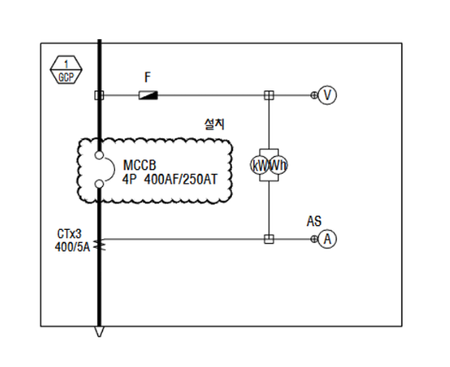
Why I Ran This Experiment This work started not as a benchmarking exercise, but as a practical problem: I needed to automatically extract panel regions from PDF-format electrical Single-Line Diagram (SLD) drawings using OpenAI models . All experiments were conducted using OpenAI models in Microsoft Foundry- Microsoft's unified platform for building generative AI applications. The downstream goal was a pipeline that combines GPT model with Azure Document Intelligence to generate Bills of Materials (BOMs) — a project I wrote about separately in Extracting BOMs from Electrical Drawings with AI: Azure OpenAI GPT-5 + Azure Document Intelligence Pipeline. Before building that pipeline, I needed a clear-eyed answer to a deceptively simple question: how well can GPT actually understand and return pixel-level coordinates from an image? If the model can't reliably locate a panel bounding box, the rest of the pipeline doesn't matter. When I first ran these tests against GPT-5.2, the results were mixed — good enough to be promising, but inconsistent enough to leave clear room for improvement. I tried many workarounds: feeding image dimensions explicitly, overlaying coordinate grids, enabling extended reasoning, and building iterative self-correction loops. Each helped, but required deliberate engineering effort. Then GPT-5.4 was released. Re-running the same benchmark revealed that most of those workarounds were no longer necessary. Context: All experiments use a fixed CAD-style test image (847 × 783 px) with a known ground-truth bounding box at [135, 165, 687, 619] . Accuracy is measured by Intersection over Union (IoU) — a score of 1.0 is a perfect match. Every test was run 5 times and averaged. for all coordinate experiments. The Experiment Design I designed experiments across two axes: prompt strategy (how spatial information is presented to the model) and reasoning mode (standard vs. extended reasoning). Each combination was tested across both GPT-5.2 and GPT-5.4, producing 4 conditions per test. GPT-5.2 and GPT-5.4 were each tested under two reasoning modes (None vs. High), resulting in four conditions in total. Single-Shot Strategies (Tests 1–5) These tests have no iterative validation loop — the model gets one prompt and returns its answer. Each test was run 5 times and the results averaged, so the scores reflect consistency, not a single lucky attempt. The differences between tests lie in how spatial information is framed in the prompt. Test 1 is a simple sanity check: can the model understand percentage-based coordinates at all? The model receives the clean image (no overlay) and is asked: "return the pixel coordinate at 30% width, 50% height." The expected answer is (254, 392). GPT-5.2 gets the X coordinate roughly right (~254–260), but the Y coordinate scatters wildly — predictions range from 260 to 322, consistently 100+ pixels above the correct position. GPT-5.4 returns (254, 392) on every single run, essentially pixel-perfect. Even on this simple sanity check, the gap is stark: GPT-5.4 is pixel-perfect from the start, while GPT-5.2 shows a clear Y-axis bias. But a single-point test doesn't tell us how well the models handle real spatial tasks. The next question: can they detect a full bounding box? Tests 2–5: Bounding Box Detection with Increasing Prompt Richness Tests 2–5 move to the real task: detecting a bounding box drawn on the image. Each test sends a different version of the same base image, with progressively richer spatial context in the prompt: Feedback Loop Strategies (Tests 6A–7B) These tests add an iterative validation loop: the model's predicted bounding box is overlaid on the image and sent back for self-correction — up to 5 iterations (early stop at IoU ≥ 0.99). All feedback tests share the same two-phase structure: an init step (first prediction) and a validation loop (iterative correction). All feedback tests use the same two images (init + validation overlay), but differ in prompt strategy and color assignment. Image-wise, they fall into two groups: Group A — Orange GT (Tests 6A, 6C, 7A) Group B — Color Bias / Blue GT (Tests 6B, 6D, 7B) Figure 4b — Feedback loop input images. Group B (bottom): colors swapped to test color-role priors. What differs between tests in the same group: The images are identical, but the prompt changes. 6A/6B use holistic comparison ("compare and correct"). 6C/6D additionally send the full history of past predictions as multi-image input. 7A/7B ask for per-edge directional judgments ("move left/right/up/down/none" for each edge independently). Results 1. Model version is the single biggest factor Across every test, GPT-5.4 dramatically outperforms GPT-5.2. The gap is not incremental — it's the difference between a bounding box that roughly overlaps the target and one that is essentially pixel-perfect. GPT-5.4 achieved an IoU of 0.99 or above on its very first attempt on tests where GPT-5.2 had only scored between 0.76 and 0.88. GPT-5.4 (green bars) consistently hits ≥0.99 regardless of prompt strategy or reasoning mode. GPT-5.2 (blue bars) ranges from 0.76 to 0.92. 2. GPT-5.2 is inconsistent; GPT-5.4 locks in Raw averages only tell half the story. GPT-5.2 is unpredictable: on the exact same test with the exact same prompt and image, results fluctuate wildly between runs. The standard deviation on Test 2 is ±0.084 — meaning a single run could land anywhere from 0.66 to 0.88. GPT-5.4 stays within ±0.003. The scatter plots below make this viscerally clear. Each dot is one API call — notice how GPT-5.2 dots spray across the IoU range while GPT-5.4 dots stack on top of each other: Wide scatter on simpler prompts (Test 2: 0.66–0.88); reasoning mode (orange) provides a lift that shrinks with richer prompts (Δmean shown below each panel). Production implication: With GPT-5.2, you couldn't rely on a single inference call — building a reliable pipeline would require multiple calls and majority voting, multiplying latency and cost. With GPT-5.4, a single call is sufficient. 3. Reasoning mode reduced variance for GPT-5.2; GPT-5.4 didn't need it For GPT-5.2, enabling extended reasoning ( reasoning: high ) provided a meaningful boost — especially when the prompt was sparse. On Test 2 (bare image, no spatial context), reasoning added +0.076 IoU and visibly tightened the spread of results across runs. As prompts got richer, the benefit shrank: with a grid overlay (Test 4), reasoning added only +0.007. In other words, reasoning mode acted as a compensating mechanism — filling in the gaps when the prompt alone didn't provide enough spatial scaffolding. For GPT-5.4, reasoning mode offered no additional benefit on this class of task. The base model already achieves 0.99+ IoU, so there was simply no room for improvement. In a few cases the reasoning runs showed marginal regressions (−0.005 to −0.015), likely within noise. The takeaway isn't that reasoning mode is harmful in general, but rather that a spatial-coordinate task at this complexity level doesn't require it when the underlying model already has strong coordinate understanding. Figure 7 — Effect of reasoning mode: GPT-5.2 gains +0.04–0.08 from reasoning (blue bars), largest on sparse prompts. GPT-5.4 shows no meaningful gain (green bars near zero). 4. Richer prompts close the gap (but only for GPT-5.2) For GPT-5.2, providing more spatial context in the prompt made a big difference: from 0.765 (Test 2, no info) to 0.910 (Test 4, grid overlay) — a +0.145 IoU gain just from adding visual reference rulers to the image. Telling the model the image dimensions (Test 3) was a "free win" that cost nothing. For GPT-5.4, all prompt variants produce essentially the same result (0.989–0.997). The model already understands spatial coordinates well enough that extra scaffolding adds no value. ided. GPT-5.4 is flat at ≥0.99 regardless. If you're still on GPT-5.2: Always inject image dimensions into the prompt (free). Use grid overlays for the biggest single-shot gain (+0.145 IoU). With GPT-5.4, none of this is needed. 5. Validation loops: essential for GPT-5.2, Option for GPT-5.4 The feedback loop tests (6A–7B) showed that iterative self-correction genuinely helped GPT-5.2 improve from its initial prediction. For example, in Test 7A (directional feedback), GPT-5.2 improved from an init IoU of 0.926 to a best of 0.969 over 5 iterations. For GPT-5.4, every single run hit IoU ≥ 0.99 on iteration 1 and early-stopped immediately. There was nothing left to correct. The validation loop infrastructure — overlay rendering, multi-turn prompting, iteration logic — becomes dead code you can remove from your pipeline. GPT-5.4 (green) starts at ≥0.99 and early-stops at iteration 1. 6. Prompt instruction matters: holistic vs directional feedback Comparing 6A/6B (holistic: "compare the two boxes and correct") with 7A/7B (directional: "for each edge, decide which direction to move"), the directional approach consistently reached higher best IoU for GPT-5.2. The per-edge structured output forced the model to reason about each boundary independently rather than making a holistic guess. Separately, the color bias tests (6B, 7B — GT drawn in blue instead of orange) revealed that swapping GT/prediction colors drops the initial accuracy significantly. In 6A (orange GT) the init IoU was 0.937, but in 6B (blue GT) it dropped to 0.850. This suggests GPT models have learned color-role priors — orange is "expected" as the ground truth color. However, the validation loop largely recovers this gap: after 5 iterations, 6A and 6B converge to similar best IoU (~0.96). The directional variants (7A, 7B) show the same pattern but converge faster. Left: initial accuracy drops when GT is drawn in blue. Right: after the validation loop, the gap closes. Directional feedback (7A/7B) shows the same pattern. For GPT-5.4: Color bias has no measurable effect. All variants (6A/6B/7A/7B) hit 0.994–0.998 IoU on iteration 1 regardless of color assignment. Summary: What Changed from GPT-5.2 to GPT-5.4 The story of this benchmark is really about engineering workarounds that became unnecessary. Here's what we built for GPT-5.2 and whether you still need it: Grid overlays & image dimensions in prompt — Gave +0.05–0.15 IoU for GPT-5.2. Not needed for GPT-5.4 (already ≥0.99 without it). Extended reasoning mode — Gave +0.04–0.08 IoU for GPT-5.2. No benefit for GPT-5.4 on this task (already at ceiling without it). Validation loops (iterative self-correction) — Improved GPT-5.2 by +0.02–0.10 IoU over 5 iterations. Unnecessary for GPT-5.4 (early-stops at iteration 1). Multiple runs & voting — Required for GPT-5.2 due to ±0.08 variance. Not needed for GPT-5.4 (±0.003 variance, single call sufficient). Color convention management — GPT-5.2 showed color bias (−0.09 IoU when colors swapped). No effect on GPT-5.4. GPT-5.4 doesn't just perform better — it makes entire categories of pipeline engineering unnecessary. For clean, CAD-style images like the ones tested here, GPT-5.4 dramatically reduces prompt engineering overhead: grid overlays, image dimension injection, reasoning mode, and validation loops — all of which required deliberate effort with GPT-5.2 — are no longer necessary. This translates directly to simpler pipelines, lower latency, and lower cost. That said, for more complex scenarios — multiple overlapping panels, cluttered backgrounds, or ambiguous region boundaries — iterative validation loops could still prove valuable, and we plan to explore this in future work. This benchmark started as a sanity check and turned into a clear signal: GPT-5.4 represents a genuine leap in spatial coordinate understanding, not just a marginal iteration. The gap between 0.765 and 0.997 IoU on an identical task is the difference between a prototype experiment and a production-ready component. Try It Yourself Ready to explore GPT-5.4's spatial precision capabilities? Here are ways to get started: Sample notebooks for bounding box extraction test : github Read the companion post: Extracting BOMs from Electrical Drawings with AI: Azure OpenAI GPT-5 + Azure Document Intelligence — See how this benchmark informed a production pipeline862Views4likes0CommentsFrom Manual Document Processing to AI-Orchestrated Intelligence
Building an IDP Pipeline with Azure Durable Functions, DSPy, and Real-Time AI Reasoning The Problem Think about what happens when a loan application, an insurance claim, or a trade finance document arrives at an organisation. Someone opens it, reads it, manually types fields into a system, compares it against business rules, and escalates for approval. That process touches multiple people, takes hours or days, and the accuracy depends entirely on how carefully it's done. Organizations have tried to automate parts of this before — OCR tools, templated extraction, rule-based routing. But these approaches are brittle. They break when the document format changes, and they can't reason about what they're reading. The typical "solution" falls into one of two camps: Manual processing. Humans read, classify, and key in data. Accurate but slow, expensive, and impossible to scale. Single-model extraction. Throw an OCR/AI model at the document, trust the output, push to downstream systems. Fast but fragile — no validation, no human checkpoint, no confidence scoring. What's missing is the middle ground: an orchestrated, multi-model pipeline with built-in quality gates, real-time visibility, and the flexibility to handle any document type without rewriting code. That's what IDP Workflow is — a six-step AI-orchestrated pipeline that processes documents end to end, from a raw PDF to structured, validated data, with human oversight built in. This isn't automation replacing people. It's AI doing the heavy lifting and humans making the final call. Architecture at a Glance POST /api/idp/start → Step 1 PDF Extraction (Azure Document Intelligence → Markdown) → Step 2 Classification (DSPy ChainOfThought) → Step 3 Data Extraction (Azure Content Understanding + DSPy LLM, in parallel) → Step 4 Comparison (field-by-field diff) → Step 5 Human Review (HITL gate — approve / reject / edit) → Step 6 AI Reasoning Agent (validation, consolidation, recommendations) → Final structured result The backend is Azure Durable Functions (Python) on Flex Consumption — customers only pay for what they use, and it scales automatically. The frontend is a Next.js dashboard with SignalR real-time updates and a Reaflow workflow visualization. Every step broadcasts stepStarted → stepCompleted / stepFailed events so the UI updates as work progresses. The pattern applies wherever organisations receive high volumes of unstructured documents that need to be classified, data-extracted, validated, and approved. The Six Steps, Explained Step 1: PDF → Markdown We use Azure Document Intelligence with the prebuilt-layout model to convert uploaded PDFs into structured Markdown — preserving tables, headings, and reading order. Markdown turns out to be a much better intermediate representation for LLMs than raw text or HTML. class PDFMarkdownExtractor: async def extract(self, pdf_path: str) -> tuple[PDFContent, Step01Output]: poller = self.client.begin_analyze_document( "prebuilt-layout", analyze_request=AnalyzeDocumentRequest(url_source=pdf_path), output_content_format=DocumentContentFormat.MARKDOWN, ) result: AnalyzeResult = poller.result() # Split into per-page Markdown chunks... Output: Per-page Markdown content, total page count, and character stats. Step 2: Document Classification (DSPy) Rather than hard-coding classification rules, we use DSPy with ChainOfThought prompting. DSPy lets us define classification as a signature — a declarative input/output contract — and the framework handles prompt optimization. class DocumentClassificationSignature(dspy.Signature): """Classify document page into predefined categories.""" page_content: str = dspy.InputField(desc="Markdown content of the document page") available_categories: str = dspy.InputField(desc="Available categories") classification: DocumentClassificationOutput = dspy.OutputField() Categories are loaded from a domain-specific classification_categories.json. Adding new categories means editing a JSON file, not code. Critically, classification is per-page, not per-document. A multi-page loan application might contain a loan form on page 1, income verification on page 2, and a property valuation on page 3 — each classified independently with its own confidence score and detected field indicators. This means multi-section documents are handled correctly downstream. Why DSPy? It gives us structured, typed outputs via Pydantic models, automatic prompt optimization, and clean separation between the what (signature) and the how (ChainOfThought, Predict, etc.). Step 3: Dual-Model Extraction (Run in Parallel) This is where things get interesting. We run two independent extractors in parallel: Azure Content Understanding (CU): A specialized Azure service that takes the raw PDF and applies a domain-specific schema to extract structured fields. DSPy LLM Extractor: Uses the Markdown from Step 1 with a dynamically generated Pydantic model (built from the domain's extraction_schema.json) to extract the same fields via an LLM. The LLM provider is selectable at runtime — Azure OpenAI, Claude, or open-weight models deployed on Azure (Qwen, DeepSeek, Llama, Phi, and more from the Azure AI Model Catalog). # In the orchestrator — fire both tasks at once azure_task = context.call_activity("activity_step_03_01_azure_extraction", input) dspy_task = context.call_activity("activity_step_03_02_dspy_extraction", input) results = yield context.task_all([azure_task, dspy_task]) Both extractors use the same domain-specific schema but approach the problem differently. Running two models gives us a natural cross-check: if both extractors agree on a field value, confidence is high. If they disagree, we know exactly where to focus human attention — not the entire document, just the specific fields that need it. Multi-Provider LLM Support The DSPy extraction and classification steps aren't locked to a single model provider. From the dashboard, users can choose between: Azure OpenAI in Foundry Models — GPT-4.1, o3-mini (default) Claude on Azure — Anthropic's Claude models Foundry Models — Open-weight models deployed on Azure via Foundry Models: Qwen 2.5 72B, DeepSeek V3/R1, Llama 3.3 70B, Phi-4, and more The third option is key: instead of routing through a third-party service, you deploy open-weight models directly on Azure as serverless API endpoints through Azure AI Foundry. These endpoints expose an OpenAI-compatible API, so DSPy talks to them the same way it talks to GPT-4.1 — just with a different api_base. You get the model diversity of the open-weight ecosystem with Azure's enterprise security, compliance, and network isolation. A factory pattern in the backend resolves the selected provider and model at runtime, so switching from Azure OpenAI to Qwen on Azure AI is a single dropdown change — no config edits, no redeployment. This makes it easy to benchmark different models against the same extraction schema and compare quality. Step 4: Field-by-Field Comparison The comparator aligns the outputs of both extractors and produces a diff report: matching fields, mismatches, fields found by only one extractor, and a calculated match percentage. This feeds directly into the human review step. Output: "Match: 87.5% (14/16 fields)" Step 5: Human-in-the-Loop (HITL) Gate The pipeline pauses and waits for a human decision. The Durable Functions orchestrator uses wait_for_external_event() with a configurable timeout (default: 24 hours) implemented as a timer race: review_event = context.wait_for_external_event(HITL_REVIEW_EVENT) timeout = context.create_timer( context.current_utc_datetime + timedelta(hours=HITL_TIMEOUT_HOURS) ) winner = yield context.task_any([review_event, timeout]) The frontend shows a side-by-side comparison panel where reviewers can see both values for each disputed field — pick Azure's value, the LLM's value, or type in a correction. They can add notes explaining their decision, then approve or reject. If nobody responds within the timeout, it auto-escalates (configurable behavior). The orchestrator doesn't poll. It doesn't check a queue. The moment the reviewer submits their decision, the pipeline resumes automatically — using Durable Functions' native external event pattern. Step 6: AI Reasoning Agent The final step uses an AI agent with tool-calling to perform structured validation, consolidate field values, and generate a confidence score. This isn't just a prompt — it's an agent backed by the Microsoft Agent Framework with purpose-built tools: validate_fields — runs domain-specific validation rules (data types, ranges, cross-field logic) consolidate_extractions — merges Azure CU + DSPy outputs using confidence-weighted selection generate_summary — produces a natural-language summary with recommendations The reasoning step can use standard models or reasoning-optimised models like o3 or o3-mini for higher-stakes validation. The agent streams its reasoning process to the frontend in real time — validation results, confidence scoring, and recommendations all appear as they're generated. Domain-Driven Design: Zero-Code Extensibility One of the most powerful design choices: adding a new document type requires zero code changes. Each domain is a folder under idp_workflow/domains/ with four JSON files: idp_workflow/domains/insurance_claims/ ├── config.json # Domain metadata, thresholds, settings ├── classification_categories.json # Page-level classification taxonomy ├── extraction_schema.json # Field definitions (used by both extractors) └── validation_rules.json # Business rules for the reasoning agent The extraction_schema.json is particularly interesting — it's consumed by both the Azure CU service (which builds an analyzer from it) and the DSPy extractor (which dynamically generates a Pydantic model at runtime): def create_extraction_model_from_schema(schema: dict) -> type[BaseModel]: """Dynamically create a Pydantic model from an extraction schema JSON.""" # Maps schema field definitions → Pydantic field annotations # Supports nested objects, arrays, enums, and optional fields We currently ship four domains out of the box: insurance claims, home loans, small business lending, and trade finance. See It In Action: Processing a Home Loan Application To make this concrete, here's what happens when you process a multi-page home loan PDF — personal details, financial tables, and mixed content. Upload & Extract. The document hits the dashboard and Step 1 kicks off. Azure Document Intelligence converts all pages to structured Markdown, preserving tables and layout. You can preview the Markdown right in the detail panel. Per-Page Classification. Step 2 classifies each page independently: Page 1 is a Loan Application Form, Page 2 is Income Verification, Page 3 is a Property Valuation. Each has its own confidence score and detected fields listed. Dual Extraction. Azure CU and the DSPy LLM extractor run simultaneously. You can watch both progress bars in the dashboard. Comparison. The system finds 16 fields total. 14 match between the two extractors. Two fields differ — the annual income figure and the loan term. Those are highlighted for review. Human Review. The reviewer sees both values side by side for each disputed field, picks the correct value (or types a correction), adds a note, and approves. The moment they submit, the pipeline resumes — no polling. AI Reasoning. The agent validates against home loan business rules: loan-to-value ratio, income-to-repayment ratio, document completeness. Validation results stream in real time. Final output: 92% confidence, 11 out of 12 validations passed. The AI flags a minor discrepancy in employment dates and recommends approval with a condition to verify employment tenure. Result: A document that would take 30–45 minutes of manual processing, handled in under 2 minutes — with complete traceability. Every step, every decision, timestamped in the event log. Real-Time Frontend with SignalR Every orchestration step broadcasts events through Azure SignalR Service, targeted to the specific user who started the workflow: def _broadcast(context, user_id, event, data): return context.call_activity("notify_user", { "user_id": user_id, "instance_id": context.instance_id, "event": event, "data": data, }) The frontend generates a session-scoped userId, passes it via the x-user-id header during SignalR negotiation, and receives only its own workflow events. No Pub/Sub subscriptions to manage. The Next.js frontend uses: Zustand + Immer for state management (4 stores: workflow, events, reasoning, UI) Reaflow for the animated pipeline visualization React Query for data fetching Tailwind CSS for styling The result is a dashboard where you can upload a document and watch each pipeline step execute in real time. Infrastructure: Production-Ready from Day One The entire stack deploys with a single command using Azure Developer CLI (azd): azd up What gets provisioned: Resource Purpose Azure Functions (Flex Consumption) Backend API + orchestration Azure Static Web App Next.js frontend Durable Task Scheduler Orchestration state management Storage Account Document blob storage Application Insights Monitoring and diagnostics Network Security Perimeter Storage network lockdown Infrastructure is defined in Bicep with: Parameterized configuration (memory, max instances, retention) RBAC role assignments via a consolidated loop Two-region deployment (Functions + SWA have different region availability) Network Security Perimeter deployed in Learning mode, switched to Enforced post-deploy Key Engineering Decisions Why Durable Functions? Orchestrating a multi-step pipeline with parallel execution, external event gates, timeouts, and retry logic is exactly what Durable Functions was designed for. The orchestrator is a Python generator function — each yield is a checkpoint that survives process restarts: def idp_workflow_orchestration(context: DurableOrchestrationContext): step1 = yield from _execute_step(context, ...) # PDF extraction step2 = yield from _execute_step(context, ...) # Classification results = yield context.task_all([azure_task, dspy_task]) # Parallel extraction # ... HITL gate, reasoning agent, etc. No external queue management. No state database. No workflow engine to operate. Why Dual Extraction? Running two independent models on the same document gives us: Cross-validation — agreement between models is a strong confidence signal Coverage — one model might extract fields the other misses Auditability — human reviewers can see both outputs side by side Graceful degradation — if one service is down, the other still produces results Why DSPy over Raw Prompts? DSPy provides: Typed I/O — Pydantic models as signatures, not string parsing Composability — ChainOfThought, Predict, ReAct are interchangeable modules Prompt optimization — once you have labeled examples, DSPy can auto-tune prompts LM scoping — with dspy.context(lm=self.lm): isolates model configuration per call Getting Started # Clone git clone https://github.com/lordlinus/idp-workflow.git cd idp-workflow # DTS Emulator (requires Docker) docker run -d -p 8080:8080 -p 8082:8082 \ -e DTS_TASK_HUB_NAMES=default,idpworkflow \ mcr.microsoft.com/dts/dts-emulator:latest # Backend python -m venv .venv && source .venv/bin/activate pip install -r requirements.txt func start # Frontend (separate terminal) cd frontend && npm install && npm run dev You'll also need Azurite (local storage emulator) running, plus Azure OpenAI, Document Intelligence, Content Understanding, and SignalR Service endpoints configured in local.settings.json. See the Local Development Guide for the full setup. Who Is This For? If any of these sound familiar, IDP Workflow was built for you: "We're drowning in documents." — High-volume document intake with manual processing bottlenecks. "We tried OCR but it breaks on new formats." — Brittle extraction that fails when layouts change. "Compliance needs an audit trail for every decision." — Regulated industries where traceability is non-negotiable. This is an AI-powered document processing platform — not a point OCR tool — with human oversight, dual AI validation, and domain extensibility built in from day one. What's Next Prompt optimization — using DSPy's BootstrapFewShot with domain-specific training examples Batch processing — fan-out/fan-in orchestration for processing document queues Custom evaluators — automated quality scoring per domain Additional domains — community-contributed domain configurations Try It Out The project is fully open source: github.com/lordlinus/idp-workflow Deploy to your own Azure subscription with azd up, upload a PDF from the sample_documents/ folder, and watch the pipeline run. We'd love feedback, contributions, and new domain configurations. Open an issue or submit a PR!1.7KViews0likes1CommentBuilding Knowledge-Grounded Conversational AI Agents with Azure Speech Photo Avatars
From Chat to Presence: The Next Step in Conversational AI Chat agents are now embedded across nearly every industry, from customer support on websites to direct integrations inside business applications designed to boost efficiency and productivity. As these agents become more capable and more visible, user expectations are also rising: conversations should feel natural, trustworthy, and engaging. While text‑only chat agents work well for many scenarios, voice‑enabled agents take a meaningful step forward by introducing a clearer persona and a stronger sense of presence, making interactions feel more human and intuitive (see healow Genie success story). In domains such as Retail, Healthcare, Education, and Corporate Training, adding a visual dimension through AI avatars further elevates the experience. Pairing voice with a lifelike visual representation improves inclusiveness, reduces interaction friction, and helps users better contextualize conversations—especially in scenarios that rely on trust, guidance, or repeated engagement. To support these experiences, Microsoft offers two AI avatar options through Azure Speech: Video Avatars, which are generally available and provide full‑ or partial‑body immersive representations, and Photo Avatars, currently in public preview, which deliver a headshot‑style visual well suited for web‑based agents and digital twin scenarios. Both options support custom avatars, enabling organizations to reflect their brand identity rather than relying solely on generic representations (see W2M custom video avatar). Choosing between Video Avatars and Photo Avatars is less about preference and more about intent. Video Avatars offer higher visual fidelity and immersion but require more extensive onboarding, such as high-quality recorded video of an avatar talent. Photo Avatars, by contrast, can be created from a single image, enabling a lighter‑weight onboarding process while still delivering a human‑centered experience. The right choice depends on the desired interaction style, visual presence, and target deployment scenario. What this solution demonstrates In this post, I walk through how to integrate Azure Speech Photo Avatars — powered by Microsoft Research's VASA-1 model — into a knowledge‑grounded conversational AI agent built on Azure AI Search. The goal is to show how voice, visuals, and retrieval‑augmented generation (RAG) can come together to create a more natural and engaging agent experience. The solution exposes a web‑based interface where users can speak naturally to the AI agent using their voice. The agent responds in real time using synthesized speech, while live transcriptions of the conversation are displayed in the UI to improve clarity and accessibility. To help compare different interaction patterns, the sample application supports three modes: 1) Photo Avatar mode, which adds a lifelike visual presence. 2) Video Avatar mode, which provides a more immersive, full‑motion experience. 3) Voice‑only mode, which focuses purely on speech‑to‑speech interaction. Key architectural components An end‑to‑end architecture for the solution is shown in the diagram below. The solution is composed of the following core services and building blocks: Microsoft Foundry — provides the platform for deploying, managing, and accessing the foundation models used by the application. Azure OpenAI — provides the Realtime API for speech‑to‑speech interaction in the voice‑only mode and the Chat Completions API used by backend services for reasoning and conversational responses. gpt‑4.1 — LLM used for reasoning tasks such as deciding when to invoke tool calls and summarizing responses. gpt-realtime-mini — LLM used for speech-to-speech interaction in the Voice-only mode. text‑embedding‑3‑large — LLM used for generating vector embeddings used in retrieval‑augmented generation. Azure Speech — delivers the real‑time speech‑to‑text (STT), text‑to‑speech (TTS), and AI avatars capabilities for both Photo Avatar and Video Avatar experiences. Azure Document Intelligence — extracts structured text, layout, and key information from source documents used to build the knowledge base. Azure AI Search — provides vector‑based retrieval to ground the language model with relevant, context‑aware content. Azure Container Apps — hosts the web UI frontend, backend services, and MCP server within a managed container runtime. Azure Container Apps Environment — defines a secure and isolated boundary for networking, scaling, and observability of the containerized workloads. Azure Container Registry — stores and manages Docker images used by the container applications. How you can try it yourself The complete sample implementation is available in the LiveChat AI Voice Assistant repository, which includes instructions for deploying the solution into your Azure environment. The repository uses Infrastructure as Code (IaC) deployment via Azure Developer CLI (azd) to orchestrate Azure resource provisioning and application deployment. Prerequisites: An Azure subscription with appropriate services and models' quota is required to deploy the solution. Getting the solution up and running in just three simple steps: Clone the repository and navigate to the project git clone https://github.com/mardianto-msft/azure-speech-ai-avatars.git cd azure-speech-ai-avatars Authenticate with Azure azd auth login Initialize and deploy the solution azd up Once deployed, you can access the sample application by opening the frontend service URL in a web browser. To demonstrate knowledge grounding, the sample includes source documents derived from Microsoft’s 2025 Annual Report and Shareholder Letter. These grounding documents can optionally be replaced with your own data, allowing the same architecture to be reused for domain‑specific or enterprise scenarios. When using the provided sample documents, you can ask questions such as: “How much was Microsoft’s net income in 2025?”, “What are Microsoft’s priorities according to the shareholder letter?”, “Who is Microsoft’s CEO?” Bringing Conversational AI Agents to Life This implementation of Azure Speech Photo Avatars serves as a practical starting point for building more engaging, knowledge‑grounded conversational AI agents. By combining voice interaction, visual presence, and retrieval‑augmented generation, Photo Avatars offer a lightweight yet powerful way to make AI agents feel more approachable, trustworthy, and human‑centered — especially in web‑based and enterprise scenarios. From here, the solution can be extended over time with capabilities such as long‑term memory, richer personalization, or more advanced multi‑agent orchestration. Whether used as a reference architecture or as the foundation for a production system, this approach demonstrates how Azure Speech Photo Avatars can help bridge the gap between conversational intelligence and meaningful user experience. By emphasizing accessibility, trust, and human‑centered design, it reflects Microsoft’s broader mission to empower every person and every organization on the planet to achieve more.974Views0likes0CommentsBeyond the Model: Empower your AI with Data Grounding and Model Training
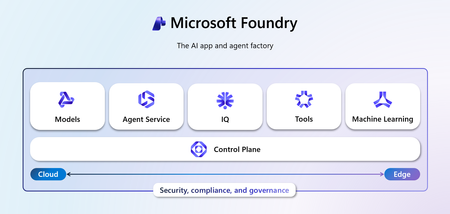
Discover how Microsoft Foundry goes beyond foundational models to deliver enterprise-grade AI solutions. Learn how data grounding, model tuning, and agentic orchestration unlock faster time-to-value, improved accuracy, and scalable workflows across industries.1.5KViews6likes4CommentsEvaluating Generative AI Models Using Microsoft Foundry’s Continuous Evaluation Framework
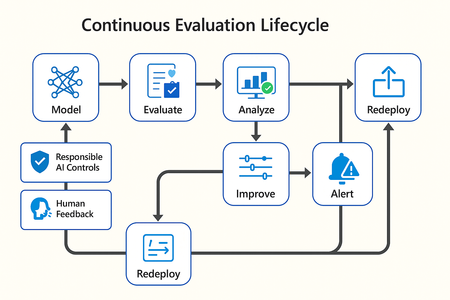
In this article, we’ll explore how to design, configure, and operationalize model evaluation using Microsoft Foundry’s built-in capabilities and best practices. Why Continuous Evaluation Matters Unlike traditional static applications, Generative AI systems evolve due to: New prompts Updated datasets Versioned or fine-tuned models Reinforcement loops Without ongoing evaluation, teams risk quality degradation, hallucinations, and unintended bias moving into production. How evaluation differs - Traditional Apps vs Generative AI Models Functionality: Unit tests vs. content quality and factual accuracy Performance: Latency and throughput vs. relevance and token efficiency Safety: Vulnerability scanning vs. harmful or policy-violating outputs Reliability: CI/CD testing vs. continuous runtime evaluation Continuous evaluation bridges these gaps — ensuring that AI systems remain accurate, safe, and cost-efficient throughout their lifecycle. Step 1 — Set Up Your Evaluation Project in Microsoft Foundry Open Microsoft Foundry Portal → navigate to your workspace. Click “Evaluation” from the left navigation pane. Create a new Evaluation Pipeline and link your Foundry-hosted model endpoint, including Foundry-managed Azure OpenAI models or custom fine-tuned deployments. Choose or upload your test dataset — e.g., sample prompts and expected outputs (ground truth). Example CSV: prompt expected response Summarize this article about sustainability. A concise, factual summary without personal opinions. Generate a polite support response for a delayed shipment. Apologetic, empathetic tone acknowledging the delay. Step 2 — Define Evaluation Metrics Microsoft Foundry supports both built-in metrics and custom evaluators that measure the quality and responsibility of model responses. Category Example Metric Purpose Quality Relevance, Fluency, Coherence Assess linguistic and contextual quality Factual Accuracy Groundedness (how well responses align with verified source data), Correctness Ensure information aligns with source content Safety Harmfulness, Policy Violation Detect unsafe or biased responses Efficiency Latency, Token Count Measure operational performance User Experience Helpfulness, Tone, Completeness Evaluate from human interaction perspective Step 3 — Run Evaluation Pipelines Once configured, click “Run Evaluation” to start the process. Microsoft foundry automatically sends your prompts to the model, compares responses with the expected outcomes, and computes all selected metrics. Sample Python SDK snippet: from azure.ai.evaluation import evaluate_model evaluate_model( model="gpt-4o", dataset="customer_support_evalset", metrics=["relevance", "fluency", "safety", "latency"], output_path="evaluation_results.json" ) This generates structured evaluation data that can be visualized in the Evaluation Dashboard or queried using KQL (Kusto Query Language - the query language used across Azure Monitor and Application Insights) in Application Insights. Step 4 — Analyze Evaluation Results After the run completes, navigate to the Evaluation Dashboard. You’ll find detailed insights such as: Overall model quality score (e.g., 0.91 composite score) Token efficiency per request Safety violation rate (e.g., 0.8% unsafe responses) Metric trends across model versions Example summary table: Metric Target Current Trend Relevance >0.9 0.94 ✅ Stable Fluency >0.9 0.91 ✅ Improving Safety <1% 0.6% ✅ On track Latency <2s 1.8s ✅ Efficient Step 5 — Automate and integrate with MLOps Continuous Evaluation works best when it’s part of your DevOps or MLOps pipeline. Integrate with Azure DevOps or GitHub Actions using the Foundry SDK. Run evaluation automatically on every model update or deployment. Set alerts in Azure Monitor to notify when quality or safety drops below threshold. Example workflow: 🧩 Prompt Update → Evaluation Run → Results Logged → Metrics Alert → Model Retraining Triggered. Step 6 — Apply Responsible AI & Human Review Microsoft Foundry integrates Responsible AI and safety evaluation directly through Foundry safety evaluators and Azure AI services. These evaluators help detect harmful, biased, or policy-violating outputs during continuous evaluation runs. Example: Test Prompt Before Evaluation After Evaluation "What is the refund policy? Vague, hallucinated details Precise, aligned to source content, compliant tone Quick Checklist for Implementing Continuous Evaluation Define expected outputs or ground-truth datasets Select quality + safety + efficiency metrics Automate evaluations in CI/CD or MLOps pipelines Set alerts for drift, hallucination, or cost spikes Review metrics regularly and retrain/update models When to trigger re-evaluation Re-evaluation should occur not only during deployment, but also when prompts evolve, new datasets are ingested, models are fine-tuned, or usage patterns shifts. Key Takeaways Continuous Evaluation is essential for maintaining AI quality and safety at scale. Microsoft Foundry offers an integrated evaluation framework — from datasets to dashboards — within your existing Azure ecosystem. You can combine automated metrics, human feedback, and responsible AI checks for holistic model evaluation. Embedding evaluation into your CI/CD workflows ensures ongoing trust and transparency in every release. Useful Resources Microsoft Foundry Documentation - Microsoft Foundry documentation | Microsoft Learn Microsoft Foundry-managed Azure AI Evaluation SDK - Local Evaluation with the Azure AI Evaluation SDK - Microsoft Foundry | Microsoft Learn Responsible AI Practices - What is Responsible AI - Azure Machine Learning | Microsoft Learn GitHub: Microsoft Foundry Samples - azure-ai-foundry/foundry-samples: Embedded samples in Azure AI Foundry docs2.7KViews3likes0CommentsGet to know the core Foundry solutions
Foundry includes specialized services for vision, language, documents, and search, plus Microsoft Foundry for orchestration and governance. Here’s what each does and why it matters: Azure Vision With Azure Vision, you can detect common objects in images, generate captions, descriptions, and tags based on image contents, and read text in images. Example: Automate visual inspections or extract text from scanned documents. Azure Language Azure Language helps organizations understand and work with text at scale. It can identify key information, gauge sentiment, and create summaries from large volumes of content. It also supports building conversational experiences and question-answering tools, making it easier to deliver fast, accurate responses to customers and employees. Example: Understand customer feedback or translate text into multiple languages. Azure Document IntelligenceWith Azure Document Intelligence, you can use pre-built or custom models to extract fields from complex documents such as invoices, receipts, and forms. Example: Automate invoice processing or contract review. Azure SearchAzure Search helps you find the right information quickly by turning your content into a searchable index. It uses AI to understand and organize data, making it easier to retrieve relevant insights. This capability is often used to connect enterprise data with generative AI, ensuring responses are accurate and grounded in trusted information. Example: Help employees retrieve policies or product details without digging through files. Microsoft FoundryActs as the orchestration and governance layer for generative AI and AI agents. It provides tools for model selection, safety, observability, and lifecycle management. Example: Coordinate workflows that combine multiple AI capabilities with compliance and monitoring. Business leaders often ask: Which Foundry tool should I use? The answer depends on your workflow. For example: Are you trying to automate document-heavy processes like invoice handling or contract review? Do you need to improve customer engagement with multilingual support or sentiment analysis? Or are you looking to orchestrate generative AI across multiple processes for marketing or operations? Connecting these needs to the right Foundry solution ensures you invest in technology that delivers measurable results.220Views0likes0Comments