azure database migration service
17 TopicsWhy Your BACPAC Import Is Slow: Finding the Real Bottleneck
A slow BACPAC import is not automatically an Azure SQL performance problem. When an import runs for hours or days, people usually blame the target database. Often, they're wrong. The import could be waiting on the workstation running it, the network between that machine and Azure, SqlPackage settings, or the target database. The progress bar won't tell you which one it is. Before you scale up or restart a two-day import, work out where the slowdown actually is. Where the work actually happens A BACPAC import is not a server-side restore. A client tool (SqlPackage, SSMS, or the Import/Export service acting as the client) does this: Opens and unpacks the BACPAC file Builds the schema model in memory and creates the objects in the target Reads the table data from the file and bulk-inserts it across the network Rebuilds indexes and enables constraints Any of these steps can be the slow one. That's why you need to look at four things: the client, the network, the target, and the method itself. Use SqlPackage, not the portal For a database of any real size, run the import with SqlPackage rather than the portal. You get control over parameters and proper logs. Use the latest .NET version, because performance improvements ship regularly. A good baseline command with logging turned on: ./SqlPackage /Action:Import \ /sf:"C:\bacpac\mydb.bacpac" \ /tsn:"myserver.database.windows.net" \ /tdn:"MyDb" \ /ua:true /tid:"contoso.onmicrosoft.com" \ /df:"C:\bacpac\import.log" \ /DiagnosticsLevel:Verbose If you're investigating performance, also turn on performance tracing before you run it: Set-Item -Path Env:DACFX_PERF_TRACE -Value true It makes the log much bigger, so only use it while you're diagnosing. 1. Check the client The machine running SqlPackage does more work than people expect. Memory: the schema model is built in memory, and a large schema can use a lot of it. Disk: the BACPAC file has to be unpacked, so make sure there's enough fast local disk space. CPU: check whether any cores are maxed out during the data phase. Watch Task Manager or Performance Monitor while the import runs. If the client is maxed out while the target database is idle, scaling up the database won't help. 2. Check the network Running an import from an on-premises laptop over a VPN is the most common reason it's slow. High latency and connections that drop now and then slow down every batch of rows. Watch how much the client is sending over the network. If it stays at a low, steady level while the client and target both have spare capacity, the network is probably the limit. The quickest test is to copy the BACPAC file to an Azure VM in the same region as the target and run SqlPackage from there. Use SSD storage and enable accelerated networking on the VM. If the import gets much faster, you've found the cause. 3. Check the target Run this on the target database while the import is running: SELECT TOP (30) end_time, avg_cpu_percent, avg_data_io_percent, avg_log_write_percent, max_worker_percent FROM sys.dm_db_resource_stats ORDER BY end_time DESC; How to read it: What you see What it means avg_log_write_percent near 100% Log throughput is the limit. Scale up for the import. avg_data_io_percent near 100% Data I/O is the limit. Scale up for the import. avg_cpu_percent high Compute is the limit, especially during index rebuilds. Everything low the target isn't the problem. Look at the client and network or try increasing parallelism. Microsoft's guidance is to temporarily scale the target to a higher service tier for the import and scale back down afterwards. Business Critical or Premium gives the best import performance. Treat the scale-up as an experiment: record the numbers before and after so you know whether it helped. If the target is barely busy, SqlPackage may simply not be sending enough work in parallel. The default is 8. You can raise it with MaxParallelism:16. Increase it gradually and keep watching the target. For large tables with many indexes, p:RebuildIndexesOfflineForDataPhase=True can also speed up the index rebuild phase. 4. Is it slow, or stuck? A progress bar that hasn't moved doesn't mean nothing is happening. Run these checks on the target. Is there still activity? SELECT r.session_id, s.program_name, r.status, r.command, r.wait_type, r.wait_time, r.total_elapsed_time FROM sys.dm_exec_requests AS r JOIN sys.dm_exec_sessions AS s ON s.session_id = r.session_id WHERE r.session_id <> @@SPID; Are row counts going up? Run this twice, a few minutes apart: SELECT OBJECT_SCHEMA_NAME(object_id) AS schema_name, OBJECT_NAME(object_id) AS table_name, SUM(row_count) AS rows_loaded FROM sys.dm_db_partition_stats WHERE index_id IN (0, 1) GROUP BY object_id ORDER BY rows_loaded DESC; If rows are still being added, the import is slow but alive. If you see no sessions and no rows being added, the client has probably lost its connection. Scaling up won't fix that. You'll need to fix the connection and run the import again into an empty database. 5. Should you be using a BACPAC at all? A BACPAC is a logical copy of your schema and data. That works well for small and medium databases, but it gets painful for large ones that can only be offline for a short time. If your pilot shows the import won't fit your downtime window even with the best setup, look at a migration service such as Azure Database Migration Service instead. Run a pilot before you promise a time Don't promise a fixed speed like "X GB per hour". Results depend on schema complexity, the number and size of indexes, data types, the network and the target tier. Instead: Import a representative sample, or the full BACPAC into a non-production target. Try it from a remote workstation and from an Azure VM close to the target. Try it on the current tier and on a temporarily higher tier. Try it with the default parallelism and with a higher value. Record how long each run takes, how long the largest tables take (you can get this from the log), and what the target's resource use was. Base your cutover estimate on these measurements and allow some extra time. After the import Check for disabled indexes. If an import was interrupted after the data loaded but before the index rebuild finished, some indexes can be left disabled: SELECT OBJECT_SCHEMA_NAME(object_id) AS schema_name, OBJECT_NAME(object_id) AS table_name, name AS index_name FROM sys.indexes WHERE is_disabled = 1; Compare row counts between the source and the target. Update statistics. Scale the database back down to its normal production size. Quick checklist Latest SqlPackage (.NET version), not the portal Diagnostic log enabled (/df), plus the perf trace if you're investigating Client CPU, memory and disk checked Network ruled in or out (test from an Azure VM in the same region) sys.dm_db_resource_stats checked during the import Target scaled up for the import, with numbers recorded before and after Parallelism tuned only if the target is underused Slow vs stuck confirmed with row counts Indexes, row counts and statistics checked afterwards, and the tier scaled back down When an import is slow, find out which part is slow before you change anything. References: Troubleshoot issues and performance with SqlPackage Import a BACPAC file to Azure SQL Database
Alternatives After the Deprecation of the Azure SQL Migration Extension in Azure Data Studio
The Azure SQL Migration extension for Azure Data Studio is being deprecated and will be retired by February 28, 2026. As part of our unified and streamlined migration strategy for Azure SQL, we are consolidating all migration experiences into a consistent, scalable platform. If you are currently using the Azure SQL Migration extension, this blog will guide you through recommended replacement options for every phase of migration, whether you are moving to Azure SQL Managed Instance, SQL Server on Azure Virtual Machines, or Azure SQL Database. What is happening to the Azure SQL Migration extension in ADS? As you already know, Azure data studio will officially retire on February 28, 2026. The Azure SQL Migration extension in Azure Data Studio will also retire along with Azure Data Studio on February 28, 2026. The Azure SQL Migration extension will no longer be available in the marketplace of Azure Data Studio. What should you use instead? Below is the updated guidance for the migration tool categorized by migration phase and target. 1) Pre‑Migration: Discovery & Assessments Prior to migration, it is advisable to evaluate the SQL Server environment for readiness and to determine the right-sized Azure SQL SKU. Below are the recommended options: A) SQL Server enabled by Azure Arc Use the SQL Server migration experience in the Azure Arc portal for: Instance discovery at scale Migration assessments at scale, including: Readiness assessment for all Azure SQL targets. Performance-based, right-sized target recommendations. Projected Azure costs with the recommended target configuration. Reference: Steps to get started with the Azure Arc assessments- Deploy Azure Arc on your servers. SQL Server instances on Arc-enabled servers are automatically connected to Azure Arc. See options to optimize this. B) Automated assessments at scale using Azure DMS PowerShell and Azure CLI The Azure DataMigration modules in Azure PowerShell and Azure CLI can be used to automate assessments at scale. Learn more about how to do this. Here are the sample templates to automate the assessment workflow: Azure PowerShell DataMigration cmdlets DMS Azure CLI commands C) Azure Migrate For scenarios where assessments are required at data center level including different types of workloads like Applications, VM Servers and databases, use Azure Migrate to perform discovery and assessments at scale. Learn more about Azure Migrate. References: Review inventory Create SQL Assessment Review SQL Assessment 2) Migrations Based on the migration targets, here are the recommended tools you can use to carry out the migration: A. To Azure SQL Managed Instance The following options are available for migrating data to Azure SQL Managed Instance: 1. SQL Migration experience in Azure Arc For migrations to Azure SQL MI, leverage the streamlined SQL Migration experience in Azure Arc which lets you complete the end-to-end migration journey in a single experience. This experience provides: Evergreen assessments and right-fit Azure SQL target recommendation. Inline Azure SQL Target creation. Free Azure SQL MI Next generation General Purpose service that lets you experience the power of Azure SQL MI for free for 12 months. Near zero downtime migration using Managed Instance link powered by Distributed Availability Group technology. Secure connectivity. Reference blog: SQL Server migration in Azure Arc 2. Automated migration at scale using Azure DMS PowerShell and Azure CLI To Orchestrate migrations to Azure SQL MI at scale programmatically, use: DMS PowerShell cmdlets DMS Azure CLI commands Learn more about how to do this. B. To SQL Server on Azure Virtual Machines To migrate to SQL Server on Azure Virtual Machines, use: 1. Azure Database Migration Service (DMS) DMS supports migrating to SQL Server on Azure Virtual Machines using both online and offline methods. Your SQL Server backups can be in Azure Blob Storage or on a network SMB file share. For details on each option, see: Backups stored in Azure Blob Storage Backups maintained on network SMB file shares Note: The migration experience from SQL Server on-premises to SQL Server on Azure VM will soon be available in SQL Server enabled by Azure Arc. 2. Automated migration at scale using Azure DMS PowerShell and Azure CLI For programmatic migrations to Azure SQL Virtual Machines: DMS PowerShell cmdlets DMS Azure CLI commands Learn more about how to do this. 3. SSMS option: SQL Server Management Studio (SSMS) migration component If you can connect to both SQL Server on-premises and SQL Server running on Azure VM using SQL Server Management Studio, the migration component in SSMS can help you to migrate to SQL Server on Azure VM. For details, see SSMS Migration component. C. To Azure SQL Database Migrating a SQL Server database to Azure SQL Database typically involves migrating schema and data separately. Here are the options to perform offline and online migration to Azure SQL Database: 1. Offline migration to Azure SQL Database a. Azure Database Migration Service (DMS) portal experience Use Azure DMS portal to migrate both schema and data. Azure DMS uses Azure Data Factory and leverages the Self-hosted Integration Runtime (SHIR). Installation steps are here. b. Automated migration at scale using Azure DMS PowerShell and Azure CLI Use Azure DMS PowerShell and Azure CLI command line to orchestrate the schema and data migration to Azure SQL Database at scale: DMS PowerShell cmdlets DMS Azure CLI commands Learn more about how to do this. 2. Online migration to Azure SQL Database Using Striim To enable online migration of your mission critical databases to Azure SQL Database leverage Striim. Microsoft and Striim have entered a strategic partnership to enable continuous data replication from off-Azure SQL Servers to Azure SQL Database with near-zero downtime. For more details, refer to: Zero downtime migration from SQL Server to Azure SQL Database | Microsoft Community Hub Removing barriers to migrating databases to Azure with Striim’s Unlimited Database Migration program... To leverage the Striim program for migrations, please reach out to your Microsoft contact or submit the below feedback to get started. Summary The table below provides a summary of the available alternatives for each migration scenario. Migration Scenario Guided experience Automation experience Pre-Migration (Discovery + Assessment) SQL Migration experience in Azure Arc / Azure Migrate DMS PowerShell / Azure CLI To Azure SQL Managed Instance SQL Migration experience in Azure Arc DMS PowerShell / Azure CLI To SQL Server on Azure Virtual Machine DMS Azure Portal / SSMS migration component DMS PowerShell / Azure CLI To Azure SQL Database DMS Azure portal (offline & schema migration) / Striim (online migration) DMS PowerShell / Azure CLI (offline & schema migration) Final Thoughts Simplify your SQL migration journey and improve migration velocity to all Azure SQL targets, leverage the connected migration experiences in SQL Server enabled by Azure Arc, DMS, and SSMS. For SSMS, as a first step we brought the capabilities to perform assessment and migration to higher versions of SQL Server including to SQL Server on Azure Virtual Machines. As a next step, we are bringing cloud migration capabilities as well into SSMS. Feedback We love hearing from our customers. If you have feedback or suggestions for the product group, please use the following form: Feedback form As you begin your migration to Azure, we welcome your feedback. If you do not see suitable alternatives for any migration phases, use the feedback form to let us know so we can update the options accordingly.2.9KViews1like0CommentsSQL Server migration in Azure Arc – Generally Available
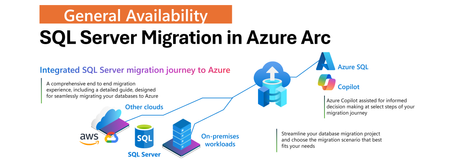
We’re excited to announce General Availability of the SQL Server migration in Azure Arc. This experience is designed to simplify and accelerate SQL Server migration journey to Azure SQL Managed Instance offering a unified, end-to-end workflow directly within the Azure portal. About the solution SQL Server migration in Azur Arc integrates existing Azure Database Migration Service capabilities into Azure Arc by enabling the entire end to end migration journey with the following capabilities: Continuous database migration assessments with Azure SQL target recommendations and cost estimates. Seamless provisioning of Azure SQL Managed Instance as destination target, also with an option of free instance evaluation. Option to choose between two built-in migration methods: real-time database replication using Distributed Availability Groups (powered by MI link feature), or log shipping via backup and restore (powered by Log Replay Service feature). Unified interface that eliminates the need to use multiple tools or to jump between various places in Azure portal. Microsoft Copilot is integrated to assist you at select points during the migration journey. Learn more about SQL Server Migration in Azure Arc. Benefits of the solution Traditionally, migrating SQL Server workloads to Azure required juggling between multiple tools, various places in portal, and some manual steps. This new experience changes that by: Providing a single pane of glass in the Azure portal for the entire migration journey. Reducing migration timelines from months to days. Offering a choice of two migration methods – real-time replication or log-shipping Enabling validation of target environments using read-only replicas before cutover for real-time replication. Automatically capturing application client connection data to simplify mapping between applications and databases. Optional failback from Azure SQL Managed Instancy with configured upgrade policy for SQL Server 2022 and SQL Server 2025 with external tooling. Providing intelligent step-by-step guidance with Microsoft Copilot at select points of the migration journey, helping you make informed decisions. Start Your Migration Journey Today In case your SQL Server is Arc enabled, you could proceed right away to Azure portal. If you need to enable it, then onboard your SQL Server to Azure Arc today. In the portal, navigate to Arc enabled SQL Server resource, and on the left-hand side select Migration, then Database Migration. This is where you will navigate to the new database migration experience. Shown below is illustrated experience of the database migration experience you are expected to see. From the main screen, you can navigate through each stage of the migration journey - starting with the database migration readiness assessment, followed by selecting or provisioning an Azure SQL Managed Instance as the target destination, choosing the appropriate migration method, monitoring progress, and performing the final cutover. By selecting the Azure SQL Benefits tab, you’ll gain insights into the advantages of Azure SQL - helping you make well-informed decisions about your migration. By selecting the Tutorials tab, you will access information helping you getting started with the solution. We've also integrated Microsoft Copilot at select points in the journey for any guidance and support you might need to ensure confident and informed decision-making. For next steps, click on the button below: Get started with SQL Server Migration in Azure Arc today. Feedback We love hearing from our customers! Any feedback or suggestions for the product group, use the following online form to let us know: Provide feedback to the product group We hope that you will enjoy our solution, and we look forward to your feedback as you embark on your migration journey to Azure.1.5KViews1like0CommentsGeneral Availability - DMS's PowerShell, Azure CLI, and Python SDK
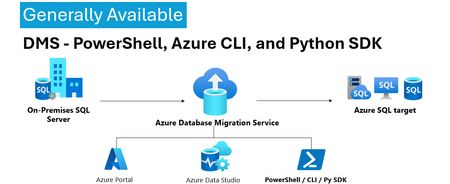
We’re excited to announce the General Availability (GA) of DMS client tools - PowerShell, Azure CLI, Python SDK and more. This milestone unlocks efficient, stable, and scalable automation options for database migration workflows—making it easier than ever to integrate DMS into your DevOps pipelines and enterprise migration strategies. 💡Introduction: With the general availability of DMS client tools - PowerShell, Azure CLI, Python SDK, users can now use stable release of: PowerShell module 1.0.0 (https://www.powershellgallery.com/packages/Az.DataMigration/1.0.0) Azure CLI extension 1.0.0 (https://learn.microsoft.com/en-us/cli/azure/datamigration?view=azure-cli-latest) DMS V2 APIs (version 2025-06-30) SDKs for multiple languages (listed below) SDKs Releases: Language GA Package / Link .Net https://www.nuget.org/packages/Azure.ResourceManager.DataMigration/1.0.0 Java https://central.sonatype.com/artifact/com.azure.resourcemanager/azure-resourcemanager-datamigration/1.1.0 Go https://pkg.go.dev/github.com/Azure/azure-sdk-for-go/sdk/resourcemanager/datamigration/armdatamigration/v2 Python azure-mgmt-datamigration · PyPI JavaScript https://www.npmjs.com/package/@azure/arm-datamigration/v/3.0.0 🔧 What’s New? Three new commands have been introduced in the latest releases of the SDK, PowerShell module, and CLI extension, as outlined below: New CLI Commands: az datamigration sql-db retry - Retry the failed SQL DB migrations. az datamigration sql-managed-instance delete - Delete Azure SQL MI’s Database Migration resource. az datamigration sql-vm delete - Delete Azure SQL VM’s Database Migration resource. New PowerShell Commands: Invoke-AzDataMigrationRetryToSqlDb - Retry the failed SQL DB migrations. Remove-AzDataMigrationToSqlManagedInstance - Delete Azure SQL MI’s Database Migration resource. Remove-AzDataMigrationToSqlVM - Delete Azure SQL VM’s Database Migration resource. 🚀Conclusion: With this GA / stable release, users can now: Use them to configure and execute migrations with full control. Automate migrations: DevOps teams can embed migration steps into CI/CD pipelines. Integrate into custom applications and orchestration tools. These support all the DMS migration scenarios—from simple lift-and-shift operations to complex logical migrations—while ensuring stability, and repeatability. For more details, refer: Documentation: Migrate databases at scale using Azure PowerShell / CLI PowerShell: Az.DataMigration Module Azure CLI: az datamigration Python SDK: azure-mgmt-datamigration · PyPI507Views2likes0CommentsMaking Azure DMS More Secure: Azure Portal Permission Enhancements
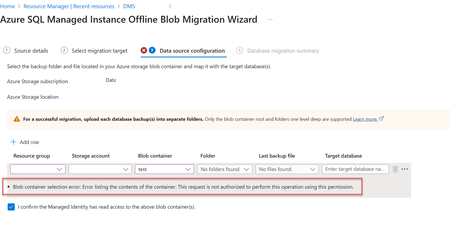
Migrating databases to Azure SQL Managed Instance or Azure SQL Virtual Machine is a critical step in modernizing enterprise infrastructure. With security and compliance top of mind, Azure Database Migration Service (DMS) has introduced key changes to its Azure portal experience—especially around permission for blob container access. Why the Change? Previously, in case of Azure Portal, DMS relied on account key-based access to Azure Blob Storage for listing and accessing backup files on the migration configuration page. While functional, this approach is not best in terms of security, especially for industries which prohibit the use of shared keys. Now, DMS's Azure portal uses security context of the current signed in user on the Azure portal to list and access backup files in the blob container, making it better security approach. Impact of the Change When migrating to Azure SQL Managed Instance or Azure SQL Virtual Machine via Azure portal make sure the current signed in user has Storage Blob Data Reader role on the Blob container that contains the backup files. This permission is needed to list folders and files in the blob container during migration setup via Azure portal only. If the current signed in user lacks the Storage Blob Data Reader role on the Blob container, users will encounter the following error: Error: "Blob container selection error: Error listing the contents of the container: This request is not authorized to perform this operation using this permission." Solution: Make sure the current signed in user has "Storage Blob Data Reader" role on the Blob container that contains the backup files. For more information, refer : Tutorial: Migrate SQL Server to Azure SQL Managed Instance - Azure Database Migration Service | Microsoft Learn Tutorial: Migrate SQL Server to SQL Server on Azure Virtual Machine Using Azure Data Studio - Azure Database Migration Service | Microsoft Learn416Views0likes0CommentsSQL Migration assessments now include Next-gen General Purpose Azure SQL MI
Announcing the inclusion of the Next-gen General Purpose service tier in migration assessments for SQL Server migration to Azure SQL Managed Instance. All database migration tooling includes this capability now. This service tier is more customizable, allowing the configuration to be tailored more closely to the resource requirements.841Views1like0Comments