azure database for mysql
34 TopicsFebruary 2026 Recap: Azure Database for MySQL
We're excited to share a summary of the Azure Database for MySQL updates from the last couple of months. Extended Support Timeline Update Based on customer feedback requesting additional time to complete major version upgrades, we have extended the grace period before extended support billing begins for Azure Database for MySQL: MySQL 5.7: Extended support billing start date moved from April 1, 2026 to August 1, 2026. MySQL 8.0: Extended support billing start date moved from June 1, 2026 to January 1, 2027. This update provides customers additional time to plan, validate, and complete upgrades while maintaining service continuity and security. We continue to recommend upgrading to a supported MySQL version as early as possible to avoid extended support charges and benefit from the latest improvements. Learn more about performing a major version upgrade in Azure Database for MySQL. When upgrading using a read replica, you can optionally use the Rename Server feature to promote the replica and avoid application connection‑string updates after the upgrade completes. Please note that the Rename Server feature is currently in Private Preview. Private Preview - Fabric Mirroring for Azure Database for MySQL This capability enables real‑time replication of MySQL data into Microsoft Fabric with a zero‑ETL experience, allowing data to land directly in OneLake in analytics‑ready formats. Customers can seamlessly analyse mirrored data using Microsoft Fabric experiences, while isolating analytical workloads from their operational MySQL databases. Stay Connected We welcome your feedback and invite you to share your experiences or suggestions at AskAzureDBforMySQL@service.microsoft.com Stay up to date by visiting What's new in Azure Database for MySQL, and follow us on YouTube | LinkedIn | X for ongoing updates. Thank you for choosing Azure Database for MySQL!548Views0likes0CommentsTutorial: Building AI Agents That Talk to Your Azure Database for MySQL
What if you could ask your database a question in plain English and get the answer instantly, without writing a single line of SQL? In this tutorial, you'll build a Python-based AI agent that connects to Azure Database for MySQL server and uses OpenAI's function calling to translate natural language questions into SQL queries, execute them, and return human-readable answers. The agent can explore your schema, answer business questions, and even self-correct when it writes invalid SQL. What you'll build: An Azure Database for MySQL server with sample data A Python AI agent with three tools: list_tables, describe_table, and run_sql_query In the context of AI agents, tools are functions the agent can call to interact with external systems like querying a database, fetching a file, or calling an API. Here, our agent has three tools that let it explore and query your MySQL database. An interactive chat interface where you ask questions and the agent auto-generates and runs SQL Prerequisites Before you begin, make sure you have: An Azure account — Sign up for free (includes 12 months of free MySQL hosting) An OpenAI API key — Get one here (you'll need a few dollars of credit) Python 3.10+ — Download here (check "Add to PATH" during install) A code editor — VS Code recommended Optional: You can download the complete project from this GitHub repository, or follow the step‑by‑step instructions below to build it from scratch. Step 1 — Create the Azure Database for MySQL server Go to the Azure Portal Search for "Azure Database for MySQL server" and click + Create Configure the following settings: Setting Value Resource group rg-mysql-ai-agent (create new) Server name mysql-ai-agent (or any unique name) Region Your nearest region MySQL version 8.4 Workload type Dev/Test (Burstable B1ms — free for 12 months) Admin username mysqladmin Password A strong password — save it! 4. ✅ Check "Add firewall rule for current IP address" ⚠️ Important: If you skip the firewall settings, you won't be able to connect from Cloud Shell or your local machine. 5. Click Review + create → Create and wait 3–5 minutes Once deployment finishes, navigate to your server and note the hostname from the Connection details: mysql-ai-agent.mysql.database.azure.com Step 2 — Load Sample Data Open Azure Cloud Shell by clicking the >_ icon in the portal's top toolbar. Select Bash if prompted. Connect to your MySQL server. You can copy the exact connection command from the "Connect from browser or locally" section on your server's overview page in the Azure portal: mysql -h mysql-ai-agent.mysql.database.azure.com -u mysqladmin -p Enter your password when prompted (the cursor won't move — just type and press Enter). Now paste the following SQL to create a sample sales database: CREATE DATABASE demo_sales; USE demo_sales; CREATE TABLE customers ( id INT AUTO_INCREMENT PRIMARY KEY, name VARCHAR(100), email VARCHAR(100), city VARCHAR(50), signup_date DATE ); CREATE TABLE orders ( id INT AUTO_INCREMENT PRIMARY KEY, customer_id INT, product VARCHAR(100), amount DECIMAL(10,2), order_date DATE, FOREIGN KEY (customer_id) REFERENCES customers(id) ); INSERT INTO customers (name, email, city, signup_date) VALUES ('Sara Ahmed', 'sara@example.com', 'Cairo', '2024-06-15'), ('John Smith', 'john@example.com', 'London', '2024-08-22'), ('Priya Patel', 'priya@example.com', 'Mumbai', '2025-01-10'); INSERT INTO orders (customer_id, product, amount, order_date) VALUES (1, 'Azure Certification Voucher', 150.00, '2025-03-01'), (2, 'MySQL Workbench Pro License', 99.00, '2025-03-10'), (1, 'Power BI Dashboard Template', 45.00, '2025-04-05'), (3, 'Data Analysis Course', 200.00, '2025-05-20'); Verify the data: SELECT * FROM customers; SELECT * FROM orders; Type exit to leave MySQL. Step 3 — Set Up the Python Project Open a terminal on your local machine and create the project: mkdir mysql-ai-agent cd mysql-ai-agent python -m venv venv Activate the virtual environment: Windows (PowerShell): venv\Scripts\Activate.ps1 macOS/Linux: source venv/bin/activate Install the required packages: pip install openai mysql-connector-python python-dotenv Step 4 — Configure Environment Variables Create a file named .env in your project folder: OPENAI_API_KEY=sk-proj-xxxxxxxxxxxxxxxxxxxxxxxx MYSQL_HOST=mysql-ai-agent.mysql.database.azure.com MYSQL_USER=mysqladmin MYSQL_PASSWORD=YourPasswordHere MYSQL_DATABASE=demo_sales 🔒 Security: Never commit this file to Git. Add .env to your .gitignore Step 5 — Build the Agent Open VS Code, create a new file called mysql_agent.py in your mysql-ai-agent folder, and paste the following code. Let's walk through each section. 5.1 — Imports and Database Connection import os import json import mysql.connector from openai import OpenAI from dotenv import load_dotenv load_dotenv() def get_db_connection(): return mysql.connector.connect( host=os.getenv("MYSQL_HOST"), user=os.getenv("MYSQL_USER"), password=os.getenv("MYSQL_PASSWORD"), database=os.getenv("MYSQL_DATABASE"), ssl_disabled=False ) This loads your secrets from .env and creates a reusable MySQL connection function with SSL encryption. 5.2 — Define the Three Tools These are the functions the AI agent can call: def list_tables(): conn = get_db_connection() cursor = conn.cursor() cursor.execute("SHOW TABLES") tables = [row[0] for row in cursor.fetchall()] cursor.close() conn.close() return json.dumps({"tables": tables}) def describe_table(table_name): conn = get_db_connection() cursor = conn.cursor() cursor.execute(f"DESCRIBE `{table_name}`") columns = [] for row in cursor.fetchall(): columns.append({ "field": row[0], "type": row[1], "null": row[2], "key": row[3] }) cursor.close() conn.close() return json.dumps({"table": table_name, "columns": columns}) def run_sql_query(query): if not query.strip().upper().startswith("SELECT"): return json.dumps({"error": "Only SELECT queries are allowed."}) conn = get_db_connection() cursor = conn.cursor() try: cursor.execute(query) columns = [desc[0] for desc in cursor.description] rows = cursor.fetchall() results = [] for row in rows: results.append(dict(zip(columns, row))) return json.dumps({"columns": columns, "rows": results}, default=str) except mysql.connector.Error as e: return json.dumps({"error": str(e)}) finally: cursor.close() conn.close() A few things to note: run_sql_query only allows SELECT statements — this is a safety guardrail that prevents the AI from modifying data The try/except block is critical — if the AI generates invalid SQL (e.g., a bad GROUP BY), the error message is returned to OpenAI, and the model automatically corrects its query and retries. Without this, the script would crash. 5.3 — Register Tools with OpenAI This tells OpenAI what tools the agent has access to: tools = [ { "type": "function", "function": { "name": "list_tables", "description": "List all tables in the connected MySQL database.", "parameters": {"type": "object", "properties": {}, "required": []} } }, { "type": "function", "function": { "name": "describe_table", "description": "Get the schema (columns and types) of a specific table.", "parameters": { "type": "object", "properties": { "table_name": {"type": "string", "description": "Name of the table to describe"} }, "required": ["table_name"] } } }, { "type": "function", "function": { "name": "run_sql_query", "description": "Execute a read-only SQL SELECT query and return results.", "parameters": { "type": "object", "properties": { "query": {"type": "string", "description": "The SQL SELECT query to execute"} }, "required": ["query"] } } } ] def call_tool(name, args): if name == "list_tables": return list_tables() elif name == "describe_table": return describe_table(args["table_name"]) elif name == "run_sql_query": return run_sql_query(args["query"]) else: return json.dumps({"error": f"Unknown tool: {name}"}) 5.4 — The Agent Loop This is the core logic. It sends the user's message to OpenAI, processes any tool calls, and loops until the model produces a final text response: def chat(user_message, conversation_history): client = OpenAI() conversation_history.append({"role": "user", "content": user_message}) print(f"\n{'='*60}") print(f"🧑 You: {user_message}") print(f"{'='*60}") while True: response = client.chat.completions.create( model="gpt-4o-mini", messages=conversation_history, tools=tools, tool_choice="auto" ) assistant_message = response.choices[0].message if assistant_message.tool_calls: conversation_history.append(assistant_message) for tool_call in assistant_message.tool_calls: fn_name = tool_call.function.name fn_args = json.loads(tool_call.function.arguments) print(f" 🔧 Calling tool: {fn_name}({json.dumps(fn_args)})") result = call_tool(fn_name, fn_args) print(f" ✅ Tool returned: {result[:200]}...") conversation_history.append({ "role": "tool", "tool_call_id": tool_call.id, "content": result }) else: final_answer = assistant_message.content conversation_history.append({"role": "assistant", "content": final_answer}) print(f"\n🤖 Agent:\n{final_answer}") return conversation_history The while True loop is what makes self-correction possible. When a tool returns an error, the model sees it in the conversation and generates a corrected tool call in the next iteration. 5.5 — Main Entry Point if __name__ == "__main__": print("\n" + "=" * 60) print(" 🤖 MySQL AI Agent") print(" Powered by OpenAI + Azure Database for MySQL") print(" Type 'quit' to exit") print("=" * 60) system_message = { "role": "system", "content": ( "You are a helpful data analyst agent connected to an Azure Database for MySQL. " "You have 3 tools: list_tables, describe_table, and run_sql_query. " "ALWAYS start by listing tables and describing their schema before writing queries. " "Only generate SELECT statements. Never write INSERT, UPDATE, DELETE, or DROP. " "Present query results in clean, readable tables. " "If the user asks a question, figure out the right SQL to answer it." ) } conversation_history = [system_message] while True: user_input = input("\n🧑 You: ").strip() if user_input.lower() in ("quit", "exit", "q"): print("\n👋 Goodbye!") break if not user_input: continue conversation_history = chat(user_input, conversation_history) Your final project folder should look like this: Step 6 — Run and Test the Agent python mysql_agent.py Test: Prompt: Which product generated the most revenue and who bought it? How Self-Correction Works One of the most powerful aspects of this agent is its ability to recover from SQL errors automatically. Azure Database for MySQL has sql_mode=only_full_group_by enabled by default, which rejects queries where non-aggregated columns aren't in the GROUP BY clause. When the AI generates an invalid query, here's what happens: The run_sql_query function catches the MySQL error It returns the error message as the tool result OpenAI sees the error in the conversation context The model generates a corrected query automatically The agent retries — and succeeds Without the try/except error handling, the entire script would crash. This is a key design pattern for production AI agents. Security Best Practices When building AI agents that interact with databases, security is critical: Read-only enforcement — The run_sql_query function rejects anything that isn't a SELECT statement SSL encryption — All connections use ssl_disabled=False, ensuring data in transit is encrypted Environment variables — Credentials are stored in .env, never hardcoded Principle of least privilege — For production, create a dedicated MySQL user with SELECT-only permissions: CREATE USER 'ai_agent'@'%' IDENTIFIED BY 'AgentPass123!'; GRANT SELECT ON demo_sales.* TO 'ai_agent'@'%'; FLUSH PRIVILEGES; Network isolation — For production workloads, consider using Azure Private Link instead of public access. Conclusion In this tutorial, you built a Python AI agent that connects to Azure Database for MySQL and answers natural language questions by auto-generating SQL - complete with self-correction and security guardrails. Clone the GitHub repo, spin up your own server, and start experimenting! If you'd like to connect to Azure Database for MySQL using the Model Context Protocol (MCP), see Unlocking AI-Driven Data Access: Azure Database for MySQL Support via the Azure MCP Server. If you have any feedback or questions about the information provided above, please leave a comment below. Thank you!636Views0likes0CommentsAnnouncing Fabric Mirroring integration for Azure Database for MySQL - Public Preview at FabCon 2026
At FabCon 2026, we’re excited to announce the Public Preview of Microsoft Fabric Mirroring integration for Azure Database for MySQL. This integration makes it easier than ever to analyze MySQL operational data using Fabric’s unified analytics platform, without building or maintaining ETL pipelines. This milestone brings near real-time data replication from Azure Database for MySQL into Microsoft Fabric OneLake, unlocking powerful analytics, reporting, and AI scenarios while keeping transactional workloads isolated and performant. Why Fabric integration for Azure Database for MySQL? MySQL is widely used to power business‑critical applications, but operational databases aren’t optimized for analytics. Traditionally, teams rely on complex ETL pipelines, custom connectors, or batch exports — adding cost, latency, and operational overhead. With Fabric integration, Azure Database for MySQL now connects directly to Microsoft Fabric, enabling: Zero‑ETL analytics on MySQL operational data Near real-time synchronization into OneLake Analytics‑ready open formats for BI, data engineering, and AI A unified experience across Power BI, Lakehouse, Warehousing, and notebooks All without impacting your production workloads. What’s new in the Public Preview? The Public Preview introduces a first‑class integration between Azure Database for MySQL and Microsoft Fabric, designed for simplicity and scale. It introduces a solid set of core operational and enterprise‑readiness capabilities, enabling end-users to confidently get started and scale their analytics scenarios. Core replication operations Start, monitor, and stop replication directly from the integrated experience Support for both initial data load and continuous change data capture (CDC) to keep data in sync with minimal latency. Network and security Firewall and gateway support, enabling replication from secured MySQL environments. Support for Azure Database for MySQL servers configured with customer‑managed keys (BYOK), aligning with enterprise security and compliance requirements. Broader data coverage and troubleshooting Ability to mirror tables containing previously unsupported data types, expanding schema compatibility and reducing onboarding friction. Support for up to 1,000 tables per server, enabling larger and more complex databases to participate in Fabric analytics. Basic error messaging and visibility to help identify replication issues and monitor progress during setup and ongoing operations. What scenarios does it unlock? With Fabric integration in place, you can now analyze data in Azure Database for MySQL without impacting production, combine it with other data in Fabric for richer reporting, and use Fabric’s built‑in analytics and AI tools to get insights faster. Learn more about exploring replicated data in Fabric in Explore data in your mirrored database using Microsoft Fabric. How does it work (high level)? Fabric integration for Azure Database for MySQL follows a simple but powerful pattern: Enable and Configure - Enable replication in the Azure portal, then use the Fabric portal to provide connection details and select MySQL tables to mirror. Initial snapshot - Fabric takes a bulk snapshot of the selected tables, converts the data to Parquet, and writes it to a Fabric landing zone. Continuous change capture - Ongoing inserts, updates, and deletes are captured from MySQL binlogs and continuously written as incremental Parquet files. Analytics‑ready in Fabric - The Fabric Replicator processes snapshot and change files and applies them to Delta tables in OneLake, keeping data in sync and ready for analytics. This design ensures low overhead on the source, while providing fresh data for analytics and AI workloads. Below is a more detailed workflow illustrating how this works: Getting started with the Public Preview To try Fabric integration for Azure Database for MySQL during Public Preview, you’ll need: An Azure Database for MySQL instance An active Microsoft Fabric capacity (trial or paid) Access to a Fabric workspace Once enabled, you can select the MySQL databases and tables you want to replicate and begin analyzing data in Fabric. For step-by-step tutorial, please refer to - https://learn.microsoft.com/azure/mysql/integration/fabric-mirroring-mysql The demo video below showcases how the mirroring integration works and walks through the end-to-end experience of mirroring MySQL data into Microsoft Fabric. Stay Connected We’re thrilled to share this milestone at FabCon 2026 and can’t wait to see how you use Fabric integration for Azure Database for MySQL to simplify analytics and unlock new insights. We welcome your feedback and invite you to share your experiences or suggestions at AskAzureDBforMySQL@service.microsoft.com Try the Public Preview, share your feedback, and help shape what’s next. Thank you for choosing Azure Database for MySQL!
Upgrade Azure Database for MySQL - Single Server to Flexible Server using Azure DMS
With Azure Database for MySQL - Single Server on path for retirement on 16 September 2024, we're now directing all of our energies and feature investments towards Flexible Server. In the interim, you’ll need to upgrade your service by using Azure Database Migration Service (DMS) to migrate to Flexible Server.6.6KViews2likes0CommentsIgnite 2022: Announcing new features in Azure Database for MySQL – Flexible Server
Today, we're pleased to announce a set of new and exciting features in Azure Database for MySQL - Flexible Server that further improve the service's availability, performance, security, management, and developer experiences!6.9KViews3likes0CommentsNew series of monthly Live Webinars on Azure Database for MySQL!
Today we are announcing a new series of monthly Live Webinars about Azure Database for MySQL! These sessions will showcase newly released features and capabilities, technical deep-dives, and demos. The product group will also be addressing your questions about the service in real-time!4.6KViews2likes0CommentsOnline migration from Single Server to Flexible Server using MySQL Import and Data-In Replication
This is a detailed, step-by-step guide to migrate your Azure Database for MySQL servers from Single Server to the newer Flexible server platform the simple and fast way using our latest tool MySQL Import Command Line Interface now Generally Available, with the new capability to migrate online with minimal downtime.8.9KViews0likes0CommentsDeploying Moodle on Azure – things you should know
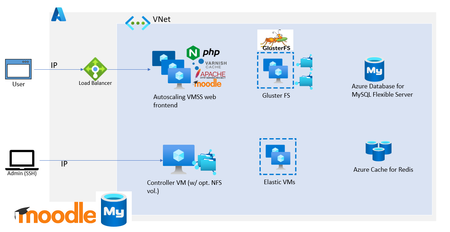
Moodle is one of the most popular open-source learning management platform empowering educators and researchers across the world to disseminate their work efficiently. It is also one of the most mature and robust OSS applications that the community has developed and improvised over the years. We have seen customers from small, medium, and large enterprises to schools, public sector, and government organizations deploying Moodle in Azure. In this blog post, I’ll share some best practices and tips for deploying Moodle on Azure based on our experiences working with several of our customers.70KViews14likes25CommentsIgnite 2025: Advancing Azure Database for MySQL with Powerful New Capabilities
At Ignite 2025, we’re introducing a wave of powerful new capabilities for Azure Database for MySQL, designed to help organizations modernize, scale, and innovate faster than ever before. From enhanced high availability and seamless serverless integrations to AI-powered insights and greater flexibility for developers, these advancements reflect our commitment to delivering a resilient, intelligent data platform. Join us as we unveil what’s next for MySQL on Azure - and discover how industry leaders are already building the future with confidence. Enhanced Failover Performance with Dedicated SLB for High-Availability Servers We’re excited to announce the General Availability of Dedicated Standard Load Balancer (SLB) for HA-enabled servers in Azure Database for MySQL. This enhancement introduces a dedicated SLB to High Availability configurations for servers created with public access or private link. By managing the MySQL data traffic path, SLB eliminates the need for DNS updates during failover, significantly reducing failover time. Previously, failover relied on DNS changes, which caused delays due to DNS TTL (30 seconds) and client-side DNS caching. What’s new with GA: The FQDN consistently resolves to the SLB IP address before and after failover. Load-balancing rules automatically route traffic to the active node. Removes DNS cache dependency, delivering faster failovers. Note: This feature is not supported for servers using private access with VNet integration. Learn more Build serverless, event-driven apps at scale – now GA with Trigger Bindings for Azure Functions We’re excited to announce the General Availability of Azure Database for MySQL Trigger bindings for Azure Functions, completing the full suite of Input, Output, and Trigger capabilities. This feature lets you build real-time, event-driven applications by automatically invoking Azure Functions when MySQL table rows are created or updated - eliminating custom polling and boilerplate code. With native support across multiple languages, developers can now deliver responsive, serverless solutions that scale effortlessly and accelerate innovation. Learn more Enable AI agents to query Azure Database for MySQL using Azure MCP Server We’re excited to announce that Azure MCP Server now supports Azure Database for MySQL, enabling AI agents to query and manage MySQL data using natural language through the open Model Context Protocol (MCP). Instead of writing SQL, you can simply ask questions like “Show the number of new users signed up in the last week in appdb.users grouped by day.”, all secured with Microsoft Entra authentication for enterprise-grade security. This integration delivers a unified, secure interface for building intelligent, context-aware workflows across Azure services - accelerating insights and automation. Learn more Greater networking flexibility with Custom Port Support Custom port support for Azure Database for MySQL is now generally available, giving organizations the flexibility to configure a custom port (between 25001 and 26000) during new server creation. This enhancement streamlines integration with legacy applications, supports strict network security policies, and helps avoid port conflicts in complex environments. Supported across all network configurations - including public access, private access, and Private Link - custom port provisioning ensures every new MySQL server can be tailored to your needs. The managed experience remains seamless, with all administrative capabilities and integrations working as before. Learn more Streamline migrations and compatibility with Lower Case Table Names support Azure Database for MySQL now supports configuring lower_case_table_names server parameter during initial server creation for MySQL 8.0 and above, ensuring seamless alignment with your organization’s naming conventions. This setting is automatically inherited for restores and replicas, and cannot be modified. Key Benefits: Simplifies migrations by aligning naming conventions and reducing complexity. Enhances compatibility with legacy systems that depend on case-insensitive table names. Minimizes support dependency, enabling faster and smoother onboarding. Learn more Unlock New Capabilities with Private Preview Features at Ignite 2025 We’re excited to announce that you can now explore two powerful capabilities in early access - Reader Endpoint for seamless read scaling and Server Rename for greater flexibility in server management. Scale reads effortlessly with Reader Endpoint (Private Preview) We’re excited to announce that the Reader Endpoint feature for Azure Database for MySQL is now ready for private preview. Reader Endpoint provides a dedicated read-only endpoint for read replicas, enabling automatic connection-based load balancing of read-only traffic across multiple replicas. This simplifies application architecture by offering a single endpoint for read operations, improving scalability and fault tolerance. Azure Database for MySQL supports up to 10 read replicas per primary server. By routing read-only traffic through the reader endpoint, application teams can efficiently manage connections and optimize performance without handling individual replica endpoints. Reader endpoints continuously monitor the health of replicas and automatically exclude any replica that exceeds the configured replication lag threshold or becomes unavailable. To enroll in the preview, please submit your details using this form. Limitations During Private Preview: Only performance-based routing is supported in this preview. Certain settings such as routing method and the option to attach new replicas to the reader endpoint can only be configured at creation time. Only one reader endpoint can be created per replica group. Including the primary server as a fallback for read traffic when no replicas are available is not supported in this preview. Get flexibility in server management with Server Rename (Private Preview) We’re excited to announce the Private Preview of Server Rename for Azure Database for MySQL. This feature lets you update the name of an existing MySQL server without recreating it, migrating data, or disrupting applications - making it easier to adopt clear, consistent naming. It provides a near zero-downtime path to a new hostname of the server. To enroll in the preview, please submit your details using this form. Limitations During Private Preview: Primary server with read replicas: Renaming a primary server that has read replicas keeps replication healthy. However, the SHOW SLAVE STATUS output on the replicas will still display the old primary server's name. This is a display inconsistency only and does not affect replication. Renaming is currently unsupported for servers using Customer Managed Key (CMK) encryption or Microsoft Entra Authentication (Entra Id). Real-World Success: Azure Database for MySQL Powers Resilient Applications at Scale Factorial Factorial, a leading HR software provider, uses Azure Database for MySQL alongside Azure Kubernetes Service to deliver secure, scalable HR solutions for thousands of businesses worldwide. By leveraging Azure Database for MySQL’s reliability and seamless integration with cloud-native technologies, Factorial ensures high availability and rapid innovation for its customers. Learn more YES (Youth Employment Service) South Africa’s largest youth employment initiative, YES, operates at national scale by leveraging Azure Database for MySQL to deliver a resilient, centralized platform for real-time job matching, learning management, and career services - connecting thousands of young people and employers, and helping nearly 45 percent of participants secure permanent roles within six months. Learn more Nasdaq At Ignite 2025, Nasdaq will showcase how it uses Azure Database for MySQL - alongside Azure Database for PostgreSQL and other Azure products - to power a secure, resilient architecture that safeguards confidential data while unlocking new agentic AI capabilities. Learn more These examples demonstrate that Azure Database for MySQL is trusted by industry leaders to build resilient, scalable applications - empowering organizations to innovate and grow with confidence. We Value Your Feedback Azure Database for MySQL is built for scale, resilience, and performance - ready to support your most demanding workloads. With every update, we’re focused on simplifying development, migration, and management so you can build with confidence. Explore the latest features and enhancements to see how Azure Database for MySQL meets your data needs today and in the future. We welcome your feedback and invite you to share your experiences or suggestions at AskAzureDBforMySQL@service.microsoft.com Stay up to date by visiting What's new in Azure Database for MySQL, and follow us on YouTube | LinkedIn | X for ongoing updates. Thank you for choosing Azure Database for MySQL!697Views2likes0Comments