azure data studio
15 Topics
Alternatives After the Deprecation of the Azure SQL Migration Extension in Azure Data Studio
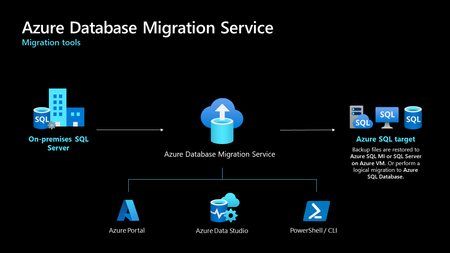
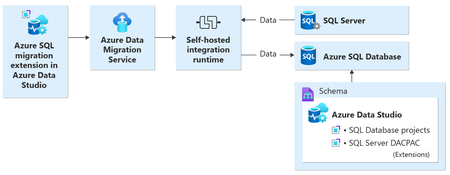
The Azure SQL Migration extension for Azure Data Studio is being deprecated and will be retired by February 28, 2026. As part of our unified and streamlined migration strategy for Azure SQL, we are consolidating all migration experiences into a consistent, scalable platform. If you are currently using the Azure SQL Migration extension, this blog will guide you through recommended replacement options for every phase of migration, whether you are moving to Azure SQL Managed Instance, SQL Server on Azure Virtual Machines, or Azure SQL Database. What is happening to the Azure SQL Migration extension in ADS? As you already know, Azure data studio will officially retire on February 28, 2026. The Azure SQL Migration extension in Azure Data Studio will also retire along with Azure Data Studio on February 28, 2026. The Azure SQL Migration extension will no longer be available in the marketplace of Azure Data Studio. What should you use instead? Below is the updated guidance for the migration tool categorized by migration phase and target. 1) Pre‑Migration: Discovery & Assessments Prior to migration, it is advisable to evaluate the SQL Server environment for readiness and to determine the right-sized Azure SQL SKU. Below are the recommended options: A) SQL Server enabled by Azure Arc Use the SQL Server migration experience in the Azure Arc portal for: Instance discovery at scale Migration assessments at scale, including: Readiness assessment for all Azure SQL targets. Performance-based, right-sized target recommendations. Projected Azure costs with the recommended target configuration. Reference: Steps to get started with the Azure Arc assessments- Deploy Azure Arc on your servers. SQL Server instances on Arc-enabled servers are automatically connected to Azure Arc. See options to optimize this. B) Automated assessments at scale using Azure DMS PowerShell and Azure CLI The Azure DataMigration modules in Azure PowerShell and Azure CLI can be used to automate assessments at scale. Learn more about how to do this. Here are the sample templates to automate the assessment workflow: Azure PowerShell DataMigration cmdlets DMS Azure CLI commands C) Azure Migrate For scenarios where assessments are required at data center level including different types of workloads like Applications, VM Servers and databases, use Azure Migrate to perform discovery and assessments at scale. Learn more about Azure Migrate. References: Review inventory Create SQL Assessment Review SQL Assessment 2) Migrations Based on the migration targets, here are the recommended tools you can use to carry out the migration: A. To Azure SQL Managed Instance The following options are available for migrating data to Azure SQL Managed Instance: 1. SQL Migration experience in Azure Arc For migrations to Azure SQL MI, leverage the streamlined SQL Migration experience in Azure Arc which lets you complete the end-to-end migration journey in a single experience. This experience provides: Evergreen assessments and right-fit Azure SQL target recommendation. Inline Azure SQL Target creation. Free Azure SQL MI Next generation General Purpose service that lets you experience the power of Azure SQL MI for free for 12 months. Near zero downtime migration using Managed Instance link powered by Distributed Availability Group technology. Secure connectivity. Reference blog: SQL Server migration in Azure Arc 2. Automated migration at scale using Azure DMS PowerShell and Azure CLI To Orchestrate migrations to Azure SQL MI at scale programmatically, use: DMS PowerShell cmdlets DMS Azure CLI commands Learn more about how to do this. B. To SQL Server on Azure Virtual Machines To migrate to SQL Server on Azure Virtual Machines, use: 1. Azure Database Migration Service (DMS) DMS supports migrating to SQL Server on Azure Virtual Machines using both online and offline methods. Your SQL Server backups can be in Azure Blob Storage or on a network SMB file share. For details on each option, see: Backups stored in Azure Blob Storage Backups maintained on network SMB file shares Note: The migration experience from SQL Server on-premises to SQL Server on Azure VM will soon be available in SQL Server enabled by Azure Arc. 2. Automated migration at scale using Azure DMS PowerShell and Azure CLI For programmatic migrations to Azure SQL Virtual Machines: DMS PowerShell cmdlets DMS Azure CLI commands Learn more about how to do this. 3. SSMS option: SQL Server Management Studio (SSMS) migration component If you can connect to both SQL Server on-premises and SQL Server running on Azure VM using SQL Server Management Studio, the migration component in SSMS can help you to migrate to SQL Server on Azure VM. For details, see SSMS Migration component. C. To Azure SQL Database Migrating a SQL Server database to Azure SQL Database typically involves migrating schema and data separately. Here are the options to perform offline and online migration to Azure SQL Database: 1. Offline migration to Azure SQL Database a. Azure Database Migration Service (DMS) portal experience Use Azure DMS portal to migrate both schema and data. Azure DMS uses Azure Data Factory and leverages the Self-hosted Integration Runtime (SHIR). Installation steps are here. b. Automated migration at scale using Azure DMS PowerShell and Azure CLI Use Azure DMS PowerShell and Azure CLI command line to orchestrate the schema and data migration to Azure SQL Database at scale: DMS PowerShell cmdlets DMS Azure CLI commands Learn more about how to do this. 2. Online migration to Azure SQL Database Using Striim To enable online migration of your mission critical databases to Azure SQL Database leverage Striim. Microsoft and Striim have entered a strategic partnership to enable continuous data replication from off-Azure SQL Servers to Azure SQL Database with near-zero downtime. For more details, refer to: Zero downtime migration from SQL Server to Azure SQL Database | Microsoft Community Hub Removing barriers to migrating databases to Azure with Striim’s Unlimited Database Migration program... To leverage the Striim program for migrations, please reach out to your Microsoft contact or submit the below feedback to get started. Summary The table below provides a summary of the available alternatives for each migration scenario. Migration Scenario Guided experience Automation experience Pre-Migration (Discovery + Assessment) SQL Migration experience in Azure Arc / Azure Migrate DMS PowerShell / Azure CLI To Azure SQL Managed Instance SQL Migration experience in Azure Arc DMS PowerShell / Azure CLI To SQL Server on Azure Virtual Machine DMS Azure Portal / SSMS migration component DMS PowerShell / Azure CLI To Azure SQL Database DMS Azure portal (offline & schema migration) / Striim (online migration) DMS PowerShell / Azure CLI (offline & schema migration) Final Thoughts Simplify your SQL migration journey and improve migration velocity to all Azure SQL targets, leverage the connected migration experiences in SQL Server enabled by Azure Arc, DMS, and SSMS. For SSMS, as a first step we brought the capabilities to perform assessment and migration to higher versions of SQL Server including to SQL Server on Azure Virtual Machines. As a next step, we are bringing cloud migration capabilities as well into SSMS. Feedback We love hearing from our customers. If you have feedback or suggestions for the product group, please use the following form: Feedback form As you begin your migration to Azure, we welcome your feedback. If you do not see suitable alternatives for any migration phases, use the feedback form to let us know so we can update the options accordingly.2.8KViews1like0CommentsGeneral Availability - DMS's PowerShell, Azure CLI, and Python SDK
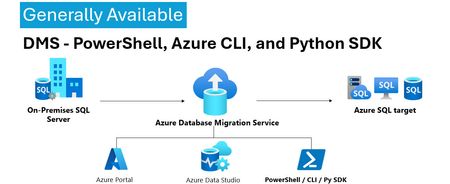
We’re excited to announce the General Availability (GA) of DMS client tools - PowerShell, Azure CLI, Python SDK and more. This milestone unlocks efficient, stable, and scalable automation options for database migration workflows—making it easier than ever to integrate DMS into your DevOps pipelines and enterprise migration strategies. 💡Introduction: With the general availability of DMS client tools - PowerShell, Azure CLI, Python SDK, users can now use stable release of: PowerShell module 1.0.0 (https://www.powershellgallery.com/packages/Az.DataMigration/1.0.0) Azure CLI extension 1.0.0 (https://learn.microsoft.com/en-us/cli/azure/datamigration?view=azure-cli-latest) DMS V2 APIs (version 2025-06-30) SDKs for multiple languages (listed below) SDKs Releases: Language GA Package / Link .Net https://www.nuget.org/packages/Azure.ResourceManager.DataMigration/1.0.0 Java https://central.sonatype.com/artifact/com.azure.resourcemanager/azure-resourcemanager-datamigration/1.1.0 Go https://pkg.go.dev/github.com/Azure/azure-sdk-for-go/sdk/resourcemanager/datamigration/armdatamigration/v2 Python azure-mgmt-datamigration · PyPI JavaScript https://www.npmjs.com/package/@azure/arm-datamigration/v/3.0.0 🔧 What’s New? Three new commands have been introduced in the latest releases of the SDK, PowerShell module, and CLI extension, as outlined below: New CLI Commands: az datamigration sql-db retry - Retry the failed SQL DB migrations. az datamigration sql-managed-instance delete - Delete Azure SQL MI’s Database Migration resource. az datamigration sql-vm delete - Delete Azure SQL VM’s Database Migration resource. New PowerShell Commands: Invoke-AzDataMigrationRetryToSqlDb - Retry the failed SQL DB migrations. Remove-AzDataMigrationToSqlManagedInstance - Delete Azure SQL MI’s Database Migration resource. Remove-AzDataMigrationToSqlVM - Delete Azure SQL VM’s Database Migration resource. 🚀Conclusion: With this GA / stable release, users can now: Use them to configure and execute migrations with full control. Automate migrations: DevOps teams can embed migration steps into CI/CD pipelines. Integrate into custom applications and orchestration tools. These support all the DMS migration scenarios—from simple lift-and-shift operations to complex logical migrations—while ensuring stability, and repeatability. For more details, refer: Documentation: Migrate databases at scale using Azure PowerShell / CLI PowerShell: Az.DataMigration Module Azure CLI: az datamigration Python SDK: azure-mgmt-datamigration · PyPI474Views2likes0CommentsMaking Azure DMS More Secure: Azure Portal Permission Enhancements
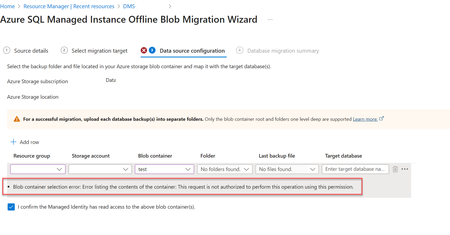
Migrating databases to Azure SQL Managed Instance or Azure SQL Virtual Machine is a critical step in modernizing enterprise infrastructure. With security and compliance top of mind, Azure Database Migration Service (DMS) has introduced key changes to its Azure portal experience—especially around permission for blob container access. Why the Change? Previously, in case of Azure Portal, DMS relied on account key-based access to Azure Blob Storage for listing and accessing backup files on the migration configuration page. While functional, this approach is not best in terms of security, especially for industries which prohibit the use of shared keys. Now, DMS's Azure portal uses security context of the current signed in user on the Azure portal to list and access backup files in the blob container, making it better security approach. Impact of the Change When migrating to Azure SQL Managed Instance or Azure SQL Virtual Machine via Azure portal make sure the current signed in user has Storage Blob Data Reader role on the Blob container that contains the backup files. This permission is needed to list folders and files in the blob container during migration setup via Azure portal only. If the current signed in user lacks the Storage Blob Data Reader role on the Blob container, users will encounter the following error: Error: "Blob container selection error: Error listing the contents of the container: This request is not authorized to perform this operation using this permission." Solution: Make sure the current signed in user has "Storage Blob Data Reader" role on the Blob container that contains the backup files. For more information, refer : Tutorial: Migrate SQL Server to Azure SQL Managed Instance - Azure Database Migration Service | Microsoft Learn Tutorial: Migrate SQL Server to SQL Server on Azure Virtual Machine Using Azure Data Studio - Azure Database Migration Service | Microsoft Learn389Views0likes0CommentsEnhanced SQL Migration Tracking & Bringing SQL Server Arc Assessments to Azure Data Studio
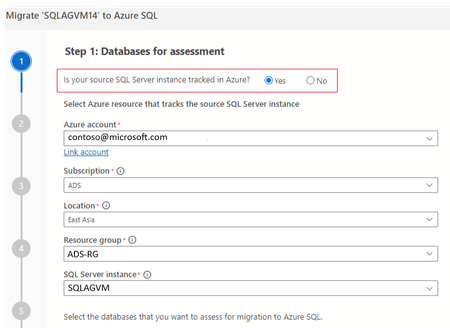
In the ever-evolving landscape of data management, ensuring seamless and efficient migrations is crucial for businesses. Migration is a multi-step process and typically requires multiple tools to complete the migration. To enhance the migration experience, we are bringing a new feature that enhances the migration tracking experience across tools. In this blog post we delve into the benefits this feature offers to streamline the migration tracking process. This feature is available for Azure Data studio users via the latest Azure SQL Migration extension v1.5.8 The Azure SQL migration extension now offers 2 new features in ADS to help users in their migration journey. Ability to view Arc assessments, SKU recommendation in Azure Data Studio Ability to track the migration via SQL Server instance (At no additional cost!) Viewing Arc assessments in Azure Data Studio for SQL Server enabled by Azure Arc If you are planning to migrate SQL Server instances that are Arc-enabled, The Azure Data studio now helps you jump start the migration by providing the ability to view the pre-computed Arc assessments. ADS now provides a link to the pre-computed assessments in the Arc experience Azure portal, which provides migration readiness assessment, SKU recommendation and pricing information (coming soon). Users can continue with rest of their migration journey in the Arc experience. To view the pre-computed assessments computed by Arc, users have to select Yes to the ‘Is your SQL Server instance tracked in Azure? ‘and fill in the Azure resource details of the SQL Server Instance enabled by Azure Arc. The pre-computed assessments and SKU recommendations will be generated as a navigation link to users like below: Ability to streamline the migration tracking process For SQL Server instances which are not Arc-enabled, this feature provides an ability to track the migration by creating an Azure resource with no additional cost associated. Once this resource has been created, users can select this migration resource which is created for their successive migrations that take place for the same source & avail the assessment and readiness benefits. This migration tracking ability is available for both Azure Data Studio and Database migration service portal. Below images show the experience for this ability in Azure DMS portal:Leverage GitHub Copilot to work with MySQL in Azure Data Studio
GitHub Copilot is an AI-powered code completion tool developed by GitHub and powered by OpenAI. It leverages machine learning models trained on vast amounts of code to generate context-aware code suggestions to make you more productive. If you’re a developer wanting to learn MySQL or to improve your productivity while developing with MySQL, then GitHub Copilot on Azure Data Studio can help you get started.6.4KViews1like1CommentLocal Development using Azure Cosmos DB Emulator at no Cost
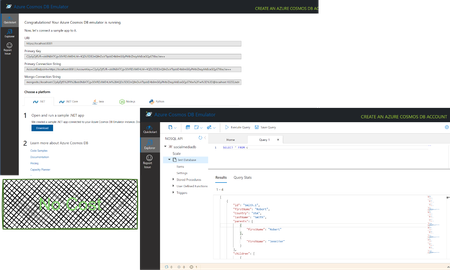
Discover the Azure Cosmos DB Emulator – your key to a smooth, cost-effective local development experience. This guide equips you with everything you need: installation steps, using the Data Explorer, connecting with Azure Data Studio, and consuming Cosmos DB with JavaScript/TypeScript client libraries. Boost your development efficiency and build robust applications with confidence.19KViews0likes0CommentsGetting Started with GitHub Copilot in Azure Data Studio
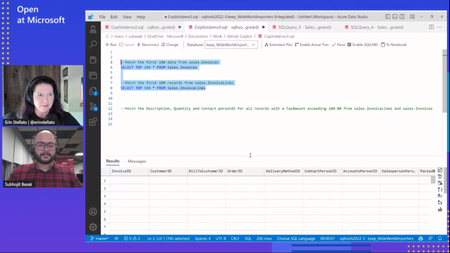
Copilot in Azure Data Studio is a game-changer for developers worldwide. Its ability to provide intelligent code suggestions and completions significantly improves productivity, enhances code quality, and promotes a culture of learning and collaboration.11KViews2likes0CommentsIntroducing Azure SQL Database offline migrations for the Azure SQL migration extension
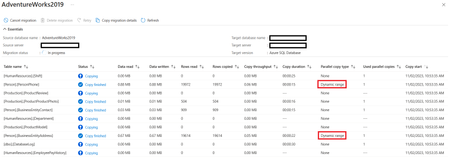
The new migration capability in the Azure SQL Migration extension provides an end-to-end experience to modernize SQL Server to Azure SQL Database. The extension allows you to perform a migration readiness check with actions to remediate possible migration blockers, export the assessment results, and get right-sized Azure recommendations.18KViews3likes1Comment