azure communication services
22 TopicsRetirement of Azure Communication Services
Microsoft has announced several retirement and breaking changes in September 2026. One notable change is the retirement of Azure Communication Services as a standalone offering, scheduled to take effect on September 30, 2028. Organizations currently using Azure Communication Services should review the announcement, assess the potential impact on their environments, and begin planning accordingly. https://learn.microsoft.com/en-us/azure/communication-services/acs-retirement-and-breaking-changes-guide Which Microsoft service would be the best option for sending approximately 10,000 bulk emails per day?360Views0likes2Comments
Issue with Speech-to-Text Integration in Azure Communication Services Using C#
Context: We are building a bot using Azure Communication Services (ACS) and Azure Speech Services to handle phone calls. The bot asks questions (via TTS) and captures user responses using speech-to-text (STT). What We’ve Done: Created an ACS instance and acquired an active phone number. Set up an event subscription to handle callbacks for incoming calls. Integrated Azure Speech Services for STT in C#. Achievements: Successfully connected calls using ACS. Played TTS prompts generated from an Excel file. Challenges: User responses are not being captured. Despite setting InitialSilenceTimeout to 10 seconds, the bot skips to the next question after 1–2 seconds without recognizing speech. The bot does not reprompt the user even when no response is detected. Help Needed: How can we ensure accurate real-time speech-to-text capture during ACS telephony calls? Are there better configurations or alternate approaches for speech recognition in ACS? Additional Context: Following the https://github.com/Azure-Samples/communication-services-dotnet-quickstarts/tree/main/callautomation-openai-sample-csharp. Using Azure Speech Services and ACS SDKs. Code Snippet (C#): // Recognize user speech async Task<string> RecognizeSpeechAsync(CallMedia callConnectionMedia, string callerId, ILogger logger) { // Configure recognition options var recognizeOptions = new CallMediaRecognizeSpeechOptions( targetParticipant: CommunicationIdentifier.FromRawId(callerId)) { InitialSilenceTimeout = TimeSpan.FromSeconds(10), // Wait up to 10 seconds for the user to start speaking EndSilenceTimeout = TimeSpan.FromSeconds(5), // Wait up to 5 seconds of silence before considering the response complete OperationContext = "SpeechRecognition" }; try { // Start speech recognition var result = await callConnectionMedia.StartRecognizingAsync(recognizeOptions); // Handle recognition success if (result is Response<StartRecognizingCallMediaResult>) { logger.LogInformation($"Result: {result}"); logger.LogInformation("Recognition started successfully."); // Simulate capturing response (replace with actual recognition logic) return "User response captured"; // Replace with actual response text from recognition } logger.LogWarning("Recognition failed or timed out."); return string.Empty; // Return empty if recognition fails } catch (Exception ex) { logger.LogError($"Error during speech recognition: {ex.Message}"); return string.Empty; } }216Views0likes1Comment
How to Fix Azure Event Grid Entra Authentication issue for ACS and Dynamics 365 integrated Webhooks
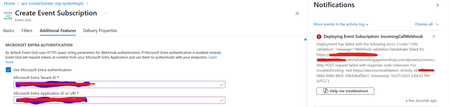
Introduction: Azure Event Grid is a powerful event routing service that enables event-driven architectures in Azure. When delivering events to webhook endpoints, security becomes paramount. Microsoft provides a secure webhook delivery mechanism using Microsoft Entra ID (formerly Azure Active Directory) authentication through the AzureEventGridSecureWebhookSubscriber role. Problem Statement: When integrating Azure Communication Services with Dynamics 365 Contact Center using Microsoft Entra ID-authenticated Event Grid webhooks, the Event Grid subscription deployment fails with an error: "HTTP POST request failed with unknown error code" with empty HTTP status and code. For example: Important Note: Before moving forward, please verify that you have the Owner role assigned on app to create event subscription. Refer to the Microsoft guidelines below to validate the required prerequisites before proceeding: Set up incoming calls, call recording, and SMS services | Microsoft Learn Why This Happens: This happens because AzureEventGridSecureWebhookSubscriber role is NOT properly configured on Microsoft EventGrid SP (Service Principal) and event subscription entra ID or application who is trying to create event grid subscription. What is AzureEventGridSecureWebhookSubscriber Role: The AzureEventGridSecureWebhookSubscriber is an Azure Entra application role that: Enables your application to verify the identity of event senders Allows specific users/applications to create event subscriptions Authorizes Event Grid to deliver events to your webhook How It Works: Role Creation: You create this app role in your destination webhook application's Azure Entra registration Role Assignment: You assign this role to: Microsoft Event Grid service principal (so it can deliver events) Either Entra ID / Entra User or Event subscription creator applications (so they can create event grid subscriptions) Token Validation: When Event Grid delivers events, it includes an Azure Entra token with this role claim Authorization Check: Your webhook validates the token and checks for the role Key Participants: Webhook Application (Your App) Purpose: Receives and processes events App Registration: Created in Azure Entra Contains: The AzureEventGridSecureWebhookSubscriber app role Validates: Incoming tokens from Event Grid Microsoft Event Grid Service Principal Purpose: Delivers events to webhooks App ID: Different per Azure cloud (Public, Government, etc.) Public Azure: 4962773b-9cdb-44cf-a8bf-237846a00ab7 Needs: AzureEventGridSecureWebhookSubscriber role assigned Event Subscription Creator Entra or Application Purpose: Creates event subscriptions Could be: You, Your deployment pipeline, admin tool, or another application Needs: AzureEventGridSecureWebhookSubscriber role assigned Although the full PowerShell script is documented in the below Event Grid documentation, it may be complex to interpret and troubleshoot. Azure PowerShell - Secure WebHook delivery with Microsoft Entra Application in Azure Event Grid - Azure Event Grid | Microsoft Learn To improve accessibility, the following section provides a simplified step-by-step tested solution along with verification steps suitable for all users including non-technical: Steps: STEP 1: Verify/Create Microsoft.EventGrid Service Principal Azure Portal → Microsoft Entra ID → Enterprise applications Change filter to Application type: Microsoft Applications Search for: Microsoft.EventGrid Ideally, your Azure subscription should include this application ID, which is common across all Azure subscriptions: 4962773b-9cdb-44cf-a8bf-237846a00ab7. If this application ID is not present, please contact your Azure Cloud Administrator. STEP 2: Create the App Role "AzureEventGridSecureWebhookSubscriber" Using Azure Portal: Navigate to your Webhook App Registration: Azure Portal → Microsoft Entra ID → App registrations Click All applications Find your app by searching OR use the Object ID you have Click on your app Create the App Role: Display name: AzureEventGridSecureWebhookSubscriber Allowed member types: Both (Users/Groups + Applications) Value: AzureEventGridSecureWebhookSubscriber Description: Azure Event Grid Role Do you want to enable this app role?: Yes In left menu, click App roles Click + Create app role Fill in the form: Click Apply STEP 3: Assign YOUR USER to the Role Using Azure Portal: Switch to Enterprise Application view: Azure Portal → Microsoft Entra ID → Enterprise applications Search for your webhook app (by name) Click on it Assign yourself: In left menu, click Users and groups Click + Add user/group Under Users, click None Selected Search for your user account (use your email) Select yourself Click Select Under Select a role, click None Selected Select AzureEventGridSecureWebhookSubscriber Click Select Click Assign STEP 4: Assign Microsoft.EventGrid Service Principal to the Role This step MUST be done via PowerShell or Azure CLI (Portal doesn't support this directly as we have seen) so PowerShell is recommended You will need to execute this step with the help of your Entra admin. # Connect to Microsoft Graph Connect-MgGraph -Scopes "AppRoleAssignment.ReadWrite.All" # Replace this with your webhook app's Application (client) ID $webhookAppId = "YOUR-WEBHOOK-APP-ID-HERE" #starting with c5 # Get your webhook app's service principal $webhookSP = Get-MgServicePrincipal -Filter "appId eq '$webhookAppId'" Write-Host " Found webhook app: $($webhookSP.DisplayName)" # Get Event Grid service principal $eventGridSP = Get-MgServicePrincipal -Filter "appId eq '4962773b-9cdb-44cf-a8bf-237846a00ab7'" Write-Host " Found Event Grid service principal" # Get the app role $appRole = $webhookSP.AppRoles | Where-Object {$_.Value -eq "AzureEventGridSecureWebhookSubscriber"} Write-Host " Found app role: $($appRole.DisplayName)" # Create the assignment New-MgServicePrincipalAppRoleAssignment ` -ServicePrincipalId $eventGridSP.Id ` -PrincipalId $eventGridSP.Id ` -ResourceId $webhookSP.Id ` -AppRoleId $appRole.Id Write-Host "Successfully assigned Event Grid to your webhook app!" Verification Steps: Verify the App Role was created: Your App Registration → App roles You should see: AzureEventGridSecureWebhookSubscriber Verify your user assignment: Enterprise application (your webhook app) → Users and groups You should see your user with role AzureEventGridSecureWebhookSubscriber Verify Event Grid assignment: Same location → Users and groups You should see Microsoft.EventGrid with role AzureEventGridSecureWebhookSubscriber Sample Flow: Analogy For Simplification: Lets think it similar to the construction site bulding where you are the owner of the building. Building = Azure Entra app (webhook app) Building (Azure Entra App Registration for Webhook) ├─ Building Name: "MyWebhook-App" ├─ Building Address: Application ID ├─ Building Owner: You ├─ Security System: App Roles (the security badges you create) └─ Security Team: Azure Entra and your actual webhook auth code (which validates tokens) like doorman Step 1: Creat the badge (App role) You (the building owner) create a special badge: - Badge name: "AzureEventGridSecureWebhookSubscriber" - Badge color: Let's say it's GOLD - Who can have it: Companies (Applications) and People (Users) This badge is stored in your building's system (Webhook App Registration) Step 2: Give badge to the Event Grid Service: Event Grid: "Hey, I need to deliver messages to your building" You: "Okay, here's a GOLD badge for your SP" Event Grid: *wears the badge* Now Event Grid can: - Show the badge to Azure Entra - Get tokens that say "I have the GOLD badge" - Deliver messages to your webhook Step 3: Give badge to yourself (or your deployment tool) You also need a GOLD badge because: - You want to create event grid event subscriptions - Entra checks: "Does this person have a GOLD badge?" - If yes: You can create subscriptions - If no: "Access denied" Your deployment pipeline also gets a GOLD badge: - So it can automatically set up event subscriptions during CI/CD deployments Disclaimer: The sample scripts provided in this article are provided AS IS without warranty of any kind. The author is not responsible for any issues, damages, or problems that may arise from using these scripts. Users should thoroughly test any implementation in their environment before deploying to production. Azure services and APIs may change over time, which could affect the functionality of the provided scripts. Always refer to the latest Azure documentation for the most up-to-date information. Thanks for reading this blog! I hope you found it helpful and informative for this specific integration use case 😀1KViews4likes1CommentStreamline your contact center telephony with Teams Phone extensibility
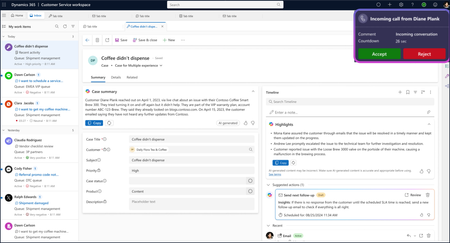
Microsoft Teams Phone brings intelligent, cloud-based calling to Teams, streamlining operations and delivering secure, reliable voice experiences. Until recently, however, enabling enterprise calling in the contact center meant deploying separate solutions, adding administrative complexity and redundant costs. Today, we’re excited to announce the general availability of Teams Phone extensibility for a growing ecosystem of contact center solutions, including Microsoft Dynamics 365 Contact Center. This new capability allows customers to extend Teams Phone investments into the contact center, enabling customers to use a single, integrated calling solution across both unified communications (UCaaS) and contact center (CCaaS) environments. Organizations can leverage Teams Phone extensibility to: Apply existing Teams Phone licenses to enable telephony for users of Dynamics 365 Contact Center or other certified ISV contact center solutions 1 . Avoid procuring, configuring, managing, and training users on a separate phone system for contact center deployments. Leverage the broad geographic availability of Teams Phone through calling plans available in 36 countries, Operator Connect in 96 countries, and Direct Routing globally. Benefit from the extensive features of Teams Phone, including the familiar Teams management interface. With these benefits, you can now streamline your telephony and reduce the number of solutions to license and manage across your organization. Learn more about the features of Teams Phone extensibility including conversational AI integration. Unify your calling capabilities for time and cost savings Teams Phone extensibility is a significant development for customers. It reflects how Dynamics 365 Contact Center helps organizations innovate faster and reduce costs with Microsoft’s unified cloud platform, low-code tools, and built-in AI – making it easier to build, manage, and scale contact center solutions without complex infrastructure or costly custom development. Teams Phone extensibility enables organizations to unify calling and contact center experiences for both agents and customers, all within a secure, familiar Microsoft environment. A commissioned Total Economic Impact™ study conducted by Forrester Consulting found that organizations using Teams Phone extensibility with Dynamics 365 Contact Center could achieve a projected return on investment up to 345% over three years 2 . These savings stem from lower operational and service fees, streamlined administration, and greater call center efficiency. With its certification in progress, Teams Phone extensibility with Dynamics 365 Contact Center is more than an integration. It’s a shift toward unified, intelligent communication that helps businesses operate smarter and deliver better customer experiences. Download the full study to learn more. ISV partners provide additional choice and flexibility Teams Phone extensibility is also supported by contact center ISV solutions that utilize the Teams Unify integration model. ISV solutions that have completed certification for Teams Phone extensibility include AudioCodes, CentrePal, ComputerTalk, Heedify, and Landis. 1 We look forward to adding additional certified contact solutions to this growing ecosystem in the months ahead. If you are a contact center developer, learn more about enabling Teams Phone calling for your CCaaS solution. Contact center ISVs that are Unify-model certified for Teams Phone extensibility include AudioCodes, CentrePal, ComputerTalk, Heedify, and Landis. Power your contact center with the calling capabilities of Teams Phone If you're already using Teams Phone and Dynamics 365 Contact Center or any of the certified ISV solutions, you can start taking advantage of Teams Phone extensibility today. Not yet using these solutions? You can set up trials for both Teams Phone and Dynamics 365 Contact Center to explore the benefits firsthand. If you're interested in trialing Teams Phone extensibility with a certified ISV contact center solution, please contact your preferred CCaaS vendor for more information. 1 While certification is not required to access the Azure Communication Services API that enables Teams Phone extensibility, we recommend selecting a contact center solution that has completed the certification process for the best experience. 2 Projected benefits for a composite customer. New Technology: The Projected Total Economic Impact™ Of Microsoft Dynamics 365 Contact Center with Teams Phone extensibility, Forrester Consulting, Casey Sirotnak, Jonathan Lipsitz, August 2025.3KViews5likes1CommentAzure Communication Services - Python SDK Call Media not working with CallConnectionClient
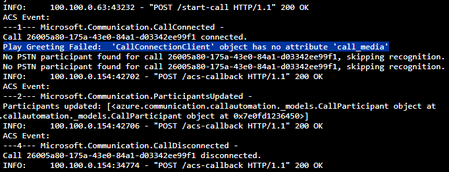
Hi team, I’m working on a FastAPI service that uses Azure Communication Services Call Automation (Python SDK) to handle outbound PSTN calls and real-time speech interaction. So far it is able to make phone calls but not able to do media handling part during conversation. Environment: Python version: 3.12-slim Package: azure-communication-callautomation (version: 1.4.0) Hosting: Azure Container Apps speech cognitive resource is connected to azure communication services https://drive.google.com/file/d/1uC2S-LNx_Ybpp1QwOCtqFS9pwA84mK7h/view?usp=drive_link What I’m trying to do: Place an outbound call to a PSTN number Play a greeting (TextSource) when the call is connected Start continuous speech recognition, forward transcript to an AI endpoint, then play the response back Code snippet: # Play greeting try: call_connection = client.get_call_connection(call_id) call_media = call_connection.call_media() call_media.play_to_all( play_source, operation_context="welcome-play" ) print("Played welcome greeting.") except Exception as e: print("Play Greeting Failed: ", str(e)) # start Recognition participants = list(call_connection.list_participants()) for p in participants: if isinstance(p.identifier, PhoneNumberIdentifier): active_participants[call_id] = p.identifier try: call_connection = client.get_call_connection(call_id) call_media = call_connection.call_media() call_media.start_recognizing_media( target_participant=p.identifier, input_type="speech", interrupt_call_media_operation=True, operation_context="speech-recognition" ) print("Started recognition immediately after call connected.") except Exception as e: print("Recognition start failed:", str(e)) break target_participant = active_participants.get(call_id) if not target_participant: print(f"No PSTN participant found for call {call_id}, skipping recognition.") Issue: When the CallConnected event fires,, I get different errors depending on which method I try: 'CallConnectionClient' object has no attribute 'call_media' 'CallConnectionClient' object has no attribute 'get_call_media_operations' 'CallConnectionClient' object has no attribute 'play_to_all' 'CallConnectionClient' object has no attribute 'get_call_media_client' 'CallConnectionClient' object has no attribute 'get_call_media' Also some import errors: ImportError: cannot import name 'PlayOptions' from 'azure.communication.callautomation' ImportError: cannot import name 'RecognizeOptions' from 'azure.communication.callautomation' ImportError: cannot import name 'CallMediaRecognizeOptions' from 'azure.communication.callautomation' ImportError: cannot import name 'CallConnection' ... Did you mean: 'CallConnectionState'? This makes me unsure which API is the correct/updated way to access play_to_all and start_recognizing_media. https://drive.google.com/file/d/1xI-sWil0OKfAfGwjIgG25eD7CEK95rKc/view?usp=drive_link Questions: What is the current supported way to access call media operations (play / speech recognition) in the Python SDK? Are there breaking changes between SDK versions that I should be aware of? Should I upgrade to a specific minimum version to ensure .call_media works? Thanks in advance!270Views0likes1Comment
Events for an agent not picking up the call
Hi, We have a requirement where the caller should be transferred to voicemail recording when the agent does not pick up the call. Currently, if the agent does not pick up the call, the caller reaches the agent's personal voicemail. Is it possible to interrupt that and redirect the call to ACS voicemail recording mechanism? The ACS framework send a "CallTransferAccepted" if the personal voicemail is reached. Are there any events which can be used to detect that agent did not pick the call. We tried the Job router, but it does not seem to detect that agent is not picking the call. Any suggestions? Thanks357Views1like1CommentCalling a phone and playing a message from logic apps
Hi, My objective is to have a logic app that makes a server side outbound phone call, and plays a prerecorded message, that's it. I've been looking at https://github.com/Azure-Samples/communication-services-dotnet-quickstarts/tree/main/OutboundCallReminder but I'm getting lost in understanding all the moving parts. Is there a demo walkthrough article or webinar available ? Alternatively, is there a power automate connector available for this scenario ? Or has anybody done this just using REST API for Azure Communication Services ? A simplified sample would be exactly what I'm looking for. Stephane1.1KViews0likes2CommentsTransition smoothly from Twilio Video to Azure
If your company relies on Twilio for its video communications, now is the time to explore alternative solutions before its service deprecation. Join our livestream where we'll talk about Azure Communication Services real-time video calling solutions as an alternative to Twilio video. We will also cover the top-of-mind considerations for customers while making this transition. Register here to access the livestream - Events | Microsoft Reactor900Views0likes0CommentsSeeking Insights on Marketing/Campaign Emails with Azure Communication Services
Hi everyone! I'm currently exploring options for sending marketing/campaign emails, and I'm particularly interested in knowing if there's a way to utilize Azure Communication Services for this purpose. Has anyone delved into this before? Any insights or experiences you could share would be greatly appreciated! Additionally, I'm curious about the integration possibilities with Sendy and Azure Communication Services. Can someone provide guidance on whether Sendy can be seamlessly integrated with Azure Communication Services, akin to how it works with Amazon SES? On a broader note, it seems like a great idea for Microsoft to expand the options for marketing/campaign emails within Azure Communication Services. Perhaps having upfront deployment features, surpassing the Microsoft 365 Email Sending Limits, could add significant value. Your valuable insights on these topics would not only assist me in making informed decisions but could also benefit others in the community. Please feel free to share your thoughts and experiences! Looking forward to hearing from you.Solved1.4KViews2likes1Comment