azure blob storage
92 TopicsAzure Storage Discovery now offers advanced capacity insights
Azure Storage Discovery is introducing advanced capacity insights to help customers gain deeper visibility into their data estate, identify inactive or inefficiently stored data, understand storage composition and retention considerations, and pinpoint resources for further investigation and optimization.387Views0likes1Comment
Read contents of multiple blobs at once using a single API Call
I have a list of multiple blob names whose contents I need to read at once. But from the documentation, I could find only api that allows me to read each blob at a time. This approach takes a lot of time and is expensive operation as it involves multiple REST API calls. Is there an api that allows me to pass the list of blobnames and access it contents using one API call ? Thanks Satya644Views0likes1Comment
Storage container copy to another container for versioning
Scenario: Static website deployed to Azure storage $web container I need to copy the $web container to another container each time the $web is updated. Each time copying container should be different and it should be automatically created using scripting and naming can be using timestamp and date. I need to initiate this through git Actions if possible. I need advice on how to achieve this. is this possible using Logic Apps Azure Functions or Data lake Storage396Views0likes1CommentTLS 1.0 and 1.1 support will be removed for new & existing Azure storage accounts starting Feb 2026
Update on October 13, 2026: Starting on October 14, 2026, changes will start rolling out to block existing storage accounts from downgrading their minimum TLS version to 1.0 or 1.1. Update in September 2025: This post was edited to reflect the retirement date change from November 1, 2025 to February 3, 2026. To meet evolving technology and regulatory needs and align with security best practices, we are removing support for Transport Layer Security (TLS) 1.0 and 1.1 for both existing and new storage accounts in all clouds. TLS 1.2 will be the minimum supported TLS version for Azure Storage starting February 3, 2026. Azure Storage currently supports TLS 1.0 and 1.1 (for backward compatibility) and TLS 1.2 on public HTTPS endpoints. TLS 1.2 is more secure and faster than older TLS versions. TLS 1.0 and 1.1 do not support modern cryptographic algorithms and cipher suites. Many of the Azure storage customers are already using TLS 1.2 and we are sharing this guidance to expedite the transition for customers currently on TLS 1.0 and 1.1. Customers must secure their infrastructure by using TLS 1.2+ with Azure Storage by February 2, 2026. The older TLS versions (1.0 and 1.1) are being deprecated and removed to meet evolving standards (FedRAMP, NIST), and provide improved security for our customers. This change will impact both existing and new storage accounts using TLS 1.0 and 1.1. To avoid disruptions to your applications connecting to Azure Storage, you must migrate to TLS 1.2 and remove dependencies on TLS version 1.0 and 1.1, by February 2, 2026. Learn more about how to migrate to TLS1.2. As best practice, we also recommend using Azure policy to enforce a minimum TLS version. Learn more here about how to enforce a minimum TLS version for all incoming requests. If you already use Azure Policy to enforce TLS version, minimum supported version after this change rolls out will be TLS 1.2. Help and Support If you have questions, get answers from community experts in Microsoft Q&A. If you have a support plan and you need technical help, create a support request: For Issue type, select Technical. For Subscription, select your subscription. For Service, select My services. For Service type, select Blob Storage. For Resource, select the Azure resource you are creating a support request for. For Summary, type a description of your issue. For Problem type, select Connectivity For Problem subtype, select Issues using TLS.124KViews3likes5CommentsGenerally Available: Restrict usage of user delegation SAS to an Entra ID identity
Shared access signatures (SAS) grant time-bound, scoped access to Azure Storage resources without sharing account keys. Over time, Azure Storage has continued to strengthen SAS security, moving from account keys to user delegation (UD) SAS secured by Microsoft Entra ID. Today, we’re taking the next step forward by announcing general availability for user-bound user delegation SAS, an extension of UD SAS that ensures a SAS token can only be used by a specific Entra ID identity. This new capability helps customers significantly reduce the risk of unintended access while preserving the flexibility of SAS. UD SAS is an existing feature which utilizes Entra ID and Azure role-based access control (RBAC). Users retrieve a user delegation key tied to their Entra ID account and then use it to create SAS tokens granting a subset of their own access rights. The resulting token can be traced to the delegator and can only be valid for up to 7 days. User-bound UD SAS is an extension of user delegation (UD) SAS which allows users to create a more secure SAS token by restricting the usage of the SAS token to an end user identity. The delegator specifies the Entra identity (security principal) of the end user in the SAS token and the end user needs to authenticate to Entra ID to use the token. The end user can either be in the same tenant or a different tenant as the delegator. Pricing and availability There is no additional cost for user-bound user delegation SAS. Pricing is based on the standard read/write transaction costs for your storage account type. To learn more, please see Azure Storage Pricing. User-bound user delegation SAS is available in all public regions. It is available via REST APIs, SDKs, PowerShell, CLI, and Portal. Getting started Getting started is simple: User-bound user delegation SAS is available on all GPv2 storage accounts in public regions. If the end user of the SAS token is in a different tenant, the allowCrossTenantDelegationSas setting must be enabled on the storage account. If you are not planning on using this feature cross-tenant, the account setting can remain disabled. Perform the following steps in the create a user delegation SAS documentation to generate and use a user-bound UD SAS token: Ensure you have the correct RBAC roles assigned to the delegator to create a user delegation key. These roles will include the Storage <Service> Data Contributor and Storage <Service> Delegator (replace Service with the respective service you are using). Here are all of the applicable roles for each service: Azure Blob Azure Files Azure Tables Azure Queues Storage Blob Data Contributor Storage Files Data Contributor Storage Table Data Contributor Storage Queue Data Contributor Storage Blob Delegator Storage Files Delegator Storage Table Delegator Storage Queue Delegator Get a user delegation key (instructions here) Get the OAuth object ID and tenant ID from your end user. They will have to get these IDs (instructions here) and provide them to you. Create the user-bound user delegation SAS token (instructions here. Note that the steps are the same as for a normal UD SAS token; you will just have to specify the end user and tenant if applicable). Share the SAS token to the application/user intended to access Azure Storage. Tokens should be passed within applications automatically or shared via key vault for best practice. Feedback If you need help, create a support request.664Views2likes0CommentsAccelerated AI & Analytics workload on Azure Blob Storage: Up to 25x faster List Blobs operations
Today Azure Storage introduces in preview a new List Blobs optimization that accelerates listing operations by up to 25x with up to 15x lower client-side CPU utilization allowing customers to return millions of objects per second in List Blobs results. The list results are now returned in Apache Arrow format, a highly optimized and compact columnar response format that allows more efficient parsing and reduced client-side CPU utilization. Clients can now parallelize object list operations efficiently across multiple concurrent requests, while maintaining the same strong consistency of listing results that applications require. This increased performance and lower client CPU utilization is delivered within the existing List Blobs API via just a simple header change and is automatically invoked when using the updated Azure Blob Storage SDK’s. Why we built this Object storage was originally designed to provide low-cost, resilient data access through simple REST APIs. Early systems contained only a few million objects and were listed infrequently, so listing performance was not a priority. Cloud, big data, mobile, and cloud-native computing steadily increased data volumes and access demands. Since 2020, foundation models, LLMs, and large GPU fleets have pushed object storage to trillions of objects, making it an active data layer for AI. Modern AI and analytics workloads operates at the scale of trillions of objects. These workloads must repeatedly discover and inventory vast datasets for pre-training, analytics, fine-tuning, and inference, making frequent listing operations a significant source of storage-system pressure and client-side CPU consumption. Downstream AI training and data analytics jobs are gated by the time required to enumerate immense datasets, while parsing the results consumes client-side CPU that could otherwise run the workload. To meet these rapidly growing demands of AI workloads, we’ve built the next generation of Azure Blob Storage listing capabilities that deliver the performance required at this massive scale. Next, we will dive deeper into the details of how List Blobs performance and scalability have been accelerated and how simple it is for customers to take advantage of this new level of performance. Faster, more efficient, listing results with lower client CPU utilization The Apache Arrow format was selected as the most efficient new way to deliver the performance and scalability gains required for efficiently listing millions of objects per second. Apache Arrow is an open-source, compact columnar format that returns List Blobs results in an optimized response roughly one third the size of the XML format used by most cloud object-storage listing APIs, making parsing faster and easier. The new format is enabled with a simple request-header change. The List Blobs API then packages and accelerates results automatically while preserving strong consistency, so newly written objects remain immediately visible. Because Apache Arrow is compact and efficient to parse, client-side CPU utilization per object listed decreased by up to 15x, freeing compute resources for the workload itself. Submitting multiple List Blobs requests concurrently further improves performance, delivering up to a 25x increase in enumeration speed with a single request-header change, while preserving schema consistency and compatibility with existing XML responses. This new List Blobs performance enhancement via Apache Arrow remains an additive, opt-in extension of the existing List Blobs API, not a replacement. The existing XML-based List Blobs API remains unchanged, and current clients not adopting the new header continue to work with no breaking changes, but without the performance and lower CPU-utilization benefits. The next figure shows the comparison of a parallelized listing operation using Apache Arrow format compared with the XML baseline on 16 clients and 48 threads per client. rclone accelerates listing of 100K objects from 24 seconds to 1.1 seconds rclone is a popular command-line program to manage, copy, move and replicate files on and between cloud storage destinations. rclone is a widely used open-source tool for moving and syncing data across almost all types of cloud storage. Listing is a critical part of rclone’s synchronization workflow. To perform these data management operations at scale for large numbers of objects, rclone must enumerate the objects that are intended to be copied, moved, or replicated. For example, before and after syncing Azure Blob Storage containers, rclone performs a large-scale listing to compare the source and target states. After updating rclone to incorporate the simple header change for the enhanced Apache Arrow-based List Blobs API calls, rclone was able to reduce their List Blobs time-to-completion by 21.7x from 24 seconds to 1.1 seconds on 100K object datasets. The chart below shows rclone's measured wall clock time for listing a single container with 100,000 entries (columns, left axis) alongside the resulting speedup versus the classic XML path (line, right axis). Two things stand out in the results: Apache Arrow is an immediate win on its own: With no parallelism at all, sequential Arrow listing is 3.5× faster than the current XML-based List Blobs results, reducing listing operation time to completion from 23.9 seconds to 6.9 seconds . Parallel enumeration compounds the gains: Throughput climbs steadily with concurrency, reaching a 21.7× speedup at a parallelism of 30 and completing the same listing of 100,000 entries in just 1.1 seconds. The accelerated List Blobs results are returned with the same consistency using the same List Blobs API but now returned much faster with no breaking changes for existing clients. That is exactly the outcome we set out to deliver with this new capability. In rclone's own words about these results: " rclone has to list containers before it can sync them; with Apache Arrow and parallelism enabled this will make a sync of a directory with millions of files get going 20x faster. The Azure Storage team has been very responsive to our feedback during the preview which made the integration straightforward. The new Go SDK works very well and required very few code changes. Our Azure Blob Storage users are going to love this!" Nick Craig-Wood, rclone Lead Developer To get started, you can download rclone from the official rclone website. If you are running rclone v1.74.0 or later you can enable the Apache Arrow listing with the --azureblob-use-arrow-list flag and enable listing parallelism with --azureblob-list-parallelism. As described in the testing, if you set “--azureblob-list-parallelism 30” this will get you the most performance listing from Azure with Arrow listing also enabled. A sincere thank you to the rclone community for adopting List Blobs with Apache Arrow early and sharing such clear, quantified results. Feedback like that is invaluable as we advance toward general availability. Happy listing rcloners! How to get started At the REST layer, the Arrow response is negotiated with the Accept: application/vnd.apache.arrow.stream header on a minimal x-ms-version of 2026-06-06 or later. This will return a response content that will be an Apache Arrow IPC stream that can be decoded and used to instantiate a RecordBatchStreamReader using Apache Arrow SDKs in any language. An example of decoding from Rest API response is provided below using Apache Arrow Python SDK for decoding: table = pa.ipc.open_stream(resp.content).read_all() print(table.schema) print("\nrows:", table.num_rows, " columns:", table.num_columns) Name: string not null Creation-Time: timestamp[s] Last-Modified: timestamp[s] BlobType: string ResourceType: string not null Etag: string Content-Length: uint64 Content-Type: string Content-MD5: string AccessTier: string AccessTierInferred: bool LeaseState: string LeaseStatus: string ServerEncrypted: bool -- schema metadata -- NumberOfRecords: '100' NextMarker: '' rows: 100 columns: 14 import pandas as pd df = table.to_pandas() df[["Name", "BlobType", "Content-Length", "size_mb", "AccessTier"]].head(6) Name BlobType Content-Length AccessTier 0 train_chunk10_shard1.jsonl.zst BlockBlob 215 Hot 1 train_chunk10_shard10.jsonl.zst BlockBlob 216 Hot 2 train_chunk10_shard2.jsonl.zst BlockBlob 215 Hot 3 train_chunk10_shard3.jsonl.zst BlockBlob 215 Hot 4 train_chunk10_shard4.jsonl.zst BlockBlob 215 Hot 5 train_chunk10_shard5.jsonl.zst BlockBlob 217 Hot This new accelerated performance for List Blobs listing via Apache Arrow can be transparently enabled on Python, Java, .NET, C++ and Go SDKs with a simple option in the container listing function. Enabling via Azure Blob SDKs allows the performance benefits to be achieved without changing the listing interface and returned object formats in the Azure Storage SDK. This new accelerated performance for List Blobs is available in public preview across the Azure Storage client libraries listed below. To evaluate the capability, use the corresponding minimum preview version for your preferred language. SDK Minimum version (preview) .NET 12.30.0-beta.1 Python 12.31.0b1 Java 12.36.0-beta.1 Go v1.8.1-beta.1 C++ 12.19.0-beta.1 JavaScript 12.34.0-beta.1 To get started, update to a preview enabled SDK for your language and start testing the new feature with our samples, or add the new listing options to your existing REST calls Parallelizing listing operations unlocks the double-digit performance gains described in this article. The optimal strategy depends on the namespace layout and distributes listing requests across multiple threads. The two most common approaches are: Use delimiter parameter to recursively fan out additional threads for each BlobPrefix, walking the namespace. Partition the namespace with startFrom and endBefore, then process the ranges across multiple threads. This is the approach used by rclone. The best approach depends on the specific namespace layout and can be optimized by tuning both the algorithm and the level of parallelism. Limitations This new Apache Arrow-powered performance optimization for List Blobs is today supported on flat namespace (FNS) Azure Blob Storage accounts. In scenarios where the account is Hierarchical Namespace (HNS) enabled, if the List Blobs REST API is called with the new header, it will return a 409 (Conflict) error code. This error code can be used to fallback on the client application to standard XML listing. Public preview is where your input shapes the product. Try it on your largest containers, tell us what you measure, and let us know what would make it even better through this form. References List Blobs (REST API) - Azure Storage | Microsoft Learn List Blobs with Apache Arrow Samples907Views1like0Comments
Unlocking Storage Optimizations: Smart Tiering for Blobs and ADLS in Azure Storage
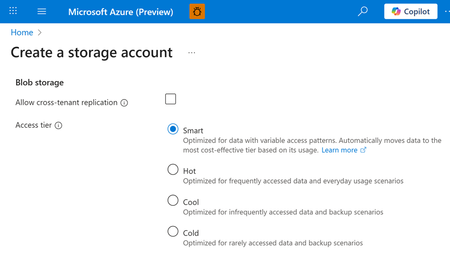
We are excited to introduce the public preview of smart tier for Azure Blob and Azure Data Lake Storage. Smart tier is a fully managed, automated data tiering solution that takes the guesswork and manual effort out of optimizing your storage costs. Smart tier continuously analyzes your data’s access patterns and automatically moves objects between the hot, cool, and cold tiers. Smart tier will keep regularly accessed objects on the hot capacity tier to optimize transaction costs and moves inactive objects after 30 days to the cool tier capacity tier and after an additional 60 days of inactivity to the cold capacity tier. If you access an object in cool or cold tiers again, it’s instantly promoted back to the hot tier, restarting the cycle. This ensures your data is always in the most cost-effective tier with zero manual intervention, making it the ideal online tier for datasets with mixed or unknown access patterns. Getting started Using smart tier is quick and easy: Enabling smart tier is simple: Just select smart tier as the default access tier through the storage account configuration for any storage account with zonal redundancy. Smart tier is available in all zonal public cloud regions, supporting both flat and hierarchical namespaces. Billing is straightforward: You will pay the regular hot, cool, and cold capacity rates, with no extra charges for tier transitions, early deletion, or data retrieval. Even moving existing objects into smart tier does not incur tier change fees. There’s just a small monitoring fee for the orchestration. Smart tier is configured at the account level. It can be configured via API or the Azure portal as the default access tier setting for new and existing storage accounts. Existing objects following the default access tier setting from the account will be moved to smart tier automatically. Objects that are explicitly tiered, i.e. to the hot tier, will remain in the same account and will not be moved to other capacity tiers. Smart tier will always keep small objects that are below 128 KiB in size in the hot capacity tier for efficiency and those objects will not incur a monitoring charge. If objects below 128 KiB increase in size, the smart tiering patterns apply for those objects as well. The automatic down tiering of inactive data, paired with the billing model simplifications of Smart tier can lead to large cost savings over time. In the metrics view of the storage account you can see the distribution across the capacity tiers for smart tiered objects by both object count and capacity. This account shows smart tier in action, moving inactive objects to the cool and cold capacity tier, thereby drastically reducing the capacity charges without any manual intervention. "2 years ago, Qumulo partnered with Microsoft to deliver the first truly elastic, unlimited capacity, fully managed file system, Azure Native Qumulo, which was built on Azure Blob," said Brandon Whitelaw SVP of Product at Qumulo. "Qumulo shared feedback with Microsoft on our ideal solution for data tiering and Microsoft clearly delivered, meeting all expectations. With today's smart tier announcement, Qumulo will immediately enhance our offerings with these new capabilities, delivering greater functionality and control over data lifecycle management. We are thrilled with the feature set Azure is delivering at launch” Note that smart tier is not supported with append and page blobs. Smart tier is the ideal tier to choose when you are looking to store your data on standard online tiers but are not fully aware of the data access patterns or do not want to manage data transitions across online tiers. Objects managed by smart tier are not subject to lifecycle management policies, ensuring that automated tiering decisions are based solely on access patterns. Smart tier for block blobs is now available in public preview for both Azure Blob Storage and Azure Data Lake Storage for storage accounts with zonal redundancies, including ZRS, GZRS and RA-GZRS. Unlock cost savings by adding smart tier to your blob storage accounts in one easy step: https://aka.ms/BlobSmarttier. Please reach out to us for any feedback or questions, we would love to hear from you: smartblob@microsoft.com3KViews3likes6CommentsEnterprise Identity Meets Secure File Transfer: Entra ID Public Preview on Azure Blob Storage SFTP
Updated on June 23 2026: Microsoft Entra ID-based access for Azure Blob Storage SFTP is now Generally Available. GA enhancements: Improved ABAC by resolving inconsistencies with the Storage Blob Data Owner role (eliminating timeout issues) while adding support for sub-operations to enable more granular access control. Learn more here. We are excited to announce the public preview of Entra ID-based access for Azure Blob Storage SFTP. This new capability enables you to use Microsoft Entra ID (formerly Azure Active Directory) identities (including guest users via Entra External Identities) to securely connect to Azure Blob Storage via SFTP without needing local users. This feature eliminates the operational overhead of managing local SFTP users and passwords by introducing enterprise-grade identity management powered by Microsoft Entra ID. For IT administrators and security teams, this means no more creating, tracking, rotating, or decommissioning local SFTP credentials. For developers and architects, it means seamless integration with your existing identity infrastructure. For business users, it means faster, more secure access to the data they need, all while maintaining compliance with enterprise security policies. Azure Blob Storage SFTP Azure Blob Storage SFTP natively enables secure file access and management without third-party solutions. This simplifies operations for customers and removes the need for complex, custom SFTP solutions. Until this Public Preview, Azure Blob Storage SFTP utilized a form of identity management called local users as the only authorization mechanism. Local users must use either a password or a Secure Shell (SSH) private key credential for authentication. Learn more about local users here. The Challenge: SFTP Local User Management Organizations currently face challenges when managing SFTP access at scale with Azure Storage SFTP Local Users. Local User based SFTP access require IT teams to: Manually create and provision local user accounts for each SFTP user Generate, distribute, and securely store SSH keys or passwords Implement custom workflows for lifecycle management Manage offboarding processes to ensure departed users lose access immediately Audit and track access across disconnected identity silos Handle external partner and vendor access through ad-hoc, often insecure methods The Solution: Enterprise Identity Meets Secure File Transfer With Entra ID-based access for Azure Blob Storage SFTP, you can now leverage your organization's centralized identity platform to authenticate and authorize SFTP users. This integration brings the full power of Microsoft Entra ID to your file transfer workflows, delivering the following benefits: 1. Eliminate Local User Management Simplify SFTP management by assigning access with Entra ID—no separate SFTP accounts needed. No local credential generation or distribution—users authenticate with their existing corporate credentials No orphaned accounts when users change roles or leave the organization Reduced attack surface by eliminating static, long-lived local credentials Centralized user lifecycle management through your existing identity platform 2. Enterprise-Grade Identity and Security Leverage the full security capabilities of Microsoft Entra ID for your SFTP infrastructure: Multi-Factor Authentication (MFA): Require additional verification factors beyond passwords, significantly reducing the risk of account compromise Conditional Access: Define policies that grant or block access based on user location, device compliance, sign-in risk, and other conditions Identity Protection: Benefit from Microsoft threat intelligence and risk detection to identify and respond to compromised accounts Privileged Identity Management (PIM): Provide just-in-time elevated access for administrative operations 3. Native Azure RBAC, ABAC, and ACL Integration Your SFTP access control seamlessly integrates with Azure comprehensive authorization framework: Role-Based Access Control (RBAC): Assign built-in or custom roles at the storage account, container, or even blob level Attribute-Based Access Control (ABAC): Create sophisticated access policies based on resource tags, user attributes, and environmental conditions Access Control Lists (ACLs): Apply fine-grained permissions at the directory and file level for hierarchical namespace-enabled accounts Unified Permission Model: SFTP access respects the same permissions as REST API, Azure CLI, and other access methods—no separate permission system to manage 4. Faster SFTP Onboarding and Time-to-Value Onboard new SFTP users or partners in minutes instead of hours or days, saving significant time and boosting business agility. 5. Secure External Collaboration with Entra External Identities Seamlessly enable secure external SFTP access by allowing partners to authenticate with their own credentials using Entra External Identities (Azure AD B2B). External users authenticate with credentials they already manage Full audit trail of external user activity Ability to apply Conditional Access policies to external users Automatic access revocation when B2B relationships end Real World Scenarios Financial Services: A bank receives daily transaction files from merchants via SFTP. Merchants authenticate with their own Entra ID credentials (B2B collaboration), MFA is enforced, and access is restricted to assigned directories. Access is instantly revoked when a merchant is removed from the B2B directory. Healthcare: A hospital exchanges patient data with insurers and labs. Entra ID authentication ensures only authorized staff access sensitive PII, with full audit logs for HIPAA compliance. Conditional Access restricts connections to approved locations and devices. Media & Entertainment: A production company enables freelance editors and agencies to transfer large media files. Entra External Identities provide time-limited access and automatic revocation when projects end—no need for local SFTP accounts. Manufacturing: A manufacturer receives CAD files and orders from suppliers using SFTP. With Entra ID, suppliers use unified credentials and access policies across all systems, streamlining supply chain management. How It Works Entra ID simplifies SFTP access to Azure Blob Storage by authenticating users with their corporate credentials. After authentication, users receive a short-lived Open SSH certificate to connect. The service verifies certificate validity and user permissions, enabling secure file operations and automatic access revocation in line with current identity policies. Learn more here. Getting started with the Public Preview We encourage you to try Entra ID-based access for Azure Blob Storage SFTP in your non-production environments today. Learn more about how to register for the preview and get started with the detailed ms docs learn guide here. This preview gives you an opportunity to shape the feature development by providing feedback on what works well and what could be improved. Note: Local user accounts for SFTP access are still supported, but we strongly recommend switching to Entra ID-based access for greater security, simpler management, and automatic access control. Questions or feedback? We would love to hear from you! Reach out to our team at blobsftp@microsoft.com We are excited to bring enterprise-grade identity management to Azure Blob Storage SFTP, and we cannot wait to see how you use this capability to simplify operations, enhance security, and enable new collaboration scenarios. Happy transferring!2.3KViews0likes0Comments
Prefix-scoped access for User Delegation SAS is now generally available for Azure Blob Storage
We would like to share that prefix-scoped access for User Delegation SAS for Azure Blob Storage is generally available in all Azure regions. SAS tokens for Blob Storage have historically supported two levels of scope: container and individual blob. With this release, you can now scope access to a prefix or virtual directory within a container, granting access to all blobs beneath the path. This is especially valuable for applications that organize data by tenant, workspace, project, or department within a shared container. Instead of granting access to an entire container or generating many blob-level tokens, you can now issue a single SAS token scoped to a set of blobs through a prefix. For example, if a container has these blobs: contoso/sales/Q1-report.csv contoso/sales/Q2-report.csv contoso/invoice.pdf A SAS token scoped to the prefix contoso/sales would grant access only to the two sales reports. This simplifies manageability by not having to generate multiple blob scoped tokens which significantly reduces overhead to manage permissions for large scale data storage estates. In addition, it helps customers provide more scoped permissions to a certain set of blobs rather than broader permissions at a container level. Prefix-scoped access is supported for both Blob and Data Lake storage accounts. As a best practice, we recommend using Entra ID with RBAC or ABAC for least privilege access. If you need to use SAS for your use cases, we recommend using user delegation SAS and prefix-based scoping is a good option to consider for more scoped permissions for a certain set of blobs. Pricing and Availability There is no additional cost for prefix-scoped access for user delegation SAS. Pricing is based on standard transaction costs for your storage account type. To learn more, see Azure Storage Pricing. Prefix-scoped access for user delegation SAS is available in all Azure regions. How to generate a prefix-scoped SAS To generate and use a prefix-scoped SAS: Identify the prefix (or virtual directory) you want to authorize. Follow the steps in the documentation to create a prefix-scoped SAS for user delegation SAS. Use the SAS token with your application. Notes Support for prefix-scoped access parameters is available with authorization version 2020-02-10 or later via REST API and .NET Blob SDKs starting with version 12.29.0-beta.1 and newer. The semantics for prefix scope (sr=d) are similar to container scope (sr=c), except that access is restricted to a prefix. When creating a prefix-scoped SAS, you must specify the signedDirectoryDepth (sdd) to indicate how many directory levels from the container root to the specified directory. For example, to grant access to dir2 on path container1/dir1/dir2, set the directory depth (sdd) = 2 to indicate the SAS is scoped to dir2 and everything beneath it. Below are .NET SDK and REST API examples for reference. .NET SDK Sample Definition BlobSasBuilder blobSasBuilder = new BlobSasBuilder( permissions: BlobContainerSasPermissions.All, expiresOn: Recording.UtcNow.AddDays(1)) { BlobContainerName = test.Container.Name, BlobName = blobName, IsDirectory = true, }; // Test using same name as SAS BlobUriBuilder blobUriBuilder1 = new BlobUriBuilder(test.Container.Uri) { BlobName = blobName, Sas = blobSasBuilder.ToSasQueryParameters(Tenants.GetNewSharedKeyCredentials()) }; AppendBlobClient appendBlobClient1 = new AppendBlobClient(blobUriBuilder1.ToUri(), GetOptions()); await appendBlobClient1.CreateAsync(); // Test using SAS name + suffix BlobUriBuilder blobUriBuilder2 = new BlobUriBuilder(test.Container.Uri) { BlobName = blobName + "/test", Sas = blobSasBuilder.ToSasQueryParameters(Tenants.GetNewSharedKeyCredentials()) }; AppendBlobClient appendBlobClient2 = new AppendBlobClient(blobUriBuilder2.ToUri(), GetOptions()); await appendBlobClient2.CreateAsync(); REST API Sample Request GET https://myaccount.blob.core.windows.net/mycontainer ?restype=container &comp=list &prefix=dir1/dir2/ &sr=d &sdd=2 &sp=rl &sv=2024-11-04 &se=2026-04-22T06:00:00Z &skoid=<signed-oid> &sktid=<signed-tid> &skt=2026-04-22T00:00:00Z &ske=2026-04-22T08:00:00Z &sks=b &skv=2024-11-04 &sig=<signature> Next Steps For a deeper dive, explore these resources: Grant limited access to data with shared access signatures (SAS) Create a user delegation SAS Create a service SAS Monitor Azure Blob Storage Help and Support If you have questions, get answers from community experts in Microsoft Q&A. If you have a support plan and you need technical help, create a support request: For Issue type, select Technical. For Subscription, select your subscription. For Service, select My services. For Service type, select Blob Storage. For Resource, select the Azure resource you are creating a support request for. For Summary, type a description of your issue. For Problem type, select Authentication and Authorization . For Problem subtype, select Issues using Shared Access Signature (SAS Token).1.1KViews0likes2CommentsAHEAD helps us launch the Strategic Azure Storage Services Partner Program
AHEAD becomes the first Azure Storage Strategic Channel Partner by demonstrating their expertise in helping customers select the ideal Azure Storage, or Azure Storage ISV, Service to offer the ideal price / performance solution for their application and helping customers to migrate to Azure quickly and safely.838Views0likes0Comments