azure batch
26 TopicsWhy long-running tasks on Linux Batch pools can restart daily and how to prevent it
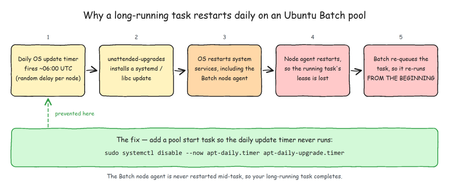
In Azure Batch, customers running long tasks on Linux (Ubuntu) compute nodes sometimes observe that a task is interrupted and automatically re-run from the beginning on a recurring basis, often once per day, around the same time, even though no one cancelled or resubmitted the task, and the application itself never failed. If your task takes longer than a few hours, this can mean it never reaches completion. This article explains why this happens and how to prevent it, so your long-running workloads complete reliably. What you might observe A task restarts from the beginning rather than failing, it is re-queued, not errored. The restarts recur daily within a narrow time window (for example, some time between 06:00–07:00 UTC), and happen on different nodes a few minutes apart. The affected node briefly becomes unavailable and then rejoins the pool healthy, with no reboot or resize on your side. It is not caused by your application (the same task completes successfully when it isn't interrupted), and it is not a Spot/Low-Priority eviction (it also happens on Dedicated nodes). Why it happens Azure Batch Ubuntu Marketplace images ship with the operating system's daily automatic update job (unattended-upgrades) enabled by default, just like a standard Ubuntu installation. Once a day, this job checks for and installs OS package updates. When that update includes a core system component such as systemd, the operating system restarts its running services as part of applying the update. The Batch node agent is the process that runs your tasks and maintains their state. Because it runs as a system service, it is restarted along with the others. From Batch's perspective, when the node agent restarts while a task is running, the task's lease is considered lost. Following its normal design, Batch then automatically re-queues the task and runs it again from the start on a healthy node. That is the restart you observe. Key point: This is not a Batch platform failure or a bug in your workload. It is a side effect of a routine, OS-level maintenance job that ships enabled in the base Ubuntu image. The timing is staggered across nodes because the update timer includes a random per-node delay. How to confirm it on a node If you have access to an affected node (or can reproduce the issue on a test pool), you can confirm the correlation directly from the OS. Check the daily update timer and its schedule and note the OnCalendar time and the randomized delay that staggers nodes systemctl list-timers 'apt-daily*' --all systemctl cat apt-daily-upgrade.timer Check what the automatic update actually installed during the window (look for systemd or libc) grep -A3 "$(date +%Y-%m-%d)" /var/log/apt/history.log Correlate the update run with the node agent restart journalctl -u azbatch-agent -u azbatch-controller --since "06:00" --until "07:10" You will see the unattended-upgrade run immediately followed by the node agent services stopping and starting again - a clean, orchestrated stop, not a crash. Tip: Batch nodes don't keep logs across reboots by default. To retain them, set Storage=persistent in /etc/systemd/journald.conf and restart systemd-journald before reproducing. How to prevent it The reliable fix is to prevent the OS automatic-update job from restarting the node agent while your tasks are running. There are two supported ways. Option 1 — Disable the auto-update timers via a pool start task (recommended) Add a start task to your pool that runs as an administrator/root user before your tasks are scheduled. This disables the daily update timers on every node as it joins the pool sudo systemctl disable --now apt-daily.timer apt-daily-upgrade.timer Because a start task runs automatically on every node, including new nodes added by autoscale or resize, this consistently protects the whole pool. Option 2 — Bake the setting into a custom image If you manage your own image, apply the same change and capture it in an Azure Compute Gallery image, then create your pool from that image. See Use the Azure Compute Gallery to create a custom image pool. Important considerations Security: Disabling automatic OS updates means your nodes will not receive OS security patches automatically. If you use long-lived pools, plan to recreate your pools or refresh your custom image periodically, or apply updates during a controlled maintenance window, so your nodes stay current. For very long tasks: As an additional safeguard against any interruption, OS updates, hardware maintenance, or (on Spot nodes) evictions, consider implementing checkpointing in your application so a re-run resumes from the last saved point instead of starting over. Summary If long-running tasks on your Ubuntu Batch pools restart on a daily schedule, the most common cause is the operating system's built-in daily update job restarting the Batch node agent mid-task. Disabling the OS auto-update timers with a start task (or in a custom image) prevents the restarts and lets your long-running tasks complete while keeping your nodes patched through a controlled process.267Views0likes0Comments
Corrupted VT+ transaction files
We are a small accounting company using VT+ Transaction on a local drive synchronized with OneDrive for backup and file storage. A few days ago when we tried to open the application, we suddenly started receiving the following error messages: Run Time Error 0 and Run Time Error 440, and the program does not start. According to VT+ support the program files are corrupted and the data can only be restored up to the year 2022, as the more recent backups are also affected. Somehow the system is overriding our backups, which makes the latest ones unusable. Any advice what could cause that and how to resolve the issue. Thanks328Views0likes1Comment
Integrating Azure Monitor in Azure Batch to monitor Batch Pool nodes performance
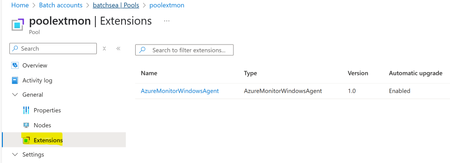
In Azure Batch, to monitor the node performance like CPU or Disk usage users are required to use Azure monitor. The Azure Monitor service collects and aggregates metrics and logs from every component of the node. Azure Monitor provides you with a view of availability, performance, and resilience. When you create an Azure Batch pool, you can install any of the following monitoring-related extensions on the compute nodes to collect and analyse data. Previously users have leveraged Batch Insights to get system statistics for Azure Batch account nodes, but it is deprecated now and no longer supported. The Log Analytics agent virtual machine (VM) extension installs the Log Analytics agent on Azure VMs and enrols VMs into an existing Log Analytics workspace. The Log Analytics agent is on a deprecation path and won't be supported after August 31, 2024. Migrate to Azure Monitor Agent from Log Analytics agent - Azure Monitor | Microsoft Learn Azure Monitor Agent (AMA) now replaces the Log Analytics agent. Install and Manage the Azure Monitor Agent - Azure Monitor | Microsoft Learn Important! Currently Azure Monitor in Batch Pool is only supported for Batch accounts that are created with Pool allocation Mode in User subscription mode only. Batch accounts that are created with Pool allocation Mode in Batch Service are not supported. As in Batch Service mode, nodes will be created in Azure subscriptions and users do not have access to these subscriptions, enabling data collection for these nodes is not possible. This article will focus on how you can use to install and configure the Azure Monitor Agent extension on Azure Batch pool nodes. Note : Extensions cannot be added to an existing pool. Pools must be recreated to add, remove, or update extensions. Currently the Batch pool with user assigned Managed Identity and extension is only supported by ARM template and REST API call. Creating a pool with extension is unsupported in Azure Portal. Creating a pool with user assigned Managed Identity is unsupported in Az PowerShell module and Azure CLI. To use the templates below, you'll need to follow below prerequisites: To create a user-assigned managed identity. A managed identity is required for Azure Monitor agent to collect and publish data. To configure data collection for Azure Monitor Agent, you must also configure or deploy Resource Manager template data collection rules and associations. Step 1: Create a pool with AMA extension Below is sample JSON template to create a pool with AMA extension enabled for Windows server. { "name": "poolextmon", "type": "Microsoft.Batch/batchAccounts/pools", "properties": { "allocationState": "Steady", "vmSize": "STANDARD_D2S_V3", "interNodeCommunication": "Disabled", "taskSlotsPerNode": 1, "taskSchedulingPolicy": { "nodeFillType": "Pack" }, "deploymentConfiguration": { "virtualMachineConfiguration": { "imageReference": { "publisher": "microsoftwindowsserver", "offer": "windowsserver", "sku": "2019-datacenter", "version": "latest" }, "nodeAgentSkuId": "batch.node.windows amd64", "extensions": [ { "name": "AzureMonitorAgent", "publisher": "Microsoft.Azure.Monitor", "type": "AzureMonitorWindowsAgent", "typeHandlerVersion": "1.0", "autoUpgradeMinorVersion": true, "enableAutomaticUpgrade": true, "settings": { "authentication": { "managedIdentity": { "identifier-name": "mi_res_id", "identifier-value": "/subscriptions/xxxxx/resourceGroups/r-xxxx/providers/Microsoft.ManagedIdentity/userAssignedIdentities/usmi" } } } } ] } }, "scaleSettings": { "fixedScale": { "targetDedicatedNodes": 1, "targetLowPriorityNodes": 0, "resizeTimeout": "PT15M" } }, "currentDedicatedNodes": 1, "currentLowPriorityNodes": 0, "targetNodeCommunicationMode": "Default", "currentNodeCommunicationMode": "Simplified" } } Below is sample JSON template to create a pool with AMA extension enabled for Linux server. { "name": "poolextmon", "type": "Microsoft.Batch/batchAccounts/pools", "properties": { "allocationState": "Steady", "vmSize": "STANDARD_D2S_V3", "interNodeCommunication": "Disabled", "taskSlotsPerNode": 1, "taskSchedulingPolicy": { "nodeFillType": "Pack" }, "deploymentConfiguration": { "virtualMachineConfiguration": { "imageReference": { "publisher": "canonical", "offer": "0001-com-ubuntu-server-jammy", "sku": "22_04-lts", "version": "latest" }, "nodeAgentSkuId": "batch.node.ubuntu 22.04", "extensions": [ { "name": "AzureMonitorAgent", "publisher": "Microsoft.Azure.Monitor", "type": "AzureMonitorLinuxAgent", "typeHandlerVersion": "1.0", "autoUpgradeMinorVersion": true, "enableAutomaticUpgrade": true, "settings": { "authentication": { "managedIdentity": { "identifier-name": "mi_res_id", "identifier-value": "/subscriptions/xxxxxx/resourceGroups/r-xxx/providers/Microsoft.ManagedIdentity/userAssignedIdentities/usmi" } } } } ] } }, "scaleSettings": { "fixedScale": { "targetDedicatedNodes": 1, "targetLowPriorityNodes": 0, "resizeTimeout": "PT15M" } }, "currentDedicatedNodes": 1, "currentLowPriorityNodes": 0, "targetNodeCommunicationMode": "Default", "currentNodeCommunicationMode": "Simplified" } } Once the pool is created you can verify if the extension is installed on pool from portal. Step 2: Create Log analytics workspace You are required to have a log analytics workspace where the data will be sent. Step 3: Create a data collection rule (DCR) Create a DCR to collect data by using the Azure portal by following below document. You can refer to below document on how to create a DCR. Below document also talks about the types of data you can collect from a VM client with Azure Monitor and where you can send that data. Collect data from virtual machine client with Azure Monitor - Azure Monitor | Microsoft Learn Once the VM is associated to DCR, you can check the computers connected in Log Analytics workspace. To verify that the agent is operational and communicating properly with Azure Monitor check the Heartbeat for the VM. To verify that data is being collected in the Log Analytics workspace, check for records in the Perf table. To verify that data is being collected in Azure Monitor Metrics, select Metrics from the virtual machine in the Azure portal. Navigate to the VMSS from portal and select Virtual Machine Guest (Windows) or azure.vm.linux.guestmetrics for the namespace and then select a metric to add to the view.1.3KViews2likes4Comments
Bulk delete all the old jobs from the batch account
Deleting a Job also deletes all Tasks that are part of that Job, and all Job statistics. This also overrides the retention period for Task data; that is, if the Job contains Tasks which are still retained on Compute Nodes, the Batch service deletes those Tasks' working directories and all their contents. When a Delete Job request is received, the Batch service sets the Job to the deleting state. All update operations on a Job that is in deleting state will fail with status code 409 (Conflict), with additional information indicating that the Job is being deleted. We can use below PowerShell command to delete one single job using job id: Remove-AzBatchJob -Id "Job-000001" -BatchContext $Context But if you have a large number of jobs and wants to delete them simultaneously, then you can refer below PowerShell command for the same: # Replace with your Azure Batch account name, resource group, and subscription ID $accountName = "yourBatchAccountName" $resourceGroupName = "yourResourceGroupName" # Authenticate to Azure Connect-AzAccount # Get the Batch account context $batchContext = Get-AzBatchAccount -Name $accountName -ResourceGroupName $resourceGroupName # Get all batch jobs with creation time before May 2024 # Replace the creation time date accordingly $jobsForDelete = Get-AzBatchJob -BatchContext $batchContext | Where-Object {$_.CreationTime -lt "2024-05-01"} # List the jobs Write-Host "Jobs to be deleted:" foreach ($job in $jobsForDelete) { Write-Host $job.Id # Write-Host "Deleting jobs..." Remove-AzBatchJob -Id $job.Id -BatchContext $batchContext -Force } The above script will delete all the jobs created before the creation date. You can accordingly modify the parameters as per your requirement.1.9KViews0likes1CommentHow to enable alerts in Batch especially when a node is encountering high disk usage
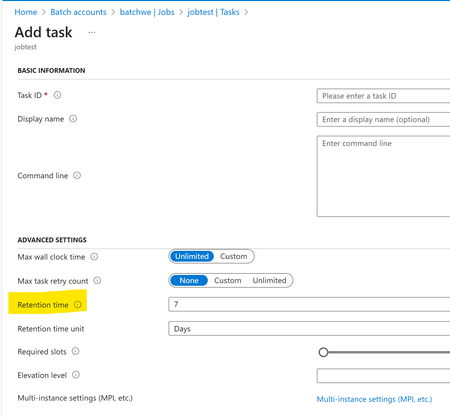
Batch users often encounter issues like nodes suddenly gets into unusable state due to high CPU or Disk usage. Alerts allow you to identify and address issues in your system. This blog will focus on how users can enable alerts when the node is consuming high amount of disk by configuring the threshold limit. With this user can get notified beforehand when the node gets into unusable state and pre-emptively takes measures to avoid service disruptions. The task output data is written to the file system of the Batch node. When this data reaches more than 90 percent capacity of the disk size of the node SKU, the Batch service marks the node as unusable and blocks the node from running any other tasks until the Batch service does a clean up. The Batch node agent reserves 10 percent capacity of the disk space for its functionality. Before any tasks are scheduled to run, depending on the capacity of the Batch node, it's essential to keep enough space on the disk. Best practices to follow to avoid issues with high disk usage in Azure Batch: When the node is experiencing high disk usage, as an initial step you can RDP to the node and check how most of the space is consumed. You can check which apps and files that are consuming high disk and check if these can be deleted. A node can experience high disk usage on OS disk or Ephemeral disk. Ephemeral disk contains all the files related to task working directory like the task output file or resource files whereas OS disk is different. The default operating system (OS) disk is usually 127 GiB only in Azure and this cannot be changed. In Batch pools using custom image, users might need to expand the OS disk when the node consumes high OS disk. Expand virtual hard disks attached to a Windows VM in an Azure - Azure Virtual Machines | Microsoft Learn After you have allocated extra disk on the custom image VM, you can create a new pool with the latest image. If you want to clear manually files on node, please refer Azure Batch node gets stuck in the Unusable state because of configuration issues - Azure | Microsoft Learn Switch to higher VM SKU In some cases, just creating a new pool with higher VM SKU than the existing VM SKU will suffice and avoid any issues with node. Save Task data A task should move its output off the node it's running on, and to a durable store before it completes. Similarly, if a task fails, it should move logs required to diagnose the failure to a durable store. It is users’ responsibility to ensure the output data is moved to a durable store before the node or job gets deleted. Persist output data to Azure Storage with Batch service API - Azure Batch | Microsoft Learn Clear files If a retentionTime is set, Batch automatically cleans up the disk space used by the task when the retentionTime expires. i.e. the task directory will be retained for 7 days unless the compute node is removed or the job is deleted. This action helps ensure that your nodes don't fill up with task data and run out of disk space. Users can set this to low value to ensure output data is deleted immediately. In some scenarios, the task gets triggered from ADF pipeline that is integrated with Batch. The retention time for the files submitted for custom activity. Default value is 30 days. Users can set the retention time in custom activity settings from ADF pipeline. Now let’s see how to get notified when a Batch node experiences high disk usage. Step 1: You are first required to follow below doc to integrate Azure Monitor in Batch nodes. The Azure Monitor service collects and aggregates metrics and logs from every component of the node. Integrating Azure Monitor in Azure Batch to monitor Batch Pool nodes performance | Microsoft Community Hub Step 2: Once the AMA is configured, you can navigate to the VMSS in portal for which you enable metrics. Go to Metrics section and select Virtual Machine Guest from Metrics Namespace. Step 3: From the metrics dropdown you can check metrics for the performance counter you wish. Step 4: Now navigate to Alerts section from Menu and create alert rule. Step 5: Here you can select any performance counter as you wish for which you want to receive alerts. Below shows creating a signal based on percentage free space that is available on VMSS. Step 6: Once you select the signal it will ask you to provide other details for alert logic. Below snapshot shows alerts triggered when average of percentage free space available on VMSS instances is less than or equal to 20%. This alert evaluates for every one hour and check the average for the past one hour. Step 7: You can proceed with the next steps and configure your email address and Alert rule description to receive notifications. You can refer to below document for more information on alerts. Create Azure Monitor metric alert rules - Azure Monitor | Microsoft Learn In this way users can enable alerts to get notifications based on metrics for their Batch nodes. Below is a sample email alert notification.355Views0likes0CommentsConfigure remote access to compute nodes in an Azure Batch pool using Azure Portal
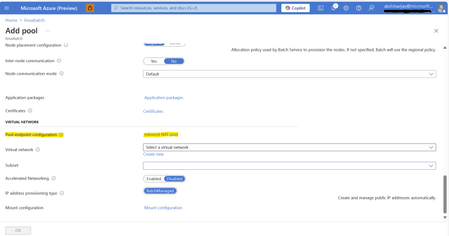
If configured, you can allow a node user with network connectivity to connect externally to a compute node in a Batch pool. For example, a user can connect by Remote Desktop (RDP) on port 3389 to a compute node in a Windows pool. Similarly, by default, a user can connect by Secure Shell (SSH) to port 22 to a compute node in a Linux pool. As of API version 2024-07-01 (and all pools created after 30 November 2025 regardless of API version), Batch no longer automatically maps common remote access ports for SSH and RDP. If you wish to allow remote access to your Batch compute nodes with pools created with API version 2024-07-01 or later (and after 30 November 2025), then you must manually configure the pool endpoint configuration to enable such access. In your environment, you might need to enable, restrict, or disable external access settings or any other ports you wish on the Batch pool. You can modify these settings by using the Batch APIs to set the PoolEndpointConfiguration property. While creating the pool using Azure Portal, you need to create network address translation (NAT) pools and network security group (NSG) rule for configuring pool endpoint. Click on the Inbound NAT pool under the virtual network section. You can refer to the snippet below as a reference: A window like the screenshot below will open to create NAT pool and NSG rule: You can either click on +Add or use the default option given to add NAT pool for RDP/SSH from the template. This will open a new window to create the inbound NAT pool like the below snippet: Complete the required fields as demonstrated in the screenshot above. For the backend port, enter 22 for SSH or 3389 for the Windows pool. Next, click on Network Security Group Rules. This action will open a window for creating NSG rules, as illustrated below: Under the Access field, select Allow and assign a priority. In the Source Address Prefix field, you can specify the IP address or IP range for which you want to enable remote desktop access. If you wish to allow access from all addresses, enter *. Afterward, click Select. This action will return you to the previous page for creating the NAT pool. Verify all the details, then click OK and then click on select. This process will add the necessary NAT pool and NSG rules to enable RDP access and configure the pool endpoint. Once completed, navigate to the node and click Connect. The IP address of the node will be displayed, which can be used to establish a remote desktop connection. Configure remote access to nodes in an existing Batch pool In this section we will learn how to establish remote access to nodes in an existing pool. To configure remote access to nodes in an existing pool, you need to update network configuration of the pool. You can modify these settings by using the Batch APIs to set the PoolEndpointConfiguration property. The pool endpoint configuration is part of the pool's network configuration. Important Note: It is required that Network configuration properties of a pool require the pool to be of size zero nodes to be accepted as part of the request to update. Hence, it is required to scaled down the pool to zero nodes first and then perform the update to configure remote access. If you perform an update with active nodes in the pool, you will receive error like below, "error": { "code": "PropertyCannotBeUpdated", "message": "A property that cannot be updated was specified as part of the request.\nRequestId:30e8eb47-6f99-42e1-9ac0-xxxxxxxx\nTime:2025-03-27T12:37:10.1152648Z", "target": "BatchAccount", "details": [ { "code": "Reason", "message": "A property that cannot be updated was specified as part of the request." }, { "code": "PropertyName", "message": "networkConfiguration" }, { "code": "PropertyPath", "message": "properties.networkConfiguration" } ] } In this article we will learn how to update Pool network settings using Batch management API from portal. Sale down the pool to 0 nodes for which you want to configure remote access endpoint. Users can quickly make use of below link to use Try It option for Update API for Batch pool. Pool - Update - REST API (Azure Batch Management) | Microsoft Learn Provide all the details of your Batch account and pool. In the Request Body section, provide the below JSON details. Use below JSON to configure the RDP endpoint on compute nodes in a Windows pool { "properties": { "networkConfiguration": { "subnetId": "/subscriptions/xxxx/resourceGroups/xxxx/providers/Microsoft.Network/virtualNetworks/xxxx/subnets/xxxx", "endpointConfiguration": { "inboundNATPools": [ { "name": "RDP", "protocol": "tcp", "backendPort": 3389, "frontendPortRangeStart": 7500, "frontendPortRangeEnd": 8000, "networkSecurityGroupRules": [ { "priority": 150, "access": "allow", "sourceAddressPrefix": "*" } ] } ] } } Use below JSON to configure the SSH endpoint on compute nodes in a Linux pool { "properties": { "networkConfiguration": { "subnetId": "/subscriptions/xxxx/resourceGroups/xxxx/providers/Microsoft.Network/virtualNetworks/xxxx/subnets/xxxx", "endpointConfiguration": { "inboundNATPools": [ { "name": "SSH", "protocol": "tcp", "backendPort": 22, "frontendPortRangeStart": 4000, "frontendPortRangeEnd": 4500, "networkSecurityGroupRules": [ { "priority": 150, "access": "allow", "sourceAddressPrefix": "*" } ] } ] } } Click Run; you should see response code 200 which is success. Now your pool is configured with remote access. You can also validate the settings from portal. Navigate to pool properties and check the network configuration to verify RDP/SSH port is configured.2.1KViews2likes1CommentInstall Python on a windows node using a start task with Azure Batch
It is common that customers contact the Azure Batch Team to provide instructions on how to install Python using the start task feature. I would like to provide the steps to perform this task in case that someone needs to work in a similar case.14KViews0likes5CommentsHow to create multiple tasks under a job in Job Scheduler
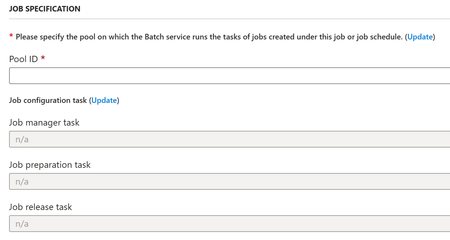
In this article you will see detailed procedure of how to create jobs with tasks in a Job scheduler. You can follow below doc on how to schedule jobs in a job scheduler. Schedule Batch jobs for efficiency - Azure Batch | Microsoft Learn While creating a job scheduler, you will see Job Specification section. In this section, you would need to update Job configuration task to add jobs. You will further see below settings. To add tasks to the Job in the job scheduler, you would need to add Job manager task. A job manager task contains the information that is necessary to create the required tasks for a job. A job manager task is required for jobs that are created by a job schedule, because it is the only way to define the tasks before the job is instantiated. You can further change other settings if required. Once the job scheduler is created, you will see a job with name job-1 is created under the job scheduler. Inside, job-1 you can see a task is created. This task is nothing but the job manager task. With this you will be able to create only one job with only one task (job manager task) in a single job scheduler. In some scenarios, you may need to add more tasks to a job in a Job scheduler. For this scenario, you can follow the below approach. To create more tasks under the job that job scheduler generates, it is expected for user to write some command line calling Task-Add API in the job manager task like below. /bin/sh -c 'az batch task create --job-id $(printenv AZ_BATCH_JOB_ID) --account-endpoint "https://batchname.xxx.batch.azure.com" --account-key "ACCOUNT_KEY" --account-name "BATCH_ACCOUNT_NAME" --task-id "TASK_ID" --command-line "TASK_COMMAND_LINE"' Example: /bin/sh -c 'az batch task create --job-id $(printenv AZ_BATCH_JOB_ID) --account-endpoint "https://batchtest.westeurope.batch.azure.com" --account-key " YdFUnnV65NlcfzXf+T48YCeGo/Z2ZMqIyiQxRrgMxxxxxxxxxxx” --account-name "batchtest" --task-id "task2" --command-line "/bin/sh -c echo ‘Hello' "' Also while creating Job scheduler, make sure to define the following properties. 1. Kill Job on completion: This property is true by default. If true, when a job manager task is completed, the Batch service marks the job as completed. If false, the completion of the Job Manager task does not affect the job status. In this case, the user needs to terminate the job explicitly. This is to make sure that if the Job Manager creates a set of tasks but then takes no further role in their execution. 2. Specify When all tasks complete to TerminateJob to explicitly. With above, you will achieve two tasks under a job in job scheduler. One is job manager task(task1) and the other is the task(task2) created from command line of job manager task. Note : A job scheduler can have at most one active job under it at any given time. So, if it is time to create a new job under a job schedule, but the previous job is still running, the Batch service will not create the new job until the previous job finishes. If the previous job does not finish within the startWindow period of the new recurrence interval, then no new job will be scheduled for that interval.644Views2likes0Comments
Finding Azure Batch Python client in Conda packaging
I've started working with Azure Batch and use Python, with my Python environment managed by Anaconda. I'd like to install the https://learn.microsoft.com/en-us/python/api/overview/azure/batch-readme?view=azure-python and https://learn.microsoft.com/en-us/python/api/overview/azure/mgmt-batch-readme?view=azure-python from the https://learn.microsoft.com/en-us/azure/developer/python/sdk/azure-sdk-overview in my Anaconda environments, preferably using conda instead of pip. These are the azure.batch and azure.mgmt.batch modules (or "module packages"; whatever they're called), found in the azure-batch and azure-mgmt-batch PyPI packages. But I don't know where to find them in the Conda packaging of Azure SDK for Python. The Azure SDK for Python introduced https://devblogs.microsoft.com/azure-sdk/python-conda-sdk-preview/ back in 2021, and its use is described in the https://learn.microsoft.com/en-us/azure/developer/python/sdk/azure-sdk-install?source=recommendations&tabs=conda. The Conda packaging differs from the PyPI packaging. The Python Azure SDK modules are packaged in to a smaller number of packages in the Conda form, with sometimes different naming. Is the Azure Batch client library available in the Microsoft-supplied Conda packages somewhere (the ones in the microsoft conda channel, instead of the conda-forge channel)? If so, which Conda package? And more generally, if I know what Azure SDK for Python module I want, or what PyPI package it's in, how can I find out which microsoft-channel Conda package it's in? I haven't been able to find a list of which module is in which Conda package anywhere. There's an https://anaconda.org/conda-forge/azure-batch (instead of the microsoft channel). But if I understand correctly, those conda-forge Azure packages are the old ones from before the 2021 introduction of the microsoft conda channel's packaging, and have different dependencies and stuff. I'd prefer to install the Azure Batch client from the microsoft-channel Conda packages, instead of the conda-forge channel package or from PyPI/pip, for consistency with my other Azure Python packages, which are all installed from the microsoft-channel Conda packages. I've read that mixing interdependent packages from different channels can sometimes cause problems, and if you're mixing conda-managed and pip-managed packages in an Anaconda environment, you're supposed to install all the conda packages first, then the pip packages, and then don't go back and install or update any conda packages afterwards, or something like that.1.8KViews1like4Comments
Optimizing ETL Workflows: A Guide to Azure Integration and Authentication with Batch and Storage
Unlock the Power of Azure: Transform Your ETL Pipelines Dive into the world of data transformation and discover how to build a solid foundation for your ETL pipelines with Azure’s powerful trio: Data Factory, Batch, and Storage. Learn to navigate the complexities of data authentication and harness the full potential of Synapse Pipeline for seamless integration and advanced data processing. Ready to revolutionize your data strategy? This guide is your key to mastering Azure’s services and optimizing your workflows.7KViews4likes1Comment