azure app configuration
9 Topics
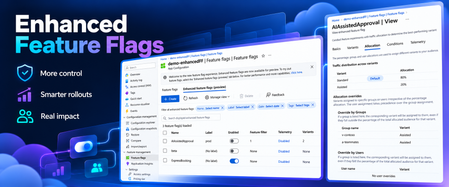
Enhanced Feature Flags: A New Foundation for Feature Management in Azure App Configuration
Shipping is no longer just about deploying code. Consider a team introducing a new checkout experience. The code is already in production, but the team wants to expose it to a small audience, gradually increase availability, monitor the results, and retain the ability to turn it off if something goes wrong. Feature flags make that possible without requiring another deployment. As feature flags become increasingly central to how software is released and operated, we saw an opportunity to evolve how they’re represented in Azure App Configuration. Enhanced Feature Flags are available in public preview, with a dedicated resource model designed specifically for feature management. Why rethink the feature flag resource model? Consider a team preparing to launch a new check out experience. The release manager needs to control when the feature becomes available but shouldn’t necessarily have permission to modify payment settings or other application configuration. With traditional feature flags sharing the same key-value resource and permission model as application configuration, separating these responsibilities isn’t possible. Similarly existing SDKS and tooling simplify feature flag management; the underlying APIs still treat flags as specially formatted configuration entries rather than resources with their own defined structure. These are not challenges with feature evaluation itself. They're challenges with how feature flags are represented, managed, and governed. Enhanced Feature Flags address this by introducing a purpose-built resource model, with dedicated APIs and separate access control. What changes with Enhanced Feature Flags? The new model introduces several important improvements. 1. Feature management gets its own security boundary Feature flags often change application behavior in production, and the people responsible for those changes may not be the same people responsible for application configuration. With Enhanced Feature Flags, organizations can grant access to feature flag resources independently of configuration key-values. A team responsible for feature rollout, for example, can manage flags without also receiving permission to modify unrelated application settings. This creates a clearer security boundary for applying least privilege access to feature management. 2. Feature flags get a dedicated API surface Previously, managing feature flags through configuration APIs required clients and automation to understand specific naming conventions, content types, and serialized feature definitions. Enhanced Feature Flags expose dedicated APIs for creating, querying, updating, and deleting flags. The benefit isn't simply another API. Tools and deployment workflows can now work directly with a resource designed for feature management instead of interpreting a feature flag stored as configuration. 3. Validation moves closer to the source Enhanced Feature Flags have a defined resource schema that Azure App Configuration can validate when a flag is created or updated. Malformed definitions can be rejected before they are stored, providing consistent validation across clients and tooling. Existing feature management capabilities continue to work Enhanced Feature Flags build on the feature management capabilities already available in Azure App Configuration, including targeting, variants, allocation, and telemetry. Applications can continue using their existing feature evaluation logic with supported versions of the App Configuration provider libraries. And importantly, existing key-value-based feature flags remain supported. Teams can evaluate the new model alongside their current flags, rather than treating this preview as a mandatory migration. See Enhanced Feature Flags in action Watch this short demo to learn how granular role-based access control enables teams to manage feature releases independently while keeping application configuration protected. A foundation for what comes next Enhanced Feature Flags solve concrete management and governance challenges today, but the opportunity goes further. Giving feature flags their own resource model creates room for feature management to evolve independently from general application configuration, with deeper investments in areas such as automation, governance, targeting, and connecting feature delivery to application outcomes. The longer-term opportunity is to make managing a feature throughout its lifecycle as natural as developing and deploying it. Enhanced Feature Flags are available now in public preview in Azure App Configuration. If you're building a new application or evolving your feature management workflows, explore the new resource model and let us know what you think. We want Enhanced Feature Flags to provide the foundation for the next generation of feature management in Azure App Configuration, and your feedback will help shape where we take it next. Learn about Enhanced Feature Flags Explore the Enhanced Feature Flags REST API Share feedback with the Azure App Configuration team #Azure #AzureAppConfiguration #FeatureFlags #FeatureManagement #DeveloperExperience136Views2likes0CommentsSafe Rollouts Start with Signals: Introducing Scorecards in Azure App Configuration
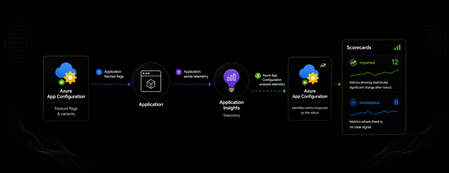
Applications are rarely changed all at once anymore. Teams use feature flags, targeting rules, and progressive rollout patterns to introduce changes gradually and reduce risk. This rollout model gives teams more than a safer way to control exposure. It also creates the context to understand what changed after a rollout. But teams still need a practical way to answer: Did this rollout move the needle in a measurable way? Today, we’re introducing Scorecards in Azure App Configuration in public preview. Scorecards are a new capability in the Feature Management that helps teams quickly identify which metrics were impacted by a feature rollout and use those signals to decide what to do next. Why Scorecards? After a controlled rollout, the next step is often manual unless you run a full-fledged experiment. Development Teams open dashboards, compare time ranges, scan logs, and look across standard and custom metrics to understand what changed. That work can take time, especially when an application emits many metrics across performance, reliability, engagement, business KPIs, or AI-related scenarios. Scorecards help narrow that investigation. Using the telemetry your application already sends to Application Insights, Scorecards surface the metrics that moved after a rollout. This gives teams a faster starting point without requiring them to manually scan large sets of telemetry first for signals How it works Scorecards build on Feature Management in Azure App Configuration and telemetry from Application Insights. A team starts by defining variants for a feature flag. One variant may represent the current behavior, while another represents a new feature, configuration path, service behavior, model version, or agent workflow. As the application runs, it continues to emit telemetry to Application Insights. This can include standard metrics such as requests, failures, dependencies, and duration, along with custom metrics logged by the application. Scorecards help teams view telemetry through the context of a rollout. In the telemetry experience for a feature flag, Scorecards surface the metrics associated with the rollout in two categories: Impacted Metrics showing statistically significant change after rollout. Inconclusive Metrics where there is no clear signal. When to use Scorecards Scorecards are useful when teams want a quick signal after a controlled rollout. Common examples include: application feature launches runtime configuration updates backend service changes performance improvements AI model or agent updates Teams can use Scorecards to compare feature variants against key performance indicators, detect potential issues introduced by updated feature behavior, evaluate adoption and usage trends, and use telemetry insights to guide rollout, optimization, or deprecation decisions. For deeper investigation, teams can continue using existing Application Insights dashboards, logs, alerts, and observability workflows. Example: validating a new experience Consider a team rolling out a redesigned onboarding flow in their application. The team enables the new experience for a small percentage of users using a feature flag variant. The application already emits telemetry for page load duration, failed requests, sign-up completion, and custom engagement events. After starting the rollout, Scorecards can help highlight which metrics show statistically significant change. If completion-related metrics appear under Impacted, the team has a clear signal to investigate further. If most operational metrics appear as Inconclusive, the team can avoid spending time on areas where no clear signal was detected. Architecture: From rollout to signal Getting started To use Scorecards: Use Azure App Configuration to implement feature flags in your application. Roll out changes using variant feature flags. Enable telemetry for the feature flag with Application Insights Use Scorecards in the Azure Portal to quickly identify impacted metrics. Scorecards help teams focus on the metrics most relevant to a rollout and make faster decisions with more confidence. We’d love to hear your feedback on what is working well and where we can improve as we continue to iterate on Scorecards and enhance the visual experience.569Views0likes0CommentsMicrosoft 365 multi-agent workflow with Microsoft Agent Framework
Learn how to design and run a multi‑agent workflow with Microsoft Agent Framework: from building a coordinated set of specialized agents and tools, to hosting and deploying them with Azure AI Foundry, and finally exposing the same workflow to users in Microsoft 365 (Teams or Copilot). This walkthrough demonstrates a practical end‑to‑end pattern for orchestrating agents, adding tools, and packaging the solution for real‑world applications.806Views0likes0Comments
From Vibe Coding to Working App: How SRE Agent Completes the Developer Loop
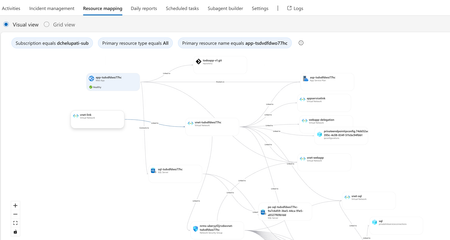
The Most Common Challenge in Modern Cloud Apps There's a category of bugs that drive engineers crazy: multi-layer infrastructure issues. Your app deploys successfully. Every Azure resource shows "Succeeded." But the app fails at runtime with a vague error like Login failed for user ''. Where do you even start? You're checking the Web App, the SQL Server, the VNet, the private endpoint, the DNS zone, the identity configuration... and each one looks fine in isolation. The problem is how they connect and that's invisible in the portal. Networking issues are especially brutal. The error says "Login failed" but the actual causes could be DNS, firewall, identity, or all three. The symptom and the root causes are in completely different resources. Without deep Azure networking knowledge, you're just clicking around hoping something jumps out. Now imagine you vibe coded the infrastructure. You used AI to generate the Bicep, deployed it, and moved on. When it breaks, you're debugging code you didn't write, configuring resources you don't fully understand. This is where I wanted AI to help not just to build, but to debug. Enter SRE Agent + Coding Agent Here's what I used: Layer Tool Purpose Build VS Code Copilot Agent Mode + Claude Opus Generate code, Bicep, deploy Debug Azure SRE Agent Diagnose infrastructure issues and create developer issue with suggested fixes in source code (app code and IaC) Fix GitHub Coding Agent Create PRs with code and IaC fix from Github issue created by SRE Agent Copilot builds. SRE Agent debugs. Coding Agent fixes. What I Built I used VS Code Copilot in Agent Mode with Claude Opus to create a .NET 8 Web App connected to Azure SQL via private endpoint: Private networking (no public exposure) Entra-only authentication Managed identity (no secrets) Deployed with azd up. All green. Then I tested the health endpoint: $ curl https://app-tsdvdfdwo77hc.azurewebsites.net/health/sql {"status":"unhealthy","error":"Login failed for user ''.","errorType":"SqlException"} Deployment succeeded. App failed. One error. How I Fixed It: Step by Step Step 1: Create SRE Agent with Azure Access I created an SRE Agent with read access to my Azure subscription. You can scope it to specific resource groups. The agent builds a knowledge graph of your resources and their dependencies visible in the Resource Mapping view below. Step 2: Connect GitHub to SRE Agent using GitHub MCP server I connected the GitHub MCP server so the agent could read my repository and create issues. Step 3: Create Sub Agent to analyze source code I created a sub-agent for analyzing source code using GitHub mcp tools. this lets SRE Agent understand not just Azure resources, but also the Bicep and source code files that created them. "you are expert in analyzing source code (bicep and app code) from github repos" Step 4: Invoke Sub-Agent to Analyze the Error In the SRE Agent chat, I invoked the sub-agent to diagnose the error I received from my app end point. It correlated the runtime error with the infrastructure configuration Step 5: Watch the SRE Agent Think and Reason SRE Agent analyzed the error by tracing code in Program.cs, Bicep configurations, and Azure resource relationships Web App, SQL Server, VNet, private endpoint, DNS zone, and managed identity. Its reasoning process worked through each layer, eliminating possibilities one by one until it identified the root causes. Step 6: Agent Creates GitHub Issue Based on its analysis, SRE Agent summarized the root causes and suggested fixes in a GitHub issue: Root Causes: Private DNS Zone missing VNet link Managed identity not created as SQL user Suggested Fixes: Add virtualNetworkLinks resource to Bicep Add SQL setup script to create user with db_datareader and db_datawriter roles Step 7: Merge the PR from Coding Agent Assign the Github issue to Coding Agent which then creates a PR with the fixes. I just reviewed the fix. It made sense and I merged it. Redeployed with azd up, ran the SQL script: curl -s https://app-tsdvdfdwo77hc.azurewebsites.net/health/sql | jq . { "status": "healthy", "database": "tododb", "server": "tcp:sql-tsdvdfdwo77hc.database.windows.net,1433", "message": "Successfully connected to SQL Server" } 🎉 From error to fix in minutes without manually debugging a single Azure resource. Why This Matters If you're a developer building and deploying apps to Azure, SRE Agent changes how you work: You don't need to be a networking expert. SRE Agent understands the relationships between Azure resources private endpoints, DNS zones, VNet links, managed identities. It connects dots you didn't know existed. You don't need to guess. Instead of clicking through the portal hoping something looks wrong, the agent systematically eliminates possibilities like a senior engineer would. You don't break your workflow. SRE Agent suggests fixes in your Bicep and source code not portal changes. Everything stays version controlled. Deployed through pipelines. No hot fixes at 2 AM. You close the loop. AI helps you build fast. Now AI helps you debug fast too. Try It Yourself Do you vibe code your app, your infrastructure, or both? How do you debug when things break? Here's a challenge: Vibe code a todo app with a Web App, VNet, private endpoint, and SQL database. "Forget" to link the DNS zone to the VNet. Deploy it. Watch it fail. Then point SRE Agent at it and see how it identifies the root cause, creates a GitHub issue with the fix, and hands it off to Coding Agent for a PR. Share your experience. I'd love to hear how it goes. Learn More Azure SRE Agent documentation Azure SRE Agent blogs Azure SRE Agent community Azure SRE Agent home page Azure SRE Agent pricing1.3KViews3likes0CommentsNew Portal Experience for Feature Management
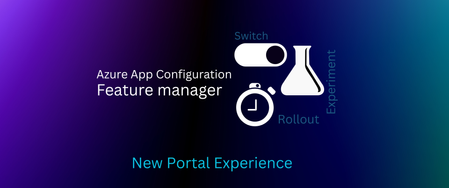
Feature flags have become an essential tool for modern software development, enabling teams to deploy code safely, control feature rollouts, and experiment with new functionality without the risk of breaking production environments. As AI becomes increasingly integrated into applications— from LLM-powered features to model version management— the need for safe, controlled deployments has never been more critical. The previous experience forced you to make a decision upfront: should I create a feature flag or a variant feature flag? What's the difference between these options? Which one do I need for my use case? Did I make a wrong choice? Do I need to delete and start over? Our new portal experience starts with your goal instead of requiring deep knowledge of feature flag architecture. The new experience asks you: What will you be using your feature flag for? Scenarios That Match How You Think When you select a scenario, the portal dynamically adjusts to reveal only the relevant configuration tabs and options. Switch shows straightforward toggle controls, Rollout presents percentage and targeting options, and Experiment allows variant allocation and traffic distribution settings. Let's dive deeper into how they fit into your needs. Switch: "I need an on/off toggle" Immediate on/off control over features, that is commonly used for: Emergency kill switches: Instantly disable problematic features or AI models in production Maintenance mode: Toggle site-wide maintenance without deployments Feature gating: Block access to beta features for non-beta users Debug modes: Enable verbose logging or diagnostic features for troubleshooting Regional compliance: Quickly disable features that conflict with local regulations Fallback mode: Switch from AI-powered responses to rule-based responses during model downtime Rollout: "I want to control who gets this and when" Gradual exposure with smart targeting for controlled feature releases that can be useful for: Canary deployments: Start with 5% of users, gradually increase to 100% Geographic rollouts: Launch multimodal AI in one region (e.g US-West), then expand based on language model performance Subscription tiers: Give premium features to paid users first (e.g provide RAG-enhanced search to enterprise users) Employee dogfooding: Internal testing before customer release, test new LLM-powered features with employees before customer release Time-based releases: Automatically activate features during business hours Load testing: Gradually increase traffic to stress-test new infrastructure Experiment: "I want to make informed data-driven decisions" Here's the key: You don't necessarily have to run statistical experiments. Beyond A/B testing, this scenario can be applied if you have multiple variants of something - different algorithms, UI layouts, configurations, or business logic paths - and is typically utilized for: Statistical Analysis, A/B Testing & Experiments: Conversion optimization: Test different checkout flows to measure completion rates UI/UX experiments: Compare button colors, layouts, or copy to optimize user engagement Model comparison: Compare Claude vs GPT-4 vs Gemini for completion rates and accuracy Pricing strategy tests: Evaluate different pricing models with statistical significance Algorithm performance: Compare recommendation engines using click-through rates and revenue metrics Configuration & Variant Management: Configuration management: Serve different API timeout values to different regions Feature variants: Offer basic/premium/enterprise feature sets through one flag Model routing: Route traffic between fine-tuned model, base model, and RAG-enhanced model based on query complexity Content personalization: Show different onboarding flows based on user characteristics (e.g show different system instructions based on user expertise level for prompt personalization) Multi-tenant customization: Serve tenant-specific configurations and behaviors Check out Azure App Configuration Feature manager in action in this demo video: Experience the new approach today: 1. Navigate to your App Configuration resource in the Azure Portal 2. Go to Operations > Feature manager > Create 3. Selecting your scenario: Switch, Rollout, or Experiment and the subsequent setup steps will appear dynamically in tabs 4. Configure with purpose-built options that match your chosen scenario Telemetry can be enabled in all scenarios if your App Configuration store is connected to an App Insights Workspace. This update doesn't change how your existing flags work, the scenario-based approach simply improves new flag creation process on the Azure App Configuration Portal. This scenario-based approach is just the beginning. We're continuing to invest in making feature management more intuitive, starting with insights into better performing variants to AI experimentation. Additional resources: Manage feature flags in Azure App Configuration Understand feature management using Azure App Configuration | Microsoft Learn Questions about the new experience? Comment below! #Azure #FeatureFlags #AppConfiguration #DeveloperExperience #FeatureManager #AzurePortal #Experimentation #Rollout1.9KViews0likes0CommentsUnlocking Client-Side Configuration at Scale with Azure App Configuration and Azure Front Door
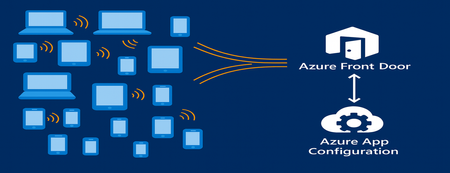
As modern apps shift more logic to the browser, Azure App Configuration now brings dynamic configuration directly to client-side applications. Through its integration with Azure Front Door, developers can deliver configuration to thousands or millions of clients with CDN-scale performance while avoiding the need to expose secrets or maintain custom proxy layers. This capability is especially important for AI-powered and agentic client applications, where model settings and behaviors often need to adjust rapidly and safely. This post introduces the new capability, what it unlocks for developers, and how to start building dynamic, configuration-driven client experiences in Azure. App Configuration for Client Applications Centralized Settings and Feature Management App Configuration gives developers a single, consistent place to define configuration settings and feature flags. Until now, this capability was used almost exclusively by server-side applications. With Azure Front Door integration, these same settings can now power modern client experiences across: Single Page Applications (React, Vue, Angular, Next.js, and others using JavaScript) Mobile/ and desktop applications with .Net MAUI JavaScript-powered UI components or embedded widgets running in browser Any browser-based application that can run JavaScript This allows developers to update configuration without redeploying the client app. CDN-Accelerated Configuration Delivery with Azure Front Door Azure Front Door enables client applications to fetch configuration using a fast, globally distributed CDN path. Developers benefit from: High-scale configuration delivery to large client populations Edge caching for fast, low-latency configuration retrieval Reduced load on your backend configuration store through CDN offloading Dedicated endpoint that exposes only the configuration subset it is scoped for. Secure and Scalable Architecture App Configuration integrates with Azure Front Door to deliver configuration to client-side apps using a simple, secure, and CDN-accelerated flow. How it works The browser calls Azure Front Door anonymously, like any CDN asset. Front Door uses managed identity to access App Configuration securely. Only selected key-values, feature flags or snapshots are exposed through Azure Front Door. No secrets or credentials are shipped to the client. Edge caching enables high throughput and low latency configuration delivery. This provides a secure and efficient design for client applications and eliminates the need for custom gateway code or proxy services. Developer Scenarios: What You Can Build CDN-delivered configuration unlocks a range of rich client application scenarios: Client-side feature rollouts for UI components A/B testing or targeted experiences using feature flags Control AI/LLM model parameters and UI behaviors through configuration Dynamically control client-side agent behavior, safety modes, and guardrail settings through configuration Consistent behavior for clients using snapshot-based configuration references These scenarios previously required custom proxies. Now, they work out-of-the-box with Azure App Configuration + Azure Front Door. End-to-End Developer Journey The workflow for enabling client-side configuration with App Configuration is simple: Define key values or feature flags in Azure App Configuration Connect App Configuration to Azure Front Door in the portal Scope configuration exposed by Front Door endpoint with key value or snapshot filter. Use the updated AppConfig JavaScript or .NET provider to connect to Front Door anonymously. Client app fetches configuration via Front Door with CDN performance Update your configuration centrally, no redeployment required To see this workflow end-to-end, check out this demo video. The video shows how to connect an App Configuration store to Azure Front Door and use the Front Door endpoint in a client application. It also demonstrates dynamic feature flag refresh as updates are made in the store. Portal Experience to connect Front Door Once you create your App Configuration store with key values and/or feature flags, you can configure the Front Door connection directly in the Azure portal. The App Configuration portal guides you through connecting a profile, creating an endpoint, and scoping which keys, labels, or snapshots will be exposed to client applications. A detailed “How-To” guide is available in the App Configuration documentation. Using the Front Door Endpoint in Client Applications JavaScript Provider Minimum version for this feature is 2.3.0-preview, get the provider from here. Add below snippet in your code to fetch the key values and/or feature flags from App Configuration through front door. import { loadFromAzureFrontDoor } from "@azure/app-configuration-provider"; const appConfig = await loadFromAzureFrontDoor("https://<your-afd-endpoint>", { featureFlagOptions: { enabled: true }, }); const yoursetting = appConfig.get("<app.yoursetting>"); .NET Provider Minimum version supporting this feature is 8.5.0-preview, get the provider from here builder.Configuration.AddAzureAppConfiguration(options => { options.ConnectAzureFrontDoor(new Uri("https://<your-afd-endpoint>")) .UseFeatureFlags(featureFlagOptions => { featureFlagOptions.Select("<yourappprefix>"); }); }); See our GitHub samples for JavaScript and .NET MAUI for complete client application setups. Notes & Limitations Feature flag scoping requires two key prefix filters, startsWith(".appconfig.featureflag") and ALL keys. Portal Telemetry feature does not reflect client-side consumption yet. This feature is in preview, and currently not supported in Azure sovereign clouds. Conclusion By combining Azure App Configuration with Azure Front Door, developers can now power a new generation of dynamic client applications. Configuration is delivered at CDN speed, securely and at scale letting you update experiences instantly, without redeployment or secret management on client side. This integration brings App Configuration’s flexibility directly to the browser, making it easier to power AI-driven interfaces, agentic workflows, and dynamic user experiences. Try client-side configuration with App Configuration today and update your apps’ behavior in real time, without any redeployments.1.1KViews2likes0CommentsIntroducing the 'Session Affinity Proxy' setting in App Service Configuration.
From our own metadata and experience at Microsoft, we know that a considerable number of our customers use App Service behind one of our reverse proxy solutions, such as Azure Application Gateway or Azure Front Door. In simple terms, this means that when our customers have an App Service, it often runs as part of the backend pool of an Azure Application Gateway or is configured as the origin in an Azure Front Door profile, which is great because this setup is beneficial for several reasons. Firstly, it enhances security by obfuscation. With a reverse proxy in the data path, clients only contact the reverse proxy instances and are unaware of the second connection between the reverse proxy instances and the real backend. This unrevealed internal architecture reduces the attack surface for malicious actors. Secondly, the reverse proxy can act as the TLS termination point, offloading the TLS handshake, encryption, and decryption from the App Service. This reduces the TLS computational load on the App Service and simplifies the management of TLS certificates, through Key Vault. Thirdly, the reverse proxy can load balance and distribute incoming client requests across multiple backend servers or origins, improving performance and ensuring no single server is overwhelmed, making scalability attainable. Finally, if Azure Front Door is used as the reverse proxy solution, it can also act as a cache, reducing the load on backend servers by serving content directly from the reverse proxy POPs (Point of Presence) servers, which improves response times for users, as the content is served directly from a location closer to the user, which is faster than contacting the origin. As we can see, using a reverse proxy like Azure Application Gateway or Front Door before an App Service, seems very convenient, but there is a drawback: maintaining session affinity and authentication can be challenging if custom domains are not being used in the App Service configuration. This is because in a reverse proxy scenario, instead of one connection we have two: one between the client and the reverse proxy, and another one between the reverse proxy and the backend / origin and maintaining the original information across those different connections is a challenge. What is the problem that we are trying to resolve with the new "Session Affinity Proxy" setting? When employing a reverse proxy to front App Services, clients typically utilize a custom domain that directs to the proxy´s IP address, while communication between the proxy and the backend App Services occurs via the default App Services domain name. Although this configuration is generally effective, it may present challenges when employing advanced configurations such as Session Affinity or Authentication within App Services (explained further in this article). To address these issues and ensure that an App Services deployment is reverse-proxy aware -utilizing the same domain name requested by the client to the proxy- a new configuration was recently introduced, beggining with Session Affinity cookies. First, let´s clarify what "Cookie-Based Affinity" Means. A "Cookie Based Affinity," also known as a "sticky session" or "session persistence," is a technique used to ensure that a client's requests are always sent to the same server. This is particularly important in scalable environments where web servers instances are added dynamically and hosted applications store user data in session variables or in a local cache, commonly referred to as a stateful application. Therefore, maintaining the "Session Affinity" is crucial for stateful applications that can use cookies to store important session information. If we send the request to a server without the stored sessions variables, the application logic can break, session state can get lost, authentication can fail, or back-end URLs can inadvertently be exposed to end users. Why maintaining "Session Persistence" challenging in scenarios with an App Service behind a reverse proxy without custom domains? Let´s use below diagram as an example for further explanation. In this diagram, we need to consider that Session Affinity (ARR) in App Services is enabled When the clients send the request to Application Gateway or Front Door (1), they send it with a host value in the request header equal to "constoso.com", that is different from the hostname configured in the backend "contoso.azurewebsites.net" (2). The HTTP Response from the backend (3) includes affinity cookies with a default domain name of "contoso.azurewebsites.net" (ARR enabled in the configuration of App Service) that differs from the original one "contoso.com". Due to security reasons, clients do not accept a cookie with the default domain name "contoso.azurewebsites.net" in the response (4) because its domain differs from the original, and therefore the "sticky session" is not maintained and the stateful application is broken. The new "Session Affinity Proxy" setting to the rescue For solving the problem that we have described above, we are introducing the "Session Affinity Proxy" setting in the App Service configuration. This is the portal view of the new setting: And you can also enable it via az cli: az resource update –name <app-name> --resource-type "Microsoft.Web/sites" -g <resource-group-name> --set properties.clientAffinityProxyEnabled=true This new property is available for the following services Web App Functions /Logic Apps (Standard) The new App Services property "clientAffinityProxyEnabled" that you set when you choose from the Portal "Session affinity proxy: On", in the configuration of a Web App, Function, or Logic App (or when you activate it via CLI) is a boolean setting that provides an out-of-the-box experience by setting cookie domain name based on incoming requests as seen by Application Gateway/Front Door. The following illustration demonstrates how this new solution works: As you can see when we enable the setting, we are sending the original domain (as seeing by the client) from the reverse proxy to the backend. As we know the original value, we are capable when we sent the HTTP Response from the backend to includes affinity cookies that contain the original hostname (contoso.com) rather than the configured one (contoso.azurewebsites.net) and therefore these cookies are not going to be rejected by the clients as they contain the expected hostname. This is a straightforward configuration that resolves the problem of "Cookie Based Affinity" and allows to work without custom domains configured on the App Service. Before this setting was introduced, our recommended solution was to use always custom domains as per this documentation, but with the new configuration setting "Session Affinity Proxy: On", we have a solution that just work with one click and reduces the complexity of configuration for our customers. This simplifies the process significantly and provides a seamless experience for users, eliminating the need for additional setup while ensuring consistent session affinity.5.7KViews2likes7Comments
Understanding 'Always On' vs. Health Check in Azure App Service
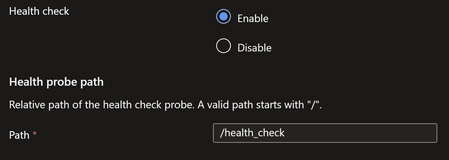
The 'Always On' feature in Azure App Service helps keep your app warm by ensuring it remains running and responsive, even during periods of inactivity with no incoming traffic. As this feature pings to root URI after every 5 minutes. On Other hand Health-check feature helps pinging configured path every minute to monitor the application availability on each instance. What is 'Always On' in Azure App Service? The Always On feature ensures that the host process of your web app stays running continuously. This results in better responsiveness after idle periods since the app doesn’t need to cold boot when a request arrives. How to enable Always On: Navigate to the Azure Portal and open your Web App. Go to Configuration > General Settings. Toggle Always On to On. What is Health Check in Azure App Service? Health check increases your application's availability by rerouting requests away from instance where application is marked unhealthy and replacing instances if they remain unhealthy. How to enable Health-Check: Navigate to the Azure Portal and open your Web App. Under Monitoring, select Health check. Select Enable and provide a valid URL path for your application, such as /health or /api/health. Select Save. So, is it still necessary to enable the 'Always On' feature when Health Check is already pinging your application every minute? -> Yes, please find below explanation for the same. Test App scenario: Health Check enabled (pointing to /health_check path) and Always On disabled. Started the app and sent some user requests. Observations from the Test: After the application starts up, health check pings begin following the end user's request. Please find below table representing Health-check pings following user's request to root URI. Time Bucket URL Status Request Count 2025-03-20 07:00:00.0000000 / 200 6 2025-03-20 07:00:00.0000000 /health_check 200 30 2025-03-20 07:30:00.0000000 /health_check 200 30 Subsequent Health-check pings will continue, even in the absence of user requests. However, after restarting the app and in the absence of any user requests, we observed that Health Check requests were not initiated. This indicates that Health Check does not start automatically unless application is actively running and serving requests. Conclusion: Always On ensures that the app is proactively kept warm by sending root URI pings, even post-restart. The health-check feature is useful for monitoring application availability when the application is active. However, after a restart, if the application isn't active due to a lack of requests, Health-check pings won't initiate. Therefore, it is highly recommended to enable Always On, particularly for applications that need continuous availability and to avoid application process unload events. Recommendation: Enable Always On alongside Health Check to ensure optimal performance and reliability.5.9KViews2likes0CommentsPublic Preview of Split Experimentation in Azure App Configuration
We're thrilled to announce the public preview of Split Experimentation in Azure App Configuration! This new capability extends feature flags to help you balance speed, accuracy, and safety in your application development. With seamless integration into Azure services and powered by Split's robust analysis, you can make data-driven decisions, mitigate risks, and optimize user experiences. Ready to unlock the full potential of feature management? Dive into our blog and start experimenting with our .NET sample today!5.4KViews0likes0Comments