azure ai search
4 Topics
BYOPI - Design your own custom private AI Search indexer with no code ADF (SQLServer on private VM)
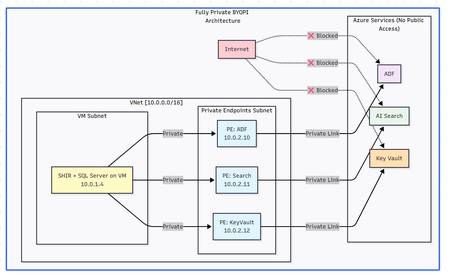
Executive Summary Building a fully private search indexing solution using Azure Data Factory (ADF) to sync SQL Server data from private VM to Azure AI Search is achievable but comes with notable complexities and limitations. This blog shares my journey, discoveries, and honest assessment of the BYOPI (Build Your Own Private Indexer) architecture. Architectural flow: Table of Contents Overall Setup How ADF works in this approach with Azure AI Search Challenges - discovered Pros and Cons: An Honest Assessment Conclusion and Recommendations 1. Overall Setup: Phase 1: Resource Group & Network Setup : create resource group and vNET (virtual network) in any region of your choice Phase 2: Deploy SQL Server VM: Phase 3: Create Azure Services - ADF (Azure Data Factory), Azure AI Search and AKV (Azure Key Vault) service from portal or from your choice of deployment. Phase 4: Create Private Endpoints for all the services in their dedicated subnets: Phase 5: Configure SQL Server on VM : connect to VM via bastion and setup database, tables & SP: Sample metadata used as below: CREATE DATABASE BYOPI_DB; GO USE BYOPI_DB; GO CREATE TABLE Products ( ProductId INT IDENTITY(1,1) PRIMARY KEY, ProductName NVARCHAR(200) NOT NULL, Description NVARCHAR(MAX), Category NVARCHAR(100), Price DECIMAL(10,2), InStock BIT DEFAULT 1, Tags NVARCHAR(500), IsDeleted BIT DEFAULT 0, CreatedDate DATETIME DEFAULT GETDATE(), ModifiedDate DATETIME DEFAULT GETDATE() ); CREATE TABLE WatermarkTable ( TableName NVARCHAR(100) PRIMARY KEY, WatermarkValue DATETIME ); INSERT INTO WatermarkTable VALUES ('Products', '2024-01-01'); CREATE PROCEDURE sp_update_watermark @TableName NVARCHAR(100), @NewWatermark DATETIME AS BEGIN UPDATE WatermarkTable SET WatermarkValue = @NewWatermark WHERE TableName = @TableName; END; INSERT INTO Products (ProductName, Description, Category, Price, Tags) VALUES ('Laptop Pro', 'High-end laptop', 'Electronics', 1299.99, 'laptop,computer'), ('Office Desk', 'Adjustable desk', 'Furniture', 599.99, 'desk,office'), ('Wireless Mouse', 'Bluetooth mouse', 'Electronics', 29.99, 'mouse,wireless'); Phase 6: Install Self-Hosted Integration Runtime Create SHIR in ADF: Go to ADF resource in Azure Portal Click "Open Azure Data Factory Studio" Note: You need to access from a VM in the same VNet or via VPN since ADF is private In ADF Studio, click Manage (toolbox icon) Select Integration runtimes → "+ New" Select "Azure, Self-Hosted" → "Self-Hosted" Name: SHIR-BYOPI or of your choice Click "Create" Copy Key1 (save it) Install SHIR on VM In the VM (via Bastion): Open browser, go to: https://www.microsoft.com/download/details.aspx?id=39717 Download and install Integration Runtime During setup: Launch Configuration Manager Paste the Key1 from Step 14 Click "Register" Wait for "Connected" status Phase 7: Create Search Index through below powershell script and saving it as search_index.ps1 $searchService = "search-byopi" $apiKey = "YOUR-ADMIN-KEY" $headers = @{ 'api-key' = $apiKey 'Content-Type' = 'application/json' } $index = @{ name = "products-index" fields = @( @{name="id"; type="Edm.String"; key=$true} @{name="productName"; type="Edm.String"; searchable=$true} @{name="description"; type="Edm.String"; searchable=$true} @{name="category"; type="Edm.String"; filterable=$true; facetable=$true} @{name="price"; type="Edm.Double"; filterable=$true} @{name="inStock"; type="Edm.Boolean"; filterable=$true} @{name="tags"; type="Collection(Edm.String)"; searchable=$true} ) } | ConvertTo-Json -Depth 10 Invoke-RestMethod ` -Uri "https://$searchService.search.windows.net/indexes/products-index?api-version=2020-06-30" ` -Method PUT ` -Headers $headers ` -Body $index Phase 8: Configure AKV & ADF Components - Link AKV and ADF for secrets Create Key Vault Secrets Navigate to kv-byopi (created AKV resource) in Portal Go to "Access policies" Click "+ Create" Select permissions: Get, List for secrets Select principal: adf-byopi-private Create Go to "Secrets" → "+ Generate/Import": Name: sql-password, Value: <> Name: search-api-key, Value: Your search key Create Linked Services in ADF Access ADF Studio from the VM (since it's private): Key Vault Linked Service: Manage → Linked services → "+ New" Search "Azure Key Vault" Configure: Name: LS_KeyVault Azure Key Vault: kv-byopi Integration runtime: AutoResolveIntegrationRuntime Test connection → Create SQL Server Linked Service: "+ New" → "SQL Server" Configure: Name: LS_SqlServer Connect via: SHIR-BYOPI Server name: localhost Database: BYOPI_DB Authentication: SQL Authentication User: sqladmin Password: Select from Key Vault → LS_KeyVault → sql-password Test → Create Azure Search Linked Service: "+ New" → "Azure Search" Configure: Name: LS_AzureSearch URL: https://search-byopi.search.windows.net Connect via: SHIR-BYOPI - Important - use SHIR API Key: From Key Vault → LS_KeyVault → search-api-key Test → Create Phase 9: Create ADF Datasets and PipelineCreate Datasets SQL Products Dataset: Author → Datasets → "+" → "New dataset" Select "SQL Server" → Continue Select "Table" → Continue Properties: Name: DS_SQL_Products Linked service: LS_SqlServer Table: Select Products click OK Watermark Dataset: Repeat with: Name: DS_SQL_Watermark Table: WatermarkTable Search Dataset: "+" → "Azure Search" Properties: Name: DS_Search_Index Linked service: LS_AzureSearch Index name: products-index Create Pipeline Author → Pipelines → "+" → "Pipeline" Name: PL_BYOPI_Private From Activities → General, drag "Lookup" activity Configure Lookup 1: Name: LookupOldWatermark Settings: Source dataset: DS_SQL_Watermark Query: below sql SELECT WatermarkValue FROM WatermarkTable WHERE TableName='Products' - **First row only**: ✓ Add another Lookup: Name: LookupNewWatermark Query: below sql SELECT MAX(ModifiedDate) as NewWatermark FROM Products Add Copy Data activity: Name: CopyToSearchIndex Source: Dataset: DS_SQL_Products Query: sql SELECT CAST(ProductId AS NVARCHAR(50)) as id, ProductName as productName, Description as description, Category as category, Price as price, InStock as inStock, Tags as tags, CASE WHEN IsDeleted = 1 THEN 'delete' ELSE 'upload' END as [@search.action] FROM Products WHERE ModifiedDate > '@{activity('LookupOldWatermark').output.firstRow.WatermarkValue}' AND ModifiedDate <= '@{activity('LookupNewWatermark').output.firstRow.NewWatermark}' Sink: Dataset: DS_Search_Index Write behavior: Merge Batch size: 1000 Add Stored Procedure activity: Name: UpdateWatermark SQL Account: LS_SqlServer Stored procedure: sp_update_watermark Parameters: TableName: Products NewWatermark: @{activity('LookupNewWatermark').output.firstRow.NewWatermark} Connect activities with success conditions Phase 10: Test and Schedule Test Pipeline Click "Debug" in pipeline Monitor in Output panel Check for green checkmarks Create Trigger In pipeline, click "Add trigger" → "New/Edit" Click "+ New" Configure: Name: TR_Hourly Type: Schedule Recurrence: Every 1 Hour OK → Publish All Monitor Go to Monitor tab View Pipeline runs Check Trigger runs Your pipeline should look like this: Phase 11: Validation & Testing Verify Private Connectivity From the VM, run PowerShell: # Test DNS resolution (should return private IPs) nslookup adf-byopi-private.datafactory.azure.net # Should show private IP like : 10.0.2.x nslookup search-byopi.search.windows.net # Should show private IP like : 10.0.2.x nslookup kv-byopi.vault.azure.net # Should show private IP like : 10.0.2.x # Test Search $headers = @{ 'api-key' = 'YOUR-KEY' } Invoke-RestMethod -Uri "https://search-byopi.search.windows.net/indexes/products-index/docs?`$count=true&api-version=2020-06-30" -Headers $headers Test Data Sync (adding few records) and verify in search index: -- Add test record INSERT INTO Products (ProductName, Description, Category, Price, Tags) VALUES ('Test Product Private', 'Testing private pipeline', 'Test', 199.99, 'test,private'); -- Trigger pipeline manually or wait for schedule -- Then verify in Search index 2. How ADF works in this approach with Azure AI search: Azure AI Search uses a REST API for indexing or called as uploading. When ADF sink uploads data to AI Search, it's actually making HTTP POST requests: for example - POST https://search-byopi.search.windows.net/indexes/products-index/docs/index?api-version=2020-06-30 Content-Type: application/json api-key: YOUR-ADMIN-KEY { "value": [ { "@search.action": "upload", "id": "1", "productName": "Laptop", "price": 999.99 }, { "@search.action": "delete", "id": "2" } ] } Delete action used here is soft delete and not hard delete. pipeline query: SELECT CAST(ProductId AS NVARCHAR(50)) as id, -- Renamed to match index field ProductName as productName, -- Renamed to match index field Description as description, Category as category, Price as price, InStock as inStock, Tags as tags, CASE WHEN IsDeleted = 1 THEN 'delete' ELSE 'upload' END as [@search.action] -- Special field with @ prefix FROM Products WHERE ModifiedDate > '2024-01-01' ``` Returns this resultset: ``` id | productName | description | category | price | inStock | tags | @search.action ----|----------------|------------------|-------------|--------|---------|----------------|--------------- 1 | Laptop Pro | High-end laptop | Electronics | 1299 | 1 | laptop,computer| upload 2 | Office Chair | Ergonomic chair | Furniture | 399 | 1 | chair,office | upload 3 | Deleted Item | Old product | Archive | 0 | 0 | old | delete The @search.action Field - The Magic Control This special field tells Azure AI Search what to do with each document: @search.action What It Does When to Use What Happens If Document... upload Insert OR Update Most common - upsert operation Exists: Updates it<br>Doesn't exist: Creates it merge Update only When you know it exists Exists: Updates specified fields<br>Doesn't exist: ERROR mergeOrUpload Update OR Insert Safe update Exists: Updates fields<br>Doesn't exist: Creates it delete Remove from index To remove documents Exists: Deletes it<br>Doesn't exist: Ignores (no error) ADF automatically converts SQL results to JSON format required by Azure Search: { "value": [ { "@search.action": "upload", "id": "1", "productName": "Laptop Pro", "description": "High-end laptop", "category": "Electronics", "price": 1299.00, "inStock": true, "tags": "laptop,computer" }, { "@search.action": "upload", "id": "2", "productName": "Office Chair", "description": "Ergonomic chair", "category": "Furniture", "price": 399.00, "inStock": true, "tags": "chair,office" }, { "@search.action": "delete", "id": "3" // For delete, only ID is needed } ] } ADF doesn't send all records at once. It batches them based on writeBatchSize and each batch is a separate HTTP POST to Azure Search How ADF will detect new changes and run batches: Watermark will be updated after each successful ADF run to detect new changes as below: Handling different scenarios: Scenario 1: No Changes Between Runs: Run at 10:00 AM: - Old Watermark: 09:45:00 - New Watermark: 10:00:00 - Query: WHERE ModifiedDate > '09:45' AND <= '10:00' - Result: 0 rows - Action: Still update watermark to 10:00 - Why: Prevents reprocessing if changes come later Scenario 2: Bulk Insert Happens: Someone inserts 5000 records at 10:05 AM Run at 10:15 AM: - Old Watermark: 10:00:00 - New Watermark: 10:15:00 - Query: WHERE ModifiedDate > '10:00' AND <= '10:15' - Result: 5000 rows - Action: Process all 5000, update watermark to 10:15 Scenario 3: Pipeline Fails Run at 10:30 AM: - Old Watermark: 10:15:00 (unchanged from last success) - Pipeline fails during Copy activity - Watermark NOT updated (still 10:15:00) Next Run at 10:45 AM: - Old Watermark: 10:15:00 (still the last successful) - New Watermark: 10:45:00 - Query: WHERE ModifiedDate > '10:15' AND <= '10:45' - Result: Gets ALL changes from 10:15 to 10:45 (30 minutes of data) - No data loss! Note: There is still room for improvement by refining this logic to handle more advanced scenarios. However, I have not examined the logic in depth, as the goal here is to review how the overall setup functions, identify its limitations, and compare it with the indexing solutions available in AI Search. 3. Challenges - disovered: When I tried to set out to build a private search indexer for SQL Server data residing on an Azure VM with no public IP, the solution seemed straightforward: use Azure Data Factory to orchestrate the data movement to Azure AI Search. The materials made it sound simple. The reality? It's possible, but the devil is in the details. What We Needed: ✅ SQL Server on private VM (no public IP) ✅ Azure AI Search with private endpoint ✅ No data over public internet ✅ Support for full CRUD operations ✅ Near real-time synchronization ✅ No-code/low-code solution Reality Check: ⚠️ DELETE operations not natively supported in ADF sink ⚠️ Complex networking requirements ⚠️ Higher costs than expected ⚠️ Significant setup complexity ✅ But it IS possible with workarounds Components Required Azure VM: ~$150/month (D4s_v3) Self-Hosted Integration Runtime: Free (runs on VM) Private Endpoints: ~$30/month (approx 3 endpoints) Azure Data Factory: ~$15-60/month (depends on frequency) Azure AI Search: ~$75/month (Basic tier) Total: ~$270-315/month** The DELETE Challenge: Despite Azure AI Search REST API fully supporting delete operations via @search.action, ADF's native Azure Search sink does NOT support delete operations. -- This SQL query with delete action SELECT ProductId as id, CASE WHEN IsDeleted = 1 THEN 'delete' ELSE 'upload' END as [@search.action] FROM Products -- Will NOT delete documents in Azure Search when using Copy activity -- The @search.action = 'delete' is ignored by ADF sink! Nevertheless, there is a workaround using the Web Activity approach or by calling the REST API from the ADF side to perform the delete operation. { "name": "DeleteViaREST", "type": "Web", "typeProperties": { "url": "https://search.windows.net/indexes/index/docs/index", "method": "POST", "body": { "value": [ {"@search.action": "delete", "id": "123"} ] } } } Development Challenges No Direct Portal Access: With ADF private, you need: Jump box in the same VNet VPN connection Bastion for access Testing Complexity: Can't use Postman from local machine Need to test from within VNet Debugging requires multiple tools 4. Pros and Cons: An Honest Assessment: Pros: Security: Complete network isolation Compliance: Meets strict requirements No-Code: Mostly configuration-based Scalability: Can handle large datasets Monitoring: Built-in ADF monitoring Managed Service: Microsoft handles updates Cons: DELETE Complexity: Not natively supported Cost: Higher than expected Setup Complexity: Many moving parts Debugging: Difficult with private endpoints Hidden Gotchas: - SHIR requires Windows VM (Linux in preview) - Private endpoint DNS propagation delays - ADF Studio timeout with private endpoints - SHIR auto-update can break pipelines 5. Conclusion and Recommendations: When to Use BYOPI: ✅ Good Fit: Strict security requirements Needs indexing from an un-supported scenarios for example SQL server residing on private VM Budget > $500/month Team familiar with Azure networking Read-heavy workloads ❌ Poor Fit: Simple search requirements Budget conscious Need real-time updates Heavy DELETE operations Small team without Azure expertise BYOPI works, but it's more complex and expensive than initially expected. The lack of native DELETE support in ADF sink is a significant limitation that requires workarounds. Key Takeaways It works but requires significant effort DELETE (hard) operations need workarounds Costs will be higher than expected Complexity is substantial for a "no-code" solution Alternative solutions might be better for many scenarios Disclaimer: The sample scripts provided in this article are provided AS IS without warranty of any kind. The author is not responsible for any issues, damages, or problems that may arise from using these scripts. Users should thoroughly test any implementation in their environment before deploying to production. Azure services and APIs may change over time, which could affect the functionality of the provided scripts. Always refer to the latest Azure documentation for the most up-to-date information. Thanks for reading this blog! I hope you've found this approach of creating own private indexing solution for Azure AI Search (BYOPI) useful 😀308Views1like0CommentsBuilding an AI-Powered ESG Consultant Using Azure AI Services: A Case Study
In today's corporate landscape, Environmental, Social, and Governance (ESG) compliance has become increasingly important for stakeholders. To address the challenges of analyzing vast amounts of ESG data efficiently, a comprehensive AI-powered solution called ESGai has been developed. This blog explores how Azure AI services were leveraged to create a sophisticated ESG consultant for publicly listed companies. https://youtu.be/5-oBdge6Q78?si=Vb9aHx79xk3VGYAh The Challenge: Making Sense of Complex ESG Data Organizations face significant challenges when analyzing ESG compliance data. Manual analysis is time-consuming, prone to errors, and difficult to scale. ESGai was designed to address these pain points by creating an AI-powered virtual consultant that provides detailed insights based on publicly available ESG data. Solution Architecture: The Three-Agent System ESGai implements a sophisticated three-agent architecture, all powered by Azure's AI capabilities: Manager Agent: Breaks down complex user queries into manageable sub-questions containing specific keywords that facilitate vector search retrieval. The system prompt includes generalized document headers from the vector database for context. Worker Agent: Processes the sub-questions generated by the Manager, connects to the vector database to retrieve relevant text chunks, and provides answers to the sub-questions. Results are stored in Cosmos DB for later use. Director Agent: Consolidates the answers from the Worker agent into a comprehensive final response tailored specifically to the user's original query. It's important to note that while conceptually there are three agents, the Worker is actually a single agent that gets called multiple times - once for each sub-question generated by the Manager. Current Implementation State The current MVP implementation has several limitations that are planned for expansion: Limited Company Coverage: The vector database currently stores data for only 2 companies, with 3 documents per company (Sustainability Report, XBRL, and BRSR). Single Model Deployment: Only one GPT-4o model is currently deployed to handle all agent functions. Basic Storage Structure: The Blob container has a simple structure with a single directory. While Azure Blob storage doesn't natively support hierarchical folders, the team plans to implement virtual folders in the future. Free Tier Limitations: Due to funding constraints, the AI Search service is using the free tier, which limits vector data storage to 50MB. Simplified Vector Database: The current index stores all 6 files (3 documents × 2 companies) in a single vector database without filtering capabilities or schema definition. Azure Services Powering ESGai The implementation of ESGai leverages multiple Azure services for a robust and scalable architecture: Azure AI Services: Provides pre-built APIs, SDKs, and services that incorporate AI capabilities without requiring extensive machine learning expertise. This includes access to 62 pre-trained models for chat completions through the AI Foundry portal. Azure OpenAI: Hosts the GPT-4o model for generating responses and the Ada embedding model for vectorization. The service combines OpenAI's advanced language models with Azure's security and enterprise features. Azure AI Foundry: Serves as an integrated platform for developing, deploying, and governing generative AI applications. It offers a centralized management centre that consolidates subscription information, connected resources, access privileges, and usage quotas. Azure AI Search (formerly Cognitive Search): Provides both full-text and vector search capabilities using the OpenAI ada-002 embedding model for vectorization. It's configured with hybrid search algorithms (BM25 RRF) for optimal chunk ranking. Azure Storage Services: Utilizes Blob Storage for storing PDFs, Business Responsibility Sustainability Reports (BRSRs), and other essential documents. It integrates seamlessly with AI Search using indexers to track database changes. Cosmos DB: Employs MongoDB APIs within Cosmos DB as a NoSQL database for storing chat history between agents and users. Azure App Services: Hosts the web application using a B3-tier plan optimized for cost efficiency, with GitHub Actions integrated for continuous deployment. Project Evolution: From Concept to Deployment The development of ESGai followed a structured approach through several phases: Phase 1: Data Cleaning Extracted specific KPIs from XML/XBRL datasets and BRSR reports containing ESG data for 1,000 listed companies Cleaned and standardized data to ensure consistency and accuracy Phase 2: RAG Framework Development Implemented Retrieval-Augmented Generation (RAG) to enhance responses by dynamically fetching relevant information Created a workflow that includes query processing, data retrieval, and response generation Phase 3: Initial Deployment Deployed models locally using Docker and n8n automation tools for testing Identified the need for more scalable web services Phase 4: Transition to Azure Services Migrated automation workflows from n8n to Azure AI Foundry services Leveraged Azure's comprehensive suite of AI services, storage solutions, and app hosting capabilities Technical Implementation Details Model Configurations: The GPT model is configured with: Model version: 2024-11-20 Temperature: 0.7 Max Response Token: 800 Past Messages: 10 Top-p: 0.95 Frequency/Presence Penalties: 0 The embedding model uses OpenAI-text-embedding-Ada-002 with 1536 dimensions and hybrid semantic search (BM25 RRF) algorithms. Cost Analysis and Efficiency A detailed cost breakdown per user query reveals: App Server: $390-400 AI Search: $5 per query RAG Query Processing: $4.76 per query Agent-specific costs: Manager: $0.05 (30 input tokens, 210 output tokens) Worker: $3.71 (1500 input tokens, 1500 output tokens) Director: $1.00 (600 input tokens, 600 output tokens) Challenges and Solutions The team faced several challenges during implementation: Quota Limitations: Initial deployments encountered token quota restrictions, which were resolved through Azure support requests (typically granted within 24 hours). Cost Optimization: High costs associated with vectorization required careful monitoring. The team addressed this by shutting down unused services and deploying on services with free tiers. Integration Issues: GitHub Actions raised errors during deployment, which were resolved using GitHub's App Service Build Service. Azure UI Complexity: The team noted that Azure AI service naming conventions were sometimes confusing, as the same name is used for both parent and child resources. Free Tier Constraints: The AI Search service's free tier limitation of 50MB for vector data storage restricts the amount of company information that can be included in the current implementation. Future Roadmap The current implementation is an MVP with several areas for expansion: Expand the database to include more publicly available sustainability reports beyond the current two companies Optimize token usage by refining query handling processes Research alternative embedding models to reduce costs while maintaining accuracy Implement a more structured storage system with virtual folders in Blob storage Upgrade from the free tier of AI Search to support larger data volumes Develop a proper schema for the vector database to enable filtering and more targeted searches Scale to multiple GPT model deployments for improved performance and redundancy Conclusion ESGai demonstrates how advanced AI techniques like Retrieval-Augmented Generation can transform data-intensive domains such as ESG consulting. By leveraging Azure's comprehensive suite of AI services alongside a robust agent-based architecture, this solution provides users with actionable insights while maintaining scalability and cost efficiency. https://youtu.be/5-oBdge6Q78?si=Vb9aHx79xk3VGYAh355Views0likes0Comments