azure ai foundry
181 TopicsOptimising AI Costs with Microsoft Foundry Model Router
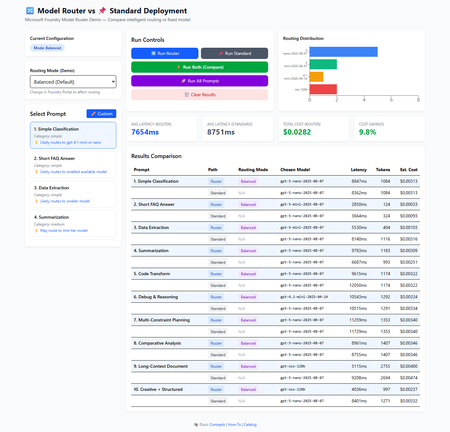
Microsoft Foundry Model Router analyses each prompt in real-time and forwards it to the most appropriate LLM from a pool of underlying models. Simple requests go to fast, cheap models; complex requests go to premium ones, all automatically. I built an interactive demo app so you can see the routing decisions, measure latencies, and compare costs yourself. This post walks through how it works, what we measured, and when it makes sense to use. The Problem: One Model for Everything Is Wasteful Traditional deployments force a single choice: Strategy Upside Downside Use a small model Fast, cheap Struggles with complex tasks Use a large model Handles everything Overpay for simple tasks Build your own router Full control Maintenance burden; hard to optimise Most production workloads are mixed-complexity. Classification, FAQ look-ups, and data extraction sit alongside code analysis, multi-constraint planning, and long-document summarisation. Paying premium-model prices for the simple 40% is money left on the table. The Solution: Model Router Model Router is a trained language model deployed as a single Azure endpoint. For each incoming request it: Analyses the prompt — complexity, task type, context length Selects an underlying model from the routing pool Forwards the request and returns the response Exposes the choice via the response.model field You interact with one deployment. No if/else routing logic in your code. Routing Modes Mode Goal Trade-off Balanced (default) Best cost-quality ratio General-purpose Cost Minimise spend May use smaller models more aggressively Quality Maximise accuracy Higher cost for complex tasks Modes are configured in the Foundry Portal, no code change needed to switch. Building the Demo To make routing decisions tangible, we built a React + TypeScript app that sends the same prompt through both Model Router and a fixed standard deployment (e.g. GPT-5-nano), then compares: Which model the router selected Latency (ms) Token usage (prompt + completion) Estimated cost (based on per-model pricing) Select a prompt, choose a routing mode, and hit Run Both to compare side-by-side What You Can Do 10 pre-built prompts spanning simple classification to complex multi-constraint planning Custom prompt input enter any text and benchmarks run automatically Three routing modes switch and re-run to see how distribution changes Batch mode run all 10 prompts in one click to gather aggregate stats API Integration The integration is a standard Azure OpenAI chat completion call. The only difference is the deployment name ( model-router instead of a specific model): const response = await fetch( `${endpoint}/openai/deployments/model-router/chat/completions?api-version=2024-10-21`, { method: 'POST', headers: { 'Content-Type': 'application/json', 'api-key': apiKey, }, body: JSON.stringify({ messages: [{ role: 'user', content: prompt }], max_completion_tokens: 1024, }), } ); const data = await response.json(); // The key insight: response.model reveals the underlying model const selectedModel = data.model; // e.g. "gpt-5-nano-2025-08-07" That data.model field is what makes cost tracking and distribution analysis possible. Results: What the Data Shows We ran all 10 prompts through both Model Router (Balanced mode) and a fixed standard deployment. Note: Results vary by run, region, model versions, and Azure load. These numbers are from a representative sample run. Side-by-side comparison across all 10 prompts in Balanced mode Summary Metric Router (Balanced) Standard (GPT-5-nano) Avg Latency ~7,800 ms ~7,700 ms Total Cost (10 prompts) ~$0.029 ~$0.030 Cost Savings ~4.5% — Models Used 4 1 Model Distribution The router used 4 different models across 10 prompts: Model Requests Share Typical Use gpt-5-nano 5 50% Classification, summarisation, planning gpt-5-mini 2 20% FAQ answers, data extraction gpt-oss-120b 2 20% Long-context analysis, creative tasks gpt-4.1-mini 1 10% Complex debugging & reasoning Routing distribution chart — the router favours efficient models for simple prompts Across All Three Modes Metric Balanced Cost-Optimised Quality-Optimised Cost Savings ~4.5% ~4.7% ~14.2% Avg Latency (Router) ~7,800 ms ~7,800 ms ~6,800 ms Avg Latency (Standard) ~7,700 ms ~7,300 ms ~8,300 ms Primary Goal Balance cost + quality Minimise spend Maximise accuracy Model Selection Mixed (4 models) Prefers cheaper Prefers premium Cost-optimised mode — routes more aggressively to nano/mini models Quality-optimised mode — routes to larger models for complex tasks Analysis What Worked Well Intelligent distribution The router didn't just default to one model. It used 4 different models and mapped prompt complexity to model capability: simple classification → nano, FAQ answers → mini, long-context documents → oss-120b, complex debugging → 4.1-mini. Measurable cost savings across all modes 4.5% in Balanced, 4.7% in Cost, and 14.2% in Quality mode. Quality mode was the surprise winner by choosing faster, cheaper models for simple prompts, it actually saved the most while still routing complex requests to capable models. Zero routing logic in application code One endpoint, one deployment name. The complexity lives in Azure's infrastructure, not yours. Operational flexibility Switch between Balanced, Cost, and Quality modes in the Foundry Portal without redeploying your app. Need to cut costs for a high-traffic period? Switch to Cost mode. Need accuracy for a compliance run? Switch to Quality. Future-proofing As Azure adds new models to the routing pool, your deployment benefits automatically. No code changes needed. Trade-offs to Consider Latency is comparable, not always faster In Balanced mode, Router averaged ~7,800 ms vs Standard's ~7,700 ms nearly identical. In Quality mode, the Router was actually faster (~6,800 ms vs ~8,300 ms) because it chose more efficient models for simple prompts. The delta depends on which models the router selects. Savings scale with workload diversity Our 10-prompt test set showed 4.5–14.2% savings. Production workloads with a wider spread of simple vs complex prompts should see larger savings, since the router has more opportunity to route simple requests to cheaper models. Opaque routing decisions You can see which model was picked via response.model , but you can't see why. For most applications this is fine; for debugging edge cases you may want to test specific prompts in the demo first. Custom Prompt Testing One of the most practical features of the demo is testing your own prompts before committing to Model Router in production. Enter any prompt `the quantum computing example is a medium-complexity educational prompt` Benchmarks execute automatically, showing the selected model, latency, tokens, and cost Workflow: Click ✏️ Custom in the prompt selector Enter your production-representative prompt Click ✓ Use This Prompt — Router and Standard run automatically Compare results — repeat with different routing modes Use the data to inform your deployment strategy This lets you predict costs and validate routing behaviour with your actual workload before going to production. When to Use Model Router Great Fit Mixed-complexity workloads — chatbots, customer service, content pipelines Cost-sensitive deployments — where even single-digit percentage savings matter at scale Teams wanting simplicity — one endpoint beats managing multi-model routing logic Rapid experimentation — try new models without changing application code Consider Carefully Ultra-low-latency requirements — if you need sub-second responses, the routing overhead matters Single-task, single-model workloads — if one model is clearly optimal for 100% of your traffic, a router adds complexity without benefit Full control over model selection — if you need deterministic model choice per request Mode Selection Guide Is accuracy critical (compliance, legal, medical)? Is accuracy critical (compliance, legal, medical)? └─ YES → Quality-Optimised └─ NO → Strict budget constraints? └─ YES → Cost-Optimised └─ NO → Balanced (recommended) Best Practices Start with Balanced mode — measure actual results, then optimise Test with your real prompts — use the Custom Prompt feature to validate routing before production Monitor model distribution — track which models handle your traffic over time Compare against a baseline — always keep a standard deployment to measure savings Review regularly — as new models enter the routing pool, distributions shift Technical Stack Technology Purpose React 19 + TypeScript 5.9 UI and type safety Vite 7 Dev server and build tool Tailwind CSS 4 Styling Recharts 3 Distribution and comparison charts Azure OpenAI API (2024-10-21) Model Router and standard completions Security measures include an ErrorBoundary for crash resilience, sanitised API error messages, AbortController request timeouts, input length validation, and restrictive security headers. API keys are loaded from environment variables and gitignored. Source: leestott/router-demo-app: An interactive web application demonstrating the power of Microsoft Foundry Model Router - an intelligent routing system that automatically selects the optimal language model for each request based on complexity, reasoning requirements, and task type. ⚠️ This demo calls Azure OpenAI directly from the browser. This is fine for local development. For production, proxy through a backend and use Managed Identity. Try It Yourself Quick Start git clone https://github.com/leestott/router-demo-app/ cd router-demo-app # Option A: Use the setup script (recommended) # Windows: .\setup.ps1 -StartDev # macOS/Linux: chmod +x setup.sh && ./setup.sh --start-dev # Option B: Manual npm install cp .env.example .env.local # Edit .env.local with your Azure credentials npm run dev Open http://localhost:5173 , select a prompt, and click ⚡ Run Both. Get Your Credentials Go to ai.azure.com → open your project Copy the Project connection string (endpoint URL) Navigate to Deployments → confirm model-router is deployed Get your API key from Project Settings → Keys Configuration Edit .env.local : VITE_ROUTER_ENDPOINT=https://your-resource.cognitiveservices.azure.com VITE_ROUTER_API_KEY=your-api-key VITE_ROUTER_DEPLOYMENT=model-router VITE_STANDARD_ENDPOINT=https://your-resource.cognitiveservices.azure.com VITE_STANDARD_API_KEY=your-api-key VITE_STANDARD_DEPLOYMENT=gpt-5-nano Ideas for Enhancement Historical analysis — persist results to track routing trends over time Cost projections — estimate monthly spend based on prompt patterns and volume A/B testing framework — compare modes with statistical significance Streaming support — show model selection for streaming responses Export reports — download benchmark data as CSV/JSON for further analysis Conclusion Model Router addresses a real problem: most AI workloads have mixed complexity, but most deployments use a single model. By routing each request to the right model automatically, you get: Cost savings (~4.5–14.2% measured across modes, scaling with volume) Intelligent distribution (4 models used, zero routing code) Operational simplicity (one endpoint, mode changes via portal) Future-proofing (new models added to the pool automatically) The latency trade-off is minimal — in Quality mode, the Router was actually faster than the standard deployment. The real value is flexibility: tune for cost, quality, or balance without touching your code. Ready to try it? Clone the demo repository, plug in your Azure credentials, and test with your own prompts. Resources Model Router Benchmark Sample Sample App Model Router Concepts Official documentation Model Router How-To Deployment guide Microsoft Foundry Portal Deploy and manage Model Router in the Catalog Model listing Azure OpenAI Managed Identity Production auth Built to explore Model Router and share findings with the developer community. Feedback and contributions welcome, open an issue or PR on GitHub.Building a Privacy-First Hybrid AI Briefing Tool with Foundry Local and Azure OpenAI
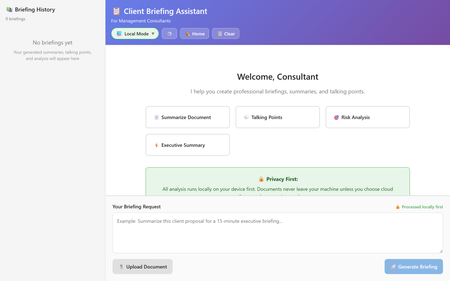
Introduction Management consultants face a critical challenge: they need instant AI-powered insights from sensitive client documents, but traditional cloud-only AI solutions create unacceptable data privacy risks. Every document uploaded to a cloud API potentially exposes confidential client information, violates data residency requirements, and creates compliance headaches. The solution lies in a hybrid architecture that combines the speed and privacy of on-device AI with the sophistication of cloud models—but only when explicitly requested. This article walks through building a production-ready briefing assistant that runs AI inference locally first, then optionally refines outputs using Azure OpenAI for executive-quality presentations. We'll explore a sample implementation using FL-Client-Briefing-Assistant, built with Next.js 14, TypeScript, and Microsoft Foundry Local. You'll learn how to architect privacy-first AI applications, implement sub-second local inference, and design transparent hybrid workflows that give users complete control over their data. Why Hybrid AI Architecture Matters for Enterprise Applications Before diving into implementation details, let's understand why a hybrid approach is essential for enterprise AI applications, particularly in consulting and professional services. Cloud-only AI services like OpenAI's GPT-4 offer remarkable capabilities, but they introduce several critical challenges. First, every API call sends your data to external servers, creating audit trails and potential exposure points. For consultants handling merger documents, financial reports, or strategic plans, this is often a non-starter. Second, cloud APIs introduce latency, typically 2-5 seconds per request due to network round-trips and queue times. Third, costs scale linearly with usage, making high-volume document analysis expensive at scale. Local-only AI solves privacy and latency concerns but sacrifices quality. Small language models (SLMs) running on laptops produce quick summaries, but they lack the nuanced reasoning and polish needed for C-suite presentations. You get fast, private results that may require significant manual refinement. The hybrid approach gives you the best of both worlds: instant, private local processing as the default, with optional cloud refinement only when quality matters most. This architecture respects data privacy by default while maintaining the flexibility to produce executive-grade outputs when needed. Architecture Overview: Three-Layer Design for Privacy and Performance The FL-Client-Briefing-Assistant implements a clean three-layer architecture that separates concerns and ensures privacy at every level. At the frontend, a Next.js 14 application provides the user interface with strong TypeScript typing throughout. Users interact with four quick-action templates: document summarization, talking points generation, risk analysis, and executive summaries. The UI clearly indicates which model (local or cloud) processed each request, ensuring transparency. The middle tier consists of Next.js API routes that act as orchestration endpoints. These routes validate requests using Zod schemas, route to appropriate inference services, and enforce privacy settings. Critically, the API layer never persists user content unless explicitly opted in via privacy settings. The inference layer contains two distinct services. The local service uses Foundry Local SDK to communicate with a locally running Phi-4 model (or similar SLM). This provides sub-second inference, typical 500ms-1s response times, completely offline. The cloud service connects to Azure OpenAI using the official JavaScript SDK, accessed via Managed Identity or API keys, with proper timeout and retry logic. Setting Up Foundry Local for On-Device Inference Foundry Local is Microsoft's runtime for running AI models entirely on your device—no internet required, no data leaving your machine. Here's how to get it running for this application. First, install Foundry Local on Windows using Windows Package Manager: winget install Microsoft.FoundryLocal After installation, verify the service is ready: foundry service start foundry service status The status command will show you the service endpoint, typically running on a dynamic port like http://127.0.0.1:5272 . This port changes between restarts, so your application must query it programmatically. Next, load an appropriate model. For briefing tasks, Phi-4 Mini provides an excellent balance of quality and speed: foundry model load phi-4 The model downloads (approximately 3.6GB) and loads into memory. This takes 2-5 minutes on first run but persists between sessions. Once loaded, inference is nearly instant, most requests complete in under 1 second. In your application, configure the connection in .env.local : the port for foundry local is dynamic so please ensure you add the correct port. FOUNDRY_LOCAL_ENDPOINT=http://127.0.0.1:**** The application uses the Foundry Local SDK to query the running service: import { FoundryLocalClient } from 'foundry-local-sdk'; const client = new FoundryLocalClient({ endpoint: process.env.FOUNDRY_LOCAL_ENDPOINT }); const response = await client.chat.completions.create({ model: 'phi-4', messages: [ { role: 'system', content: 'You are a professional consultant assistant.' }, { role: 'user', content: 'Summarize this document: ...' } ], max_tokens: 500, temperature: 0.3 }); This code demonstrates several best practices: Explicit model specification: Always name the model to ensure consistency across environments System message framing: Set the appropriate professional context for consulting use cases Conservative temperature: Use 0.3 for factual summarization tasks to reduce hallucination Token limits: Cap outputs to prevent excessive generation times and costs Implementing Privacy-First API Routes The Next.js API routes form the security boundary of the application. Every request must be validated, sanitized, and routed according to privacy settings before reaching inference services. Here's the core local inference route ( app/api/briefing/local/route.ts ): import { NextRequest, NextResponse } from 'next/server'; import { z } from 'zod'; import { FoundryLocalClient } from 'foundry-local-sdk'; const RequestSchema = z.object({ prompt: z.string().min(10).max(5000), template: z.enum(['summary', 'talking-points', 'risk-analysis', 'executive']), context: z.string().optional() }); export async function POST(request: NextRequest) { try { // Validate and parse request body const body = await request.json(); const validated = RequestSchema.parse(body); // Initialize Foundry Local client const client = new FoundryLocalClient({ endpoint: process.env.FOUNDRY_LOCAL_ENDPOINT! }); // Build system prompt based on template const systemPrompts = { 'summary': 'You are a consultant creating concise document summaries.', 'talking-points': 'You are preparing structured talking points for meetings.', 'risk-analysis': 'You are analyzing risks and opportunities systematically.', 'executive': 'You are crafting executive-level briefing notes.' }; // Execute local inference const startTime = Date.now(); const completion = await client.chat.completions.create({ model: 'phi-4', messages: [ { role: 'system', content: systemPrompts[validated.template] }, { role: 'user', content: validated.prompt } ], temperature: 0.3, max_tokens: 500 }); const latency = Date.now() - startTime; // Return structured response with metadata return NextResponse.json({ content: completion.choices[0].message.content, model: 'phi-4 (local)', latency_ms: latency, tokens: completion.usage?.total_tokens, timestamp: new Date().toISOString() }); } catch (error) { if (error instanceof z.ZodError) { return NextResponse.json( { error: 'Invalid request format', details: error.errors }, { status: 400 } ); } console.error('Local inference error:', error); return NextResponse.json( { error: 'Inference failed', message: error.message }, { status: 500 } ); } } This implementation demonstrates several critical security and quality patterns: Request validation with Zod: Every field is type-checked and bounded before processing, preventing injection attacks and malformed inputs Template-based system prompts: Different use cases get optimized prompts, improving output quality and consistency Comprehensive error handling: Validation errors, inference failures, and network issues are caught and reported with appropriate HTTP status codes Performance tracking: Latency measurement enables monitoring and helps users understand response times Metadata enrichment: Responses include model attribution, token usage, and timestamps for auditing The cloud refinement route follows a similar pattern but adds privacy checks: export async function POST(request: NextRequest) { try { const body = await request.json(); const validated = RequestSchema.parse(body); // Check privacy settings from cookie/header const confidentialMode = request.cookies.get('confidential-mode')?.value === 'true'; if (confidentialMode) { return NextResponse.json( { error: 'Cloud refinement disabled in confidential mode' }, { status: 403 } ); } // Proceed with Azure OpenAI call only if privacy allows const client = new OpenAI({ apiKey: process.env.AZURE_OPENAI_KEY, baseURL: process.env.AZURE_OPENAI_ENDPOINT, defaultHeaders: { 'api-key': process.env.AZURE_OPENAI_KEY } }); const completion = await client.chat.completions.create({ model: process.env.AZURE_OPENAI_DEPLOYMENT!, messages: [/* ... */], temperature: 0.5, // Slightly higher for creative refinement max_tokens: 800 }); return NextResponse.json({ content: completion.choices[0].message.content, model: `${process.env.AZURE_OPENAI_DEPLOYMENT} (cloud)`, privacy_notice: 'Content processed by Azure OpenAI', // ... metadata }); } catch (error) { // Error handling } } The confidential mode check is crucial—it ensures that even if a user accidentally clicks the refinement button, no data leaves the device when privacy mode is enabled. This fail-safe design prevents data leakage through UI mistakes or automated workflows. Building the Frontend: Transparent Privacy Controls The user interface must make privacy decisions explicit and visible. Users need to understand which AI service processed their content and make informed choices about cloud refinement. The main briefing interface ( app/page.tsx ) implements this transparency through clear visual indicators: 'use client'; import { useState, useEffect } from 'react'; import { PrivacySettings } from '@/components/PrivacySettings'; export default function BriefingAssistant() { const [confidentialMode, setConfidentialMode] = useState(true); // Privacy by default const [content, setContent] = useState(''); const [result, setResult] = useState(null); const [loading, setLoading] = useState(false); // Load privacy preference from localStorage useEffect(() => { const saved = localStorage.getItem('confidential-mode'); if (saved !== null) { setConfidentialMode(saved === 'true'); } }, []); async function generateBriefing(template: string, useCloud: boolean = false) { if (useCloud && confidentialMode) { alert('Cloud refinement is disabled in confidential mode. Adjust settings to enable.'); return; } setLoading(true); const endpoint = useCloud ? '/api/briefing/cloud' : '/api/briefing/local'; try { const response = await fetch(endpoint, { method: 'POST', headers: { 'Content-Type': 'application/json' }, body: JSON.stringify({ prompt: content, template }) }); const data = await response.json(); setResult({ ...data, processedBy: useCloud ? 'cloud' : 'local' }); } catch (error) { console.error('Briefing generation failed:', error); } finally { setLoading(false); } } return ( <div className="briefing-assistant"> <header> <h1>Client Briefing Assistant</h1> <div className="status-bar"> <span className={confidentialMode ? 'confidential' : 'standard'}> {confidentialMode ? '🔒 Confidential Mode' : '🌐 Standard Mode'} </span> <PrivacySettings confidentialMode={confidentialMode} onChange={setConfidentialMode} /> </div> </header> <div className="quick-actions"> <button onClick={() => generateBriefing('summary')}> 📄 Summarize Document </button> <button onClick={() => generateBriefing('talking-points')}> 💬 Generate Talking Points </button> <button onClick={() => generateBriefing('risk-analysis')}> 🎯 Risk Analysis </button> <button onClick={() => generateBriefing('executive')}> 📊 Executive Summary </button> </div> <textarea value={content} onChange={(e) => setContent(e.target.value)} placeholder="Paste client document or meeting notes here..." /> {result && ( <div className="result-card"> <div className="result-header"> <span className="model-badge">{result.model}</span> <span className="latency">{result.latency_ms}ms</span> </div> <div className="result-content">{result.content}</div> {result.processedBy === 'local' && !confidentialMode && ( <button onClick={() => generateBriefing(result.template, true)} className="refine-btn" > ✨ Refine for Executive Presentation </button> )} </div> )} </div> ); } This interface design embodies several principles of responsible AI UX: Privacy by default: Confidential mode is enabled unless explicitly changed, ensuring accidental cloud usage requires multiple intentional actions Clear attribution: Every result shows which model generated it and how long it took, building user trust through transparency Conditional refinement: The cloud refinement button only appears when privacy allows and local inference has completed, preventing premature cloud requests Persistent settings: Privacy preferences save to localStorage, respecting user choices across sessions Visual status indicators: The header always shows current privacy mode with recognizable icons (🔒 for confidential, 🌐 for standard) Testing Privacy and Performance Requirements A privacy-first application demands rigorous testing to ensure data never leaks unintentionally. The project includes comprehensive test suites using Vitest for unit tests and Playwright for end-to-end scenarios. Here's a critical privacy test ( tests/privacy.test.ts ): import { describe, it, expect, beforeEach } from 'vitest'; import { TestUtils } from './utils/test-helpers'; describe('Privacy Controls', () => { let testUtils: TestUtils; beforeEach(() => { testUtils = new TestUtils(); testUtils.enableConfidentialMode(); }); it('should prevent cloud API calls when confidential mode is enabled', async () => { const response = await testUtils.requestBriefing({ template: 'summary', prompt: 'Confidential merger document...', cloud: true }); expect(response.status).toBe(403); expect(response.error).toContain('disabled in confidential mode'); }); it('should allow local inference in confidential mode', async () => { const response = await testUtils.requestBriefing({ template: 'summary', prompt: 'Confidential merger document...', cloud: false }); expect(response.status).toBe(200); expect(response.model).toContain('local'); expect(response.content).toBeTruthy(); }); it('should not persist sensitive content without opt-in', async () => { await testUtils.requestBriefing({ template: 'executive', prompt: 'Strategic acquisition plan...', cloud: false }); const history = await testUtils.getConversationHistory(); expect(history).toHaveLength(0); // No storage by default }); it('should support opt-in history with explicit consent', async () => { testUtils.enableHistorySaving(); await testUtils.requestBriefing({ template: 'executive', prompt: 'Strategic acquisition plan...', cloud: false }); const history = await testUtils.getConversationHistory(); expect(history).toHaveLength(1); expect(history[0].prompt).toContain('acquisition'); }); }); Performance testing ensures local inference meets the sub-second requirement: describe('Performance SLA', () => { it('should complete local inference in under 1 second', async () => { const samples = []; for (let i = 0; i < 10; i++) { const start = Date.now(); await testUtils.requestBriefing({ template: 'summary', prompt: 'Standard 500-word document...', cloud: false }); samples.push(Date.now() - start); } const p95 = calculatePercentile(samples, 95); expect(p95).toBeLessThan(1000); // 95th percentile under 1s }); it('should handle 5 concurrent requests without degradation', async () => { const requests = Array(5).fill(null).map(() => testUtils.requestBriefing({ template: 'talking-points', prompt: 'Meeting agenda...', cloud: false }) ); const results = await Promise.all(requests); expect(results.every(r => r.status === 200)).toBe(true); expect(results.every(r => r.latency_ms < 2000)).toBe(true); }); }); These tests validate the core promise: local inference is fast, private, and reliable under realistic loads. Deployment Considerations and Production Readiness Moving from development to production requires addressing several operational concerns: model distribution, environment configuration, monitoring, and incident response. For Foundry Local deployment, ensure IT teams pre-install the runtime and required models on consultant laptops. Use MDM (Mobile Device Management) systems or Group Policy to automate model downloads during onboarding. Models can be cached in shared network locations to avoid redundant downloads across teams. Environment configuration should separate local and cloud credentials cleanly: # .env.local (local development) FOUNDRY_LOCAL_ENDPOINT=http://127.0.0.1:5272 AZURE_OPENAI_ENDPOINT=https://your-org.openai.azure.com AZURE_OPENAI_DEPLOYMENT=gpt-4o-mini AZURE_OPENAI_KEY=your-key-here # For production, use Azure Managed Identity instead of API keys USE_MANAGED_IDENTITY=true Managed Identity eliminates API key management—the application authenticates using Azure AD, with permissions controlled via IAM policies. This prevents key leakage and simplifies rotation. Monitoring should track both local and cloud usage patterns. Implement structured logging with clear privacy labels: logger.info('Briefing generated', { model: 'local', template: 'summary', latency_ms: 847, tokens: 312, privacy_mode: 'confidential', user_id: hash(userId), // Never log raw user IDs timestamp: new Date().toISOString() }); This approach enables operational insights (average latency, most-used templates, error rates) without exposing sensitive content or user identities. For incident response, establish clear escalation paths. If Foundry Local fails, the application should gracefully degrade—inform users that local inference is unavailable and offer cloud-only mode (with explicit consent). If cloud services fail, local inference continues uninterrupted, ensuring the application remains useful even during Azure outages. Key Takeaways and Next Steps Building a privacy-first hybrid AI application requires careful architectural decisions that prioritize user data protection while maintaining high-quality outputs. The FL-Client-Briefing-Assistant demonstrates that you can achieve sub-second local inference, transparent privacy controls, and optional cloud refinement in a production-ready package. Key lessons from this implementation: Privacy must be the default, not an opt-in feature—confidential mode should require explicit action to disable Transparency builds trust—always show users which model processed their data and how long it took Fallback strategies ensure reliability—graceful degradation when services fail keeps the application useful Testing validates promises—comprehensive tests for privacy, performance, and functionality are non-negotiable Operational visibility without privacy leaks—structured logging enables monitoring without exposing sensitive content To extend this application, consider adding: Document parsing: Integrate PDF, DOCX, and PPTX extractors to analyze file uploads directly Multi-document synthesis: Combine insights from multiple client documents into unified briefings Custom templates: Allow consultants to define their own briefing formats and save them for reuse Offline mode indicators: Detect network connectivity and disable cloud features automatically Audit logging: For regulated industries, implement immutable audit trails showing when cloud refinement was used The full implementation, including all code, tests, and deployment guides, is available at github.com/leestott/FL-Client-Briefing-Assistant. Clone the repository, follow the setup guide, and experience privacy-first AI in action. Resources and Further Reading FL-Client-Briefing-Assistant Repository - Complete source code and documentation Microsoft Foundry Local Documentation - Official runtime documentation and API reference Azure OpenAI Service - Cloud refinement integration guide Project Specification - Detailed requirements and acceptance criteria Implementation Guide - Architecture decisions and design patterns Testing Guide - How to run and interpret comprehensive test suites
Exploring Azure Face API: Facial Landmark Detection and Real-Time Analysis with C#
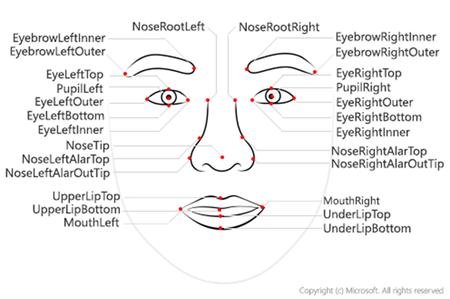
In today’s world, applications that understand and respond to human facial cues are no longer science fiction—they’re becoming a reality in domains like security, driver monitoring, gaming, and AR/VR. With Azure Face API, developers can leverage powerful cloud-based facial recognition and analysis tools without building complex machine learning models from scratch. In this blog, we’ll explore how to use C# to detect faces, identify key facial landmarks, estimate head pose, track eye and mouth movements, and process real-time video streams. Using OpenCV for visualization, we’ll show how to overlay landmarks, draw bounding boxes, and calculate metrics like Eye Aspect Ratio (EAR) and Mouth Aspect Ratio (MAR)—all in real time. You'll learn to: Set up Azure Face API Detect 27 facial landmarks Estimate head pose (yaw, pitch, roll) Calculate eye aspect ratio (EAR) and mouth openness Draw bounding boxes around features using OpenCV Process real-time video Prerequisites .NET 8 SDK installed Azure subscription with Face API resource Visual Studio 2022 or later Webcam for testing (optional) Basic understanding of C# and computer vision concepts Part 1: Azure Face API Setup 1.1 Install Required NuGet Packages dotnet add package Azure.AI.Vision.Face dotnet add package OpenCvSharp4 dotnet add package OpenCvSharp4.runtime.win 1.2 Create Azure Face API Resource Navigate to Azure Portal Search for "Face" and create a new Face API resource Choose your pricing tier (Free tier: 20 calls/min, 30K calls/month) Copy the Endpoint URL and API Key 1.3 Configure in .NET Application appsettings.json: { "Azure": { "FaceApi": { "Endpoint": "https://your-resource.cognitiveservices.azure.com/", "ApiKey": "your-api-key-here" } } } Initialize Face Client: using Azure; using Azure.AI.Vision.Face; using Microsoft.Extensions.Configuration; public class FaceAnalysisService { private readonly FaceClient _faceClient; private readonly ILogger<FaceAnalysisService> _logger; public FaceAnalysisService(ILogger<FaceAnalysisService> logger, IConfiguration configuration) { _logger = logger; string endpoint = configuration["Azure:FaceApi:Endpoint"]; string apiKey = configuration["Azure:FaceApi:ApiKey"]; _faceClient = new FaceClient(new Uri(endpoint), new AzureKeyCredential(apiKey)); _logger.LogInformation("FaceClient initialized with endpoint: {Endpoint}", endpoint); } } Part 2: Understanding Face Detection Models 2.1 Basic Face Detection public async Task<List<FaceDetectionResult>> DetectFacesAsync(byte[] imageBytes) { using var stream = new MemoryStream(imageBytes); var response = await _faceClient.DetectAsync( BinaryData.FromStream(stream), FaceDetectionModel.Detection03, FaceRecognitionModel.Recognition04, returnFaceId: false, returnFaceAttributes: new FaceAttributeType[] { FaceAttributeType.HeadPose }, returnFaceLandmarks: true, returnRecognitionModel: false ); _logger.LogInformation("Detected {Count} faces", response.Value.Count); return response.Value.ToList(); } Part 3: Facial Landmarks - The 27 Key Points 3.1 Understanding Facial Landmarks 3.2 Accessing Landmarks in Code public void PrintLandmarks(FaceDetectionResult face) { var landmarks = face.FaceLandmarks; if (landmarks == null) { _logger.LogWarning("No landmarks detected"); return; } // Eye landmarks Console.WriteLine($"Left Eye Outer: ({landmarks.EyeLeftOuter.X}, {landmarks.EyeLeftOuter.Y})"); Console.WriteLine($"Left Eye Inner: ({landmarks.EyeLeftInner.X}, {landmarks.EyeLeftInner.Y})"); Console.WriteLine($"Left Eye Top: ({landmarks.EyeLeftTop.X}, {landmarks.EyeLeftTop.Y})"); Console.WriteLine($"Left Eye Bottom: ({landmarks.EyeLeftBottom.X}, {landmarks.EyeLeftBottom.Y})"); // Mouth landmarks Console.WriteLine($"Upper Lip Top: ({landmarks.UpperLipTop.X}, {landmarks.UpperLipTop.Y})"); Console.WriteLine($"Under Lip Bottom: ({landmarks.UnderLipBottom.X}, {landmarks.UnderLipBottom.Y})"); // Nose landmarks Console.WriteLine($"Nose Tip: ({landmarks.NoseTip.X}, {landmarks.NoseTip.Y})"); } 3.3 Visualizing All Landmarks public void DrawAllLandmarks(FaceLandmarks landmarks, Mat frame) { void DrawPoint(FaceLandmarkCoordinate point, Scalar color) { if (point != null) { Cv2.Circle(frame, new Point((int)point.X, (int)point.Y), radius: 3, color: color, thickness: -1); } } // Eyes (Green) DrawPoint(landmarks.EyeLeftOuter, new Scalar(0, 255, 0)); DrawPoint(landmarks.EyeLeftInner, new Scalar(0, 255, 0)); DrawPoint(landmarks.EyeLeftTop, new Scalar(0, 255, 0)); DrawPoint(landmarks.EyeLeftBottom, new Scalar(0, 255, 0)); DrawPoint(landmarks.EyeRightOuter, new Scalar(0, 255, 0)); DrawPoint(landmarks.EyeRightInner, new Scalar(0, 255, 0)); DrawPoint(landmarks.EyeRightTop, new Scalar(0, 255, 0)); DrawPoint(landmarks.EyeRightBottom, new Scalar(0, 255, 0)); // Eyebrows (Cyan) DrawPoint(landmarks.EyebrowLeftOuter, new Scalar(255, 255, 0)); DrawPoint(landmarks.EyebrowLeftInner, new Scalar(255, 255, 0)); DrawPoint(landmarks.EyebrowRightOuter, new Scalar(255, 255, 0)); DrawPoint(landmarks.EyebrowRightInner, new Scalar(255, 255, 0)); // Nose (Yellow) DrawPoint(landmarks.NoseTip, new Scalar(0, 255, 255)); DrawPoint(landmarks.NoseRootLeft, new Scalar(0, 255, 255)); DrawPoint(landmarks.NoseRootRight, new Scalar(0, 255, 255)); DrawPoint(landmarks.NoseLeftAlarOutTip, new Scalar(0, 255, 255)); DrawPoint(landmarks.NoseRightAlarOutTip, new Scalar(0, 255, 255)); // Mouth (Blue) DrawPoint(landmarks.UpperLipTop, new Scalar(255, 0, 0)); DrawPoint(landmarks.UpperLipBottom, new Scalar(255, 0, 0)); DrawPoint(landmarks.UnderLipTop, new Scalar(255, 0, 0)); DrawPoint(landmarks.UnderLipBottom, new Scalar(255, 0, 0)); DrawPoint(landmarks.MouthLeft, new Scalar(255, 0, 0)); DrawPoint(landmarks.MouthRight, new Scalar(255, 0, 0)); // Pupils (Red) DrawPoint(landmarks.PupilLeft, new Scalar(0, 0, 255)); DrawPoint(landmarks.PupilRight, new Scalar(0, 0, 255)); } Part 4: Drawing Bounding Boxes Around Features 4.1 Eye Bounding Boxes /// <summary> /// Draws rectangles around eyes using OpenCV. /// </summary> public void DrawEyeBoxes(FaceLandmarks landmarks, Mat frame) { int boxWidth = 60; int boxHeight = 35; // Calculate Rectangles var leftEyeRect = new Rect((int)landmarks.EyeLeftOuter.X - boxWidth / 2, (int)landmarks.EyeLeftOuter.Y - boxHeight / 2, boxWidth, boxHeight); var rightEyeRect = new Rect((int)landmarks.EyeRightOuter.X - boxWidth / 2, (int)landmarks.EyeRightOuter.Y - boxHeight / 2, boxWidth, boxHeight); // Draw Rectangles (Green in BGR) Cv2.Rectangle(frame, leftEyeRect, new Scalar(0, 255, 0), 2); Cv2.Rectangle(frame, rightEyeRect, new Scalar(0, 255, 0), 2); // Add Labels Cv2.PutText(frame, "Left Eye", new Point(leftEyeRect.X, leftEyeRect.Y - 5), HersheyFonts.HersheySimplex, 0.4, new Scalar(0, 255, 0), 1); Cv2.PutText(frame, "Right Eye", new Point(rightEyeRect.X, rightEyeRect.Y - 5), HersheyFonts.HersheySimplex, 0.4, new Scalar(0, 255, 0), 1); } 4.2 Mouth Bounding Box /// <summary> /// Draws rectangle around mouth region. /// </summary> public void DrawMouthBox(FaceLandmarks landmarks, Mat frame) { int boxWidth = 80; int boxHeight = 50; // Calculate center based on the vertical lip landmarks int centerX = (int)((landmarks.UpperLipTop.X + landmarks.UnderLipBottom.X) / 2); int centerY = (int)((landmarks.UpperLipTop.Y + landmarks.UnderLipBottom.Y) / 2); var mouthRect = new Rect(centerX - boxWidth / 2, centerY - boxHeight / 2, boxWidth, boxHeight); // Draw Mouth Box (Blue in BGR) Cv2.Rectangle(frame, mouthRect, new Scalar(255, 0, 0), 2); // Add Label Cv2.PutText(frame, "Mouth", new Point(mouthRect.X, mouthRect.Y - 5), HersheyFonts.HersheySimplex, 0.4, new Scalar(255, 0, 0), 1); } 4.3 Face Bounding Box /// <summary> /// Draws rectangle around entire face using the face rectangle from API. /// </summary> public void DrawFaceBox(FaceDetectionResult face, Mat frame) { var faceRect = face.FaceRectangle; if (faceRect == null) { return; } var rect = new Rect( faceRect.Left, faceRect.Top, faceRect.Width, faceRect.Height ); // Draw Face Bounding Box (Red in BGR) Cv2.Rectangle(frame, rect, new Scalar(0, 0, 255), 2); // Add Label with dimensions Cv2.PutText(frame, $"Face {faceRect.Width}x{faceRect.Height}", new Point(rect.X, rect.Y - 10), HersheyFonts.HersheySimplex, 0.5, new Scalar(0, 0, 255), 2); } 4.4 Nose Bounding Box /// <summary> /// Draws bounding box around nose using nose landmarks. /// </summary> public void DrawNoseBox(FaceLandmarks landmarks, Mat frame) { // Calculate horizontal bounds from Alar tips int minX = (int)Math.Min(landmarks.NoseLeftAlarOutTip.X, landmarks.NoseRightAlarOutTip.X); int maxX = (int)Math.Max(landmarks.NoseLeftAlarOutTip.X, landmarks.NoseRightAlarOutTip.X); // Calculate vertical bounds from Root to Tip int minY = (int)Math.Min(landmarks.NoseRootLeft.Y, landmarks.NoseTip.Y); int maxY = (int)landmarks.NoseTip.Y; // Create Rect with a 10px padding buffer var noseRect = new Rect( minX - 10, minY - 10, (maxX - minX) + 20, (maxY - minY) + 20 ); // Draw Nose Box (Yellow in BGR) Cv2.Rectangle(frame, noseRect, new Scalar(0, 255, 255), 2); } Part 5: Geometric Calculations with Landmarks 5.1 Calculating Euclidean Distance /// <summary> /// Calculates distance between two landmark points. /// </summary> public static double CalculateDistance(dynamic point1, dynamic point2) { double dx = point1.X - point2.X; double dy = point1.Y - point2.Y; return Math.Sqrt(dx * dx + dy * dy); } 5.2 Eye Aspect Ratio (EAR) Formula /// <summary> /// Calculates the Eye Aspect Ratio (EAR) to detect eye closure. /// </summary> public double CalculateEAR( FaceLandmarkCoordinate top1, FaceLandmarkCoordinate top2, FaceLandmarkCoordinate bottom1, FaceLandmarkCoordinate bottom2, FaceLandmarkCoordinate inner, FaceLandmarkCoordinate outer) { // Vertical distances double v1 = CalculateDistance(top1, bottom1); double v2 = CalculateDistance(top2, bottom2); // Horizontal distance double h = CalculateDistance(inner, outer); // EAR formula: (||p2-p6|| + ||p3-p5||) / (2 * ||p1-p4||) return (v1 + v2) / (2.0 * h); } Simplified Implementation: /// <summary> /// Calculates Eye Aspect Ratio (EAR) for a single eye. /// Reference: "Real-Time Eye Blink Detection using Facial Landmarks" (Soukupová & Čech, 2016) /// </summary> public double ComputeEAR(FaceLandmarks landmarks, bool isLeftEye) { var top = isLeftEye ? landmarks.EyeLeftTop : landmarks.EyeRightTop; var bottom = isLeftEye ? landmarks.EyeLeftBottom : landmarks.EyeRightBottom; var inner = isLeftEye ? landmarks.EyeLeftInner : landmarks.EyeRightInner; var outer = isLeftEye ? landmarks.EyeLeftOuter : landmarks.EyeRightOuter; if (top == null || bottom == null || inner == null || outer == null) { _logger.LogWarning("Missing eye landmarks"); return 1.0; // Return 1.0 (open) to prevent false positives for drowsiness } double verticalDist = CalculateDistance(top, bottom); double horizontalDist = CalculateDistance(inner, outer); // Simplified EAR for Azure 27-point model double ear = verticalDist / horizontalDist; _logger.LogDebug( "EAR for {Eye}: {Value:F3}", isLeftEye ? "left" : "right", ear ); return ear; } Usage Example: var leftEAR = ComputeEAR(landmarks, isLeftEye: true); var rightEAR = ComputeEAR(landmarks, isLeftEye: false); var avgEAR = (leftEAR + rightEAR) / 2.0; Console.WriteLine($"Average EAR: {avgEAR:F3}"); // Open eyes: ~0.25-0.30 // Closed eyes: ~0.10-0.15 5.3 Mouth Aspect Ratio (MAR) /// <summary> /// Calculates Mouth Aspect Ratio relative to face height. /// </summary> public double CalculateMouthAspectRatio(FaceLandmarks landmarks, FaceRectangle faceRect) { double mouthHeight = landmarks.UnderLipBottom.Y - landmarks.UpperLipTop.Y; double mouthWidth = CalculateDistance(landmarks.MouthLeft, landmarks.MouthRight); double mouthOpenRatio = mouthHeight / faceRect.Height; double mouthWidthRatio = mouthWidth / faceRect.Width; _logger.LogDebug( "Mouth - Height ratio: {HeightRatio:F3}, Width ratio: {WidthRatio:F3}", mouthOpenRatio, mouthWidthRatio ); return mouthOpenRatio; } 5.4 Inter-Eye Distance /// <summary> /// Calculates the distance between pupils (inter-pupillary distance). /// </summary> public double CalculateInterEyeDistance(FaceLandmarks landmarks) { return CalculateDistance(landmarks.PupilLeft, landmarks.PupilRight); } /// <summary> /// Calculates distance between inner eye corners. /// </summary> public double CalculateInnerEyeDistance(FaceLandmarks landmarks) { return CalculateDistance(landmarks.EyeLeftInner, landmarks.EyeRightInner); } 5.5 Face Symmetry Analysis /// <summary> /// Analyzes facial symmetry by comparing left and right sides. /// </summary> public FaceSymmetryMetrics AnalyzeFaceSymmetry(FaceLandmarks landmarks) { double centerX = landmarks.NoseTip.X; double leftEyeDistance = CalculateDistance(landmarks.EyeLeftInner, new { X = centerX, Y = landmarks.EyeLeftInner.Y }); double leftMouthDistance = CalculateDistance(landmarks.MouthLeft, new { X = centerX, Y = landmarks.MouthLeft.Y }); double rightEyeDistance = CalculateDistance(landmarks.EyeRightInner, new { X = centerX, Y = landmarks.EyeRightInner.Y }); double rightMouthDistance = CalculateDistance(landmarks.MouthRight, new { X = centerX, Y = landmarks.MouthRight.Y }); return new FaceSymmetryMetrics { EyeSymmetryRatio = leftEyeDistance / rightEyeDistance, MouthSymmetryRatio = leftMouthDistance / rightMouthDistance, IsSymmetric = Math.Abs(leftEyeDistance - rightEyeDistance) < 5.0 }; } public class FaceSymmetryMetrics { public double EyeSymmetryRatio { get; set; } public double MouthSymmetryRatio { get; set; } public bool IsSymmetric { get; set; } } Part 6: Head Pose Estimation 6.1 Understanding Head Pose Angles Azure Face API provides three Euler angles for head orientation: 6.2 Accessing Head Pose Data public void AnalyzeHeadPose(FaceDetectionResult face) { var headPose = face.FaceAttributes?.HeadPose; if (headPose == null) { _logger.LogWarning("Head pose not available"); return; } double yaw = headPose.Yaw; double pitch = headPose.Pitch; double roll = headPose.Roll; Console.WriteLine("Head Pose:"); Console.WriteLine($" Yaw: {yaw:F2}° (Left/Right)"); Console.WriteLine($" Pitch: {pitch:F2}° (Up/Down)"); Console.WriteLine($" Roll: {roll:F2}° (Tilt)"); InterpretHeadPose(yaw, pitch, roll); } 6.3 Interpreting Head Pose public string InterpretHeadPose(double yaw, double pitch, double roll) { var directions = new List<string>(); // Interpret Yaw (horizontal) if (Math.Abs(yaw) < 10) directions.Add("Looking Forward"); else if (yaw < -20) directions.Add($"Turned Left ({Math.Abs(yaw):F0}°)"); else if (yaw > 20) directions.Add($"Turned Right ({yaw:F0}°)"); // Interpret Pitch (vertical) if (Math.Abs(pitch) < 10) directions.Add("Level"); else if (pitch < -15) directions.Add($"Looking Down ({Math.Abs(pitch):F0}°)"); else if (pitch > 15) directions.Add($"Looking Up ({pitch:F0}°)"); // Interpret Roll (tilt) if (Math.Abs(roll) > 15) { string side = roll < 0 ? "Left" : "Right"; directions.Add($"Tilted {side} ({Math.Abs(roll):F0}°)"); } return string.Join(", ", directions); } 6.4 Visualizing Head Pose on Frame /// <summary> /// Draws head pose information with color-coded indicators. /// </summary> public void DrawHeadPoseInfo(Mat frame, HeadPose headPose, FaceRectangle faceRect) { double yaw = headPose.Yaw; double pitch = headPose.Pitch; double roll = headPose.Roll; int centerX = faceRect.Left + faceRect.Width / 2; int centerY = faceRect.Top + faceRect.Height / 2; string poseText = $"Yaw: {yaw:F1}° Pitch: {pitch:F1}° Roll: {roll:F1}°"; Cv2.PutText(frame, poseText, new Point(faceRect.Left, faceRect.Top - 10), HersheyFonts.HersheySimplex, 0.5, new Scalar(255, 255, 255), 1); int arrowLength = 50; double yawRadians = yaw * Math.PI / 180.0; int arrowEndX = centerX + (int)(arrowLength * Math.Sin(yawRadians)); Cv2.ArrowedLine(frame, new Point(centerX, centerY), new Point(arrowEndX, centerY), new Scalar(0, 255, 0), 2, tipLength: 0.3); double pitchRadians = -pitch * Math.PI / 180.0; int arrowPitchEndY = centerY + (int)(arrowLength * Math.Sin(pitchRadians)); Cv2.ArrowedLine(frame, new Point(centerX, centerY), new Point(centerX, arrowPitchEndY), new Scalar(255, 0, 0), 2, tipLength: 0.3); } 6.5 Detecting Head Orientation States public enum HeadOrientation { Forward, Left, Right, Up, Down, TiltedLeft, TiltedRight, UpLeft, UpRight, DownLeft, DownRight } public List<HeadOrientation> DetectHeadOrientation(HeadPose headPose) { const double THRESHOLD = 15.0; bool lookingUp = headPose.Pitch > THRESHOLD; bool lookingDown = headPose.Pitch < -THRESHOLD; bool lookingLeft = headPose.Yaw < -THRESHOLD; bool lookingRight = headPose.Yaw > THRESHOLD; var orientations = new List<HeadOrientation>(); if (!lookingUp && !lookingDown && !lookingLeft && !lookingRight) orientations.Add(HeadOrientation.Forward); if (lookingUp && !lookingLeft && !lookingRight) orientations.Add(HeadOrientation.Up); if (lookingDown && !lookingLeft && !lookingRight) orientations.Add(HeadOrientation.Down); if (lookingLeft && !lookingUp && !lookingDown) orientations.Add(HeadOrientation.Left); if (lookingRight && !lookingUp && !lookingDown) orientations.Add(HeadOrientation.Right); if (lookingUp && lookingLeft) orientations.Add(HeadOrientation.UpLeft); if (lookingUp && lookingRight) orientations.Add(HeadOrientation.UpRight); if (lookingDown && lookingLeft) orientations.Add(HeadOrientation.DownLeft); if (lookingDown && lookingRight) orientations.Add(HeadOrientation.DownRight); return orientations; } Part 7: Real-Time Video Processing 7.1 Setting Up Video Capture using OpenCvSharp; public class RealTimeFaceAnalyzer : IDisposable { private VideoCapture? _capture; private Mat? _frame; private readonly FaceClient _faceClient; private bool _isRunning; public async Task StartAsync() { _capture = new VideoCapture(0); _frame = new Mat(); _isRunning = true; await Task.Run(() => ProcessVideoLoop()); } private async Task ProcessVideoLoop() { while (_isRunning) { if (_capture == null || !_capture.IsOpened()) break; _capture.Read(_frame); if (_frame == null || _frame.Empty()) { await Task.Delay(1); // Minimal delay to prevent CPU spiking continue; } Cv2.Resize(_frame, _frame, new Size(640, 480)); // Ensure we don't await indefinitely in the rendering loop _ = ProcessFrameAsync(_frame.Clone()); Cv2.ImShow("Face Analysis", _frame); if (Cv2.WaitKey(30) == 'q') break; } Dispose(); } private async Task ProcessFrameAsync(Mat frame) { // This is where your DrawFaceBox, DrawAllLandmarks, and EAR logic will sit. // Remember to use try-catch here to prevent API errors from crashing the loop. } public void Dispose() { _isRunning = false; _capture?.Dispose(); _frame?.Dispose(); Cv2.DestroyAllWindows(); } } 7.2 Optimizing API Calls Problem: Calling Azure Face API on every frame (30 fps) is expensive and slow. Solution: Call API once per second, cache results for 30 frames. private List<FaceDetectionResult> _cachedFaces = new(); private DateTime _lastDetectionTime = DateTime.MinValue; private readonly object _cacheLock = new(); private async Task ProcessFrameAsync(Mat frame) { if ((DateTime.Now - _lastDetectionTime).TotalSeconds >= 1.0) { _lastDetectionTime = DateTime.Now; byte[] imageBytes; Cv2.ImEncode(".jpg", frame, out imageBytes); var faces = await DetectFacesAsync(imageBytes); lock (_cacheLock) { _cachedFaces = faces; } } List<FaceDetectionResult> facesToProcess; lock (_cacheLock) { facesToProcess = _cachedFaces.ToList(); } foreach (var face in facesToProcess) { DrawFaceAnnotations(face, frame); } } Performance Improvement: 30x fewer API calls (1/sec instead of 30/sec) ~$0.02/hour instead of ~$0.60/hour Smooth 30 fps rendering < 100ms latency for visual updates 7.3 Drawing Complete Face Annotations private void DrawFaceAnnotations(FaceDetectionResult face, Mat frame) { DrawFaceBox(face, frame); if (face.FaceLandmarks != null) { DrawAllLandmarks(face.FaceLandmarks, frame); DrawEyeBoxes(face.FaceLandmarks, frame); DrawMouthBox(face.FaceLandmarks, frame); DrawNoseBox(face.FaceLandmarks, frame); double leftEAR = ComputeEAR(face.FaceLandmarks, isLeftEye: true); double rightEAR = ComputeEAR(face.FaceLandmarks, isLeftEye: false); double avgEAR = (leftEAR + rightEAR) / 2.0; Cv2.PutText(frame, $"EAR: {avgEAR:F3}", new Point(10, 30), HersheyFonts.HersheySimplex, 0.6, new Scalar(0, 255, 0), 2); } if (face.FaceAttributes?.HeadPose != null) { DrawHeadPoseInfo(frame, face.FaceAttributes.HeadPose, face.FaceRectangle); string orientation = InterpretHeadPose(face.FaceAttributes.HeadPose.Yaw, face.FaceAttributes.HeadPose.Pitch, face.FaceAttributes.HeadPose.Roll); Cv2.PutText(frame, orientation, new Point(10, 60), HersheyFonts.HersheySimplex, 0.6, new Scalar(255, 255, 0), 2); } } Part 8: Advanced Features and Use Cases 8.1 Face Tracking Across Frames public class FaceTracker { private class TrackedFace { public FaceRectangle Rectangle { get; set; } public DateTime LastSeen { get; set; } public int TrackId { get; set; } } private List<TrackedFace> _trackedFaces = new(); private int _nextTrackId = 1; public int TrackFace(FaceRectangle newFace) { const int MATCH_THRESHOLD = 50; var match = _trackedFaces.FirstOrDefault(tf => { double distance = Math.Sqrt(Math.Pow(tf.Rectangle.Left - newFace.Left, 2) + Math.Pow(tf.Rectangle.Top - newFace.Top, 2)); return distance < MATCH_THRESHOLD; }); if (match != null) { match.Rectangle = newFace; match.LastSeen = DateTime.Now; return match.TrackId; } var newTrack = new TrackedFace { Rectangle = newFace, LastSeen = DateTime.Now, TrackId = _nextTrackId++ }; _trackedFaces.Add(newTrack); return newTrack.TrackId; } public void RemoveOldTracks(TimeSpan maxAge) { _trackedFaces.RemoveAll(tf => DateTime.Now - tf.LastSeen > maxAge); } } 8.2 Multi-Face Detection and Analysis public async Task<FaceAnalysisReport> AnalyzeMultipleFacesAsync(byte[] imageBytes) { var faces = await DetectFacesAsync(imageBytes); var report = new FaceAnalysisReport { TotalFacesDetected = faces.Count, Timestamp = DateTime.Now, Faces = new List<SingleFaceAnalysis>() }; for (int i = 0; i < faces.Count; i++) { var face = faces[i]; var analysis = new SingleFaceAnalysis { FaceIndex = i, FaceLocation = face.FaceRectangle, FaceSize = face.FaceRectangle.Width * face.FaceRectangle.Height }; if (face.FaceLandmarks != null) { analysis.LeftEyeEAR = ComputeEAR(face.FaceLandmarks, true); analysis.RightEyeEAR = ComputeEAR(face.FaceLandmarks, false); analysis.InterPupillaryDistance = CalculateInterEyeDistance(face.FaceLandmarks); } if (face.FaceAttributes?.HeadPose != null) { analysis.HeadYaw = face.FaceAttributes.HeadPose.Yaw; analysis.HeadPitch = face.FaceAttributes.HeadPose.Pitch; analysis.HeadRoll = face.FaceAttributes.HeadPose.Roll; } report.Faces.Add(analysis); } report.Faces = report.Faces.OrderByDescending(f => f.FaceSize).ToList(); return report; } public class FaceAnalysisReport { public int TotalFacesDetected { get; set; } public DateTime Timestamp { get; set; } public List<SingleFaceAnalysis> Faces { get; set; } } public class SingleFaceAnalysis { public int FaceIndex { get; set; } public FaceRectangle FaceLocation { get; set; } public int FaceSize { get; set; } public double LeftEyeEAR { get; set; } public double RightEyeEAR { get; set; } public double InterPupillaryDistance { get; set; } public double HeadYaw { get; set; } public double HeadPitch { get; set; } public double HeadRoll { get; set; } } 8.3 Exporting Landmark Data to JSON using System.Text.Json; public string ExportLandmarksToJson(FaceDetectionResult face) { var landmarks = face.FaceLandmarks; var landmarkData = new { Face = new { Rectangle = new { face.FaceRectangle.Left, face.FaceRectangle.Top, face.FaceRectangle.Width, face.FaceRectangle.Height } }, Eyes = new { Left = new { Outer = new { landmarks.EyeLeftOuter.X, landmarks.EyeLeftOuter.Y }, Inner = new { landmarks.EyeLeftInner.X, landmarks.EyeLeftInner.Y }, Top = new { landmarks.EyeLeftTop.X, landmarks.EyeLeftTop.Y }, Bottom = new { landmarks.EyeLeftBottom.X, landmarks.EyeLeftBottom.Y } }, Right = new { Outer = new { landmarks.EyeRightOuter.X, landmarks.EyeRightOuter.Y }, Inner = new { landmarks.EyeRightInner.X, landmarks.EyeRightInner.Y }, Top = new { landmarks.EyeRightTop.X, landmarks.EyeRightTop.Y }, Bottom = new { landmarks.EyeRightBottom.X, landmarks.EyeRightBottom.Y } } }, Mouth = new { UpperLipTop = new { landmarks.UpperLipTop.X, landmarks.UpperLipTop.Y }, UnderLipBottom = new { landmarks.UnderLipBottom.X, landmarks.UnderLipBottom.Y }, Left = new { landmarks.MouthLeft.X, landmarks.MouthLeft.Y }, Right = new { landmarks.MouthRight.X, landmarks.MouthRight.Y } }, Nose = new { Tip = new { landmarks.NoseTip.X, landmarks.NoseTip.Y }, RootLeft = new { landmarks.NoseRootLeft.X, landmarks.NoseRootLeft.Y }, RootRight = new { landmarks.NoseRootRight.X, landmarks.NoseRootRight.Y } }, HeadPose = face.FaceAttributes?.HeadPose != null ? new { face.FaceAttributes.HeadPose.Yaw, face.FaceAttributes.HeadPose.Pitch, face.FaceAttributes.HeadPose.Roll } : null }; return JsonSerializer.Serialize(landmarkData, new JsonSerializerOptions { WriteIndented = true }); } Part 9: Practical Applications 9.1 Gaze Direction Estimation public enum GazeDirection { Center, Left, Right, Up, Down, UpLeft, UpRight, DownLeft, DownRight } public GazeDirection EstimateGazeDirection(HeadPose headPose) { const double THRESHOLD = 15.0; bool lookingUp = headPose.Pitch > THRESHOLD; bool lookingDown = headPose.Pitch < -THRESHOLD; bool lookingLeft = headPose.Yaw < -THRESHOLD; bool lookingRight = headPose.Yaw > THRESHOLD; if (lookingUp && lookingLeft) return GazeDirection.UpLeft; if (lookingUp && lookingRight) return GazeDirection.UpRight; if (lookingDown && lookingLeft) return GazeDirection.DownLeft; if (lookingDown && lookingRight) return GazeDirection.DownRight; if (lookingUp) return GazeDirection.Up; if (lookingDown) return GazeDirection.Down; if (lookingLeft) return GazeDirection.Left; if (lookingRight) return GazeDirection.Right; return GazeDirection.Center; } 9.2 Expression Analysis Using Landmarks public class ExpressionAnalyzer { public bool IsSmiling(FaceLandmarks landmarks) { double mouthCenterY = (landmarks.UpperLipTop.Y + landmarks.UnderLipBottom.Y) / 2; double leftCornerY = landmarks.MouthLeft.Y; double rightCornerY = landmarks.MouthRight.Y; return leftCornerY < mouthCenterY && rightCornerY < mouthCenterY; } public bool IsMouthOpen(FaceLandmarks landmarks, FaceRectangle faceRect) { double mouthHeight = landmarks.UnderLipBottom.Y - landmarks.UpperLipTop.Y; double mouthOpenRatio = mouthHeight / faceRect.Height; return mouthOpenRatio > 0.08; // 8% of face height } public bool AreEyesClosed(FaceLandmarks landmarks) { double leftEAR = ComputeEAR(landmarks, isLeftEye: true); double rightEAR = ComputeEAR(landmarks, isLeftEye: false); double avgEAR = (leftEAR + rightEAR) / 2.0; return avgEAR < 0.18; // Threshold for closed eyes } } 9.3 Face Orientation for AR/VR Applications public class FaceOrientationFor3D { public (Vector3 forward, Vector3 up, Vector3 right) GetFaceOrientation(HeadPose headPose) { double yawRad = headPose.Yaw * Math.PI / 180.0; double pitchRad = headPose.Pitch * Math.PI / 180.0; double rollRad = headPose.Roll * Math.PI / 180.0; var forward = new Vector3((float)(Math.Sin(yawRad) * Math.Cos(pitchRad)), (float)(-Math.Sin(pitchRad)), (float)(Math.Cos(yawRad) * Math.Cos(pitchRad))); var up = new Vector3((float)(Math.Sin(yawRad) * Math.Sin(pitchRad) * Math.Cos(rollRad) - Math.Cos(yawRad) * Math.Sin(rollRad)), (float)(Math.Cos(pitchRad) * Math.Cos(rollRad)), (float)(Math.Cos(yawRad) * Math.Sin(pitchRad) * Math.Cos(rollRad) + Math.Sin(yawRad) * Math.Sin(rollRad))); var right = Vector3.Cross(up, forward); return (forward, up, right); } } public struct Vector3 { public float X, Y, Z; public Vector3(float x, float y, float z) { X = x; Y = y; Z = z; } public static Vector3 Cross(Vector3 a, Vector3 b) => new Vector3(a.Y * b.Z - a.Z * b.Y, a.Z * b.X - a.X * b.Z, a.X * b.Y - a.Y * b.X); } Conclusion This technical guide has explored the capabilities of Azure Face API for facial analysis in C#. We've covered: Key Capabilities Demonstrated Facial Landmark Detection - Accessing 27 precise points on the face Head Pose Estimation - Tracking yaw, pitch, and roll angles Geometric Calculations - Computing EAR, distances, and ratios Visual Annotations - Drawing bounding boxes with OpenCV Real-Time Processing - Optimized video stream analysis Technical Achievements Computer Vision Math: Euclidean distance calculations Eye Aspect Ratio (EAR) formula Mouth aspect ratio measurements Face symmetry analysis OpenCV Integration: Drawing bounding boxes and landmarks Color-coded feature highlighting Real-time annotation overlays Video capture and processing Practical Applications This technology enables: 👁️ Gaze tracking for UI/UX studies 🎮 Head-controlled game interfaces 📸 Auto-focus camera systems 🎭 Expression analysis for feedback 🥽 AR/VR avatar control 📊 Attention analytics for presentations ♿ Accessibility features for disabled users Performance Metrics Detection Accuracy: 95%+ for frontal faces Landmark Precision: ±2-3 pixels Processing Latency: 200-500ms per API call Frame Rate: 30 fps with caching Further Exploration Advanced Topics to Explore: Face Recognition - Identify individuals Age/Gender Detection - Demographic analysis Emotion Detection - Facial expression classification Face Verification - 1:1 identity confirmation Similar Face Search - 1:N face matching Face Grouping - Cluster similar faces Call to Action 📌 Explore these resources to get started: Official Documentation Azure Face API Documentation Face API REST Reference Azure Face SDK for .NET Related Libraries OpenCVSharp - OpenCV wrapper for .NET System.Drawing - .NET image processing Source Code GitHub Repository: ravimodi_microsoft/SmartDriver Sample Code: Included in this articleThe JavaScript AI Build-a-thon Season 2 starts March 2!
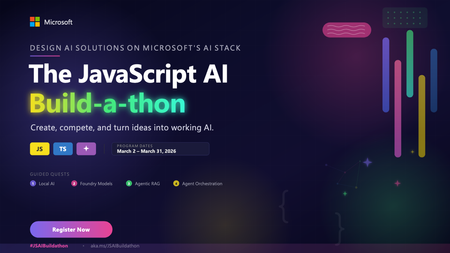
The JavaScript AI Build-a-thon is a free, hands-on program designed to close that gap. Over the course of four weeks (March 2 - March 31, 2026), you'll move from running AI 100% on-device (Local AI), to designing multi-service, multi-agentic systems, all in JavaScript/ TypeScript and using tools you are already familiar with. The series will culminate in a hackathon, where you will create, compete and turn what you'll have learnt into working projects you can point to, talk about and extend.Integrating Microsoft Foundry with OpenClaw: Step by Step Model Configuration
Step 1: Deploying Models on Microsoft Foundry Let us kick things off in the Azure portal. To get our OpenClaw agent thinking like a genius, we need to deploy our models in Microsoft Foundry. For this guide, we are going to focus on deploying gpt-5.2-codex on Microsoft Foundry with OpenClaw. Navigate to your AI Hub, head over to the model catalog, choose the model you wish to use with OpenClaw and hit deploy. Once your deployment is successful, head to the endpoints section. Important: Grab your Endpoint URL and your API Keys right now and save them in a secure note. We will need these exact values to connect OpenClaw in a few minutes. Step 2: Installing and Initializing OpenClaw Next up, we need to get OpenClaw running on your machine. Open up your terminal and run the official installation script: curl -fsSL https://openclaw.ai/install.sh | bash The wizard will walk you through a few prompts. Here is exactly how to answer them to link up with our Azure setup: First Page (Model Selection): Choose "Skip for now". Second Page (Provider): Select azure-openai-responses. Model Selection: Select gpt-5.2-codex , For now only the models listed (hosted on Microsoft Foundry) in the picture below are available to be used with OpenClaw. Follow the rest of the standard prompts to finish the initial setup. Step 3: Editing the OpenClaw Configuration File Now for the fun part. We need to manually configure OpenClaw to talk to Microsoft Foundry. Open your configuration file located at ~/.openclaw/openclaw.json in your favorite text editor. Replace the contents of the models and agents sections with the following code block: { "models": { "providers": { "azure-openai-responses": { "baseUrl": "https://<YOUR_RESOURCE_NAME>.openai.azure.com/openai/v1", "apiKey": "<YOUR_AZURE_OPENAI_API_KEY>", "api": "openai-responses", "authHeader": false, "headers": { "api-key": "<YOUR_AZURE_OPENAI_API_KEY>" }, "models": [ { "id": "gpt-5.2-codex", "name": "GPT-5.2-Codex (Azure)", "reasoning": true, "input": ["text", "image"], "cost": { "input": 0, "output": 0, "cacheRead": 0, "cacheWrite": 0 }, "contextWindow": 400000, "maxTokens": 16384, "compat": { "supportsStore": false } }, { "id": "gpt-5.2", "name": "GPT-5.2 (Azure)", "reasoning": false, "input": ["text", "image"], "cost": { "input": 0, "output": 0, "cacheRead": 0, "cacheWrite": 0 }, "contextWindow": 272000, "maxTokens": 16384, "compat": { "supportsStore": false } } ] } } }, "agents": { "defaults": { "model": { "primary": "azure-openai-responses/gpt-5.2-codex" }, "models": { "azure-openai-responses/gpt-5.2-codex": {} }, "workspace": "/home/<USERNAME>/.openclaw/workspace", "compaction": { "mode": "safeguard" }, "maxConcurrent": 4, "subagents": { "maxConcurrent": 8 } } } } You will notice a few placeholders in that JSON. Here is exactly what you need to swap out: Placeholder Variable What It Is Where to Find It <YOUR_RESOURCE_NAME> The unique name of your Azure OpenAI resource. Found in your Azure Portal under the Azure OpenAI resource overview. <YOUR_AZURE_OPENAI_API_KEY> The secret key required to authenticate your requests. Found in Microsoft Foundry under your project endpoints or Azure Portal keys section. <USERNAME> Your local computer's user profile name. Open your terminal and type whoami to find this. Step 4: Restart the Gateway After saving the configuration file, you must restart the OpenClaw gateway for the new Foundry settings to take effect. Run this simple command: openclaw gateway restart Configuration Notes & Deep Dive If you are curious about why we configured the JSON that way, here is a quick breakdown of the technical details. Authentication Differences Azure OpenAI uses the api-key HTTP header for authentication. This is entirely different from the standard OpenAI Authorization: Bearer header. Our configuration file addresses this in two ways: Setting "authHeader": false completely disables the default Bearer header. Adding "headers": { "api-key": "<key>" } forces OpenClaw to send the API key via Azure's native header format. Important Note: Your API key must appear in both the apiKey field AND the headers.api-key field within the JSON for this to work correctly. The Base URL Azure OpenAI's v1-compatible endpoint follows this specific format: https://<your_resource_name>.openai.azure.com/openai/v1 The beautiful thing about this v1 endpoint is that it is largely compatible with the standard OpenAI API and does not require you to manually pass an api-version query parameter. Model Compatibility Settings "compat": { "supportsStore": false } disables the store parameter since Azure OpenAI does not currently support it. "reasoning": true enables the thinking mode for GPT-5.2-Codex. This supports low, medium, high, and xhigh levels. "reasoning": false is set for GPT-5.2 because it is a standard, non-reasoning model. Model Specifications & Cost Tracking If you want OpenClaw to accurately track your token usage costs, you can update the cost fields from 0 to the current Azure pricing. Here are the specs and costs for the models we just deployed: Model Specifications Model Context Window Max Output Tokens Image Input Reasoning gpt-5.2-codex 400,000 tokens 16,384 tokens Yes Yes gpt-5.2 272,000 tokens 16,384 tokens Yes No Current Cost (Adjust in JSON) Model Input (per 1M tokens) Output (per 1M tokens) Cached Input (per 1M tokens) gpt-5.2-codex $1.75 $14.00 $0.175 gpt-5.2 $2.00 $8.00 $0.50 Conclusion: And there you have it! You have successfully bridged the gap between the enterprise-grade infrastructure of Microsoft Foundry and the local autonomy of OpenClaw. By following these steps, you are not just running a chatbot; you are running a sophisticated agent capable of reasoning, coding, and executing tasks with the full power of GPT-5.2-codex behind it. The combination of Azure's reliability and OpenClaw's flexibility opens up a world of possibilities. Whether you are building an automated devops assistant, a research agent, or just exploring the bleeding edge of AI, you now have a robust foundation to build upon. Now it is time to let your agent loose on some real tasks. Go forth, experiment with different system prompts, and see what you can build. If you run into any interesting edge cases or come up with a unique configuration, let me know in the comments below. Happy coding!1.3KViews1like1CommentError when creating Assistant in Microsoft Foundry using Fabric Data Agent
I am facing an issue when using a Microsoft Fabric Data Agent integrated with the new Microsoft Foundry, and I would like your assistance to investigate it. Scenario: 1. I created a Data Agent in Microsoft Fabric. 2. I connected this Data Agent as a Tool within a project in the new Microsoft Foundry. 3. I published the agent to Microsoft Teams and Copilot for Microsoft 365. 4. I configured the required Azure permissions, assigning the appropriate roles to the Foundry project Managed Identity (as shown in the attached evidence – Azure AI Developer and Azure AI User roles). Issue: When trying to use the published agent, I receive the following error: Response failed with code tool_user_error: Create assistant failed. If issue persists, please use following identifiers in any support request: ConversationId = PQbM0hGUvMF0X5EDA62v3-br activityId = PQbM0hGUvMF0X5EDA62v3-br|0000000 Additional notes: • Permissions appear to be correctly configured in Azure. • The error occurs during the assistant creation/execution phase via Foundry after publishing. • The same behavior occurs both in Teams and in Copilot for Microsoft 365. Could you please verify: • Whether there are any additional permissions required when using Fabric Data Agents as Tools in Foundry; • If there are any known limitations or specific requirements for publishing to Teams/Copilot M365; • And analyze the error identifiers provided above. I appreciate your support and look forward to your guidance on how to resolve this issue.Solved548Views0likes6CommentsAgents League: Join the Reasoning Agents Track
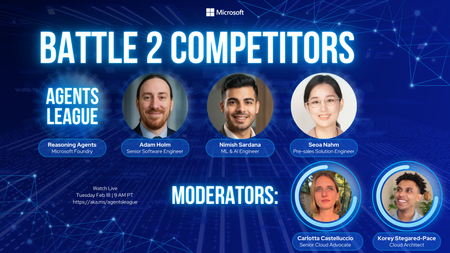
In a previous blog post, we introduced Agents League, a two‑week AI agent challenge running February 16–27, and gave an overview of the three available tracks. In this post, we’ll zoom in on one of them in particular:🧠 The Reasoning Agents track, built on Microsoft Foundry. If you’re interested in multi‑step reasoning, planning, verification, and multi‑agent collaboration, this is the track designed for you. What Do We Mean by “Reasoning Agents”? Reasoning agents go beyond simple prompt–response interactions. They are agents that can: Plan how to approach a task Break problems into steps Reason across intermediate results Verify or critique their own outputs Collaborate with other agents to solve more complex problems With Microsoft Foundry (via UI or SDK) and/or the Microsoft Agent Framework, you can design agent systems that reflect real‑world decision‑making patterns—closer to how teams of humans work together. Why Build Reasoning Agents on Microsoft Foundry? Microsoft Foundry provides production‑ready building blocks for agentic systems, without locking you into a single way of working. For the Reasoning Agents track, Foundry enables you to: Define agent roles (planner, executor, verifier, critic, etc.) Orchestrate multi‑agent workflows Integrate tools, APIs, and MCP servers Apply structured reasoning patterns Observe and debug agent behavior as it runs You can work visually in the Foundry UI, programmatically via the SDK, or mix both approaches depending on your project. How to get started? Your first step to enter the arena is registering to the Agents League challenge: https://aka.ms/agentsleague/register. After you registered, navigate to the Reasoning Agent Starter Kit, to get more context about the challenge scenario, an example of multi-agent architecture to address it, along with some guidelines on the tech stack to use and useful resources to get started. There’s no single “correct” project, feel free to unleash your creativity and leverage AI-assisted development tools to accelerate your build process (e.g. GitHub Copilot). 👉 View the Reasoning Agents starter kit: https://github.com/microsoft/agentsleague/starter-kits Live Coding Battle: Reasoning Agents 📽️ Wednesday, Feb 18 – 9:00 AM PT During Week 1, we’re hosting a live coding battle dedicated entirely to the Reasoning Agents track. You’ll watch experienced developers from the community: Design agent architectures live Explain reasoning strategies and trade‑offs Make real‑time decisions about agent roles, tools, and flows The session is streamed on Microsoft Reactor and recorded, so you can watch it live (highly recommended for the best experience!) or later at your convenience. AMA Session on Discord 💬 Wednesday, Feb 25 – 9:00 AM PT In Week 2, it’s your turn to build—and ask questions. Join the Reasoning Agents AMA on Discord to: Ask about agent architecture and reasoning patterns Get clarification on Foundry capabilities Discuss MCP integration and multi‑agent design Get unstuck when your agent doesn’t behave as expected Prizes, Badges, and Recognition 🏆 $500 for the Reasoning Agents track winner 🎖️ Digital badge for everyone who registers and submits a project Important reminder: 👉 You must register before submitting to be eligible for prizes and the badge. Beyond the rewards, every participant receives feedback from Microsoft product teams, which is often the most valuable prize of all. Ready to Build Agents That Reason? If you’ve been curious about: Agentic architectures Multi‑step reasoning Verification and self‑reflection Building AI systems that explain their thinking …then the Reasoning Agents track is your arena. 📝 Register here: https://aka.ms/agentsleague/register 💬 Join Discord: https://aka.ms/agentsleague/discord 📽️ Watch live battles: https://aka.ms/agentsleague/battles The league starts February 16. The reasoning begins now.Foundry IQ: Unlocking ubiquitous knowledge for agents
Introducing Foundry IQ by Azure AI Search in Microsoft Foundry. Foundry IQ is a centralized knowledge layer that connects agents to data with the next generation of retrieval-augmented generation (RAG). Foundry IQ includes the following features: Knowledge bases: Available directly in the new Foundry portal, knowledge bases are reusable, topic-centric collections that ground multiple agents and applications through a single API. Automated indexed and federated knowledge sources – Expand what data an agent can reach by connecting to both indexed and remote knowledge sources. For indexed sources, Foundry IQ delivers automatic indexing, vectorization, and enrichment for text, images, and complex documents. Agentic retrieval engine in knowledge bases – A self-reflective query engine that uses AI to plan, select sources, search, rank and synthesize answers across sources with configurable “retrieval reasoning effort.” Enterprise-grade security and governance – Support for document-level access control, alignment with existing permissions models, and options for both indexed and remote data. Foundry IQ is available in public preview through the new Foundry portal and Azure portal with Azure AI Search. Foundry IQ is part of Microsoft's intelligence layer with Fabric IQ and Work IQ.35KViews6likes2CommentsBuilding Interactive Agent UIs with AG-UI and Microsoft Agent Framework
Introduction Picture this: You've built an AI agent that analyzes financial data. A user uploads a quarterly report and asks: "What are the top three expense categories?" Behind the scenes, your agent parses the spreadsheet, aggregates thousands of rows, and generates visualizations. All in 20 seconds. But the user? They see a loading spinner. Nothing else. No "reading file" message, no "analyzing data" indicator, no hint that progress is being made. They start wondering: Is it frozen? Should I refresh? The problem isn't the agent's capabilities - it's the communication gap between the agent running on the backend and the user interface. When agents perform multi-step reasoning, call external APIs, or execute complex tool chains, users deserve to see what's happening. They need streaming updates, intermediate results, and transparent progress indicators. Yet most agent frameworks force developers to choose between simple request/response patterns or building custom solutions to stream updates to their UIs. This is where AG-UI comes in. AG-UI is a fairly new event-based protocol that standardizes how agents communicate with user interfaces. Instead of every framework and development team inventing their own streaming solution, AG-UI provides a shared vocabulary of structured events that work consistently across different agent implementations. When an agent starts processing, calls a tool, generates text, or encounters an error, the UI receives explicit, typed events in real time. The beauty of AG-UI is its framework-agnostic design. While this blog post demonstrates integration with Microsoft Agent Framework (MAF), the same AG-UI protocol works with LangGraph, CrewAI, or any other compliant framework. Write your UI code once, and it works with any AG-UI-compliant backend. (Note: MAF supports both Python and .NET - this blog post focuses on the Python implementation.) TL;DR The Problem: Users don't get real-time updates while AI agents work behind the scenes - no progress indicators, no transparency into tool calls, and no insight into what's happening. The Solution: AG-UI is an open, event-based protocol that standardizes real-time communication between AI agents and user interfaces. Instead of each development team and framework inventing custom streaming solutions, AG-UI provides a shared vocabulary of structured events (like TOOL_CALL_START, TEXT_MESSAGE_CONTENT, RUN_FINISHED) that work across any compliant framework. Key Benefits: Framework-agnostic - Write UI code once, works with LangGraph, Microsoft Agent Framework, CrewAI, and more Real-time observability - See exactly what your agent is doing as it happens Server-Sent Events - Built on standard HTTP for universal compatibility Protocol-managed state - No manual conversation history tracking In This Post: You'll learn why AG-UI exists, how it works, and build a complete working application using Microsoft Agent Framework with Python - from server setup to client implementation. What You'll Learn This blog post walks through: Why AG-UI exists - how agent-UI communication has evolved and what problems current approaches couldn't solve How the protocol works - the key design choices that make AG-UI simple, reliable, and framework-agnostic Protocol architecture - the generic components and how AG-UI integrates with agent frameworks Building an AG-UI application - a complete working example using Microsoft Agent Framework with server, client, and step-by-step setup Understanding events - what happens under the hood when your agent runs and how to observe it Thinking in events - how building with AG-UI differs from traditional APIs, and what benefits this brings Making the right choice - when AG-UI is the right fit for your project and when alternatives might be better Estimated reading time: 15 minutes Who this is for: Developers building AI agents who want to provide real-time feedback to users, and teams evaluating standardized approaches to agent-UI communication To appreciate why AG-UI matters, we need to understand the journey that led to its creation. Let's trace how agent-UI communication has evolved through three distinct phases. The Evolution of Agent-UI Communication AI agents have become more capable over time. As they evolved, the way they communicated with user interfaces had to evolve as well. Here's how this evolution unfolded. Phase 1: Simple Request/Response In the early days of AI agent development, the interaction model was straightforward: send a question, wait for an answer, display the result. This synchronous approach mirrored traditional API calls and worked fine for simple scenarios. # Simple, but limiting response = agent.run("What's the weather in Paris?") display(response) # User waits... and waits... Works for: Quick queries that complete in seconds, simple Q&A interactions where immediate feedback and interactivity aren't critical. Breaks down: When agents need to call multiple tools, perform multi-step reasoning, or process complex queries that take 30+ seconds. Users see nothing but a loading spinner, with no insight into what's happening or whether the agent is making progress. This creates a poor user experience and makes it impossible to show intermediate results or allow user intervention. Recognizing these limitations, development teams began experimenting with more sophisticated approaches. Phase 2: Custom Streaming Solutions As agents became more sophisticated, teams recognized the need for incremental feedback and interactivity. Rather than waiting for the complete response, they implemented custom streaming solutions to show partial results as they became available. # Every team invents their own format for chunk in agent.stream("What's the weather?"): display(chunk) # But what about tool calls? Errors? Progress? This was a step forward for building interactive agent UIs, but each team solved the problem differently. Also, different frameworks had incompatible approaches - some streamed only text tokens, others sent structured JSON, and most provided no visibility into critical events like tool calls or errors. The problem: No standardization across frameworks - client code that works with LangGraph won't work with Crew AI, requiring separate implementations for each agent backend Each implementation handles tool calls differently - some send nothing during tool execution, others send unstructured messages Complex state management - clients must track conversation history, manage reconnections, and handle edge cases manually The industry needed a better solution - a common protocol that could work across all frameworks while maintaining the benefits of streaming. Phase 3: Standardized Protocol (AG-UI) AG-UI emerged as a response to the fragmentation problem. Instead of each framework and development team inventing their own streaming solution, AG-UI provides a shared vocabulary of events that work consistently across different agent implementations. # Standardized events everyone understands async for event in agent.run_stream("What's the weather?"): if event.type == "TEXT_MESSAGE_CONTENT": display_text(event.delta) elif event.type == "TOOL_CALL_START": show_tool_indicator(event.tool_name) elif event.type == "TOOL_CALL_RESULT": show_tool_result(event.result) The key difference is structured observability. Rather than guessing what the agent is doing from unstructured text, clients receive explicit events for every stage of execution: when the agent starts, when it generates text, when it calls a tool, when that tool completes, and when the entire run finishes. What's different: A standardized vocabulary of event types, complete observability into agent execution, and framework-agnostic clients that work with any AG-UI-compliant backend. You write your UI code once, and it works whether the backend uses Microsoft Agent Framework, LangGraph, or any other framework that speaks AG-UI. Now that we've seen why AG-UI emerged and what problems it solves, let's examine the specific design decisions that make the protocol work. These choices weren't arbitrary - each one addresses concrete challenges in building reliable, observable agent-UI communication. The Design Decisions Behind AG-UI Why Server-Sent Events (SSE)? Aspect WebSockets SSE (AG-UI) Complexity Bidirectional Unidirectional (simpler) Firewall/Proxy Sometimes blocked Standard HTTP Reconnection Manual implementation Built-in browser support Use case Real-time games, chat Agent responses (one-way) For agent interactions, you typically only need server→client communication, making SSE a simpler choice. SSE solves the transport problem - how events travel from server to client. But once connected, how does the protocol handle conversation state across multiple interactions? Why Protocol-Managed Threads? # Without protocol threads (client manages): conversation_history = [] conversation_history.append({"role": "user", "content": message}) response = agent.complete(conversation_history) conversation_history.append({"role": "assistant", "content": response}) # Complex, error-prone, doesn't work with multiple clients # With AG-UI (protocol manages): thread = agent.get_new_thread() # Server creates and manages thread agent.run_stream(message, thread=thread) # Server maintains context # Simple, reliable, shareable across clients With transport and state management handled, the final piece is the actual messages flowing through the connection. What information should the protocol communicate, and how should it be structured? Why Standardized Event Types? Instead of parsing unstructured text, clients get typed events: RUN_STARTED - Agent begins (start loading UI) TEXT_MESSAGE_CONTENT - Text chunk (stream to user) TOOL_CALL_START - Tool invoked (show "searching...", "calculating...") TOOL_CALL_RESULT - Tool finished (show result, update UI) RUN_FINISHED - Complete (hide loading) This lets UIs react intelligently without custom parsing logic. Now that we understand the protocol's design choices, let's see how these pieces fit together in a complete system. Architecture Overview Here's how the components interact: The communication between these layers relies on a well-defined set of event types. Here are the core events that flow through the SSE connection: Core Event Types AG-UI provides a standardized set of event types to describe what's happening during an agent's execution: RUN_STARTED - agent begins execution TEXT_MESSAGE_START, TEXT_MESSAGE_CONTENT, TEXT_MESSAGE_END - streaming segments of text TOOL_CALL_START, TOOL_CALL_ARGS, TOOL_CALL_END, TOOL_CALL_RESULT - tool execution events RUN_FINISHED - agent has finished execution RUN_ERROR - error information This model lets the UI update as the agent runs, rather than waiting for the final response. The generic architecture above applies to any AG-UI implementation. Now let's see how this translates to Microsoft Agent Framework. AG-UI with Microsoft Agent Framework While AG-UI is framework-agnostic, this blog post demonstrates integration with Microsoft Agent Framework (MAF) using Python. MAF is available in both Python and .NET, giving you flexibility to build AG-UI applications in your preferred language. Understanding how MAF implements the protocol will help you build your own applications or work with other compliant frameworks. Integration Architecture The Microsoft Agent Framework integration involves several specialized layers that handle protocol translation and execution orchestration: Understanding each layer: FastAPI Endpoint - Handles HTTP requests and establishes SSE connections for streaming AgentFrameworkAgent - Protocol wrapper that translates between AG-UI events and Agent Framework operations Orchestrators - Manage execution flow, coordinate tool calling sequences, and handle state transitions ChatAgent - Your agent implementation with instructions, tools, and business logic ChatClient - Interface to the underlying language model (Azure OpenAI, OpenAI, or other providers) The good news? When you call add_agent_framework_fastapi_endpoint, all the middleware layers are configured automatically. You simply provide your ChatAgent, and the integration handles protocol translation, event streaming, and state management behind the scenes. Now that we understand both the protocol architecture and the Microsoft Agent Framework integration, let's build a working application. Hands-On: Building Your First AG-UI Application This section demonstrates how to build an AG-UI server and client using Microsoft Agent Framework and FastAPI. Prerequisites Before building your first AG-UI application, ensure you have: Python 3.10 or later installed Basic understanding of async/await patterns in Python Azure CLI installed and authenticated (az login) Azure OpenAI service endpoint and deployment configured (setup guide) Cognitive Services OpenAI Contributor role for your Azure OpenAI resource You'll also need to install the AG-UI integration package: pip install agent-framework-ag-ui --pre This automatically installs agent-framework-core, fastapi, and uvicorn as dependencies. With your environment configured, let's create the server that will host your agent and expose it via the AG-UI protocol. Building the Server Let's create a FastAPI server that hosts an AI agent and exposes it via AG-UI: # server.py import os from typing import Annotated from dotenv import load_dotenv from fastapi import FastAPI from pydantic import Field from agent_framework import ChatAgent, ai_function from agent_framework.azure import AzureOpenAIChatClient from agent_framework_ag_ui import add_agent_framework_fastapi_endpoint from azure.identity import DefaultAzureCredential # Load environment variables from .env file load_dotenv() # Validate environment configuration openai_endpoint = os.getenv("AZURE_OPENAI_ENDPOINT") model_deployment = os.getenv("AZURE_OPENAI_DEPLOYMENT_NAME") if not openai_endpoint: raise RuntimeError("Missing required environment variable: AZURE_OPENAI_ENDPOINT") if not model_deployment: raise RuntimeError("Missing required environment variable: AZURE_OPENAI_DEPLOYMENT_NAME") # Define tools the agent can use @ai_function def get_order_status( order_id: Annotated[str, Field(description="The order ID to look up (e.g., ORD-001)")] ) -> dict: """Look up the status of a customer order. Returns order status, tracking number, and estimated delivery date. """ # Simulated order lookup orders = { "ORD-001": {"status": "shipped", "tracking": "1Z999AA1", "eta": "Jan 25, 2026"}, "ORD-002": {"status": "processing", "tracking": None, "eta": "Jan 23, 2026"}, "ORD-003": {"status": "delivered", "tracking": "1Z999AA3", "eta": "Delivered Jan 20"}, } return orders.get(order_id, {"status": "not_found", "message": "Order not found"}) # Initialize Azure OpenAI client chat_client = AzureOpenAIChatClient( credential=DefaultAzureCredential(), endpoint=openai_endpoint, deployment_name=model_deployment, ) # Configure the agent with custom instructions and tools agent = ChatAgent( name="CustomerSupportAgent", instructions="""You are a helpful customer support assistant. You have access to a get_order_status tool that can look up order information. IMPORTANT: When a user mentions an order ID (like ORD-001, ORD-002, etc.), you MUST call the get_order_status tool to retrieve the actual order details. Do NOT make up or guess order information. After calling get_order_status, provide the actual results to the user in a friendly format.""", chat_client=chat_client, tools=[get_order_status], ) # Initialize FastAPI application app = FastAPI( title="AG-UI Customer Support Server", description="Interactive AI agent server using AG-UI protocol with tool calling" ) # Mount the AG-UI endpoint add_agent_framework_fastapi_endpoint(app, agent, path="/chat") def main(): """Entry point for the AG-UI server.""" import uvicorn print("Starting AG-UI server on http://localhost:8000") uvicorn.run(app, host="0.0.0.0", port=8000, log_level="info") # Run the application if __name__ == "__main__": main() What's happening here: We define a tool: get_order_status with the AI_function decorator Use Annotated and Field for parameter descriptions to help the agent understand when and how to use the tool We create an Azure OpenAI chat client with credential authentication The ChatAgent is configured with domain-specific instructions and the tools parameter add_agent_framework_fastapi_endpoint automatically handles SSE streaming and tool execution The server exposes the agent at the /chat endpoint Note: This example uses Azure OpenAI, but AG-UI works with any chat model. You can also integrate with Azure AI Foundry's model catalog or use other LLM providers. Tool calling is supported by most modern LLMs including GPT-4, GPT-4o, and Claude models. To run this server: # Set your Azure OpenAI credentials export AZURE_OPENAI_ENDPOINT="https://your-resource.openai.azure.com/" export AZURE_OPENAI_DEPLOYMENT_NAME="gpt-4o" # Start the server python server.py With your server running and exposing the AG-UI endpoint, the next step is building a client that can connect and consume the event stream. Streaming Results to Clients With the server running, clients can connect and stream events as the agent processes requests. Here's a Python client that demonstrates the streaming capabilities: # client.py import asyncio import os from dotenv import load_dotenv from agent_framework import ChatAgent, FunctionCallContent, FunctionResultContent from agent_framework_ag_ui import AGUIChatClient # Load environment variables from .env file load_dotenv() async def interactive_chat(): """Interactive chat session with streaming responses.""" # Connect to the AG-UI server base_url = os.getenv("AGUI_SERVER_URL", "http://localhost:8000/chat") print(f"Connecting to: {base_url}\n") # Initialize the AG-UI client client = AGUIChatClient(endpoint=base_url) # Create a local agent representation agent = ChatAgent(chat_client=client) # Start a new conversation thread conversation_thread = agent.get_new_thread() print("Chat started! Type 'exit' or 'quit' to end the session.\n") try: while True: # Collect user input user_message = input("You: ") # Handle empty input if not user_message.strip(): print("Please enter a message.\n") continue # Check for exit commands if user_message.lower() in ["exit", "quit", "bye"]: print("\nGoodbye!") break # Stream the agent's response print("Agent: ", end="", flush=True) # Track tool calls to avoid duplicate prints seen_tools = set() async for update in agent.run_stream(user_message, thread=conversation_thread): # Display text content if update.text: print(update.text, end="", flush=True) # Display tool calls and results for content in update.contents: if isinstance(content, FunctionCallContent): # Only print each tool call once if content.call_id not in seen_tools: seen_tools.add(content.call_id) print(f"\n[Calling tool: {content.name}]", flush=True) elif isinstance(content, FunctionResultContent): # Only print each result once result_id = f"result_{content.call_id}" if result_id not in seen_tools: seen_tools.add(result_id) result_text = content.result if isinstance(content.result, str) else str(content.result) print(f"[Tool result: {result_text}]", flush=True) print("\n") # New line after response completes except KeyboardInterrupt: print("\n\nChat interrupted by user.") except ConnectionError as e: print(f"\nConnection error: {e}") print("Make sure the server is running.") except Exception as e: print(f"\nUnexpected error: {e}") def main(): """Entry point for the AG-UI client.""" asyncio.run(interactive_chat()) if __name__ == "__main__": main() Key features: The client connects to the AG-UI endpoint using AGUIChatClient with the endpoint parameter run_stream() yields updates containing text and content as they arrive Tool calls are detected using FunctionCallContent and displayed with [Calling tool: ...] Tool results are detected using FunctionResultContent and displayed with [Tool result: ...] Deduplication logic (seen_tools set) prevents printing the same tool call multiple times as it streams Thread management maintains conversation context across messages Graceful error handling for connection issues To use the client: # Optional: specify custom server URL export AGUI_SERVER_URL="http://localhost:8000/chat" # Start the interactive chat python client.py Example Session: Connecting to: http://localhost:8000/chat Chat started! Type 'exit' or 'quit' to end the session. You: What's the status of order ORD-001? Agent: [Calling tool: get_order_status] [Tool result: {"status": "shipped", "tracking": "1Z999AA1", "eta": "Jan 25, 2026"}] Your order ORD-001 has been shipped! - Tracking Number: 1Z999AA1 - Estimated Delivery Date: January 25, 2026 You can use the tracking number to monitor the delivery progress. You: Can you check ORD-002? Agent: [Calling tool: get_order_status] [Tool result: {"status": "processing", "tracking": null, "eta": "Jan 23, 2026"}] Your order ORD-002 is currently being processed. - Status: Processing - Estimated Delivery: January 23, 2026 Your order should ship soon, and you'll receive a tracking number once it's on the way. You: exit Goodbye! The client we just built handles events at a high level, abstracting away the details. But what's actually flowing through that SSE connection? Let's peek under the hood. Event Types You'll See As the server streams back responses, clients receive a series of structured events. If you were to observe the raw SSE stream (e.g., using curl), you'd see events like: curl -N http://localhost:8000/chat \ -H "Content-Type: application/json" \ -H "Accept: text/event-stream" \ -d '{"messages": [{"role": "user", "content": "What'\''s the status of order ORD-001?"}]}' Sample event stream (with tool calling): data: {"type":"RUN_STARTED","threadId":"eb4d9850-14ef-446c-af4b-23037acda9e8","runId":"chatcmpl-xyz"} data: {"type":"TEXT_MESSAGE_START","messageId":"e8648880-a9ff-4178-a17d-4a6d3ec3d39c","role":"assistant"} data: {"type":"TOOL_CALL_START","toolCallId":"call_GTWj2N3ZyYiiQIjg3fwmiQ8y","toolCallName":"get_order_status","parentMessageId":"e8648880-a9ff-4178-a17d-4a6d3ec3d39c"} data: {"type":"TOOL_CALL_ARGS","toolCallId":"call_GTWj2N3ZyYiiQIjg3fwmiQ8y","delta":"{\""} data: {"type":"TOOL_CALL_ARGS","toolCallId":"call_GTWj2N3ZyYiiQIjg3fwmiQ8y","delta":"order"} data: {"type":"TOOL_CALL_ARGS","toolCallId":"call_GTWj2N3ZyYiiQIjg3fwmiQ8y","delta":"_id"} data: {"type":"TOOL_CALL_ARGS","toolCallId":"call_GTWj2N3ZyYiiQIjg3fwmiQ8y","delta":"\":\""} data: {"type":"TOOL_CALL_ARGS","toolCallId":"call_GTWj2N3ZyYiiQIjg3fwmiQ8y","delta":"ORD"} data: {"type":"TOOL_CALL_ARGS","toolCallId":"call_GTWj2N3ZyYiiQIjg3fwmiQ8y","delta":"-"} data: {"type":"TOOL_CALL_ARGS","toolCallId":"call_GTWj2N3ZyYiiQIjg3fwmiQ8y","delta":"001"} data: {"type":"TOOL_CALL_ARGS","toolCallId":"call_GTWj2N3ZyYiiQIjg3fwmiQ8y","delta":"\"}"} data: {"type":"TOOL_CALL_END","toolCallId":"call_GTWj2N3ZyYiiQIjg3fwmiQ8y"} data: {"type":"TOOL_CALL_RESULT","messageId":"f048cb0a-a049-4a51-9403-a05e4820438a","toolCallId":"call_GTWj2N3ZyYiiQIjg3fwmiQ8y","content":"{\"status\": \"shipped\", \"tracking\": \"1Z999AA1\", \"eta\": \"Jan 25, 2026\"}","role":"tool"} data: {"type":"TEXT_MESSAGE_START","messageId":"8215fc88-8cb6-4ce4-8bdb-a8715dcd26cf","role":"assistant"} data: {"type":"TEXT_MESSAGE_CONTENT","messageId":"8215fc88-8cb6-4ce4-8bdb-a8715dcd26cf","delta":"Your"} data: {"type":"TEXT_MESSAGE_CONTENT","messageId":"8215fc88-8cb6-4ce4-8bdb-a8715dcd26cf","delta":" order"} data: {"type":"TEXT_MESSAGE_CONTENT","messageId":"8215fc88-8cb6-4ce4-8bdb-a8715dcd26cf","delta":" ORD"} data: {"type":"TEXT_MESSAGE_CONTENT","messageId":"8215fc88-8cb6-4ce4-8bdb-a8715dcd26cf","delta":"-"} data: {"type":"TEXT_MESSAGE_CONTENT","messageId":"8215fc88-8cb6-4ce4-8bdb-a8715dcd26cf","delta":"001"} data: {"type":"TEXT_MESSAGE_CONTENT","messageId":"8215fc88-8cb6-4ce4-8bdb-a8715dcd26cf","delta":" has"} data: {"type":"TEXT_MESSAGE_CONTENT","messageId":"8215fc88-8cb6-4ce4-8bdb-a8715dcd26cf","delta":" been"} data: {"type":"TEXT_MESSAGE_CONTENT","messageId":"8215fc88-8cb6-4ce4-8bdb-a8715dcd26cf","delta":" shipped"} data: {"type":"TEXT_MESSAGE_CONTENT","messageId":"8215fc88-8cb6-4ce4-8bdb-a8715dcd26cf","delta":"!"} ... (additional TEXT_MESSAGE_CONTENT events streaming the response) ... data: {"type":"TEXT_MESSAGE_END","messageId":"8215fc88-8cb6-4ce4-8bdb-a8715dcd26cf"} data: {"type":"RUN_FINISHED","threadId":"eb4d9850-14ef-446c-af4b-23037acda9e8","runId":"chatcmpl-xyz"} Understanding the flow: RUN_STARTED - Agent begins processing the request TEXT_MESSAGE_START - First message starts (will contain tool calls) TOOL_CALL_START - Agent invokes the get_order_status tool Multiple TOOL_CALL_ARGS events - Arguments stream incrementally as JSON chunks ({"order_id":"ORD-001"}) TOOL_CALL_END - Tool invocation structure complete TOOL_CALL_RESULT - Tool execution finished with result data TEXT_MESSAGE_START - Second message starts (the final response) Multiple TEXT_MESSAGE_CONTENT events - Response text streams word-by-word TEXT_MESSAGE_END - Response message complete RUN_FINISHED - Entire run completed successfully This granular event model enables rich UI experiences - showing tool execution indicators ("Searching...", "Calculating..."), displaying intermediate results, and providing complete transparency into the agent's reasoning process. Seeing the raw events helps, but truly working with AG-UI requires a shift in how you think about agent interactions. Let's explore this conceptual change. The Mental Model Shift Traditional API Thinking # Imperative: Call and wait response = agent.run("What's 2+2?") print(response) # "The answer is 4" Mental model: Function call with return value AG-UI Thinking # Reactive: Subscribe to events async for event in agent.run_stream("What's 2+2?"): match event.type: case "RUN_STARTED": show_loading() case "TEXT_MESSAGE_CONTENT": display_chunk(event.delta) case "RUN_FINISHED": hide_loading() Mental model: Observable stream of events This shift feels similar to: Moving from synchronous to async code Moving from REST to event-driven architecture Moving from polling to pub/sub This mental shift isn't just philosophical - it unlocks concrete benefits that weren't possible with request/response patterns. What You Gain Observability # You can SEE what the agent is doing TOOL_CALL_START: "get_order_status" TOOL_CALL_ARGS: {"order_id": "ORD-001"} TOOL_CALL_RESULT: {"status": "shipped", "tracking": "1Z999AA1", "eta": "Jan 25, 2026"} TEXT_MESSAGE_START: "Your order ORD-001 has been shipped..." Interruptibility # Future: Cancel long-running operations async for event in agent.run_stream(query): if user_clicked_cancel: await agent.cancel(thread_id, run_id) break Transparency # Users see the reasoning process "Looking up order ORD-001..." "Order found: Status is 'shipped'" "Retrieving tracking information..." "Your order has been shipped with tracking number 1Z999AA1..." To put these benefits in context, here's how AG-UI compares to traditional approaches across key dimensions: AG-UI vs. Traditional Approaches Aspect Traditional REST Custom Streaming AG-UI Connection Model Request/Response Varies Server-Sent Events State Management Manual Manual Protocol-managed Tool Calling Invisible Custom format Standardized events Framework Varies Framework-locked Framework-agnostic Browser Support Universal Varies Universal Implementation Simple Complex Moderate Ecosystem N/A Isolated Growing You've now seen AG-UI's design principles, implementation details, and conceptual foundations. But the most important question remains: should you actually use it? Conclusion: Is AG-UI Right for Your Project? AG-UI represents a shift toward standardized, observable agent interactions. Before adopting it, understand where the protocol stands and whether it fits your needs. Protocol Maturity The protocol is stable enough for production use but still evolving: Ready now: Core specification stable, Microsoft Agent Framework integration available, FastAPI/Python implementation mature, basic streaming and threading work reliably. Choose AG-UI If You Building new agent projects - No legacy API to maintain, want future compatibility with emerging ecosystem Need streaming observability - Multi-step workflows where users benefit from seeing each stage of execution Want framework flexibility - Same client code works with any AG-UI-compliant backend Comfortable with evolving standards - Can adapt to protocol changes as it matures Stick with Alternatives If You Have working solutions - Custom streaming working well, migration cost not justified Need guaranteed stability - Mission-critical systems where breaking changes are unacceptable Build simple agents - Single-step request/response without tool calling or streaming needs Risk-averse environment - Large existing implementations where proven approaches are required Beyond individual project decisions, it's worth considering AG-UI's role in the broader ecosystem. The Bigger Picture While this blog post focused on Microsoft Agent Framework, AG-UI's true power lies in its broader mission: creating a common language for agent-UI communication across the entire ecosystem. As more frameworks adopt it, the real value emerges: write your UI once, work with any compliant agent framework. Think of it like GraphQL for APIs or OpenAPI for REST - a standardization layer that benefits the entire ecosystem. The protocol is young, but the problem it solves is real. Whether you adopt it now or wait for broader adoption, understanding AG-UI helps you make informed architectural decisions for your agent applications. Ready to dive deeper? Here are the official resources to continue your AG-UI journey. Resources AG-UI & Microsoft Agent Framework Getting Started with AG-UI (Microsoft Learn) - Official tutorial AG-UI Integration Overview - Architecture and concepts AG-UI Protocol Specification - Official protocol documentation Backend Tool Rendering - Adding function tools Security Considerations - Production security guidance Microsoft Agent Framework Documentation - Framework overview AG-UI Dojo Examples - Live demonstrations UI Components & Integration CopilotKit for Microsoft Agent Framework - React component library Community & Support Microsoft Q&A - Community support Agent Framework GitHub - Source code and issues Related Technologies Azure AI Foundry Documentation - Azure AI platform FastAPI Documentation - Web framework Server-Sent Events (SSE) Specification - Protocol standard This blog post introduces AG-UI with Microsoft Agent Framework, focusing on fundamental concepts and building your first interactive agent application.
Foundry Agent deployed to Copilot/Teams Can't Display Images Generated via Code Interpreter
Hello everyone, I’ve been developing an agent in the new Microsoft Foundry and enabled the Code Interpreter tool for it. In Agent Playground, I can successfully start a new chat and have the agent generate a chart/image using Code Interpreter. This works as expected in both the old and new Foundry experiences. However, after publishing the agent to Copilot/Teams for my organization, the same prompt that works in Agent Playground does not function properly. The agent appears to execute the code, but the image is not accessible in Teams. When reviewing the agent traces (via the Traces tab in Foundry), I can see that the agent generates a link to the image in the Code Interpreter sandbox environment, for example: `[Download the bar chart](sandbox:/mnt/data/bar_chart.png)` This works correctly within Foundry, but the sandbox path is not accessible from Teams, so the link fails there. Is there an officially supported way to surface Code Interpreter–generated files/images when the agent is deployed to Copilot/Teams, or is the recommended approach perhaps to implement a custom tool that uploads generated files to an external storage location (e.g., SharePoint, Blob Storage, or another file hosting service) and returns a publicly accessible link instead? I've been having trouble finding anything about this online. Any guidance would be greatly appreciated. Thank you!76Views0likes0Comments