azure ai foundry sdk
25 TopicsFine-Tuning and Deploying Phi-3.5 Model with Azure and AI Toolkit
What is Phi-3.5? Phi-3.5 as a state-of-the-art language model with strong multilingual capabilities. Emphasize that it is designed to handle multiple languages with high proficiency, making it a versatile tool for Natural Language Processing (NLP) tasks across different linguistic backgrounds. Key Features of Phi-3.5 Highlight the core features of the Phi-3.5 model: Multilingual Capabilities: Explain that the model supports a wide variety of languages, including major world languages such as English, Spanish, Chinese, French, and others. You can provide an example of its ability to handle a sentence or document translation from one language to another without losing context or meaning. Fine-Tuning Ability: Discuss how the model can be fine-tuned for specific use cases. For instance, in a customer support setting, the Phi-3.5 model can be fine-tuned to understand the nuances of different languages used by customers across the globe, improving response accuracy. High Performance in NLP Tasks: Phi-3.5 is optimized for tasks like text classification, machine translation, summarization, and more. It has superior performance in handling large-scale datasets and producing coherent, contextually correct language outputs. Applications in Real-World Scenarios To make this section more engaging, provide a few real-world applications where the Phi-3.5 model can be utilized: Customer Support Chatbots: For companies with global customer bases, the model’s multilingual support can enhance chatbot capabilities, allowing for real-time responses in a customer’s native language, no matter where they are located. Content Creation for Global Markets: Discuss how businesses can use Phi-3.5 to automatically generate or translate content for different regions. For example, marketing copy can be adapted to fit cultural and linguistic nuances in multiple languages. Document Summarization Across Languages: Highlight how the model can be used to summarize long documents or articles written in one language and then translate the summary into another language, improving access to information for non-native speakers. Why Choose Phi-3.5 for Your Project? End this section by emphasizing why someone should use Phi-3.5: Versatility: It’s not limited to just one or two languages but performs well across many. Customization: The ability to fine-tune it for particular use cases or industries makes it highly adaptable. Ease of Deployment: With tools like Azure ML and Ollama, deploying Phi-3.5 in the cloud or locally is accessible even for smaller teams. Objective Of Blog Specialized Language Models (SLMs) are at the forefront of advancements in Natural Language Processing, offering fine-tuned, high-performance solutions for specific tasks and languages. Among these, the Phi-3.5 model has emerged as a powerful tool, excelling in its multilingual capabilities. Whether you're working with English, Spanish, Mandarin, or any other major world language, Phi-3.5 offers robust, reliable language processing that adapts to various real-world applications. This makes it an ideal choice for businesses looking to deploy multilingual chatbots, automate content generation, or translate customer interactions in real time. Moreover, its fine-tuning ability allows for customization, making Phi-3.5 versatile across industries and tasks. Customization and Fine-Tuning for Different Applications The Phi-3.5 model is not just limited to general language understanding tasks. It can be fine-tuned for specific applications, industries, and language models, allowing users to tailor its performance to meet their needs. Customizable for Industry-Specific Use Cases: With fine-tuning, the model can be trained further on domain-specific data to handle particular use cases like legal document translation, medical records analysis, or technical support. Example: A healthcare company can fine-tune Phi-3.5 to understand medical terminology in multiple languages, enabling it to assist in processing patient records or generating multilingual health reports. Adapting for Specialized Tasks: You can train Phi-3.5 to perform specialized tasks like sentiment analysis, text summarization, or named entity recognition in specific languages. Fine-tuning helps enhance the model's ability to handle unique text formats or requirements. Example: A marketing team can fine-tune the model to analyse customer feedback in different languages to identify trends or sentiment across various regions. The model can quickly classify feedback as positive, negative, or neutral, even in less widely spoken languages like Arabic or Korean. Applications in Real-World Scenarios To illustrate the versatility of Phi-3.5, here are some real-world applications where this model excels, demonstrating its multilingual capabilities and customization potential: Case Study 1: Multilingual Customer Support Chatbots Many global companies rely on chatbots to handle customer queries in real-time. With Phi-3.5’s multilingual abilities, businesses can deploy a single model that understands and responds in multiple languages, cutting down on the need to create language-specific chatbots. Example: A global airline can use Phi-3.5 to power its customer service bot. Passengers from different countries can inquire about their flight status or baggage policies in their native languages—whether it's Japanese, Hindi, or Portuguese—and the model responds accurately in the appropriate language. Case Study 2: Multilingual Content Generation Phi-3.5 is also useful for businesses that need to generate content in different languages. For example, marketing campaigns often require creating region-specific ads or blog posts in multiple languages. Phi-3.5 can help automate this process by generating localized content that is not just translated but adapted to fit the cultural context of the target audience. Example: An international cosmetics brand can use Phi-3.5 to automatically generate product descriptions for different regions. Instead of merely translating a product description from English to Spanish, the model can tailor the description to fit cultural expectations, using language that resonates with Spanish-speaking audiences. Case Study 3: Document Translation and Summarization Phi-3.5 can be used to translate or summarize complex documents across languages. Its ability to preserve meaning and context across languages makes it ideal for industries where accuracy is crucial, such as legal or academic fields. Example: A legal firm working on cross-border cases can use Phi-3.5 to translate contracts or legal briefs from German to English, ensuring the context and legal terminology are accurately preserved. It can also summarize lengthy documents in multiple languages, saving time for legal teams. Fine-Tuning Phi-3.5 Model Fine-tuning a language model like Phi-3.5 is a crucial step in adapting it to perform specific tasks or cater to specific domains. This section will walk through what fine-tuning is, its importance in NLP, and how to fine-tune the Phi-3.5 model using Azure Model Catalog for different languages and tasks. We'll also explore a code example and best practices for evaluating and validating the fine-tuned model. What is Fine-Tuning? Fine-tuning refers to the process of taking a pre-trained model and adapting it to a specific task or dataset by training it further on domain-specific data. In the context of NLP, fine-tuning is often required to ensure that the language model understands the nuances of a particular language, industry-specific terminology, or a specific use case. Why Fine-Tuning is Necessary Pre-trained Large Language Models (LLMs) are trained on diverse datasets and can handle various tasks like text summarization, generation, and question answering. However, they may not perform optimally in specialized domains without fine-tuning. The goal of fine-tuning is to enhance the model's performance on specific tasks by leveraging its prior knowledge while adapting it to new contexts. Challenges of Fine-Tuning Resource Intensiveness: Fine-tuning large models can be computationally expensive, requiring significant hardware resources. Storage Costs: Each fine-tuned model can be large, leading to increased storage needs when deploying multiple models for different tasks. LoRA and QLoRA To address these challenges, techniques like LoRA (Low-rank Adaptation) and QLoRA (Quantized Low-rank Adaptation) have emerged. Both methods aim to make the fine-tuning process more efficient: LoRA: This technique reduces the number of trainable parameters by introducing low-rank matrices into the model while keeping the original model weights frozen. This approach minimizes memory usage and speeds up the fine-tuning process. QLoRA: An enhancement of LoRA, QLoRA incorporates quantization techniques to further reduce memory requirements and increase the efficiency of the fine-tuning process. It allows for the deployment of large models on consumer hardware without the extensive resource demands typically associated with full fine-tuning. from transformers import AutoModelForSequenceClassification, Trainer, TrainingArguments from peft import get_peft_model, LoraConfig # Load a pre-trained model model = AutoModelForSequenceClassification.from_pretrained("bert-base-uncased") # Configure LoRA lora_config = LoraConfig( r=16, # Rank lora_alpha=32, lora_dropout=0.1, ) # Wrap the model with LoRA model = get_peft_model(model, lora_config) # Define training arguments training_args = TrainingArguments( output_dir="./results", evaluation_strategy="epoch", learning_rate=2e-5, per_device_train_batch_size=16, per_device_eval_batch_size=16, num_train_epochs=3, ) # Create a Trainer trainer = Trainer( model=model, args=training_args, train_dataset=train_dataset, eval_dataset=eval_dataset, ) # Start fine-tuning trainer.train() This code outlines how to set up a model for fine-tuning using LoRA, which can significantly reduce the resource requirements while still adapting the model effectively to specific tasks. In summary, fine-tuning with methods like LoRA and QLoRA is essential for optimizing pre-trained models for specific applications in NLP, making it feasible to deploy these powerful models in various domains efficiently. Why is Fine-Tuning Important in NLP? Task-Specific Performance: Fine-tuning helps improve performance for tasks like text classification, machine translation, or sentiment analysis in specific domains (e.g., legal, healthcare). Language-Specific Adaptation: Since models like Phi-3.5 are trained on general datasets, fine-tuning helps them handle industry-specific jargon or linguistic quirks. Efficient Resource Utilization: Instead of training a model from scratch, fine-tuning leverages pre-trained knowledge, saving computational resources and time. Steps to Fine-Tune Phi-3.5 in Azure AI Foundry Fine-tuning the Phi-3.5 model in Azure AI Foundry involves several key steps. Azure provides a user-friendly interface to streamline model customization, allowing you to quickly configure, train, and deploy models. Step 1: Setting Up the Environment in Azure AI Foundry Access Azure AI Foundry: Log in to Azure AI Foundry. If you don’t have an account, you can create one and set up a workspace. Create a New Experiment: Once in the Azure AI Foundry, create a new training experiment. Choose the Phi-3.5 model from the pre-trained models provided in the Azure Model Zoo. Set Up the Data for Fine-Tuning: Upload your custom dataset for fine-tuning. Ensure the dataset is in a compatible format (e.g., CSV, JSON). For instance, if you are fine-tuning the model for a customer service chatbot, you could upload customer queries in different languages. Step 2: Configure Fine-Tuning Settings Select the Training Dataset: Select the dataset you uploaded and link it to the Phi-3.5 model. 2) Configure the Hyperparameters: Set up training hyperparameters like the number of epochs, learning rate, and batch size. You may need to experiment with these settings to achieve optimal performance. 3) Choose the Task Type: Specify the task you are fine-tuning for, such as text classification, translation, or summarization. This helps Azure AI Foundry understand how to optimize the model during fine-tuning. 4) Fine-Tuning for Specific Languages: If you are fine-tuning for a specific language or multilingual tasks, ensure that the dataset is labeled appropriately and contains enough examples in the target language(s). This will allow Phi-3.5 to learn language-specific features effectively. Step 3: Train the Model Launch the Training Process: Once the configuration is complete, launch the training process in Azure AI Foundry. Depending on the size of your dataset and the complexity of the model, this could take some time. Monitor Training Progress: Use Azure AI Foundry’s built-in monitoring tools to track performance metrics such as loss, accuracy, and F1 score. You can view the model’s progress during training to ensure that it is learning effectively. Code Example: Fine-Tuning Phi-3.5 for a Specific Use Case Here's a code snippet for fine-tuning the Phi-3.5 model using Python and Azure AI Foundry SDK. In this example, we are fine-tuning the model for a customer support chatbot in multiple languages. from azure.ai import Foundry from azure.ai.model import Model # Initialize Azure AI Foundry foundry = Foundry() # Load the Phi-3.5 model model = Model.load("phi-3.5") # Set up the training dataset training_data = foundry.load_dataset("customer_queries_dataset") # Fine-tune the model model.fine_tune(training_data, epochs=5, learning_rate=0.001) # Save the fine-tuned model model.save("fine_tuned_phi_3.5") Best Practices for Evaluating and Validating Fine-Tuned Models Once the model is fine-tuned, it's essential to evaluate and validate its performance before deploying it in production. Split Data for Validation: Always split your dataset into training and validation sets. This ensures that the model is evaluated on unseen data to prevent overfitting. Evaluate Key Metrics: Measure performance using key metrics such as: Accuracy: The proportion of correct predictions. F1 Score: A measure of precision and recall. Confusion Matrix: Helps visualize true vs. false predictions for classification tasks. Cross-Language Validation: If the model is fine-tuned for multiple languages, test its performance across all supported languages to ensure consistency and accuracy. Test in Production-Like Environments: Before full deployment, test the fine-tuned model in a production-like environment to catch any potential issues. Continuous Monitoring and Re-Fine-Tuning: Once deployed, continuously monitor the model’s performance and re-fine-tune it periodically as new data becomes available. Deploying Phi-3.5 Model After fine-tuning the Phi-3.5 model, the next crucial step is deploying it to make it accessible for real-world applications. This section will cover two key deployment strategies: deploying in Azure for cloud-based scaling and reliability, and deploying locally with AI Toolkit for simpler offline usage. Each deployment strategy offers its own advantages depending on the use case. Deploying in Azure Azure provides a powerful environment for deploying machine learning models at scale, enabling organizations to deploy models like Phi-3.5 with high availability, scalability, and robust security features. Azure AI Foundry simplifies the entire deployment pipeline. Set Up Azure AI Foundry Workspace: Log in to Azure AI Foundry and navigate to the workspace where the Phi-3.5 model was fine-tuned. Go to the Deployments section and create a new deployment environment for the model. Choose Compute Resources: Compute Target: Select a compute target suitable for your deployment. For large-scale usage, it’s advisable to choose a GPU-based compute instance. Example: Choose an Azure Kubernetes Service (AKS) cluster for handling large-scale requests efficiently. Configure Scaling Options: Azure allows you to set up auto-scaling based on traffic. This ensures that the model can handle surges in demand without affecting performance. Model Deployment Configuration: Create an Inference Pipeline: In Azure AI Foundry, set up an inference pipeline for your model. Specify the Model: Link the fine-tuned Phi-3.5 model to the deployment pipeline. Deploy the Model: Select the option to deploy the model to the chosen compute resource. Test the Deployment: Once the model is deployed, test the endpoint by sending sample requests to verify the predictions. Configuration Steps (Compute, Resources, Scaling) During deployment, Azure AI Foundry allows you to configure essential aspects like compute type, resource allocation, and scaling options. Compute Type: Choose between CPU or GPU clusters depending on the computational intensity of the model. Resource Allocation: Define the minimum and maximum resources to be allocated for the deployment. For real-time applications, use Azure Kubernetes Service (AKS) for high availability. For batch inference, Azure Container Instances (ACI) is suitable. Auto-Scaling: Set up automatic scaling of the compute instances based on the number of requests. For example, configure the deployment to start with 1 node and scale to 10 nodes during peak usage. Cost Comparison: Phi-3.5 vs. Larger Language Models When comparing the costs of using Phi-3.5 with larger language models (LLMs), several factors come into play, including computational resources, pricing structures, and performance efficiency. Here’s a breakdown: Cost Efficiency Phi-3.5: Designed as a Small Language Model (SLM), Phi-3.5 is optimized for lower computational costs. It offers competitive performance at a fraction of the cost of larger models, making it suitable for budget-conscious projects. The smaller size (3.8 billion parameters) allows for reduced resource consumption during both training and inference. Larger Language Models (e.g., GPT-3.5): Typically require more computational resources, leading to higher operational costs. Larger models may incur additional costs for storage and processing power, especially in cloud environments. Performance vs. Cost Performance Parity: Phi-3.5 has been shown to achieve performance parity with larger models on various benchmarks, including language comprehension and reasoning tasks. This means that for many applications, Phi-3.5 can deliver similar results to larger models without the associated costs. Use Case Suitability: For simpler tasks or applications that do not require extensive factual knowledge, Phi-3.5 is often the more cost-effective choice. Larger models may still be preferred for complex tasks requiring deep contextual understanding or extensive factual recall. Pricing Structure Azure Pricing: Phi-3.5 is available through Azure with a pay-as-you-go billing model, allowing users to scale costs based on usage. Pricing details for Phi-3.5 can be found on the Azure pricing page, where users can customize options based on their needs. Code Example: API Setup and Endpoints for Live Interaction Below is a Python code snippet demonstrating how to interact with a deployed Phi-3.5 model via an API in Azure: import requests # Define the API endpoint and your API key api_url = "https://<your-azure-endpoint>/predict" api_key = "YOUR_API_KEY" # Prepare the input data input_data = { "text": "What are the benefits of renewable energy?" } # Make the API request response = requests.post(api_url, json=input_data, headers={"Authorization": f"Bearer {api_key}"}) # Print the model's response if response.status_code == 200: print("Model Response:", response.json()) else: print("Error:", response.status_code, response.text) Deploying Locally with AI Toolkit For developers who prefer to run models on their local machines, the AI Toolkit provides a convenient solution. The AI Toolkit is a lightweight platform that simplifies local deployment of AI models, allowing for offline usage, experimentation, and rapid prototyping. Deploying the Phi-3.5 model locally using the AI Toolkit is straightforward and can be used for personal projects, testing, or scenarios where cloud access is limited. Introduction to AI Toolkit The AI Toolkit is an easy-to-use platform for deploying language models locally without relying on cloud infrastructure. It supports a range of AI models and enables developers to work in a low-latency environment. Advantages of deploying locally with AI Toolkit: Offline Capability: No need for continuous internet access. Quick Experimentation: Rapid prototyping and testing without the delays of cloud deployments. Setup Guide: Installing and Running Phi-3.5 Locally Using AI Toolkit Install AI Toolkit: Go to the AI Toolkit website and download the platform for your operating system (Linux, macOS, or Windows). Install AI Toolkit by running the appropriate installation command in your terminal. Download the Phi-3.5 Model: Once AI Toolkit is installed, you can download the Phi-3.5 model locally by running: 3. Run the Model Locally: After downloading the model, start a local session by running: This will launch a local server on your machine where the model will be available for interaction. Code Example: Using Phi-3.5 Locally in a Project Below is a Python code example demonstrating how to send a query to the locally deployed Phi-3.5 model running on the AI Toolkit. import requests # Define the local endpoint local_url = "http://localhost:8000/predict" # Prepare the input data input_data = { "text": "What are the benefits of renewable energy?" } # Make the API request response = requests.post(local_url, json=input_data) # Print the model's response if response.status_code == 200: print("Model Response:", response.json()) else: print("Error:", response.status_code, response.text) Comparing Language Capabilities Test Results: How Phi-3.5 Handles Different Languages The Phi-3.5 model demonstrates robust multilingual capabilities, effectively processing and generating text in various languages. Below are comparative examples showcasing its performance in English, Spanish, and Mandarin: English Example: Input: "What are the benefits of renewable energy?" Output: "Renewable energy sources, such as solar and wind, reduce greenhouse gas emissions and promote sustainability." Spanish Example: Input: "¿Cuáles son los beneficios de la energía renovable?" Output: "Las fuentes de energía renovable, como la solar y la eólica, reducen las emisiones de gases de efecto invernadero y promueven la sostenibilidad." Mandarin Example: Input: "可再生能源的好处是什么?" Output: "可再生能源,如太阳能和风能,减少温室气体排放,促进可持续发展。" Performance Benchmarking and Evaluation Across Different Languages Benchmarking Phi-3.5 across different languages involves evaluating its accuracy, fluency, and contextual understanding. For instance, using BLEU scores and human evaluations, the model can be assessed on its translation quality and coherence in various languages. Real-World Use Case: Multilingual Customer Service Chatbot A practical application of Phi-3.5's multilingual capabilities is in developing a customer service chatbot that can interact with users in their preferred language. For instance, the chatbot could provide support in English, Spanish, and Mandarin, ensuring a wider reach and better user experience. Optimizing and Validating Phi-3.5 Model Model Performance Metrics To validate the model's performance in different scenarios, consider the following metrics: Accuracy: Measure how often the model's outputs are correct or align with expected results. Fluency: Assess the naturalness and readability of the generated text. Contextual Understanding: Evaluate how well the model understands and responds to context-specific queries. Tools to Use in Azure and Ollama for Evaluation Azure Cognitive Services: Utilize tools like Text Analytics and Translator to evaluate performance. Ollama: Use local testing environments to quickly iterate and validate model outputs. Conclusion In summary, Phi-3.5 exhibits impressive multilingual capabilities, effective deployment options, and robust performance metrics. Its ability to handle various languages makes it a versatile tool for natural language processing applications. Phi-3.5 stands out for its adaptability and performance in multilingual contexts, making it an excellent choice for future NLP projects, especially those requiring diverse language support. We encourage readers to experiment with the Phi-3.5 model using Azure AI Foundry or the AI Toolkit, explore fine-tuning techniques for their specific use cases, and share their findings with the community. For more information on optimized fine-tuning techniques, check out the Ignite Fine-Tuning Workshop. References Customize the Phi-3.5 family of models with LoRA fine-tuning in Azure Fine-tune Phi-3.5 models in Azure Fine Tuning with Azure AI Foundry and Microsoft Olive Hands on Labs and Workshop Customize a model with fine-tuning https://learn.microsoft.com/en-us/azure/ai-services/openai/how-to/fine-tuning?tabs=azure-openai%2Cturbo%2Cpython-new&pivots=programming-language-studio Microsoft AI Toolkit - AI Toolkit for VSCode2KViews1like2CommentsEvaluating Generative AI Models Using Microsoft Foundry’s Continuous Evaluation Framework
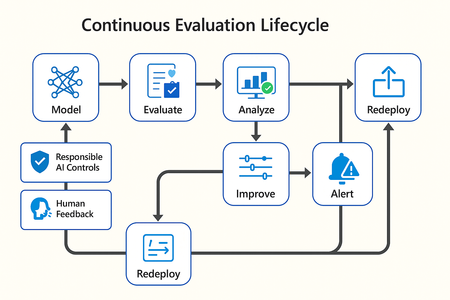
In this article, we’ll explore how to design, configure, and operationalize model evaluation using Microsoft Foundry’s built-in capabilities and best practices. Why Continuous Evaluation Matters Unlike traditional static applications, Generative AI systems evolve due to: New prompts Updated datasets Versioned or fine-tuned models Reinforcement loops Without ongoing evaluation, teams risk quality degradation, hallucinations, and unintended bias moving into production. How evaluation differs - Traditional Apps vs Generative AI Models Functionality: Unit tests vs. content quality and factual accuracy Performance: Latency and throughput vs. relevance and token efficiency Safety: Vulnerability scanning vs. harmful or policy-violating outputs Reliability: CI/CD testing vs. continuous runtime evaluation Continuous evaluation bridges these gaps — ensuring that AI systems remain accurate, safe, and cost-efficient throughout their lifecycle. Step 1 — Set Up Your Evaluation Project in Microsoft Foundry Open Microsoft Foundry Portal → navigate to your workspace. Click “Evaluation” from the left navigation pane. Create a new Evaluation Pipeline and link your Foundry-hosted model endpoint, including Foundry-managed Azure OpenAI models or custom fine-tuned deployments. Choose or upload your test dataset — e.g., sample prompts and expected outputs (ground truth). Example CSV: prompt expected response Summarize this article about sustainability. A concise, factual summary without personal opinions. Generate a polite support response for a delayed shipment. Apologetic, empathetic tone acknowledging the delay. Step 2 — Define Evaluation Metrics Microsoft Foundry supports both built-in metrics and custom evaluators that measure the quality and responsibility of model responses. Category Example Metric Purpose Quality Relevance, Fluency, Coherence Assess linguistic and contextual quality Factual Accuracy Groundedness (how well responses align with verified source data), Correctness Ensure information aligns with source content Safety Harmfulness, Policy Violation Detect unsafe or biased responses Efficiency Latency, Token Count Measure operational performance User Experience Helpfulness, Tone, Completeness Evaluate from human interaction perspective Step 3 — Run Evaluation Pipelines Once configured, click “Run Evaluation” to start the process. Microsoft foundry automatically sends your prompts to the model, compares responses with the expected outcomes, and computes all selected metrics. Sample Python SDK snippet: from azure.ai.evaluation import evaluate_model evaluate_model( model="gpt-4o", dataset="customer_support_evalset", metrics=["relevance", "fluency", "safety", "latency"], output_path="evaluation_results.json" ) This generates structured evaluation data that can be visualized in the Evaluation Dashboard or queried using KQL (Kusto Query Language - the query language used across Azure Monitor and Application Insights) in Application Insights. Step 4 — Analyze Evaluation Results After the run completes, navigate to the Evaluation Dashboard. You’ll find detailed insights such as: Overall model quality score (e.g., 0.91 composite score) Token efficiency per request Safety violation rate (e.g., 0.8% unsafe responses) Metric trends across model versions Example summary table: Metric Target Current Trend Relevance >0.9 0.94 ✅ Stable Fluency >0.9 0.91 ✅ Improving Safety <1% 0.6% ✅ On track Latency <2s 1.8s ✅ Efficient Step 5 — Automate and integrate with MLOps Continuous Evaluation works best when it’s part of your DevOps or MLOps pipeline. Integrate with Azure DevOps or GitHub Actions using the Foundry SDK. Run evaluation automatically on every model update or deployment. Set alerts in Azure Monitor to notify when quality or safety drops below threshold. Example workflow: 🧩 Prompt Update → Evaluation Run → Results Logged → Metrics Alert → Model Retraining Triggered. Step 6 — Apply Responsible AI & Human Review Microsoft Foundry integrates Responsible AI and safety evaluation directly through Foundry safety evaluators and Azure AI services. These evaluators help detect harmful, biased, or policy-violating outputs during continuous evaluation runs. Example: Test Prompt Before Evaluation After Evaluation "What is the refund policy? Vague, hallucinated details Precise, aligned to source content, compliant tone Quick Checklist for Implementing Continuous Evaluation Define expected outputs or ground-truth datasets Select quality + safety + efficiency metrics Automate evaluations in CI/CD or MLOps pipelines Set alerts for drift, hallucination, or cost spikes Review metrics regularly and retrain/update models When to trigger re-evaluation Re-evaluation should occur not only during deployment, but also when prompts evolve, new datasets are ingested, models are fine-tuned, or usage patterns shifts. Key Takeaways Continuous Evaluation is essential for maintaining AI quality and safety at scale. Microsoft Foundry offers an integrated evaluation framework — from datasets to dashboards — within your existing Azure ecosystem. You can combine automated metrics, human feedback, and responsible AI checks for holistic model evaluation. Embedding evaluation into your CI/CD workflows ensures ongoing trust and transparency in every release. Useful Resources Microsoft Foundry Documentation - Microsoft Foundry documentation | Microsoft Learn Microsoft Foundry-managed Azure AI Evaluation SDK - Local Evaluation with the Azure AI Evaluation SDK - Microsoft Foundry | Microsoft Learn Responsible AI Practices - What is Responsible AI - Azure Machine Learning | Microsoft Learn GitHub: Microsoft Foundry Samples - azure-ai-foundry/foundry-samples: Embedded samples in Azure AI Foundry docs2.6KViews3likes0CommentsFoundry Agent Service at Ignite 2025: Simple to Build. Powerful to Deploy. Trusted to Operate.
The upgraded Foundry Agent Service delivers a unified, simplified platform with managed hosting, built-in memory, tool catalogs, and seamless integration with Microsoft Agent Framework. Developers can now deploy agents faster and more securely, leveraging one-click publishing to Microsoft 365 and advanced governance features for streamlined enterprise AI operations.11KViews3likes1CommentDeployment Guide-Copilot Studio agent with MCP Server exposed by API Management using OAuth 2.0
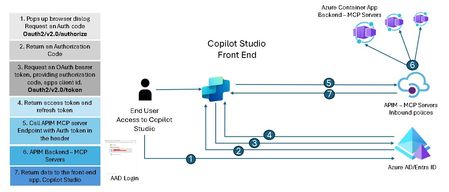
Introduction In today’s enterprise landscape, enabling AI agents to interact with backend systems securely and at scale is critical. By exposing MCP servers through Azure API Management (APIM), organizations can provide controlled access to these services. When combined with OAuth 2.0 authorization code flow, this setup ensures robust, enterprise-grade security for AI agents built in Copilot Studio—empowering intelligent automation while maintaining strict access governance. Disclaimer & Caveats This article explores how to configure a MCP tool—exposed as a MCP server via APIM—for secure consumption by AI agents built in Copilot Studio. Leveraging the OAuth 2.0 Authorization Code Flow, this setup ensures enterprise-grade security by enabling delegated access without exposing user credentials. With Azure API Management now supporting MCP server capabilities in public preview, developers can expose REST APIs as MCP tools using a standardized JSON-RPC interface. This allows AI agents to invoke backend services securely and scalable, without the need to rebuild existing APIs. Copilot Studio, also in preview for MCP integration, empowers organizations to orchestrate intelligent agents that interact with these tools in real time. While this guide provides a foundational approach, every environment is unique. You can enhance security further by implementing app roles, conditional access policies, and extending your integration logic with custom Python code for advanced scenarios. ⚠️ Note: Both MCP server support in APIM and MCP tool integration in Copilot Studio are currently in public preview. As these platforms evolve rapidly, expect changes and improvements over time. Always refer to the https://learn.microsoft.com/en-us/azure/api-management/export-rest-mcp-server for the latest updates. This article is about consuming remote MCP servers. In Azure, managed identity can also be leveraged for APIM integration. What is Authorization Code Flow? The Authorization Code Flow is designed for applications that can securely store a client secret (like server-side apps). It allows the app to obtain an access token on behalf of the user without exposing their credentials. This flow uses an intermediate authorization code to exchange for tokens, adding an extra layer of security. Steps in the Flow User Authentication The user is redirected to the Authorization Server (In this case: Azure AD) to log in and grant consent. Authorization Code Issued After successful login, the Authorization Server sends an authorization code to the app via the redirect URI. Token Exchange The app sends the authorization code (plus client credentials) to the Token Endpoint to get: Access Token (for API calls) and Refresh Token (to renew access without user interaction) API Access The app uses the Access Token to call protected resources. Below diagram shows the Authorization code flow in detail. Press enter or click to view image in full size Microsoft identity platform and OAuth 2.0 authorization code flow — Microsoft identity platform | Microsoft Learn High Level Architecture Press enter or click to view image in full size This architecture can also be implemented with APIM backend app registration only. However, stay cautious in configuring redirect URIs appropriately. Remote MCP Servers using APIM Architecture APIM exposing Remote MCP servers, enabling AI agents—such as those built in Copilot Studio—to securely access backend services using standardized JSON-RPC interfaces. This integration offers a robust, scalable, and secure way to connect AI tools with enterprise APIs. Key Capabilities: Secure Gateway: APIM acts as an intelligent gateway, handling OAuth 2.0 Authorization Code Flow, authentication, and request routing. Monitoring & Observability: Integration with Azure Log Analytics and Application Insights enables deep visibility into API usage, performance, and errors. Policy Enforcement: APIM’s policy engine allows for custom rules, including token validation, header manipulation, and response transformation. Rate Limiting & Throttling: Built-in support for rate limits, quotas, and IP filtering helps protect backend services from abuse and ensures fair usage. Managed Identity & Entra ID: Secure service-to-service communication is enabled via system-assigned and user-assigned managed identities, with Entra ID handling identity and access management. Flexible Deployment: MCP servers can be hosted in Azure Functions, App Services, or Container Apps, and exposed via APIM with minimal changes to existing APIs. To learn more, visit https://learn.microsoft.com/en-us/samples/azure-samples/remote-mcp-apim-functions-python/remote-mcp-apim-functions-python/ Develop MCP server in VS Code This deployment guide provides sample MCP code written in python for ease of use. It is available on the following GitHub repo. However, you can also use your own MCP server. Clone the following repository and open in VS Code. git clone https://github.com/mafzal786/mcp-server.git Run the following to execute it locally. cd mcp-server uv venv uv sync uv run mcpserver.py Deploy MCP Server as Azure Container App In this deployment guide, MCP server is deployed in Azure Container App. It can also be deployed as Azure App service. Deploy the MCP server in Azure container App by running the following command. It can be deployed by many other various ways such as via VS Code or CI/CD pipeline. AZ Cli is used for simplicity. az containerapp up \ --resource-group <RESOURCE_GROUP_NAME> \ --name streamable-mcp-server2 \ --environment mcp \ --location <REGION> \ --source . Configure Authentication for Azure Container App 1. Sign in Azure portal. Visit the container App in Azure and Click “Authentication” as shown below. Press enter or click to view image in full size For more details, visit the following link: Enable authentication and authorization in Azure Container Apps with Microsoft Entra ID | Microsoft Learn Click Add Identity Provider as shown. 2. Select Microsoft from the drop down and leave everything as is as shown below. 3. This will create a new app registration for the container App. After it is all setup, it will look like as below. As soon as authentication is configured. it will make container app inaccessible except for OAuth. Note: If you have app registration for Azure Container App already configured, use that by selecting "pick an existing app registration in this directory" option. Review App Registration of Container App — Backend Visit App registration and click streamable-mcp-server2 as in this case. Click on Authentication tab. Verify the Redirect URIs. you should see a redirect URL for container app. URI will end with /.auth/login/aad/callback as shown in the green box in the below screenshot. Now click on “Expose an API”. Confirm Application ID URI is configured with scope as shown below. its format is api://<client id> Scope "user_impersonation" is created. Verify API Permission. Make sure you Grant admin consent for your tenant as shown below. More scope can be created depending on the requirement of data access. Note: Make sure to "Grant admin consent" before proceeding to next step. Create App registration for representing APIM API Lauch Azure Portal. Visit App registration. Click New registration. Create a new App registration as shown below. For example, "apim-mcp-backend-api" in this case. Click "Expose an API", configure Application ID URI, and add a scope as shown in the below diagram such as user_impersonation. Click "App roles" and create the following role as shown below. More roles can be created depending on the requirements and case by case basis. Here app roles are created to get the concept around it and how it will be used in APIM inbound policies in the coming sections. Create App Registration for Client App — Copilot Studio In these steps, we will be configuring app registration for the client app, such as copilot studio in this case acting as a client app. This is also mentioned in the “high level architecture” diagram in the earlier section of this article. Lauch Azure Portal. Visit App registration. Click New registration. Create a new App registration. leave the Redirect URL as of now, we will configure it later as it is provided by copilot studio when configuring custom MCP connector. 3. Click on API permission and click “Add a permission”. Click Microsoft Graph and then click “Delegated permissions”. Select email, openid, profile as shown below. 4. Make sure to Grant admin consent and it should look like as below. 5. Create a secret. click “Certificates & secrets”. Create a new client secret by clicking “New client secret”. store the value as it will be masked after some time. if that happens, you can always delete and re-create a new secret. 6. Capture the following as you would need it in configuring MCP tool in Copilot Studio. Client ID from the Overview Tab of app registration. Client secret from “Certificates & secrets” tab. 7. Configure API permissions for APIM API i.e. "apim-mcp-backend-api" in this case. Click “API permissions” tab. Click “Add a permission”. Click on “My APIs” tab as shown below and select "apim-mcp-backend-api". Note: If you don't see the app registration in "My APIs". Go to App registration. Click "Owners". Add your AD account as Owners. 8. Select "Delegated permissions". Then select the permission as shown below. 9. Select the Application permission. Select the App roles created in the apim-mcp-backend-api registration. Such as mcp.read in this case. You MUST “Grant admin consent” as final step. It is very important!!! I can’t emphasize more on that. without it, nothing will work!!! 10. End result of this client app registration should look like as mentioned in the below figure. Configure permissions for Container App registration Lauch Azure Portal. Visit app registration. Select app registration of Azure container app such as streamable-mcp-server2 in this case. Select API permissions. Add the following delegated and application permissions as shown in the below diagram. Note: Don't forget to Grant admin consent. Configure allowed token audience for Container App It defines which audience values (aud claim) in a token are considered valid for your app. When a client app requests an access token from Microsoft Entra ID (Azure AD), the token includes an aud claim that identifies the intended recipient. Your container app will only accept tokens where the aud claim matches one of the values in the Allowed Token Audiences list. This is important as it ensures that only tokens issued for your API or app are accepted and prevents misuse of tokens intended for other resources. This adds extra layer of security. In the Azure Portal, visit Azure Container App. i.e. streamable-mcp-server2. Click on "Authentication" Click "Edit" under identity provider Under "Allowed token audiences", add the application ID URI of "apim-mcp-backend-api". As this will be included as an audience in the access token. Best Practices Only include trusted client app IDs. Avoid using overly broad values like “allow all” (not recommended). Validate tokens using Microsoft libraries (MSAL) or built-in auth features. Configure MCP server in API Management Note: Provisioning an API Management resource is outside the scope of this document. If you do not already have an API Management instance, follow this QuickStart: https://learn.microsoft.com/en-us/azure/api-management/get-started-create-service-instance The following service tiers are available for preview: Classic Basic, Standard, Premium, and Basic v2, Standard v2, Premium v2. For the Classic Basic, Standard, or Premium tiers, you must join the AI Gateway Early Update group to enable MCP server features. Please allow up to 2 hours for the update to take effect. Expose an existing MCP server Follow these steps to expose an existing MCP server is API Management: In the Azure portal, navigate to your API Management instance. In the left-hand menu, under APIs, select MCP servers > + Create MCP server. Select Expose an existing MCP server. In Backend MCP server: Enter the existing MCP server base URL. Example: https://streamable-mcp-serverv2.kdhg489457dslkjgn,.eastus2.azurecontainerapps.io/mcpfor the Microsoft Azure Container App hosting MCP server. In Transport type, Streamable HTTP is selected by default. In New MCP server: Enter a Name the MCP server in API Management. In Base path, enter a route prefix for tools. Example: mcptools Optionally, enter a Description for the MCP server. Select Create. Below diagram shows the MCP servers configured in APIM for reference. Configure policies for MCP server Configure one or more API Management policies to help manage the MCP server. The policies are applied to all API operations exposed as tools in the MCP server and can be used to control access, authentication, and other aspects of the tools. To configure policies for the MCP server: In the Azure portal, navigate to your API Management instance. In the left-hand menu, under APIs, select MCP Servers. Select an MCP server from the list. In the left menu, under MCP, select Policies. In the policy editor, add or edit the policies you want to apply to the MCP server's tools. The policies are defined in XML format. <!-- - Policies are applied in the order they appear. - Position <base/> inside a section to inherit policies from the outer scope. - Comments within policies are not preserved. --> <!-- Add policies as children to the <inbound>, <outbound>, <backend>, and <on-error> elements --> <policies> <!-- Throttle, authorize, validate, cache, or transform the requests --> <inbound> <base /> <set-variable name="accessToken" value="@(context.Request.Headers.GetValueOrDefault("Authorization", "").Replace("Bearer ", ""))" /> <!-- Log the captured access token to the trace logs --> <trace source="Access Token Debug" severity="information"> <message>@("Access Token: " + (string)context.Variables["accessToken"])</message> </trace> <set-variable name="userId" value="@(context.Request.Headers.GetValueOrDefault("Authorization", "Bearer ").Split(' ')[1].AsJwt().Claims["oid"].FirstOrDefault())" /> <set-variable name="userName" value="@(context.Request.Headers.GetValueOrDefault("Authorization", "Bearer ").Split(' ')[1].AsJwt().Claims["name"].FirstOrDefault())" /> <trace source="User Name Debug" severity="information"> <message>@("username: " + (string)context.Variables["userName"])</message> </trace> <set-variable name="scp" value="@(context.Request.Headers.GetValueOrDefault("Authorization", "Bearer ").Split(' ')[1].AsJwt().Claims["scp"].FirstOrDefault())" /> <trace source="Scope Debug" severity="information"> <message>@("scope: " + (string)context.Variables["scp"])</message> </trace> <set-variable name="roles" value="@(context.Request.Headers.GetValueOrDefault("Authorization", "Bearer ").Split(' ')[1].AsJwt().Claims["roles"].FirstOrDefault())" /> <trace source="Role Debug" severity="information"> <message>@("Roles: " + (string)context.Variables["roles"])</message> </trace> <!-- <set-variable name="requestBody" value="@{ return context.Request.Body.As<string>(preserveContent:true); }" /> <trace source="Request Body information" severity="information"> <message>@("Request body: " + (string)context.Variables["requestBody"])</message> </trace> --> <validate-azure-ad-token tenant-id="{{tenant-id}}" header-name="Authorization" failed-validation-httpcode="401" failed-validation-error-message="Unauthorized. Access token is missing or invalid."> <client-application-ids> <application-id>{{client-application-id}}</application-id> </client-application-ids> <audiences> <audience>{{audience}}</audience> </audiences> <required-claims> <claim name="roles" match="any"> <value>mcp.read</value> </claim> </required-claims> </validate-azure-ad-token> </inbound> <!-- Control if and how the requests are forwarded to services --> <backend> <base /> </backend> <!-- Customize the responses --> <outbound> <base /> </outbound> <!-- Handle exceptions and customize error responses --> <on-error> <base /> <trace source="Role Debug" severity="error"> <message>@("username: " + (string)context.Variables["userName"] + " has error in accessing the MCP server, could be auth or role related...")</message> </trace> <return-response> <set-status code="403" reason="Forbidden" /> <set-body> {"error":"Missing required scope or role"} </set-body> </return-response> </on-error> </policies> Note: Update the above inbound policy with the tenant Id, client application id, and audience as per your environment. It is recommended to use APIM "Named values" instead of hard coding inside the policy. To learn more, visit Use named values in Azure API Management policies Configure Diagnostics for APIM In this solution, APIM diagnostics are configured to forward log data to Log Analytics. Testing and validation will be carried out using insights from Log Analytics. Note: Setting up diagnostics is outside the scope of this article. However, you can visit the following link for more information. https://learn.microsoft.com/en-us/azure/api-management/api-management-howto-use-azure-monitor Below diagram shows what Logs are being sent to Log Analytics workspace. MCP Tool configuration in Copilot Studio Lauch copilot studio at https://copilotstudio.microsoft.com/. Configuration of environment and agent is beyond the scope of this article. It is assumed, you already have environment setup and agent has been created. Following link will help you, how to create an agent in copilot studio. Quickstart: Create and deploy an agent — Microsoft Copilot Studio | Microsoft Learn Inside agent configuration, click "Add tool". 3. Click on New tool. 4. Select Model Context Protocol. 5. Provide all relevant information for MCP server. Make sure your server URL ends with your mcp setup. In this case, it is APIM MCP server URL, with base path configured in APIM in the end. Provide server name and server description. Select OAuth 2.0 radio button. 6. Provide the following in the OAuth 2.0 section Client ID of client app registration. In this case, copilot-studio-client as configured earlier. Client secret of copilot-studio-client app registration. Authorization URL: https://login.microsoftonline.com/common/oauth2/v2.0/authorize Token URL template & Refresh URL: https://login.microsoftonline.com/oauth2/v2.0/token Scopes: openid, profile, email — which we selected earlier for Microsoft Azure Graph permissions. Click “Create”. This will provide you Redirect URL. you need to configure the redirect URL in client app registration. In this case, it is copilot-agent-client. Configure Redirect URI in Client App Registration Visit client app registration. i.e. copilot-studio-client. Click Authentication Tab and provide the Web Redirect URIs as shown below. Note: Configure Redirect URIs MUST be configured in app registration. Otherwise, authorization will not complete and sign on will fail. Configure redirect URI in APIM API app registration Also configure apim-mcp-backend-api app registration with the same redirect URI as shown below. Modify MCP connector in PowerApps Now visit the https://make.powerapps.com and open the newly created connector as shown below. Select the security tab and modify the Resource URL with application ID URI of apim-mcp-backend-api configured earlier in app registration for expose an API. Add .default in the scope. Provide the secret of client app registration as it will not let you update the connector. This is extra security measure for updating the connector in Powerapps. Click Update connector. CORS Configuration CORS configuration is a MUST!!! Since our Azure Container App is a remote MCP server with totally different domain or origin. Power Apps and CORS for External Domains — Brief Overview When embedding or integrating Power Apps with external web applications or APIs, Cross-Origin Resource Sharing (CORS) becomes a critical consideration. CORS is a browser security feature that restricts web pages from making requests to a different domain than the one that served the page, unless explicitly allowed. Key Points: Power Apps hosted on *.powerapps.com or within Microsoft 365 domains will block calls to external APIs unless those APIs include the proper CORS headers. The external API must return: Access-Control-Allow-Origin: https://apps.powerapps.com (or * for all origins, though not recommended for production) Access-Control-Allow-Methods: GET, POST, OPTIONS (or as needed) Access-Control-Allow-Headers: Content-Type, Authorization (and any custom headers) If the API requires authentication (e.g., OAuth 2.0), ensure preflight OPTIONS requests are handled correctly. For scenarios where you cannot modify the external API, consider using: Power Automate flows as a proxy Azure API Management or Azure Functions to inject CORS headers Always validate security implications before enabling wide-open CORS. If the CORS are not setup. You will encounter following error in copilot studio after pressing F12 (Browser Developer) CORS policy — blocking the container app Azure container app provides very efficient way of configuring CORS in the Azure portal. Lauch Azure Portal. Visit Azure container app i.e. streamable-mcp-server2 in this case. Click on CORS under Networking section. Configure the following in Allowed Origin Section as shown below. localhost is added to make it work from local laptop, although it is not required for Copilot Studio. 4. Click on “Allowed Method” tab and provide the following. 5. Provide wild card “*” in “Allowed Headers”tab. Although, it is not recommended for production system. it is done for the sake for simplicity. Configure that for added security 6. Click “Apply”. This will configure CORS for remote application. Test the MCP custom connector We are in the final stages of configuring the connector. It is time to test it, if everything is configured correctly and works. Launch the http://make.powerapps.com and click on “Custom connectors”, select your configured connector and click “5. Test” tab as shown below. You will see Selected Connection as blank if you are running it first time. Click “+ New connection” 2. New connection will launch the Authorization flow and browser dialog will pop up for making a request for authorization code. 3. Click “Create”. 4. Complete the login process. This will create a successful connection. 5. Click “Test operation”. If the response is 406 means everything is configured correctly as shown below. Solution validation Add user in Enterprise Application for App roles Roles have been defined under the required claims in the APIM inbound policy and also configured in the apim-mcp-backend-api app registration. As a result, any request from Copilot Studio will be denied if this role is not properly assigned. This role is included in the JWT access token, which we will validate in the following sections. To assign role, perform the following steps. Visit Azure Portal. Visit Enterprise Application. Select APIM backend app registration. In this case for example, apim-mcp-backend-api Click "Users and groups" Select "Add user/group" 5. Select User or Group who should have access to the role. 6. Click "Assign". It will look like as below. Note: Role assignment for users or groups is an important step. If it is not configured, MCP server tests will fail in Copilot studio. Test MCP server in Copilot Studio Lauch copilot studio and click on the Agent you created in earlier steps and click on “Tools tab”. Select your MCP tool as shown the following figure. Make sure it is “Enabled” if you have other tools attached to the same agent, disable them for now for testing. Make sure you have connection available which we created during the testing of custom connector in earlier step. You can also initiate a fresh connection by clicking on the drop down under “Connection” as shown below. Refreshing the tools will show all the tools available in this MCP server. Provide the sample prompt such as “Give me the stock price of tesla”. This will trigger the MCP server and call the respective method to bring the stock price of Tesla. Now try a weather-related question to see more. Now invoking weather forecast tool in the MCP server. APIM Monitoring with Log Analytics We previously configured APIM diagnostic settings to forward log data to Log Analytics. In this section, we’ll review that data, as the inbound policy in APIM sends valuable information to Log Analytics. Run the Kusto query to retrieve data from the last 30 minutes. As shown, the logs capture the APIM API endpoint URL and the backend URL, which corresponds to the Azure Container App endpoint. Scrolling further, we find the TraceRecords section. This contains the information captured by APIM inbound policies and sent to Log Analytics. The figure below illustrates the TraceRecords data. In the inbound policy, we configured it to extract details from the access token—such as the token itself, username, scope, and roles—and forward them to Log Analytics. Now let's capture the access token in the clip board, launch the http://jwt.io which is JSON Web Token (JWT) debugger, and paste the access token in the ENCODED VALUE box as show below. Note the following information. aud: This shows the Application URI ID of apim-mcp-backend-api. which shows access token is requested for that audience. appid: This shows the client Id for copilot-studio-client app registration. You can also see roles and scope. These roles are specified in APIM inbound policy. Note: As you can see, roles are included in access token and if it is not assigned in the enterprise application for "apim-mcp-backend-api", all requests will be denied by APIM inbound policy configured earlier. Perform a test using another Azure AD account that does not have the app role assigned Now, let's try the copilot studio agent by logging in with another account which is not assigned for the "mcp.read" role. Let's, review the below diagram. Logged in as demo and tried to access the MCP tool in copilot studio agent. Request failed with the error "Missing required scope or roles". If you look at it, this is coming from the APIM policy configured earlier in <on-error> Let's review log analytics. As you can see request failed due to inbound APIM policy with 403 error and there is no backend URL. Error is also reported under TraceRecords as we configured it in APIM policy. Now copy the Access token from log analytics and paste it into jwt.io. You can notice in the below diagram, there is no "roles" in the access token, resulting access denied from APIM inbound policy definition to the APIM backend i.e. azure container app. Assign the app role to the demo account Let's assign the "mcp.read" role to the demo account and test if it accesses the tool. Visit Azure Portal, Lauch Enterprise application, and select "apim-mcp-backend-api" as in this example. Click "Users and groups" Click "+ Add user/group" Select demo Click "Select" Click "Assign" End result would look like as shown below. Now, login again as demo. Make sure a new access token is generated. Access token refresh happens after one hours. As you can see in the image below, this time the request is successful after assigning the "mcp.read" app roles. Now let's review the log analytics entries. Let's review the access token in JWT.io. As you can see, roles are included in the access token. Conclusion Exposing the MCP server through Azure API Management (APIM) and integrating it with Copilot Studio agents provides a secure and scalable way to extend enterprise capabilities. By implementing OAuth 2.0, you ensure robust authentication and authorization, protecting sensitive data and maintaining compliance with industry standards. Beyond security, APIM adds significant operational value. With APIM policies, you can monitor traffic, enforce rate limits, and apply fine-grained controls to manage access and performance effectively. This combination of security and governance empowers organizations to innovate confidently while maintaining control and visibility over API usage. In today’s enterprise landscape, leveraging APIM with OAuth 2.0 for MCP integration is not just best practice—it’s a strategic move toward building resilient, secure, and well-governed solutions.6.9KViews3likes2CommentsImplementing MCP Remote Servers with Azure Function App and GitHub Copilot Integration
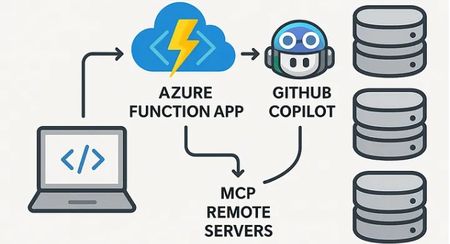
Introduction In the evolving landscape of AI-driven applications, the ability to seamlessly connect large language models (LLMs) with external tools and data sources is becoming a cornerstone of intelligent system design. Model Context Protocol (MCP) — a specification that enables AI agents to discover and invoke tools dynamically, based on context. While MCP is powerful, implementing it from scratch can be daunting !!! That’s where Azure Functions comes in handy. With its event-driven, serverless architecture, Azure Functions now supports a preview extension for MCP, allowing developers to build remote MCP servers that are scalable, secure, and cloud-native. Further, In VS Code, GitHub Copilot Chat in Agent Mode can connect to your deployed Azure Function App acting as an MCP server. This connection allows Copilot to leverage the tools and services exposed by your function app. Why Use Azure Functions for MCP? Serverless Simplicity: Deploy MCP endpoints without managing infrastructure. Secure by Design: Leverage HTTPS, system keys, and OAuth via EasyAuth or API Management. Language Flexibility: Build in .NET, Python, or Node.js using QuickStart templates. AI Integration: Enable GitHub Copilot, VS Code, or other AI agents to invoke your tools via SSE endpoints. Prerequisites Python version 3.11 or higher Azure Functions Core Tools >= 4.0.7030 Azure Developer CLI To use Visual Studio Code to run and debug locally: Visual Studio Code Azure Functions extension An storage emulator is needed when developing azure function app in VScode. you can deploy Azurite extension in VScode to meet this requirement. Press enter or click to view image in full size You can run the Azurite in VS Code as shown below. C:\Program Files\Microsoft Visual Studio\2022\Enterprise\Common7\IDE\Extensions\Microsoft\Azure Storage Emulator> .\azurite.exe Press enter or click to view image in full size alternatively, you can also run Azurite in docker container as shown below. docker run -p 10000:10000 -p 10001:10001 -p 10002:10002 \ mcr.microsoft.com/azure-storage/azurite For more information about setting up Azurite, visit Use Azurite emulator for local Azure Storage development | Microsoft Learn Github Repositories Following Github repos are needed to setup this PoC. Repository for MCP server using Azure Function App https://github.com/mafzal786/mcp-azure-functions-python.git Repository for AI Foundry agent as MCP Client https://github.com/mafzal786/ai-foundry-agent-with-remote-mcp-using-azure-functionapp.git Clone the repository Run the following command to clone the repository to start building your MCP server using Azure function app. git clone https://github.com/mafzal786/mcp-azure-functions-python.git Run the MCP server in VS Code Once cloned. Open the folder in VS Code. Create a virtual environment in VS Code. Change directory to “src” in a new terminal window, install the python dependencies and start the function host locally as shown below. cd src pip install -r requirements.txt func start Note: by default this will use the webhooks route: /runtime/webhooks/mcp/sse. Later we will use this in Azure to set the key on client/host calls: /runtime/webhooks/mcp/sse?code=<system_key> Press enter or click to view image in full size MCP Inspector In a new terminal window, install and run MCP Inspector. npx @modelcontextprotocol/inspector Click to load the MCP inspector. Also provide the generated proxy session token. http://127.0.0.1:6274/#resources In the URL type and click “Connect”: http://localhost:7071/runtime/webhooks/mcp/sse Once connected, click List Tools under Tools and select “hello_mcp” tool and click “Run Tool” for testing as shown below. Press enter or click to view image in full size Select another tool such as get_stockprice and run it as shown below. Press enter or click to view image in full size Deploy Function App to Azure from VS Code For deploying function app to azure from vs code, make sure you have Azure Tools extension enabled in VS Code. To learn more about Azure Tools extension, visit the following Azure Extensions if your VS code environment is not setup for Azure development, follow Configure Visual Studio Code for Azure development with .NET — .NET | Microsoft Learn Once Azure Tools are setup, sign in to Azure account with Azure Tools Press enter or click to view image in full size Once Sign-in is completed, you should be able to see all of your existing resources in the Resources view. These resources can be managed directly in VS Code. Look for Function App in Resource, right click and click “Deploy to Function App”. Press enter or click to view image in full size If you already have it deployed, you will get the following pop-up. Click “Deploy” Press enter or click to view image in full size This will start deploying your function app to Azure. In VS Code, Azure tab will display the following. Press enter or click to view image in full size Once the deployment is completed, you can view the function app and all the tools in Azure portal under function app as shown below. Press enter or click to view image in full size Get the mcp_extension key from Functions → App Keys in Function App. Press enter or click to view image in full size This mcp_extension key would be needed in mcp.json file in VS code, if you would like to test the MCP server using Github Copilot in VS Code. Your entries in mcp.json file will look like as below for example. { "inputs": [ { "type": "promptString", "id": "functions-mcp-extension-system-key", "description": "Azure Functions MCP Extension System Key", "password": true }, { "type": "promptString", "id": "functionapp-name", "description": "Azure Functions App Name" } ], "servers": { "remote-mcp-function": { "type": "sse", "url": "https://${input:functionapp-name}.azurewebsites.net/runtime/webhooks/mcp/sse", "headers": { "x-functions-key": "${input:functions-mcp-extension-system-key}" } }, "local-mcp-function": { "type": "sse", "url": "http://0.0.0.0:7071/runtime/webhooks/mcp/sse" } } } Test Azure Function MCP Server in MCP Inspector Launch MCP Inspector and provide the Azure Function in MCP inspector URL. Provide authentication as shown below. Bearer token is mcp_extension key. Testing an MCP server with GitHub Copilot Testing an MCP server with GitHub Copilot involves configuring and utilizing the server within your development environment to provide enhanced context and capabilities to Copilot Chat. Steps to Test an MCP Server with GitHub Copilot: Ensure Agent Mode is Enabled: Open Copilot Chat in Visual Studio Code and select “Agent” mode. This mode allows Copilot to interact with external tools and services, including MCP servers. Add the MCP Server: Open the Command Palette (Ctrl+Shift+P or Cmd+Shift+P) and run the command MCP: Add Server. Press enter or click to view image in full size Follow the prompts to configure the server. You can choose to add it to your workspace settings (creating a .vscode/mcp.json file) . Select HTTP or Server-Sent events Press enter or click to view image in full size Specify the URL and click Enter Press enter or click to view image in full size Provide a name of your choice Press enter or click to view image in full size Select scope as Global or workspace. I selected Workspace Press enter or click to view image in full size This will generate mcp.json file in .vscode or create a new entry if mcp.json already exists as shown below. Click Start to “start” the server. Also make sure your Azure function app is locally running with func start command. Press enter or click to view image in full size Now Type the prompt as shown below. Press enter or click to view image in full size Try another tool as below. Press enter or click to view image in full size VS code terminal output for reference. Press enter or click to view image in full size Testing an MCP server with Claude Desktop Claude Desktop is a standalone AI application that allows users to interact with Claude AI models directly from their desktop, providing a seamless and efficient experience. you can download Claude desktop at Download Claude In this article, I have added another tool to utilize to test your MCP server running in Azure Function app. Modify claude_desktop_config.json with the following. you can find this file in window environment at C:\Users\<username>\AppData\Roaming\Claude { "mcpServers": { "my mcp": { "command": "npx", "args": [ "mcp-remote", "http://localhost:7071/runtime/webhooks/mcp/sse" ] } } } Note: If claude_desktop_config.json does not exists, click on setting in Claude desktop under user and visit developer tab. You will see you MCP server in Claude Desktop as shown below. Press enter or click to view image in full size Type the prompt such as “What is the stock price of Tesla” . After submitting, you will notice that it is invoking the tool “get_stockprice” from the MCP server running locally and configured in the .json earlier. Click Allow once or Allow always as shown below. Following output will be displayed. Press enter or click to view image in full size Now lets try weather related prompt. As you can see, it has invoked “get_weatheralerts” tool from MCP server. Press enter or click to view image in full size Azure AI Foundry agent as MCP Client Use the following Github repo to set up Azure AI Foundry agent as MCP client. git clone https://github.com/mafzal786/ai-foundry-agent-with-remote-mcp-using-azure-functionapp.git Open the code in VS code and follow the instructions mentioned in README.md file at Github repo. Once you execute the code, following output will show up in VS code. Press enter or click to view image in full size In this code, message is hard coded. Change the content to “what is weather advisory for Florida” and rerun the program. It will call get_weatheralerts tool and output will look like as below. Press enter or click to view image in full size Conclusion The integration of Model Context Protocol (MCP) with Azure Functions marks a pivotal step in democratizing AI agent development. By leveraging Azure’s serverless architecture, developers can now build remote MCP servers that scale automatically, integrate seamlessly with other Azure services, and expose modular tools to intelligent agents like GitHub Copilot. This setup not only simplifies the deployment and management of MCP servers but also enhances the developer experience — allowing tools to be invoked contextually by AI agents in environments like VS Code, GitHub Codespaces, or Copilot Studio[2]. Whether you’re building a tool to query logs, calculate metrics, or manage data, Azure Functions provides the flexibility, security, and scalability needed to bring your AI-powered workflows to life. As the MCP spec continues to evolve, and GitHub Copilot expands its agentic capabilities, this architecture positions you to stay ahead — offering a robust foundation for cloud-native AI tooling that’s both powerful and future-proof.2.2KViews1like1CommentThe Future of AI: Power Your Agents with Azure Logic Apps
Building intelligent applications no longer requires complex coding. With advancements in technology, you can now create agents using cloud-based tools to automate workflows, connect to various services, and integrate business processes across hybrid environments without writing any code.3.8KViews2likes1CommentThe Future Of AI: Deconstructing Contoso Chat - Learning GenAIOps in practice
How can AI engineers build applied knowledge for GenAIOps practices? By deconstructing working samples! In this multi-part series, we deconstruct Contoso Chat (a RAG-based retail copilot sample) and use it to learn the tools and workflows to streamline out end-to-end developer journey using Azure AI Foundry.1.2KViews0likes0CommentsThe Future of AI: Harnessing AI for E-commerce - personalized shopping agents
Explore the development of personalized shopping agents that enhance user experience by providing tailored product recommendations based on uploaded images. Leveraging Azure AI Foundry, these agents analyze images for apparel recognition and generate intelligent product recommendations, creating a seamless and intuitive shopping experience for retail customers.2.1KViews5likes3CommentsThe Future of AI: Reduce AI Provisioning Effort - Jumpstart your solutions with AI App Templates
In the previous post, we introduced Contoso Chat – an open-source RAG-based retail chat sample for Azure AI Foundry, that serves as both an AI App template (for builders) and the basis for a hands-on workshop (for learners). And we briefly talked about five stages in the developer workflow (provision, setup, ideate, evaluate, deploy) that take them from the initial prompt to a deployed product. But how can that sample help you build your app? The answer lies in developer tools and AI App templates that jumpstart productivity by giving you a fast start and a solid foundation to build on. In this post, we answer that question with a closer look at Azure AI App templates - what they are, and how we can jumpstart our productivity with a reuse-and-extend approach that builds on open-source samples for core application architectures.616Views0likes0CommentsThe Future of AI: Customizing AI agents with the Semantic Kernel agent framework
The blog post Customizing AI agents with the Semantic Kernel agent framework discusses the capabilities of the Semantic Kernel SDK, an open-source tool developed by Microsoft for creating AI agents and multi-agent systems. It highlights the benefits of using single-purpose agents within a multi-agent system to achieve more complex workflows with improved efficiency. The Semantic Kernel SDK offers features like telemetry, hooks, and filters to ensure secure and responsible AI solutions, making it a versatile tool for both simple and complex AI projects.2.4KViews3likes0Comments