automated device enrollment (ade)
5 TopicsNew iOS/iPadOS, visionOS, tvOS and macOS ADE enrollment policies experience
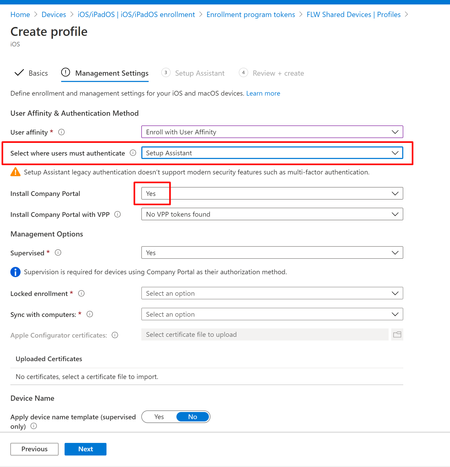
By: Anya Novicheva – Sr. Product Manager | Microsoft Intune Coming with the 2606 service release (end of June), iOS/iPadOS and macOS automated device enrollment (ADE) profiles will move to a new infrastructure which enables Intune to speed up the delivery of new features. These will be the new enrollment policies experience for Apple devices enrolling through ADE. With this update, you’ll notice the authentication methods are better organized, there’ll be no Company Portal authentication method or automatic deployment of the Company Portal application, Apple-deprecated settings have been removed, and there’ll be more granular admin controls for the policies page. All newly created enrollment policies for iOS/iPadOS/macOS will automatically be part of the new experience. Existing enrollment profiles won’t be affected. You’ll be able to delete, edit, and assign existing enrollment profiles but you’ll no longer be able to create them with the old experience. We recommend creating a new enrollment policy and setting it as the default as soon as this feature releases so new enrollments will use the new policy as soon as possible. All new features releasing after will be part of the new enrollment policies experience moving forward and will not be added to the old enrollment profiles. Coming with the 2604 service release (end of April), you'll be able to create visionOS and tvOS automated device enrollment (ADE) policies with enrollment time grouping. Go to Devices > Enrollment > Apple > Enrollment program tokens > select a token > Enrollment policies > Create. Here, new visionOS and tvOS enrollment policies can be created and assigned to devices that have synced over from Apple Business Manager or Apple School Manager. Additionally, enrollment policies can be deleted or set as the default by navigating to the ellipsis in a policy. Create a new enrollment policy for iOS/iPadOS and macOS ADE In the Microsoft Intune admin center, navigate to Devices > Enrollment > Apple > Enrollment program tokens > select a token > Enrollment policies > Create. Here, new enrollment policies can be created and assigned to devices that have synced over from Apple Business Manager or Apple School Manager. Additionally, enrollment policies can be deleted or set as the default by navigating to the ellipsis in a policy. Benefits of the new experience: Enrollment time grouping support - Enrollment time grouping in Microsoft Intune The columns control can be used to select which columns should be default, which one should be the primary column, and which ones to show or hide. The search bar can be used to search by any column field contents and isn’t case sensitive. The filters control can be used to filter the policies by platform. We’ll add more filtering for the other columns soon. Sort each column by the ascending or descending order by clicking on the column header. No more automatic Company Portal app deployment from the enrollment policy itself or Company Portal as an authentication method option in the drop-down setting. The Company Portal app can still be used and sent down as a required or available app to the device depending on your organization’s needs. We always recommend using Setup Assistant with modern authentication for ADE policies with user affinity as it is the most secure method. However, if you still want to deploy the Company Portal authentication method your users or devices, you can do userless authentication (Enroll with no user affinity for authentication) and deploy the application as needed along with the required app configuration policy to the targeted devices. Note that this is not recommended. The “Install Company Portal”, “Install Company Portal with VPP, and “Run Company Portal in single app mode until authentication” settings aren’t supported and have been removed from the enrollment policy for iOS/iPadOS ADE. For more details refer to the blog: Move to Setup Assistant with Modern Authentication for Automated Device Enrollment Shared iPad for iPadOS ADE has its own authentication method for devices with no user device affinity. Setup Assistant with modern authentication is the default and recommended authentication method for ADE enrollment policies. Assigning new enrollment policies to devices The device assignment flow for ADE policies is the same. Within the policy, navigate to the Devices tab to select a device(s) and select Assign policy. Ensure that you’re assigning a new enrollment policy to the devices. Existing (old) enrollment profiles (only applies to iOS/iPadOS and macOS) Existing enrollment profiles will remain in Devices > Enrollment > Apple > Enrollment program tokens > select a token > Profiles. New enrollment profiles within Profiles cannot and should not be created. Existing enrollment profiles can be deleted, edited, assigned to devices, and viewed. Their device assignments will not be affected or changed. We recommend you migrate your ADE devices from being assigned to old enrollment profiles over to new enrollment policies and always have the Await final configuration setting set to Yes. Additionally, we recommend you set your default enrollment policy to one of your newly created ones from the Enrollment policies tab. Important: If you delete an old enrollment profile, the device rename is no longer enforced (that is if someone changes the device name). Sending the Company Portal app to ADE devices with user device affinity (optional) - iOS/iPadOS only Previously within enrollment profiles, the Company Portal app was sent down automatically to devices with the creation of Setup Assistant with modern authentication and Company Portal authentication profiles. With new enrollment policies, the Company Portal application will never be sent down automatically from the creation or assignment of the enrollment policy. For enrollment policy with user device affinity, we strongly recommend you set the authentication method to Setup Assistant with modern authentication as the most secure and seamless method. For Setup Assistant with modern authentication, the Company Portal is no longer required because of Just in Time registration and compliance Remediation for iOS/iPadOS with Microsoft Intune. However, if you still want to send replicate the Company Portal authentication method for your users or devices, you can choose to Enroll without user affinity (userless) and then deploy the application as needed, along with the required app configuration policy to the targeted devices. Assigning the correct app configuration policy based on the authentication method is critical if you’re sending the Company Portal app to ADE devices without user device affinity. Otherwise, the Company Portal will cause issues on the device and won’t auto-update correctly. However, we highly recommend Setup Assistant with modern authentication as the ADE authentication method for your Apple devices with user affinity. Based on the Company Portal authentication method you use, send the following XML for the app configuration policy: If you're using the Company Portal on an ADE device enrolled without user affinity (also known as Device Staging): <dict> <key>IntuneUDAUserlessDevice</key> <string>{{SIGNEDDEVICEID}}</string> </dict> If you're using the Company Portal on an ADE device enrolling with user device affinity, such as the Company Portal authentication method: <dict> <key>IntuneCompanyPortalEnrollmentAfterUDA</key> <dict> <key>IntuneDeviceId</key> <string>{{deviceid}}</string> <key>UserId</key> <string>{{userid}}</string> </dict> </dict> Stay tuned to What’s new in Intune for the release! If you have any questions, leave a comment on this post or reach out on X @IntuneSuppTeam and we'll provide updates in the blog on the timing of this release. Post Updates: 06/26/25: Updated post with a new ETA of Q4 CY25 (previously Q2 CY25). Also revised the content to better clarify the new experiences and authentication scenarios. 09/12/25: Updated post with a new ETA of Q1 CY26 (previously Q4 CY25). 02/26/26: Updated post with a new ETA of Q2 CY26 (previously Q1 CY26) and expanded scope to include macOS ADE alongside iOS/iPadOS. 04/30/26: Updated post with new ETAs - 2606 (end of June) for iOS/iPadOS and macOS, and 2604 (end of April) for visionOS and tvOS. Title and content updated to reflect the expanded OS scope.34KViews1like34Comments
Intune macOS ADE: support for minimum macOS version enforcement before Platform SSO registration
Hi everyone, I would like to ask whether Microsoft Intune has any supported method, roadmap, or recommended workaround for enforcing a minimum or target macOS version during Automated Device Enrollment before Setup Assistant continues. The scenario is macOS zero-touch deployment with Intune, Automated Device Enrollment, Setup Assistant with modern authentication, Await final configuration, and Platform SSO registration during ADE. Platform SSO registration during Setup Assistant depends on newer macOS capabilities. In addition, some macOS deployment scenarios, such as Platform SSO password sync and macOS LAPS, may require or strongly benefit from a specific macOS version being installed before the user completes enrollment. Today, Intune can manage macOS software updates after enrollment using Declarative Device Management software update policies. However, that does not fully solve the issue where the Mac starts ADE on an older macOS version. In that case, the device may begin Setup Assistant and Platform SSO registration before the required macOS version is installed. What I am looking for is an Intune-native equivalent of enforcing a minimum or target macOS version during ADE, before Setup Assistant continues. Ideally, the macOS ADE enrollment profile in Intune would support options such as: - Minimum required macOS version - Target specific macOS version - Target specific build, if supported - Latest eligible macOS version for the device - Apply the OS update before Platform SSO registration and final configuration - Reporting in Intune showing whether the ADE OS update was required, started, completed, skipped, or failed Without this capability, organizations using Intune-only macOS deployment may still need manual IT staging or macOS restore/update before handing devices to users. This weakens the zero-touch deployment model, especially when adopting Platform SSO registration during Automated Device Enrollment. 1. Is there currently any supported way in Intune to enforce a minimum or target macOS version during ADE before Setup Assistant continues? 2. Is this capability on the Intune roadmap? 3. Are there any recommended workarounds for organizations deploying Platform SSO registration during ADE where a specific macOS version is required? Thanks in advance for any guidance from the Intune team or the community.448Views0likes1Comment