arc
4 TopicsMigrate to Azure SQL Database, including Hyperscale, straight from Azure Arc (public preview)
The challenge Most organisations do not run in one place. Estates stretch across on-premises datacentres, hybrid deployments and the cloud, and every migration decision must balance application dependencies, operational requirements and a modernization roadmap that is already in motion. Mixed environments and legacy dependencies make that harder, and needing a different tool for assessment, migration, monitoring and management harder still. The result is more operational effort, inconsistency between teams, and modernization that moves slower than anyone wants. Azure Arc already solves the first half of that problem. It discovers and assesses SQL Server estates at scale, so you know which databases are ready to move. The second half has been the gap: once a database is identified as migration-ready, the path to Azure SQL Database runs outside Arc. You leave the experience you were working in, learn Azure Database Migration Service, configure a Self-hosted Integration Runtime, and juggle several tools to get one database across. That fragmentation costs time, and it is one of the reasons why assessments do not turn into migrations. What's new Azure Arc Database Migration now adds Azure SQL Database; including Hyperscale as a supported migration target, in public preview. You can migrate Arc enabled SQL Server databases to Azure SQL Database through a single, guided experience in the Azure portal. Behind that experience, the workflow integrates Azure Database Migration Service and streamlines Self-hosted Integration Runtime setup directly into the migration journey. You assess, configure, migrate, monitor and complete the migration without leaving Arc. This is a logical migration performed by DMS through the Self-hosted Integration Runtime, so there is no separate staging step for you to plan or maintain but it requires a planned downtime. Why Hyperscale For many teams, the database that most requires modernizing is also the largest one they run. Hyperscale is the Azure SQL Database service tier built for exactly that case: a fully managed platform designed to scale storage and compute independently as a workload grows, so a large SQL Server database can move to a managed service without being re-architected first. Making Hyperscale reachable from Arc matters because it removes a decision point from the middle of the journey. The databases Arc flags as migration-ready are often the ones whose size is used to rule out a managed destination; and now the assessment and the target sit in the same place. One portal, one operational model The principle has not changed: one portal for discovery, assessment and migration. The entire migration lifecycle is managed from a single tool in the Azure portal; assess readiness, select a target, configure settings, choose databases and tables to migrate, monitor progress and validate the results. Migrating to Azure SQL Database follows the same operational model already available for existing migration scenarios in Arc. The same migration dashboard, the same monitoring experience and the same guided workflow apply regardless of destination. That reduces the learning curve, keeps operational processes consistent, and lets your team choose the most appropriate Azure SQL platform for each database without changing migration methodology. How it works The flow starts where you already are, in the Database migration pane of your Arc-enabled SQL Server instance. Assess in Arc. Readiness assessments are generated automatically every weekend, and you can run one manually in a few minutes if you would rather not wait. SQL Server migration in Azure Arc is available by default for Arc-enabled SQL Server instances starting with SQL Server 2014 (12.x). Choose your target. Select Azure SQL Database, including the Hyperscale service tier, for the databases the assessment identified as ready. Set up DMS and SHIR, guided. The portal walks you through creating the Azure Database Migration Service resource and registering a Self-hosted Integration Runtime, inside the same workflow rather than as separate homework. Migrate. DMS performs a logical migration of your schema and data to the Azure SQL Database target through the integration runtime. Monitor and Completion. Track progress on the migration dashboard you already use, validate the results when the migration is completed. Microsoft Copilot is built into the Database migration pane to help you along the way. Why SHIR, and what it means for you The Self-hosted Integration Runtime secures bridge that it acts as the connectivity layer that enables Azure Database Migration Service to securely connect to the source SQL Server and the target Azure SQL Database for data movement. Azure DMS is a fully managed service for migrations to Azure data platforms and can be driven from the Azure portal, PowerShell or the Azure CLI — the runtime is simply how it gets to your source. In practice, setup is guided and one-time. You register the runtime once during the migration workflow, and subsequent migrations from the same environment reuse it. Nothing about how you operate your Arc-enabled instances changes. Learn more details in the technical documentation. Get started Trying the preview takes three things: an Arc-enabled SQL Server instance, a recent readiness assessment, and a target Azure SQL Database. In the Azure portal, open your Arc-enabled SQL Server instance, go to the Database migration pane, review the assessment results, and choose Azure SQL Database as your target. The portal takes it from there. Learn more: SQL Server migration in Azure Arc What is Azure Database Migration Service Create a Self-hosted Integration Runtime Step-by-step guidance for the new target We want your feedback For product feedback, feature requests, or migration pain points you'd like the team to track and act on, please share them through aka.ms/sqlfeedback under the Migration & Modernization category.431Views0likes0CommentsCustomer Offerings: Azure Local - Implementation, Migration, and Management
Hi everyone! Brandon here, back once again to talk to you about a couple of new offerings that have just been released to assist our Unified customers with their on-premises virtualization needs! I continue to have the privilege of leading a great program and team helping customers to migrate from VMware to more cost-effective and/or modern solutions. These new offerings are <drum roll>: Hyper-V - Implementation, Migration, and Management Azure Local - Implementation, Migration, and Management NOTE: These offerings do not provide hands on keyboard support, do not create custom documentation for customers, and cannot provide direct support for any 3 rd party products that may be used in the process of migrations. Many customers are reassessing their virtualization strategies and are actively exploring alternatives to VMware that align with long‑term hybrid cloud goals. Azure Local offers a purpose‑built platform that combines proven Windows Server–based virtualization with Azure services and management tooling, enabling customers to modernize on‑premises infrastructure while maintaining tight integration with Azure management, security, and governance capabilities. Whether driven by changing licensing models, cost optimization, or the need for deeper hybrid cloud integration, a successful transition requires more than a technology shift—it requires a structured, outcome‑focused approach. While we are providing these new offerings to customers, you do also have the option of more extended engagements as well that are broader in scope and more tailored to the end goals while we work side by side with you. If you are a Unified customer and looking to move off of VMware to Azure Local, or you just need help with your on-premises Microsoft virtualization technologies in general, have your account manager (CSAM) reach out to me! Planning to go at it alone?? Virtually (no pun intended) every environment reviewed by my team (and that is a LOT) that was set up prior to our review will have configuration issues, at times warranting extensive efforts to correct. Problem 1: There are some potentially significant differences between the way VMware and Azure Local are architected from the start, especially in areas of networking and storage, where mimicking methods used in the VMware world can actually lead to performance degradation in your target Azure Local environment. Problem 2: Your management method must also change. Additionally, if you are converting/migrating to Azure Local, the available methods need to be determined, the terminology and functional differences identified and learned…there can be a lot to unpack in this area. Problem 3: Perhaps the most obvious is that this may be a new platform for your team, and its important for them to gain experience through guided actions and knowledge transfer on the fly for those questions they really have, which is exactly what we aim to provide in guiding implementations and migrations! A Structured Engagement Model Successful Azure Local implementations are built around a guided engagement model rather than a one‑size‑fits‑all checklist. Each engagement is tailored to the customer environment, acknowledging that differences in scale, workloads, hardware, and operational maturity directly influence the migration approach. The framework emphasizes collaboration, clarity of expectations, and incremental progress instead of disruptive “lift‑and‑shift” execution. Whether we are talking about migration from another virtualization platform, or simply trying to reduce costs by implementing a new virtualization infrastructure, we’re here to help! Key Phases of an Azure Local Implementation and/or Migration Most Azure Local implementation and migration engagements progress through a common set of phases: Engagement scoping and technical discovery to understand goals and current state (this is the conversation I, or one of the TZ Leads in the VMware Migration Program have with customers) Planning and design aligned to business and operational outcomes, with a limited scope Deployment and configuration validation to ensure platform readiness Security and migration testing to reduce risk and confirm workload compatibility Feature enablement, including Azure Arc, to extend governance and management While these phases provide structure, the sequence and depth of each stage are adapted based on the customer environment and objectives. Key Outcomes for Customers Organizations that engage in Azure Local implementation or migration efforts commonly achieve: Deeper familiarity with Microsoft virtualization technologies Successful deployment of PoC, pilot, or production environments Validated test migrations of virtual machines Identification and resolution of technical blockers Increased confidence in operational readiness These engagements are advisory and collaborative in nature, prioritizing customer enablement and success. Knowledge Transfer and Operational Readiness A central focus of the Azure Local engagements is ensuring that IT teams are prepared to operate the platform long after deployment completes. Knowledge transfer is embedded throughout the engagement through working sessions and direct participation in implementation activities. This approach helps organizations move confidently into steady‑state operations without relying on long‑term external support. As I mentioned above, if you do feel you will need longer term support, we have your back on that front as well. Looking Beyond Migration An Azure Local migration is often the first step in a broader transformation journey. Many organizations use this transition to enable hybrid management, strengthen security posture, and prepare for future application or cloud modernization initiatives. When approached strategically, Azure Local becomes a platform for long‑term innovation and a step to modernizing your infrastructure, not just a replacement hypervisor. Conclusion Moving from VMware to Azure Local is not simply a technical migration—it is an opportunity to modernize how infrastructure is managed and governed. With structured planning, guided execution, and a focus on operational readiness, organizations can transition with confidence to a virtualization platform built for today’s hybrid cloud realities and tomorrow’s growth. Thanks for reading, and maybe we’ll talk soon!
Run a SQL Query with Azure Arc
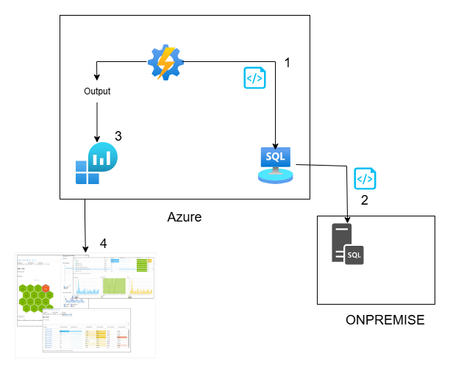
Hi All, In this article, you can find a way to retrieve database permission from all your onboarded databases through Azure Arc. This idea is born from a customer request around maintaining a standard permission set, in a very wide environment (about 1000 SQL Server). This solution is based on Azure Arc, so first you need to onboard your SQL Server to Azure Arc and enable the SQL Server extension. If you want to test Azure Arc in a test environment, you can use the Azure Jumpstart, in this repo you will find ready-to-deploy arm templates the deploy demos environments. The other solution components are an automation account, log analytics and a Data collection rule \ endpoint. Here you can find a little recap of the purpose of each component: Automation account: with this resource you can run and schedule a PowerShell script, and you can also store the credentials securely Log Analytics workspace: here you will create a custom table and store all the data that comes from the script Data collection Endpoint / Data Collection Rule: enable you to open a public endpoint to allow you to ingest collected data on Log analytics workspace In this section you will discover how I composed the six phases of the script: Obtain the bearer token and authenticate on the portal: First of all you need to authenticate on the azure portal to get all the SQL instance and to have to token to send your assessment data to log analytics $tenantId = "XXXXXXXXXXXXXXXXXXXXXXXXXXX" $cred = Get-AutomationPSCredential -Name 'appreg' Connect-AzAccount -ServicePrincipal -Tenant $tenantId -Credential $cred $appId = $cred.UserName $appSecret = $cred.GetNetworkCredential().Password $endpoint_uri = "https://sampleazuremonitorworkspace-weu-a5x6.westeurope-1.ingest.monitor.azure.com" #Logs ingestion URI for the DCR $dcrImmutableId = "dcr-sample2b9f0b27caf54b73bdbd8fa15908238799" #the immutableId property of the DCR object $streamName = "Custom-MyTable" $scope= [System.Web.HttpUtility]::UrlEncode("https://monitor.azure.com//.default") $body = "client_id=$appId&scope=$scope&client_secret=$appSecret&grant_type=client_credentials"; $headers = @{"Content-Type"="application/x-www-form-urlencoded"}; $uri = "https://login.microsoftonline.com/$tenantId/oauth2/v2.0/token" $bearerToken = (Invoke-RestMethod -Uri $uri -Method "Post" -Body $body -Headers $headers).access_token Get all the SQL instances: in my example I took all the instances, you can also use a tag to filter some resources, for example if a want to assess only the production environment you can use the tag as a filter $servers = Get-AzResource -ResourceType "Microsoft.AzureArcData/SQLServerInstances" When you have all the SQL instance you can run your t-query to obtain all the permission , remember now we are looking for the permission, but you can use for any query you want or in other situation where you need to run a command on a generic server $SQLCmd = @' Invoke-SQLcmd -ServerInstance . -Query "USE master; BEGIN IF LEFT(CAST(Serverproperty('ProductVersion') AS VARCHAR(1)),1) = '8' begin IF EXISTS (SELECT TOP 1 * FROM tempdb.dbo.sysobjects (nolock) WHERE name LIKE '#TUser%') begin DROP TABLE #TUser end end ELSE begin IF EXISTS (SELECT TOP 1 * FROM tempdb.sys.objects (nolock) WHERE name LIKE '#TUser%') begin DROP TABLE #TUser end end CREATE TABLE #TUser (DBName SYSNAME,[Name] SYSNAME,GroupName SYSNAME NULL,LoginName SYSNAME NULL,default_database_name SYSNAME NULL,default_schema_name VARCHAR(256) NULL,Principal_id INT); IF LEFT(CAST(Serverproperty('ProductVersion') AS VARCHAR(1)),1) = '8' INSERT INTO #TUser EXEC sp_MSForEachdb ' SELECT ''?'' as DBName, u.name As UserName, CASE WHEN (r.uid IS NULL) THEN ''public'' ELSE r.name END AS GroupName, l.name AS LoginName, NULL AS Default_db_Name, NULL as default_Schema_name, u.uid FROM [?].dbo.sysUsers u LEFT JOIN ([?].dbo.sysMembers m JOIN [?].dbo.sysUsers r ON m.groupuid = r.uid) ON m.memberuid = u.uid LEFT JOIN dbo.sysLogins l ON u.sid = l.sid WHERE (u.islogin = 1 OR u.isntname = 1 OR u.isntgroup = 1) and u.name not in (''public'',''dbo'',''guest'') ORDER BY u.name ' ELSE INSERT INTO #TUser EXEC sp_MSforeachdb ' SELECT ''?'', u.name, CASE WHEN (r.principal_id IS NULL) THEN ''public'' ELSE r.name END GroupName, l.name LoginName, l.default_database_name, u.default_schema_name, u.principal_id FROM [?].sys.database_principals u LEFT JOIN ([?].sys.database_role_members m JOIN [?].sys.database_principals r ON m.role_principal_id = r.principal_id) ON m.member_principal_id = u.principal_id LEFT JOIN [?].sys.server_principals l ON u.sid = l.sid WHERE u.TYPE <> ''R'' and u.TYPE <> ''S'' and u.name not in (''public'',''dbo'',''guest'') order by u.name '; SELECT DBName, Name, GroupName,LoginName FROM #TUser where Name not in ('information_schema') and GroupName not in ('public') ORDER BY DBName,[Name],GroupName; DROP TABLE #TUser; END" '@ $command = New-AzConnectedMachineRunCommand -ResourceGroupName "test_query" -MachineName $server1 -Location "westeurope" -RunCommandName "RunCommandName" -SourceScript $SQLCmd In a second, you will receive the output of the command, and you must send it to the log analytics workspace (aka LAW). In this phase, you can also review the output before sending it to LAW, for example, removing some text or filtering some results. In my case, I’m adding the information about the server where the script runs to each record. $array = ($command.InstanceViewOutput -split "r?n" | Where-Object { $.Trim() }) | ForEach-Object { $line = $ -replace '\', '\\' ù$array = $array | Where-Object { $_ -notmatch "DBName,Name,GroupName,LoginName" } | Where-Object {$_ -notmatch "------"} The last phase is designed to send the output to the log analytics workspace using the dce \ dcr. $staticData = @" [{ "TimeGenerated": "$currentTime", "RawData": "$raw", }]"@; $body = $staticData; $headers = @{"Authorization"="Bearer $bearerToken";"Content-Type"="application/json"}; $uri = "$endpoint_uri/dataCollectionRules/$dcrImmutableId/streams/$($streamName)?api-version=2023-01-01" $rest = Invoke-RestMethod -Uri $uri -Method "Post" -Body $body -Headers $headers When the data arrives in log analytics workspace, you can query this data, and you can create a dashboard or why not an alert. Now you will see how you can implement this solution. For the log analytics, dce and dcr, you can follow the official docs: Tutorial: Send data to Azure Monitor Logs with Logs ingestion API (Resource Manager templates) - Azure Monitor | Microsoft Learn After you create the dcr and the log analytics workspace with its custom table. You can proceed with the Automation account. Create an automation account using the creating wizard You can proceed with the default parameter. When the Automation Account creation is completed, you can create a credential in the Automation Account. This allows you to avoid the exposition of the credential used to connect to Azure You can insert here the enterprise application and the key. Now you are ready to create the runbook (basically the script that we will schedule) You can give the name you want and click create. Now go in the automation account than Runbooks and Edit in Portal, you can copy your script or the script in this link. Remember to replace your tenant ID, you will find in Entra ID section and the Enterprise application You can test it using the Test Pane function and when you are ready you can Publish and link a schedule, for example daily at 5am. Remember, today we talked about database permissions, but the scenarios are endless: checking a requirement, deploying a small fix, or removing/adding a configuration — at scale. At the end, as you see, Azure Arc is not only another agent, is a chance to empower every environment (and every other cloud provider 😉) with Azure technology. See you in the next techie adventure. **Disclaimer** The sample scripts are not supported under any Microsoft standard support program or service. The sample scripts are provided AS IS without warranty of any kind. Microsoft further disclaims all implied warranties including, without limitation, any implied warranties of merchantability or of fitness for a particular purpose. The entire risk arising out of the use or performance of the sample scripts and documentation remains with you. In no event shall Microsoft, its authors, or anyone else involved in the creation, production, or delivery of the scripts be liable for any damages whatsoever (including, without limitation, damages for loss of business profits, business interruption, loss of business information, or other pecuniary loss) arising out of the use of or inability to use the sample scripts or documentation, even if Microsoft has been advised of the possibility of such damages.
Acessar o Azure ARC com Private Endpoint e Azure Firewall Explicit Proxy - Parte 1
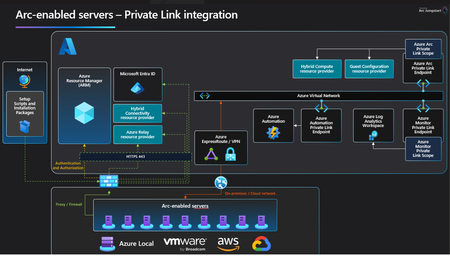
Benefícios de Usar o Azure ARC O Azure ARC permite gerenciar recursos de TI, independentemente de onde eles estejam hospedados, seja no Azure, em outras nuvens ou em infraestruturas locais (on-premises). Fonte: Azure Arc overview - Azure Arc | Microsoft Learn Entre os principais benefícios de usar o Azure ARC podemos citar os seguintes. Gestão Centralizada: Permite o gerenciamento de recursos multi-cloud e on-premises Consistência de Ferramentas: Com o Azure ARC, é possível usar as mesmas ferramentas e processos que você já utiliza no Azure para gerenciar recursos em qualquer infraestrutura, proporcionando uma experiência consistente. Segurança e Conformidade: A tecnologia permite aplicar políticas de segurança e conformidade de maneira uniforme em todos os ambientes, garantindo que os padrões corporativos sejam mantidos em qualquer lugar. Escalabilidade: O Azure ARC facilita a escala de operações de TI de acordo com as necessidades do negócio, sem as limitações típicas das infraestruturas locais. Automatização: A automatização de processos de gerenciamento através de scripts e ferramentas Azure Resource Manager (ARM) pode ser estendida a recursos fora do Azure, melhorando a eficiência operacional. Monitoramento e Insights: O Azure ARC integra-se com ferramentas de monitoramento do Azure, permitindo visibilidade centralizada e insights detalhados sobre o desempenho e a integridade de todos os recursos. Ao utilizar o Azure ARC, as organizações podem maximizar os investimentos existentes em infraestrutura, melhorar a governança e aprimorar a flexibilidade e a agilidade operacionais, tudo isso enquanto mantêm uma gestão centralizada e consistente. Benefício de usar Private Endpoints Utilizando o Azure ARC com private endpoints, o tráfego de rede entre os recursos gerenciados e o Azure permanece dentro da rede privada, aumentando a segurança, proteção dos dados e o desempenho. Essa configuração reduz a exposição a ameaças externas e cumpre exigências regulatórias ao assegurar que os dados sensíveis não transitem pela internet pública. Desafios no Acesso ao Azure Arc com Azure Firewall, Explicit Proxy e Private Endpoint Conectar um recurso local ao Azure por meio do Azure Arc e utilizar extensões habilitadas para Arc requer comunicação com um conjunto de serviços do Azure, cada um com seus próprios endpoints de destino. Para clientes que utilizam proxies corporativos, é necessário permitir o acesso a todos esses endpoints. Atualmente, o gateway do Arc reduz o número de url's que precisam ser permitidos por meio de um proxy corporativo, mas exige que o tráfego seja roteado para o Azure pela Internet pública. No entanto, alguns clientes precisam que todo o tráfego alcance o Azure por meio do seu circuito de ExpressRoute ou através da VPN Site a Site. Embora parte dos endpoints necessários podem ser roteados pelo Microsoft Peering ou Private Peering do ExpressRoute, nem todos os endpoints são compatíveis com essas opções. Firewall do Azure como um proxy sobre ER ou VPN site a site Os clientes que precisam que todo o tráfego alcance o Azure por meio do ExpressRoute ou VPN Site-to-Site pode hospedar um proxy de encaminhamento em sua rede virtual do Azure. O agente Arc pode então se comunicar com esse proxy de encaminhamento por meio de um IP privado, seja por meio do ExpressRoute ou VPN Site-to-Site. O Firewall do Azure com o recurso Proxy Explícito (Visualização Pública) pode ser aproveitado como esse proxy de encaminhamento. Disclaimer: O Azure Firewall com Explicit Proxy é um recurso atualmente em preview. Isso significa que ele está sujeito a alterações e pode não estar disponível em todas as regiões ou com todas as funcionalidades de produção. Para mais informações, consulte os termos de uso para preview. O diagrama abaixo representa essa arquitetura Etapas para o uso do Azure Firewall com explicit proxy Passo 1: Precisamos habilitar o uso do Azure Firewall com a feature de Explicit Proxy conforme a documentação de referência aqui Passo 2: Em seguida realizado o onboard dos servidores para o Azure ARC. Observe que o IP privado do Firewall do Azure como o proxy de encaminhamento nas configurações. No Portal do Azure Usando a CLI de comando Servidores ARC azcmagent config set proxy.url <Azure Firewall Private IP:Port> azcmagent config CLI reference - Azure Arc | Microsoft Learn Passo 3: Crie uma regra de aplicativo para permitir os endpoints necessários do Azure ARC para seu cenário de acesso através do Firewall No próximo artigo, vamos montar um laboratório passo a passo, detalhando as configurações e os requisitos necessários para utilizar o private endpoint e o explicit proxy do Azure Firewall, conforme ilustrado no diagrama abaixo Referências: Azure Arc overview - Azure Arc overview - Azure Arc | Microsoft Learn Informações gerais e preço - Azure Arc – Hybrid and Multi-Cloud Management and Solution (microsoft.com) Azure Firewall Explicit Proxy - Azure Firewall Explicit proxy (preview) | Microsoft Learn403Views2likes0Comments