announcements
1179 TopicsSharePoint and OneDrive at Microsoft Ignite 2026: Putting AI-powered content to work
Microsoft Ignite is officially underway, and this week we’re showing what’s next for SharePoint and OneDrive in the AI era. If you’re joining us at Ignite, check out our SharePoint and OneDrive at Microsoft Ignite 2026 guide for the full lineup. And as Day 1 gets started, here are a few highlights to have on your radar. SharePoint: The knowledge platform for Copilot and agents At Ignite, we’re showing how SharePoint is evolving for the AI era, helping people, Copilot, and agents better understand organizational knowledge and take action on it. Here are a few highlights: SharePoint tools in Work IQ and the Copilot app are now in public preview. Copilot and agents now have access to more than 60 SharePoint operations spanning lists and libraries, files and folders, search, approvals, rules, Quick Steps, versioning, and more. In our internal evaluations, adding SharePoint tools increased Work IQ’s task pass rate from 70.1% to 84.6%, while using 16% fewer tokens. Read more. New Work IQ context enhancements are rolling out to public preview by end of this month. These enhancements bring the deep document grounding that powers Copilot experiences to custom agents through Work IQ, with agent-friendly document markdown, images and thumbnails, file navigation, and semantic lookup within files. Over time, these capabilities will expand to deep context understanding for SharePoint sites, Teams chats, channels and meetings, and Outlook emails. Knowledge base in SharePoint rolled out to Frontier preview in October. Turn existing content and expertise into curated knowledge that is easier for both people and AI to discover, maintain, and use. In early internal testing, agents’ responses were up to 4x faster and 30% more token-efficient when using a knowledge base to retrieve content and perform team tasks. Connect with us here at Ignite or through our Knowledge Base Build with Me program. Read more and connect with the team. Copilot in SharePoint became generally available in October. People can use natural language to find and understand information, work across their content, and take action without needing to know exactly where something lives or how SharePoint is structured. At Ignite, hear from Dr. Amy Curley of Boehringer Ingelheim in BRK217: Real-World AI Transformation with Copilot in SharePoint about how her organization is putting Copilot in SharePoint into practice. Read more and connect with the team. See what’s new for SharePoint at Ignite, with live demos and a closer look at how Copilot and agents are transforming the way organizations put their knowledge to work: BRK218: SharePoint: Modernize your knowledge platform for the AI era Tuesday, 11/17 2:00 PM – 2:45 PM Moscone West | Level 2, Room 2002 THR852: Why AI Fails Without a Knowledge Strategy Tuesday, 11/17 4:40-5:05 PM Moscone South | The Hub, Theater D BRK217: Real-World AI Transformation with Copilot in SharePoint Thursday, 11/19 4:00 PM – 4:45 PM AMC Metreon | Level 3, Theater 12 LAB650: Build a Knowledge-Powered Workspace with Copilot in SharePoint Tuesday, 11/17 | 2:00 PM – 3:15 PM Wednesday, 11/18 | 4:00 PM – 5:15 PM Thursday, 11/19 | 4:30 PM – 5:45 PM Friday, 11/20 | 10:45 AM – 12:00 PM Customer spotlight: MAIRE turns engineering know-how into skills with Copilot in SharePoint At MAIRE, a global engineering company that builds large-scale industrial plants, engineers are turning their expertise into skills in Copilot in SharePoint to spot missing information in complex vendor documents sooner and keep projects on track. One review cycle that used to take about two days can now be done in as little as 10 minutes. If the player doesn’t load, open the video in a new window: Open video Read MAIRE’s story → See Copilot in SharePoint in action Explore three practical scenarios showing how SharePoint and Copilot can help organizations transform content-intensive work, connect knowledge across a project, and prepare for customer conversations. Transform contracts and client engagements. See how teams can extract metadata from contracts, automate workflows, and prepare executive renewal reports while reducing manual review. Watch the video. Create one connected knowledge base from kickoff to launch. See how a SharePoint knowledge base can bring project information together and help teams streamline new product launches. Watch the video. Accelerate sales conversations with SharePoint. See how sellers can use approved company content to prepare a tailored customer pitch in minutes. Watch the video. OneDrive: the file system for the AI era Files have always been at the center of how work gets done. In the AI era, they matter more than ever. Files ground Copilot's answers and give AI-created work a trusted home. That's why OneDrive is evolving into the file system for the AI era, where people and agents can create, store, and share knowledge. This week at Ignite, we're showing what that looks like in practice across Copilot, the core file system, and sharing. Here's what we'll be sharing: Turn files into outcomes with Copilot. Copilot in OneDrive is now generally available, bringing AI directly to the files people work with every day. Analyze several spreadsheets at once, organize a crowded folder, turn existing files into an interactive HTML report, and save the process as a reusable skill. Learn more. HTML and Markdown support, built for AI-created content. Edit HTML on the canvas or in source view with live preview, then present in full screen and collaborate using anchored comments and live presence. Markdown offers rich-text editing, real-time coauthoring, and autosave while preserving the native.md file. A simpler, faster core file system. The new Libraries view brings frequently used SharePoint libraries into OneDrive, with search, modern views, and filters for libraries and lists. Shared folders now appear in a dedicated Shortcuts folder, while sync supports up to one million items on Windows and macOS. Sharing made simple, with control. Hero Links are here! Simplify sharing with one URL per file or folder that automatically reflects permission changes, including when copied from the browser. Learn More. Read more from this year's OneDrive + Copilot event. See it live at Ignite with hands-on demos, deeper product insights, and a closer look at OneDrive innovations for the AI era: BRK219: AI in the Flow of Work: OneDrive for the AI Era Thursday, 11/19 2:45 to 3:30 PM PT Marriott Marquis, Lower B2, Yerba Buena Salon 7 Hear from Capital Group at BRK219. Denise Jay from Capital Group will join us on stage to share how they made OneDrive the modernized foundation for Copilot adoption across their organization. Want to dive deeper? Add the OneDrive lightning talks LTG1166 (Your Work, Anywhere) and LTG1167 (Deploy OneDrive Sync with Confidence) to your schedule too. Govern and manage content for AI As organizations scale Copilot and agents, new SharePoint and OneDrive capabilities help admins understand their content estate, strengthen governance, and manage content at scale. SharePoint Admin Agent brings natural-language tenant analysis and guided remediation across permissions and oversharing management, content lifecycle, storage, catalog, and settings. Catalog management lets admins group sites into manageable clusters and scale governance actions like site attestations, access reviews, and Restricted Content Discovery (RCD). New agent access heatmap and file level EEEU permissions report help admins understand agent access to SharePoint and OneDrive content and drive follow-up on governance actions. Content Governance Hub for admins, powered by the SharePoint Admin Agent. It brings assessments, findings, recommendations, and actionable tasks together into a single experience, helping admins move from insight to action and govern content at scale. New lifecycle and sync controls include policy-based archiving of inactive files with what-if analysis, folder-level sync exclusions, and the OneDrive Sync CLI. Check out our content governance blog for more details. Learn more at Ignite: LTG1168: The foundation of Trusted AI: SharePoint security and resiliency Thursday, 11/19 9:00-9:15 AM Moscone South | The Hub, Lightning Talk 2 BRK211 - Secure and Govern Microsoft Copilot and Cowork Thursday, 11/19 11:30 AM - 12:15 PM Marriott Marquis | Lower B2, Yerba Buena Salon 9 PREL39 - Ready secure govern Copilot & Cowork Monday. 11/16 1:00 PM – 5:00 PM Moscone West | Level 2 | Room 2016 We’re excited to spend the week showing what this next chapter looks like, and how SharePoint and OneDrive are helping organizations put their content and knowledge to work with Copilot and agents.2.9KViews2likes1CommentIntroducing a credential based on real work—no test required
For the first time, everyday work can become verified proof of your skills For years, people have asked for a simpler way to prove the skills they use in the flow of work, without stepping away to prepare for another test. Today, Microsoft is introducing general availability of a first-of-its-kind credential that recognizes proficiency levels demonstrated through real, everyday product use. Welcome to Pro Badge. Instead of capturing skills on a single test day, this approach keeps pace with your work and the products you use. It gives you a current, verified signal of what you can do, at no cost and without a separate exam or study guide. The first credential available through this approach is Microsoft Pro Badge: GitHub Copilot. It’s for engineers, developers, and anyone using GitHub Copilot to build and solve problems with code. Pro Badge recognizes and measures how you apply GitHub Copilot across everyday coding and development work, giving you proof you can share on your terms. How everyday work becomes proof of skill Pro Badge is built on three connected parts: The proficiency framework provides a consistent way to evaluate how effectively you use a given product. It includes five levels—Beginner, Intermediate, Proficient, Advanced, and Expert—so everyone can understand where their skills stand and how they develop over time. Verified Proficiency systematically uses evidence from everyday product use to calculate and automatically update your proficiency level. Reach Proficient, Advanced, or Expert to qualify for a Microsoft Pro Badge. Microsoft Pro Badge is the credential you receive. The functionality will roll out in phases. At launch today, the experience will support three proficiency levels: Beginner, Intermediate, and Proficient. Learners who reach Proficient will qualify for the Microsoft Pro Badge: GitHub Copilot. Advanced and Expert levels—and badges recognizing those levels—are our next priority. Users demonstrating those higher levels of proficiency will earn their Pro Badge first at the Proficient level and will automatically upgrade as Advanced and Expert levels launch. Built on choice, privacy, and trust Microsoft Pro Badge is opt-in and private by design. Only you can authorize the calculation. Your result is private, and you decide whether and where to share it. Your product usage is evaluated against objective criteria—not activity volume alone. Proficiency is determined from patterns in how broadly and deeply you use GitHub Copilot across GitHub.com, your integrated development environment (IDE), the command-line interface (CLI), and mobile. Your raw code, prompts, and intellectual property are never reviewed. Your proficiency stays current as your work, skills, and the product evolve. As evidence from your ongoing work is added and older evidence becomes less relevant, your level may hold, rise, or fall. And because GitHub and Microsoft mint each Pro Badge directly as a result of your work and usage, this is a credential employers and organizations can trust as meaningful. The experience, step by step There is no separate exam or study guide. Here is how the experience works: Sign in. Use your personal GitHub account. Enterprise Managed User accounts are not supported at launch but are a high priority for inclusion. Opt in. Your proficiency is not calculated until you choose to participate. Keep working. Relevant tasks from your everyday product use provide the evidence. See your level. An objective rubric estimates your proficiency from your GitHub Copilot use over time, so results may not appear immediately. Earn your badge. When you reach a qualifying proficiency level, you’ll be notified and your Microsoft Pro Badge will appear on your AI Skills Navigator profile. It is private by default. Share your badge. Claim your verified digital badge on Credly to showcase your achievement and the skills it represents. You choose whether and where to share it. Stay current. Your level updates as your work, skills, and the product evolve. Credentials that work together Pro Badge works alongside Microsoft Certifications. Certifications show that you can solve problems in a role or field. Pro Badge shows how you use a specific product in your everyday work. Together, they give a more complete picture of what you can do. Share your skills on your terms Your achievements matter most when you can use them where you build your career. After you qualify for Pro Badge, you can make your skills visible through Credly and LinkedIn: Claim your badge on Credly. Accept a verified digital badge that describes your achievement and the skills it represents. Once you have claimed your Credly badge, you can share it to your professional network on LinkedIn. Bring your Pro Badge experience to LinkedIn. LinkedIn Connected Apps lets you add a GitHub-verified capability statement to your profile, highlighting your demonstrated GitHub Copilot skills. Throughout the experience, you stay in control. Nothing is shared automatically. Your badge and capability statement appear only where you choose. Make your work count Getting started is simple: Once you opt in, simply keep doing the work you already do, and let your skills speak for themselves. Want to learn more first? Explore the AI Skills Navigator playlist.8.5KViews3likes6CommentsMicrosoft 365 Copilot and AI Agent readiness and resiliency with SharePoint Content Governance
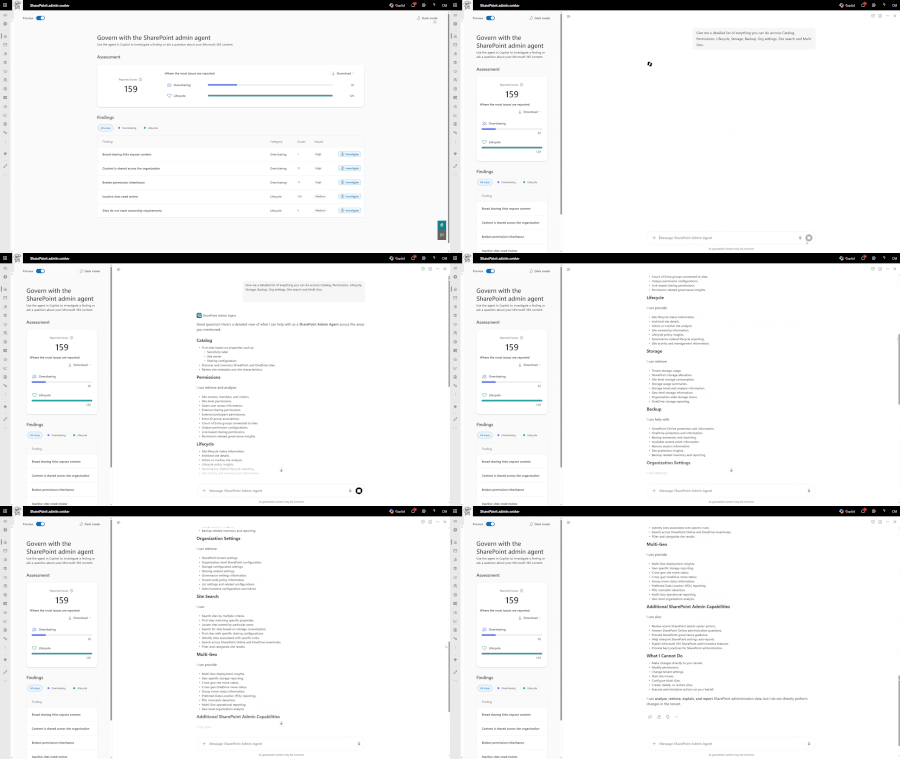
In the AI era, governance isn't a barrier to innovation. It's what makes innovation possible at scale. Winning with Copilot and AI agents takes more than speed and scale. It requires readiness to embrace AI and resilience to recover when things go wrong. That's the power of AI-first governance: accelerating innovation, strengthening trust, and maximizing AI return on investment. Today at Microsoft Ignite ’26, we're announcing exciting new content governance innovations to help organizations accelerate their Frontier Transformation with AI Agents, Autopilots, Agent 365, and Work IQ. Governance innovations for resilient AI at scale As you unveil AI Agents in your organization, either just getting started or deploying at scale, content governance becomes even more important to get right. SharePoint is the #1 content citation source in Microsoft 365 Copilot and AI Agents. Let us look into SharePoint content governance innovations across two main themes - readiness and resiliency, along with foundational security and enterprise lifecycle scenarios. Readiness for AI at scale addresses oversharing, content lifecycle and sprawl, the risks boards now see as the biggest obstacles to AI transformation. New agentic skills power new security and storage management capabilities to address them. Resilient AI is all about business continuity, especially in the era where agents are integral part of the workforce. Organizations must be prepared for unforeseen situations such as an agent going rogue and accidentally deleting content. With this backdrop, let us dive into innovations across the following pillars: Readiness for Copilot and AI Agents at Scale SharePoint Admin Agent - Enhancements Govern agents' traffic to M365 resources Enhancements in SharePoint oversharing controls Resilient AI: Business continuity even when agents go off script Rewind when agents go off script Microsoft 365 Backup: Teams support Entra Backup Security and Compliance capabilities in SharePoint, OneDrive, and Teams Microsoft 365 Storage Management and Enterprise Lifecycle Readiness for Copilot and AI Agents at Scale Readiness is about ensuring your content is permissioned rightfully, organized in manageable clusters, has lifecycle guardrails, and in parallel knowing agent traffic across your Microsoft 365 estate before AI Agents use it. We are bringing many innovations to Copilot native governance capabilities powered by SAM (SharePoint Advanced Management) and to agent governance in the lens of Microsoft 365 resources. Let’s dive in. 1. SharePoint Admin Agent – Generally Available At Microsoft 365 Confernece’26, we introduced the SharePoint Admin Agent, Microsoft’s first-party AI assistant for managing your rapidly growing digital estate across Microsoft 365. As the content backbone of Microsoft 365, SharePoint powers Teams, OneDrive, Loop, Copilot, and more. It sits at the center of content governance, spanning permissions, lifecycle, resilience, and relevance across users, apps, and now, AI agents. The SharePoint Admin Agent brings these capabilities together in one simple conversational experience, with powerful skills across Permissions and Oversharing Management, Storage, Lifecycle, Multi-Geo, and Catalog. Today we are thrilled to announce many enhancements in the admin agent. SharePoint Admin Agent’s Starter Prompts: You can try various starter prompts categorized under various skills: Catalog, Permissions, Lifecycle, Storage, Organizational Settings and Multi-Geo. Permissions and Oversharing Management skill – Generally Available Admins can detect oversharing, see who has access to what and protect sensitive content, all in plain language. Ask "Find overshared sites in my tenant" and the agent builds a prioritized list to review and act on, whether you have hundreds of sites or millions. Lifecycle skill – Generally Available Ensuring content is current is critical to ensuring that Copilot serves the right content and with optimal utilization of storage. Helps admins stay in control of content from creation to end of life by identifying inactive, outdated, and ownerless sites and enabling actions like reviews and archival. For example, you could simply ask the agent: “List my inactive and ownerless sites”. Storage skill – Generally Available Gives admins a clear view of tenant storage trends and active-versus-archive growth, helping them identify content sprawl, optimize capacity, and reduce unnecessary costs with confidence. Here are some of the prompts that you can use in this v2 release, more enhancements are upcoming. "Compare active and archive SharePoint storage growth" "Help me set up a file archive policy" "How much version storage is used across the tenant?" Multi-Geo skill – Generally Available Microsoft 365 Multi-Geo enables customers to comply with their organization's data residency requirements by ensuring that users' data is hosted within a specific geo where the user is located. The new Multi-Geo skill in SharePoint Admin agent assists the admin in moving the OneDrives to the user’s Preferred Data Location (PDL) along with following key capabilities: Identify content to be moved Initiate moves: Move OneDrive to users' Preferred Data Locations. Monitor moves: Track the status and progress of ongoing moves across OneDrive, SharePoint sites, and Microsoft 365 Groups. Catalog skill – General Availability The Catalog skill connects the SharePoint Admin Agent to Catalog Management, so the agent understands your tenant the way your business is organized. Using built-in categories like Department and Locale, along with any custom categories you've added, the agent can: Show how content is organized in your tenant: View site counts, site lists and groups of content in Catalog. Organize content using the skill: Leverage Catalog skill to create most relevant groups of SharePoint sites and OneDrive accounts with recommendations such as group sites in a certain department that are Highly Confidential. Recommend next steps: such as inactive content cleanup, archiving, version-history limits or a permissions review, scoped to the right group of sites instead of the whole tenant. Governance Hub for Admins – Generally Available Dec. 2026 As organizations accelerate their AI transformation, content governance can quickly become overwhelming. Admins don’t need more reports. They need to know what needs attention, what to do next, and have a simple way to act. Today, we’re thrilled to introduce Governance Hub for Admins, powered by the SharePoint Admin Agent. It is readily available in Home tab of the SharePoint Admin Center and brings assessments, findings, recommendations, and actionable tasks together into a single experience - helping admins move from insight to action and govern content at scale 2. Agent governance in the lens of Microsoft 365 resources SharePoint, OneDrive, and Teams SharePoint and Teams administrators often ask – for my top secret and confidential resources, which agents are accessing them and who instantiated them, can I control at site or team level which agents are allowed? We have an answer for you. Agent 365 offers a breadth view of all agents in your enterprise. To complement that breadth view, we are introducing depth view of agents in the lens of Microsoft 365 resources, specifically SharePoint sites, Teams, and OneDrive under the umbrella of Agent Lineage. The new Agent governance node in the SharePoint admin center puts every agent governance action against Microsoft 365 resources in one place. Admins can go from insight to action without switching between reports and settings. Start with the Overview. The Overview page gives you the big picture: how many agents are accessing your Microsoft 365 content, which agents and resources are most active, which content Microsoft 365 Copilot uses most, and how that access breaks down by sensitivity label and department. Suggested actions, such as restricted access control (RAC), restricted content discovery (RCD) and site access reviews, are one click away. Drill down with the Agent Access Heatmap. It provides a panoramic view of your Microsoft 365 resources be it millions of SharePoint or OneDrive sites or Teams along with the agentic traffic. Agent Access Heatmap for SharePoint and OneDrive – General Availability Dec’26 Agent Access Heatmap extends Microsoft Agent 365 capabilities with content context. The heatmap offers rich visual insights on agent access with additional dimensions like sensitivity, departments, and agent platforms – giving you visibility in a single view. Admins now have effective tools for observing and governing agent actions like pausing agentic access to a site or scoping more granular access. Find the busiest areas, then apply the appropriate content guardrails as needed. Control whom an agentic user can collaborate with – Public Preview Dec. 2026 As agentic users proliferate in your organization, they can accumulate content permissions and further share it with other users in your organization while performing their work, like human users. To ensure agentic users securely collaborate with other users and in essence of work, you need a simple way to control which users the agentic users can collaborate with. We are thrilled to introduce a control that does just that. When a new agent template is onboarded in Agent 365 portal, you can turn on the setting for “Restrict collaboration by agentic users” which will ensure agentic users associated with this agent template can only share sites and content with their manager. While AI admins can set the collaboration boundary when onboarding an agent template in Agent 365, SharePoint admins can now manage it, along with the rest of their agent content guardrails, from the new Settings page under Agent Governance in the SharePoint admin center. What you observe in the Agent Access Heatmap, you can now act on in Settings. Restricted access for apps and agents at site level – General Availability Every Entra registered agent has a blueprint identity, much like third-party applications. The agent blueprints and applications with broad reaching permission across all sites or teams in your organization can increase the risk of data disclosure. We are thrilled to introduce restricted app access control - a new setting that empowers SharePoint Administrators to achieve fine-grained permissions by restricting which 3rd party applications or agent blueprints can access specific business critical sites or high-profile users' OneDrive data. Simply run the cmdlet below using SharePoint Online Management PowerShell: Set-SPOSiteRestrictedAppAccessControlList –Identity <SiteURL> -ListType DenyList -AddRestrictedAppIds <ApporAgentBlueprintIDs> 3. Enhancements in content oversharing controls from SharePoint Advanced Management (SAM) Permissions and oversharing report for Autopilots & Groups - Generally Available Site Permissions reports now extend to Microsoft 365 and Security Groups and Autopilots, enabling admins to instantly identify every site a user/group or autopilot can access and the scope of that access — closing a critical blind spot in oversharing governance. And clear remediation pathways are available through Restricted Access Control (RAC) and Restricted Content Discovery (RCD) policies. Learn more. SharePoint admin viewing permissions report for specific large security groups. Catalog management with custom SharePoint Properties – Generally Available At Microsoft 365 Conference’26 we introduced Catalog Management V1. It brings order to sprawling SharePoint estates by grouping sites the way your business actually works: by department, region, project or function. The result is a central catalog of sites you can understand, govern and get ready for Copilot and agents. Today, we're taking it further. You can now tailor Catalog Management to your tenant using information you already have. There are three new ways to customize your catalog: Custom SharePoint site properties: use the site metadata you already maintain. Microsoft Entra ID extension attributes: group sites using the attributes already set in your directory. CSV site lists: upload your own list of sites to create a custom group. You don't have to rebuild your structure from scratch. Your catalog reflects how your organization is already set up, and it updates as your metadata changes. Governance Hub for Site Owners – Public Preview Site owners have a critical role to play in ensuring accuracy of site information, including the site's necessity, its owners, members, permissions, and sharing settings. We’re introducing the Governance Reviews Dashboard, a centralized, actionable view where site owners can see all pending site governance reviews (inactivity, ownership, attestation, access reviews) across the sites they own. The dashboard shows required actions, due timelines, and site enforcement status and allows site owners to act directly from one place. Combined with consolidated policy notifications, it replaces multiple emails with a single, actionable governance surface. Resilient AI: Business continuity even when agents go off script Resiliency is all about business continuity so that in unexpected situations like ransomware incidents or agents gone rogue, which will happen, and accidentally deleting content you can recover quickly. 1. Agent rewind – Private Preview Security 101 foundational primitive is – assume breach. In the same fashion in the AI agentic era, the first principle is – assume agents go rogue. But then, what will you do when an agent has gone rogue and deleted or made read-only massive number of resources in your Microsoft 365 tenancy? No worries, this is where Agent Rewind comes to action. Today, we are thrilled to announce the Private Preview of Agent rewind, one of the existential resiliency capabilities that you need for this AI agentic era wherein you can rewind unintended actions. Simply pick a time stamp to which you want to “rewind” your Microsoft 365 resources, Agent Rewind will take care of brining that known good state. In fact, it can suggest to you a good time stamp too. Connected with this preview, we are also launching in-line anomaly detection and prioritized recovery so that you can react to specific events like ransomware or mass deletions and recovery your most recently active content first to get back to business quickly. Sign up here for the preview here. 2. Microsoft 365 Backup In the AI era, the speed at which individuals get work done is greatly accelerated. So too is the speed at which bad actors can take advantage of weaknesses in cyber-attack scenarios, and the speed at which an inadvertent agentic action can take place. Given this, it's more important than ever to put proper resilience capabilities in place. Microsoft 365 Backup was built to do just that, in a uniquely secure, scalable, and performant manner. For those not familiar, Microsoft 365 Backup provides ultra-fast large scale and backup (near day-zero protection) and recovery capabilities. The solution is a critical component of any M365 customer’s cyber resiliency story. You can onboard the native M365 Backup application via the M365 admin center, or you can leverage a Microsoft 365 Backup Storage app built by the one of the recognized backup partner solutions. Just be sure to ask for the version of the partner app built on M365 Backup Storage MBS to get the performance and security benefits of the platform. For example, Veeam Data Cloud Premium and AvePoint Express Recovery for Microsoft 365. These vendors provide extended capabilities that deliver a fuller set of capabilities to you to ensure you never have to trade off speed for feature or service coverage. You can get everything you need and more with one of their better-together M365 Backup Storage hybrid solutions. We heard from our customers and partners about the need to expand and extend native platform capabilities. Teams Backup – Private Preview Today, we’re expanding Microsoft 365 Backup with Teams Channel Backup in private preview, helping organizations protect the collaboration that keeps work moving. Administrators can protect channels and associated data within a Team, recover channels including their associated SharePoint content, and restore deleted or edited channel text messages within a 30-day recovery window. New channels created in protected teams are automatically protected, reducing administrative effort and helping organizations recover from accidental deletion or unwanted changes with confidence. Note that hard deletion protection/recovery is not yet supported. Interested in the preview, sign up here. Entra Backup and Recovery Premium - Public preview Business resilience starts with resilient identities. Today, we’re announcing the public preview of Microsoft Entra Backup and Recovery Premium, integrated with Microsoft 365 Backup. Daily snapshots provide a 30-day recovery window for users, groups, applications, and Conditional Access policies, and agent identities and agent blueprints, enhancing agentic resiliency. Separately, hard deletion protection can now be enabled. Learn more about that here. 90-day to 10-year Backup Restore Point Retention Generally Available Customers have varying recovery window needs. 90-day to 2 year protection and recovery windows is now generally available for OneDrive accounts, SharePoint sites, and Exchange Online mailboxes. Additionally, up to 10 year recovery window is now available for SharePoint sites and OneDrive accounts, helping organizations recover business-critical content long after a snapshot is created. Administrators can configure each backup policy’s recovery window to 3 months, 6 months, or 1–10 years in one-year increments. Longer recovery windows are opt-in, with recovery history building over time. Learn more about configuring the backup recovery window. Security & Compliance capabilities in SharePoint, OneDrive, and Teams 1. App Intelligence for SharePoint and OneDrive – Generally Available Dec 2026 As AI-native apps multiply, admins need a clear answer to a simple question: which apps can reach our content, and should they? We have an answer for you. Today, App Intelligence is generally available worldwide in the SharePoint admin center. It brings together application permissions and available activity data in one place, so admins can see which apps need attention, why they matter, and what to do next. Working with the SharePoint admin agent, admins can: Review priority apps that need immediate attention, based on permission scope, sensitive-site reach and observed activity. Assess high privileged access to focus on apps with broad or tenant-wide permissions, with a clear distinction between what an app is allowed to do and what it was actually observed doing. Restrict access when an app's risk warrants action, with guided steps to apply Restricted Access Control. View the assessment report and download the evidence needed for follow-up with security and compliance teams. To get started, open App Intelligence in the SharePoint admin center and select Review priority apps in the Copilot pane. Learn more Review application access with App Intelligence. 2. SharePoint Content Events - Private Preview Most security incidents are found too late, through a ticket or a report, after the damage has spread and is harder to contain. SharePoint Content Events changes that. It continuously monitors content activity across your tenant and alerts admins to unusual activity like mass deletions, mass downloads or oversharing. Admins can quickly tell a malicious attack from an honest mistake and act before it escalates. Today, we are excited to announce Content Events has entered Preview as part of SharePoint Advanced Management (SAM). Sign up for Private Preview. 3. Microsoft Baseline Security Mode (BSM) 2026 – General Availability Security is no longer a point-in-time deployment — it’s a continuous journey. At Ignite ’25, we introduced Microsoft Baseline Security Mode 2025 to help organizations move from one-time hardening to secure-by-default protections that keep pace as their environments change. Today, we’re announcing the General Availability of Microsoft Baseline Security Mode (BSM) 2026, next major milestone in the BSM journey in helping organizations operationalize secure by default protections across their Microsoft environments. We are expanding with more Microsoft services configurations and adding application pillar. Check out Microsoft baseline security mode blog. 4. Microsoft 365 Information Barriers (IB) enhancements Microsoft 365 Information Barriers (IB) is a compliance control that prevents specific people or groups in an organization from communicating or collaborating with each other across Microsoft 365 services. It’s mainly used to avoid conflicts of interest and meet FINRA regulatory requirements. We are happy to announce the following enhancements to Microsoft 365 Information barriers: Teams Explicit Mode – Public Preview We heard your feedback for enhancements in Teams IB. Today we are thrilled to announce public preview of Teams Explicit Mode support. With this control, admin can update an existing ‘Implicit’ mode Team to ‘Explicit’ mode. The access and sharing of the associated Team’s SharePoint site and Microsoft 365 group will honor the Explicit mode setting. Agent Builder people picker experience honors Info Barriers – General availability We are thrilled to announce that agent builder people picker experience now honors information barriers (IB). With this control, users will only be able to share a declarative agent with other compatible users in the tenant. Learn about Information Barriers | Microsoft Learn Microsoft 365 Storage Management and Enterprise lifecycle 1. Microsoft 365 Archive Automated file level archive in SharePoint – General Availability You can now go to the SharePoint admin agent and ask it to: "Help create an inactive files archive policy by archiving all files that have not been accessed in 12 months." It is that simple to achieve archival of inactive content in SharePoint. File level Archive gives you a way to detect and move inactive files without needing to archive the whole site, saving you 75% off list in storage costs. That content remains searchable by end users or admins, is easily reactivated in place by any user with file read permissions and continues to work seamlessly with Purview functionality. Best of all, you are only charged for usage if your total storage consumption is greater than your pre-allocated quota, and there are no reactivation fees (just like site archiving)! Existing manual and API-based controls are still available, with controls spanning admin, site, file-level UI, and through Graph APIs or PowerShell. SAM (SharePoint Advanced Management) Inactive File Policy – Public Preview To make the process of identifying and acting on inactive files, we are excited to announce inactive files policy - adding to our portfolio lifecycle products in SAM. Simply configure the inactivity period, file types, and scope of sites, and SAM lifecycle engine will take care of the rest. Use the new New-SPOFileArchivePolicy PowerShell cmdlet to create policies that automatically archive inactive SharePoint files, or ask the SharePoint admin agent to create the policies for you. 2. Microsoft 365 Storage Management Enhancements SharePoint Admin Agent: Storage Skill – Generally Available As referenced above, we heard your feedback to make storage management seamless, and this Ignite we are thrilled to share an agentic way to manage your storage growth. Announcing general availability of Storage Agentic Skill, part of the SharePoint Admin Agent. You can ask basic to advanced storage related questions to the agent, and it will do the hard work of analyzing all your sites in your tenant and provide answers and actionable insights. Tenant-wide Version Trimming and What-if Analysis – Public Preview The “what if analysis” capability gives you a way to test which versions the trimming feature will delete and what the impact of that action will be. You can then run the actual tenant-level trimming job to free up storage space. This is very similar to the existing site and doclib level trimming capabilities but expanded for a tenant-wide job. The tenant-wide version trimming and what-if analysis is available to all Copilot customers. The initial release will be via PowerShell only and will be followed up by SharePoint admin agent support. Learn more about trimming versions at tenant level. SharePoint Extra Storage Pay-as-you-go Meter – General Availability in Jan. 2027 We’re also making it easier than ever to manage and pay for your active data. Microsoft 365 SharePoint Storage is in public preview and goes to general availability in Jan. 2027. This pay-as-you-go meter allows you to grow your active storage usage with very little operational overhead. It works seamlessly with Microsoft 365 Archive so that you are charged the lowest possible blended rate only for storage that you're using on a daily basis (charged monthly). Archive usage is charged if total active + archive storage usage exceeds your pre-allocated quota. Now there's no need to prepay up to a year in advance for storage packs that you'll grow into later, no need to try to precisely manage that prepaid level through predictive efforts, and no risk of breaching storage payment compliance. Pricing for the pay-as-as-you-go meter matches the storage pack at $0.20/GB/month. Learn more about enabling Microsoft 365 SharePoint Storage. 3. Microsoft 365 Enterprise Lifecycle Enhancements Multi-Geo: Default geo move – Public Preview Microsoft 365 Multi Geo provides enterprise customers with the ability to expand their Microsoft 365 presence to multiple geographic regions within a single existing Microsoft 365 Tenant. A Multi-Geo tenant has a default geography, and one or more satellite geographies where their tenant data is stored. As Microsoft opens new data centers in new countries, some customers wish to relocate their default geography to a new location. For example, a customer may choose to relocate their default geo from the Europe macro-region to the Germany local region, to ensure that data resides within Germany. We are now enabling customers to change their primary geo for SharePoint and OneDrive from a broader region like Europe or Asia Pacific to a more specific local region like Germany or Korea, respectively. This capability is currently in public preview. Get started now! If you are new to Microsoft 365, learn how to try or buy a Microsoft 365 subscription. For all the private previews mentioned in this blog, you can sign up Private Preview. Ignite’26 Conference – Related Sessions BRK218: SharePoint: Modernize your knowledge platform for the AI era , Tues 11/17, 2:00 PM – 2:45 PM, Moscone West | Level 2, Room 2002 THR852: Why AI Fails Without a Knowledge Strategy, Tues 11/17, 4:40-5:05 PM Moscone South | The Hub, Theater D BRK211 - Secure and Govern Microsoft Copilot and Cowork, Thurs 11/19, 11:30 AM - 12:15 PM, Marriott Marquis | Lower B2, Yerba Buena Salon 9 LTG1168: The foundation of Trusted AI: SharePoint security and resiliency, Thurs 11/19, 9:00-9:15 AM, Moscone South | The Hub, Lightning Talk 2 BRK219: AI in the Flow of Work: OneDrive for the AI Era, Thurs 11/19, 2:45 to 3:30 PM PT Marriott Marquis, Lower B2, Yerba Buena Salon 7 BRK217: Real-World AI Transformation with Copilot in SharePoint, Thurs 11/19, 4:00 PM – 4:45 PM, AMC Metreon | Level 3, Theater 12 LAB650: Build a Knowledge-Powered Workspace with Copilot in SharePoint, Tues 11/17 | 2:00 PM – 3:15 PM, Wed, 11/18 | 4:00 PM – 5:15 PM, Thurs, 11/19 | 4:30 PM – 5:45 PM, Fri, 11/20 | 10:45 AM – 12:00 PM PREL39 - Ready secure govern Copilot & Cowork, Mon. 11/16, 1:00 PM – 5:00 PM, Moscone West | Level 2 | Room 2016 Ignite on-demand session: Agent rewind – Brad Gussin Ignite on-demand session: Agent governance for M365 Admins – Agent Lineage – Vinod Kurpad1.7KViews0likes0Comments