ai solutions
82 TopicsImplementing Next Best Action (NBA) in Foundry with Microsoft-Decision-1
Imagine a sales rep opening their account list at the start of the day. One customer wants a product demo. Another has a larger potential deal, but its requirements may not match what your product can do. A third has asked you not to contact them for another week. A construction permit looks promising, but you are not even sure the applicant is the company in your CRM. You do not need another summary of the list. You need to know: what should I do next? That is the starting point for this demo: a next best action workbench for sales reps, built with Microsoft Foundry. It compares rules, GPT-4o, and Microsoft-Decision-1 against the same evidence. The accounts and evidence are synthetic; the hosted model responses are real. The interesting part is not which model wins. It is how the sales question changes, and what that reveals about the kind of decision support we need. A Bigger Deal Is Not Always the Next Call The first scenario puts four fictional sales motions in front of the rep: Apex: a $76,000 expansion. The buyer has requested a dispatch demo, and the capability exists today. Summit: a $210,000 cross-sell. The buyer wants capabilities that are not all established as currently supported. Coastal: a $158,000 expansion. The customer has explicitly paused sales contact until October 23. A similar-name permit applicant: a $3.1 million construction project, but an unverified account match and unknown software opportunity value. Sorting by the largest number would miss the point. A construction budget is not software revenue. A large opportunity does not justify promising a roadmap feature. A territory's quota pressure does not override a customer's request not to be contacted. So "next best action" is really two questions: which account deserves attention, and what kind of attention is appropriate? Contact now, clarify requirements, defer, and request human review are different outcomes. Doing nothing yet can be the correct one. Some of those decisions should not be left to a model. In this application, code enforces contact restrictions, evidence requirements, and identity checks before any model recommendation is accepted. Coastal's pause is a boundary, not a factor a model can trade against deal size. The unverified applicant needs review, not a confident sales approach. With those boundaries in place, we can compare how each method handles the remaining judgment. First, Try the Simple Answer The first version uses a transparent scoring formula: software opportunity value, territory quota shortfall, a requested meeting, and whether the buyer needs an unavailable capability. In the recorded routine comparison, all three methods agreed on the ranking and next actions. Rules needed no model tokens and were the simplest adequate implementation for that case. That is a useful outcome. If the relevant facts are already explicit and a few conditions capture the decision, adding a model may add latency and cost without adding useful capability. But consider what happens when "meeting requested" stops telling the whole story. The Same Meeting Request Can Mean Different Things The second scenario is a separate authored version of the synthetic evidence, not a claim that these accounts changed in real time. Apex now has the larger seller-entered estimate, but the meeting is exploratory: there is no established buying process or approved budget. Summit has a smaller funded pilot, completed requirements review, and near-term rollout readiness. Both have requested a meeting. Both need supported capabilities. To the fixed formula, those meeting requests look the same. It ranks Apex first. To a rep reading the context, a discovery invitation and a funded pilot are not equivalent signals. We could extend the rules with readiness fields and more conditions. That may be the right choice. But this is also where a different kind of model becomes interesting: one that interprets the evidence and returns a bounded decision rather than a paragraph. Where Decision Models Fit Models such as TypeSafe AI's Jev have brought attention to this decision-first approach. Supply the situation, define the possible answers, and receive structured choices or scores that software can use directly. TypeSafe calls this a System One model. Microsoft-Decision-1 brings that approach to Microsoft Foundry. Instead of asking it to write a recommendation, this application asks two questions for each eligible account: what action fits, and how much priority should it receive? The application defines the available actions and the priority scale. Decision-1 does not generate a written rationale. It returns a selected action and a score. Its API also supports yes/no probability questions. Jev is context for the emerging category, not a model tested in this comparison. In the recorded contextual runs, both Decision-1 and GPT-4o ranked Summit first, while rules ranked Apex first. One earlier run also showed a useful distinction: GPT-4o suggested outreach for Apex; Decision-1 suggested researching it further. The takeaway is not that models understand sales better than rules. It is narrower: the context changed the models' recommendation in a way this particular formula could not express. That is a reason to evaluate contextual judgment, not proof of better revenue outcomes. These are authored teaching cases, and "Summit first" is the intended case criterion, not a measured commercial result. Choosing the Account Is Only the Beginning Now change the question again. It is no longer just "should we pursue the funded pilot?" It becomes: Can we propose a rollout that fits the customer's deadline and budget? A selected action is no longer the complete answer. The rep needs a proposal: phases, dates, costs, and remaining budget. That is the third scenario. All methods receive the same operational facts, but only the generative adapter is implemented to produce a plan. Rules and Decision-1 remain explicitly decision-only. GPT-4o uses a calculation tool for the budget, then returns a structured schedule and proposal. The successful recorded plan finished on October 22, cost $23,200, and left $300 of budget. Application code independently checked phase order, business-day durations, non-overlap, costs, deadline assessment, and supplied references. The path to that result matters. Earlier model attempts produced correct schedules but incorrect costs, and the application rejected them. The fix was to provide an arithmetic tool, not weaken the checks or substitute a prewritten answer. This is a role for generation alongside deterministic tools. It is not a claim that only an LLM can solve a schedule: a purpose-built scheduler could solve these fixed constraints too. It shows why choosing an action and producing a usable plan are different tasks. The Use Case Gives Us the Framework We started with one sales question, but uncovered three kinds of work: What the rep needs A mechanism to consider What still belongs in code An action from explicit, structured facts Rules The conditions, formula, and permitted actions. A contextual choice within known options A bounded decision model, compared with a structured-output LLM Evidence checks, action boundaries, and output validation. A proposed plan or other generated artifact A generative LLM with tools, or a purpose-built solver where appropriate Calculations, constraint checks, and approval before action. This is why I find "rules, bounded decisions, and generation" more useful here than simply "deterministic versus non-deterministic." Repeatability alone does not tell us whether a recommendation is useful or correct. The required output and the cost of an error tell us more. These mechanisms can coexist in one workflow. Keep hard boundaries deterministic. Use contextual judgment where it adds value. Use generation when you need a generated artifact. Microsoft Agent Framework coordinates the comparison: What This Demo Does, and Does Not, Show The comparison is deliberately small and inspectable. Every method receives the same prepared evidence; expected teaching outcomes stay out of model input. In the recorded decision-only runs, Decision-1 had lower measured branch time and estimated token cost than GPT-4o. Those are single-run observations, not a general speed, quality, or savings benchmark. The planning case performs additional work and is not a like-for-like latency comparison. The scenarios use a fixed simulation time of October 15, 2026, at 12:00 UTC. The primary demo retrieves versioned synthetic snapshots from Azure AI Search, not live CRM or live IQ-agent responses. It does not turn historical records into fresh facts. The workbench opens editable synthetic drafts; it sends no outreach and makes no CRM changes. "Best" therefore means a suggested next action under the supplied evidence and rubric, not a proven optimal action or a prediction of sales success. A valid response shape or evidence reference does not establish a correct judgment. Production use would need representative held-out evaluation, verified access controls, and appropriate human approval. The practical starting point is simple: take a decision your users already make, define the available actions, identify the non-negotiable boundaries, and compare the simplest adequate implementation with the alternatives. Let the use case earn the complexity. Try the Workbench The decision-lead-agent-demo repository contains the local workbench and the three scenarios. Follow the local setup instructions to reproduce the comparison with approved model deployments and credentials. Hosted calls can incur charges. Start with the routine case, where all three may agree. Then inspect what changes in the contextual case, and what extra work the planning task requires. The question to carry into your own application is not "where can I add AI?" It is "what does the next action require that my current approach cannot provide?" Technical Walkthrough: The Code Behind the Comparison The story above does not require reading the implementation. For builders, the following sections retain the exact rules and invocation code, pinned to commit d1a16a5. Microsoft Agent Framework runs each method against an isolated copy of the same prepared snapshot. Shared checks restrict actions before the decision and validate the result afterward. Invalid results are rejected rather than repaired and reported as successes. Snapshot fingerprints verify comparable inputs; evidence-reference checks verify membership, not the truth of a model's judgment. 1. The Rules Baseline The baseline is intentionally transparent. It weights capped software opportunity value at 30%, proportional territory quota shortfall at 20%, a requested meeting at 30%, and no unavailable-capability requirement at 20%. It scales the result to 0-3. Here is the complete rules runner from the implementation at the demo commit. The territory-specific branch supports the separate live research mode; the synthetic comparison uses the opportunity formula. async def rules_runner(snapshot: dict[str, Any]) -> dict[str, Any]: suggestions = [] for candidate in snapshot["candidates"]: signals, policy = candidate["buyingSignals"], candidate["policy"] performance = candidate["territoryPerformance"] gap = max(0, performance["quota"] - performance["revenue"]) / performance["quota"] score = ( 30 * min((candidate["opportunityAmount"] or 0) / 250000, 1) + 20 * min(gap, 1) + 30 * (signals["meetingRequested"] is True) + 20 * (signals["requiresUnavailableCapability"] is False) ) if snapshot.get("scope") == "territory-prospecting": score = 100 * min(gap, 1) action = "outreach" if signals["requiresUnavailableCapability"] is False and signals["meetingRequested"] is True else "research" if not {"outreach", "research"}.intersection(policy["allowedActions"]): action, score = ("defer" if "defer" in policy["allowedActions"] else "cannot_tell"), 0 suggestions.append({ "candidateId": candidate["candidateId"], "action": action, "priority": round(score * 3 / 100, 4), "evidenceIds": [item["evidenceId"] for item in candidate["evidence"]] + [item["evidenceId"] for item in snapshot["productEvidence"]], "basis": (f"Territory research only: proportional quota shortfall {gap:.2f}; no inferred buyer intent." if snapshot.get("scope") == "territory-prospecting" else f"Rules: value {min((candidate['opportunityAmount'] or 0) / 250000, 1):.2f}; quota gap {gap:.2f}; meeting {signals['meetingRequested']}; unavailable capability {signals['requiresUnavailableCapability']}."), }) return validate_recommendations({"status": "ok", "model": "Deterministic rules v1", "suggestions": suggestions, "usage": None, "inferenceCostUsd": 0}, snapshot) These weights are demonstration heuristics, not validated sales economics. Their advantage is that their behavior is easy to inspect. Their limitation is equally concrete: the formula does not read whether a meeting is exploratory or follows an approved, funded pilot. That limitation is not inherent to all rules systems. We could add structured readiness fields or more rules. The question is whether maintaining that logic is preferable to using a model for the contextual part. 2. Invoke Microsoft-Decision-1 Decision-1 is not a drop-in model-name change on the chat endpoint. It uses a different request contract: POST <resource-origin>/providers/microsoft/v1/systemone The request contains the deployment name, shared state, and questions. The following is the complete adapter method from the model adapters. Its surrounding class supplies the HTTP transport; policy_exclusions, ACTIONS, and token_cost are repository helpers. async def decision1(self, snapshot): rubric = snapshot.get("rubric", RUBRIC) priority_criteria = (["No research priority or review required", "Low research priority", "Moderate research priority", "High research priority"] if snapshot.get("scope") == "territory-prospecting" else ["Not actionable or review required", "Exploratory", "Timely but uncertain", "Ready and timely"]) questions, suggestions = {}, policy_exclusions(snapshot) for candidate in snapshot["candidates"]: candidate_id = candidate["candidateId"] allowed = candidate["policy"]["allowedActions"] if not {"outreach", "research"}.intersection(allowed): continue questions[f"action_{candidate_id}"] = { "type": "choice", "instructions": f"{rubric} Choose the next action for {candidate_id}.", "criteria": {action: ACTIONS[action] for action in allowed}, } questions[f"priority_{candidate_id}"] = { "type": "score", "instructions": f"{rubric} Rate attention priority for {candidate_id}.", "criteria": priority_criteria, } if not questions: return {"status": "ok", "model": "No model call: all candidates policy-gated", "suggestions": suggestions, "usage": None, "inferenceCostUsd": 0} response = await self.transport( os.environ["DECISION1_ENDPOINT"].rstrip("/") + "/providers/microsoft/v1/systemone", {"model": os.environ["DECISION1_DEPLOYMENT"], "state": snapshot, "questions": questions}, ) answers = response["answers"] for candidate in snapshot["candidates"]: candidate_id = candidate["candidateId"] if not {"outreach", "research"}.intersection(candidate["policy"]["allowedActions"]): continue action_answer, score_answer = answers[f"action_{candidate_id}"], answers[f"priority_{candidate_id}"] if action_answer.get("type") != "choice" or score_answer.get("type") != "score": raise ValueError("Unexpected Decision-1 answer type") suggestions.append({"candidateId": candidate_id, "action": action_answer["choice"], "priority": score_answer["score"], "evidenceIds": supplied_ids(candidate, snapshot), "basis": "Supplied evidence references; Decision-1 provides no written rationale."}) return {"status": "ok", "suggestions": suggestions, "usage": response.get("usage"), "model": response.get("model", os.environ["DECISION1_DEPLOYMENT"]), "inferenceCostUsd": token_cost(response.get("usage"), "DECISION1")} Two details matter. First, each question identifies the candidate in its instructions, not only in its dictionary key. Second, action criteria come from the application's policy-allowed set. Related action and priority questions share one request and one state. The four score levels run from 0 to 3; a returned score can fall between levels. The demo consumes the selected action and score, not the full probability distributions. The evidence IDs attached here are supplied references, not model-generated citations or a written explanation. 3. Invoke GPT-4o With Structured Output The LLM receives the same snapshot and qualitative rubric, but uses Chat Completions with a strict JSON schema. The basic comparison asks for decisions, not a persuasive paragraph. That gives the LLM a bounded task too, rather than making it generate an explanation that Decision-1 cannot provide. These are exact excerpts from HostedModels.llm, not a standalone script. The method derives eligible_ids from policy and defines this schema: item_schema = { "type": "object", "additionalProperties": False, "properties": {"candidateId": {"type": "string", "enum": eligible_ids}, "action": {"type": "string", "enum": ["outreach", "research", "cannot_tell"]}, "priority": {"type": "number"}, "evidenceIds": {"type": "array", "items": {"type": "string"}}}, "required": ["candidateId", "action", "priority", "evidenceIds"], } schema = {"type": "object", "additionalProperties": False, "properties": {"suggestions": {"type": "array", "items": item_schema}}, "required": ["suggestions"]} For the decision-only task, plan_instruction is "Do not generate an explanation." The payload and endpoint are: payload = { "model": os.environ["LLM_DEPLOYMENT"], "messages": [{"role": "system", "content": rubric + f" Return JSON suggestions ONLY for these eligible candidate IDs: {json.dumps(eligible_ids)}. The application supplies excluded candidates separately. Use candidateId, action, priority and evidenceIds. " + plan_instruction}, {"role": "user", "content": json.dumps(snapshot)}], "response_format": {"type": "json_schema", "json_schema": {"name": "seller_priorities", "strict": True, "schema": schema}}, } endpoint = os.environ["LLM_ENDPOINT"].rstrip("/") + "/openai/v1/chat/completions" After any optional planning-tool interaction, the actual call and parsing are: response = await self.transport(endpoint, payload) responses.append(response) result = json.loads(response["choices"][0]["message"]["content"]) The schema constrains response structure. Shared application validation still checks policy, candidate coverage, score bounds, and evidence references. Structured output is not a substitute for those checks. 4. Run the Demo Locally To try the story yourself, clone the demo repository and open it in WSL. You need Node.js/npm compatible with the project, Python 3.13, and uv. For the full comparison, you also need access to existing GPT-4o and Microsoft-Decision-1 deployments and an Azure AI Search index containing the synthetic snapshots. Starting the local app does not provision those services. Configure your environment. Create a root .env using the repository's .env.example as a template. Set these values for your own resources: Setting What to provide LLM_ENDPOINT / LLM_DEPLOYMENT Your GPT-4o resource origin and deployment name. DECISION1_ENDPOINT / DECISION1_DEPLOYMENT Your Decision-1 resource origin and deployment name. DECISION_RECORDS_SEARCH_ENDPOINT Your Azure AI Search service endpoint. DECISION_RECORDS_SEARCH_INDEX decision-demo-snapshots-v1, populated with the repository's canonical records. Model endpoints must be HTTPS resource origins, not project URLs or complete API paths. Sign in with a local Azure developer identity permitted to invoke both models and read the Search documents; the backend uses that identity, not the simulated UI persona. No credentials belong in the browser configuration. Follow the snapshot-seeding instructions to populate your own index before comparing. Setting its name alone does not create or load it. The seeding tool offers a credential-free preview; uploading requires approved access and index/document-write permissions. The focused three-tab UI retrieves these stored synthetic records and does not silently substitute local fixtures if retrieval fails. You do not need to deploy the separate IQ agents for this path. Start the comparison backend. From the repository root in a WSL terminal: uv venv --python 3.13 .venv uv pip install --python .venv/bin/python -r agent/requirements-workflow.txt npm ci npm run workflow The backend listens on http://127.0.0.1:8008. Restart it after changing environment settings. Start the workbench. In a second WSL terminal, from the same repository root: npm run dev Open http://localhost:5175/. If that port is occupied, run npm run dev -- --port 5176 instead and open http://localhost:5176/. Use the development server, not vite preview: the development server forwards comparison requests to the local backend. Walk through the three scenarios. Select a scenario tab, inspect the account context, then press Compare approaches. Switching tabs does not itself call a model. Start with the routine case, move to the discovery-versus-readiness case, and finish with the rollout plan. Compare the returned actions and ranks, then inspect branch times, token estimates, and the plan's independent checks. If a branch is unavailable or fails, treat that as an incomplete comparison, not a model recommendation. Hosted inference and Search can incur charges. The deployment used for the recorded demo permits one Decision-1 request per minute, so allow at least a minute between comparisons on that deployment; your own limits may differ. This is a local development app: keep the backend on loopback and do not expose it publicly. 5. Measurement Details The repository records these hosted browser observations from October 16, 2026. Each comparison confirmed matching prepared snapshot fingerprints across branches. Scenario Observed result Branch time / estimated inference token cost Routine, 06:06 UTC All methods agreed on ranks and actions. Rules: 0.13 ms / $0; GPT-4o: 3,364.12 ms / $0.003690; Decision-1: 2,570.10 ms / $0.000110418. Contextual, 06:07 UTC Both models ranked Summit first; rules ranked Apex first. GPT-4o: 6,509.38 ms / $0.003795; Decision-1: 3,619.02 ms / $0.000115248. Decision plus plan, 06:04 UTC Tool-assisted GPT-4o plan passed independent checks. Other adapters supplied no plan. GPT-4o: 7,386.28 ms / $0.016510, including both requests. These are single-run observations on deliberately authored synthetic cases, not latency distributions, a held-out accuracy study, or a general savings claim. A future run can produce different timings or decisions. GPT-4o is the existing general-purpose baseline, not an exhaustive search for the best alternative model. Costs use returned token usage and configured retail rates. Cached GPT-4o input is priced separately without double-counting. Estimates exclude Search, IQ retrieval, hosting, taxes, and contract-specific adjustments; $0 for rules means no inference token charge, not zero operating cost. Microsoft's launch pricing lists Decision-1 at $0.042 per million input tokens with free output. Recheck current pricing, deployment availability, and preview lifecycle before reproducing the experiment. Before relying on model scores, evaluate representative held-out cases, paraphrases, and option ordering. Measure abstentions, invalid outputs, failures, latency distributions, and cost per successfully validated task. A priority score is not a probability of closing a sale, and matching actions or rankings does not imply calibrated score equivalence. For model setup and the current API contract, see Deploy and use Microsoft-Decision-1 in Microsoft Foundry.173Views0likes0Comments
Building a Self-Updating RAG System: Handling Document Uploads, Updates and Deletions
The Hidden Challenge of Production RAG Imagine your organization has deployed an AI assistant to answer questions about employee policies. An employee asks, “How many days of annual leave am I entitled to?” The assistant responds confidently: “15 days.” There is just one problem. The company updated its policy last week. Employees are now entitled to 20 days. The updated PDF was uploaded successfully. The storage service is healthy. The search index is responding. The language model is generating answers without errors. Yet the answer is wrong. This is a different kind of production failure. Nothing appears to be broken at the infrastructure level. The failure lies in the relationship between the source document and the information the AI retrieves. Retrieval-Augmented Generation (RAG) systems depend on external knowledge to ground their responses. But that knowledge is not static. Policies change, contracts get revised, product documentation evolves, and outdated documents are removed. When the underlying documents change, the associated chunks, embeddings, metadata, and search-index entries must be managed accordingly. Otherwise, the system can continue generating plausible answers from information that is no longer valid. Building a RAG pipeline is a retrieval problem. Keeping it correct as data changes is a data lifecycle engineering problem. In this article, we will design a self-updating RAG system that handles document creation, updates, and deletion while addressing asynchronous processing, version consistency, failed jobs, and stale retrieval results. The goal is not simply to index documents automatically. It is to make sure that the right version of the right document is available to the right user when a query is executed. Understand the Problem Before Designing the Architecture A basic RAG pipeline is relatively straightforward: Load a document. Extract its text. Split the text into smaller chunks. Generate an embedding for each chunk. Store the chunks and embeddings in a searchable index. Retrieve relevant chunks when a user asks a question. Pass the retrieved context to a language model to generate an answer. This works well when the document collection is relatively static. The difficulty begins when the source data changes after indexing. Consider three common scenarios. Scenario A: A document is uploaded A new policy is added to the knowledge base. The system must process it and make its content searchable. Until indexing finishes, the document may not be available to the chatbot. Scenario B: A document is updated The original policy allows 15 days of annual leave. A revised policy allows 20 days. If the new version is indexed without correctly deactivating the old version, both versions may appear in search results. The language model may then select the wrong passage or combine conflicting information. Scenario C: A document is deleted An administrator removes a document from the application. However, deleting the original PDF from storage does not automatically delete the corresponding records from Azure AI Search. The content may remain searchable until its indexed chunks are removed. Azure AI Search document deletion itself can also take time to be reflected in index statistics. Microsoft Learn: Delete documents in Azure AI Search These scenarios reveal an important design principle: The source document, its metadata, the background processing jobs, and the search index must be treated as parts of one logical lifecycle—even though they are separate systems. We need a design that can handle failures between these systems without exposing outdated or unauthorized content. Design the System Around Clear Responsibilities Rather than making the upload API responsible for every operation, we can separate the system into a document management path, an asynchronous processing path, and a query path. The Proposed Architecture The design uses the following components: Component Responsibility Azure Blob Storage Stores the original document files Azure Cosmos DB Maintains document metadata, versions, and lifecycle state Azure Service Bus Queues ingestion and deletion jobs Background worker Extracts text, creates chunks, generates embeddings, and updates the index Microsoft Foundry Provides the models used for embedding generation and response generation Azure AI Search Stores searchable document chunks, metadata, and vectors FastAPI Exposes document management and chat APIs Microsoft Agent Framework Supports agentic query workflows when multi-step reasoning or tool use is required The background worker can be implemented as a separate Python service or another suitable compute component. It does not have to be part of the FastAPI process. Why separate these responsibilities? Suppose a user uploads a 100-page contract. The application may need to extract text, split thousands of characters into chunks, generate embeddings, and send multiple indexing requests. Performing all of that synchronously inside the upload request increases latency and makes the API vulnerable to timeouts. Instead, FastAPI accepts the request, persists the document and its metadata, and arranges for the work to be processed asynchronously. The worker performs the expensive operations independently. This allows ingestion to scale separately from query traffic and makes retries easier to manage. The query path remains separate: it retrieves eligible, relevant chunks and uses them to ground the model's response. Establish a source of truth Azure Cosmos DB should hold the authoritative lifecycle metadata in this design. Azure AI Search is the retrieval index, not the authority on whether a document is currently active. For example, a document record might look like this: { "id": "policy-123", "documentId": "policy-123", "currentVersion": 2, "indexedVersion": 1, "status": "PROCESSING", "blobPath": "policies/leave-policy.pdf" } Here, version 2 is the desired version, but version 1 is still the last successfully indexed version. The application must not assume that the latest upload has already become searchable simply because the metadata record has been updated. This distinction between the desired version and the indexed version is central to reliable lifecycle management. Implementing Document Uploads A reliable upload operation involves more than storing a file and sending a message to a queue. It must establish a durable record of the document, identify the version being processed, and ensure that background processing can be retried safely. Step 1: Accept and persist the document When a client uploads a document, FastAPI validates the request, checks the user's permissions, and stores the original file in Azure Blob Storage. The application then creates or updates the document metadata in Cosmos DB. At this stage, the document can be marked as PROCESSING until the ingestion pipeline completes. Step 2: Schedule background processing The system creates an ingestion job containing enough information for the worker to locate the source and determine exactly which version to process. For example: { "operationId": "op-789", "operation": "INGEST", "documentId": "policy-123", "documentVersion": 2, "blobPath": "policies/leave-policy-v2.pdf" } The worker should process the specified version rather than blindly reading whatever file happens to exist at a mutable storage path. For systems that overwrite the same blob path, use blob versioning, an immutable version-specific path, or another mechanism that ensures the worker reads the intended content. Step 3: Extract, chunk, and embed The worker downloads the appropriate document and extracts its text. The extracted text is divided into chunks. Each chunk should carry identifiers that connect it to its parent document and version. For example: { "id": "policy-123-v2-chunk-001", "documentId": "policy-123", "documentVersion": 2, "chunkNumber": 1, "content": "Employees are entitled to 20 days of annual leave." } The worker generates an embedding for each chunk and writes the chunk, its metadata, and its vector to Azure AI Search. The exact index schema depends on the retrieval strategy, embedding dimensions, filtering requirements, and whether hybrid search is used. Step 4: Mark the version as indexed After the worker confirms that all required indexing operations succeeded, it updates the document metadata to record the indexed version and processing status. For example: { "id": "policy-123", "currentVersion": 2, "indexedVersion": 2, "status": "ACTIVE" } This update must be conditional on the document still being at version 2. If a newer version has already been uploaded, the older job must not mark itself as the current version. Why idempotency matters Distributed systems can deliver the same job more than once. A worker may finish indexing but fail before acknowledging the queue message. The message can then be delivered again. If every attempt creates new chunk IDs, duplicate content may accumulate in the index. A practical solution is to derive chunk IDs deterministically from the document ID, version, and chunk identifier. Reprocessing the same version then targets the same index records instead of creating a new set each time. This does not eliminate every failure mode, but it makes repeated indexing much safer. Azure Service Bus supports duplicate detection for eligible tiers, but queue-level duplicate detection is not a substitute for idempotent worker logic. Microsoft Learn: Duplicate detection Updating Documents Without Serving Stale Content Document updates are the most interesting part of the lifecycle because they introduce a consistency problem. Imagine the current leave policy is version 1, allowing 15 days. An administrator uploads version 2, allowing 20 days. The worker starts processing version 2, but embedding generation takes time. Meanwhile, users continue querying the application. What should those users see? There are two common strategies. The right choice depends on whether the system prioritizes availability or strict freshness. Strategy A: Make the new version active after indexing succeeds In this approach, the existing active version remains available while the new version is processed. The workflow is: Create version 2 and mark it as processing. Extract text and generate embeddings for version 2. Index all required version 2 chunks. Verify indexing success. Atomically update the authoritative metadata to make version 2 active. Clean up version 1's indexed chunks asynchronously. This minimizes the time during which the document is unavailable. However, it means that version 1 can remain available while version 2 is being processed. That may be acceptable for some knowledge bases but inappropriate for policies that must become effective immediately. Strategy B: Disable the old version as soon as an update is accepted For high-sensitivity documents, the application can immediately mark the old version as ineligible for retrieval. It then processes the new version and activates it only after successful indexing. The trade-off is that the document may temporarily have no eligible version. The application should return a clear message or use an approved fallback rather than silently serving obsolete information. Prevent old jobs from overwriting new versions Consider this sequence: Version 2 starts processing. Version 3 is uploaded before version 2 finishes. Version 3 finishes indexing first. Version 2 finishes later and attempts to update the metadata. Without version checks, the late version 2 job could incorrectly reactivate stale content. The worker must therefore use conditional updates or optimistic concurrency checks against the authoritative document version. A job may complete its indexing work, but it must not activate its version unless it is still eligible to do so. Handle the lack of a cross-service transaction Cosmos DB and Azure AI Search do not participate in a single distributed transaction in this architecture. A metadata update can succeed while an indexing request fails. An indexing request can succeed while the subsequent metadata update fails. The system should account for these partial failures using: Explicit lifecycle states. Conditional version updates. Retryable and idempotent operations. Periodic reconciliation between metadata and indexed records. The important engineering principle is to make incomplete operations detectable and recoverable, rather than assuming every multi-step workflow succeeds atomically. Deleting Documents Safely Deletion requires special treatment because removing a document from the source does not automatically remove its indexed content. More importantly, waiting for physical index cleanup before preventing retrieval creates a window in which content that should no longer be available may still be returned. Step 1: Make the document ineligible for retrieval When an authorized deletion request arrives, the application updates the authoritative metadata to indicate that the document is being deleted or has been logically deleted. The retrieval path must check that status before using retrieved content. For sensitive documents, this check must happen before the content is added to the LLM context. Merely hiding a document in the user interface is insufficient. Step 2: Schedule physical cleanup The application enqueues a deletion job that identifies the document and all indexed records associated with it. The worker queries or otherwise identifies the corresponding chunk keys and deletes those records from Azure AI Search. The deletion operation should be idempotent. Retrying a deletion for an already-removed chunk should not cause the workflow to fail unnecessarily. Step 3: Verify cleanup The worker checks whether the targeted records have been removed and records the cleanup result. If an operation fails, the job should be retried according to a defined policy. Jobs that continue failing should be sent to a dead-letter queue for investigation and controlled recovery. Azure AI Search supports deleting indexed documents by their document keys. Its documentation also describes how to verify deletion and why index statistics may not update immediately. Microsoft Learn: Delete documents A simplified FastAPI deletion endpoint The following example illustrates the API boundary. The helper functions represent application-specific implementations. from fastapi import FastAPI, HTTPException app = FastAPI() @app.delete("/documents/{document_id}") async def delete_document(document_id: str): document = await get_document_metadata(document_id) if document is None: raise HTTPException( status_code=404, detail="Document not found" ) # Must enforce authorization and use a # concurrency-safe lifecycle transition. await mark_document_deleting(document_id) # The job must be published reliably. await enqueue_deletion_job( document_id=document_id, document_version=document["currentVersion"] ) return { "documentId": document_id, "status": "DELETING" } This is an illustrative example, not a complete production implementation. In particular, the metadata transition and message publication must be coordinated reliably. One approach is the transactional outbox pattern: write the lifecycle change and an outbox event in the same Cosmos DB transactional batch when the data model and partitioning allow it, then publish the event asynchronously. The publisher can retry without losing the intent to schedule cleanup. Deletion must also account for in-flight queries Suppose a query retrieves a document's chunks just before the deletion request is processed. The query might still hold those chunks in memory even after the document is marked deleted. For stricter deletion guarantees, the application needs a defined policy for in-flight requests, cache invalidation, and authorization checks immediately before content is sent to the model. If the requirement is that no response may contain content after a deletion takes effect, that guarantee must explicitly cover requests already in progress. Physical cleanup and retrieval eligibility are separate responsibilities. Both matter. Coordinate Lifecycle Changes Reliably Once ingestion and deletion run asynchronously, the queue becomes part of the system's correctness model. A production worker should not assume that each message is delivered exactly once or that messages for a particular document always finish in order. Design for at-least-once processing A practical worker lifecycle is: Receive a message using a lock-based delivery mode. Validate the document ID, version, and operation. Check whether the operation is still eligible to run. Perform idempotent indexing or deletion. Update lifecycle metadata conditionally. Acknowledge the message only after successful processing. If the worker fails before acknowledging the message, the message may be delivered again. That is expected behavior and should be handled by the design. Add retry and dead-letter policies Not all failures should be treated equally. Transient network errors or throttling may succeed after a delay. Invalid documents, unsupported file formats, and persistent schema mismatches may require manual investigation. The system should use bounded retries with appropriate backoff, record meaningful failure details, and route repeatedly failing messages to a dead-letter queue. Use reconciliation as a safety net Even with retries, the system needs a way to detect inconsistencies that escaped the normal workflow. A reconciliation job can compare authoritative metadata against indexed document versions and lifecycle states. It can identify cases such as: A document marked active whose current version is not fully indexed. Chunks belonging to an obsolete version. Search records for a logically deleted document. An operation that remained in a processing state beyond its expected duration. Reconciliation should repair only states it can safely determine. It should not reactivate a version simply because its chunks exist in the index. For applications using Azure Cosmos DB change feed, document metadata changes can also drive incremental background processing. The change feed captures inserts and updates in its standard latest-version mode; capturing deletions requires selecting and configuring an appropriate supported mode or using explicit lifecycle events. Microsoft Learn: Cosmos DB change feed Where Microsoft Agent Framework Fits A common mistake is to assume that every part of an agentic RAG application should be implemented as an AI agent. Document uploads, version transitions, embedding generation, and index deletion are predictable operations with explicit success and failure conditions. These are generally best implemented with conventional application logic and background workers. Microsoft Agent Framework becomes useful when the query itself requires multi-step reasoning, tool selection, or orchestration. For example, a user might ask: “Compare the current leave policy with the previous version and explain the changes that affect employees.” An agent could use approved tools to retrieve the current policy and the permitted historical version, compare the relevant passages, and generate an evidence-based explanation. The application must still control which documents and versions are eligible for retrieval. The agent should not independently decide whether a deleted document is authorized for use. This distinction is important: deterministic workflows protect data integrity; agentic workflows help solve tasks that benefit from reasoning and tool use. Microsoft Agent Framework provides both agent and workflow capabilities, allowing developers to choose an appropriate orchestration model for the task. Microsoft Agent Framework documentation Production Readiness: What Should We Measure? A pipeline that successfully indexes a document once is not necessarily production-ready. The system needs observable lifecycle states and measurable recovery behavior. Area What to validate Ingestion Can a failed upload or indexing job be retried safely? Idempotency Does processing the same document version twice create duplicate records? Version consistency Can a delayed job reactivate an older version? Deletion Can logically deleted content enter the LLM context? Authorization Are tenant and document-level permissions enforced during retrieval? Recovery Can reconciliation detect and repair partial failures? Observability Can operators identify stuck jobs, indexing failures, and cleanup delays? Performance How long does it take for an accepted update to become searchable? Useful operational metrics include ingestion success rate, queue age, indexing latency, retry counts, dead-letter queue depth, time spent in each lifecycle state, and deletion cleanup latency. Also test race conditions deliberately. Upload a new version while an earlier job is still running. Delete a document while a query is in flight. Simulate an indexing failure after metadata has been updated. Restart a worker after it has indexed content but before it acknowledges the message. These tests expose the problems that a happy-path demonstration will not reveal. Bringing It All Together Keeping a RAG system accurate is not simply a matter of re-running embeddings whenever a file changes. It requires a deliberate lifecycle design that connects source documents, versioned metadata, asynchronous processing, search-index operations, and retrieval-time authorization. Azure Blob Storage can preserve the source documents, Cosmos DB can track authoritative lifecycle state, Service Bus can distribute background work, and Azure AI Search can provide retrieval. Microsoft Foundry supplies the models, while Microsoft Agent Framework can support the parts of the application that genuinely benefit from agentic orchestration. The architecture becomes reliable when it assumes that failures will happen: messages may be repeated, jobs may finish out of order, index operations may partially succeed, and cleanup may take time. Version checks, idempotent operations, explicit lifecycle states, reliable event publication, and reconciliation turn those failure modes into manageable engineering problems. The objective is not merely to keep the index populated. It is to ensure that every answer is grounded in information that is current, eligible, and authorized for the user who asked the question. Further Reading Azure AI Search: Delete documents Azure Cosmos DB: Change feed Azure Service Bus: Duplicate detection Microsoft Agent Framework I'd be interested to hear from engineers building production RAG systems: how do you coordinate document updates and deletions across your source of truth and search index?211Views0likes0CommentsClosing the AI Agent Governance Gap with Microsoft Foundry
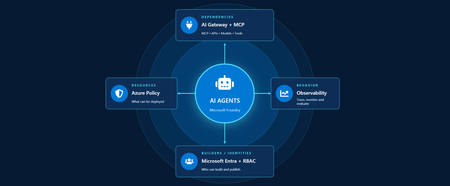
Developers are shipping agents faster than security teams can catalog them. As organizations move beyond pilots and begin operating dozens or hundreds of agents, one question keeps coming up: how do we actually get visibility into our AI agents across our environment? In this article, we'll walk through how Azure services can help establish visibility, guardrails, and cost accountability across your AI estate. Governance for AI happens across four layers: Resources – who can create new AI resources Builders – who can develop and publish agents in a certain scope Behavior – how agent outputs are evaluated, monitored, and governed Dependencies – what models, tools, APIs, and MCP servers agents can interact with Most organizations already have governance controls for identities, networking, and compliance. The challenge isn't creating new controls. It's connecting existing controls into an operating model that works for AI agents. Below we walk through each area and go a bit deeper on how to close the gap. Setting up boundaries with Azure Policy First, let's start in the Azure portal with Azure Policy. Azure Policy lets you set guardrails on what can be deployed in your environment and flags or blocks anything that doesn't comply. For AI workloads, the built-in definitions range from limiting models that people in your organization can deploy to locking down the network through enabling private endpoints. Some policies you get started with: Foundry model deployments should only use approved models: Restricts deployments to models or publishers your organization has explicitly approved Foundry model deployments should meet eligibility requirements (preview): Applies rules based on model attributes like preview vs. GA status and distribution source Azure AI Services resources should have key access disabled: Makes Microsoft Entra ID the only entry point The full list of policies related to Azure AI Services are available here: List of built-in policy definitions - Azure Policy | Microsoft Learn Why this comes first: Policy checks resources before they are created, so it proactively keeps your environment aligned with your standards. Implementing role-based access control (RBAC) Once these boundaries are in place, the next step is RBAC. Setting RBAC up early ensures that people and identities building agents have the right scope for what they actually need to do. Foundry roles only apply when you authenticate using Microsoft Entra ID. If you're using key-based authentication instead, the key grants full access with without role restrictions. API keys are convenient for quick development usage but when moving towards production, Microsoft Entra ID is the preferred method. Roles can be assigned at three scopes: the Foundry resource, a Foundry project, or an individual agent itself. Below is an example of how different personas within organization can map to a certain scope for creating and building agents with Foundry. Here's how each role in the diagram compares, from least to most privileged: Role Privilege Level What it does in Microsoft Foundry Foundry Agent Consumer Least Interact with agent endpoints in a project. This is your least-privilege role for people who only need to use agents. Foundry User Low Grants reader access to the Foundry project, the Foundry resource, and data actions for your Foundry project. Least-privilege access role for developers building and testing agents. Foundry Project Manager Medium This role lets you perform management actions on Foundry projects, build and develop with projects, and conditionally assign the Foundry User role to other user principals. Foundry Account Owner Higher Grants full access to manage Foundry projects and resources, and lets you assign the Foundry User role to other user principals. Foundry Owner Highest Grants full access to manage Foundry projects and resources to build and develop with projects. This role can also assign the Foundry User, ACR, and monitoring roles to users in the environment. Source: Role-based access control for Microsoft Foundry - Microsoft Foundry | Microsoft Learn For the agent resources themselves, assign managed identities rather than API keys since it lowers the risk of having compromised credentials. Note if you're scripting RBAC permissions: these roles were recently renamed from Azure AI User, Azure AI Owner, Azure AI Account Owner, and Azure AI Project Manager. The role IDs and permissions didn't change, so use the role definition GUID in your code to avoid issues while the rename rolls out. Observability in Microsoft Foundry Governance requires more than access control. Organizations also need evidence of how agents are being used. Observability provides the audit trail needed to investigate incidents, understand usage patterns, and track costs. The Foundry Control Plane brings these observability and governance tools together in one place, alongside services like Azure Monitor, Microsoft Entra, Microsoft Purview, and Azure Policy. In the Foundry portal, tracing is a good starting point. Once you connect an Application Insights resource to your project, Foundry turns on tracing automatically so every run, including the ones you test in the playground, is logged. After it is completed, you can search by Response ID or Trace ID to see the conversation history, token usage, run steps, tool calls, and inputs and outputs between the user and the agent. For more granular queries, you can write KQL to dive into individual agent runs or use the prebuilt Grafana dashboards in Azure Monitor. With client-side tracing, you can also export traces to observability tools you may already use, such as Datadog or Jaeger. Note: Permissions required for viewing this telemetry requires the Log Analytics Reader role on the connected Application Insights resource, and Privileged Monitoring Data Reader on top of that if the underlying Log Analytics tables are protected. Alongside all of these monitoring features, every agent comes with content safety guardrails and evaluations let you test and optimize performance before and after you publish your agents. When agents get published to Microsoft Teams and Microsoft 365 Copilot, Microsoft 365 admins can approve usage requests. These requests can be further scoped to a limited group for pilot testing/department usage or the full organization. Adding an AI gateway Observability tells you what your agents are doing, but how do you actually control them? This is where Azure API Management comes in. Once you have more than one agent, model deployment, or multiple teams consuming them, you need a single enforcement point between the agents and the resources they call. Adding Azure API Management in front of Microsoft Foundry gives you: Rate limiting and load balancing across regions and model deployments Consistent authentication and quota policies for model and tool traffic Usage tracking per team or cost center so you can accurately charge back to different departments Governed access to your custom and remote MCP servers Note: When choosing MCP servers, start with trusted, enterprise supported sources (GitHub, Microsoft, internally developed servers, etc.) that have documented security controls, enterprise authentication, clear ownership, and least-privilege permissions. Treat community MCP servers as untrusted until they have undergone a formal security review and are verified by organizations. Adding an AI gateway completes the governance picture. Azure Policy governs what can be deployed. RBAC governs who can build and manage agents. Observability provides evidence of how agents behave in production. The AI gateway extends governance into runtime, controlling how agents interact with models, tools, and external systems. Combined, these layers help organizations move beyond simply building agents to operating them responsibly at scale. Extend governance across the wider estate A few directions to take this further: MCP registry in Azure API Center – As MCP usage grows, you can create an approved inventory of MCP servers and APIs that can be used across an organization. Microsoft Agent 365 – Microsoft's enterprise control plane for AI agents. It gives every agent its own Microsoft Entra Agent ID and published Foundry agents sync to its registry automatically. This gives your IT team one place to run access reviews, lifecycle policies, and owner attestation across every agent in the tenant, including shadow agents discovered outside Foundry. Copilot Studio – when you add an MCP tool, you can point it at the API Management URL instead of the direct remote endpoint to gain additional observability through the gateway. GitHub Copilot – you can apply the same AI gateway-fronted MCP registry, applied to the developer side. Microsoft Purview – data classification, DLP, audit, and AI interaction governance across the wider estate. Where to go next Looking for a quick start? Turn on the three Azure Policy definitions above in audit mode against a non-production subscription and see what gets flagged that is out of compliance. Ready to design the end-to-end pattern? Take a look at this Cloud Adoption Framework guidance on AI governance and governing Azure platform services for AI. Want to go deeper on agent observability? Start with these articles around Application Insights integrations with Foundry: Use Insights in Microsoft Foundry and Monitor AI Agents with Application Insights Governing AI agents doesn't require starting from scratch. The identity, policy, monitoring, and cost controls you already use for the rest of your Azure estate can extend to AI workloads. Start with one layer, connect the next, and build a governance foundation that grows with your AI adoption.692Views3likes0CommentsFrom Business Brief to Production Agent: Building in Three Stages, Not One
The problem with "AI can help my business" Every non-technical founder has heard some version of "you should put an AI agent on this." Far fewer have seen what it actually costs, in time and money, to find out whether that's true for their specific business — before committing to it. The honest answer is: it shouldn't cost much at all, if you build it in the right order. Most of the expensive AI project failures aren't failures of the model — they're failures of sequencing. Someone commits to real infrastructure, real hosting, and real integration work before anyone has confirmed the underlying idea even holds up. This post walks through a small, realistic project — an autonomous sales-development agent for a fictitious construction-tech company — built in three deliberate stages, each one cheap enough to abandon and each one answering a different question before the next stage spends any more money or time. The point isn't the specific agent. It's the order of operations: what to validate first, what to validate second, and what you only pay for once everything before it has already been proven. The Brief Hi, I'm looking for someone who can help me grow FieldForge, a SaaS platform specifically for general contractors, remodelers, and design-build companies. I'm not looking for generic lead lists. I need someone who can identify qualified construction companies, reach the owner/decision-maker, start conversations, and book demos that can turn into paying SaaS customers. Your experience with B2B lead generation and appointment setting looks relevant. I'd love to hear how you would approach generating qualified leads and growing a construction-focused SaaS. Translated into engineering terms, that's four capabilities: pull in new leads from a data feed (ingest_permits), decide whether each one is worth pursuing (qualify_lead), draft a personalized first-touch email for the ones that qualify (generate_pitch_email), and hand qualified leads off to an outbound sequence (dispatch_sequence). Nothing about that list requires committing to any infrastructure yet — which is exactly the point of Stage 1. Stage 1: Mock prototype — no AI, no backend, no cost The first stage has no real agent in it at all. It's a Vite + React console with the full intended UI — a strategy pane, a live-feed pane, a lead-dossier pane — wired to hand-written mock data and a fake setTimeout standing in for "the AI is thinking." No model calls, no cloud resources, no backend of any kind. It runs entirely in a browser tab: This is deliberately the cheapest possible way to answer the first real question: does this even make sense as a product, before a single token of inference is spent proving it? Is a 3-pane command console the right way to expose "an agent found and qualified these leads for you"? Is a permit-triggered pitch angle a good hook, or does it look contrived once it's actually on screen? Does a business owner look at this and understand what they're being offered? None of those questions need a real agent to answer — they need a UI a person can click through and react to. Running this stage costs essentially nothing beyond development time: no API calls, no cloud spend, nothing to tear down if the idea doesn't land. Where the AI pair programmer actually did the work. This entire stage — the layout, the state management, the mock data shapes, the interaction flow — was built by describing the product in plain language to an AI coding assistant (GitHub Copilot, Claude) and iterating on the generated code directly, rather than dragging components around in a low-code builder. That distinction matters more than it sounds like it should. A low-code prototype is fast to show, but it's still just a prototype — once a real agent needs to sit behind it, most of that first version gets rebuilt in real code anyway. A pro-code prototype, even a fake one, is a keepable asset: the exact same React components, the exact same UI shell, carry forward unchanged into Stage 2 and Stage 3. Nothing here gets rebuilt later — it gets connected to something real. What this stage proves, and what it deliberately doesn't. By the end of Stage 1, you know whether the product concept and the UX hold up — whether the thing you're describing to a non-technical stakeholder actually makes sense once it's on a screen in front of them. What it tells you nothing about: whether a real model can actually do the reasoning this UI is pretending to show. That's a completely different risk, and it's wrong to pay for cloud infrastructure to find out — it just needs a real agent, still running on a laptop: Stage 2: A real agent, still running on a laptop — the convincing part This is the stage that actually matters most, and it's also the cheapest place to find out if the whole idea works. The fakery gets ripped out and replaced with a genuine agent: a Microsoft Agent Framework Agent, backed by a real model deployment on Microsoft Foundry, given the same four tools from the brief — ingest_permits, qualify_lead, generate_pitch_email, dispatch_sequence — as real Python functions it can actually call. Its reasoning streams live into the same terminal-style pane the mock prototype already had, so nothing about the UI needs to change; only what's driving it does. Crucially, the frontend stays on a local dev server and the agent stays a local process on the same machine. There's no cloud hosting, no production auth, no deployment pipeline — the UI just talks to a locally running agent server over a simple streaming protocol. That's the deliberate design of this stage: the only thing worth testing here is whether the agent is actually good, and every question that matters — does it call tools in a sensible order, does it correctly decide which leads qualify, does its drafted email actually reflect the lead's specific trigger event rather than reading like a template — can be answered without touching a cloud resource. The qualify_lead tool is where this gets concrete: it's handed a target definition — commercial/residential remodelers in a specific revenue band, an active permit filing, still running manual/legacy tooling — and has to decide, per lead, whether it's a fit. You'll see this called an ICP (Ideal Customer Profile) constantly in sales and GTM circles right now, to the point of being a bit of a buzzword. Stripped of the jargon it's just this: a precise, written-down definition of a good-fit customer, specific enough that a model can apply it as consistently as a trained human rep would. The reason it matters isn't the term — it's that the agent's usefulness is bounded entirely by how precisely that definition is written, and this stage is exactly where you find out if yours is precise enough. This is also where model choice gets decided, cheaply. Swapping which Foundry model deployment sits behind the agent, or rewriting the system instructions, costs a restart and a few cents of inference — not a redeploy, not a new pipeline run. If gpt-4o isn't giving good enough qualification judgment, or the reasoning is inconsistent between runs, you find out here, in seconds per iteration, for the price of a handful of API calls. Compare that to discovering the same problem after cloud hosting, authentication, and a production pipeline are already built around it. That's why this stage — not Stage 1 — is the genuinely convincing one. Anyone can mock up a UI that looks like an agent found and qualified a lead. Stage 2 is where you can put a real, unscripted permit feed in front of a real model and watch it reason its way to a defensible qualify/reject decision and a genuinely personalized email, live, for the cost of a few model calls. That's the moment a skeptical stakeholder stops asking "does this actually work" and starts asking "when can we have it." What this stage proves, and what it deliberately doesn't. By the end of it, you know the agent itself is sound — right tools, right order, correct ICP logic, real personalization — for a cost barely above Stage 1's. What it hasn't touched: what happens when a real user hits this over the public internet, how auth works outside your own machine, whether the hosting model you eventually pick can actually serve this reliably. That's a different kind of work, and it starts now that there's finally something worth doing that work for. Stage 3: Quasi-production — translating a proven agent into a running service Stage 2 answers "does the agent work." Stage 3 answers a different question entirely: "can this be handed to someone who isn't on my laptop." That's not a continuation of Stage 2's work — it's a translation of it. The agent's logic, tools, and instructions don't change at all going into this stage; what changes is everything around them, as the same proven Agent gets repackaged into something that can actually run as a service instead of a local process. The agent itself deploys as a Foundry Hosted Agent via azd — no hand-written Dockerfile, no Container App config, no Bicep authored from scratch; Foundry's managed hosting owns the runtime, scaling, and session continuity (via previous_response_id chaining on the Responses protocol), and assigns the agent its own managed identity. The frontend and its API layer become an Azure Static Web App: the React build as static assets, plus a small same-origin Azure Function that reverse-proxies requests to the hosted agent. That proxy exists for a concrete reason — Foundry's hosted-agent endpoint has no CORS support, so a browser calling it directly would simply be refused; routing through a same-origin Function sidesteps that entirely, and keeps the real agent URL and credentials server-side instead of sitting in a public JS bundle. None of that is agent work. It's the operational work of turning a validated prototype into a real, addressable, network-reachable thing — the productionization step every agent eventually needs regardless of how it was built, and the part that's easy to underestimate if you haven't budgeted for it as its own phase. Framed plainly, this stage is where the project stops being "a demo that runs on my machine" and starts being "a small SaaS": something with a real URL, a real hosting bill, real auth, and a real deploy pipeline — everything that separates a working prototype from a thing you could actually put a customer in front of. To be clear about the boundary of "quasi": this is not a fully hardened production system. There's no custom domain, no persistent session store beyond what Foundry provides out of the box, and no load testing. What it is: proof that the exact agent validated in Stage 2 can be deployed, reached over a real network, and driven from a real hosted frontend without silently breaking — the last class of risk that only shows up once something leaves your own machine. What this stage proves, and what it deliberately doesn't. By the end of it, you know the whole pipeline holds together end to end, from a hosted UI through a same-origin proxy to a Foundry-managed agent and back, streaming, over a real deployment. What it doesn't prove: that it holds up under real production load, real customer data governance, or a real incident on-call rotation. Those are legitimate next questions — just not the ones this stage was built to answer, and not ones worth paying for before the first two questions were settled. The pattern, not just the project Line the three stages up and the shape becomes obvious: each one is deliberately the cheapest possible way to eliminate one specific class of risk before the next stage spends real money finding out the hard way. Stage 1 kills product/UX risk for the cost of dev time and zero infrastructure. Stage 2 kills agent-quality risk — the right tools, the right model, correct decisions — for the cost of a few model calls, and it's the stage that actually earns anyone's confidence that this is real. Stage 3 kills operational risk — real hosting, real network, real auth — by translating an already-proven agent into a running service, rather than building all of that around an agent nobody has validated yet. Collapse those stages — build the hosting and the agent and the UI all at once, betting everything up front — and you don't save time. You just move all three classes of failure into the same debugging session, at the point where they're most expensive to disentangle and hardest to tell apart. Staged this way, each phase is cheap enough to walk away from if it fails, and each one only gets built on top of a phase that already earned its place. There's a second half to this story that's deliberately not in this post: the data. Everything here ran on synthetic permit feeds and mock company data — a real deployment lives or dies on where its actual leads come from and how well they're structured for a model to reason over. That's its own story, and it gets a dedicated write-up of its own. Project reference Source code: https://github.com/olivierb123/lead-agent-demo Live demo: https://victorious-glacier-03340ff0f.3.azurestaticapps.net253Views0likes0Comments
Your Agents Need More Than a Place to Run
In architecture reviews with enterprise teams moving their first agentic applications toward production, I often hear the same plan: the team has containerized their agent and intends to run it on the managed Kubernetes cluster the organization already trusts. The reasoning is sensible, since the platform team knows the tooling and security has approved the network model, and for the first use case or two it is often the right call. Having watched this unfold in my years leading AgenticAI customer engineers and forward deployed engineers, and now helping customers reach production on Azure, I want to describe what happens next, before leaders commit rather than after. One thing to note is Azure supports multiple ways to build and operate agents. Foundry Agent Service provides an integrated managed runtime around your agent code. Azure Kubernetes Service supports teams that need Kubernetes-level control or want to extend an established platform, while Azure Container Apps provides managed container hosting. These services can work together. The decision is which capabilities and responsibilities best fit the workload. Where the cluster is the right answer A stateless retrieval application, a document extraction pipeline, or a classification job is a web service that happens to call a model, and a container platform runs web services well. A large retail customer of mine ran an invoice extraction agent on containers for over a year with almost no issues, and I never suggested they move it. The cluster remains the right home for several other situations as well. LLM invocations embedded inside existing microservices, event driven, or batch pipelines fit container platforms naturally. Genuine constraints such as air-gapped or sovereign environment, regions where a managed service is not yet offered are a good reason to run your own stack, and strong engineering team that already operates at that level can be a real asset. Even when the agents themselves move to a managed runtime, the tool servers, business APIs, and data services those agents call, often stay on your cluster, so they are complementary far more often than they are competitors. The problem is that these early wins can make agents seem like just another workload. Where the wheels come off The first failure is the state. A research agent that plans, searches, and synthesizes for ninety minutes is a long-running stateful process, while a Kubernetes pod is a disposable container the scheduler may restart at any time. A financial services team I worked with lost costly research run to a routine node upgrade, and responded as capable engineers do by building checkpointing, a durable store, and a resume mechanism. It worked, but they now owned a piece of infrastructure they had to keep correct as their agent's framework changed beneath it. A managed agent runtime absorbs this. Hosted agents in Foundry Agent Service, as one example, give every session a VM-isolated sandbox with a persistent file system, a durable state store that survives crashes and restarts and can hold checkpoints for frameworks such as LangGraph or Microsoft Agent Framework, and a resilient execution mode that recovers long-running work after a process interruption. The second is the human-in-the-loop. A commercial insurance customer’s claims agent needed sign-off from an adjuster and sometimes a second reviewer, with days between steps. Stopping an agent cleanly at the moment it needs a decision, holding its full session for four days without paying to keep it running, and resuming it correctly when the approval arrives is not something a container orchestrator gives out the box. The team built agent session suspend and resume, a queue, a durable state store, notifications, and an approval interface, and ended up with a small workflow engine nobody had planned to own. In hosted agents, an idle session is deprovisioned with its state persisted and restored onto fresh compute when the same session ID returns, so an agent waiting on an approval cost nothing while it waits, and sessions are retained for up to thirty days of inactivity. The approval experience remains yours to design, which is where your engineers' time should go. The third is multi-turn conversation, which quietly pushes teams into building their own context management system. The first version appends each turn to history, and within few turns the history outgrows the context window while cost and latency climb. So, the team adds truncation, then summarization, then retrieval of earlier turns, then per-user and per-tenant scoping, then expiry and deletion rules for privacy. An industrial customer's safety compliance assistant, with conversations stretching across days, followed exactly this path and ended up with a bespoke thread store and summarization pipeline nobody had budgeted for. Its first serious incident came when a summary silently dropped a compliance-relevant instruction. With the Responses protocol in hosted agents in Foundry, conversation history is a durable, platform-managed record keyed by a conversation ID and reachable from any channel, so the thread store is no longer yours to build, although deciding what to summarize or retrieve remains a design choice for your agent. The fourth is identity. On a cluster, the path of least resistance is a shared service account, and in one review a security architect asked which actions had been taken on behalf of which user, only to learn that the logs could not say. Hosted agents create a dedicated Microsoft Entra agent identity for each agent at deploy time, use on-behalf-of flows to act with the user's delegated permissions in interactive scenarios and the agent's own identity in autonomous ones, and keep the agent identifiable for audit in both cases. The fifth is per-user session isolation, which is the difference between an agent that serves many people and an agent that mixes them up. Agents read files, run code, and hold working data, and on a shared pod the default is that many users share a process, a file system, and often a cache. Giving every user session its own sandboxed environment and storage, so that one person's documents and intermediate results can never surface in another's, means engineering hard isolation boundaries and proving them to your security team. Hosted agents make a VM-isolated sandbox per session the default, and their durable state store can partition items per end user, so one store is safe to share across the users of a multitenant agent. And lastly, Evaluation and optimization are where the gap widens. The largest difference between teams that scale and those that stall is evaluation. Because agents are probabilistic and multi-step, staging tests often miss failures such as a wrong tool choice or a policy violation deep in a task. One customer’s agent passed every offline check but degraded unnoticed for weeks after a model update because evaluation stopped at release. Mature teams continuously evaluate production traces, combine automated judges with sampled human review, and red-team regularly.Once quality is measurable, teams can deliberately balance prompts, models, tools, latency, and cost. One team cut per-task cost by routing simple steps to smaller models after evaluation confirmed quality held. Self-built stacks require teams to assemble and maintain tracing, datasets, judges, and release gates. Hosted agents instead combines default OpenTelemetry traces with continuous evaluation, adversarial testing, and datasets generated from agent instructions. Staged closed-loop optimization uses those traces to improve instructions, tool descriptions, and model selection without extra plumbing. The real cost is the velocity gap Leaders usually expect me to quantify the initial build, and that is the smaller number. A team of four building the first agent often becomes ten or twelve within a year, and a growing share of them are maintaining a runtime for agents rather than building agents that serve the business. The enterprise has quietly created an internal agent infrastructure company in a field where the patterns for memory, tools, evaluation, and safety are rewritten every few months, while hyperscalers put hundreds of engineers on exactly this problem and ship at a cadence no single platform group can match. Foundry Agent Service, for instance, bundle content safety guardrails into the runtime and route outbound traffic through a customer virtual network, capabilities that platform teams otherwise assemble one integration at a time. This plumbing does not differentiate your organization, so the question is whether your scarcest engineers should spend years on it or on the workflows, data, and judgment only your company has. This is also why the technology companies held up as examples are a poor template. Many built their own runtimes because managed options did not yet exist and had large platform organizations to carry the load. Even they tend to invest in a custom runtime for the first handful of use cases and then migrate as managed services mature, because the maintenance burden compounds while the strategic value of owning the plumbing does not. What I would do as the leader I am not arguing against Kubernetes or for moving everything tomorrow. Comparable managed runtimes exist across the hyperscalers, and I use hosted agents as the running example only because it is the one I know best from the inside. Managed agent services are still maturing, some workloads have real data residency or customization needs, and abstraction always constrains something. What I am arguing for is a deliberate choice for each use case, guided by three questions: whether the agent must outlive a single request by running long, waiting on humans, or remembering across sessions whether it must act with its own identity, auditable delegation, and policy enforcement whether your team would be building anything a managed service already provides, and who will still maintain it in two years. Key takeaways Match the runtime to the workload. Containers on your existing cluster suit stateless, short-lived agents, while long-running, human-in-the-loop, and memory-dependent agents need capabilities your platform team was never hired to build. Count the hidden team. The real cost of self-hosting is the growing group of engineers maintaining state, identity, memory, guardrails, and tracing instead of solving business problems. Make evaluation continuous and connected to production traces. Pre-release testing alone will miss the drift and trajectory failures that hurt you, and optimization of quality, cost, and latency depends on that evaluation data. Follow the pattern of the leaders, not their early architecture. Companies that built custom runtimes did so before managed options matured, and most of them move toward managed services as those options improve. A practical place to begin is your roadmap for the next twelve months. Sort each use case into stateless and short-lived or long-running and human-dependent, and for every agent in the second group put a price on the engineers who would maintain the runtime rather than the business logic. I would like to hear how you have drawn this line, and where a managed service was not yet ready for something you needed.848Views2likes0CommentsVoice agents in Foundry Agent Service: architecture, trust boundaries, and real-audio latency
Assess where voice agents in Foundry Agent Service simplify the runtime, where enterprise trust boundaries remain, and what a 300-turn real-audio benchmark reveals about latency across six configurations.440Views0likes0CommentsHow to make AI responses faster on Microsoft Foundry: lessons from 2,040 measurements
A reproducible Microsoft Foundry performance study covering prompt caching, multimodal input, tool orchestration, MCP lifecycle, Toolbox tool search, and Priority Processing - with correctness and reliability measured alongside latency.602Views0likes0CommentsChoosing a real-time voice architecture on Microsoft Foundry: three enterprise patterns
A practical comparison of three real-time voice architectures on Microsoft Foundry, including implementation tradeoffs and four enterprise release gates for residency, networking, retrieval authorization, and tool credentials.959Views2likes0CommentsBuilding Production-Ready AI Agents in Microsoft Foundry: 10 Lessons Learned
A Real-World Scenario Imagine a customer support agent that answers invoice questions. During testing, everything works perfectly. But in production: The Finance API occasionally times out. The knowledge base contains outdated information. Tool calls fail during peak traffic. Token consumption rises unexpectedly. The result isn't a broken AI model. It's an unreliable system. This is where Microsoft Foundry becomes critical. Building production-ready agents requires grounding, observability, resiliency, governance, and continuous monitoring. New challenges appear: Challenge Impact Hallucinated responses Reduced trust Missing citations Verification issues Tool failures Broken workflows High token consumption Increased cost Latency spikes Poor user experience Limited monitoring difficult troubleshooting Security concerns Compliance risks The lesson was clear: Production readiness is not about making the agent smarter. It is about making the agent reliable. My Observation While experimenting with AI agents in Microsoft Foundry, I found that model selection was rarely the primary challenge. Most production issues stemmed from grounding quality, tool reliability, observability, and security controls. Addressing these operational concerns often had a greater impact on user trust than changing the underlying model. Production AI Agent Reference Architecture A production-ready AI agent typically includes several components beyond the language model itself. Layer Technology User Interface Web App, Teams, Copilot Agent Runtime Microsoft Foundry Agent Service Knowledge Layer Azure AI Search Foundation Model GPT-4o Tool Integration APIs and Functions Monitoring Azure Monitor Security Managed Identity and Key Vault Request Flow Lesson 1: Start with the Use Case, Not the Model One of the most common mistakes is beginning with model selection. Many teams ask: Which model should I use? Should I choose GPT-4o? Should I use a larger context window? A more important question is: What business problem are we solving? Before evaluating models, define: Users Business goals Success metrics Compliance requirements Operational constraints An enterprise support agent and a financial compliance agent may use the same model but require completely different architectures. Key Takeaway Successful AI projects start with business outcomes, not model benchmarks. Lesson 2: Grounding Matters More Than Prompting Prompt engineering helps. Grounding drives trust. Without access to reliable enterprise data, even advanced models can generate confident but incorrect responses. Grounding Sources Azure AI Search SharePoint documents Internal knowledge bases Structured enterprise data Approved policy repositories Example from azure.ai.projects import AIProjectClient # Configure grounding with Azure AI Search agent = client.agents.create_agent( model="gpt-4o", name="support-agent", tools=[ { "type": "azure_ai_search", "azure_ai_search": { "index_name": "support-kb", "endpoint": "https://your-search.search.windows.net" } } ] ) In production environments, grounding through Azure AI Search helps agents retrieve trusted enterprise information rather than relying solely on model knowledge. This significantly improves response accuracy and trustworthiness. Try it yourself: Configure Azure AI Search as a knowledge source in Microsoft Foundry and compare grounded versus non-grounded responses. Key Takeaway Reliable retrieval is usually more valuable than sophisticated prompting. Lesson 3: Design Tool Usage Carefully AI agents become powerful when they can interact with external tools. Examples include: CRM systems Databases APIs Ticketing systems Business applications However, every tool increase complexity. Ask yourself: When should the agent call the tool? What happens if the tool is unavailable? How should failures be handled? Example Failure Scenario +-----------------------------+ | User asks for invoice status | +-------------+---------------+ | v +-----------------------------+ | Agent calls Finance API | +-------------+---------------+ | v +-----------------------------+ | API timeout detected | +-------------+---------------+ | v +-----------------------------+ | Fallback response returned | +-----------------------------+ Example Failure Scenario: A production-ready agent should gracefully handle external service failures and return a fallback response instead of failing completely. Key Takeaway Design for failure before designing for capability. Lesson 4: Evaluate Before Deployment Many teams test only for response quality. Production agents require broader evaluation. Evaluation Area Why It Matters Accuracy Correct answers Grounding Quality Faithful responses Latency User experience Safety Risk reduction Cost Sustainability Tool Success Rate Reliability Evaluation should become part of every deployment pipeline. Key Takeaway You cannot improve what you do not measure. Lesson 5: Make Observability a First-Class Feature Observability is often neglected until something breaks. Unfortunately, production systems always encounter unexpected behavior. Track metrics such as: Metric Purpose Request Volume Demand tracking Average Latency Performance Token Usage Cost visibility Grounding Success Rate Quality Tool Failure Rate Reliability User Satisfaction Business value Setting Up Tracing in Foundry from azure.ai.projects import AIProjectClient from azure.monitor.opentelemetry import configure_azure_monitor # Configure Azure Monitor for tracing configure_azure_monitor( connection_string="InstrumentationKey=xxx" ) # Run the agent response = agent.run( thread_id=thread.id, instructions="..." ) Tracing provides visibility into how an AI agent processes requests, invokes tools, and generates responses. By integrating Azure Monitor, teams can track latency, identify failed tool calls, analyze token usage, and troubleshoot unexpected agent behavior. This observability is essential for operating AI agents reliably in production environments. Try it yourself: Enabling tracing and monitoring for a Microsoft Foundry agent using Azure Monitor. Example Dashboard +-----------------------------+ | Production Monitoring Dashboard | +-----------------------------+ | Requests Today | 5,120 | | Average Latency | 3.2s | | Grounding Success | 97% | | Tool Failure Rate | 1% | | Average Tokens | 2,800 | +-----------------------------+ Monitoring production metrics helps teams understand agent performance, reliability, and cost efficiency. Key indicators such as latency, grounding success rate, tool failure rate, and token consumption provide valuable insights into the operational health of an AI agent and enable proactive troubleshooting before users are impacted. Key Takeaway What you can't observe, you can't effectively operate or improve. Tracing is a critical capability for maintaining production-ready AI agents. Lesson 6: Monitor Token Consumption Token usage directly impacts cost. A highly successful agent can quickly become expensive if token growth is unmanaged. Common optimization techniques: Optimization Benefit Prompt Compression Lower token usage Response Caching Reduced model calls RAG Filtering Focused context Context Trimming Smaller requests Model Selection Cost control Key Takeaway Cost optimization should be planned from day one. Lesson 7: Build Security into the Design Security should never be an afterthought. Enterprise AI systems must enforce the same security boundaries as traditional applications. Recommended Controls Control Purpose Managed Identity Secure authentication Azure Key Vault Secret management RBAC Authorization Audit Logs Compliance Content Filtering Safety Private Endpoints Network Security Guiding Principle An AI agent should never access data beyond a user's permissions. Key Takeaway Security is a design requirement, not a deployment task. Lesson 8: Expect Tool Failures External dependencies inevitably fail. Production-ready agents should anticipate: API downtime Authentication failures Network interruptions Rate limiting Unexpected responses Recommended Strategy Key Takeaway async def call_tool_with_resilience(tool_name, params): try: result = await tool_client.execute( tool_name, params, timeout=5.0 ) return result except TimeoutError: return await cache.get_fallback( tool_name, params ) Example Outcome: Introducing retry and fallback logic can significantly improve reliability. By handling temporary API failures gracefully and returning cached responses, when necessary, agents can reduce user-facing errors and provide a more consistent experience. Lesson 9: Evaluate the Process, Not Just the Output A correct answer does not always mean the process was correct. In production environments, teams should evaluate not only the final response but also the steps the agent took to generate that response. An answer may appear accurate even when it was based on incorrect retrieval results, unnecessary tool calls, or incomplete citations. Review: Retrieval quality Tool execution Citation accuracy Security compliance Reasoning path User Query | v Retrieval | v Tool Execution | v Reasoning | v Response For example, an agent might generate the correct answer by chance, even though it retrieved irrelevant documents or used an inefficient workflow. Without evaluating the process, these hidden issues may go unnoticed until they affect reliability, compliance, or user trust. Key Takeaway Inspect the entire workflow, not just the final answer. Lesson 10: Think Like a Production Engineer As adoption grows, operational excellence becomes the differentiator. Ask questions such as: Can we troubleshoot failures? Can we measure business impact? Can we control costs? Can we scale safely? Can we govern usage? These questions become more important than model selection over time. Key Takeaway Production success comes from engineering discipline, not model size. Microsoft Foundry Features That Helped Improve Reliability Foundry Capability Production Benefit Agent Service Agent orchestration Knowledge Sources Grounded responses Evaluations Quality measurement Tracing Workflow visibility Model Catalog Model flexibility Safety Systems Risk mitigation These capabilities help teams move beyond proofs of concept and build solutions that are ready for real-world adoption. Production Readiness Checklist Before releasing an AI agent, verify: ✅ Business goals defined ✅ Grounding strategy implemented ✅ Security controls enabled ✅ Evaluation pipeline established ✅ Monitoring configured ✅ Failure handling tested ✅ Cost optimization reviewed ✅ Governance process defined ✅ User feedback loop available ✅ Deployment rollback strategy prepared Get Started with Production-Ready Agents If you're building AI agents using Microsoft Foundry, start by focusing on grounding, observability, security, and evaluation from day one. Suggested next steps: Build your first agent in Microsoft Foundry Configure Azure AI Search grounding Enable tracing and monitoring Evaluate agent quality before deployment Add resilience and fallback strategies Which of these 10 lessons has been most valuable in your own AI agent journey? Share your experiences and insights in the comments.1.3KViews5likes1CommentIntroducing GPT-transcribe and GPT-live-transcribe in Microsoft Foundry
A transcription model hears “account number 8-4-7-2” but returns “account number eighty-four seventy-two.” A single error can break a downstream automation workflow. Developers building voice applications need transcription models that can handle real-world audio conditions, natural speech patterns, and business-critical details, including codes, dates, addresses, account numbers, mixed-language conversations, specialized terminology, and quiet or low-volume speech. GPT-transcribe and GPT-live-transcribe do just that and are available in Microsoft Foundry today. Two updates to the audio model family designed to improve automatic speech recognition across asynchronous transcription and live streaming scenarios. Built for More Accurate Transcription in Real-World Audio GPT-transcribe is the highest accuracy ASR model from Open AI, designed for asynchronous speech-to-text transcription of completed audio files and batch workloads. It accepts audio input and returns text output, making it a strong fit for workflows that process recorded, uploaded, or submitted audio, including meeting recordings, voicemails, and media files. GPT-live-transcribe is designed for low-latency streaming transcription through the Realtime API. It supports real-time audio input and text output, helping developers build live experiences where speech needs to be transcribed continuously as audio arrives. This model also introduces “tunable latency” where developers can adjust the latency/accuracy trade-off for streaming. It is a strong fit for live captions, voice assistants, contact center workflows, accessibility experiences, field service applications, real-time intake, and monitoring systems. Together, these models give developers transcription options in Microsoft Foundry for stored audio and live voice interactions. Their text output can support downstream workflows such as search, summarization, routing, analytics, automation, and quality review. What’s New in Both Models The features of the new transcription models focus on improving transcription quality in real-world audio environments where speech can be brief, noisy, accented, quiet, domain-specific, or mixed across languages. Key capabilities include: Background noise: Helps isolate speech in noisy environments so transcription quality can remain more reliable when audio conditions are not controlled. Short utterances: Improves recognition of brief commands, confirmations, interruptions, and clipped speech that can be difficult to capture accurately. Alphanumeric perception: Strengthens transcription of IDs, codes, phone numbers, dates, addresses, account numbers, and mixed letter-number sequences. Domain terminology understanding: Improves recognition of specialized vocabulary used in product, workflow, industry, and business-process contexts. Codemix: Improves understanding when speakers switch between languages within a conversation or utterance. Context awareness: Uses topic hints and past conversation context to improve transcription accuracy and help maintain consistency. Accent robustness: Improves handling of regional accents, non-native accents, dialects, and varied speaking styles. Whispering: Improves recognition of quiet or low-volume speech, including whispered commands and private dictation. Live captioning and accessibility experiences: Generate real-time captions for meetings, events, media experiences, and assistive applications. Contact center and voice workflows: Capture spoken details as conversations happen, supporting routing, quality review, summarization, and downstream automation. Monitoring, analytics, and compliance workflows: Provide text visibility into ongoing spoken input so teams can analyze, review, and act on conversation data. Also Available: GPT-realtime-2.1 and GPT-realtime-mini-2.1 gpt-realtime-2.1 and gpt-realtime-mini-2.1 are also available in Microsoft Foundry for developers building speech-to-speech applications. Unlike GPT-transcribe and GPT-live-transcribe, which return text, these models accept audio and generate audio for low-latency conversational experiences over the Realtime API. gpt-realtime-2.1 focuses on interaction quality and robustness, while gpt-realtime-mini-2.1 provides a smaller, faster, and more cost-efficient option for high-volume deployments. Together with GPT-transcribe and GPT-live-transcribe, these realtime audio updates give developers more flexibility to build voice applications that need both accurate transcription and responsive spoken interaction, whether the experience is centered on capturing speech as text, responding with audio, or combining both patterns in a single workflow. Use Cases by Model GPT-transcribe Use GPT-transcribe when the application needs accurate text transcripts from recorded, uploaded, or submitted audio. It is a strong fit for meeting and call transcription, media transcription, customer support intake, voicemail and message processing, quality review, compliance workflows, and domain-specific transcription where short utterances, structured alphanumeric details, specialized terminology, accents, background noise, code-mixed speech, or quiet audio can affect downstream accuracy. GPT-live-transcribe Use GPT-live-transcribe when the application needs live streaming transcription with low latency. It is designed for real-time captions, accessibility experiences, contact center transcription, voice-enabled workflows, live monitoring, operational dashboards, and agent-assist scenarios where spoken input needs to become text continuously as the interaction unfolds. Pricing The following pricing example shows Global Standard rates by model and modality. Rates for GPT-realtime-2.1 and GPT-realtime-mini-2.1 are listed per 1 million tokens. GPT-transcribe and GPT-live-transcribe are listed per audio hour. Model Deployment Modality Input Cached Input Output GPT-realtime-2.1 Global Standard Audio $32.00 $0.40 $64.00 Text $4.00 $0.40 $24.00 Image $5.00 $0.50 -- GPT-realtime-mini-2.1 Global Standard Audio $10.00 $0.30 $20.00 Text $0.60 $0.06 $2.40 Image $0.80 $0.08 -- GPT-live-transcribe Global Standard Audio -- -- $1.02/hour GPT-transcribe Global Standard Audio -- -- $0.27/hour Getting Started Choose GPT-transcribe when your application processes complete audio files asynchronously, or GPT-live-transcribe when it needs text continuously as speech arrives. Try the models in Microsoft Foundry, then use the resources below to explore the Realtime API, follow the audio quickstart, compare available models, and review Azure OpenAI in Foundry Models documentation. For asynchronous transcription, submit a complete audio file to GPT-transcribe and process the returned transcript after the request completes. This pattern works well for recordings, voicemails, and uploaded media. For streaming transcription, open a Realtime API session with GPT-live-transcribe, send audio as it is captured, and handle incremental transcript events. This pattern supports live captioning and agent-assist experiences that need text during an active interaction. Refer to the linked quickstart and Realtime API documentation for current SDK setup, authentication, request schemas, and supported audio formats. Explore Microsoft Learn documentation to learn more: Use GPT Realtime API for speech and audio with Azure OpenAI in Foundry Models GPT Realtime audio quickstart Azure OpenAI in Foundry Models overview3.8KViews0likes0Comments