ai agent
6 TopicsEvaluating the Evaluator: How to Test an LLM Judge with Microsoft Agent Framework
The four verdicts, up front Consistency: mean CV across posts 5.30% Pipeline format checks: pipeline pass rate 100% Rubric adherence (strict judge): 5.00 / 5, mean math drift 0.05 pts Calibration vs. labels: Pearson r = 0.51, MAE = 22.9 pts Three of those say the model is healthy. The last one is the only one that compared the model against anything real, and it tells a different story. Where we left off In Post 1 I built Viral or Fail, three Microsoft Agent Framework agents that pressure-test a gaming social post before you publish it. A Content Creator drafts the post, an Algorithm Simulator scores it the way a recommendation system might, and an Audience Persona reacts the way an actual viewer would. The whole thing runs on the GitHub Models free tier, with no paid API keys. That post ended on a cliffhanger I left deliberately open. The Algorithm Simulator scored the post 75/100, but how do I know the Simulator itself is any good? How consistent are its scores? Do they track real engagement? Would a human social strategist agree with its rubric weights? This post answers that empirically. I built four tests: consistency, pipeline format checks, rubric adherence, and calibration. Three came back healthy. The fourth caught a problem structural enough that it changed how I think about evaluating LLM judges in general. The surprising part isn't that the model failed somewhere but that it passed the three tests you naturally reach for first, and only failed the one most will skip. Why I built my own harness The Microsoft Agent Framework ships a real evaluation surface. You get evaluate_agent, LocalEvaluator, an @evaluator decorator, and the EvalItem / EvalResults data types. It's well designed, and for production agents it's the right choice. It also pairs most naturally with Azure AI Foundry. The path of least resistance assumes you already have an Azure project, a model deployment, and the budget for cloud-tier LLM-as-judge calls. Post 1 went the other way on purpose: zero paid keys, GitHub Models free tier only. To keep that footing, I wrote a small in-house harness that mirrors the call shape of evaluate_agent. The framework's evaluation surface is provider-agnostic in principle, but it leans toward Azure in practice. What the SDK hands you for free on Azure, you can rebuild for yourself on GitHub Models in as you would see shortly, and the patterns transfer directly when you upgrade. The harness is one file, roughly 150 lines. The trick that makes it more than a wrapper is that it tries to import the SDK's primitives first and only defines its own if they aren't there yet: try: from agent_framework import EvalItem, EvalResults, evaluator _USING_SDK_PRIMITIVES = True except ImportError: # agent-framework-core==1.0.0rc1 doesn't ship these yet, # so we define local equivalents with the same shape. @dataclass class EvalItem: query: str response: str expected_output: str | None = None scores: dict[str, float] = field(default_factory=dict) repetition: int = 0 # ... EvalResults, evaluator defined the same way The day Microsoft ships these types, the suite picks them up with no code change. An evaluator looks like this: @evaluator def correlates_with_truth(response: str, expected_output: str) -> float: sim = parse_weighted_total(response) if sim is None or expected_output is None: return 0.0 truth = float(expected_output) return 1.0 - (abs(sim - truth) / 100.0) If you've used the SDK's @evaluator, you've used this one. Same parameter-name dispatch (query, response, expected_output), same return convention (a float in [0, 1]). The runner wraps a retry-aware async loop around a list of these. GitHub Models caps this model at about 15 requests per minute, so the loop sleeps 4.5 seconds between calls (12 a minute, comfortably under the cap). When it does hit a 429 it waits 30 seconds and up, rather than the short exponential backoff it uses for ordinary transient failures. Boring glue code, and important glue code. When you eventually move to Azure, you swap runner.run(...) for evaluate_agent(...) and nothing else in your codebase has to change. What 'good' even means for a judge Before running anything, it's worth being precise about what "good" even means for a judge agent. There are four versions of it, and they split into two camps. The first three are process checks. They probe the model against itself. No external reference data, just the model and its own outputs. Consistency means same input, same output. Run the Simulator twice on the same post and the scores should land in roughly the same place. If they don't, the score is noise. Pipeline format checks ask whether each agent followed its required output shape. Did the Creator produce platform-native text? Did the Simulator emit a parseable weighted total? Did the Persona stay in character? These are the cheapest tests of all, just regex and keyword matching, no LLM judge needed. Rubric adherence is harder. The Simulator's prompt asks it to score five weighted criteria and report a weighted total. Did it actually do that, or did it list the criteria and then invent a number? Checking this needs an LLM. The cloud-tier equivalent is FoundryEvals.TaskAdherence, and I'll build the free-tier version below. The fourth check is a different animal. Validation against ground truth. Calibration asks whether the Simulator's scores correlate with real engagement. It's the same operation you'd run on any predictive model: predict, compare against a labeled set, report correlation and error. It's the only check that tells you the model is correct rather than merely consistent and well-formatted, and it's the only one that needs data the model didn't produce. That's the thesis of this post, and the reason the order matters. The three process checks can all come back green and still tell you nothing about the validation result. And because validation needs ground truth, the design of the ground-truth dataset becomes part of the result. I'll be explicit about that when we get there. The posts under test Every test runs against the same thing: a 10-post golden dataset of gaming social posts I wrote and hand-labeled. Each entry carries the post content, its real-world engagement numbers, a normalized engagement_score from 0 to 100, and a label (viral, decent, flop, or outlier). Here's the viral Valorant post that Test 1 keeps referencing, in full: json { "id": "post_001", "platform": "Twitter/X", "topic": "Valorant Champions 2025", "content": "EG winning Champions 2025 was the most underrated moment in Valorant esports history and people still don't talk about it enough.\n\nDemon1 carried that grand final on a level we won't see again until at least Champions '26. The map veto into Bind alone deserves a documentary.", "real_engagement": { "impressions": 2100000, "likes": 45000, "shares_or_retweets": 8000, "replies_or_comments": 1200, "engagement_rate_pct": 2.58 }, "engagement_score": 82, "label": "viral", "notes": "Hot take + esports nostalgia + named callout (Demon1) drove QRTs from competing fanbases." } The full set is in the repo at evals/golden_dataset.json: two viral hits, four decent posts, three flops, and one outlier, across Twitter/X, TikTok, YouTube, and Instagram. Test 1: Consistency The easiest test to write. Run the Simulator ten times on the same post with identical input. Compute the mean, standard deviation, and coefficient of variation. Repeat across five posts spanning viral, decent, flop, and outlier labels. The harness call is one line: runner = EvalRunner(rate_limit_sleep=4.5) # 12 RPM, under the cap results = await runner.run( agent=agent, queries=[_build_simulator_prompt(p) for p in selected], evaluators=[weighted_total_score], # parses the score out of each run num_repetitions=NUM_REPETITIONS, # 10 ) Fifty Simulator runs in total. Group by query, compute std/mean per post, then average the resulting CVs. Mean coefficient of variation across the five posts: 5.30%. With the rubric pinned, the Simulator is meaningfully non-deterministic, but it isn't chaotic. Most scores cluster within about four points of the per-post mean. That's the headline, and it's fine. Now look at the chart again. post_001 (the viral Valorant Champions post, mean 70.3) and post_003 (the decent Steam Deck OLED post, mean 72.4) sit at almost the same place on the x-axis. The decent post averages slightly higher than the viral one. Across ten reps each. Twenty data points, and the Simulator can't reliably tell which one is supposed to be the success. If you trace the mean diamonds left to right, the decent post outranks both viral posts. A consistency test won't flag this as a problem, because the Simulator is being consistent. It consistently rates these two posts in the same band. The problem is what that band means. If consistency were your only check, you'd close the laptop and ship. Hold onto that. It comes back. Test 4: Pipeline format checks Now zoom out from a single agent and run the full Viral or Fail pipeline (Creator, then Simulator, then Persona) on five live trending gaming topics, applying format-level checks to each agent's output. The checks are deliberately cheap. For the Creator: does the output contain Twitter/X-native vocabulary (the keyword list looks for things like thread, ratio, QRT, take, based)? For the Simulator: is there a parseable weighted total between 0 and 100? For the Persona (TryHard_Tyler, the competitive esports fan, in this run): does the output use any of the persona's keywords, like diff, cope, goated, ratio, cap? Five topics, fetched live from Google Trends: xbox game pass, the hobbit mtg collector booster, crimson desert patch notes, xbox, olden era steam. Per-agent pass rate: Creator 100%, Simulator 100%, Persona 100%. Pipeline pass rate 100%. The format checks are doing their job. Every agent produced output in the shape it was supposed to, on every topic. No regex misses, no missing weighted totals, no out-of-character personas. This is the point where, if you'd only run consistency and pipeline checks, you'd write the triumphant report. "Our agents are reliable. CV under 6%. Pipeline pass rate 100%. Ship it." That report would be true. It would also be wrong about whether the model is correct, because format adherence is not output validity. Keep going. Test 3: Rubric adherence, and a free-tier LLM-as-judge Format checks tell you what the output looks like. Rubric adherence asks whether the Simulator actually did the work it was prompted to do: score five weighted criteria, sum them correctly, and explain each score with platform-mechanic reasoning rather than vibes. There's no regex for that. You need an LLM to read the Simulator's full evaluation and judge whether it followed its own rubric. That's an LLM-as-judge, and the cloud-tier equivalent is FoundryEvals.TaskAdherence on Azure. Since we're staying free, I built it. The judge is just another Agent with a stricter system prompt: JUDGE_SYSTEM_PROMPT = """You are a Rubric Adherence Judge — strict and skeptical. You evaluate whether another AI agent ACTUALLY followed its scoring rubric, not just whether it produced output that looks like it did. You will check three things, in order of severity (the strictest failing check sets the score): A. MATHEMATICAL FIDELITY (most important). Compute sum(criterion_score × weight) yourself from the agent's per-criterion scores. Compare it to the agent's stated WEIGHTED TOTAL. If they differ by more than 2 points, the agent is doing the rubric wrong even if it looks correct on the surface. Report the difference as `math_diff`. B. REASONING SPECIFICITY. Each criterion's justification must reference platform-specific algorithm mechanics — "FYP retention threshold", "QRT velocity", "average view duration". Generic praise ("strong hook", "good engagement") is GENERIC and lowers the score. Classify reasoning as "specific", "mixed", or "generic". C. COVERAGE. Every criterion in the rubric must be explicitly scored. Missing criteria fail this check. ... Be strict. Format-following ≠ rubric-following.""" The full prompt is in the repo. The key decision is point A: the judge recomputes the math itself. That catches the failure where an agent lists every criterion with a score, but the weighted total it reports doesn't actually equal the weighted sum. That kind of quiet drift is exactly what format checks miss. The judge returns strict JSON: adherence_score (1 to 5), math_diff, reasoning_quality, criteria_present, missing_criteria, weight_drift, plus a few sentences of reasoning. Test 3 doesn't go through runner.run; it orchestrates the two agents by hand, one post at a time, so the judge sees the Simulator's full evaluation: for post in posts: sim_text = await call_agent_with_retry(simulator, build_simulator_prompt(post)) verdict = await judge.judge( rubric=PLATFORM_RULES[post["platform"]], post_content=post["content"], evaluation_output=sim_text, ) Run across all 10 posts in the golden dataset, here's what comes back. Mean adherence score: 5.00 / 5. Mean absolute math drift: 0.05 points (max 0.25). Reasoning quality classified "specific" on 100% of evaluations. Zero missing criteria, zero weight drift. This was not the result I expected. I built the judge to be strict on purpose, after my first version turned out too lenient (more on that in the bugs section). The strict version recomputes the weighted sum, classifies generic praise as a failure, and demands platform-mechanic citations. The Simulator passed every dimension anyway. The per-post reasoning is genuinely fun to read. On the Activision Blizzard flop, the judge noted that the Simulator's reasoning leaned on engagement velocity, quote-retweet incentives, topicality timing, and hashtag discoverability rather than generic praise. On the GTA 6 viral TikTok, it cited pattern interrupts, trending-cluster signals, and share-velocity drivers. That's the language I asked for, and the Simulator is producing it. So the Simulator does the rubric correctly. The math is right, the reasoning is specific, every criterion is covered. By every internal measure, it works. You can probably see where this is going. There's exactly one thing left to check, and it's the most expensive and most important one. Test 2: Calibration, the reckoning This one isn't a test in the same sense as the first three. They asked whether the model was malfunctioning. This asks whether it's correct, which is a different question entirely, because it's the only one that needs data the model didn't produce. And because it's a validation, what I validate against matters as much as the model. So before running anything, here's exactly what the ground truth is: a 10-post golden dataset that I built, not measured. I wrote the post content myself in platform-native style, then assigned each post an engagement_score from a back-of-envelope formula (impressions x engagement rate x shareability), calibrated against publicly observable performance for similar posts. The set spans two viral hits, four decent posts, three flops, and one deliberate outlier (a post that got ratio'd into orbit, with high reach and terrible reception). So when I show you a Pearson r in a moment, hold it loosely. The exact number is partly a function of how I designed the labels. The shape of the failure (whether the Simulator's predictions cluster, spread, invert, or track the labels) is what's actually informative, because the shape doesn't depend on the labels being precise. It only depends on them being roughly ordered: viral out-ranks decent, decent out-ranks flop. Whether viral is 91 against flop 18, or viral 85 against flop 25, doesn't change which way the comparison runs. With that on the table: run the Simulator once per post, compute Pearson r and Spearman rho, compute MAE. Pearson r = 0.51. Spearman rho = 0.52. MAE = 22.9 points. That r-value isn't a small problem. Here's what it means in practice, post by post: Post Topic Label Truth Simulator Error 001 Valorant Champions 2025 viral 82 69.75 12.25 002 GTA 6 reveal reaction viral 91 65.75 25.25 003 Steam Deck OLED price decent 55 71.00 16.00 004 Genshin Impact 5.0 pulls decent 48 65.00 17.00 005 Hollow Knight: Silksong decent 60 76.50 16.50 006 Xbox Showcase 2025 decent 42 74.75 32.75 007 Activision Blizzard acquisition flop 18 59.50 41.50 008 5 games to play this weekend flop 22 37.00 15.00 009 Pentiment retrospective flop 15 60.75 45.75 010 Concord shutdown post-mortem outlier 50 57.00 7.00 The pattern is structural. The Simulator's natural output band is roughly 60 to 76. Posts that should clear 80 get pulled down to 65 to 70. Posts that should land below 25 get pulled up toward 60, with one flop (post_008, the "5 games this weekend" listicle) the only exception at 37. The model has an attractor zone in the middle of the scale and refuses to leave it. Look at the most accurate prediction in the table. It's post_010, the outlier (truth 50, Simulator 57, error 7). Why is it the most accurate? Because 50 happens to sit inside the attractor zone. The Simulator's bias accidentally cancels out for posts that are supposed to be average. It isn't accurate, it's wrong in a way that lands near the truth for one specific case. This was the test I almost didn't run. It needs labeled data, which is annoying to gather, and three out of four tests had already declared the model healthy. By every internal measure, the Simulator was working as designed. It just couldn't tell viral from decent. It rated the GTA 6 reaction TikTok (truth 91) at 66, and the Steam Deck OLED post (truth 55) at 71. The model is consistent, rubric-faithful, and format-stable, and on real cases it literally inverts virality and decentness. The shape of that failure (flops pulled up hard, by 15, 42, and 46 points; virals pulled down by 12 and 25; the whole range collapsed into a narrow band) is what survives the synthetic-label uncertainty. If the labels were simply inaccurate, you'd see scatter. A symmetric squeeze toward the middle requires the Simulator itself to be conservative. The Pearson r of 0.51 (p around 0.13, not significant on n = 10) is the number to hold loosely. The squeeze is the result. Running this against measured engagement metrics is the natural Post 3, and I'd expect the qualitative finding to hold. Bugs the suite caught along the way This is something I want to keep doing in my write-ups. I usually publish the clean, glamorous version (here's what I built, here's what I learned, the end), which quietly erases the bugs that taught me the most about how the system actually behaves. So here are three real ones the eval suite caught while I was running it. The production parser regex was silently failing. Post 1's viral_or_fail.py extracts the Simulator's weighted total with a regex like Weighted\s*Total[^\n]+. That works for same-line layouts (Weighted Total: 73/100). It does not work for the multi-line layout the model produces about half the time: **WEIGHTED TOTAL:** = 22.5 + 15 + 14 + 12.75 + 9 = **73.25/100** When the regex misses, the production code silently falls back to a default of 50. Which means the public Viral or Fail demo had been quietly showing readers 50/100 on many of its runs since Post 1 went live. The eval suite caught it on the very first call: parse_weighted_total returned None, the harness logged it loudly, and the bug had nowhere to hide. The fix strips the bold markers, finds the header, then scans a few non-blank lines past it, preferring N/100, then a trailing = N, then the first number it sees: clean = response.replace("**", "") header = _WT_HEADER_RE.search(clean) # r"Weighted\s*Total\s*:?" if not header: return None after = clean[header.end():] window = [] for raw in after.splitlines()[: _WT_LOOKAHEAD_LINES + 1]: line = raw.strip() if not line and window: break if line: window.append(line) blob = " ".join(window) # prefer "N/100", then a trailing "= N", then the first number found That regex hunt alone justified the whole exercise. The Google Trends "Games" topic is contaminated. Test 4 originally fetched live trending topics and got back "kentucky derby 2026", "kentucky oaks", and "fanduel" alongside the actual gaming. The cause: Google's taxonomy bundles horse racing, gambling, and sportsbooks under the same Games topic ID it uses for video games, and the trends_tool.py filter from Post 1 was matching on that topic ID alone. The fix was a two-layer filter: require the games topic and not topic 17 (Sports), plus a small denylist for gambling keywords. Now the results come back as xbox game pass, crimson desert, and the hobbit mtg collector booster, with no horse racing. The first version of the judge was too lenient. My initial RubricAdherenceJudge rewarded "every criterion explicitly scored." But the Simulator's system prompt forces exactly that, so the judge handed out 5/5 trivially across all 10 posts and told me nothing. I tightened it to recompute the weighted sum and report math_diff, and to classify reasoning as specific, mixed, or generic based on whether justifications cite platform mechanics. Even under the strict judge the Simulator still scored 5/5, but now I'd earned that result instead of getting it for free. Why this matters in production I built four tests to evaluate the Algorithm Simulator from Post 1. Three of them (consistency, rubric adherence, pipeline format checks) declared it healthy. The fourth, calibration, compared its scores against labeled engagement and found systematic bias: the predictions are squashed into a narrow band regardless of how the post actually performed. A flop with engagement of 18 gets a 60. A viral hit with engagement of 91 gets a 66. The model isn't broken in any visible way. It's just consistently, faithfully, formally wrong. That's exactly why validation against ground truth isn't optional. It's the only check that catches a model doing everything right except being correct. Format, consistency, and rubric-coverage tests tell you the model isn't malfunctioning. They cannot tell you it's correct. They test the process, and only validation tests the output. A model can have a flawless process and still produce numbers that don't track reality. Now zoom out. Viral or Fail's Simulator is low stakes. Worst case, a creator publishes a post the Simulator liked and it flops. Embarrassing, not dangerous. The same failure at higher stakes is dangerous, and the same shape shows up everywhere in production AI. Ask a language model to be "objective" and it hedges toward the middle. Content moderation agents under-flag clearly harmful content and over-flag clearly benign content, because both extremes feel risky to the model. Resume screeners compress every candidate into a 60-to-80 band and call the lack of spread "fairness." Code-review bots return a comfortable 7/10 on a PR with real problems and on a PR with none. Support routing labels almost everything "medium priority" and quietly breaks the downstream automation that relied on the signal meaning something. Each of those has shipped in real deployments and then underperformed for months before anyone noticed. The teams weren't careless. They had observability, CI, process checks. What they lacked was a labeled validation set. And without one, a confidently miscalibrated model looks identical to a working one. A model that's wrong randomly gets caught, because outliers get flagged and reviewed. A model that's wrong consistently gets trusted, because it never trips an alarm. Once a downstream product depends on the miscalibrated output, the bias gets amplified at scale. Most production AI systems are not validated this way. Most LLM-as-judge components in agentic systems have never had their predictions compared against any external ground truth at all. And when something does feel off, teams reach for fine-tuning. But you can't fine-tune what you haven't characterized, and characterization is exactly what calibration testing produces. Without it, fine-tuning is guesswork in an engineering costume. "It works in eval" usually means it passed process checks, which is not the same thing as working. So evaluation is a discipline, not a phase. It belongs in the same loop as deployment, not as a one-off before launch. Internal-process checks belong in CI. Validation against labels belongs on a schedule. Both should alert when they regress, and both should be visible to the people accountable for the model's decisions. If there's one thing to take from this post: build a validation step into your eval suite from day one, even with synthetic labels, and especially if you can't get measured ones yet. Process tests keep you safe from regressions. Only the validation step keeps you honest about whether the model is right. What's next: the cloud-tier upgrade path Everything here runs on the GitHub Models free tier. That's deliberate, and it also means I've built the free-tier version of three things Microsoft already does better at production scale. The first is FoundryEvals in agent_framework_azure_ai. My RubricAdherenceJudge is a homemade FoundryEvals.TaskAdherence. Foundry's version uses Azure-hosted judges on a managed pipeline, with calibration handled internally and a portal for tracking runs over time. Same structural test, but operationally serious. The same idea applies to Relevance, Coherence, Groundedness, IntentResolution, and the rest of the catalogue. If you've built the harness from this post, swapping it for evaluate_agent plus FoundryEvals is mostly an import change. The second is the AI Red Teaming Agent. I didn't run any safety evaluation in this suite. The Audience Persona is the agent most likely to drift into unsafe territory, and the natural counterpart to quality evaluation is adversarial probing with PyRIT. The AI Red Teaming Agent wires that straight into Foundry. That's a Post 4. The third is observability. DevUI gives you real-time visualization of agent sessions, and OpenTelemetry traces flow into Azure Monitor. Both earn their keep when an eval flags a regression and you need to walk back through the failing run to find the cause. And then there's Post 3: the calibration test against real engagement data. If you have a Twitter, YouTube, or TikTok dataset with both post content and post-hoc engagement metrics, and you'd be open to collaborating, I'd love to hear from you. The full eval suite is on GitHub: github.com/HamidOna/viral-or-fail. Run pip install -r requirements.txt, set GITHUB_TOKEN, and run python -m evals.run_all. Six to eight minutes start to finish on the free tier. The suite runs, the JSONs write, the plots render, and you'll see the same thing I did: the easy tests will tell you everything is fine. The last test will tell you what's actually happening.82Views0likes0CommentsA Recap of the Build AI Agents with Custom Tools Live Session
Artificial Intelligence is evolving, and so are the ways we build intelligent agents. On a recent Microsoft YouTube Live session, developers and AI enthusiasts gathered to explore the power of custom tools in AI agents using Azure AI Studio. The session walked through concepts, use cases, and a live demo that showed how integrating custom tools can bring a new level of intelligence and adaptability to your applications. 🎥 Watch the full session here: https://www.youtube.com/live/MRpExvcdxGs?si=X03wsQxQkkshEkOT What Are AI Agents with Custom Tools? AI agents are essentially smart workflows that can reason, plan, and act — powered by large language models (LLMs). While built-in tools like search, calculator, or web APIs are helpful, custom tools allow developers to tailor agents for business-specific needs. For example: Calling internal APIs Accessing private databases Triggering backend operations like ticket creation or document generation Learn Module Overview: Build Agents with Custom Tools To complement the session, Microsoft offers a self-paced Microsoft Learn module that gives step-by-step guidance: Explore the module Key Learning Objectives: Understand why and when to use custom tools in agents Learn how to define, integrate, and test tools using Azure AI Studio Build an end-to-end agent scenario using custom capabilities Hands-On Exercise: The module includes a guided lab where you: Define a tool schema Register the tool within Azure AI Studio Build an AI agent that uses your custom logic Test and validate the agent’s response Highlights from the Live Session Here are some gems from the session: Real-World Use Cases – Automating customer support, connecting to CRMs, and more Tool Manifest Creation – Learn how to describe a tool in a machine-understandable way Live Azure Demo – See exactly how to register tools and invoke them from an AI agent Tips & Troubleshooting – Best practices and common pitfalls when designing agents Want to Get Started? If you're a developer, AI enthusiast, or product builder looking to elevate your agent’s capabilities — custom tools are the next step. Start building your own AI agents by combining the power of: Microsoft Learn Module YouTube Live Session Final Thoughts The future of AI isn't just about smart responses — it's about intelligent actions. Custom tools enable your AI agent to do things, not just say things. With Azure AI Studio, building a practical, action-oriented AI assistant is more accessible than ever. Learn More and Join the Community Learn more about AI Agents with https://aka.ms/ai-agents-beginnersOpen Source Course and Building Agents. Join the Azure AI Foundry Discord Channel. Continue the discussion and learning: https://aka.ms/AI/discord Have questions or want to share what you're building? Let’s connect on LinkedIn or drop a comment under the YouTube video!336Views0likes0CommentsProvePresent: Ending Proxy Attendance with Azure Serverless & Azure OpenAI
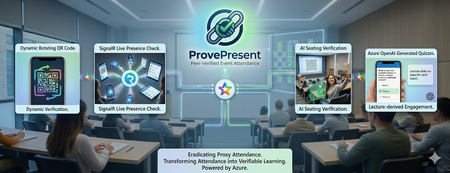
Problem Most schools use a smart‑card‑based attendance system where students tap their cards on a reader. However, this method is unreliable because students can give their cards to friends or simply tap and leave immediately. Teachers cannot accurately assess real student performance—whether high‑performing students are genuinely attending class or whether poor performance is due to actual absence. Another issue is that even if students are physically present in a lecture, teachers still cannot tell whether they are paying attention to the projector or actually learning. The current workaround is for teachers to override the attendance record by calling each student one by one, which is time‑consuming in large lectures and adds little educational value. It is also only a one‑time check, meaning students can still leave the lecture room immediately afterwards. Another issue is that we have many out‑of‑school activities such as site visit, and the school needs to ensure everyone’s presence promptly in each check point. This kind of problem isn’t unique to schools. It’s a common challenge for event organizers, where verifying attendee presence is essential but often slow, causing long queues. Organizers usually rely on a few mobile scanners to check in attendees one by one. Solution ProvePresent is an AI tool designed to verify attendance and create real‑time challenges for participants, ensuring that attendance records are authentic and that attendees remain focused on the presentation. It uses OTP login with school email. Check-in and Check-out With a Real‑time QR Code The code refreshes every 25 seconds, and the presenter can display it on the projector for everyone to scan when checking in at the beginning and checking out at the end of the session. However, this alone cannot prevent someone from capturing the code and sending it to others who are not in the room, or from using two devices to help someone else scan for attendance—even if geolocation checks are enabled. We will explain this next. This check‑in and check‑out process is highly scalable, and no one needs to queue while waiting for someone to scan their QR code! Organizers can set geolocation restrictions to prevent anyone from checking in remotely in a simple manner. Keep Attendee Alive with Signalr The SignalR live connection allows the presenter to create real‑time challenges for attendees, helping to verify their presence and ensure they are genuinely focused on the presentation. AI Powered Live Quiz The presenter shares their presentation screen, and two Microsoft Foundry agents with Azure OpenAI Chatgpt 5.3 —ImageAnalysisAgent, which extracts key information from the shared screen, and QuizQuestionGenerator, which generates simple questions based on the current slide—work together to create challenges. The question is broadcast to all online attendees, who must answer within 20 seconds. This feature keeps attendees on the webpage and prevents them from doing anything unrelated to the presentation. Detailed report can be downloaded for further analysis. Attendee Photo Capture Request all online students to capture and upload photos of their venue view. The system will analyze the images to estimate seating positions using Microsoft Foundry agents with Azure OpenAI ChatGPT 5.3 PositionEstimationAgent and complete an image challenge. When the presenter clicks Capture Attendee Photos, all online attendees are prompted to take a photo and upload it to blob storage. The PositionEstimationAgent then analyzes the image to estimate their seating location, which can provide insights into student performance. Analysis Notes: Analyzed 13 students in 2 overlapping batches. Batch 1: The venue is a computer lab with the projector screen at the front center, whiteboards on the left, and cabinets on the right. Relative depth was estimated mainly from screen size and number of monitor rows visible ahead. Column estimates were inferred from screen angle and side-room features, with lower confidence for the rotated side-view image. Batch 2: These six photos appear to come from the same computer lab with the projector at the front center. Relative depth was estimated mainly from projector size and number of visible desk/monitor rows ahead. Left-right placement was inferred from projector skew and side-wall visibility. Within this batch, 240124734 and 240167285 seem closest to the front, 240286514 and 240158424 are slightly farther back, 240293498 is farther back again, and 240160364 appears furthest. Pass around the QR code attendance sheet Traditionally, the attendance sheet is circulated for attendees to sign, but this method is unreliable because no one monitors the signing process, allowing one attendee to sign for someone who is absent. It is also slow and not scalable for large groups. The QR Code attendance sheet functions as a chain. The presenter randomly distributes a short‑lived, one‑time QR code—representing a virtual attendance sheet—to any number of attendees, just like handing out multiple physical sheets. Each attendee must find another participant to scan their code to record attendance, continuing the chain until the final group of attendees. The presenter then verifies the last group’s presence. The first chain is a dead chain because that student left the venue and cannot find another student to scan his QR code. The second chain contains 20 student attendance records. It also provides useful insights into their friendship and seating patterns. Architecture This project is built using Vibe Coding, so we will not share highly technical details in this post. If you'd like to learn more, leave a comment, and we will write another blog to cover the specifics. GitHub Repo https://github.com/wongcyrus/ProvePresent Conclusion ProvePresent demonstrates how Azure serverless technology and Azure OpenAI can work together to solve a long‑standing problem in education: verifying genuine student presence and engagement. By combining real‑time QR code verification, SignalR‑powered live interactions, AI‑generated quizzes, and intelligent photo‑based seating analysis, we created a system where “being present” is no longer just a checkbox—it becomes a verifiable, interactive, and meaningful part of the learning experience. Instead of relying on outdated smart‑card systems or manual roll calls, educators gain a dynamic tool that keeps students attentive, provides insight into classroom behavior, and produces useful analytics for improving teaching outcomes. Students, in turn, benefit from an engaging, modern attendance experience that aligns with how digital‑native learners expect classes to operate. This is only the beginning. With Microsoft Foundry agents and the flexibility of Azure Functions, there are many opportunities to extend ProvePresent further—richer analytics, smarter engagement models, and seamless integration with LMS platforms. If there’s interest, we’re happy to share more technical details, architectural deep dives, and future roadmap ideas in a follow‑up post. Thank you for the contribution of Microsoft Student Ambassadors Hong Kong Institute of Information Technology (HKIIT) Wong Wing Ho, CHAN Sham Jayson, Pang Ho Shum, and Chan Ka Chun. They are major in Higher Diploma in Cloud and Data Centre Administration. About the Author Cyrus Wong is the senior lecturer of Hong Kong Institute of Information Technology (HKIIT) @ IVE(Lee Wai Lee).and he focuses on teaching public Cloud technologies. He is a passionate advocate for the adoption of cloud technology across various media and events. With his extensive knowledge and expertise, he has earned prestigious recognitions such as AWS Builder Center, Microsoft MVP- Microsoft Foundry, and Google Developer Expert for Google Cloud Platform & AI.206Views0likes0CommentsIntegrating Microsoft Foundry with OpenClaw: Step by Step Model Configuration
Step 1: Deploying Models on Microsoft Foundry Let us kick things off in the Azure portal. To get our OpenClaw agent thinking like a genius, we need to deploy our models in Microsoft Foundry. For this guide, we are going to focus on deploying gpt-5.2-codex on Microsoft Foundry with OpenClaw. Navigate to your AI Hub, head over to the model catalog, choose the model you wish to use with OpenClaw and hit deploy. Once your deployment is successful, head to the endpoints section. Important: Grab your Endpoint URL and your API Keys right now and save them in a secure note. We will need these exact values to connect OpenClaw in a few minutes. Step 2: Installing and Initializing OpenClaw Next up, we need to get OpenClaw running on your machine. Open up your terminal and run the official installation script: curl -fsSL https://openclaw.ai/install.sh | bash The wizard will walk you through a few prompts. Here is exactly how to answer them to link up with our Azure setup: First Page (Model Selection): Choose "Skip for now". Second Page (Provider): Select azure-openai-responses. Model Selection: Select gpt-5.2-codex , For now only the models listed (hosted on Microsoft Foundry) in the picture below are available to be used with OpenClaw. Follow the rest of the standard prompts to finish the initial setup. Step 3: Editing the OpenClaw Configuration File Now for the fun part. We need to manually configure OpenClaw to talk to Microsoft Foundry. Open your configuration file located at ~/.openclaw/openclaw.json in your favorite text editor. Replace the contents of the models and agents sections with the following code block: { "models": { "providers": { "azure-openai-responses": { "baseUrl": "https://<YOUR_RESOURCE_NAME>.openai.azure.com/openai/v1", "apiKey": "<YOUR_AZURE_OPENAI_API_KEY>", "api": "openai-responses", "authHeader": false, "headers": { "api-key": "<YOUR_AZURE_OPENAI_API_KEY>" }, "models": [ { "id": "gpt-5.2-codex", "name": "GPT-5.2-Codex (Azure)", "reasoning": true, "input": ["text", "image"], "cost": { "input": 0, "output": 0, "cacheRead": 0, "cacheWrite": 0 }, "contextWindow": 400000, "maxTokens": 16384, "compat": { "supportsStore": false } }, { "id": "gpt-5.2", "name": "GPT-5.2 (Azure)", "reasoning": false, "input": ["text", "image"], "cost": { "input": 0, "output": 0, "cacheRead": 0, "cacheWrite": 0 }, "contextWindow": 272000, "maxTokens": 16384, "compat": { "supportsStore": false } } ] } } }, "agents": { "defaults": { "model": { "primary": "azure-openai-responses/gpt-5.2-codex" }, "models": { "azure-openai-responses/gpt-5.2-codex": {} }, "workspace": "/home/<USERNAME>/.openclaw/workspace", "compaction": { "mode": "safeguard" }, "maxConcurrent": 4, "subagents": { "maxConcurrent": 8 } } } } You will notice a few placeholders in that JSON. Here is exactly what you need to swap out: Placeholder Variable What It Is Where to Find It <YOUR_RESOURCE_NAME> The unique name of your Azure OpenAI resource. Found in your Azure Portal under the Azure OpenAI resource overview. <YOUR_AZURE_OPENAI_API_KEY> The secret key required to authenticate your requests. Found in Microsoft Foundry under your project endpoints or Azure Portal keys section. <USERNAME> Your local computer's user profile name. Open your terminal and type whoami to find this. Step 4: Restart the Gateway After saving the configuration file, you must restart the OpenClaw gateway for the new Foundry settings to take effect. Run this simple command: openclaw gateway restart Configuration Notes & Deep Dive If you are curious about why we configured the JSON that way, here is a quick breakdown of the technical details. Authentication Differences Azure OpenAI uses the api-key HTTP header for authentication. This is entirely different from the standard OpenAI Authorization: Bearer header. Our configuration file addresses this in two ways: Setting "authHeader": false completely disables the default Bearer header. Adding "headers": { "api-key": "<key>" } forces OpenClaw to send the API key via Azure's native header format. Important Note: Your API key must appear in both the apiKey field AND the headers.api-key field within the JSON for this to work correctly. The Base URL Azure OpenAI's v1-compatible endpoint follows this specific format: https://<your_resource_name>.openai.azure.com/openai/v1 The beautiful thing about this v1 endpoint is that it is largely compatible with the standard OpenAI API and does not require you to manually pass an api-version query parameter. Model Compatibility Settings "compat": { "supportsStore": false } disables the store parameter since Azure OpenAI does not currently support it. "reasoning": true enables the thinking mode for GPT-5.2-Codex. This supports low, medium, high, and xhigh levels. "reasoning": false is set for GPT-5.2 because it is a standard, non-reasoning model. Model Specifications & Cost Tracking If you want OpenClaw to accurately track your token usage costs, you can update the cost fields from 0 to the current Azure pricing. Here are the specs and costs for the models we just deployed: Model Specifications Model Context Window Max Output Tokens Image Input Reasoning gpt-5.2-codex 400,000 tokens 16,384 tokens Yes Yes gpt-5.2 272,000 tokens 16,384 tokens Yes No Current Cost (Adjust in JSON) Model Input (per 1M tokens) Output (per 1M tokens) Cached Input (per 1M tokens) gpt-5.2-codex $1.75 $14.00 $0.175 gpt-5.2 $2.00 $8.00 $0.50 Conclusion: And there you have it! You have successfully bridged the gap between the enterprise-grade infrastructure of Microsoft Foundry and the local autonomy of OpenClaw. By following these steps, you are not just running a chatbot; you are running a sophisticated agent capable of reasoning, coding, and executing tasks with the full power of GPT-5.2-codex behind it. The combination of Azure's reliability and OpenClaw's flexibility opens up a world of possibilities. Whether you are building an automated devops assistant, a research agent, or just exploring the bleeding edge of AI, you now have a robust foundation to build upon. Now it is time to let your agent loose on some real tasks. Go forth, experiment with different system prompts, and see what you can build. If you run into any interesting edge cases or come up with a unique configuration, let me know in the comments below. Happy coding!11KViews2likes2CommentsSmart Auditing: Leveraging Azure AI Agents to Transform Financial Oversight
In today's data-driven business environment, audit teams often spend weeks poring over logs and databases to verify spending and billing information. This time-consuming process is ripe for automation. But is there a way to implement AI solutions without getting lost in complex technical frameworks? While tools like LangChain, Semantic Kernel, and AutoGen offer powerful AI agent capabilities, sometimes you need a straightforward solution that just works. So, what's the answer for teams seeking simplicity without sacrificing effectiveness? This tutorial will show you how to use Azure AI Agent Service to build an AI agent that can directly access your Postgres database to streamline audit workflows. No complex chains or graphs required, just a practical solution to get your audit process automated quickly. The Auditing Challenge: It's the month end, and your audit team is drowning in spreadsheets. As auditors reviewing financial data across multiple SaaS tenants, you're tasked with verifying billing accuracy by tracking usage metrics like API calls, storage consumption, and user sessions in Postgres databases. Each tenant generates thousands of transactions daily, and traditionally, this verification process consumes weeks of your team's valuable time. Typically, teams spend weeks: Manually extracting data from multiple database tables. Cross-referencing usage with invoices. Investigating anomalies through tedious log analysis. Compiling findings into comprehensive reports. With an AI-powered audit agent, you can automate these tasks and transform the process. Your AI assistant can: Pull relevant usage data directly from your database Identify billing anomalies like unexpected usage spikes Generate natural language explanations of findings Create audit reports that highlight key concerns For example, when reviewing a tenant's invoice, your audit agent can query the database for relevant usage patterns, summarize anomalies, and offer explanations: "Tenant_456 experienced a 145% increase in API usage on April 30th, which explains the billing increase. This spike falls outside normal usage patterns and warrants further investigation." Let’s build an AI agent that connects to your Postgres database and transforms your audit process from manual effort to automated intelligence. Prerequisites: Before we start building our audit agent, you'll need: An Azure subscription (Create one for free). The Azure AI Developer RBAC role assigned to your account. Python 3.11.x installed on your development machine. OR You can also use GitHub Codespaces, which will automatically install all dependencies for you. You’ll need to create a GitHub account first if you don’t already have one. Setting Up Your Database: For this tutorial, we'll use Neon Serverless Postgres as our database. It's a fully managed, cloud-native Postgres solution that's free to start, scales automatically, and works excellently for AI agents that need to query data on demand. Creating a Neon Database on Azure: Open the Neon Resource page on the Azure portal Fill out the form with the required fields and deploy your database After creation, navigate to the Neon Serverless Postgres Organization service Click on the Portal URL to access the Neon Console Click "New Project" Choose an Azure region Name your project (e.g., "Audit Agent Database") Click "Create Project" Once your project is successfully created, copy the Neon connection string from the Connection Details widget on the Neon Dashboard. It will look like this: postgresql://[user]:[password]@[neon_hostname]/[dbname]?sslmode=require Note: Keep this connection string saved; we'll need it shortly. Creating an AI Foundry Project on Azure: Next, we'll set up the AI infrastructure to power our audit agent: Create a new hub and project in the Azure AI Foundry portal by following the guide. Deploy a model like GPT-4o to use with your agent. Make note of your Project connection string and Model Deployment name. You can find your connection string in the overview section of your project in the Azure AI Foundry portal, under Project details > Project connection string. Once you have all three values on hand: Neon connection string, Project connection string, and Model Deployment Name, you are ready to set up the Python project to create an Agent. All the code and sample data are available in this GitHub repository. You can clone or download the project. Project Environment Setup: Create a .env file with your credentials: PROJECT_CONNECTION_STRING="<Your AI Foundry connection string> "AZURE_OPENAI_DEPLOYMENT_NAME="gpt4o" NEON_DB_CONNECTION_STRING="<Your Neon connection string>" Create and activate a virtual environment: python -m venv .venv source .venv/bin/activate # on macOS/Linux .venv\Scripts\activate # on Windows Install required Python libraries: pip install -r requirements.txt Example requirements.txt: Pandas python-dotenv sqlalchemy psycopg2-binary azure-ai-projects ==1.0.0b7 azure-identity Load Sample Billing Usage Data: We will use a mock dataset for tenant usage, including computed percent change in API calls and storage usage in GB: tenant_id date api_calls storage_gb tenant_456 2025-04-01 1000 25.0 tenant_456 2025-03-31 950 24.8 tenant_456 2025-03-30 2200 26.0 Run python load_usage_data.py Python script to create and populate the usage_data table in your Neon Serverless Postgres instance: # load_usage_data.py file import os from dotenv import load_dotenv from sqlalchemy import ( create_engine, MetaData, Table, Column, String, Date, Integer, Numeric, ) # Load environment variables from .env load_dotenv() # Load connection string from environment variable NEON_DB_URL = os.getenv("NEON_DB_CONNECTION_STRING") engine = create_engine(NEON_DB_URL) # Define metadata and table schema metadata = MetaData() usage_data = Table( "usage_data", metadata, Column("tenant_id", String, primary_key=True), Column("date", Date, primary_key=True), Column("api_calls", Integer), Column("storage_gb", Numeric), ) # Create table with engine.begin() as conn: metadata.create_all(conn) # Insert mock data conn.execute( usage_data.insert(), [ { "tenant_id": "tenant_456", "date": "2025-03-27", "api_calls": 870, "storage_gb": 23.9, }, { "tenant_id": "tenant_456", "date": "2025-03-28", "api_calls": 880, "storage_gb": 24.0, }, { "tenant_id": "tenant_456", "date": "2025-03-29", "api_calls": 900, "storage_gb": 24.5, }, { "tenant_id": "tenant_456", "date": "2025-03-30", "api_calls": 2200, "storage_gb": 26.0, }, { "tenant_id": "tenant_456", "date": "2025-03-31", "api_calls": 950, "storage_gb": 24.8, }, { "tenant_id": "tenant_456", "date": "2025-04-01", "api_calls": 1000, "storage_gb": 25.0, }, ], ) print("✅ usage_data table created and mock data inserted.") Create a Postgres Tool for the Agent: Next, we configure an AI agent tool to retrieve data from Postgres. The Python script billing_agent_tools.py contains: The function billing_anomaly_summary() that: Pulls usage data from Neon. Computes % change in api_calls. Flags anomalies with a threshold of > 1.5x change. Exports user_functions list for the Azure AI Agent to use. You do not need to run it separately. # billing_agent_tools.py file import os import json import pandas as pd from sqlalchemy import create_engine from dotenv import load_dotenv # Load environment variables load_dotenv() # Set up the database engine NEON_DB_URL = os.getenv("NEON_DB_CONNECTION_STRING") db_engine = create_engine(NEON_DB_URL) # Define the billing anomaly detection function def billing_anomaly_summary( tenant_id: str, start_date: str = "2025-03-27", end_date: str = "2025-04-01", limit: int = 10, ) -> str: """ Fetches recent usage data for a SaaS tenant and detects potential billing anomalies. :param tenant_id: The tenant ID to analyze. :type tenant_id: str :param start_date: Start date for the usage window. :type start_date: str :param end_date: End date for the usage window. :type end_date: str :param limit: Maximum number of records to return. :type limit: int :return: A JSON string with usage records and anomaly flags. :rtype: str """ query = """ SELECT date, api_calls, storage_gb FROM usage_data WHERE tenant_id = %s AND date BETWEEN %s AND %s ORDER BY date DESC LIMIT %s; """ df = pd.read_sql(query, db_engine, params=(tenant_id, start_date, end_date, limit)) if df.empty: return json.dumps( {"message": "No usage data found for this tenant in the specified range."} ) df.sort_values("date", inplace=True) df["pct_change_api"] = df["api_calls"].pct_change() df["anomaly"] = df["pct_change_api"].abs() > 1.5 return df.to_json(orient="records") # Register this in a list to be used by FunctionTool user_functions = [billing_anomaly_summary] Create and Configure the AI Agent: Now we'll set up the AI agent and integrate it with our Neon Postgres tool using the Azure AI Agent Service SDK. The Python script does the following: Creates the agent Instantiates an AI agent using the selected model (gpt-4o, for example), adds tool access, and sets instructions that tell the agent how to behave (e.g., “You are a helpful SaaS assistant…”). Creates a conversation thread A thread is started to hold a conversation between the user and the agent. Posts a user message Sends a question like “Why did my billing spike for tenant_456 this week?” to the agent. Processes the request The agent reads the message, determines that it should use the custom tool to retrieve usage data, and processes the query. Displays the response Prints the response from the agent with a natural language explanation based on the tool’s output. # billing_anomaly_agent.py import os from datetime import datetime from azure.ai.projects import AIProjectClient from azure.identity import DefaultAzureCredential from azure.ai.projects.models import FunctionTool, ToolSet from dotenv import load_dotenv from pprint import pprint from billing_agent_tools import user_functions # Custom tool function module # Load environment variables from .env file load_dotenv() # Create an Azure AI Project Client project_client = AIProjectClient.from_connection_string( credential=DefaultAzureCredential(), conn_str=os.environ["PROJECT_CONNECTION_STRING"], ) # Initialize toolset with our user-defined functions functions = FunctionTool(user_functions) toolset = ToolSet() toolset.add(functions) # Create the agent agent = project_client.agents.create_agent( model=os.environ["AZURE_OPENAI_DEPLOYMENT_NAME"], name=f"billing-anomaly-agent-{datetime.now().strftime('%Y%m%d%H%M')}", description="Billing Anomaly Detection Agent", instructions=f""" You are a helpful SaaS financial assistant that retrieves and explains billing anomalies using usage data. The current date is {datetime.now().strftime("%Y-%m-%d")}. """, toolset=toolset, ) print(f"Created agent, ID: {agent.id}") # Create a communication thread thread = project_client.agents.create_thread() print(f"Created thread, ID: {thread.id}") # Post a message to the agent thread message = project_client.agents.create_message( thread_id=thread.id, role="user", content="Why did my billing spike for tenant_456 this week?", ) print(f"Created message, ID: {message.id}") # Run the agent and process the query run = project_client.agents.create_and_process_run( thread_id=thread.id, agent_id=agent.id ) print(f"Run finished with status: {run.status}") if run.status == "failed": print(f"Run failed: {run.last_error}") # Fetch and display the messages messages = project_client.agents.list_messages(thread_id=thread.id) print("Messages:") pprint(messages["data"][0]["content"][0]["text"]["value"]) # Optional cleanup: # project_client.agents.delete_agent(agent.id) # print("Deleted agent") Run the agent: To run the agent, run the following command python billing_anomaly_agent.py Snippet of output from agent: Using the Azure AI Foundry Agent Playground: After running your agent using the Azure AI Agent SDK, it is saved within your Azure AI Foundry project. You can now experiment with it using the Agent Playground. To try it out: Go to the Agents section in your Azure AI Foundry workspace. Find your billing anomaly agent in the list and click to open it. Use the playground interface to test different financial or billing-related questions, such as: “Did tenant_456 exceed their API usage quota this month?” “Explain recent storage usage changes for tenant_456.” This is a great way to validate your agent's behavior without writing more code. Summary: You’ve now created a working AI agent that talks to your Postgres database, all using: A simple Python function Azure AI Agent Service A Neon Serverless Postgres backend This approach is beginner-friendly, lightweight, and practical for real-world use. Want to go further? You can: Add more tools to the agent Integrate with vector search (e.g., detect anomaly reasons from logs using embeddings) Resources: Introduction to Azure AI Agent Service Develop an AI agent with Azure AI Agent Service Getting Started with Azure AI Agent Service Neon on Azure Build AI Agents with Azure AI Agent Service and Neon Multi-Agent AI Solution with Neon, Langchain, AutoGen and Azure OpenAI Azure AI Foundry GitHub Discussions That's it, folks! But the best part? You can become part of a thriving community of learners and builders by joining the Microsoft Learn Student Ambassadors Community. Connect with like-minded individuals, explore hands-on projects, and stay updated with the latest in cloud and AI. 💬 Join the community on Discord here and explore more benefits on the Microsoft Learn Student Hub.1KViews5likes1CommentAI Agents: Metacognition for Self-Aware Intelligence - Part 9
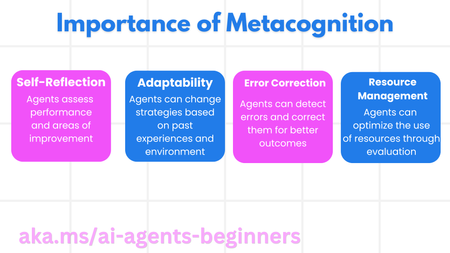
This blog post, Part 9 in a series on AI agents, introduces the concept of metacognition, or "thinking about thinking," and its application to AI agents. It explains how metacognition enables agents to self-evaluate, adapt, and improve their performance. The post outlines the key components of an AI agent and illustrates metacognition with a travel agent example, demonstrating how it can enhance planning, error correction, and personalization. The post also discusses the Corrective RAG approach and demonstrates code snippets.1.2KViews0likes0Comments