agent support
24 TopicsDistributing Agents to Microsoft Teams and Microsoft 365 Copilot Part 4/5
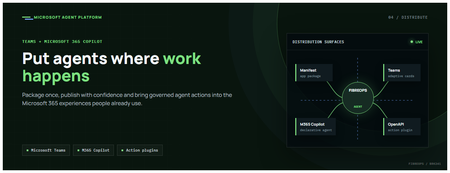
This is the fourth post in our series on the Microsoft agent platform. We cover the Distribute in M365 pillar — publishing your agents to Microsoft Teams and Microsoft 365 Copilot so they reach users where they already work. All examples reference the FibreOps repository, demonstrated at Microsoft Build BRK241. The Distribution Story Building a great agent is only half the challenge. The other half is getting it into the hands of users without asking them to learn a new tool, visit a new URL, or change their workflow. Microsoft 365 Copilot and Microsoft Teams are where enterprise users already spend their day, making them the natural distribution surface for agents. With the GA release, publishing an agent to Teams and M365 Copilot is a single command. No separate app registration portal, no manual manifest assembly, no multi-step approval workflow for development and testing. Publishing to Microsoft 365 Copilot (GA) FibreOps ships as a declarative agent + action plugin ready for sideload. A single CLI command produces the complete package: python -m fibreops.demo publish-m365 --out dist/m365 # Output: # ✓ wrote dist/m365/declarativeAgent.json # ✓ wrote dist/m365/fibreops-action.json # ✓ wrote dist/m365/manifest.json # ✓ wrote dist/m365/color.png (192x192) # ✓ wrote dist/m365/outline.png ( 32x32) # ✓ wrote dist/m365/fibreops-copilot.zip What Gets Generated File Purpose declarativeAgent.json Defines the agent's persona, capabilities, and conversation starters for M365 Copilot fibreops-action.json Action plugin that proxies tool calls to the deployed FastAPI backend via OpenAPI manifest.json Teams app manifest with publisher metadata, permissions, and capabilities color.png / outline.png App icons for Teams and M365 surfaces fibreops-copilot.zip Ready-to-upload package for Teams Admin Center Configuration Set the base URL to your deployed FastAPI app before publishing — the action plugin uses this to resolve the OpenAPI runtime: # Set the public HTTPS hostname of the deployed FastAPI app $env:M365_ACTION_BASE_URL = "https://fibreops-demo.azurewebsites.net" # Optional: customise publisher metadata $env:M365_PUBLISHER_NAME = "Contoso Network Operations" $env:M365_PUBLISHER_WEBSITE = "https://contoso.com/noc" # Generate the package python -m fibreops.demo publish-m365 --out dist/m365 Environment Variable Purpose M365_ACTION_BASE_URL Public HTTPS root for the FastAPI /openapi.json (e.g., Container Apps FQDN) M365_APP_ID Override the generated Teams app GUID (default: deterministic per repo) M365_PUBLISHER_NAME Publisher name shown in M365 Admin Center M365_PUBLISHER_WEBSITE Publisher website link Uploading the Package Upload the generated fibreops-copilot.zip through either path: Teams Admin Center → Manage apps → Upload new app M365 Admin Center → Integrated apps → Upload custom apps Once uploaded, the declarative agent: Inherits the publisher metadata you configured Advertises conversation starters from the FibreOps deck (e.g., "What is the current outage status?", "Dispatch an engineer to FN-LDN-001") Proxies tool calls to the deployed FastAPI app via the action plugin Appears in Microsoft 365 Copilot as a specialised agent users can invoke How Declarative Agents Work A declarative agent in Microsoft 365 Copilot is defined by metadata rather than code running in the M365 surface. The intelligence lives in your backend — Copilot handles the conversational UX, tool orchestration schema, and user authentication. The flow: User invokes the agent in Microsoft 365 Copilot or Teams Copilot renders conversation starters and accepts natural language input When the agent needs to act, Copilot calls the action plugin (your OpenAPI endpoint) Your FastAPI backend processes the request using the full agent pipeline Results return to the user in the Copilot/Teams UX This architecture means your agent logic stays in one place — the backend. The M365 surface is purely a distribution and interaction layer. Action Plugins and OpenAPI The action plugin ( fibreops-action.json ) references your FastAPI app's /openapi.json endpoint. FibreOps exposes a JSON API that the action plugin can call: /api/runs — List and query agent runs /api/optimiser — Get optimizer scores and suggestions /sdk/chat — Natural language interaction with the agent system /healthz — Liveness probe Because FastAPI auto-generates OpenAPI schemas from your typed Python endpoints, the action plugin gets accurate parameter descriptions, response schemas, and error codes without any manual specification work. Publishing as Autopilots (Public Preview) Autopilots take distribution one step further — agents that operate autonomously without requiring a user to initiate each interaction. An Autopilot can: React to events (e.g., a critical telemetry signal) without human initiation Take actions within defined guardrails Notify users only when human intervention is needed Operate continuously across Microsoft 365 surfaces For FibreOps, an Autopilot would monitor the Event Hub stream continuously and only surface to the NOC team when an incident exceeds automated resolution capability — a fully autonomous operations agent. Teams Adaptive Cards FibreOps posts rich Adaptive Card notifications to Microsoft Teams throughout the agent pipeline. This is separate from the declarative agent — it is a push notification channel for real-time operational awareness. # The NetOps agent posts an outage notice via Incoming Webhook def post_outage_notice(incident_id, node_id, severity, summary, engineer=None): card = { "type": "AdaptiveCard", "body": [ {"type": "TextBlock", "text": f"🚨 Outage: {node_id}", "weight": "Bolder", "size": "Large"}, {"type": "FactSet", "facts": [ {"title": "Severity", "value": severity.upper()}, {"title": "Incident", "value": incident_id}, {"title": "Summary", "value": summary}, ]}, ], "actions": [ {"type": "Action.OpenUrl", "title": "View in NOC Console", "url": f"{base_url}/runs/{incident_id}"} ] } # POST to Teams webhook or append to outbox for offline mode ... If TEAMS_WEBHOOK_URL is not configured, cards are appended to state/teams_outbox.jsonl for review in the NOC console's Teams panel. End-to-End: From Code to Copilot Here is the complete flow from development to distribution: Build — Develop agents with Microsoft Agent Framework, test locally with python -m fibreops.demo --backend local Publish agents — python -m fibreops.demo publish creates hosted Prompt Agents in Foundry Deploy infrastructure — azd up provisions App Service, ACR, Event Hub, Key Vault, and Application Insights Deploy hosted agent — azd env set FIBREOPS_DEPLOY_HOSTED true && azd up Generate M365 package — python -m fibreops.demo publish-m365 --out dist/m365 Upload to Teams — Upload fibreops-copilot.zip via Teams Admin Center Users interact — The agent is now available in Microsoft 365 Copilot and Teams Security Considerations Managed Identity — The deployed app uses system-assigned managed identity for all Azure service access. No secrets in code. Least privilege — Each role grant is scoped to the minimum required (Event Hubs Data Owner, Key Vault Secrets User, AcrPull, Azure AI Developer). Authentication — The M365 Copilot surface handles user authentication; your backend receives authenticated requests. Guardrails — Autopilots operate within defined boundaries; human-in-the-loop escalation is built into the Routine and agent decision logic. Key Takeaways Publishing to Teams and M365 Copilot is GA — a single command generates the complete package. Declarative agents separate distribution (M365) from intelligence (your backend). Action plugins leverage your existing FastAPI OpenAPI schema — no manual specification needed. Autopilots (Public Preview) enable fully autonomous operation within guardrails. Adaptive Cards provide real-time push notifications alongside the conversational agent surface. The same backend serves the NOC console, the Copilot SDK, and the M365 declarative agent. Next Steps Explore the FibreOps repository — try python -m fibreops.demo publish-m365 Microsoft 365 Copilot extensibility documentation Next in this series: Voice Live and Observability for Production Agent SystemsMastering Query Fields in Azure AI Document Intelligence with C#
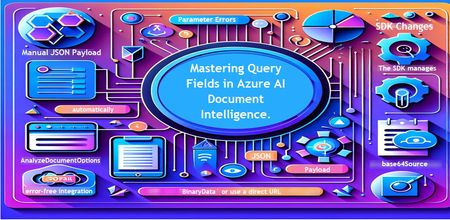
Introduction Azure AI Document Intelligence simplifies document data extraction, with features like query fields enabling targeted data retrieval. However, using these features with the C# SDK can be tricky. This guide highlights a real-world issue, provides a corrected implementation, and shares best practices for efficient usage. Use case scenario During the cause of Azure AI Document Intelligence software engineering code tasks or review, many developers encountered an error while trying to extract fields like "FullName," "CompanyName," and "JobTitle" using `AnalyzeDocumentAsync`: The error might be similar to Inner Error: The parameter urlSource or base64Source is required. This is a challenge referred to as parameter errors and SDK changes. Most problematic code are looks like below in C#: BinaryData data = BinaryData.FromBytes(Content); var queryFields = new List<string> { "FullName", "CompanyName", "JobTitle" }; var operation = await client.AnalyzeDocumentAsync( WaitUntil.Completed, modelId, data, "1-2", queryFields: queryFields, features: new List<DocumentAnalysisFeature> { DocumentAnalysisFeature.QueryFields } ); One of the reasons this failed was that the developer was using `Azure.AI.DocumentIntelligence v1.0.0`, where `base64Source` and `urlSource` must be handled internally. Because the older examples using `AnalyzeDocumentContent` no longer apply and leading to errors. Practical Solution Using AnalyzeDocumentOptions. Alternative Method using manual JSON Payload. Using AnalyzeDocumentOptions The correct method involves using AnalyzeDocumentOptions, which streamlines the request construction using the below steps: Prepare the document content: BinaryData data = BinaryData.FromBytes(Content); Create AnalyzeDocumentOptions: var analyzeOptions = new AnalyzeDocumentOptions(modelId, data) { Pages = "1-2", Features = { DocumentAnalysisFeature.QueryFields }, QueryFields = { "FullName", "CompanyName", "JobTitle" } }; - `modelId`: Your trained model’s ID. - `Pages`: Specify pages to analyze (e.g., "1-2"). - `Features`: Enable `QueryFields`. - `QueryFields`: Define which fields to extract. Run the analysis: Operation<AnalyzeResult> operation = await client.AnalyzeDocumentAsync( WaitUntil.Completed, analyzeOptions ); AnalyzeResult result = operation.Value; The reason this works: The SDK manages `base64Source` automatically. This approach matches the latest SDK standards. It results in cleaner, more maintainable code. Alternative method using manual JSON payload For advanced use cases where more control over the request is needed, you can manually create the JSON payload. For an example: var queriesPayload = new { queryFields = new[] { new { key = "FullName" }, new { key = "CompanyName" }, new { key = "JobTitle" } } }; string jsonPayload = JsonSerializer.Serialize(queriesPayload); BinaryData requestData = BinaryData.FromString(jsonPayload); var operation = await client.AnalyzeDocumentAsync( WaitUntil.Completed, modelId, requestData, "1-2", features: new List<DocumentAnalysisFeature> { DocumentAnalysisFeature.QueryFields } ); When to use the above: Custom request formats Non-standard data source integration Key points to remember Breaking changes exist between preview versions and v1.0.0 by checking the SDK version. Prefer `AnalyzeDocumentOptions` for simpler, error-free integration by using built-In classes. Ensure your content is wrapped in `BinaryData` or use a direct URL for correct document input: Conclusion Using AnalyzeDocumentOptions provides a cleaner and more reliable way to work with query fields in Azure AI Document Intelligence using C#. By aligning with the latest SDK approach, developers can simplify implementation, reduce common errors, and improve code maintainability. Keeping up with SDK enhancements and recommended practices ensures more accurate and efficient document data extraction. As Azure AI capabilities continue to evolve, adopting modern integration patterns will help you build scalable and future-ready document processing solutions with greater confidence. Reference Official AnalyzeDocumentAsync Documentation. Official Azure SDK documentation. Azure Document Intelligence C# SDK support add-on query field.642Views0likes0Comments
Building Agentic Systems on Azure: Microsoft Foundry Agents SDK vs Microsoft Agent Framework
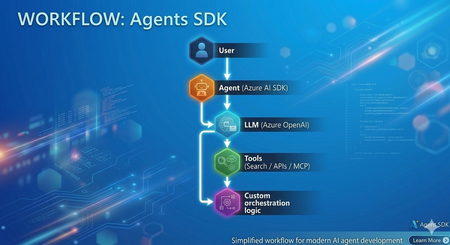
In my recent experience as a Senior Consultant at Microsoft, I’ve been actively involved in designing and delivering AI-driven solutions, with a strong focus on building intelligent agents using modern frameworks. Along the way, I've built agents using both Microsoft Foundry Agents SDK (hereafter "Agents SDK") and Microsoft Agent Framework (MAF) Both approaches are powerful and capable. However, once you move beyond simple proofs of concept, the developer experience and architectural patterns start to differ significantly. This article provides a practical comparison based on real implementation experience and aims to help developers choose the right approach. Approach 1: Agents SDK Agents SDK provides a straightforward way to create agents with integrated tools and models. Example: Creating an Agent from azure.ai.projects import AIProjectClient from azure.ai.agents.models import AzureAISearchTool, AzureAISearchQueryType from azure.identity import DefaultAzureCredential client = AIProjectClient(credential=DefaultAzureCredential(), endpoint=os.getenv("AZURE_AI_PROJECT_ENDPOINT")) # Configure tools ai_search = AzureAISearchTool( index_connection_id=conn_id, index_name="my-index", query_type=AzureAISearchQueryType.SEMANTIC, ) # Create agent (persisted in Foundry portal) agent = client.agents.create_agent( model=os.getenv("AZURE_AI_AGENT_DEPLOYMENT_NAME"), name="MyAgent", instructions="You are a helpful assistant.", tool_resources=ai_search.resources, tools=ai_search.definitions, ) # Run conversation thread = client.agents.threads.create() client.agents.messages.create(thread_id=thread.id, role="user", content="Hello") run = client.agents.runs.create(thread_id=thread.id, agent_id=agent.id) What this approach provides Native integration with Azure AI services (OpenAI, AI Search, MCP) Managed execution environment Simple and quick agent setup Conceptually, this approach can be summarized as: Model + Tools + Execution Strengths ✅ Rapid development and onboarding ✅ Strong integration within the Azure ecosystem ✅ Well-suited for single-agent or tool-driven use cases ✅ Minimal infrastructure overhead Challenges observed in practice As the complexity of scenarios increases, certain limitations become more visible: Multi-agent workflows require custom orchestration logic Agent handoffs must be implemented manually Context sharing across agents requires additional design effort While this approach offers flexibility, it shifts orchestration complexity to the developer. Approach 2: Microsoft Agent Framework (MAF) Microsoft Agent Framework introduces a higher-level abstraction, focused on agent orchestration and system design. Creating an Agent from agent_framework import Agent, WorkflowBuilder, Message from agent_framework.foundry import FoundryChatClient from azure.identity import DefaultAzureCredential client = FoundryChatClient( project_endpoint=os.getenv("FOUNDRY_PROJECT_ENDPOINT"), model=os.getenv("FOUNDRY_MODEL_DEPLOYMENT_NAME"), credential=DefaultAzureCredential(), ) # Create agents (in-process only, not persisted in portal) researcher = Agent(client, name="ResearcherAgent", instructions="Research topics thoroughly.") writer = Agent(client, name="WriterAgent", instructions="Write concise summaries.") # Build and run multi-agent workflow workflow = WorkflowBuilder(start_executor=researcher).add_edge(researcher, writer).build() async for event in workflow.run(Message("user", "Summarize migration best practices"), stream=True): print(event.content) What this approach provides Built-in orchestration capabilities Native support for multi-agent workflows Structured agent lifecycle management Context and memory handling Conceptually, this can be viewed as: Agents + Orchestration + System Design Observations from implementation When implementing similar use cases using MAF: Agent responsibilities became clearly defined Routing and delegation patterns were significantly simplified Overall system architecture became easier to maintain and scale This approach encourages thinking in terms of agent ecosystems rather than isolated agents. Architecture Comparison Agents SDK Microsoft Agent Framework (MAF) Choosing the Right Approach Use Agents SDK when: You need rapid development for a single-agent use case The workflow is relatively straightforward You prefer flexibility and lower-level control Use Microsoft Agent Framework when: You are designing multi-agent systems Your solution requires routing, delegation, or handoffs Long-term scalability and maintainability are essential Pros and Cons Summary Agents SDK Pros Easy to get started Strong Azure integration Flexible design Cons Manual orchestration required Limited native multi-agent support Complexity increases as scenarios grow Microsoft Agent Framework (MAF) Pros Built-in orchestration Native multi-agent support Scalable and structured architecture Cons Learning curve for new developers More opinionated framework design Reduced low-level control compared to SDK-based approach References and Repositories 🔗 Microsoft Agent Framework (MAF) Microsoft Agent Framework – GitHub Repository Microsoft Agent Framework Samples – Tutorials & Examples Workflow Samples (Multi-agent patterns) FoundryChatClient sample (Python) Agent Framework demos - GitHub Source 📘 Documentation Microsoft Agent Framework Overview (Microsoft Learn) Agent Framework + Microsoft Foundry provider docs 🔗 Azure AI Projects / Agents SDK Azure AI Projects SDK – Python (GitHub Source) Azure AI Projects Agents (.NET SDK repo) 📘 Documentation Azure AI Projects SDK (Python) – Microsoft Learn Azure AI Agents SDK – Microsoft Learn Conclusion Azure AI Projects and Microsoft Agent Framework both play important roles in the modern agent development landscape. Agents SDK enables quick and flexible agent development Microsoft Agent Framework enables structured, scalable agent systems In practice, the choice depends on whether you are building a single agent feature or a multi-agent system. Final Thought Agents SDK helps you get started quickly. Microsoft Agent Framework helps you scale with confidence In a follow-up blog, I’ll dive into how the M365 Agents SDK compares with Microsoft Agent Framework, especially in the context of enterprise productivity and Copilot experiences.
Building a GitHub Copilot Agent Usage Dashboard
Introduction Working with organisations that are attempting to create GitHub Copilot custom agents, take-up of these agents by their community becomes important to know. Some questions quickly emerge are "how well are we actually using it?", "which agents are getting used and which have not had that much traction?". Native metrics provide high-level insights into adoption, but they lack the depth needed to answer more granular questions—such as which agent workflows are most used, or how behaviour evolves over time. In this post, I’ll walk through how to build an enterprise-grade GitHub Copilot usage dashboard that captures detailed telemetry from VS Code using OpenTelemetry, processes it in Azure Monitor, and visualises insights in Grafana—all using a reproducible, infrastructure-as-code approach. The dashboard can be made available to anyone that needs it. Architecture VS Code can be configured to emit metrics using Open Telemetry as a standard. This is a configuration item in VS Code and you essentially point it to an Open Telemetry Collector. The collector is an endpoint that can consume the telemetry. In this implementation, it is a container image that is hosted in Azure and I have chosen Azure Container Apps (ACA) for this purpose as it is an easy to use managed environment - but it could also run in Azure Kubernetes Service (AKS) with a little more effort. There is a prebuilt image opentelemetry collector for this and this has been adapted to inject configuration to send the telemetry to Azure Application Insights. For defining and hosting the dashboard, I have chosen another Azure managed service Azure Managed Grafana Sample Dashboard The sample dashboard is one that contains a collection of visualisations derived from the collected data in Application Insights. Azure Managed Grafana allows you to visually author these dashboards or they can be implemented as a JSON file and adapted from there. Note that the telemetry generated by VS Code gives the location of the users - city, region and country, but does not include any personally-identifying information (PII) and so cannot be used to track individuals. As I understand it, this is by design. Managed Grafana has its own permission structure, which may then be used to give users access to the dashboard. Implementation Details There is a GitHub repo Copilot Usage Dashboard that contains details of how to implement this together with instructions for either "click-ops" 🙂creation or via Terraform. So I suggest you follow the link to my repo to look at the details. In summary, there needs to be in Azure: Azure Container App (ACA) that hosts the collector - this needs to have public ingress Azure Container Registry (ACR) that hosts the docker image that is customised via the Dockerfile Key Vault that hosts the Application Insights connection string that ACA references Application Insights - this needs to be created with a flag to allow it to work with Grafana data Log Analytics Workspace that works with Application Insights Azure Managed Grafana to host the Grafana dashboard The main thing to bear in mind is that VS Code needs to be configured to emit OpenTelemetry { "github.copilot.nextEditSuggestions.enabled": true, "github.copilot.chat.otel.enabled": true, "github.copilot.chat.otel.exporterType": "otlp-http", "github.copilot.chat.otel.otlpEndpoint": "https://<fqdn>" } where the FQDN is the URL of the public ingress to the Azure Container App. There is a Dockerfile in this repo that just injects the correct configuration file into the OpenTelemetry collector image. It is this configuration file that tells the collector to emit to Application Insights. It is of the form below: receivers: otlp: protocols: grpc: endpoint: 0.0.0.0:4317 http: endpoint: 0.0.0.0:4318 processors: batch: attributes: actions: - key: environment value: "prod" action: upsert exporters: azuremonitor: connection_string: "${APPLICATIONINSIGHTS_CONNECTION_STRING}" debug: verbosity: detailed service: pipelines: traces: receivers: [otlp] processors: [batch, attributes] exporters: [azuremonitor, debug] metrics: receivers: [otlp] processors: [batch, attributes] exporters: [azuremonitor] As can be seen above, there is a placeholder for the Application Insights connection string - in the ACA configuration this is an environment variable that then points to a secret which is in key vault. If all is well, VS Code will emit telemetry to the container image running in ACA and this will use its configuration to send to Application Insights. The Grafana dashboard then using this data. Troubleshooting The GitHub repo goes into the detail of troubleshooting, but the overall steps to troubleshoot are: If there is no data in Grafana, check that Grafana has access to Application Insights check whether there is telemetry being pushed into Application Insights by looking at the logs and looking for the contents of the table Dependencies. If there is telemetry there, then it is Grafana permissions. If not, look to ACA Look at ACA logs to see if it is healthy and look to see if there is any logs being received Use a curl request to send a fake log to ACA (a sample is in the repo) to see if the ACA is accepting logs Check the connection to Application Insights is correct and is being pulled from key vault or replace the environment variable value with the connection string directly If all good so far, then it may be that the configuration in VS Code is not correct or in the correct place. Hopefully the more detailed steps will resolve any issues quickly. Further thoughts and enhancements This implementation attempts to build a dashboard showing GitHub Copilot agent usage using a standard set of security controls, but more may be needed. Here is a list of possible enhancements: A more refined dashboard. This should be easy as there are samples for all sorts of visualisations and few of these may allow more focus on agent and model usage. the ACA-hosted OpenTelemetry collector has a public-facing ingress. This may need to be locked-down at the network level by address restriction or by a non-public ingress. Care would need to be taken to make sure that this is then visible/reachable to the intended VS Code user audience The ACA collector endpoint is not authenticated in of itself. This could be achieved at the container level by putting an authenticating proxy in the Dockerfile or at the ACA ingress level. Some investigation would be needed to see how the VS Code configuration could work with this and this may dictate largely what form this authentication can take. How the VS Code configuration changes can be automated for a user base has not been investigated as part of this work. It is assumed that an organisation may be able to roll-out these changes using their application deployment automation. Summary This approach provides a means by which an organisation can track the usage of GitHub Copilot agents (and their models), that is not provided by GitHub Enterprise dashboards. This will provide insights into the take up of custom agents and their underlying models - allowing an organisation to test whether their investments on custom agents are being used effectively. Additionally, the dashboards themselves can easily be rolled-out to a wider community than GitHub Enterprise one.How to Visualize Your Azure AI Workloads Usage for Observability
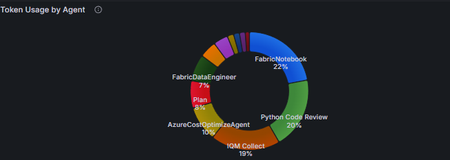
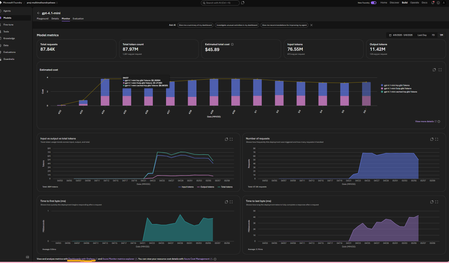
This article assumes you already have an Azure Foundry project and resource deployed in Microsoft Foundry. The options referenced here are documented in detail in the linked articles; this post serves as a consolidated step by step guide bringing them all together and explaining where each option is most useful. A Summary: Need Best Option Quick day-over-day visual, minimal setup Grafana Dashboard (Option 3) Custom growth % calculations App Insights + KQL in Log Analytics (Option 4) Shareable, interactive report Azure Workbooks (Option 5) Per-user/per-agent granularity APIM + App Insights (Option 6) Quick one-off chart, export to Excel Microsoft Foundry Monitor tab or App Insights Metrics Explorer (Option 1 and 2) Option 1. Within the Microsoft Foundry Portal (Quickest, No Setup) If you have models deployed in Microsoft Foundry and would like to monitor its usage, go to the New Foundry Portal → Build → Models → Monitor tab. View metrics such as: Estimated cost Total token usage Input vs. output tokens Number of requests This is the simplest way to monitor both model and agent usage. For PAYG plans: You can also view your total allocated quota (and figure out which Tier you are on) using the Quota Management Screen (New Foundry Portal → Operate → Quota tab). This screen shows how much your total allocated quota is, per model in a given subscription + region + Deployment Type (Global, Data Zones or Regional). For eg., in the image below, for gpt-4o, I am allocated 7M total TPM in my subscription. I am only using 150K TPM of the allocated 7M TPM amount. Which means, my requests will get throttled if I exceed the 150K TPM limit. To avoid throttling, I would need to increase my shared allocation limit. NOTE: you are charged for usage, so if you allow more capacity, you use more, so you pay more. Option 2: Azure Monitor Metrics Explorer This is already built into the Azure Portal and gives you time-series charts out of the box. Go to Azure Portal → your Azure OpenAI / Foundry resource → Monitoring → Metrics Select a metric like AzureOpenAIRequests or TokenTransaction Set Aggregation to Sum (total) or Max and Time granularity to 1 day Split by ModelDeploymentName to see per-model trends Adjust the time range (e.g., last 30 days) — you'll see day-over-day bars/lines Tip: You can pin these charts to an Azure Dashboard for a persistent view, or click Share → Download to Excel to get the raw data for your own analysis. Option 3: Azure Managed Grafana (Best Pre-Built Dashboard) This is the best option for a polished, real-time, day-over-day dashboard with no custom code. There's a pre-built AI Foundry dashboard ready to import. [grafana.com], [Create a M...ed Grafana] How to set it up: Create an Azure Managed Grafana workspace (if you don't have one) In Grafana, go to Dashboards → New → Import → enter dashboard ID 24039 (for Foundry) Select your Azure Monitor data source and point it to your Foundry resource Tip: You can also import this directly from the Azure Portal: Monitor → Dashboards with Grafana → AI Foundry. That's it — the dashboard gives you (per model deployment): Token trends over time (inference, prompt, completion — day over day) Request trends over time (AzureOpenAIRequests as a time series) Latency trends (bonus) NOTE: Default time range is 7 days — adjust to 30/60/90 days for growth trends Option 4: Application Insights + KQL Queries (Most Flexible, Custom Reports) If you want fully custom day-over-day growth calculations (e.g., % change day-to-day), this is the way. [azurefeeds.com] Setup: Ensure your Foundry project is connected to an Application Insights resource (Foundry → Settings → Connected Resources). Open up App Insights resource → Logs → New Query or choose a sample query. In the images below, we simply ran 'requests' and set the time range to 24 hours. There is also a Kusto Query Language (KQL) mode or Simple mode on the right-hand side: Simple mode will let you run out of the box samples. KQL mode will open up a query window for you to enter custom queries. Below are the results in grid view. Same view but showing a chart: Export options: Another way to get the above graphs are via Log Analytics. Simply enable Diagnostic Settings on your Azure OpenAI resource → send to a Log Analytics workspace. Open Log Analytics → Logs and try our your sample queries. Sample KQL for day-over-day token usage (adjust to your needs): AzureMetrics | where MetricName in ("TokenTransaction", "ProcessedPromptTokens", "GeneratedTokens") | where TimeGenerated > ago(30d) | summarize DailyTokens = sum(Total) by bin(TimeGenerated, 1d), MetricName | order by TimeGenerated asc | render timechart Result: Sample KQL for day-over-day growth % (adjust to your needs): AzureMetrics | where MetricName == "TokenTransaction" | where TimeGenerated > ago(30d) | summarize DailyTokens = sum(Total) by Day = bin(TimeGenerated, 1d) | sort by Day asc | extend PrevDay = prev(DailyTokens) | extend GrowthPct = round((DailyTokens - PrevDay) / PrevDay * 100, 2) | project Day, DailyTokens, GrowthPct Option 5: Azure Monitor Workbooks (Custom Dashboards, Shareable) Workbooks let you build interactive, parameterized dashboards that combine metrics and KQL logs. What's more, you can select resources from multiple subscriptions and visualize them all in one place using Workbooks! Go to Azure Portal → Monitor → Workbooks → New Add a Metrics query panel → select your Log Analytics or App Insights or Foundry resource -> Enter the same query you used in Option 4. Do a test run and view the graphs (this can be viewed as charts or a list (grid view)): 4. Save and share with your team. Option 6: APIM + Application Insights (Granular Per-Caller/Per-Agent Tracking) 1. If your app routes requests through Azure API Management, you can use the azure-openai-emit-token-metric policy to send per-request token metrics to Application Insights with custom dimensions (User ID, Subscription ID, Agent, etc.). [Azure API...osoft Docs] This is ideal for scenarios like: "Which agent consumed the most tokens last week?" "What's the token usage per API consumer/team?" NOTE: Microsoft Foundry resources do not track usage by users. So, fronting your Foundry resource with an APIM could be a way to track users provided you pass the username/id in the request context. How you implement this is upto your app design. Ref: AI-Gateway/labs/token-metrics-emitting/token-metrics-emitting.ipynb at main · Azure-Samples/AI-Gateway · GitHub Bonus: Check out all other APIM + AI related policies here: AI-Gateway/labs/semantic-caching at main · Azure-Samples/AI-Gateway AI-Gateway/labs/token-rate-limiting at main · Azure-Samples/AI-Gateway AI-Gateway/labs/token-metrics-emitting/token-metrics-emitting.ipynb at main · Azure-Samples/AI-Gateway · GitHub1.6KViews0likes0CommentsStop Experimenting, Start Building: AI Apps & Agents Dev Days Has You Covered
The AI landscape has shifted. The question is no longer “Can we build AI applications?” it’s “Can we build AI applications that actually work in production?” Demos are easy. Reliable, scalable, resilient AI systems that handle real-world complexity? That’s where most teams struggle. If you’re an AI developer, software engineer, or solution architect who’s ready to move beyond prototypes and into production-grade AI, there’s a series built specifically for you. What Is AI Apps & Agents Dev Days? AI Apps & Agents Dev Days is a monthly technical series from Microsoft Reactor, delivered in partnership with Microsoft and NVIDIA. You can explore the full series at https://developer.microsoft.com/en-us/reactor/series/s-1590/ This isn’t a slide deck marathon. The series tagline says it best: “It’s not about slides, it’s about building.” Each session tackles real-world challenges, shares patterns that actually work, and digs into what’s next in AI-driven app and agent design. You bring your curiosity, your code, and your questions. You leave with something you can ship. The sessions are led by experienced engineers and advocates from both Microsoft and NVIDIA, people like Pamela Fox, Bruno Capuano, Anthony Shaw, Gwyneth Peña-Siguenza, and solutions architects from NVIDIA’s Cloud AI team. These aren’t theorists; they’re practitioners who build and ship the tools you use every day. What You’ll Learn The series covers the full spectrum of building AI applications and agent-based systems. Here are the key themes: Building AI Applications with Azure, GitHub, and Modern Tooling Sessions walk through how to wire up AI capabilities using Azure services, GitHub workflows, and the latest SDKs. The focus is always on code-first learning, you’ll see real implementations, not abstract architecture diagrams. Designing and Orchestrating AI Agents Agent development is one of the series’ strongest threads. Sessions cover how to build agents that orchestrate long-running workflows, persist state automatically, recover from failures, and pause for human-in-the-loop input, without losing progress. For example, the session “AI Agents That Don’t Break Under Pressure” demonstrates building durable, production-ready AI agents using the Microsoft Agent Framework, running on Azure Container Apps with NVIDIA serverless GPUs. Scaling LLM Inference and Deploying to Production Moving from a working prototype to a production deployment means grappling with inference performance, GPU infrastructure, and cost management. The series covers how to leverage NVIDIA GPU infrastructure alongside Azure services to scale inference effectively, including patterns for serverless GPU compute. Real-World Architecture Patterns Expect sessions on container-based deployments, distributed agent systems, and enterprise-grade architectures. You’ll learn how to use services like Azure Container Apps to host resilient AI workloads, how Foundry IQ fits into agent architectures as a trusted knowledge source, and how to make architectural decisions that balance performance, cost, and scalability. Why This Matters for Your Day Job There’s a critical gap between what most AI tutorials teach and what production systems actually require. This series bridges that gap: Production-ready patterns, not demos. Every session focuses on code and architecture you can take directly into your projects. You’ll learn patterns for state persistence, failure recovery, and durable execution — the things that break at 2 AM. Enterprise applicability. The scenarios covered — travel planning agents, multi-step workflows, GPU-accelerated inference — map directly to enterprise use cases. Whether you’re building internal tooling or customer-facing AI features, the patterns transfer. Honest trade-off discussions. The speakers don’t shy away from the hard questions: When do you need serverless GPUs versus dedicated compute? How do you handle agent failures gracefully? What does it actually cost to run these systems at scale? Watch On-Demand, Build at Your Own Pace Every session is available on-demand. You can watch, pause, and build along at your own pace, no need to rearrange your schedule. The full playlist is available at This is particularly valuable for technical content. Pause a session while you replicate the architecture in your own environment. Rewind when you need to catch a configuration detail. Build alongside the presenters rather than just watching passively. What You’ll Walk Away Wit After working through the series, you’ll have: Practical agent development skills — how to design, orchestrate, and deploy AI agents that handle real-world complexity, including state management, failure recovery, and human-in-the-loop patterns Production architecture patterns — battle-tested approaches for deploying AI workloads on Azure Container Apps, leveraging NVIDIA GPU infrastructure, and building resilient distributed systems Infrastructure decision-making confidence — a clearer understanding of when to use serverless GPUs, how to optimise inference costs, and how to choose the right compute strategy for your workload Working code and reference implementations — the sessions are built around live coding and sample applications (like the Travel Planner agent demo), giving you starting points you can adapt immediately A framework for continuous learning — with new sessions each month, you’ll stay current as the AI platform evolves and new capabilities emerge Start Building The AI applications that will matter most aren’t the ones with the flashiest demos — they’re the ones that work reliably, scale gracefully, and solve real problems. That’s exactly what this series helps you build. Whether you’re designing your first AI agent system or hardening an existing one for production, the AI Apps & Agents Dev Days sessions give you the patterns, tools, and practical knowledge to move forward with confidence. Explore the series at https://developer.microsoft.com/en-us/reactor/series/s-1590/ and start watching the on-demand sessions at the link above. The best time to level up your AI engineering skills was yesterday. The second-best time is right now and these sessions make it easy to start.Agents League: Meet the Winners
Agents League brought together developers from around the world to build AI agents using Microsoft's developer tools. With 100+ submissions across three tracks, choosing winners was genuinely difficult. Today, we're proud to announce the category champions. 🎨 Creative Apps Winner: CodeSonify View project CodeSonify turns source code into music. As a genuinely thoughtful system, its functions become ascending melodies, loops create rhythmic patterns, conditionals trigger chord changes, and bugs produce dissonant sounds. It supports 7 programming languages and 5 musical styles, with each language mapped to its own key signature and code complexity directly driving the tempo. What makes CodeSonify stand out is the depth of execution. CodeSonify team delivered three integrated experiences: a web app with real-time visualization and one-click MIDI export, an MCP server exposing 5 tools inside GitHub Copilot in VS Code Agent Mode, and a diff sonification engine that lets you hear a code review. A clean refactor sounds harmonious. A messy one sounds chaotic. The team even built the MIDI generator from scratch in pure TypeScript with zero external dependencies. Built entirely with GitHub Copilot assistance, this is one of those projects that makes you think about code differently. 🧠 Reasoning Agents Winner: CertPrep Multi-Agent System View project CertPrep Multi-Agent System team built a production-grade 8-agent system for personalized Microsoft certification exam preparation, supporting 9 exam families including AI-102, AZ-204, AZ-305, and more. Each agent has a distinct responsibility: profiling the learner, generating a week-by-week study schedule, curating learning paths, tracking readiness, running mock assessments, and issuing a GO / CONDITIONAL GO / NOT YET booking recommendation. The engineering behind the scene here is impressive. A 3-tier LLM fallback chain ensures the system runs reliably even without Azure credentials, with the full pipeline completing in under 1 second in mock mode. A 17-rule guardrail pipeline validates every agent boundary. Study time allocation uses the Largest Remainder algorithm to guarantee no domain is silently zeroed out. 342 automated tests back it all up. This is what thoughtful multi-agent architecture looks like in practice. 💼 Enterprise Agents Winner: Whatever AI Assistant (WAIA) View project WAIA is a production-ready multi-agent system for Microsoft 365 Copilot Chat and Microsoft Teams. A workflow agent routes queries to specialized HR, IT, or Fallback agents, transparently to the user, handling both RAG-pattern Q&A and action automation — including IT ticket submission via a SharePoint list. Technically, it's a showcase of what serious enterprise agent development looks like: a custom MCP server secured with OAuth Identity Passthrough, streaming responses via the OpenAI Responses API, Adaptive Cards for human-in-the-loop approval flows, a debug mode accessible directly from Teams or Copilot, and full OpenTelemetry integration visible in the Foundry portal. Franck also shipped end-to-end automated Bicep deployment so the solution can land in any Azure environment. It's polished, thoroughly documented, and built to be replicated. Thank you To every developer who submitted and shipped projects during Agents League: thank you 💜 Your creativity and innovation brought Agents League to life! 👉 Browse all submissions on GitHub1.9KViews3likes2CommentsBuilding real-world AI automation with Foundry Local and the Microsoft Agent Framework
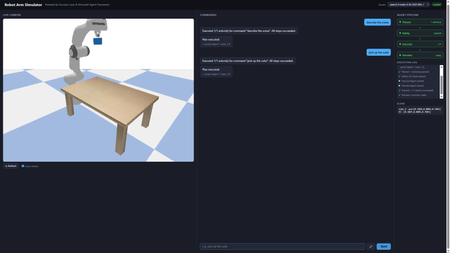
A hands-on guide to building real-world AI automation with Foundry Local, the Microsoft Agent Framework, and PyBullet. No cloud subscription, no API keys, no internet required. Why Developers Should Care About Offline AI Imagine telling a robot arm to "pick up the cube" and watching it execute the command in a physics simulator, all powered by a language model running on your laptop. No API calls leave your machine. No token costs accumulate. No internet connection is needed. That is what this project delivers, and every piece of it is open source and ready for you to fork, extend, and experiment with. Most AI demos today lean on cloud endpoints. That works for prototypes, but it introduces latency, ongoing costs, and data privacy concerns. For robotics and industrial automation, those trade-offs are unacceptable. You need inference that runs where the hardware is: on the factory floor, in the lab, or on your development machine. Foundry Local gives you an OpenAI-compatible endpoint running entirely on-device. Pair it with a multi-agent orchestration framework and a physics engine, and you have a complete pipeline that translates natural language into validated, safe robot actions. This post walks through how we built it, why the architecture works, and how you can start experimenting with your own offline AI simulators today. Architecture The system uses four specialised agents orchestrated by the Microsoft Agent Framework: Agent What It Does Speed PlannerAgent Sends user command to Foundry Local LLM → JSON action plan 4–45 s SafetyAgent Validates against workspace bounds + schema < 1 ms ExecutorAgent Dispatches actions to PyBullet (IK, gripper) < 2 s NarratorAgent Template summary (LLM opt-in via env var) < 1 ms User (text / voice) │ ▼ ┌──────────────┐ │ Orchestrator │ └──────┬───────┘ │ ┌────┴────┐ ▼ ▼ Planner Narrator │ ▼ Safety │ ▼ Executor │ ▼ PyBullet Setting Up Foundry Local from foundry_local import FoundryLocalManager import openai manager = FoundryLocalManager("qwen2.5-coder-0.5b") client = openai.OpenAI( base_url=manager.endpoint, api_key=manager.api_key, ) resp = client.chat.completions.create( model=manager.get_model_info("qwen2.5-coder-0.5b").id, messages=[{"role": "user", "content": "pick up the cube"}], max_tokens=128, stream=True, ) from foundry_local import FoundryLocalManager import openai manager = FoundryLocalManager("qwen2.5-coder-0.5b") client = openai.OpenAI( base_url=manager.endpoint, api_key=manager.api_key, ) resp = client.chat.completions.create( model=manager.get_model_info("qwen2.5-coder-0.5b").id, messages=[{"role": "user", "content": "pick up the cube"}], max_tokens=128, stream=True, ) The SDK auto-selects the best hardware backend (CUDA GPU → QNN NPU → CPU). No configuration needed. How the LLM Drives the Simulator Understanding the interaction between the language model and the physics simulator is central to the project. The two never communicate directly. Instead, a structured JSON contract forms the bridge between natural language and physical motion. From Words to JSON When a user says “pick up the cube”, the PlannerAgent sends the command to the Foundry Local LLM alongside a compact system prompt. The prompt lists every permitted tool and shows the expected JSON format. The LLM responds with a structured plan: { "type": "plan", "actions": [ {"tool": "describe_scene", "args": {}}, {"tool": "pick", "args": {"object": "cube_1"}} ] } The planner parses this response, validates it against the action schema, and retries once if the JSON is malformed. This constrained output format is what makes small models (0.5B parameters) viable: the response space is narrow enough that even a compact model can produce correct JSON reliably. From JSON to Motion Once the SafetyAgent approves the plan, the ExecutorAgent maps each action to concrete PyBullet calls: move_ee(target_xyz) : The target position in Cartesian coordinates is passed to PyBullet's inverse kinematics solver, which computes the seven joint angles needed to place the end-effector at that position. The robot then interpolates smoothly from its current joint state to the target, stepping the physics simulation at each increment. pick(object) : This triggers a multi-step grasp sequence. The controller looks up the object's position in the scene, moves the end-effector above the object, descends to grasp height, closes the gripper fingers with a configurable force, and lifts. At every step, PyBullet resolves contact forces and friction so that the object behaves realistically. place(target_xyz) : The reverse of a pick. The robot carries the grasped object to the target coordinates and opens the gripper, allowing the physics engine to drop the object naturally. describe_scene() : Rather than moving the robot, this action queries the simulation state and returns the position, orientation, and name of every object on the table, along with the current end-effector pose. The Abstraction Boundary The critical design choice is that the LLM knows nothing about joint angles, inverse kinematics, or physics. It operates purely at the level of high-level tool calls ( pick , move_ee ). The ActionExecutor translates those tool calls into the low-level API that PyBullet provides. This separation means the LLM prompt stays simple, the safety layer can validate plans without understanding kinematics, and the executor can be swapped out without retraining or re-prompting the model. Voice Input Pipeline Voice commands follow three stages: Browser capture: MediaRecorder captures audio, client-side resamples to 16 kHz mono WAV Server transcription: Foundry Local Whisper (ONNX, cached after first load) with automatic 30 s chunking Command execution: transcribed text goes through the same Planner → Safety → Executor pipeline The mic button (🎤) only appears when a Whisper model is cached or loaded. Whisper models are filtered out of the LLM dropdown. Web UI in Action Pick command Describe command Move command Reset command Performance: Model Choice Matters Model Params Inference Pipeline Total qwen2.5-coder-0.5b 0.5 B ~4 s ~5 s phi-4-mini 3.6 B ~35 s ~36 s qwen2.5-coder-7b 7 B ~45 s ~46 s For interactive robot control, qwen2.5-coder-0.5b is the clear winner: valid JSON for a 7-tool schema in under 5 seconds. The Simulator in Action Here is the Panda robot arm performing a pick-and-place sequence in PyBullet. Each frame is rendered by the simulator's built-in camera and streamed to the web UI in real time. Overview Reaching Above the cube Gripper detail Front interaction Side layout Get Running in Five Minutes You do not need a GPU, a cloud account, or any prior robotics experience. The entire stack runs on a standard development machine. # 1. Install Foundry Local winget install Microsoft.FoundryLocal # Windows brew install foundrylocal # macOS # 2. Download models (one-time, cached locally) foundry model run qwen2.5-coder-0.5b # Chat brain (~4 s inference) foundry model run whisper-base # Voice input (194 MB) # 3. Clone and set up the project git clone https://github.com/leestott/robot-simulator-foundrylocal cd robot-simulator-foundrylocal .\setup.ps1 # or ./setup.sh on macOS/Linux # 4. Launch the web UI python -m src.app --web --no-gui # → http://localhost:8080 Once the server starts, open your browser and try these commands in the chat box: "pick up the cube": the robot grasps the blue cube and lifts it "describe the scene": returns every object's name and position "move to 0.3 0.2 0.5": sends the end-effector to specific coordinates "reset": returns the arm to its neutral pose If you have a microphone connected, hold the mic button and speak your command instead of typing. Voice input uses a local Whisper model, so your audio never leaves the machine. Experiment and Build Your Own The project is deliberately simple so that you can modify it quickly. Here are some ideas to get started. Add a new robot action The robot currently understands seven tools. Adding an eighth takes four steps: Define the schema in TOOL_SCHEMAS ( src/brain/action_schema.py ). Write a _do_<tool> handler in src/executor/action_executor.py . Register it in ActionExecutor._dispatch . Add a test in tests/test_executor.py . For example, you could add a rotate_ee tool that spins the end-effector to a given roll/pitch/yaw without changing position. Add a new agent Every agent follows the same pattern: an async run(context) method that reads from and writes to a shared dictionary. Create a new file in src/agents/ , register it in orchestrator.py , and the pipeline will call it in sequence. Ideas for new agents: VisionAgent: analyse a camera frame to detect objects and update the scene state before planning. CostEstimatorAgent: predict how many simulation steps an action plan will take and warn the user if it is expensive. ExplanationAgent: generate a step-by-step natural language walkthrough of the plan before execution, allowing the user to approve or reject it. Swap the LLM python -m src.app --web --model phi-4-mini Or use the model dropdown in the web UI; no restart is needed. Try different models and compare accuracy against inference speed. Smaller models are faster but may produce malformed JSON more often. Larger models are more accurate but slower. The retry logic in the planner compensates for occasional failures, so even a small model works well in practice. Swap the simulator PyBullet is one option, but the architecture does not depend on it. You could replace the simulation layer with: MuJoCo: a high-fidelity physics engine popular in reinforcement learning research. Isaac Sim: NVIDIA's GPU-accelerated robotics simulator with photorealistic rendering. Gazebo: the standard ROS simulator, useful if you plan to move to real hardware through ROS 2. The only requirement is that your replacement implements the same interface as PandaRobot and GraspController . Build something completely different The pattern at the heart of this project (LLM produces structured JSON, safety layer validates, executor dispatches to a domain-specific engine) is not limited to robotics. You could apply the same architecture to: Home automation: "turn off the kitchen lights and set the thermostat to 19 degrees" translated into MQTT or Zigbee commands. Game AI: natural language control of characters in a game engine, with the safety agent preventing invalid moves. CAD automation: voice-driven 3D modelling where the LLM generates geometry commands for OpenSCAD or FreeCAD. Lab instrumentation: controlling scientific equipment (pumps, stages, spectrometers) via natural language, with the safety agent enforcing hardware limits. From Simulator to Real Robot One of the most common questions about projects like this is whether it could control a real robot. The answer is yes, and the architecture is designed to make that transition straightforward. What Stays the Same The entire upper half of the pipeline is hardware-agnostic: The LLM planner generates the same JSON action plans regardless of whether the target is simulated or physical. It has no knowledge of the underlying hardware. The safety agent validates workspace bounds and tool schemas. For a real robot, you would tighten the bounds to match the physical workspace and add checks for obstacle clearance using sensor data. The orchestrator coordinates agents in the same sequence. No changes are needed. The narrator reports what happened. It works with any result data the executor returns. What Changes The only component that must be replaced is the executor layer, specifically the PandaRobot class and the GraspController . In simulation, these call PyBullet's inverse kinematics solver and step the physics engine. On a real robot, they would instead call the hardware driver. For a Franka Emika Panda (the same robot modelled in the simulation), the replacement options include: libfranka: Franka's C++ real-time control library, which accepts joint position or torque commands at 1 kHz. ROS 2 with MoveIt: A robotics middleware stack that provides motion planning, collision avoidance, and hardware abstraction. The move_ee action would become a MoveIt goal, and the framework would handle trajectory planning and execution. Franka ROS 2 driver: Combines libfranka with ROS 2 for a drop-in replacement of the simulation controller. The ActionExecutor._dispatch method maps tool names to handler functions. Replacing _do_move_ee , _do_pick , and _do_place with calls to a real robot driver is the only code change required. Key Considerations for Real Hardware Safety: A simulated robot cannot cause physical harm; a real robot can. The safety agent would need to incorporate real-time collision checking against sensor data (point clouds from depth cameras, for example) rather than relying solely on static workspace bounds. Perception: In simulation, object positions are known exactly. On a real robot, you would need a perception system (cameras with object detection or fiducial markers) to locate objects before grasping. Calibration: The simulated robot's coordinate frame matches the URDF model perfectly. A real robot requires hand-eye calibration to align camera coordinates with the robot's base frame. Latency: Real actuators have physical response times. The executor would need to wait for motion completion signals from the hardware rather than stepping a simulation loop. Gripper feedback: In PyBullet, grasp success is determined by contact forces. A real gripper would provide force or torque feedback to confirm whether an object has been securely grasped. The Simulation as a Development Tool This is precisely why simulation-first development is valuable. You can iterate on the LLM prompts, agent logic, and command pipeline without risk to hardware. Once the pipeline reliably produces correct action plans in simulation, moving to a real robot is a matter of swapping the lowest layer of the stack. Key Takeaways for Developers On-device AI is production-ready. Foundry Local serves models through a standard OpenAI-compatible API. If your code already uses the OpenAI SDK, switching to local inference is a one-line change to base_url . Small models are surprisingly capable. A 0.5B parameter model produces valid JSON action plans in under 5 seconds. For constrained output schemas, you do not need a 70B model. Multi-agent pipelines are more reliable than monolithic prompts. Splitting planning, validation, execution, and narration across four agents makes each one simpler to test, debug, and replace. Simulation is the safest way to iterate. You can refine LLM prompts, agent logic, and tool schemas without risking real hardware. When the pipeline is reliable, swapping the executor for a real robot driver is the only change needed. The pattern generalises beyond robotics. Structured JSON output from an LLM, validated by a safety layer, dispatched to a domain-specific engine: that pattern works for home automation, game AI, CAD, lab equipment, and any other domain where you need safe, structured control. You can start building today. The entire project runs on a standard laptop with no GPU, no cloud account, and no API keys. Clone the repository, run the setup script, and you will have a working voice-controlled robot simulator in under five minutes. Ready to start building? Clone the repository, try the commands, and then start experimenting. Fork it, add your own agents, swap in a different simulator, or apply the pattern to an entirely different domain. The best way to learn how local AI can solve real-world problems is to build something yourself. Source code: github.com/leestott/robot-simulator-foundrylocal Built with Foundry Local, Microsoft Agent Framework, PyBullet, and FastAPI.Building a Multi-Agent On-Call Copilot with Microsoft Agent Framework
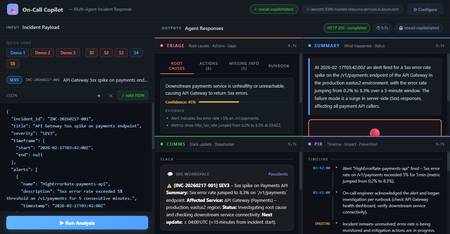
Four AI agents, one incident payload, structured triage in under 60 seconds powered by Microsoft Agent Framework and Foundry Hosted Agents. Multi-Agent Microsoft Agent Framework Foundry Hosted Agents Python SRE / Incident Response When an incident fires at 3 AM, every second the on-call engineer spends piecing together alerts, logs, and metrics is a second not spent fixing the problem. What if an AI system could ingest the raw incident signals and hand you a structured triage, a Slack update, a stakeholder brief, and a draft post-incident report, all in under 10 seconds? That’s exactly what On-Call Copilot does. In this post, we’ll walk through how we built it using the Microsoft Agent Framework, deployed it as a Foundry Hosted Agent, and discuss the key design decisions that make multi-agent orchestration practical for production workloads. The full source code is open-source on GitHub. You can deploy your own instance with a single azd up . Why Multi-Agent? The Problem with Single-Prompt Triage Early AI incident assistants used a single large prompt: “Here is the incident. Give me root causes, actions, a Slack message, and a post-incident report.” This approach has two fundamental problems: Context overload. A real incident may have 800 lines of logs, 10 alert lines, and dense metrics. Asking one model to process everything and produce four distinct output formats in a single turn pushes token limits and degrades quality. Conflicting concerns. Triage reasoning and communication drafting are cognitively different tasks. A model optimised for structured JSON analysis often produces stilted Slack messages—and vice versa. The fix is specialisation: decompose the task into focused agents, give each agent a narrow instruction set, and run them in parallel. This is the core pattern that the Microsoft Agent Framework makes easy. Architecture: Four Agents Running Concurrently On-Call Copilot is deployed as a Foundry Hosted Agent—a containerised Python service running on Microsoft Foundry’s managed infrastructure. The core orchestrator uses ConcurrentBuilder from the Microsoft Agent Framework SDK to run four specialist agents in parallel via asyncio.gather() . All four panels populated simultaneously: Triage (red), Summary (blue), Comms (green), PIR (purple). Architecture: The orchestrator runs four specialist agents concurrently via asyncio.gather(), then merges their JSON fragments into a single response. All four agents The solution share a single Azure OpenAI Model Router deployment. Rather than hardcoding gpt-4o or gpt-4o-mini , Model Router analyses request complexity and routes automatically. A simple triage prompt costs less; a long post-incident synthesis uses a more capable model. One deployment name, zero model-selection code. Meet the Four Agents 🔍 Triage Agent Root cause analysis, immediate actions, missing data identification, and runbook alignment. suspected_root_causes · immediate_actions · missing_information · runbook_alignment 📋 Summary Agent Concise incident narrative: what happened and current status (ONGOING / MITIGATED / RESOLVED). summary.what_happened · summary.current_status 📢 Comms Agent Audience-appropriate communications: Slack channel update with emoji conventions, plus a non-technical stakeholder brief. comms.slack_update · comms.stakeholder_update 📝 PIR Agent Post-incident report: chronological timeline, quantified customer impact, and specific prevention actions. post_incident_report.timeline · .customer_impact · .prevention_actions The Code: Building the Orchestrator The entry point is remarkably concise. ConcurrentBuilder handles all the async wiring—you just declare the agents and let the framework handle parallelism, error propagation, and response merging. main.py — Orchestrator from agent_framework import ConcurrentBuilder from agent_framework.azure import AzureOpenAIChatClient from azure.ai.agentserver.agentframework import from_agent_framework from azure.identity import DefaultAzureCredential, get_bearer_token_provider from app.agents.triage import TRIAGE_INSTRUCTIONS from app.agents.comms import COMMS_INSTRUCTIONS from app.agents.pir import PIR_INSTRUCTIONS from app.agents.summary import SUMMARY_INSTRUCTIONS _credential = DefaultAzureCredential() _token_provider = get_bearer_token_provider( _credential, "https://cognitiveservices.azure.com/.default" ) def create_workflow_builder(): """Create 4 specialist agents and wire them into a ConcurrentBuilder.""" triage = AzureOpenAIChatClient(ad_token_provider=_token_provider).create_agent( instructions=TRIAGE_INSTRUCTIONS, name="triage-agent", ) summary = AzureOpenAIChatClient(ad_token_provider=_token_provider).create_agent( instructions=SUMMARY_INSTRUCTIONS, name="summary-agent", ) comms = AzureOpenAIChatClient(ad_token_provider=_token_provider).create_agent( instructions=COMMS_INSTRUCTIONS, name="comms-agent", ) pir = AzureOpenAIChatClient(ad_token_provider=_token_provider).create_agent( instructions=PIR_INSTRUCTIONS, name="pir-agent", ) return ConcurrentBuilder().participants([triage, summary, comms, pir]) def main(): builder = create_workflow_builder() from_agent_framework(builder.build).run() # starts on port 8088 if __name__ == "__main__": main() Key insight: DefaultAzureCredential means there are no API keys anywhere in the codebase. The container uses managed identity in production; local development uses your az login session. The same code runs in both environments without modification. Agent Instructions: Prompts as Configuration Each agent receives a tightly scoped system prompt that defines its output schema and guardrails. Here’s the Triage Agent—the most complex of the four: app/agents/triage.py TRIAGE_INSTRUCTIONS = """\ You are the **Triage Agent**, an expert Site Reliability Engineer specialising in root cause analysis and incident response. ## Task Analyse the incident data and return a single JSON object with ONLY these keys: { "suspected_root_causes": [ { "hypothesis": "string – concise root cause hypothesis", "evidence": ["string – supporting evidence from the input"], "confidence": 0.0 // 0-1, how confident you are } ], "immediate_actions": [ { "step": "string – concrete action with runnable command if applicable", "owner_role": "oncall-eng | dba | infra-eng | platform-eng", "priority": "P0 | P1 | P2 | P3" } ], "missing_information": [ { "question": "string – what data is missing", "why_it_matters": "string – why this data would help" } ], "runbook_alignment": { "matched_steps": ["string – runbook steps that match the situation"], "gaps": ["string – gaps or missing runbook coverage"] } } ## Guardrails 1. **No secrets** – redact any credential-like material as [REDACTED]. 2. **No hallucination** – if data is insufficient, set confidence to 0 and add entries to missing_information. 3. **Diagnostic suggestions** – when data is sparse, include diagnostic steps in immediate_actions. 4. **Structured output only** – return ONLY valid JSON, no prose. """ The Comms Agent follows the same pattern but targets a different audience: app/agents/comms.py COMMS_INSTRUCTIONS = """\ You are the **Comms Agent**, an expert incident communications writer. ## Task Return a single JSON object with ONLY this key: { "comms": { "slack_update": "Slack-formatted message with emoji, severity, status, impact, next steps, and ETA", "stakeholder_update": "Non-technical summary for executives. Focus on business impact and resolution." } } ## Guidelines - Slack: Use :rotating_light: for active SEV1/2, :warning: for degraded, :white_check_mark: for resolved. - Stakeholder: No jargon. Translate to business impact. - Tone: Calm, factual, action-oriented. Never blame individuals. - Structured output only – return ONLY valid JSON, no prose. """ Instructions as config, not code. Agent behaviour is defined entirely by instruction text strings. A non-developer can refine agent behaviour by editing the prompt and redeploying no Python changes needed. The Incident Envelope: What Goes In The agent accepts a single JSON envelope. It can come from a monitoring alert webhook, a PagerDuty payload, or a manual CLI invocation: Incident Input (JSON) { "incident_id": "INC-20260217-002", "title": "DB connection pool exhausted — checkout-api degraded", "severity": "SEV1", "timeframe": { "start": "2026-02-17T14:02:00Z", "end": null }, "alerts": [ { "name": "DatabaseConnectionPoolNearLimit", "description": "Connection pool at 99.7% on orders-db-primary", "timestamp": "2026-02-17T14:03:00Z" } ], "logs": [ { "source": "order-worker", "lines": [ "ERROR: connection timeout after 30s (attempt 3/3)", "WARN: pool exhausted, queueing request (queue_depth=847)" ] } ], "metrics": [ { "name": "db_connection_pool_utilization_pct", "window": "5m", "values_summary": "Jumped from 22% to 99.7% at 14:03Z" } ], "runbook_excerpt": "Step 1: Check DB connection dashboard...", "constraints": { "max_time_minutes": 15, "environment": "production", "region": "swedencentral" } } Declaring the Hosted Agent The agent is registered with Microsoft Foundry via a declarative agent.yaml file. This tells Foundry how to discover and route requests to the container: agent.yaml kind: hosted name: oncall-copilot description: | Multi-agent hosted agent that ingests incident signals and runs 4 specialist agents concurrently via Microsoft Agent Framework ConcurrentBuilder. metadata: tags: - Azure AI AgentServer - Microsoft Agent Framework - Multi-Agent - Model Router protocols: - protocol: responses environment_variables: - name: AZURE_OPENAI_ENDPOINT value: ${AZURE_OPENAI_ENDPOINT} - name: AZURE_OPENAI_CHAT_DEPLOYMENT_NAME value: model-router The protocols: [responses] declaration exposes the agent via the Foundry Responses API on port 8088. Clients can invoke it with a standard HTTP POST no custom API needed. Invoking the Agent Once deployed, you can invoke the agent with the project’s built-in scripts or directly via curl : CLI / curl # Using the included invoke script python scripts/invoke.py --demo 2 # multi-signal SEV1 demo python scripts/invoke.py --scenario 1 # Redis cluster outage # Or with curl directly TOKEN=$(az account get-access-token \ --resource https://ai.azure.com --query accessToken -o tsv) curl -X POST \ "$AZURE_AI_PROJECT_ENDPOINT/openai/responses?api-version=2025-05-15-preview" \ -H "Authorization: Bearer $TOKEN" \ -H "Content-Type: application/json" \ -d '{ "input": [ {"role": "user", "content": "<incident JSON here>"} ], "agent": { "type": "agent_reference", "name": "oncall-copilot" } }' The Browser UI The project includes a zero-dependency browser UI built with plain HTML, CSS, and vanilla JavaScript—no React, no bundler. A Python http.server backend proxies requests to the Foundry endpoint. The empty state. Quick-load buttons pre-populate the JSON editor with demo incidents or scenario files. Demo 1 loaded: API Gateway 5xx spike, SEV3. The JSON is fully editable before submitting. Agent Output Panels Triage: Root causes ranked by confidence. Evidence is collapsed under each hypothesis. Triage: Immediate actions with P0/P1/P2 priority badges and owner roles. Comms: Slack card with emoji substitution and a stakeholder executive summary. PIR: Chronological timeline with an ONGOING marker, customer impact in a red-bordered box. Performance: Parallel Execution Matters Incident Type Complexity Parallel Latency Sequential (est.) Single alert, minimal context (SEV4) Low 4–6 s ~16 s Multi-signal, logs + metrics (SEV2) Medium 7–10 s ~28 s Full SEV1 with long log lines High 10–15 s ~40 s Post-incident synthesis (resolved) High 10–14 s ~38 s asyncio.gather() running four independent agents cuts total latency by 3–4× compared to sequential execution. For a SEV1 at 3 AM, that’s the difference between a 10-second AI-powered head start and a 40-second wait. Five Key Design Decisions Parallel over sequential Each agent is independent and processes the full incident payload in isolation. ConcurrentBuilder with asyncio.gather() is the right primitive—no inter-agent dependencies, no shared state. JSON-only agent instructions Every agent returns only valid JSON with a defined schema. The orchestrator merges fragments with merged.update(agent_output) . No parsing, no extraction, no post-processing. No hardcoded model names AZURE_OPENAI_CHAT_DEPLOYMENT_NAME=model-router is the only model reference. Model Router selects the best model at runtime based on prompt complexity. When new models ship, the agent gets better for free. DefaultAzureCredential everywhere No API keys. No token management code. Managed identity in production, az login in development. Same code, both environments. Instructions as configuration Each agent’s system prompt is a plain Python string. Behaviour changes are text edits, not code logic. A non-developer can refine prompts and redeploy. Guardrails: Built into the Prompts The agent instructions include explicit guardrails that don’t require external filtering: No hallucination: When data is insufficient, the agent sets confidence: 0 and populates missing_information rather than inventing facts. Secret redaction: Each agent is instructed to redact credential-like patterns as [REDACTED] in its output. Mark unknowns: Undeterminable fields use the literal string "UNKNOWN" rather than plausible-sounding guesses. Diagnostic suggestions: When signal is sparse, immediate_actions includes diagnostic steps that gather missing information before prescribing a fix. Model Router: Automatic Model Selection One of the most powerful aspects of this architecture is Model Router. Instead of choosing between gpt-4o , gpt-4o-mini , or o3-mini per agent, you deploy a single model-router endpoint. Model Router analyses each request’s complexity and routes it to the most cost-effective model that can handle it. Model Router insights: models selected per request with associated costs. Model Router telemetry from Microsoft Foundry: request distribution and cost analysis. This means you get optimal cost-performance without writing any model-selection logic. A simple Summary Agent prompt may route to gpt-4o-mini , while a complex Triage Agent prompt with 800 lines of logs routes to gpt-4o all automatically. Deployment: One Command The repo includes both azure.yaml and agent.yaml , so deployment is a single command: Deploy to Foundry # Deploy everything: infra + container + Model Router + Hosted Agent azd up This provisions the Foundry project resources, builds the Docker image, pushes to Azure Container Registry, deploys a Model Router instance, and creates the Hosted Agent. For more control, you can use the SDK deploy script: Manual Docker + SDK deploy # Build and push (must be linux/amd64) docker build --platform linux/amd64 -t oncall-copilot:v1 . docker tag oncall-copilot:v1 $ACR_IMAGE docker push $ACR_IMAGE # Create the hosted agent python scripts/deploy_sdk.py Getting Started Quickstart # Clone git clone https://github.com/microsoft-foundry/oncall-copilot cd oncall-copilot # Install python -m venv .venv source .venv/bin/activate # .venv\Scripts\activate on Windows pip install -r requirements.txt # Set environment variables export AZURE_OPENAI_ENDPOINT="https://<account>.openai.azure.com/" export AZURE_OPENAI_CHAT_DEPLOYMENT_NAME="model-router" export AZURE_AI_PROJECT_ENDPOINT="https://<account>.services.ai.azure.com/api/projects/<project>" # Validate schemas locally (no Azure needed) MOCK_MODE=true python scripts/validate.py # Deploy to Foundry azd up # Invoke the deployed agent python scripts/invoke.py --demo 1 # Start the browser UI python ui/server.py # → http://localhost:7860 Extending: Add Your Own Agent Adding a fifth agent is straightforward. Follow this pattern: Create app/agents/<name>.py with a *_INSTRUCTIONS constant following the existing pattern. Add the agent’s output keys to app/schemas.py . Register it in main.py : main.py — Adding a 5th agent from app.agents.my_new_agent import NEW_INSTRUCTIONS new_agent = AzureOpenAIChatClient( ad_token_provider=_token_provider ).create_agent( instructions=NEW_INSTRUCTIONS, name="new-agent", ) workflow = ConcurrentBuilder().participants( [triage, summary, comms, pir, new_agent] ) Ideas for extensions: a ticket auto-creation agent that creates Jira or Azure DevOps items from the PIR output, a webhook adapter agent that normalises PagerDuty or Datadog payloads, or a human-in-the-loop agent that surfaces missing_information as an interactive form. Key Takeaways for AI Engineers The multi-agent pattern isn’t just for chatbots. Any task that can be decomposed into independent subtasks with distinct output schemas is a candidate. Incident response, document processing, code review, data pipeline validation—the pattern transfers. Microsoft Agent Framework gives you ConcurrentBuilder for parallel execution and AzureOpenAIChatClient for Azure-native auth—you write the prompts, the framework handles the plumbing. Foundry Hosted Agents let you deploy containerised agents with managed infrastructure, automatic scaling, and built-in telemetry. No Kubernetes, no custom API gateway. Model Router eliminates the model selection problem. One deployment name handles all scenarios with optimal cost-performance tradeoffs. Prompt-as-config means your agents are iterable by anyone who can edit text. The feedback loop from “this output could be better” to “deployed improvement” is minutes, not sprints. Resources Microsoft Agent Framework SDK powering the multi-agent orchestration Model Router Automatic model selection based on prompt complexity Foundry Hosted Agents Deploy containerised agents on managed infrastructure ConcurrentBuilder Samples Official agents-in-workflow sample this project follows DefaultAzureCredential Zero-config auth chain used throughout Hosted Agents Concepts Architecture overview of Foundry Hosted Agents The On-Call Copilot sample is open source under the MIT licence. Contributions, scenario files, and agent instruction improvements are welcome via pull request.
Building High-Performance Agentic Systems
Most enterprise chatbots fail in the same quiet way. They answer questions. They impress in demos. And then they stall in production. Knowledge goes stale. Answers cannot be audited. The system cannot act beyond generating text. When workflows require coordination, execution, or accountability, the chatbot stops being useful. Agentic systems exist because that model is insufficient. Instead of treating the LLM as the product, agentic architecture embeds it inside a bounded control loop: plan → act (tools) → observe → refine The model becomes one component in a runtime system with explicit state management, safety policies, identity enforcement, and operational telemetry. This shift is not speculative. A late-2025 MIT Sloan Management Review / BCG study reports that 35% of organizations have already adopted AI agents, with another 44% planning deployment. Microsoft is advancing open protocols for what it calls the “agentic web,” including Agent-to-Agent (A2A) interoperability and Model Context Protocol (MCP), with integration paths emerging across Copilot Studio and Azure AI Foundry. The real question is no longer whether agents are coming. It is whether enterprise architecture is ready for them. This article translates “agentic” into engineering reality: the runtime layers, latency and cost levers, orchestration patterns, and governance controls required for production deployment. The Core Capabilities of Agentic AI What makes an AI “agentic” is not a single feature—it’s the interaction of different capabilities. Together, they form the minimum set needed to move from “answering” to “operating”. Autonomy – Goal-Driven Task Completion Traditional bots are reactive: they wait for a prompt and produce output. Autonomy introduces a goal state and a control loop. The agent is given an objective (or a trigger) and it can decide the next step without being micromanaged. The critical engineering distinction is that autonomy must be bounded: in production, you implement it with explicit budgets and stop conditions—maximum tool calls, maximum retries, timeouts, and confidence thresholds. The typical execution shape is a loop: plan → act → observe → refine. A project-management agent, for example, doesn’t just answer “what’s the status?” It monitors signals (work items, commits, build health), detects a risk pattern (slippage, dependency blockage), and then either surfaces an alert or prepares a remediation action (re-plan milestones, notify owners). In high-stakes environments, autonomy is usually human-in-the-loop by design: the agent can draft changes, propose next actions, and only execute after approval. Over time, teams expand the autonomy envelope for low-risk actions while keeping approvals for irreversible or financially sensitive operations. Tool Integration – Taking Action and Staying Current A standalone LLM cannot fetch live enterprise state and cannot change it. Tool integration is how an agent becomes operational: it can query systems of record, call APIs, trigger workflows, and produce outputs that reflect the current world rather than the model’s pretraining snapshot. There are two classes of tools that matter in enterprise agents: Retrieval tools (grounding / RAG)When the agent needs facts, it retrieves them. This is the backbone of reducing hallucination: instead of guessing, the agent pulls authoritative content (SharePoint, Confluence, policy repositories, CRM records, Fabric datasets) and uses it as evidence. In practice, retrieval works best when it is engineered as a pipeline: query rewrite (optional) → hybrid search (keyword + vector) → filtering (metadata/ACL) → reranking → compact context injection. The point is not “stuff the prompt with documents,” but “inject only the minimum evidence required to answer accurately.” Action tools (function calling / connectors) These are the hands of the agent: update a CRM record, create a ticket, send an email, schedule a meeting, generate a report, run a pipeline. Tool integration shifts value from “advice” to “execution,” but also introduces risk—so action tools need guardrails: least-privilege permissions, input validation, idempotency keys, and post-condition checks (confirm the update actually happened). In Microsoft ecosystems, this tool plane often maps to Graph actions + business connectors (via Logic Apps/Power Automate) + custom APIs, with Copilot Studio (low code) or Foundry-style runtimes (pro code) orchestrating the calls. Memory (Context & Learning) – Context Awareness and Adaptation “Memory” is not just a long prompt. In agentic systems, memory is an explicit state strategy: Working memory: what the agent has learned during the current run (intermediate tool results, constraints, partial plans). Session memory: what should persist across turns (user preferences, ongoing tasks, summarized history). Long-term memory: enterprise knowledge the agent can retrieve (indexed documents, structured facts, embeddings + metadata). Short-term memory enables multi-step workflows without repeating questions. An HR onboarding agent can carry a new hire’s details from intake through provisioning without re-asking, because the workflow state is persisted and referenced. Long-term “learning” is typically implemented through feedback loops rather than real-time model weight updates: capturing corrections, storing validated outcomes, and periodically improving prompts, routing logic, retrieval configuration, or (where appropriate) fine-tuning. The key design rule is that memory must be policy-aware: retention rules, PII handling, and permission trimming apply to stored state as much as they apply to retrieved documents. Orchestration – Coordinating Multi-Agent Teams Complex enterprise work is rarely single-skill. Orchestration is how agentic systems scale capability without turning one agent into an unmaintainable monolith. The pattern is “manager + specialists”: an orchestrator decomposes the goal into subtasks, routes each to the best tool or sub-agent, and then composes a final response. This can be done sequentially or in parallel. Employee onboarding is a classic: HR intake, IT account creation, equipment provisioning, and training scheduling can run in parallel where dependencies allow. The engineering challenge is making orchestration reliable: defining strict input/output contracts between agents (often structured JSON), handling failures (timeouts, partial completion), and ensuring only one component has authority to send the final user-facing message to avoid conflicting outputs. In Microsoft terms, orchestration can be implemented as agentic flows in Copilot Studio, connected-agent patterns in Foundry, or explicit orchestrators in code using structured tool schemas and shared state. Strategic Impact – How Agentic AI Changes Knowledge Work Agentic AI is no longer an experimental overlay to enterprise systems. It is becoming an embedded operational layer inside core workflows. Unlike earlier chatbot deployments that answered isolated questions, modern enterprise agents execute end-to-end processes, interact with structured systems, maintain context, and operate within governed boundaries. The shift is not about conversational intelligence alone; it is about workflow execution at scale. The transformation becomes clearer when examining real implementations across industries. In legal services, agentic systems have moved beyond document summarization into operational case automation. Assembly Software’s NeosAI, built on Azure AI infrastructure, integrates directly into legal case management systems and automates document analysis, structured data extraction, and first-draft generation of legal correspondence. What makes this deployment impactful is not merely the generative drafting capability, but the integration architecture. NeosAI is not an isolated chatbot; it operates within the same document management systems, billing systems, and communication platforms lawyers already use. Firms report time savings of up to 25 hours per case, with document drafting cycles reduced from days to minutes for first-pass outputs. Importantly, the system runs within secure Azure environments with zero data retention policies, addressing one of the most sensitive concerns in legal AI adoption: client confidentiality. JPMorgan’s COiN platform represents another dimension of legal and financial automation. Instead of conversational assistance, COiN performs structured contract intelligence at production scale. It analyzes more than 12,000 commercial loan agreements annually, extracting over 150 clause attributes per document. Work that previously required approximately 360,000 human hours now executes in seconds. The architecture emphasizes structured NLP pipelines, taxonomy-based clause classification, and private cloud deployment for regulatory compliance. Rather than replacing legal professionals, the system flags unusual clauses for human review, maintaining oversight while dramatically accelerating analysis. Over time, COiN has also served as a knowledge retention mechanism, preserving institutional contract intelligence that would otherwise be lost with employee turnover. In financial services, the impact is similarly structural. Morgan Stanley’s internal AI Assistant allows wealth advisors to query over 100,000 proprietary research documents using natural language. Adoption has reached nearly universal usage across advisor teams, not because it replaces expertise, but because it compresses research time and surfaces insights instantly. Building on this foundation, the firm introduced an AI meeting debrief agent that transcribes client conversations using speech-to-text models and generates CRM notes and follow-up drafts through GPT-based reasoning. Advisors review outputs before finalization, preserving human judgment. The result is faster client engagement and measurable productivity improvements. What differentiates Morgan Stanley’s approach is not only deployment scale, but disciplined evaluation before release. The firm established rigorous benchmarking frameworks to test model outputs against expert standards for accuracy, compliance, and clarity. Only after meeting defined thresholds were systems expanded firmwide. This pattern—evaluation before scale—is becoming a defining trait of successful enterprise agent deployment. Human Resources provides a different perspective on agentic AI. Johnson Controls deployed an AI HR assistant inside Slack to manage policy questions, payroll inquiries, and onboarding support across a global workforce exceeding 100,000 employees. By embedding the agent in a channel employees already use, adoption barriers were reduced significantly. The result was a 30–40% reduction in live HR call volume, allowing HR teams to redirect focus toward strategic workforce initiatives. Similarly, Ciena integrated an AI assistant directly into Microsoft Teams, unifying HR and IT support through a single conversational interface. Employees no longer navigate separate portals; the agent orchestrates requests across backend systems such as Workday and ServiceNow. The technical lesson here is clear: integration breadth drives usability, and usability drives adoption. Engineering and IT operations reveal perhaps the most technically sophisticated application of agentic AI: multi-agent orchestration. In a proof-of-concept developed through collaboration between Microsoft and ServiceNow, an AI-driven incident response system coordinates multiple agents during high-priority outages. Microsoft 365 Copilot transcribes live war-room discussions and extracts action items, while ServiceNow’s Now Assist executes operational updates within IT service management systems. A Semantic Kernel–based manager agent maintains shared context and synchronizes activity across platforms. This eliminates the longstanding gap between real-time discussion and structured documentation, automatically generating incident reports while freeing engineers to focus on remediation rather than clerical tasks. The system demonstrates that orchestration is not conceptual—it is operational. Across these examples, the pattern is consistent. Agentic AI changes knowledge work by absorbing structured cognitive labor: document parsing, compliance classification, research synthesis, workflow routing, transcription, and task coordination. Humans remain essential for judgment, ethics, and accountability, but the operational layer increasingly runs through AI-mediated execution. The result is not incremental productivity improvement; it is structural acceleration of knowledge processes. Design and Governance Challenges – Managing the Risks As agentic AI shifts from answering questions to executing workflows, governance must mature accordingly. These systems retrieve enterprise data, invoke APIs, update records, and coordinate across platforms. That makes them operational actors inside your architecture—not just assistants. The primary shift is this: autonomy increases responsibility. Agents must be observable. Every retrieval, reasoning step, and tool invocation should be traceable. Without structured telemetry and audit trails, enterprises lose visibility into why an agent acted the way it did. Agents must also operate within scoped authority. Least-privilege access, role-based identity, and bounded credentials are essential. An HR agent should not access finance systems. A finance agent should not modify compliance data without policy constraints. Autonomy only works when it is deliberately constrained. Execution boundaries are equally critical. High-risk actions—financial approvals, legal submissions, production changes—should include embedded thresholds or human approval gates. Autonomy should be progressive, not absolute. Cost and performance must be governed just like cloud infrastructure. Agentic systems can trigger recursive calls and model loops. Without usage monitoring, rate limits, and model-tier routing, compute consumption can escalate unpredictably. Finally, agentic systems require continuous evaluation. Real-world testing, live monitoring, and drift detection ensure the system remains aligned with business rules and compliance requirements. These are not “set and forget” deployments. In short, agentic AI becomes sustainable only when autonomy is paired with observability, scoped authority, embedded guardrails, cost control, and structured oversight. Conclusion – Towards the Agentic Enterprise The organizations achieving meaningful returns from agentic AI share a common pattern. They do not treat AI agents as experimental tools. They design them as production systems with defined roles, scoped authority, measurable KPIs, embedded observability, and formal governance layers. When autonomy is paired with integration, memory, orchestration, and governance discipline, agentic AI becomes more than automation—it becomes an operational architecture. Enterprises that master this architecture are not merely reducing costs; they are redefining how knowledge work is executed. In this emerging model, human professionals focus on strategic judgment and innovation, while AI agents manage structured cognitive execution at scale. The competitive advantage will not belong to those who deploy the most AI, but to those who deploy it with architectural rigor and governance maturity. Before we rush to deploy more agents, a few questions are worth asking: If an AI agent executes a workflow in your enterprise today, can you trace every reasoning step and tool invocation behind that decision? Does your architecture treat AI as a conversational layer - or as an operational actor with scoped identity, cost controls, and policy enforcement? Where should autonomy stop in your organization - and who defines that boundary? Agentic AI is not just a capability shift. It is an architectural decision. Curious to hear how others are designing their control planes and orchestration layers. References MIT Sloan – “Agentic AI, Explained” by Beth Stackpole: A foundational overview of agentic AI, its distinction from traditional generative AI, and its implications for enterprise workflows, governance, and strategy. Microsoft TechCommunity – “Introducing Multi-Agent Orchestration in Foundry Agent Service”: Details Microsoft’s multi-agent orchestration capabilities, including Connected Agents, Multi-Agent Workflows, and integration with A2A and MCP protocols. Microsoft Learn – “Extend the Capabilities of Your Agent – Copilot Studio”: Explains how to build and extend custom agents in Microsoft Copilot Studio using tools, connectors, and enterprise data sources. Assembly Software’s NeosAI case – Microsoft Customer Stories JPMorgan COiN platform – GreenData Case Study HR support AI (Johnson Controls, Ciena, Databricks) – Moveworks case studies ServiceNow & Semantic Kernel multi-agent P1 Incident – Microsoft Semantic Kernel Blog