activity logs
10 Topics
Are you getting the most out of your Azure Log Analytics Workspace (LAW) investment?
Using a LAW is a great way to consolidate various types of data (performance, events, security, etc.) and signals from multiple sources. That's the easy part - mining this data for actionable insights is often the real challenge. One way we did this was by surfacing events related to disks across our physical server estate. We were already sending event data to our LAW; it was just a matter of parsing it with KQL and adding to a Power Bi dashboard for additional visibility. The snippet from the Power Bi dashboard shows when the alert was first triggered and when the disk was eventually replaced. Here's the KQL query we came up with. let start_time=ago(30d); let end_time=now(); Event | where TimeGenerated > start_time and TimeGenerated < end_time | where EventLog contains 'System' | where Source contains 'Storage Agents' | where RenderedDescription contains 'Drive Array Physical Drive Status Change' | parse kind=relaxed RenderedDescription with * 'Drive Array Physical Drive Status Change. The ' Drive ' with serial number ""' Serial '"", has a new status of ' Status '. (Drive status values:'* | project Computer, Drive, Serial, Status, TimeGenerated, EventLevelName You can of course set up alerting with Alerts for Azure Monitor. I hope this example helps you get more value from your LAW.817Views2likes5CommentsMaintaining Azure Public IP Inventory by Retrieving Exact Deleted Public IP Using Activity Logs
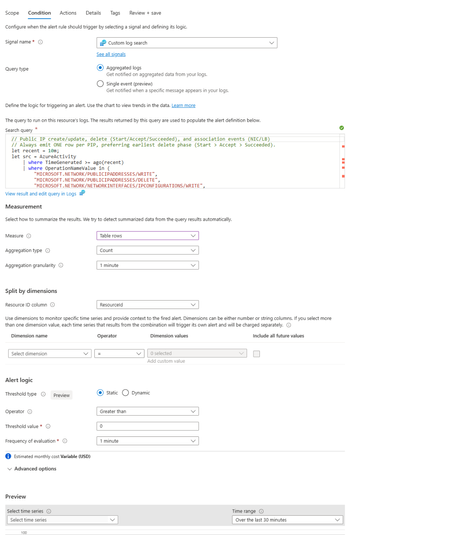
Azure Activity Logs provide strong visibility into resource lifecycle operations across a subscription. Among these are lifecycle events related to Azure Public IP addresses, including creation and deletion. However, when a Public IP address is deleted, the corresponding delete operation in Azure Activity Logs includes only the Resource ID of the Public IP — not the actual IP address that was assigned to the resource. Once deletion is complete: The Public IP resource no longer exists The Resource ID cannot be resolved The assigned Public IP address is permanently unretrievable through Azure APIs For organisations that rely on accurate IP inventory data for: Security monitoring Compliance audits Incident response Network forensics This blog presents a production‑ready implementation approach that enables organisations to reliably capture and retain the assigned Public IP address of Azure Public IP resources — even after they are deleted — using Azure Activity Log alerts, Azure Automation, and a persistent resource mapping cache. The Core Challenge When a Public IP resource is deleted, Azure emits an Activity Log event like: --- OperationName: Microsoft.Network/publicIPAddresses/delete ResourceId: /subscriptions/<subscription-id>/resourceGroups/<rg-name>/providers/Microsoft.Network/publicIPAddresses/<pip-name> --- The alert correctly identifies the operation and the affected resource. However: The Activity Log does not include the assigned Public IP address. After deletion, the associated Resource ID no longer resolves to a live Azure resource. Maintaining Accurate IP Inventory Enterprises rely on centralised Public IP inventories mapped to workloads and ownership. Since delete Activity Log events emit the Resource ID, inventory systems require the exact Public IP address associated with the deleted resource. Preventing False Security Investigations Azure Public IP addresses are globally reused. If a deleted IP remains recorded as owned internally, it may later be assigned to another tenant. This can lead to threat intelligence alerts and internal investigations against an IP address no longer under organisational ownership. Supporting High‑Churn Dynamic Workloads Ephemeral workloads such as Azure Machine Learning, CI/CD pipelines, and autoscaling deployments frequently create and delete Public IPs. In such environments, manual lifecycle tracking of assigned IP addresses is not operationally feasible. Solution Overview The recommended approach is based on the following principle: Capture and persist the assigned Public IP address while the resource still exists and retrieve the stored value later when only the Resource ID is available. This can be implemented using: Azure Activity Logs Log Analytics alerts Azure Automation Runbooks Persistent mapping cache of Resource ID to IP address The solution comprises four primary components: Azure Activity Logs routed to Log Analytics Log Analytics alert rules detecting Public IP lifecycle operations Azure Automation Runbooks triggered through webhook actions Persistent cache storing Resource ID → IP address mappings Implementation Guide Step 1: Route Activity Logs to Log Analytics Public IP lifecycle events are published through the Azure Activity Log under the Administrative category. To enable lifecycle detection through KQL queries: Navigate to: Azure Monitor → Activity Log → Diagnostic Settings Select: Add Diagnostic Setting Configure the following: Category: Administrative Destination: Send to Log Analytics Workspace 4.Select your target Log Analytics Workspace. 5.Click Save. This allows lifecycle operations to be queried by alert rules from Log Analytics. Step 2: Deploy an Azure Automation Account Azure Automation will be used to execute runbooks that process Activity Log alerts and resolve Public IP address details during resource lifecycle operations. To begin: Navigate to the Azure Portal. In the search bar, search for Automation Accounts. Select Create, provide the following details and Select "Review + Create" to complete the deployment. Subscription Resource Group Automation Account Name Region Once the Automation Account has been created: Navigate to the Automation Account. Go to Identity under the Account Settings section. Enable System‑assigned Managed Identity. Click Save. This Managed Identity will later be used by the runbooks to securely retrieve Public IP metadata from Azure Resource Manager during alert execution. Step 3: Assign Managed Identity Permissions The Automation Account requires read‑only permissions to resolve Public IP resource information securely. Navigate to: Subscription → Access Control (IAM) → Add Role Assignment Assign the following roles to the Automation Account Managed Identity: Role Scope Reader Subscription Reader Log Analytics Workspace This ensures the runbooks are able to: Query Public IP resources Resolve resource metadata Interpret Activity Log–driven lifecycle operations Step 4: Create a Persistent Cache Variable The assigned IP address must be captured and persisted in advance before it is deleted. To maintain this mapping, create a persistent Automation variable to store the following relationship: Public IP Resource ID → Assigned IP Address Within the Automation Account: Navigate to: Shared Resources → Variables Select + Add. Configure the variable as follows: Name: PipLastKnownIps Type: String Value: {} Encryption: Disabled 4.Select Create. This variable will act as a persistent cache that is dynamically updated during Public IP lifecycle events. Step 5: Create Required Automation Runbooks Two Azure Automation Runbooks are required for this implementation. Runbook Name Purpose CacheSeedingRunbook Builds initial Resource ID → IP mapping MainLifecycleRunbook Processes Activity Log alerts Step 5.1: Create Cache Seeding Runbook Create Cache Seeding Runbook This runbook will enumerate all currently existing Public IP resources and populate the cache variable with their assigned IP address mappings. Navigate to: Automation Account → Runbooks Select Create a runbook. Provide the following details: Name: CacheSeedingRunbook Runbook Type: PowerShell Runtime Version: 7.2 4. After the runbook is created, paste the script here CacheSeedingRunbook. Select Publish. This runbook will initialise the cache by capturing the current state of all Public IP resources prior to enabling lifecycle‑based Activity Log processing. Step 5.2: Create Main Lifecycle Runbook This runbook will be triggered via webhook whenever a Public IP lifecycle event is detected through Activity Logs. Navigate to: Automation Account → Runbooks Select Create a runbook. Provide the following details: Name: MainLifecycleRunbook Runbook Type: PowerShell Runtime Version: 7.2 After the runbook is created, paste the required lifecycle processing script MainLifecycleRunbook 4. Select Publish once configuration is complete. This runbook will process Activity Log‑based lifecycle events and dynamically update the PipLastKnownIps cache variable in response to Public IP creation or deletion. Step 6: Create Runbook Webhook Configure Runbook Webhook To allow Activity Log alerts to invoke the runbook: Navigate to: Automation Account → Runbooks → MainLifecycleRunbook Go to: Resources → Webhooks Select Add Webhook. Provide the following details: Webhook Name Expiration Date 5. Copy the generated Webhook URL. This URL will be used by the Alert Action Group in a later step to trigger the runbook upon detection of Public IP lifecycle events. Step 7: Seed Cache with Existing Public IPs Before activating the alert‑driven workflow, populate the cache with currently active Public IP resources. Navigate to: CacheSeedingRunbook → Start and Run the job once. This will initialise the PipLastKnownIps mapping with all existing Public IP resources. Future lifecycle events will update this cache dynamically. Step 8: Create Activity Log Alert Rule Navigate to: Azure Monitor → Alerts → Create Alert Rule Scope the alert rule to the relevant Log Analytics Workspace. Under Condition: Select: Custom Log Search Use the KQL query available here: query.json Configure the following parameters as required: Evaluation Frequency Query Time Range This alert rule will detect Public IP lifecycle events and trigger the associated Action Group for downstream runbook execution. Please find the configuration in the attached screenshot below: Step 9: Configure Action Group to Trigger Runbook Create an Action Group that invokes the Lifecycle Runbook webhook. Add a new action. Configure the action with the following details: Action Type: Webhook Paste the previously generated Runbook Webhook URL 3.Enable: Use Common Alert Schema (Optional) Add an Email Notification action to receive lifecycle alerts for troubleshooting or monitoring purposes. 4. Attach this Action Group to the alert rule. Step 10: Validate the Implementation To validate: Create a Public IP resource. Delete the same resource. Navigate to: Automation Account → Jobs → MainLifecycleRunbook Observe the runbook execution output related to: Public IP creation Public IP deletion Although the delete alert contains only the Resource ID, the runbook retrieves the exact assigned Public IP address from the cache. See the sample output below: You can extend this workflow using Azure Logic Apps to forward events to Email , SIEM platforms or CMDB systems. Conclusion In addition to tracking Public IP deletions using Activity Logs, proactively capturing and persisting Resource ID–to–IP mappings through Automation‑driven lifecycle alerts, organisations can maintain an accurate Public IP inventory—ensuring traceability, reducing false‑positive security investigations, and strengthening audit and incident response readiness.
Recent Logic Apps Failures with Defender ATP Steps – "TimeGenerated" No Longer Recognized
Hi everyone, I’ve recently encountered an issue with Logic Apps failing on Defender ATP steps. Requests containing the TimeGenerated parameter no longer work—the column seems to be unrecognized. My code hasn’t changed at all, and the same queries run successfully in Defender 365’s Advanced Hunting. For example, this basic KQL query: DeviceLogonEvents | where TimeGenerated >= ago(30d) | where LogonType != "Local" | where DeviceName !contains ".fr" | where DeviceName !contains "shared-" | where DeviceName !contains "gdc-" | where DeviceName !contains "mon-" | distinct DeviceName Now throws the error: Failed to resolve column or scalar expression named 'TimeGenerated'. Fix semantic errors in your query. Removing TimeGenerated makes the query work again, but this isn’t a viable solution. Notably, the identical query still functions in Defender 365’s Advanced Hunting UI. This issue started affecting a Logic App that runs weekly—it worked on May 11th but failed on May 18th. Questions: Has there been a recent schema change or deprecation of TimeGenerated in Defender ATP's KQL for Logic Apps? Is there an alternative column or syntax we should use now? Are others experiencing this? Any insights or workarounds would be greatly appreciated!769Views1like3Comments
How to Monitor New Management Group Creation and Deletion.
I am writing this post to monitor new Management group creation and Deletion using Azure Activity Logs and Trigger Incident in Microsoft Sentinel. You can also use it to Monitor the Subscription Creation as well using this Step. By default, the Dianostic settings for at the management group level is not enabled. It cannot be enabled using Azure Policy or from the Portal interface. Use the below article to enable the "Management Group Diagnostic Settings" Management Group Diagnostic Settings - Create Or Update - REST API (Azure Monitor) | Microsoft Learn Below is the screenshot of message body if you like to forward the logs only to the Log analytic workspace where sentinel is enabled. Also make sure you enable the Diagnostic settings at the tenant management group level to track all changes in your tenant. { "properties": { "workspaceId": "<< replace with workspace resource ID>>", "logs": [ { "category": "Administrative", "enabled": true }, { "category": "Policy", "enabled": true } ] } } Once you have enabled the Diagnostic settings, you can use the below KQL query to monitor the New Management group creation and Deletion using Azure Activity Logs. //KQL Query to Identify if Management group is deleted AzureActivity | where OperationNameValue == "MICROSOFT.MANAGEMENT/MANAGEMENTGROUPS/DELETE" | where ActivityStatusValue == "Success" | extend mg = split(tostring(Properties_d.entity),"/") | project TimeGenerated, activityStatusValue_ = tostring(Properties_d.activityStatusValue), Managementgroup = mg[4], message_ = tostring(parse_json(Properties).message), caller_ = tostring(Properties_d.caller) //KQL Query to Identify if Management group is Created AzureActivity | where OperationNameValue == "MICROSOFT.MANAGEMENT/MANAGEMENTGROUPS/WRITE" | where ActivityStatusValue == "Success" | extend mg = split(tostring(Properties_d.entity),"/") | project TimeGenerated, activityStatusValue_ = tostring(Properties_d.activityStatusValue), Managementgroup = mg[4], message_ = tostring(parse_json(Properties).message), caller_ = tostring(Properties_d.caller) This log can also be used to monitor the new subscription creation as well, using the below query AzureActivity | where OperationNameValue == "Microsoft.Management" and ActivityStatusValue == "Succeeded" and isnotempty(SubscriptionId) If you need to trigger incident on sentinel, use the above query in your custom scheduled analytical rule and create alert. Note: Enabling this API on the Mangement group diagnostic logs will also be inherited by the subscriptions downstream on the specific category.852Views1like1CommentAudit user accessing entreprise App by SPN sign-in
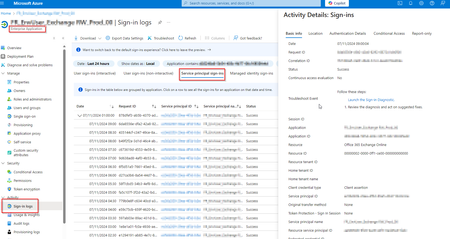
I'm in a Hybrid Entra ID environment. Some users can use an "Entreprise Application" by utilizing IDs and a certificate. In the activity or sign-in logs, I can find the access entries, but I don't have the information on which user used the app registration or which certificate was used. I would like to have logs that allow me to identify WHO is using an SPN/App registration. Do you have any ideas? Thank you. Here an example: In this screenshot, I can see access made to an app using, for example, an appid+secret/certificate connection. So, it’s "logical" not to see a username since it's not required for this type of connection. However, I would really like to have this information or some indicator to identify which of my users accessed it. Currently, I only have the machine's IP address, but I would like more information. Maybe in Purview or with another service, but I haven't found anything.613Views0likes3Comments
Create Azure Alert for deleted virtual machines with the IP address for each VM as output
Hello everyone, I just want to ask if anyone know if is possible to create an azure alert for deleted virtual machines that displays the IP address of the virtual machine that has been deleted. I know that we have the Activity Log Alerts but they do not display the IP address. I created the following query: AzureActivity | where Authorization_d.action == "Microsoft.Compute/virtualMachines/delete" | extend dummy = 1 | project TimeGenerated, ResourceGroup, Resource, Caller, dummy | join kind=inner ( Heartbeat | extend dummy = 1 | project ResourceId, ComputerIP, dummy ) on dummy | project TimeGenerated, ResourceGroup, Resource, Caller, ComputerIP I joined the AzureActivity and Heartbeat table so I can get the computer IP. It is displaying the output that I want but the Log Alert is not firing even though I delete virtual machines. Does anyone know if is possible to accomplish this? Thank you!2.1KViews0likes7Commentstop 10 tables in Log Analytics Workspace
Hi All, i want to see the top 10 tables using more space in the log analytics work space. need some help to fetch the top 10 tables can anyone please help me with query which can pull the top 10 tables using more space appreciate for help in this.1.1KViews0likes1Comment
Azure Firewall Logs
Hi, I was checking some firewalls logs by running the below query CommonSecurityLog | where DeviceProduct == "firewall1" or DeviceProduct == "firewall2" | project TimeGenerated, DeviceName, SourceIP, DestinationIP, DestinationPort, Protocol, DeviceAction, Activity | sort by TimeGenerated desc | where DestinationIP contains "a.b.c.d" I do get the results after this. But I do not understand the result in the "DeviceAction" column Result is: TimeGenerated [UTC] 2022-11-05T15:12:23.003Z DeviceName f03xxxxxxxxxx SourceIP 172.x.x.x DestinationIP 103.x.x.x DestinationPort 80 Protocol tcp DeviceAction reset-both Activity THREAT What does reset-both mean?Solved2.2KViews0likes2Comments
Activity Alerts (set up via https://security.microsoft.com/managealerts) are not being received
To test activity alerts, I modified 10 different files in my SharePoint tenant and, though I set the alerts to detect those specific modifications and email me for each one, I only received 2 out of 10 emails. The first two email notifications were received within 10 minutes but, after 8 hours, the other 8 alerts have not been received. I do not see the activity for any of the 10 modifications in the activity log either. The metadata in SharePoint confirms that I made the changes, but the alerts are not being triggered. What can be done to ensure that these activity alerts are triggered with consistency?882Views0likes0CommentsQuerry Logs From ADF Flow run and Synapse flow with Python
Hi, I am trying to pull log data from my ADF flow run details or Synapse Flow run. I want to get some data from its like time start, time stop, duration, how many records was created ... through Python with API. How can i do that ? Thanks, thiendia558Views0likes0Comments