ab testing
7 Topics
Safe Rollouts Start with Signals: Introducing Scorecards in Azure App Configuration
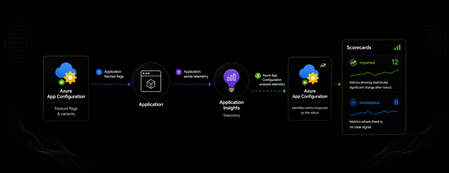
Applications are rarely changed all at once anymore. Teams use feature flags, targeting rules, and progressive rollout patterns to introduce changes gradually and reduce risk. This rollout model gives teams more than a safer way to control exposure. It also creates the context to understand what changed after a rollout. But teams still need a practical way to answer: Did this rollout move the needle in a measurable way? Today, we’re introducing Scorecards in Azure App Configuration in public preview. Scorecards are a new capability in the Feature Management that helps teams quickly identify which metrics were impacted by a feature rollout and use those signals to decide what to do next. Why Scorecards? After a controlled rollout, the next step is often manual unless you run a full-fledged experiment. Development Teams open dashboards, compare time ranges, scan logs, and look across standard and custom metrics to understand what changed. That work can take time, especially when an application emits many metrics across performance, reliability, engagement, business KPIs, or AI-related scenarios. Scorecards help narrow that investigation. Using the telemetry your application already sends to Application Insights, Scorecards surface the metrics that moved after a rollout. This gives teams a faster starting point without requiring them to manually scan large sets of telemetry first for signals How it works Scorecards build on Feature Management in Azure App Configuration and telemetry from Application Insights. A team starts by defining variants for a feature flag. One variant may represent the current behavior, while another represents a new feature, configuration path, service behavior, model version, or agent workflow. As the application runs, it continues to emit telemetry to Application Insights. This can include standard metrics such as requests, failures, dependencies, and duration, along with custom metrics logged by the application. Scorecards help teams view telemetry through the context of a rollout. In the telemetry experience for a feature flag, Scorecards surface the metrics associated with the rollout in two categories: Impacted Metrics showing statistically significant change after rollout. Inconclusive Metrics where there is no clear signal. When to use Scorecards Scorecards are useful when teams want a quick signal after a controlled rollout. Common examples include: application feature launches runtime configuration updates backend service changes performance improvements AI model or agent updates Teams can use Scorecards to compare feature variants against key performance indicators, detect potential issues introduced by updated feature behavior, evaluate adoption and usage trends, and use telemetry insights to guide rollout, optimization, or deprecation decisions. For deeper investigation, teams can continue using existing Application Insights dashboards, logs, alerts, and observability workflows. Example: validating a new experience Consider a team rolling out a redesigned onboarding flow in their application. The team enables the new experience for a small percentage of users using a feature flag variant. The application already emits telemetry for page load duration, failed requests, sign-up completion, and custom engagement events. After starting the rollout, Scorecards can help highlight which metrics show statistically significant change. If completion-related metrics appear under Impacted, the team has a clear signal to investigate further. If most operational metrics appear as Inconclusive, the team can avoid spending time on areas where no clear signal was detected. Architecture: From rollout to signal Getting started To use Scorecards: Use Azure App Configuration to implement feature flags in your application. Roll out changes using variant feature flags. Enable telemetry for the feature flag with Application Insights Use Scorecards in the Azure Portal to quickly identify impacted metrics. Scorecards help teams focus on the metrics most relevant to a rollout and make faster decisions with more confidence. We’d love to hear your feedback on what is working well and where we can improve as we continue to iterate on Scorecards and enhance the visual experience.502Views0likes0CommentsBlock Microsoft from running experiments in the Microsoft Edge browser
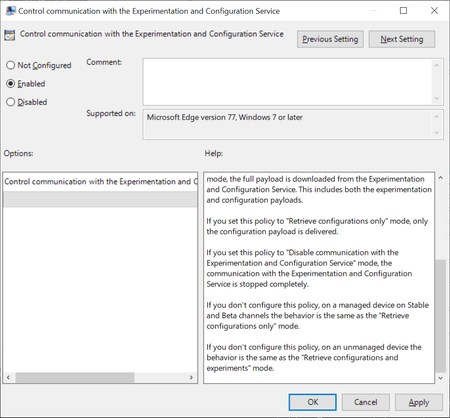
Browsers like Firefox, Chrome or Microsoft Edge come with built-in functionality to run experiments. Browser makers like Mozilla or Google may enable or disable features or changes in select browsers; this is often used to A-B test features or get early feedback on new implementations. While most users may not even notice that experiments are running in their browsers, it happened in the past that experiments caused issues. The latest case was revealed in November when administrators from around the world reported that a Chrome experiment would crash browsers in organizations worldwide. Negative side-effects of experiments are a problem for home users and business users alike, and it is often desirable to disable or block experiments from being downloaded and run. Microsoft distinguishes between controlled feature rollouts and experiments in the company's new Chromium-based Microsoft Edge web browser. Both are made available to part of the user base when they start to roll out but similarities end here. Microsoft notes: Microsoft Edge builds have features and functionality that are still in development or are experimental. Experiments are like CFR, but the size of the user group is much smaller for testing the new concept. These features are hidden by default until the feature's rolled out or the experiment's finished. Experiment flags are used to enable and disable these features. System administrators may use the "Control communication with the Experimentation and Configuration Service" on pro and Enterprise editions of Windows 7, 8.1 or 10 to prevent experiments in the browser. Here is what is needed for that: Get the latest Microsoft Edge policy file from the Microsoft Edge Insider website. It is likely that the policies will become available natively eventually when Edge is released and integrated in Windows. Extract the file (first a cab, then a zip). Open Windows > Admx. Copy the two .admx template files to C:\Windows\PolicyDefinitions\. Open the language folder that matches the system language and copy the .adml files to the corresponding language folder of C:\Windows\PolicyDefinitions\ Open Start, type gpedit.msc and hit the Enter-key to open the Group Policy Editor. Consult this Docs page on the Microsoft website for additional scenarios, e.g. when domain controllers are used. Open Computer Configuration > Administrative Templates > Microsoft Edge. Open the policy "Control communication with the Experimentation and Configuration Service" policy. Set the policy to Enabled. Set it to either "Retrieve configurations only" or "Disable communication with the Experimentation and Configuration Service". Retrieve will download configuration payloads only, disable won't download or enable them. The behavior of not configuring the policy differs depending on whether it is a managed or unmanaged device. Managed devices will download the configuration only while unmanaged devices will retrieve configurations and experiments. Source9.1KViews0likes4CommentsNew Portal Experience for Feature Management
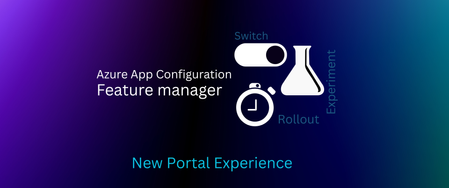
Feature flags have become an essential tool for modern software development, enabling teams to deploy code safely, control feature rollouts, and experiment with new functionality without the risk of breaking production environments. As AI becomes increasingly integrated into applications— from LLM-powered features to model version management— the need for safe, controlled deployments has never been more critical. The previous experience forced you to make a decision upfront: should I create a feature flag or a variant feature flag? What's the difference between these options? Which one do I need for my use case? Did I make a wrong choice? Do I need to delete and start over? Our new portal experience starts with your goal instead of requiring deep knowledge of feature flag architecture. The new experience asks you: What will you be using your feature flag for? Scenarios That Match How You Think When you select a scenario, the portal dynamically adjusts to reveal only the relevant configuration tabs and options. Switch shows straightforward toggle controls, Rollout presents percentage and targeting options, and Experiment allows variant allocation and traffic distribution settings. Let's dive deeper into how they fit into your needs. Switch: "I need an on/off toggle" Immediate on/off control over features, that is commonly used for: Emergency kill switches: Instantly disable problematic features or AI models in production Maintenance mode: Toggle site-wide maintenance without deployments Feature gating: Block access to beta features for non-beta users Debug modes: Enable verbose logging or diagnostic features for troubleshooting Regional compliance: Quickly disable features that conflict with local regulations Fallback mode: Switch from AI-powered responses to rule-based responses during model downtime Rollout: "I want to control who gets this and when" Gradual exposure with smart targeting for controlled feature releases that can be useful for: Canary deployments: Start with 5% of users, gradually increase to 100% Geographic rollouts: Launch multimodal AI in one region (e.g US-West), then expand based on language model performance Subscription tiers: Give premium features to paid users first (e.g provide RAG-enhanced search to enterprise users) Employee dogfooding: Internal testing before customer release, test new LLM-powered features with employees before customer release Time-based releases: Automatically activate features during business hours Load testing: Gradually increase traffic to stress-test new infrastructure Experiment: "I want to make informed data-driven decisions" Here's the key: You don't necessarily have to run statistical experiments. Beyond A/B testing, this scenario can be applied if you have multiple variants of something - different algorithms, UI layouts, configurations, or business logic paths - and is typically utilized for: Statistical Analysis, A/B Testing & Experiments: Conversion optimization: Test different checkout flows to measure completion rates UI/UX experiments: Compare button colors, layouts, or copy to optimize user engagement Model comparison: Compare Claude vs GPT-4 vs Gemini for completion rates and accuracy Pricing strategy tests: Evaluate different pricing models with statistical significance Algorithm performance: Compare recommendation engines using click-through rates and revenue metrics Configuration & Variant Management: Configuration management: Serve different API timeout values to different regions Feature variants: Offer basic/premium/enterprise feature sets through one flag Model routing: Route traffic between fine-tuned model, base model, and RAG-enhanced model based on query complexity Content personalization: Show different onboarding flows based on user characteristics (e.g show different system instructions based on user expertise level for prompt personalization) Multi-tenant customization: Serve tenant-specific configurations and behaviors Check out Azure App Configuration Feature manager in action in this demo video: Experience the new approach today: 1. Navigate to your App Configuration resource in the Azure Portal 2. Go to Operations > Feature manager > Create 3. Selecting your scenario: Switch, Rollout, or Experiment and the subsequent setup steps will appear dynamically in tabs 4. Configure with purpose-built options that match your chosen scenario Telemetry can be enabled in all scenarios if your App Configuration store is connected to an App Insights Workspace. This update doesn't change how your existing flags work, the scenario-based approach simply improves new flag creation process on the Azure App Configuration Portal. This scenario-based approach is just the beginning. We're continuing to invest in making feature management more intuitive, starting with insights into better performing variants to AI experimentation. Additional resources: Manage feature flags in Azure App Configuration Understand feature management using Azure App Configuration | Microsoft Learn Questions about the new experience? Comment below! #Azure #FeatureFlags #AppConfiguration #DeveloperExperience #FeatureManager #AzurePortal #Experimentation #Rollout1.8KViews0likes0CommentsUnlocking Client-Side Configuration at Scale with Azure App Configuration and Azure Front Door
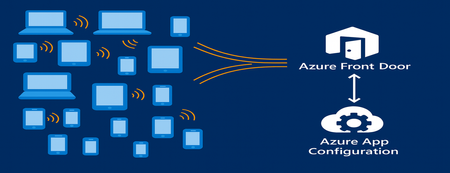
As modern apps shift more logic to the browser, Azure App Configuration now brings dynamic configuration directly to client-side applications. Through its integration with Azure Front Door, developers can deliver configuration to thousands or millions of clients with CDN-scale performance while avoiding the need to expose secrets or maintain custom proxy layers. This capability is especially important for AI-powered and agentic client applications, where model settings and behaviors often need to adjust rapidly and safely. This post introduces the new capability, what it unlocks for developers, and how to start building dynamic, configuration-driven client experiences in Azure. App Configuration for Client Applications Centralized Settings and Feature Management App Configuration gives developers a single, consistent place to define configuration settings and feature flags. Until now, this capability was used almost exclusively by server-side applications. With Azure Front Door integration, these same settings can now power modern client experiences across: Single Page Applications (React, Vue, Angular, Next.js, and others using JavaScript) Mobile/ and desktop applications with .Net MAUI JavaScript-powered UI components or embedded widgets running in browser Any browser-based application that can run JavaScript This allows developers to update configuration without redeploying the client app. CDN-Accelerated Configuration Delivery with Azure Front Door Azure Front Door enables client applications to fetch configuration using a fast, globally distributed CDN path. Developers benefit from: High-scale configuration delivery to large client populations Edge caching for fast, low-latency configuration retrieval Reduced load on your backend configuration store through CDN offloading Dedicated endpoint that exposes only the configuration subset it is scoped for. Secure and Scalable Architecture App Configuration integrates with Azure Front Door to deliver configuration to client-side apps using a simple, secure, and CDN-accelerated flow. How it works The browser calls Azure Front Door anonymously, like any CDN asset. Front Door uses managed identity to access App Configuration securely. Only selected key-values, feature flags or snapshots are exposed through Azure Front Door. No secrets or credentials are shipped to the client. Edge caching enables high throughput and low latency configuration delivery. This provides a secure and efficient design for client applications and eliminates the need for custom gateway code or proxy services. Developer Scenarios: What You Can Build CDN-delivered configuration unlocks a range of rich client application scenarios: Client-side feature rollouts for UI components A/B testing or targeted experiences using feature flags Control AI/LLM model parameters and UI behaviors through configuration Dynamically control client-side agent behavior, safety modes, and guardrail settings through configuration Consistent behavior for clients using snapshot-based configuration references These scenarios previously required custom proxies. Now, they work out-of-the-box with Azure App Configuration + Azure Front Door. End-to-End Developer Journey The workflow for enabling client-side configuration with App Configuration is simple: Define key values or feature flags in Azure App Configuration Connect App Configuration to Azure Front Door in the portal Scope configuration exposed by Front Door endpoint with key value or snapshot filter. Use the updated AppConfig JavaScript or .NET provider to connect to Front Door anonymously. Client app fetches configuration via Front Door with CDN performance Update your configuration centrally, no redeployment required To see this workflow end-to-end, check out this demo video. The video shows how to connect an App Configuration store to Azure Front Door and use the Front Door endpoint in a client application. It also demonstrates dynamic feature flag refresh as updates are made in the store. Portal Experience to connect Front Door Once you create your App Configuration store with key values and/or feature flags, you can configure the Front Door connection directly in the Azure portal. The App Configuration portal guides you through connecting a profile, creating an endpoint, and scoping which keys, labels, or snapshots will be exposed to client applications. A detailed “How-To” guide is available in the App Configuration documentation. Using the Front Door Endpoint in Client Applications JavaScript Provider Minimum version for this feature is 2.3.0-preview, get the provider from here. Add below snippet in your code to fetch the key values and/or feature flags from App Configuration through front door. import { loadFromAzureFrontDoor } from "@azure/app-configuration-provider"; const appConfig = await loadFromAzureFrontDoor("https://<your-afd-endpoint>", { featureFlagOptions: { enabled: true }, }); const yoursetting = appConfig.get("<app.yoursetting>"); .NET Provider Minimum version supporting this feature is 8.5.0-preview, get the provider from here builder.Configuration.AddAzureAppConfiguration(options => { options.ConnectAzureFrontDoor(new Uri("https://<your-afd-endpoint>")) .UseFeatureFlags(featureFlagOptions => { featureFlagOptions.Select("<yourappprefix>"); }); }); See our GitHub samples for JavaScript and .NET MAUI for complete client application setups. Notes & Limitations Feature flag scoping requires two key prefix filters, startsWith(".appconfig.featureflag") and ALL keys. Portal Telemetry feature does not reflect client-side consumption yet. This feature is in preview, and currently not supported in Azure sovereign clouds. Conclusion By combining Azure App Configuration with Azure Front Door, developers can now power a new generation of dynamic client applications. Configuration is delivered at CDN speed, securely and at scale letting you update experiences instantly, without redeployment or secret management on client side. This integration brings App Configuration’s flexibility directly to the browser, making it easier to power AI-driven interfaces, agentic workflows, and dynamic user experiences. Try client-side configuration with App Configuration today and update your apps’ behavior in real time, without any redeployments.1.1KViews2likes0Comments
Leveraging Azure Container Apps Labels for Environment-based Routing and Feature Testing
Azure Container Apps offers a powerful feature through labels and traffic splitting that can help developers easily manage multiple versions of an app, route traffic based on different environments, and enable controlled feature testing without disrupting live users. In this blog, we'll walk through a practical scenario where we deploy an experimental feature in a staging revision, test it with internal developers, and then switch the feature to production once it’s validated. We'll use Azure Container Apps labels and traffic splitting to achieve this seamless deployment process.2.1KViews5likes1CommentPublic Preview of Split Experimentation in Azure App Configuration
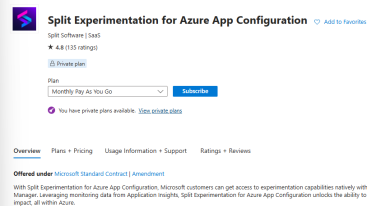
We're thrilled to announce the public preview of Split Experimentation in Azure App Configuration! This new capability extends feature flags to help you balance speed, accuracy, and safety in your application development. With seamless integration into Azure services and powered by Split's robust analysis, you can make data-driven decisions, mitigate risks, and optimize user experiences. Ready to unlock the full potential of feature management? Dive into our blog and start experimenting with our .NET sample today!5.4KViews0likes0Comments
A seeming illogical design\test strategy?
This post is looking for answers from people in the Microsoft Edge design\testing team. I have been in IT system administration and software development for over 30 years but I just don't get your design and testing strategy specifically related to who gets to see new features and on what devices. Here is my gripe, I run Edge Canary on multiple systems, each using the same Microsoft account and none of installations exhibit\expose the same feature set. So how in the world are we suppose to be involved in validating features that say, are supposed to sync but are only exposed on one install? I can totally understand A\B testing, but the same setup should apply to the user across all their devices - either they see the feature on everything or not at all. Say for example the feature "Payment instruments are now synced across devices" that I saw appear today. This shows on just one device; this seems to me to be bluntly illogical? In another area, I have been able to set 2 rows of quicklink icons on the new tab page on all but 1 device; it is hugely inconsistent and to be honest frustrating. It would seem sensible to make the same Microsoft account get all the same testing features rather than as it seems so randomly assigned. Regardless, I am sure there are more users who would benefit from an explanation and look forward to an explanation. Lastly looking for a real explanation, not supposition. Pete1.4KViews2likes4Comments