zero trust
4 TopicsSecurity Community Spotlight: Luca Romero Arrieche Heller
Meet Luca, Modern Workplace and Cloud Consultant at SoftwareOne Iberia, a Microsoft Partner. Luca has been working with Microsoft Security and cloud technologies for over a decade, closely following the evolution of the Microsoft Security ecosystem. Today, Luca focuses on Modern Work and security transformation projects, including large-scale Microsoft 365 migrations, enterprise messaging modernization with Exchange Online, endpoint management deployments with Microsoft Intune, and identity-driven security architectures across Microsoft environments. In addition to implementation projects, Luca also delivers technical workshops focused on threat protection and Microsoft security technologies, helping organizations better understand and implement solutions such as Microsoft Defender XDR, Microsoft Entra ID, endpoint security, and Zero Trust strategies to strengthen their overall security posture. Here’s what Luca had to say about his winding road through Microsoft Security and its Community. All responses are quotes from Luca. Microsoft Security Community How would you describe your Microsoft Security Community involvement or advocacy, globally and/or locally? When did you begin? My involvement with the Microsoft Community began early in my career through regional Microsoft community and influencer programs in Brazil. During that time, I became involved with Microsoft Virtual Academy (MVA) and started writing security-focused technical articles based on real project experience. My early technical journey began working with on-premises technologies such as ISA Server, Exchange Server, and Active Directory, which provided a strong foundation in Microsoft infrastructure and security. Through community participation and my blog, I began documenting real-world implementations and lessons learned related to Microsoft Security and cloud technologies. Over the years, my professional work has remained closely connected to the Microsoft ecosystem, implementing technologies such as Advanced Threat Analytics (ATA), Advanced Threat Protection (ATP), Microsoft Defender XDR, Microsoft Entra ID, and Microsoft Intune in enterprise environments. Today, my community advocacy is strongly connected to real-world experience, focusing on Zero Trust architectures, identity protection, modern endpoint security, and large-scale Microsoft 365 transformations and migrations. I noticed you’ve also answered a number of questions and have helped provide solutions in Microsoft Tech Community forums. How did you come across this and what inspired you to help? I have always been encouraged to participate in the technical community and share knowledge. Since the early days of TechNet, I have been involved in learning from others and contributing whenever possible. The culture of collaboration within the Microsoft ecosystem played an important role in my professional development. Many of the challenges I faced early in my career were solved thanks to the knowledge shared by the community. Because of that, contributing back feels natural. In the Microsoft Security Tech Community forums, I often see questions that are very similar to challenges I face in my daily work as a consultant. Sharing my experience becomes a practical way to help others navigate similar situations. Experience is important not only for solving problems, but also for knowing where to look and how to approach a solution. When I see questions without answers or clear guidance, I try to contribute by sharing practical insights, troubleshooting approaches, and real-world solutions. What do you find most rewarding about being a member of the Microsoft Security Community? What I find most rewarding is knowing that the community played a direct role in shaping my professional journey. Early in my career, I learned extensively through forums, technical discussions, and shared knowledge. That collaborative environment enabled me to grow into increasingly complex enterprise projects. Over the years, I have followed the evolution of Microsoft Security solutions... the community has always been part of that journey. Today, being able to contribute insights gained from large-scale security architectures, identity modernization, and enterprise Microsoft 365 migrations is my way of giving back. Additionally, as a founding member of Microsoft Virtual Academy, I published security-focused technical articles and created my blog to document real-world implementations, always referencing sources and applied knowledge. Speaking of Microsoft Security solutions...which feature or product has provided the most impact? How has it helped you or your customers? The combination of Entra ID Protection with Conditional Access and the unified visibility of Defender XDR (are the Microsoft Security products that have) delivered the greatest impact by reducing compromised credential risks and accelerating incident response through identity, endpoint, and cloud workload correlation. Back to the Microsoft Community- what advice do you have for others who would like to get involved? My advice is simple: start by learning, then share what you have genuinely implemented in practice. The community values real-world experience, technical honesty, and genuine collaboration. It’s not about visibility — it’s about adding value. Be consistent, support others, and document your journey. Impact follows naturally. Linking up with Luca Do you have anything you’d like to promote or recommend? I recommend diving deeper into Intune, Defender, and Exchange Online, especially focusing on the integration between identity, endpoint protection, and email security within a well-structured Zero Trust Where can people get in touch with you or follow your content? LinkedIn: https://www.linkedin.com/in/lucarheller GitHub: https://github.com/LucaARHeller Blog: https://lucaheller.wordpress.com/ Microsoft Tech Community: LucaHeller Please share anything else essential to you. Before thinking about advanced security tools, it is essential to understand how the underlying technologies work. Whether it is something simple like DNS resolution, how authentication flows operate, or how policies are applied across enterprise environments, these foundational concepts are what allow security architectures to be built correctly. For me, combining strong technical fundamentals with modern security technologies and real-world implementation experience is what enables organizations to build secure and resilient Microsoft environments. Luca’s story is a strong reminder of what makes the Microsoft Security Community thrive: practical contributions grounded in real-world experience. Through training, documenting, and showing up to help others, Luca demonstrates how continuous learning and compassion can benefit everyone. The community is better for his continued involvement, and his journey is an invitation for others to participate, share what they’ve learned, and keep strengthening security together. __________________________________________________________________________________________________________________________________________________________________ Learn and Engage with the Microsoft Security Community Log in and follow this Microsoft Security Community Blog. Follow = Click the heart in the upper right when you're logged in 🤍. Join the Microsoft Security Community and be notified of upcoming events, product feedback surveys, and more. Get early access to Microsoft Security products and provide feedback to engineers by joining the Microsoft Security Advisors. Join the Microsoft Security Community LinkedIn Group and follow the Microsoft Entra Community on LinkedIn.265Views0likes0CommentsEntra Group Source of Authority CONVERSION: Enabling Cloud-First Identity Management
As organizations modernize their identity infrastructure, Microsoft Entra’s Group Source of Authority (SOA) Conversion feature enables a granular migration of group management from on-premises AD to Microsoft Entra ID without disabling sync or rearchitecting the entire directory. What Is Group Source of Authority? Group SOA defines where a group object is mastered either in on-prem AD or in Entra ID. With SOA conversion, administrators can selectively convert AD-synced groups into cloud-native groups, making them editable and governable directly in Entra ID. Permissions Required To perform SOA conversion, the following Microsoft Entra roles and Graph API permissions are required: Hybrid Administrator: Required to call Microsoft Graph APIs to read and update SOA of groups. Application Administrator or Cloud Application Administrator: Required to grant user consent to the app or Graph Explorer. Graph API Permission Scope: Group-OnPremisesSyncBehavior.ReadWrite.All must be granted to the app calling the onPremisesSyncBehavior endpoint. Prerequisites Before initiating SOA conversion, ensure the following: Licensing Microsoft Entra Free or Basic license is sufficient. Sync Clients Microsoft Entra Connect Sync: Minimum version 2.5.76.0 Microsoft Entra Cloud Sync: Minimum version 1.1.1370.0 Group Eligibility Groups must not be mail-enabled or tied to Exchange on-premises (DLs or MESGs). If provisioning back to AD is planned, change group scope to Universal. How to Convert Group SOA from AD to Entra Here’s a simplified step-by-step guide: Identify Target Groups Use Entra Admin Center or Graph Explorer to list synced groups. Confirm they are not Exchange-dependent. Grant Permissions Use Graph Explorer or your app registration to grant Group-OnPremisesSyncBehavior.ReadWrite.All. Execute SOA Conversion If we see Group1, which is in scope of conversion is synchronized from on-prem. Execute the below from Graph Explorer to convert “Group1” to cloud managed PATCH https://graph.microsoft.com/beta/groups/{group-id}/OnPremisesSyncbehavior { "isCloudManaged": true } We can verify the change by executing below query on Graph API Explorer This marks the group as cloud-managed. AD sync will stop honoring changes to this group. Validate Conversion Confirm blockOnPremisesSync = true in the Entra Admin Center. Use audit logs to verify the change. Apply Governance Apply lifecycle policies, access reviews, and provisioning rules using Entra ID Governance. Use Cases: Migrating from On-Prem to Cloud Use Case 1: Retiring Legacy AD Groups Scenario: A customer has migrated all mailboxes to Exchange Online and no longer needs certain AD groups. Solution: Convert those groups to cloud-native Entra ID groups and delete them from AD, reducing footprint and simplifying governance. Use Case 2: Governing On-Prem Apps from the Cloud Scenario: A customer uses AD security groups to secure on-prem apps (e.g., Kerberos-based apps). Solution: Convert the group SOA to Entra ID, apply governance policies, and use Group Provision to AD to sync cloud-managed groups back to AD. Use Case 3: Migrating DLs and MESGs to Cloud Scenario: A customer wants to migrate all distribution lists and mail-enabled security groups to the cloud. Solution: Convert SOA to Entra ID, recreate mail-enabled groups in Exchange Online, and decommission AD-based mail groups. Use Case 4: Enabling Access Reviews Scenario: A federal customer wants to run access reviews on group memberships but the groups are AD-synced. Solution: Convert SOA to Entra ID, enabling full access review capabilities and lifecycle workflows. Use Case 5: Hybrid Identity Cleanup Scenario: A customer is migrating from Entra Connect Sync to Cloud Sync and wants to clean up group sprawl. Solution: Use SOA conversion to move group management to the cloud, then decommission legacy sync rules and OUs. Strategic Impact Group SOA Conversion is more than a technical enhancement, it’s a strategic enabler for identity modernization. It supports: AD DS minimization: Shrinking on-prem footprint. Cloud-first governance: Centralized access control and lifecycle management. Phased migration: Avoiding disruption while modernizing.Passwordless Authentication with FIDO2 Security Key for Remote Desktop Connection
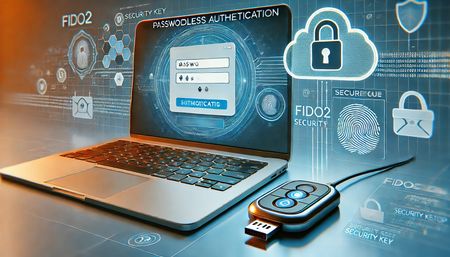
Passwordless Authentication with FIDO2 Security Key for Remote Desktop Connection Hello Everyone, in this blog, we will explore how to use a FIDO2 security key to access a device using Remote Desktop Connection (RDP)—a Zero Trust approach where passwordless authentication is enforced. Recently, a customer asked me whether they could secure their device and enforce passwordless authentication for RDP access. While some FIDO2 security keys can also be used as smart cards with Certificate-Based Authentication (CBA), I will cover that topic in my next blog. In this post, let's focus on how we can use Windows 10/11, the RDPAAD (Remote Desktop Protocol Azure AD Protocol), and WebAuthn to connect to Entra ID-joined or Hybrid-joined devices using a FIDO2 security key. If a user has never used or registered a FIDO2 security key, they should register it by visiting My Sign-Ins, clicking on Security Info, and selecting Add sign-in method. Once the FIDO2 security key is registered, complete the sign-in process and ensure the user can successfully authenticate to web applications using the security key. Configuring RDP for Entra ID-Joined Devices: For Entra ID-joined devices, follow these steps to enable RDP access using a FIDO2 security key: Ensure the user is a member of the local Remote Desktop Users group on the remote device. o Open PowerShell as Administrator and load the Microsoft Graph PowerShell module to connect to Entra ID (if needed). o Run the following command to add the user to the Remote Desktop Users group: o net localgroup "Remote Desktop Users" /add "AzureAD\user200@farooquetech.in" We can validate the configuration by opening Computer Management and checking the Local Users and Groups settings: Open Computer Management (compmgmt.msc). Navigate to Local Users and Groups → Groups. Locate and open the Remote Desktop Users group. Check if the Entra ID user we added appears in the list. This confirms that the user has been successfully added and can sign-in to remote machine using RDP. At this point, we can open Remote Desktop Connection (mstsc.exe) and attempt to connect to the remote device. Open Remote Desktop Connection (mstsc.exe). Click on the Advanced tab. Under User Authentication, ensure we select "Use a web account to sign in to the remote computer." This ensures that the RDP session leverages passwordless authentication with FIDO2 and WebAuthn for secure access. Enter the NetBIOS name of the remote computer in Remote Desktop Connection (mstsc.exe) and click Connect. On the sign-in page, enter the Entra ID account for which FIDO2 Security Key authentication is enabled. When prompted to choose a passwordless authentication method, select Security Key. Insert your FIDO2 security key, follow the prompts, and complete the authentication process. This ensures a secure, passwordless RDP connection to the remote device. Put the PIN and also touch your finger on Security Key to complete authentication. A consent is prompt to allow RDP Connection, select Yes. Post Authentication, we will see the desktop successfully loads. Remote Desktop Connection Access to Hybrid Entra ID-Joined Devices: Now, let's discuss how to establish RDP access for Hybrid Entra ID-joined devices. The process for Hybrid-joined devices differs slightly because these devices are joined to both Active Directory (AD) and Entra ID. This means authentication must be validated in both directories. To achieve this, we need to register an Active Directory Read-Only Domain Controller (RODC) object in Entra ID. This RODC object helps issue a partial Kerberos Ticket Granting Ticket (TGT) to the user after authentication with Entra ID. Note: This RODC object is not linked to any on-premises AD domain controller—it is simply an empty object in Entra ID used to enable Kerberos authentication. Enabling Entra ID Kerberos Authentication: To enable Entra ID Kerberos authentication, follow these steps: Open PowerShell as Administrator. Install the AzureADKerberos module (if not already installed): Execute below powershell commands Import-module “Import-module "C:\Program Files\Microsoft Azure Active Directory Connect\AzureADKerberos\AzureAdKerberos.psd1" $domain = $env:USERDNSDOMAIN $userPrincipalName = admin@mngenvmcapXXX.onmicrosoft.com $domainCred = Get-Credential (Enter the Active Directory credentials) Once the command executes successfully, we can verify that the AzureADKerberos account has been created in Active Directory. Open Active Directory Users and Computer and under Domain Controller, check AzureADKerberos RODC object is created. This completes the AzureADKerberos configuration, enabling the use of FIDO2 Security Keys for authentication. Now, to establish an RDP connection, follow the same steps outlined earlier for Entra ID-joined devices. Enforcing Phishing-Resistant Passwordless Authentication for RDP: To ensure that Remote Desktop Protocol (RDP) always uses phishing-resistant passwordless authentication, we can enforce this through Conditional Access Policies in Entra ID. Sign in to the Entra ID portal. Go to Security → Conditional Access and create a new policy. Under Assignments, select the users or groups that require secure RDP access. In the Cloud apps or actions section, select “Microsoft Remote Desktop” with Application ID “a4a365df-50f1-4397-bc59-1a1564b8bb9c”. Under Grant Controls, choose Require authentication strength. Select Phishing-resistant authentication, which includes FIDO2 Security Keys Save and enable the policy. Note: For Hybrid Entra Joined machine, please ensure we do not use domain admin or any other AD high privileged account to logon else partial TGT will not be issued by Entra ID. I hope you found this blog helpful! In my next blog, I will cover how FIDO2 Security Keys can also be used for on-premises Active Directory domain-joined servers. Stay tuned!Setting up Microsoft Entra Verified ID, step by step
Are you confident who the people in your organization are interacting with online? Identity verification is fundamental in protecting your organization from impersonation. Get the knowledge you need to bring strong identity verification to your organization and improve confidence that digital interactions are safe and secure. The Microsoft Entra Verified ID team will kick off with a comprehensive understanding of how to set up Verified ID. We'll walk through key concepts, including Verified ID's significance in enhancing digital identity, security, and trust. Then we'll show you how to configure your environment, set up and issue your first credential, and use the Microsoft Entra admin center to manage credentials across your organization. This session is part of the Microsoft Entra Verified ID webinar series.3.4KViews3likes2Comments