zero trust
26 TopicsImplementing Intune RBAC and Scope Tags for Zero Trust and Least Privilege
If you’re rolling out Microsoft Intune at scale, the hardest part usually isn’t creating policies—it’s making sure the right people can manage the right things, without turning every admin account into a “keys to the kingdom” risk. In this guide, you’ll learn how to use Intune RBAC and Scope Tags to enforce least privilege, build clear management boundaries by region/agency/environment, and pair device compliance with Entra Conditional Access to strengthen a Zero Trust posture—plus a practical RACI approach so ownership stays clear as your environment grows. TL;DR Use Intune RBAC to align admin permissions to job responsibilities, reducing standing privilege and limiting who can change policies, apps, and security settings. Use Scope Tags to create visibility/management boundaries (region, agency, environment) so admins only see and manage what they own. Pair Intune compliance + Entra Conditional Access to enforce “access only from compliant devices / protected apps,” which supports a Zero Trust posture. Establish a RACI model so ownership is explicit across Endpoint, Identity, Security, Apps, AD, Help Desk, and Compliance teams. Track outcomes (compliance rates, blocked risky sign-ins, RBAC audit events, scope boundary effectiveness, GPO migration progress) and review on a regular cadence. Zero Trust and Least Privilege in Modern Endpoint Management Zero Trust is an approach to security that treats every access attempt as untrusted until it is proven otherwise. Rather than relying on “inside the network = safe,” organizations evaluate each request using signals such as user identity, device health, location, and risk, and they re-check those signals over time. In an endpoint program, Microsoft Intune supports this model by establishing device compliance, applying app protection where appropriate, and working with Conditional Access so that access decisions can depend on verified user and device posture. A practical way to describe Zero Trust is through three recurring themes: (1) make access decisions using explicit verification (strong authentication plus context and risk signals), (2) minimize privilege by granting only the access needed and reducing standing admin rights where possible, and (3) design for compromise by limiting lateral movement and reducing the impact of any single breach. These concepts align with Microsoft’s published Zero Trust guidance. Role-Based Access Control (RBAC) in Intune allows organizations to delegate administrative permissions based on roles, responsibilities, and scope. For modern endpoint environments, RBAC ensures that only authorized personnel can manage devices, deploy configurations, or access sensitive data, which is a foundational control in a Zero Trust model where access is granted based on least privilege and verified identity. By combining Intune's RBAC capabilities with Scope Tags, organizations can create visibility boundaries that align with their organizational structure, whether by region, department, business unit, or function. This prevents over-allowing permissions by assigning only the rights needed for each role, supports Zero Trust by enforcing least privilege and role-based access, and improves operational security by limiting who can manage devices and policies. Understanding Intune RBAC Roles and Permissions Microsoft Intune provides nine built-in RBAC roles designed to address common administrative scenarios. Each role has predefined permissions that determine what actions users can perform within the Intune environment, helping organizations delegate administrative tasks while maintaining control over access to sensitive information. The built-in roles include Intune Administrator with full access to all Intune features and settings (This role should not be used for every day management tasks and should be limited to only a few individuals who would be responsible for performing more elevated tasks in the Intune Portal), Policy and Profile Manager who manages device configuration profiles and compliance policies, Application Manager who manages mobile and managed applications, Endpoint Security Manager who manages security and compliance features, Help Desk Operator who performs remote tasks on users and devices, Read-Only Operator with view-only access, School Administrator for Windows 10 devices in Intune for Education, Intune Role Administrator who manages custom roles and assignments, and Cloud PC roles for managing Cloud PC features and Windows Autopatch roles for managing updates. Built-in Role Primary Permissions Use Case Application Manager Manages mobile and managed applications, app configuration policies, and app protection policies Teams responsible for deploying and managing organizational apps across devices Policy and Profile Manager Manages device configuration profiles, compliance policies, and conditional access policies IT administrators configuring device settings and ensuring compliance across the organization Endpoint Security Manager Manages security baselines, endpoint detection and response, and BitLocker policies Security teams focused on device protection and threat mitigation Help Desk Operator Performs remote tasks including device restart, password reset, and remote lock First-line support staff assisting end users with device issues Read-Only Operator View-only access to all Intune data and reports without modification rights Auditors and stakeholders needing visibility without administrative capabilities Beyond built-in roles, Intune supports custom roles that allow administrators to define specific permissions for users or groups based on their responsibilities. Custom roles enable fine-grained access control by selecting granular permissions for each role, ensuring users have access only to the features and data they require. For example, a custom role could grant only the 'Rotate local administrator password' permission to a specific Helpdesk Managers group, demonstrating the principle of least privilege in action. Create Custom Roles Login to the Intune Admin Portal with the Intune Administrator Role and navigate to Tenant Administration> Roles > All Roles > Create then select the type of role you want to create. I will select “Intune Role” Give your Custom Role a Name and a brief description. Scroll through the list of permissions as they will all be set to no by default and select the permissions relevant to the responsibility of the custom role. If you have already created your Scope Tag add it here, then review and select create Once the role is created you can select the new role and create an assignment. Give it a name and description, then select the admin group to be assigned to the role. Add the groups that the role will be managing. Add your relevant Scope Tags then select create. To take things one step further I would recommend leveraging Privileged Identity Management (PIM) for groups so that you can leverage Just-in-Time Assignments for the Intune roles. One last note on custom roles if you do not want to start from scratch with the permission sets, you can also duplicate a built-in role and modify the permissions as needed. Just select the 3 dots to the right of the role and select Duplicate Implementing Scope Tags for Distributed IT Management Scope Tags are labels that help control what different admins can see and manage in Microsoft Intune. By adding scope tags to Intune items like configuration profiles, apps, policies, or device groups and assigning the same labels to admins, organizations create clear boundaries, so each admin only sees the devices and settings they are responsible for. This capability is essential for distributed IT environments where different teams manage different locations, departments, or business units. Every Intune tenant includes a default scope tag that is automatically applied to all objects and admins, ensuring everything continues working smoothly even without custom tags configured. The key benefits of using scope tags include enabling distributed IT management by allowing regional or departmental admins to manage their specific resources, controlling access by limiting admin visibility to specific resources, enhancing security by preventing unauthorized access, improving organization by grouping resources by scope, and providing flexibility to support multiple administrative models. Scope tags work together with RBAC role assignments through three components: the role defining what actions admins can perform, scope tags determining which objects admins can see, and scope groups limiting which users and devices they can affect. Common use cases for scope tags include managed service providers limiting access to specific customer resources, regional IT administrators ensuring teams only manage and see objects relevant to their region, separating testing versus production environments when a dedicated test tenant is not available, and separating Azure Virtual Desktop resources for AVD administrators. Creating Scope Tags While still under Tenant Administration> Roles select Scope Tags Then Create. Give it a name and description. Assign the proper groups then select create. If this is all implemented properly, the admin will only be able to see items and devices that have the Scope tag that has been assigned to their role. Here are views of the apps in my tenant when signed in as a Intune Administrator (which Scope tags do not apply t And here are the same views when logged in with an admin with the iOS admin role that we created. Establishing a RACI Model for Intune Management While establishing a RACI model is not something done in the Intune portal, it is crucial in my opinion for enterprise customers since Intune covers such a vast number of capabilities that should not all be done by one team if we are practicing least privilege and zero trust. A RACI matrix is a powerful tool for defining organizational roles and responsibilities, identifying who is Responsible, Accountable, Consulted, and Informed for each activity. In Microsoft Intune management, implementing a RACI model eliminates ambiguity about which teams handle security policies, application management, patch compliance, Conditional Access, and GPO migration. The RACI framework defines four key roles: Responsible individuals execute the task or deliverable, Accountable is the single person ultimately answerable for correct completion and decision-making authority, Consulted are experts or stakeholders whose feedback is sought during the task, and Informed are those kept up to date on progress or decisions without actively contributing. For Intune environments, a well-designed RACI matrix promotes organizational alignment by mapping all key stakeholders across central IT and individual agencies or departments, clarifies decision rights by defining who approves, who executes, and who provides input for each Intune activity, ensures accountability by assigning a single accountable party for each deliverable to prevent diffusion of responsibility, and improves communication by identifying upfront who needs to be consulted and kept informed. Based on internal implementation experience and with Microsoft Federal customers, organizations should list deliverables not just activities, define roles not individual names to ensure the matrix remains relevant as people change positions, enforce exactly one Accountable person per task, assign Responsible, Consulted, and Informed roles thoughtfully, validate in a short review session, publish where work happens, and evolve the matrix as the project evolves. RACI Matrix for Security Policies and Compliance The following are just generic examples of some of the workloads and how they could be managed with a RACI matrix. Security policies and compliance management in Intune require clear ownership across multiple teams. Organizations must define who creates compliance policies requiring device encryption and minimum OS versions, who deploy security baselines like the Microsoft Defender for Endpoint Security Baseline, who manages Conditional Access policies that require device compliance, and who responds to non-compliant devices. A typical RACI model for security policies assigns the Cloud Security Team as Accountable for overall security policy strategy and compliance requirements, the Endpoint Team as Responsible for creating and deploying compliance policies and security baselines in Intune, the Application Team as Consulted for application-specific security requirements, the Help Desk as Informed about policy changes that may affect device compliance status, and the Compliance Team as Consulted to ensure policies meet regulatory requirements and as Informed about compliance status reports. For patch management and application compliance, the RACI model shifts slightly with the Endpoint Team becoming Accountable for patch deployment strategy and timing, the Application Team becoming Responsible for testing application compatibility with updates, the Help Desk becoming Responsible for addressing user-reported issues after patches, and the Cloud Security Team becoming Consulted for security update prioritization. Organizations implementing Windows Autopatch benefit from Microsoft managing problematic quality and feature update deployment cancellations using telemetry, automatically splitting devices into rings based on percentage of total devices, and managing patching behavior for Windows, Microsoft 365 Apps, Edge, Teams, and Drivers. This shifts some Accountable and Responsible designations to Microsoft while keeping internal teams Informed and Consulted. Intune Activity Accountable Responsible Consulted Informed Security Policy Creation Cloud Security Team Endpoint Team Application Team, Compliance Team Help Desk Compliance Policy Deployment Cloud Security Team Endpoint Team Compliance Team Help Desk, Application Team Security Baseline Management Cloud Security Team Endpoint Team Application Team Help Desk, Compliance Team Patch Management Strategy Endpoint Team Application Team Cloud Security Team Help Desk, Compliance Team Non-Compliance Response Cloud Security Team Endpoint Team, Help Desk Compliance Team Application Team Application and Conditional Access Management Responsibilities Application management and Conditional Access in Intune span multiple organizational functions requiring coordinated responsibility. For application lifecycle management, the Application Team is both Accountable and Responsible for deployment strategy, app protection policies, creating and testing app packages and configurations. The Endpoint Team is Consulted for deployment targeting and device compatibility, while the Help Desk is Informed about new applications and support procedures. For Conditional Access policy management, multiple teams coordinate their expertise. The Cloud Security Team is Accountable for overall Conditional Access strategy and Zero Trust implementation. The Endpoint Team is Responsible for ensuring device compliance status feeds correctly into Conditional Access decisions. The Identity Team is Responsible for configuring Conditional Access policies in Microsoft Entra ID. The Application Team is Consulted about application-specific access requirements, and the Help Desk is both Informed about access restrictions and Responsible for assisting users blocked by Conditional Access policies. Conditional Access integration with Intune creates a powerful Zero Trust security model where Intune evaluates device compliance based on compliance policies, compliance status is reported to Microsoft Entra ID, Conditional Access policies check device compliance status, and access is granted or blocked based on compliance status. For mobile application management, the Application Team is both Accountable and Responsible for app protection policies including data protection settings, access requirements like PIN and biometric authentication, and integration with Conditional Access. The Cloud Security Team is Consulted for security requirements, and the Endpoint Team is Informed about app-level controls that complement device-level policies. GPO Migration to Intune: Roles and Responsibilities Migrating Group Policy Objects from on-premises Active Directory to Microsoft Intune represents a critical transformation requiring clear ownership and phased execution. The migration process uses Group Policy Analytics, a built-in tool in Intune that analyzes on-premises GPOs by importing them as XML exports and translating them against the Settings Catalog to determine which policies are supported, deprecated, or unsupported in Intune. Organizations export GPOs from the Group Policy Management Console by right clicking the GPO, selecting Save Report, and saving as XML format. After importing to Intune via Devices > Group Policy Analytics, the tool generates a percentage-based report showing exactly how many settings have a direct 1:1 mapping to modern Intune settings. The Group Policy Analytics tool categorizes settings into three distinct types: Supported settings that have a direct counterpart in Intune and can be migrated via Settings Catalog policies, Deprecated settings no longer applicable to modern Windows versions, and Not Supported settings that do not currently have a CSP mapping and often require alternative management methods like PowerShell scripts or Proactive Remediations. Approximately 45% of GPOs can be successfully migrated to Settings Catalog, 30% require alternative approaches via PowerShell remediations, and 25% can be deprecated and retired based on typical migration outcomes. RACI Model for GPO Migration For the RACI model, the Endpoint Team is Accountable for the overall GPO migration strategy and timeline, the Active Directory Team is Responsible for exporting GPOs and documenting current policy structures, the Application Team is Consulted to validate that application-specific GPOs migrate correctly and that applications continue functioning, the Cloud Security Team is Consulted to ensure migrated policies maintain security posture, and the Help Desk is Informed about changes to device configurations and becomes Responsible for user communication about policy transitions. Integrating Conditional Access with Device Compliance Conditional Access integration with Intune device compliance creates an additional layer of security by enforcing access controls based on device compliance status and app protection policies. This integration ensures that only compliant devices and protected apps can access organizational resources, forming a cornerstone of Zero Trust architecture. Device-Based Conditional Access Implementation Device-based Conditional Access uses device compliance status from Intune to control access to organizational resources through a four-step process: Intune evaluates device compliance based on compliance policies Compliance status is reported to Microsoft Entra ID Conditional Access policies check device compliance status Access is granted or blocked based on compliance status To implement device compliance Conditional Access, organizations first create and assign device compliance policies in Intune requiring elements like BitLocker encryption, Microsoft Defender antivirus enabled, Windows Firewall enabled, and minimum OS version requirements. Then in the Microsoft Entra Admin Center under Security > Conditional Access, administrators create policies specifying: Users as target groups like Corporate Users Cloud apps as All cloud apps or selected Microsoft 365 apps Device platform as Windows or other platforms Access control requiring device to be marked as compliant Measuring Success and Continuous Improvement Organizations implementing Intune RBAC and Scope Tags should establish metrics to measure success and identify areas for continuous improvement. Key performance indicators include percentage of devices compliant with security policies, time to resolve non-compliance issues, number of unauthorized access attempts blocked by Conditional Access, percentage of GPOs successfully migrated to Intune Settings Catalog, and administrative efficiency measured by reduction in time spent on routine management tasks. Compliance reporting in Intune provides visibility into device compliance status across the organization, with reports showing compliant versus non-compliant devices, specific compliance policy violations, and trends over time. Organizations typically see compliance rates improve from a 65% baseline to 95% or higher within 12 months of implementing proper RBAC roles and Scope Tags. This improvement results from clearer ownership, faster policy deployment, and more focused administrative oversight. Conditional Access sign-in logs in Microsoft Entra ID reveal which access attempts are granted or blocked, the reasons for access decisions, and patterns of risky sign-ins that may indicate compromised credentials or devices. For RBAC effectiveness, organizations should monitor audit logs to track which administrators are performing which actions, identify any privilege escalation attempts or suspicious administrative activity, and ensure separation of duties is maintained. Scope tag effectiveness can be measured by confirming that administrators only see resources within their designated scope, tracking incidents where admins requested access outside their scope, and validating that regional or departmental segregation is working as intended. Organizations should establish a regular review cadence with monthly compliance and security posture reviews, quarterly RBAC and Scope Tag access reviews, bi-annual GPO migration progress assessments, and annual Zero Trust maturity assessments. Disclaimer All screenshots are from a non-production lab environment and can/will vary per environment. All processes and directions are of my own opinion and not of Microsoft and are from my years of experience with the Intune product in multiple customer environments References Role-based access control (RBAC) with Microsoft Intune - Microsoft Intune | Microsoft Learn Use role-based access control (RBAC) and scope tags for distributed IT - Microsoft Intune | Microsoft Learn Aligning responsibilities across teams - Cloud Adoption Framework | Microsoft Learn How to Require Device Compliance with Conditional Access - Microsoft Entra ID | Microsoft Learn Configuring Microsoft Intune just-in-time admin access with Azure AD PIM for Groups | Microsoft Community HubSecurity Community Spotlight: Luca Romero Arrieche Heller
Meet Luca, Modern Workplace and Cloud Consultant at SoftwareOne Iberia, a Microsoft Partner. Luca has been working with Microsoft Security and cloud technologies for over a decade, closely following the evolution of the Microsoft Security ecosystem. Today, Luca focuses on Modern Work and security transformation projects, including large-scale Microsoft 365 migrations, enterprise messaging modernization with Exchange Online, endpoint management deployments with Microsoft Intune, and identity-driven security architectures across Microsoft environments. In addition to implementation projects, Luca also delivers technical workshops focused on threat protection and Microsoft security technologies, helping organizations better understand and implement solutions such as Microsoft Defender XDR, Microsoft Entra ID, endpoint security, and Zero Trust strategies to strengthen their overall security posture. Here’s what Luca had to say about his winding road through Microsoft Security and its Community. All responses are quotes from Luca. Microsoft Security Community How would you describe your Microsoft Security Community involvement or advocacy, globally and/or locally? When did you begin? My involvement with the Microsoft Community began early in my career through regional Microsoft community and influencer programs in Brazil. During that time, I became involved with Microsoft Virtual Academy (MVA) and started writing security-focused technical articles based on real project experience. My early technical journey began working with on-premises technologies such as ISA Server, Exchange Server, and Active Directory, which provided a strong foundation in Microsoft infrastructure and security. Through community participation and my blog, I began documenting real-world implementations and lessons learned related to Microsoft Security and cloud technologies. Over the years, my professional work has remained closely connected to the Microsoft ecosystem, implementing technologies such as Advanced Threat Analytics (ATA), Advanced Threat Protection (ATP), Microsoft Defender XDR, Microsoft Entra ID, and Microsoft Intune in enterprise environments. Today, my community advocacy is strongly connected to real-world experience, focusing on Zero Trust architectures, identity protection, modern endpoint security, and large-scale Microsoft 365 transformations and migrations. I noticed you’ve also answered a number of questions and have helped provide solutions in Microsoft Tech Community forums. How did you come across this and what inspired you to help? I have always been encouraged to participate in the technical community and share knowledge. Since the early days of TechNet, I have been involved in learning from others and contributing whenever possible. The culture of collaboration within the Microsoft ecosystem played an important role in my professional development. Many of the challenges I faced early in my career were solved thanks to the knowledge shared by the community. Because of that, contributing back feels natural. In the Microsoft Security Tech Community forums, I often see questions that are very similar to challenges I face in my daily work as a consultant. Sharing my experience becomes a practical way to help others navigate similar situations. Experience is important not only for solving problems, but also for knowing where to look and how to approach a solution. When I see questions without answers or clear guidance, I try to contribute by sharing practical insights, troubleshooting approaches, and real-world solutions. What do you find most rewarding about being a member of the Microsoft Security Community? What I find most rewarding is knowing that the community played a direct role in shaping my professional journey. Early in my career, I learned extensively through forums, technical discussions, and shared knowledge. That collaborative environment enabled me to grow into increasingly complex enterprise projects. Over the years, I have followed the evolution of Microsoft Security solutions... the community has always been part of that journey. Today, being able to contribute insights gained from large-scale security architectures, identity modernization, and enterprise Microsoft 365 migrations is my way of giving back. Additionally, as a founding member of Microsoft Virtual Academy, I published security-focused technical articles and created my blog to document real-world implementations, always referencing sources and applied knowledge. Speaking of Microsoft Security solutions...which feature or product has provided the most impact? How has it helped you or your customers? The combination of Entra ID Protection with Conditional Access and the unified visibility of Defender XDR (are the Microsoft Security products that have) delivered the greatest impact by reducing compromised credential risks and accelerating incident response through identity, endpoint, and cloud workload correlation. Back to the Microsoft Community- what advice do you have for others who would like to get involved? My advice is simple: start by learning, then share what you have genuinely implemented in practice. The community values real-world experience, technical honesty, and genuine collaboration. It’s not about visibility — it’s about adding value. Be consistent, support others, and document your journey. Impact follows naturally. Linking up with Luca Do you have anything you’d like to promote or recommend? I recommend diving deeper into Intune, Defender, and Exchange Online, especially focusing on the integration between identity, endpoint protection, and email security within a well-structured Zero Trust Where can people get in touch with you or follow your content? LinkedIn: https://www.linkedin.com/in/lucarheller GitHub: https://github.com/LucaARHeller Blog: https://lucaheller.wordpress.com/ Microsoft Tech Community: LucaHeller Please share anything else essential to you. Before thinking about advanced security tools, it is essential to understand how the underlying technologies work. Whether it is something simple like DNS resolution, how authentication flows operate, or how policies are applied across enterprise environments, these foundational concepts are what allow security architectures to be built correctly. For me, combining strong technical fundamentals with modern security technologies and real-world implementation experience is what enables organizations to build secure and resilient Microsoft environments. Luca’s story is a strong reminder of what makes the Microsoft Security Community thrive: practical contributions grounded in real-world experience. Through training, documenting, and showing up to help others, Luca demonstrates how continuous learning and compassion can benefit everyone. The community is better for his continued involvement, and his journey is an invitation for others to participate, share what they’ve learned, and keep strengthening security together. __________________________________________________________________________________________________________________________________________________________________ Learn and Engage with the Microsoft Security Community Log in and follow this Microsoft Security Community Blog. Follow = Click the heart in the upper right when you're logged in 🤍. Join the Microsoft Security Community and be notified of upcoming events, product feedback surveys, and more. Get early access to Microsoft Security products and provide feedback to engineers by joining the Microsoft Security Advisors. Join the Microsoft Security Community LinkedIn Group and follow the Microsoft Entra Community on LinkedIn.Strengthening your Security Posture with Microsoft Security Store Innovations at RSAC 2026
Security teams are facing more threats, more complexity, and more pressure to act quickly - without increasing risk or operational overhead. What matters is being able to find the right capability, deploy it safely, and use it where security work already happens. Microsoft Security Store was built with that goal in mind. It provides a single, trusted place to discover, purchase, and deploy Microsoft and partner-built security agents and solutions that extend Microsoft Security - helping you improve protection across SOC, identity, and data protection workflows. Today, the Security Store includes 75+ security agents and 115+ solutions from Microsoft and trusted partners - each designed to integrate directly into Microsoft Security experiences and meet enterprise security requirements. At RSAC 2026, we’re announcing capabilities that make it easier to turn security intent into action- by improving how you discover agents, how quickly you can put them to use, and how effectively you can apply them across workflows to achieve your security outcomes. Meet the Next Generation of Security Agents Security agents are becoming part of day-to-day operations for many teams - helping automate investigations, enrich signals, and reduce manual effort across common security tasks. Since Security Store became generally available, Microsoft and our partners have continued to expand the set of agents that integrate directly with Microsoft Defender, Sentinel, Entra, Purview, Intune and Security Copilot. Some of the notable partner-built agents available through Security Store include: XBOW Continuous Penetration Testing Agent XBOW’s penetration testing agents perform pen-tests, analyzes findings, and correlates those findings with a customer’s Microsoft Defender detections. XBOW integrates offensive security directly into Microsoft Security workflows by streaming validated, exploitable AppSec findings into Microsoft Sentinel and enabling investigation through XBOW's Copilot agents in Microsoft Defender. With XBOW’s pen-testing agents, offensive security can run continuously to identify which vulnerabilities are actually exploitable, and how to improve posture and detections. Tanium Incident Scoping Agent The Tanium Incident Scoping Agent (In Preview) is bringing real-time endpoint intelligence directly into Microsoft Defender and Microsoft Security Copilot workflows. The agent automatically scopes incidents, identifies impacted devices, and surfaces actionable context in minutes-helping teams move faster from detection to containment. By combining Tanium’s real-time intelligence with Microsoft Security investigations, you can reduce manual effort, accelerate response, and maintain enterprise-grade governance and control. Zscaler In Microsoft Sentinel, the Zscaler ZIA–ZPA Correlation Agent correlates ZIA and ZPA activity for a given user to speed malsite/malware investigations. It highlights suspicious patterns and recommends ZIA/ZPA policy changes to reduce repeat exposure. These agents build on a growing ecosystem of Microsoft and partner capabilities designed to work together, allowing you to extend Microsoft Security with specialized expertise where it has the most impact. Discover and Deploy Agents and Solutions in the Flow of Security Work Security teams work best when they don’t have to switch tools to make decisions. That’s why Security Store is embedded directly into Microsoft Security experiences - so you can discover and evaluate trusted agents and solutions in context, while working in the tools you already use. When Security Store became generally available, we embedded it into Microsoft Defender, allowing SOC teams to discover and deploy trusted Microsoft and partner‑built agents and solutions in the middle of active investigations. Analysts can now automate response, enrich investigations, and resolve threats all within the Defender portal. At RSAC, we’re expanding this approach across identity and data security. Strengthening Identity Security with Security Store in Microsoft Entra Identity has become a primary attack surface - from fraud and automated abuse to privileged access misuse and posture gaps. Security Store is now embedded in Microsoft Entra, allowing identity and security teams to discover and deploy partner solutions and agents directly within identity workflows. For external and verified identity scenarios, Security Store includes partner solutions that integrate with Entra External ID and Entra Verified ID to help protect against fraud, DDoS attacks, and intelligent bot abuse. These solutions, built by partners such as IDEMIA, AU10TIX, TrueCredential, HUMAN Security, Akamai and Arkose Labs help strengthen trust while preserving seamless user experiences. For enterprise identity security, more than 15 agents available through the Entra Security Store provide visibility into privileged activity and identity risk, posture health and trends, and actionable recommendations to improve identity security and overall security score. These agents are built by partners such as glueckkanja, adaQuest, Ontinue, BlueVoyant, Invoke, and Performanta. This allows you to extend Entra with specialized identity security capabilities, without leaving the identity control plane. Extending Data Protection with Security Store in Microsoft Purview Protecting sensitive data requires consistent controls across where data lives and how it moves. Security Store is now embedded in Microsoft Purview, enabling teams responsible for data protection and compliance to discover partner solutions directly within Purview DLP workflows. Through this experience, you can extend Microsoft Purview DLP with partner data security solutions that help protect sensitive data across cloud applications, enterprise browsers, and networks. These include solutions from Microsoft Entra Global Secure Access and partners such as Netskope, Island, iBoss, and Palo Alto Networks. This experience will be available to customers later this month, as reflected on the M365 roadmap. By discovering solutions in context, teams can strengthen data protection without disrupting established compliance workflows. Across Defender, Entra, and Purview, purchases continue to be completed through the Security Store website, ensuring a consistent, secure, and governed transaction experience - while discovery and evaluation happen exactly where teams already work. Outcome-Driven Discovery, with Security Store Advisor As the number of agents and solutions in the Store grow, finding the right fit for your security scenario quickly becomes more important. That’s why we’re introducing the AI‑guided Security Store Advisor, now generally available. You can describe your goal in natural language - such as “investigate suspicious network activity” and receive recommendations aligned to that outcome. Advisor also includes side-by-side comparison views for agents and solutions, helping you review capabilities, integrated services, and deployment requirements more quickly and reduce evaluation time. Security Store Advisor is designed with Responsible AI principles in mind, including transparency and explainability. You can learn more about how Responsible AI is applied in this experience in the Security Store Advisor Responsible AI FAQ. Overall, this outcome‑driven approach reduces time to value, improves solution fit, and helps your team move faster from intent to action. Learning from the Security Community with Ratings and Reviews Security decisions are strongest when informed by real world use cases. This is why we are introducing Security Store ratings and reviews from security professionals who have deployed and used agents and solutions in production environments. These reviews focus on practical considerations such as integration quality, operational impact, and ease of use, helping you learn from peers facing similar security challenges. By sharing feedback, the security community helps raise the bar for quality and enables faster, more informed decisions, so teams can adopt agents and solutions with greater confidence and reduce time to value. Making agents easier to use post deployment Once you’ve deployed your agents, we’re introducing several new capabilities that make it easier to work with your agents in your daily workflows. These updates help you operationalize agents faster and apply automation where it delivers real value. Interactive chat with agents in Microsoft Defender lets SOC analysts ask questions to agents with specialized expertise, such as understanding impacted devices or understanding what vulnerabilities to prioritize directly in the Defender portal. By bringing a conversational experience with agents into the place where analysts do most of their investigation work, analysts can seamlessly work in collaboration with agents to improve security. Logic App triggers for agents enables security teams to include security agents in their automated, repeatable workflows. With this update, organizations can apply agentic automation to a wider variety of security tasks while integrating with their existing tools and workflows to perform tasks like incident triage and access reviews. Product combinations in Security Store make it easier to deploy complete security solutions from a single streamlined flow - whether that includes connectors, SaaS tools, or multiple agents that need to work together. Increasingly, partners are building agents that are adept at using your SaaS security tools and security data to provide intelligent recommendations - this feature helps you deploy them faster with ease. A Growing Ecosystem Focused on Security Outcomes As the Security Store ecosystem continues to expand, you gain access to a broader set of specialized agents and solutions that work together to help defend your environment - extending Microsoft Security with partner innovation in a governed and integrated way. At the same time, Security Store provides partners a clear path to deliver differentiated capabilities directly into Microsoft Security workflows, aligned to how customers evaluate, adopt, and use security solutions. Get Started Visit https://securitystore.microsoft.com/ to discover security agents and solutions that meet your needs and extend your Microsoft Security investments. If you’re a partner, visit https://securitystore.microsoft.com/partners to learn how to list your solution or agent and reach customers where security decisions are made. Where to find us at RSAC 2026? Security Reborn in the Era of AI workshop Get hands‑on guidance on building and deploying Security Copilot agents and publishing them to the Security Store. March 23 | 8:00 AM | The Palace Hotel Register: Security Reborn in the Era of AI | Microsoft Corporate Microsoft Security Store: An Inside Look Join us for a live theater session exploring what’s coming next for Security Store March 26 | 1:00 PM | Microsoft Security Booth #5744 | North Expo Hall Visit us at the Booth Experience Security Store firsthand - test the experience and connect with experts. Microsoft Booth #1843AI with Zero Trust Security
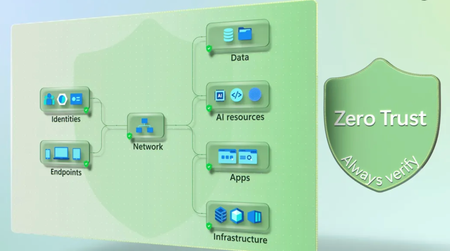
Adopt a Zero Trust approach that lets you verify every access request — human, machine, or AI — before it reaches your most critical resources. As AI agents, semantic search, and automation accelerate how work gets done, you can reduce risk by explicitly validating identity, enforcing least-privilege access, and assuming breach across every step of your environment. Apply layered, continuous protection across identities, endpoints, networks, data, AI resources, applications, and infrastructure so attackers can’t exploit any weak links. Michael Madrigal, Security Product Manager, shares how you can protect productivity and keep pace with an evolving threat landscape, by continuously assessing risk, securing resources at runtime, and adapting policies as conditions change. Govern AI agents like identities. Apply visibility, scoped access, and controls to limit blast radius. Take a look at Zero Trust for AI. Connect only trusted endpoints. Block non-compliant devices and VMs from accessing resources by enforcing endpoint health and policy checks. Get started with Zero Trust for AI. Build security that adapts by design. Continuously assess risk and automate response across identities, endpoints, apps, data, and infrastructure. Get started with Zero Trust for AI. QUICK LINKS: 00:00 — Zero Trust for AI 01:41 — Overview of Zero Trust 02:43 — Identities 04:38 — Endpoints 04:50 — How Zero Trust applies to your network 06:51 — How Zero Trust applies to your data 07:31 — How Zero Trust applies to AI resources 08:24 — App Layer 08:31 — Infrastructure 09:49 — Security 10:23 — Wrap up Link References Check out https://aka.ms/GoZeroTrust Watch our series at https://aka.ms/ZTMechanics Unfamiliar with Microsoft Mechanics? As Microsoft’s official video series for IT, you can watch and share valuable content and demos of current and upcoming tech from the people who build it at Microsoft. Subscribe to our YouTube: https://www.youtube.com/c/MicrosoftMechanicsSeries Talk with other IT Pros, join us on the Microsoft Tech Community: https://techcommunity.microsoft.com/t5/microsoft-mechanics-blog/bg-p/MicrosoftMechanicsBlog Watch or listen from anywhere, subscribe to our podcast: https://microsoftmechanics.libsyn.com/podcast Keep getting this insider knowledge, join us on social: Follow us on Twitter: https://twitter.com/MSFTMechanics Share knowledge on LinkedIn: https://www.linkedin.com/company/microsoft-mechanics/ Enjoy us on Instagram: https://www.instagram.com/msftmechanics/ Loosen up with us on TikTok: https://www.tiktok.com/@msftmechanics Video Transcript: -Zero Trust security is all about one simple idea. Never assume trust, always verify. Whether it’s a person, an AI agent, or an app trying to access your resources, nothing is trusted by default. Equally, protections should be designed to work seamlessly behind the scenes, keeping your business operations secure without impacting productivity. By design, it follows three core principles to guard entry to your network and protect critical assets, you need to first verify explicitly, which means always confirm who, in terms of a person or a device, or what in the case of AI or other processes, is requesting access to your environment. Second, enforce least privilege access means granting only the permissions needed to specific resources to get work done, and then only for as long as necessary. And third, assume breach is where you assume that your environment has already been compromised, so that you have proactive defenses in place to protect your most critical assets. -In fact, whether you’ve already adopted Zero Trust or are just starting to consider it, with AI now working alongside of us, the need for this approach has never been greater. For example, if data isn’t properly classified and protected, AI which uses powerful semantic search can quickly surface information that was once hard to find and potentially share it with the wrong people. -Additionally ungoverned AI agents can often have extensive permissions across systems, enabling agents to move through your organization at unparalleled speed to complete tasks. But if compromised, they can cause significant damage before anyone even notices. And as AI reshapes both work and the risk landscape, this series will show how Microsoft helps you to implement Zero Trust seamlessly. Today, I’ll start with an overview of the Zero Trust architecture. We’ll look at the vulnerabilities that can arise and the core defenses, both new and existing, that you can deploy to mitigate them. Think of your IT environment as a flow. -From the identities, including system processes, and endpoints trying to gain access, all the way across your network, to the sensitive data, AI resources, applications and infrastructure they need to reach. Along that path, every step introduces risk, and attackers don’t need to compromise everything. They only need to exploit one weak link. That’s why protection must be layered across identities, endpoints, your entire network layer, data, AI resources, your apps, and infrastructure, because each introduce unique risks and act as a potential entry point. At every layer, real-time policy enforcement and protections are essential to ensure that any entity requesting access is thoroughly assessed and verified before gaining access to requested resources. -Let’s go deeper, starting with identities across human users, agents, and your workloads. Human identities are a prime target for phishing, impersonation, and credential theft. So you need to start by limiting access to what each person needs then adding phishing-resistant authentication to confirm users are who they say they are and only reach what they’re authorized for. -That’s where, for example, Conditional Access in Microsoft Entra comes in, verifying every request using passkeys and other strong methods. Microsoft Purview’s Data Security Posture Management additionally helps you track how users interact with data and AI, so you can spot risks early and strengthen your posture. Integration with Defender for Cloud Apps mean you can block risky apps from being used, and with Global Secure Access in Entra, you can also enforce identity-integrated network controls to keep unsafe requestors out. Non-human identities like agents, on the other hand, don’t fall for phishing, but they’re still vulnerable. They can be hijacked through user or agent interactions, and if they have broad access, a single misconfiguration or excess permissions can open the door to major breaches. -Here, the new Entra Agent ID gives each AI agent its own unique, manageable identity, letting you apply the same visibility, governance, and Zero Trust controls you use for human users, but now for non-human actors too. For example, Conditional Access can evaluate agent risk in real time for each authorization request to resources and defined access packages using ID governance with human agent sponsor approval, can scope agents for just enough access to what they need to carry out authorized tasks. -Then, similar to human identities, Insider Risk Management in Purview will also automatically assign risk levels to agents in your environment based on their data activities so you can prioritize investigations and apply targeted controls. This way, every identity is verified with real-time access controls and strict policies under Zero Trust. Of course, identities are only part of the picture. Device endpoints, whether corporate or personally owned, can also pose serious risks if compromised or are non-compliant due to missing updates or policies. That’s because they can act as vectors for lateral movement or data exfiltration. -Additionally, AI means that endpoint considerations now also extend to computer-using agents, where this type of agent can interact using endpoints like full virtual machines to temporarily access resources within your network or from your cloud service providers. Regardless of the person or entity interacting with the endpoint as access requests move inward, as part of conditional access, they also pass through control layers to evaluate context and behavior. In real time, the policy engine can detect anomalies and enforce policy boundaries based on detected real-time risks and other conditions. -And endpoint management controls using Microsoft Intune can ensure that any connecting device or VM passes compliance checks before it can access your resources. As a rule, all endpoints should be continually assessed for health and configuration compliance, with non-compliant, stale, or unused devices automatically revoked from access. Here, native controls in Microsoft Defender for Threat Protection and continuous assessment use threat intelligence and forensics to expose patterns, automatically respond and raise defenses against trending attacks. We’ll dive deeper on what you can do to protect identities and endpoints in a another episode of this series. -For now, let’s switch gears for an overview of the resources that can be targeted by compromised identities and endpoints and how Zero Trust applies. In other words, your network, sensitive data, AI resources, internal and cloud applications, as well as infrastructure components, which are often the ultimate objective for attackers. Your network importantly serves as a bridge between malicious actors and your most valuable resources. Here, your first layer of defense uses network and device-based firewalls to filter traffic and help prevent unwanted connections. Network segmentation then adds protections in case of breach to limit lateral movement to other internal resources. These can be combined and are stronger when tied directly with identity controls in Entra using Global Secure Access for strengthened security. -Next, the ultimate target of any security breach is your data, which can fall risk to theft, manipulation, or leakage. Here, Microsoft Purview delivers a unified Zero Trust control set. For unstructured data in Microsoft 365 and beyond, it identifies sensitive data and applies sensitivity labels that act as protection guidance, driving consistent enforcement such as encryption access controls and DLP across collaboration and AI experiences. And for structured data across Fabric and other clouds, the same sensitivity labels extend protection intent to data stores, enabling consistent access controls and policy enforcement so sensitive data is protected wherever it’s used, including AI workloads. Equally, AI resources, models, agents, APIs, data pipelines, and compute, are critical components of your Zero Trust architecture. If compromised, they can leak sensitive data, generate malicious outputs, or enable lateral movement across systems. Protection means securing the resources themselves, not just access, by assessing prompts and outputs with Microsoft Foundry’s Prompt Shields and runtime protections. Securing compute environments like GPU-enabled virtual machines used for AI with isolation and compliance controls using Microsoft Defender for Cloud. And continuously monitoring agent behavior for anomalies and assigning risk scores with Agent 365 for centralized governance. -Together, capabilities like these and more create a layered defense so your AI resources remain secure across the lifecycle. From here in our architecture, the app layer is where AI meets data. That’s because this layer is increasingly powered by AI and semantic search. It enables users to retrieve information with more efficiency. These capabilities are now common in productivity tools, including collaboration platforms and business systems. While these experiences enhance user productivity, they also amplify attacker capabilities if access is compromised, whether through a stolen credential or a risky insider. -This is where Microsoft Defender for Cloud Apps plays a critical role. With visibility into all apps in use, risk-based controls to govern app behavior, and data protection policies to prevent misuse and data exfiltration. And at the foundation of everything in the Zero Trust architecture is infrastructure, spanning cloud environments, servers, containers, and orchestration systems. The consequences of compromised infrastructure can be severe, with service outages, ransomware, instability, and more. Microsoft Defender for Cloud delivers comprehensive workload protection across Azure, AWS, and GCP, including vulnerability scanning and advanced threat detection for your infrastructure. And you can leverage Azure Confidential Computing infrastructure for your most sensitive workloads, which encrypts data while in use in memory using hardware-based trusted execution environments and processes that only after requests are explicitly verified. -And of course, as we go across each layer, security configurations should not be set and forgotten. Continuous validation with constant monitoring and adaptive policies is a critical part of maintaining Zero Trust. Across all layers in the Zero Trust architecture, SecOps needs to be continuously assessed, monitored and optimized with controls to minimize and detect risks. Here, Microsoft Defender with Sentinel as its integrated SIEM extends detection and response across endpoints, identities, SaaS apps, email and collaboration tools, and more. -Please stayed tuned to Microsoft Mechanics to watch the rest of our series with hands-on guidance for implementing Zero Trust across identities and endpoints, data, AI resources, and apps, and your network and infrastructure, at aka.ms/ZTMechanics. And for additional resources, check out aka.ms/GoZeroTrust with free workshops and more. Subscribe to our channel if you haven’t already, and thanks for watching.536Views0likes0CommentsGet started with a modern zero trust remote access solution: Microsoft Global Secure Access
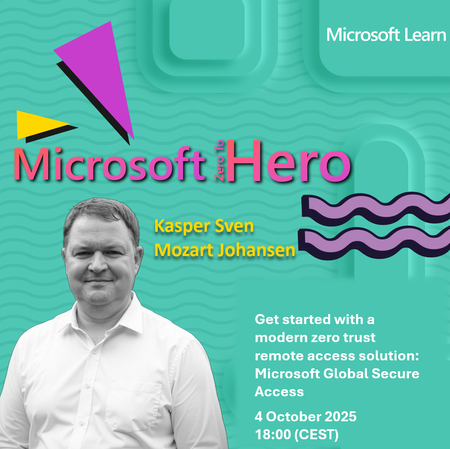
🚀 Get started with a modern Zero Trust remote access solution! Say goodbye to outdated VPNs 👋 and embrace the future of secure connectivity with Microsoft Global Secure Access Private Access. 🔐 Built on the principle of least privilege, this solution ensures users only access the resources they need. Combined with Conditional Access, it provides powerful, policy-driven protection for both specific and broad on-premises resources. Whether you’re just starting your cloud journey or ready to break free from legacy VPNs, Global Secure Access Private Access is the game changer you’ve been waiting for. 👉 In this session, we’ll cover: ✅ How to get started with Global Secure Access Private Access ✅ Installing & managing the Global Secure Access client ✅ Monitoring traffic flow for visibility and control Let’s embark on this journey to enhanced security and seamless access together! 🗓️ Date: 4 October 2025 ⏰ Time: 18:00 (CEST) 🎙️ Speaker: Kasper Sven Mozart Johansen 📌 Topic: Get started with a modern zero trust remote access solution: Microsoft Global Secure Access148Views1like0CommentsEntra Group Source of Authority CONVERSION: Enabling Cloud-First Identity Management
As organizations modernize their identity infrastructure, Microsoft Entra’s Group Source of Authority (SOA) Conversion feature enables a granular migration of group management from on-premises AD to Microsoft Entra ID without disabling sync or rearchitecting the entire directory. What Is Group Source of Authority? Group SOA defines where a group object is mastered either in on-prem AD or in Entra ID. With SOA conversion, administrators can selectively convert AD-synced groups into cloud-native groups, making them editable and governable directly in Entra ID. Permissions Required To perform SOA conversion, the following Microsoft Entra roles and Graph API permissions are required: Hybrid Administrator: Required to call Microsoft Graph APIs to read and update SOA of groups. Application Administrator or Cloud Application Administrator: Required to grant user consent to the app or Graph Explorer. Graph API Permission Scope: Group-OnPremisesSyncBehavior.ReadWrite.All must be granted to the app calling the onPremisesSyncBehavior endpoint. Prerequisites Before initiating SOA conversion, ensure the following: Licensing Microsoft Entra Free or Basic license is sufficient. Sync Clients Microsoft Entra Connect Sync: Minimum version 2.5.76.0 Microsoft Entra Cloud Sync: Minimum version 1.1.1370.0 Group Eligibility Groups must not be mail-enabled or tied to Exchange on-premises (DLs or MESGs). If provisioning back to AD is planned, change group scope to Universal. How to Convert Group SOA from AD to Entra Here’s a simplified step-by-step guide: Identify Target Groups Use Entra Admin Center or Graph Explorer to list synced groups. Confirm they are not Exchange-dependent. Grant Permissions Use Graph Explorer or your app registration to grant Group-OnPremisesSyncBehavior.ReadWrite.All. Execute SOA Conversion If we see Group1, which is in scope of conversion is synchronized from on-prem. Execute the below from Graph Explorer to convert “Group1” to cloud managed PATCH https://graph.microsoft.com/beta/groups/{group-id}/OnPremisesSyncbehavior { "isCloudManaged": true } We can verify the change by executing below query on Graph API Explorer This marks the group as cloud-managed. AD sync will stop honoring changes to this group. Validate Conversion Confirm blockOnPremisesSync = true in the Entra Admin Center. Use audit logs to verify the change. Apply Governance Apply lifecycle policies, access reviews, and provisioning rules using Entra ID Governance. Use Cases: Migrating from On-Prem to Cloud Use Case 1: Retiring Legacy AD Groups Scenario: A customer has migrated all mailboxes to Exchange Online and no longer needs certain AD groups. Solution: Convert those groups to cloud-native Entra ID groups and delete them from AD, reducing footprint and simplifying governance. Use Case 2: Governing On-Prem Apps from the Cloud Scenario: A customer uses AD security groups to secure on-prem apps (e.g., Kerberos-based apps). Solution: Convert the group SOA to Entra ID, apply governance policies, and use Group Provision to AD to sync cloud-managed groups back to AD. Use Case 3: Migrating DLs and MESGs to Cloud Scenario: A customer wants to migrate all distribution lists and mail-enabled security groups to the cloud. Solution: Convert SOA to Entra ID, recreate mail-enabled groups in Exchange Online, and decommission AD-based mail groups. Use Case 4: Enabling Access Reviews Scenario: A federal customer wants to run access reviews on group memberships but the groups are AD-synced. Solution: Convert SOA to Entra ID, enabling full access review capabilities and lifecycle workflows. Use Case 5: Hybrid Identity Cleanup Scenario: A customer is migrating from Entra Connect Sync to Cloud Sync and wants to clean up group sprawl. Solution: Use SOA conversion to move group management to the cloud, then decommission legacy sync rules and OUs. Strategic Impact Group SOA Conversion is more than a technical enhancement, it’s a strategic enabler for identity modernization. It supports: AD DS minimization: Shrinking on-prem footprint. Cloud-first governance: Centralized access control and lifecycle management. Phased migration: Avoiding disruption while modernizing.Passwordless Authentication with FIDO2 Security Key for Remote Desktop Connection
Passwordless Authentication with FIDO2 Security Key for Remote Desktop Connection Hello Everyone, in this blog, we will explore how to use a FIDO2 security key to access a device using Remote Desktop Connection (RDP)—a Zero Trust approach where passwordless authentication is enforced. Recently, a customer asked me whether they could secure their device and enforce passwordless authentication for RDP access. While some FIDO2 security keys can also be used as smart cards with Certificate-Based Authentication (CBA), I will cover that topic in my next blog. In this post, let's focus on how we can use Windows 10/11, the RDPAAD (Remote Desktop Protocol Azure AD Protocol), and WebAuthn to connect to Entra ID-joined or Hybrid-joined devices using a FIDO2 security key. If a user has never used or registered a FIDO2 security key, they should register it by visiting My Sign-Ins, clicking on Security Info, and selecting Add sign-in method. Once the FIDO2 security key is registered, complete the sign-in process and ensure the user can successfully authenticate to web applications using the security key. Configuring RDP for Entra ID-Joined Devices: For Entra ID-joined devices, follow these steps to enable RDP access using a FIDO2 security key: Ensure the user is a member of the local Remote Desktop Users group on the remote device. o Open PowerShell as Administrator and load the Microsoft Graph PowerShell module to connect to Entra ID (if needed). o Run the following command to add the user to the Remote Desktop Users group: o net localgroup "Remote Desktop Users" /add "AzureAD\user200@farooquetech.in" We can validate the configuration by opening Computer Management and checking the Local Users and Groups settings: Open Computer Management (compmgmt.msc). Navigate to Local Users and Groups → Groups. Locate and open the Remote Desktop Users group. Check if the Entra ID user we added appears in the list. This confirms that the user has been successfully added and can sign-in to remote machine using RDP. At this point, we can open Remote Desktop Connection (mstsc.exe) and attempt to connect to the remote device. Open Remote Desktop Connection (mstsc.exe). Click on the Advanced tab. Under User Authentication, ensure we select "Use a web account to sign in to the remote computer." This ensures that the RDP session leverages passwordless authentication with FIDO2 and WebAuthn for secure access. Enter the NetBIOS name of the remote computer in Remote Desktop Connection (mstsc.exe) and click Connect. On the sign-in page, enter the Entra ID account for which FIDO2 Security Key authentication is enabled. When prompted to choose a passwordless authentication method, select Security Key. Insert your FIDO2 security key, follow the prompts, and complete the authentication process. This ensures a secure, passwordless RDP connection to the remote device. Put the PIN and also touch your finger on Security Key to complete authentication. A consent is prompt to allow RDP Connection, select Yes. Post Authentication, we will see the desktop successfully loads. Remote Desktop Connection Access to Hybrid Entra ID-Joined Devices: Now, let's discuss how to establish RDP access for Hybrid Entra ID-joined devices. The process for Hybrid-joined devices differs slightly because these devices are joined to both Active Directory (AD) and Entra ID. This means authentication must be validated in both directories. To achieve this, we need to register an Active Directory Read-Only Domain Controller (RODC) object in Entra ID. This RODC object helps issue a partial Kerberos Ticket Granting Ticket (TGT) to the user after authentication with Entra ID. Note: This RODC object is not linked to any on-premises AD domain controller—it is simply an empty object in Entra ID used to enable Kerberos authentication. Enabling Entra ID Kerberos Authentication: To enable Entra ID Kerberos authentication, follow these steps: Open PowerShell as Administrator. Install the AzureADKerberos module (if not already installed): Execute below powershell commands Import-module “Import-module "C:\Program Files\Microsoft Azure Active Directory Connect\AzureADKerberos\AzureAdKerberos.psd1" $domain = $env:USERDNSDOMAIN $userPrincipalName = admin@mngenvmcapXXX.onmicrosoft.com $domainCred = Get-Credential (Enter the Active Directory credentials) Once the command executes successfully, we can verify that the AzureADKerberos account has been created in Active Directory. Open Active Directory Users and Computer and under Domain Controller, check AzureADKerberos RODC object is created. This completes the AzureADKerberos configuration, enabling the use of FIDO2 Security Keys for authentication. Now, to establish an RDP connection, follow the same steps outlined earlier for Entra ID-joined devices. Enforcing Phishing-Resistant Passwordless Authentication for RDP: To ensure that Remote Desktop Protocol (RDP) always uses phishing-resistant passwordless authentication, we can enforce this through Conditional Access Policies in Entra ID. Sign in to the Entra ID portal. Go to Security → Conditional Access and create a new policy. Under Assignments, select the users or groups that require secure RDP access. In the Cloud apps or actions section, select “Microsoft Remote Desktop” with Application ID “a4a365df-50f1-4397-bc59-1a1564b8bb9c”. Under Grant Controls, choose Require authentication strength. Select Phishing-resistant authentication, which includes FIDO2 Security Keys Save and enable the policy. Note: For Hybrid Entra Joined machine, please ensure we do not use domain admin or any other AD high privileged account to logon else partial TGT will not be issued by Entra ID. I hope you found this blog helpful! In my next blog, I will cover how FIDO2 Security Keys can also be used for on-premises Active Directory domain-joined servers. Stay tuned!Setting up Microsoft Entra Verified ID, step by step
Are you confident who the people in your organization are interacting with online? Identity verification is fundamental in protecting your organization from impersonation. Get the knowledge you need to bring strong identity verification to your organization and improve confidence that digital interactions are safe and secure. The Microsoft Entra Verified ID team will kick off with a comprehensive understanding of how to set up Verified ID. We'll walk through key concepts, including Verified ID's significance in enhancing digital identity, security, and trust. Then we'll show you how to configure your environment, set up and issue your first credential, and use the Microsoft Entra admin center to manage credentials across your organization. This session is part of the Microsoft Entra Verified ID webinar series.3.5KViews3likes2Comments[On demand] Never trust, always verify: Tips for Zero Trust with Intune
Get tips on how to leverage the latest automation and tooling in Microsoft Intune to enforce security policies that require healthy, compliant devices before access to apps and data is granted. Watch Never trust, always verify: Tips for Zero Trust with Intune – now on demand – and join the conversation at https://aka.ms/AlwaysVerify. To help you learn more, here are the links referenced in the session: Zero Trust Workshop Microsoft Zero Trust Microsoft Cybersecurity Reference Architectures For more free technical skilling on the latest in Windows, Windows in the cloud, and Microsoft Intune, view the full Microsoft Technical Takeoff session list.68Views0likes0Comments