updates
510 TopicsAnnouncing new hybrid deployment options for Azure Virtual Desktop
Today, we’re excited to announce the limited preview of Azure Virtual Desktop for hybrid environments, a new platform for bringing the power of cloud-native desktop virtualization to on-premises infrastructure.23KViews11likes31CommentsIndustry-Wide Certificate Changes Impacting Azure App Service Certificates
Executive Summary In early 2026, industry-wide changes mandated by browser applications and the CA/B Forum will affect both how TLS certificates are issued as well as their validity period. The CA/B Forum is a vendor body that establishes standards for securing websites and online communications through SSL/TLS certificates. Azure App Service is aligning with these standards for both App Service Managed Certificates (ASMC, free, DigiCert-issued) and App Service Certificates (ASC, paid, GoDaddy-issued). Most customers will experience no disruption. Action is required only if you pin certificates or use them for client authentication (mTLS). Update: February 17, 2026 We’ve published new Microsoft Learn documentation, Industry-wide certificate changes impacting Azure App Service , which provides more detailed guidance on these compliance-driven changes. The documentation also includes additional information not previously covered in this blog, such as updates to domain validation reuse, along with an expanding FAQ section. The Microsoft Learn documentation now represents the most complete and up-to-date overview of these changes. Going forward, any new details or clarifications will be published there, and we recommend bookmarking the documentation for the latest guidance. Who Should Read This? App Service administrators Security and compliance teams Anyone responsible for certificate management or application security Quick Reference: What’s Changing & What To Do Topic ASMC (Managed, free) ASC (GoDaddy, paid) Required Action New Cert Chain New chain (no action unless pinned) New chain (no action unless pinned) Remove certificate pinning Client Auth EKU Not supported (no action unless cert is used for mTLS) Not supported (no action unless cert is used for mTLS) Transition from mTLS Validity No change (already compliant) Two overlapping certs issued for the full year None (automated) If you do not pin certificates or use them for mTLS, no action is required. Timeline of Key Dates Date Change Action Required Mid-Jan 2026 and after ASMC migrates to new chain ASMC stops supporting client auth EKU Remove certificate pinning if used Transition to alternative authentication if the certificate is used for mTLS Mar 2026 and after ASC validity shortened ASC migrates to new chain ASC stops supporting client auth EKU Remove certificate pinning if used Transition to alternative authentication if the certificate is used for mTLS Actions Checklist For All Users Review your use of App Service certificates. If you do not pin these certificates and do not use them for mTLS, no action is required. If You Pin Certificates (ASMC or ASC) Remove all certificate or chain pinning before their respective key change dates to avoid service disruption. See Best Practices: Certificate Pinning. If You Use Certificates for Client Authentication (mTLS) Switch to an alternative authentication method before their respective key change dates to avoid service disruption, as client authentication EKU will no longer be supported for these certificates. See Sunsetting the client authentication EKU from DigiCert public TLS certificates. See Set Up TLS Mutual Authentication - Azure App Service Details & Rationale Why Are These Changes Happening? These updates are required by major browser programs (e.g., Chrome) and apply to all public CAs. They are designed to enhance security and compliance across the industry. Azure App Service is automating updates to minimize customer impact. What’s Changing? New Certificate Chain Certificates will be issued from a new chain to maintain browser trust. Impact: Remove any certificate pinning to avoid disruption. Removal of Client Authentication EKU Newly issued certificates will not support client authentication EKU. This change aligns with Google Chrome’s root program requirements to enhance security. Impact: If you use these certificates for mTLS, transition to an alternate authentication method. Shortening of Certificate Validity Certificate validity is now limited to a maximum of 200 days. Impact: ASMC is already compliant; ASC will automatically issue two overlapping certificates to cover one year. No billing impact. Frequently Asked Questions (FAQs) Will I lose coverage due to shorter validity? No. For App Service Certificate, App Service will issue two certificates to span the full year you purchased. Is this unique to DigiCert and GoDaddy? No. This is an industry-wide change. Do these changes impact certificates from other CAs? Yes. These changes are an industry-wide change. We recommend you reach out to your certificates’ CA for more information. Do I need to act today? If you do not pin or use these certs for mTLS, no action is required. Glossary ASMC: App Service Managed Certificate (free, DigiCert-issued) ASC: App Service Certificate (paid, GoDaddy-issued) EKU: Extended Key Usage mTLS: Mutual TLS (client certificate authentication) CA/B Forum: Certification Authority/Browser Forum Additional Resources Changes to the Managed TLS Feature Set Up TLS Mutual Authentication Azure App Service Best Practices – Certificate pinning DigiCert Root and Intermediate CA Certificate Updates 2023 Sunsetting the client authentication EKU from DigiCert public TLS certificates Feedback & Support If you have questions or need help, please visit our official support channels or the Microsoft Q&A, where our team and the community can assist you.2KViews1like0CommentsDCasv6 and ECasv6 confidential VMs in Azure Government Cloud
Today, we are announcing the launch of the DCasv6 and ECasv6 series of confidential virtual machines (CVMs) in Azure Government. Azure Government: Compliant, Hyperscale, Sovereign Cloud Azure Government was designed to remove the constraints that have historically limited federal cloud adoption by delivering hyperscale innovation without sacrificing regulatory certainty. Supporting over 180 services, Azure Government allows customers to consume advanced cloud capabilities without having to individually validate service availability or compliance. It is a complete end-to-end platform, delivering identity, DevOps, and services as commercial Azure, while operating entirely within accredited boundaries. Confidential virtual machines address one of the barriers to multi-tenant cloud adoption: When deployed on Azure Government, Confidential VMs combine physical isolation, sovereign operations, and hardware-enforced cryptographic isolation into a single execution environment. This enables customers to get additional protections from insider threats. At its core, Azure Government runs the same Azure codebase that powers Microsoft’s commercial cloud, providing access to compute, networking, storage, data, and AI services. DCasv6 and ECasv6: Confidential virtual machines in Azure government cloud The DCasv6 and ECasv6-series virtual machines built on 4th Generation AMD EPYC™ processors are the first in Azure Government to implement AMD SEV-SNP. This generation introduces several controls that change both security posture and operational readiness: Hardware-Enforced Memory Isolation: AMD SEV-SNP provides full, AES-256 encrypted memory with keys generated and managed by the onboard AMD Secure Processor. Online key rotation: Support for the online key rotation with the introduction of Virtual Machine Metablob disk (VMMD). Programmatic Attestation for Audit and Zero-Trust: Before provisioning any workload, customers can perform an attestation. This cryptographic procedure validates the integrity of the hardware and software, producing a signed report that proves the VM is a genuine confidential instance. Confidential OS Disk Encryption with Flexible Key Management: Cryptographic protection extends beyond runtime memory to the operating system disk itself. The disk's encryption keys are bound to the VM's virtual Trusted Platform Module (vTPM), which is protected within the TEE. Customers can choose between platform-managed keys (PMK) for simplicity and regulatory ease, or customer-managed keys (CKM) for full, sovereign control over the key lifecycle - a common requirement for the most stringent compliance regimes. Conclusion With the DCasv6 and ECasv6-series virtual machines now generally available in Azure government regions, customers can modernize their infrastructure deployments through confidential computing which replaces implicit trust with cryptographic isolation, and when deployed on Azure Government’s sovereign cloud within physically isolated data centers, it enables agencies to modernize at operational speed without compromising control. Azure Government is in a unique position to deliver the full operational depth of a hyperscale cloud, from identity and DevOps to monitoring and edge execution, inside an environment purpose-built for federal compliance. When combined with the latest Confidential VMs, customers gain secure infrastructure built on a platform where agility, visibility, and trust reinforce each other. Additional resources Azure Government documentation | Microsoft Learn Government Validation System
Public Preview: Azure Monitor pipeline transformations
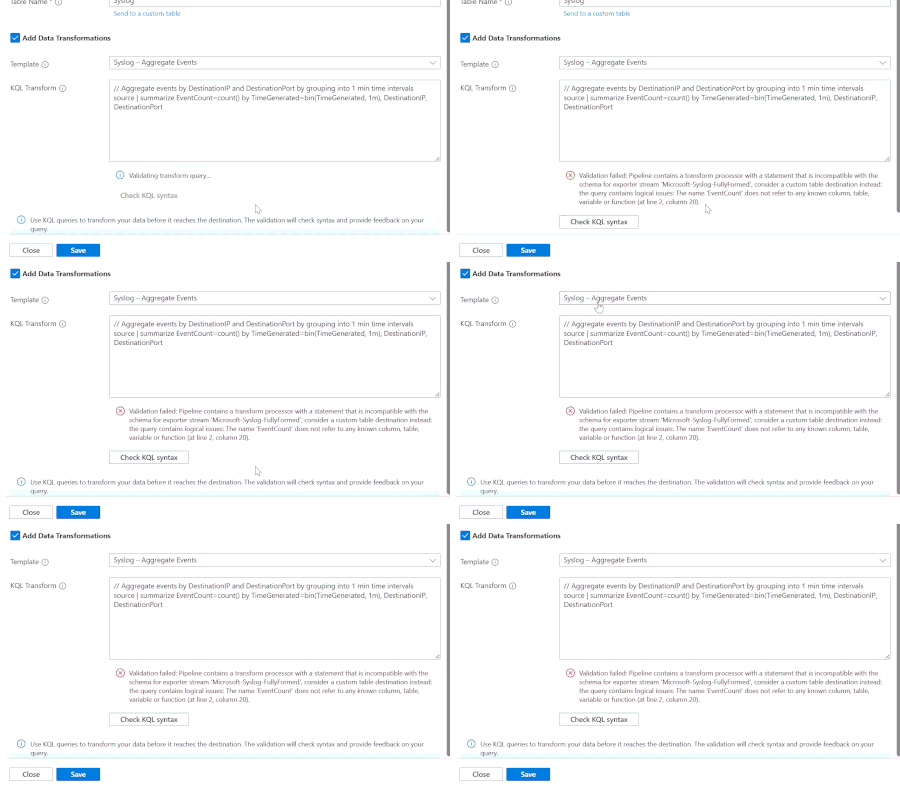
Overview The Azure Monitor pipeline extends the data collection capabilities of Azure Monitor to edge and multi-cloud environments. It enables at-scale data collection (data collection over 100k EPS), and routing of telemetry data before it's sent to the cloud. The pipeline can cache data locally and sync with the cloud when connectivity is restored and route telemetry to Azure Monitor in cases of intermittent connectivity. Learn more about this here - Configure Azure Monitor pipeline - Azure Monitor | Microsoft Learn Why transformations matter Lower Costs: Filter and aggregate before ingestion to reduce ingestion volume and in turn lower ingestion costs Better Analytics: Standardized schemas mean faster queries and cleaner dashboards. Future-Proof: Built-in schema validation prevents surprises during deployment. Azure Monitor pipeline solves the challenges of high ingestion costs and complex analytics by enabling transformations before ingestion, so your data is clean, structured, and optimized before it even hits your Log Analytics Workspace. Check out a quick demo here - If the player doesn’t load, open the video in a new window: Open video Key features in public preview 1. Schema change detection One of the most exciting additions is schema validation for Syslog and CEF : Integrated into the “Check KQL Syntax” button in the Strato UI. Detects if your transformation introduces schema changes that break compatibility with standard tables. Provides actionable guidance: Option 1: Remove schema-changing transformations like aggregations. Option 2: Send data to a custom tables that support custom schemas. This ensures your pipeline remains robust and compliant with analytics requirements. For example, in the picture below, extending to new columns that don't match the schema of the syslog table throws an error during validation and asks the user to send to a custom table or remove the transformations. While in the case of the example below, filtering does not modify the schema of the data at all and so no validation error is thrown, and the user is able to send it to a standard table directly. 2. Pre-built KQL templates Apply ready-to-use templates for common transformations. Save time and minimize errors when writing queries. 3. Automatic schema standardization for syslog and CEF Automatically schematize CEF and syslog data to fit standard tables without any added transformations to convert raw data to syslog/CEF from the user. 4. Advanced filtering Drop unwanted events based on attributes like: Syslog: Facility, ProcessName, SeverityLevel. CEF: DeviceVendor, DestinationPort. Reduce noise and optimize ingestion costs. 5. Aggregation for high-volume logs Group events by key fields (e.g., DestinationIP, DeviceVendor) into 1-minute intervals. Summarize high-frequency logs for actionable insights. 6. Drop unnecessary fields Remove redundant columns to streamline data and reduce storage overhead. Supported KQL sunctions 1. Aggregation summarize (by), sum, max, min, avg, count, bin 2. Filtering where, contains, has, in, and, or, equality (==, !=), comparison (>, >=, <, <=) 3. Schematization extend, project, project-away, project-rename, project-keep, iif, case, coalesce, parse_json 4. Variables for Expressions or Functions let 5. Other Functions String: strlen, replace_string, substring, strcat, strcat_delim, extract Conversion: tostring, toint, tobool, tofloat, tolong, toreal, todouble, todatetime, totimespan Get started today Head to the Azure Portal and explore the new Azure Monitor pipeline transformations UI. Apply templates, validate your KQL, and experience the power of Azure Monitor pipeline transformations. Find more information on the public docs here - Configure Azure Monitor pipeline transformations - Azure Monitor | Microsoft Learn554Views1like0Comments
Accelerating SCOM to Azure Monitor Migrations with Automated Analysis and ARM Template Generation
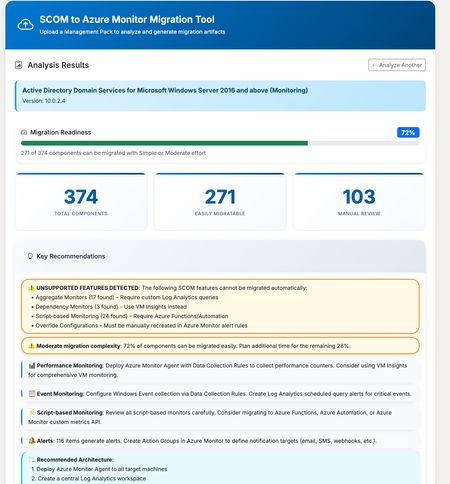
Accelerating SCOM to Azure Monitor Migrations with Automated Analysis and ARM Template Generation Azure Monitor has become the foundation for modern, cloud-scale monitoring on Azure. Built to handle massive volumes of telemetry across infrastructure, applications, and services, it provides a unified platform for metrics, logs, alerts, dashboards, and automation. As organizations continue to modernize their environments, Azure Monitor is increasingly the target state for enterprise monitoring strategies. With Azure Monitor increasingly becoming the destination platform, many organizations face a familiar challenge: migrating from System Center Operations Manager (SCOM). While both platforms serve the same fundamental purpose—keeping your infrastructure healthy and alerting you to problems—the migration path isn’t always straightforward. SCOM Management Packs contain years of accumulated monitoring logic: performance thresholds, event correlation rules, service discoveries, and custom scripts. Translating all of this into Azure Monitor’s paradigm of Log Analytics queries, alert rules, and Data Collection Rules can be a significant undertaking. To help with this challenge, members of the community have built and shared a tool that automates much of the analysis and artifact generation. The community-driven SCOM to Azure Monitor Migration Tool accepts Management Pack XML files and produces several outputs designed to accelerate migration planning and execution. The tool parses the Management Pack structure and identifies all monitors, rules, discoveries, and classes. Each component is analyzed for migration complexity: some translate directly to Azure Monitor equivalents, while others require custom implementation or may not have a direct equivalent. Results are organized into two clear categories: Auto-Migrated Components – Covered by the generated templates and ready for deployment Requires Manual Migration – Components that need custom implementation or review Instead of manually authoring Azure Resource Manager templates, the tool generates deployable infrastructure-as-code artifacts, including: Scheduled Query Alert rules mapped from SCOM monitors and rules Data Collection Rules for performance counters and Windows Events Custom Log DCRs for collecting script-generated log files Action Groups for notification routing Log Analytics workspace configuration (for new environments) For streamlined deployment, the tool offers a combined ARM template that deploys all resources in a single operation: Log Analytics workspace (create new or connect to an existing workspace) Action Groups with email notification All alert rules Data Collection Rules Monitoring Workbook One download, one deployment command — with configurable parameters for workspace settings, notification recipients, and custom log paths. The tool generates an Azure Monitor Workbook dashboard tailored to the Management Pack, including: Performance counter trends over time Event monitoring by severity with drill-down tables Service health overview (stopped services) Active alerts summary from Azure Resource Graph This provides immediate operational visibility once the monitoring configuration is deployed. Each migrated component includes the Kusto Query Language (KQL) equivalent of the original SCOM monitoring logic. These queries can be used as-is or refined to match environment-specific requirements. The workflow is designed to reduce the manual effort involved in migration planning: Export your Management Pack XML from SCOM Upload it to the tool Review the analysis — components are separated into auto-migrated and requires manual work Download the All-in-One ARM template (or individual templates) Customize parameters such as workspace name and action group recipients Deploy to your Azure subscription For a typical Management Pack, such as Windows Server Active Directory monitoring, you may see 120+ components that can be migrated directly, with an additional 15–20 components requiring manual review due to complex script logic or SCOM-specific functionality. The tool handles straightforward translations well: Performance threshold monitors become metric alerts or log-based alerts Windows Event collection rules become Data Collection Rule configurations Service monitors become scheduled query alerts against Heartbeat or Event tables Components that typically require manual attention: Complex PowerShell or VBScript probe actions Monitors that depend on SCOM-specific data sources Correlation rules spanning multiple data sources Custom workflows with proprietary logic The tool clearly identifies which category each component falls into, allowing teams to plan their migration effort with confidence. A Note on Validation This is a community tool, not an officially supported Microsoft product. Generated artifacts should always be reviewed and tested in a non-production environment before deployment. Every environment is different, and the tool makes reasonable assumptions that may require adjustment. Even so, starting with structured ARM templates and working KQL queries can significantly reduce time to deployment. Try It Out The tool is available at https://tinyurl.com/Scom2Azure.Upload a Management Pack, review the analysis, and see what your migration path looks like.265Views1like0CommentsAnnouncing Microsoft Azure Network Adapter (MANA) support for Existing VM SKUs
As a leader in cloud infrastructure, Microsoft ensures that Azure’s IaaS customers always have access to the latest hardware. Our goal is to consistently deliver technology to support business critical workloads with world class efficiency, reliability, and security. Customers benefit from cutting-edge performance enhancements and features, helping them to future proof their workloads while maintaining business continuity. In February 2026, Azure will be deploying the Microsoft Azure Network Adapter (MANA) for existing VM Size Families. The intent is to provide the benefits of new server hardware to customers of existing VM SKUs as they work towards migrating to newer SKUs. The deployments will be based on capacity needs and won’t be restricted by region. Once the hardware is available in a region, VMs can be deployed to it as needed. Workloads on operating systems which fully support MANA will benefit from sub-second Network Interface Card (NIC) firmware upgrades, higher throughput, lower latency, increased Security and Azure Boost-enabled data path accelerations. If your workload doesn't support MANA today, you'll still be able to access Azure’s network on MANA enabled SKUs, but performance will be comparable to previous generation (non-MANA) hardware. Check out the Azure Boost Overview and the Microsoft Azure Network Adapter (MANA) overview for more detailed information and OS compatibility. To determine whether your VMs are impacted and what actions (if any) you should take, start with MANA support for existing VM SKUs. This article provides additional information about which VM Sizes are eligible to be deployed on the new MANA-enabled hardware, what actions (if any) you should take, and how to determine if the workload has been deployed on MANA-enabled hardware.1KViews4likes0CommentsBeyond the Desktop: The Future of Development with Microsoft Dev Box and GitHub Codespaces
The modern developer platform has already moved past the desktop. We’re no longer defined by what’s installed on our laptops, instead we look at what tooling we can use to move from idea to production. An organisations developer platform strategy is no longer a nice to have, it sets the ceiling for what’s possible, an organisation can’t iterate it's way to developer nirvana if the foundation itself is brittle. A great developer platform shrinks TTFC (time to first commit), accelerates release velocity, and maybe most importantly, helps alleviate everyday frictions that lead to developer burnout. Very few platforms deliver everything an organization needs from a developer platform in one product. Modern development spans multiple dimensions, local tooling, cloud infrastructure, compliance, security, cross-platform builds, collaboration, and rapid onboarding. The options organizations face are then to either compromise on one or more of these areas or force developers into rigid environments that slow productivity and innovation. This is where Microsoft Dev Box and GitHub Codespaces come into play. On their own, each addresses critical parts of the modern developer platform: Microsoft Dev Box provides a full, managed cloud workstation. Dev Box gives developers a consistent, high-performance environment while letting central IT apply strict governance and control. Internally at Microsoft, we estimate that usage of Dev Box by our development teams delivers savings of 156 hours per year per developer purely on local environment setup and upkeep. We have also seen significant gains in other key SPACE metrics reducing context-switching friction and improving build/test cycles. Although the benefits of Dev Box are clear in the results demonstrated by our customers it is not without its challenges. The biggest challenge often faced by Dev Box customers is its lack of native Linux support. At the time of writing and for the foreseeable future Dev Box does not support native Linux developer workstations. While WSL2 provides partial parity, I know from my own engineering projects it still does not deliver the full experience. This is where GitHub Codespaces comes into this story. GitHub Codespaces delivers instant, Linux-native environments spun up directly from your repository. It’s lightweight, reproducible, and ephemeral ideal for rapid iteration, PR testing, and cross-platform development where you need Linux parity or containerized workflows. Unlike Dev Box, Codespaces can run fully in Linux, giving developers access to native tools, scripts, and runtimes without workarounds. It also removes much of the friction around onboarding: a new developer can open a repository and be coding in minutes, with the exact environment defined by the project’s devcontainer.json. That said, Codespaces isn’t a complete replacement for a full workstation. While it’s perfect for isolated project work or ephemeral testing, it doesn’t provide the persistent, policy-controlled environment that enterprise teams often require for heavier workloads or complex toolchains. Used together, they fill the gaps that neither can cover alone: Dev Box gives the enterprise-grade foundation, while Codespaces provides the agile, cross-platform sandbox. For organizations, this pairing sets a higher ceiling for developer productivity, delivering a truly hybrid, agile and well governed developer platform. Better Together: Dev Box and GitHub Codespaces in action Together, Microsoft Dev Box and GitHub Codespaces deliver a hybrid developer platform that combines consistency, speed, and flexibility. Teams can spin up full, policy-compliant Dev Box workstations preloaded with enterprise tooling, IDEs, and local testing infrastructure, while Codespaces provides ephemeral, Linux-native environments tailored to each project. One of my favourite use cases is having local testing setups like a Docker Swarm cluster, ready to go in either Dev Box or Codespaces. New developers can jump in and start running services or testing microservices immediately, without spending hours on environment setup. Anecdotally, my time to first commit and time to delivering “impact” has been significantly faster on projects where one or both technologies provide local development services out of the box. Switching between Dev Boxes and Codespaces is seamless every environment keeps its own libraries, extensions, and settings intact, so developers can jump between projects without reconfiguring or breaking dependencies. The result is a turnkey, ready-to-code experience that maximizes productivity, reduces friction, and lets teams focus entirely on building, testing, and shipping software. To showcase this value, I thought I would walk through an example scenario. In this scenario I want to simulate a typical modern developer workflow. Let's look at a day in the life of a developer on this hybrid platform building an IOT project using Python and React. Spin up a ready-to-go workstation (Dev Box) for Windows development and heavy builds. Launch a Linux-native Codespace for cross-platform services, ephemeral testing, and PR work. Run "local" testing like a Docker Swarm cluster, database, and message queue ready to go out-of-the-box. Switch seamlessly between environments without losing project-specific configurations, libraries, or extensions. 9:00 AM – Morning Kickoff on Dev Box I start my day on my Microsoft Dev Box, which gives me a fully-configured Windows environment with VS Code, design tools, and Azure integrations. I select my teams project, and the environment is pre-configured for me through the Dev Box catalogue. Fortunately for me, its already provisioned. I could always self service another one using the "New Dev Box" button if I wanted too. I'll connect through the browser but I could use the desktop app too if I wanted to. My Tasks are: Prototype a new dashboard widget for monitoring IoT device temperature. Use GUI-based tools to tweak the UI and preview changes live. Review my Visio Architecture. Join my morning stand up. Write documentation notes and plan API interactions for the backend. In a flash, I have access to my modern work tooling like Teams, I have this projects files already preloaded and all my peripherals are working without additional setup. Only down side was that I did seem to be the only person on my stand up this morning? Why Dev Box first: GUI-heavy tasks are fast and responsive. Dev Box’s environment allows me to use a full desktop. Great for early-stage design, planning, and visual work. Enterprise Apps are ready for me to use out of the box (P.S. It also supports my multi-monitor setup). I use my Dev Box to make a very complicated change to my IoT dashboard. Changing the title from "IoT Dashboard" to "Owain's IoT Dashboard". I preview this change in a browser live. (Time for a coffee after this hardwork). The rest of the dashboard isnt loading as my backend isnt running... yet. 10:30 AM – Switching to Linux Codespaces Once the UI is ready, I push the code to GitHub and spin up a Linux-native GitHub Codespace for backend development. Tasks: Implement FastAPI endpoints to support the new IoT feature. Run the service on my Codespace and debug any errors. Why Codespaces now: Linux-native tools ensure compatibility with the production server. Docker and containerized testing run natively, avoiding WSL translation overhead. The environment is fully reproducible across any device I log in from. 12:30 PM – Midday Testing & Sync I toggle between Dev Box and Codespaces to test and validate the integration. I do this in my Dev Box Edge browser viewing my codespace (I use my Codespace in a browser through this demo to highlight the difference in environments. In reality I would leverage the VSCode "Remote Explorer" extension and its GitHub Codespace integration to use my Codespace from within my own desktop VSCode but that is personal preference) and I use the same browser to view my frontend preview. I update the environment variable for my frontend that is running locally in my Dev Box and point it at the port running my API locally on my Codespace. In this case it was a web socket connection and HTTPS calls to port 8000. I can make this public by changing the port visibility in my Codespace. https://fluffy-invention-5x5wp656g4xcp6x9-8000.app.github.dev/api/devices wss://fluffy-invention-5x5wp656g4xcp6x9-8000.app.github.dev/ws This allows me to: Preview the frontend widget on Dev Box, connecting to the backend running in Codespaces. Make small frontend adjustments in Dev Box while monitoring backend logs in Codespaces. Commit changes to GitHub, keeping both environments in sync and leveraging my CI/CD for deployment to the next environment. We can see the Dev Box running local frontend and the Codespace running the API connected to each other, making requests and displaying the data in the frontend! Hybrid advantage: Dev Box handles GUI previews comfortably and allows me to live test frontend changes. Codespaces handles production-aligned backend testing and Linux-native tools. Dev Box allows me to view all of my files in one screen with potentially multiple Codespaces running in browser of VS Code Desktop. Due to all of those platform efficiencies I have completed my days goals within an hour or two and now I can spend the rest of my day learning about how to enable my developers to inner source using GitHub CoPilot and MCP (Shameless plug). The bottom line There are some additional considerations when architecting a developer platform for an enterprise such as private networking and security not covered in this post but these are implementation details to deliver the described developer experience. Architecting such a platform is a valuable investment to deliver the developer platform foundations we discussed at the top of the article. While in this demo I have quickly built I was working in a mono repository in real engineering teams it is likely (I hope) that an application is built of many different repositories. The great thing about Dev Box and Codespaces is that this wouldn’t slow down the rapid development I can achieve when using both. My Dev Box would be specific for the project or development team, pre loaded with all the tools I need and potentially some repos too! When I need too I can quickly switch over to Codespaces and work in a clean isolated environment and push my changes. In both cases any changes I want to deliver locally are pushed into GitHub (Or ADO), merged and my CI/CD ensures that my next step, potentially a staging environment or who knows perhaps *Whispering* straight into production is taken care of. Once I’m finished I delete my Codespace and potentially my Dev Box if I am done with the project, knowing I can self service either one of these anytime and be up and running again! Now is there overlap in terms of what can be developed in a Codespace vs what can be developed in Azure Dev Box? Of course, but as organisations prioritise developer experience to ensure release velocity while maintaining organisational standards and governance then providing developers a windows native and Linux native service both of which are primarily charged on the consumption of the compute* is a no brainer. There are also gaps that neither fill at the moment for example Microsoft Dev Box only provides windows compute while GitHub Codespaces only supports VS Code as your chosen IDE. It's not a question of which service do I choose for my developers, these two services are better together! *Changes have been announced to Dev Box pricing. A W365 license is already required today and dev boxes will continue to be managed through Azure. For more information please see: Microsoft Dev Box capabilities are coming to Windows 365 - Microsoft Dev Box | Microsoft Learn1.1KViews2likes0CommentsAutomated Test Framework - Missing Tests in Test Explorer
Have your tests created using the Logic Apps Standard Automated Test Framework disappeared from the Test Explorer in VS Code all of a sudden? The answer is a mismatch between the MSTest versions used. A recent update in the C# DevKit extension changed the minimum requirements for the MSTest library - it now requires the minimum of 3.7.*. The project scaffolding created byt the Logic Apps Standard extension uses 3.0.2. The good news is that you can fix this by just changing package versions on your project. Follow the instructions below to have this fixed: Open the .csproj that the extension created (e.g. LogicApps.csproj). Find the ItemGroup containing your package references. It should look like this: <ItemGroup> <PackageReference Include="MSTest" Version="3.2.0"/> <PackageReference Include="Microsoft.NET.Test.Sdk" Version="17.8.0"/> <PackageReference Include="MSTest.TestAdapter" Version="3.2.0"/> <PackageReference Include="MSTest.TestFramework" Version="3.2.0"/> <PackageReference Include="Microsoft.Azure.Workflows.WebJobs.Tests.Extension" Version="1.0.0"/> <PackageReference Include="coverlet.collector" Version="3.1.2"/> </ItemGroup> Replace the package references with this new version: <ItemGroup> <PackageReference Include="Microsoft.Azure.Workflows.WebJobs.Tests.Extension" Version="1.*" /> <PackageReference Include="MSTest" Version="4.0.2" /> <PackageReference Include="coverlet.collector" Version="3.2.0" /> </ItemGroup> Once you make this change, restart VSCode window and rebuild your project - Test Explorer will start showing your tests again. Notice that this package reference is simplified as some of the previous references are already in the dependency chain, so don't need to be explicitly added. ℹ️ We are updating our extension to make sure that new projects are being generated with the new values, but you should make those changes manually on existing projects.350Views0likes0Comments