security baseline
108 TopicsSecurity baseline for Windows Server 2025, version 2602
Microsoft is pleased to announce the February 2026 Revision (v2602) of the security baseline package for Windows Server 2025! You can download the baseline package from the Microsoft Security Compliance Toolkit, test the recommended configurations in your environment, and customize / implement them as appropriate. Summary of Changes in This Release This release includes several changes made since the Security baseline for Windows Server 2025, version 2506 to further assist in the security of enterprise customers along with better aligning with the latest capabilities and standards. The changes include what is now depicted in the table below. Security Policy Change Summary Configure the behavior of the sudo command Configured as Enabled: Disabled on both MS and DC Configure Validation of ROCA-vulnerable WHfB keys during authentication Configured as Enabled: Block on DC to block Windows Hello for Business (WHfB) keys that are vulnerable to the Return of Coppersmith's attack (ROCA) Disable Internet Explorer 11 Launch Via COM Automation Configured as Enabled to prevent legacy scripts and applications from programmatically launching Internet Explorer 11 using COM automation interfaces Do not apply the Mark of the Web tag to files copied from insecure sources Configured as Disabled on both MS and DC Network security: Restrict NTLM: Audit Incoming NTLM Traffic Configured as Enable auditing for all accounts on both MS and DC Network security: Restrict NTLM: Audit NTLM authentication in this domain Configured as Enable all on DC Network security: Restrict NTLM: Outgoing NTLM traffic to remote servers Configured as Audit all on both MS and DC NTLM Auditing Enhancements Already enabled by default to improve visibility into NTLM usage within your environment Prevent downloading of enclosures Remove from the baseline as it is not applicable for Windows Server 2025. It depends on IE – RSS feed Printer: Configure RPC connection settings Enforce the default, RPC over TCP with Authentication Enabled, on both MS and DC Printer: Configure RPC listener settings Configure as RPC over TCP | Kerberos on MS Printer: Impersonate a client after authentication Add RESTRICTED SERVICES\PrintSpoolerService to allow the Print Spooler’s restricted service identity to impersonate clients securely Configure the behavior of the sudo command Sudo for Windows can be used as a potential escalation of privilege vector when enabled in certain configurations. It may allow attackers or malicious insiders to run commands with elevated privileges, bypassing traditional UAC prompts. This is especially concerning in environments with Active Directory or domain controllers. We recommend to configuring the policy Configure the behavior of the sudo command (System) as Enabled with the maximum allowed sudo mode as Disabled to prevent the sudo command from being used. Configure Validation of ROCA-vulnerable WHfB keys during authentication To mitigate Windows Hello for Business (WHfB) keys that are vulnerable to the Return of Coppersmith's attack (ROCA), we recommend enabling the setting Configure Validation of ROCA-vulnerable WHfB keys during authentication (System\Security Account Manager) in a Block mode in domain controllers. To ensure there are no incompatible devices/orphaned/vulnerable keys in use that will break when blocked, please see Using WHfBTools PowerShell module for cleaning up orphaned Windows Hello for Business Keys - Microsoft Support. Note: A reboot is not required for changes to this setting to take effect. Disable Internet Explorer 11 Launch Via COM Automation Similar to the Windows 11 version 25H2 security baseline, we recommend disabling Internet Explorer 11 Launch Via COM Automation (Windows Components\Internet Explorer) to prevent legacy scripts and applications from programmatically launching Internet Explorer 11 using COM automation interfaces such as CreateObject("InternetExplorer.Application"). Allowing such behavior poses a significant risk by exposing systems to the legacy MSHTML and ActiveX components, which are vulnerable to exploitation. Do not apply the Mark of the Web tag to files copied from insecure sources We have included the setting Do not apply the Mark of the Web tag to files copied from insecure sources (Windows Components\File Explorer) configured as Disabled, which is consistent with Windows 11 security baseline. When this configuration is set to Disabled, Windows applies the Mark of the Web (MotW) tag to files copied from locations classified as Internet or other untrusted zones. This tag helps enforce additional protections such as SmartScreen checks and Office macro blocking, reducing the risk of malicious content execution. NTLM Auditing As part of our ongoing effort to help customers transition away from NTLM and adopt Kerberos for a more secure environment, we introduce new recommendations to strengthen monitoring and prepare for future NTLM restrictions on Windows Server 2025. Configure Network security: Restrict NTLM: Audit Incoming NTLM Traffic (Security Options) to Enable auditing for all accounts on both member servers and domain controllers. When enabled, the server logs events for all NTLM authentication requests that would be blocked once incoming NTLM traffic restrictions are enforced. Configure Network security: Restrict NTLM: Audit NTLM authentication in this domain (Security Options) to Enable all on domain controllers. This setting logs NTLM pass-through authentication requests from servers and accounts that would be denied when NTLM authentication restrictions are applied at the domain level. Configure Outgoing NTLM traffic to remote servers (Security Options) to Audit all on both member servers and domain controllers to log an event for each NTLM authentication request sent to a remote server, helping identify servers that still receive NTLM traffic. In addition, there are two new NTLM auditing capabilities enabled by default that were recently introduced in Windows Server 2025 and Windows 11 version 25H2. These enhancements provide detailed audit logs to help security teams monitor and investigate authentication activity, identify insecure practices, and prepare for future NTLM restrictions. Since these auditing improvements are enabled by default, no additional configuration is required, and thus the baseline does not explicitly enforce them. For more details, see Overview of NTLM auditing enhancements in Windows 11 and Windows Server 2025. Prevent Downloading of Enclosures The policy Prevent downloading of enclosures (Windows Components\RSS Feeds) has been removed from the Windows Server 2025 security baseline. This setting is not applicable to Windows Server 2025 because it depends on Internet Explorer functionality for RSS feeds. Printer security enhancements There are two new policies in Windows Server 2025 designed to significantly improve security posture of printers: Require IPPS for IPP printers (Printers) Set TLS/SSL security policy for IPP printers (Printers) Enabling these policies may cause operational challenges in environments that still rely on IPP or use self-signed or locally issued certificates. For this reason, these policies are not ter enforced in the Windows Server 2025 security baseline. However, we do recommend customers transition out of IPP or self-signed certificates and restricting them for a more secure environment. In addition, there are some changes to printer security Added RESTRICTED SERVICES\PrintSpoolerServiceto the Impersonate a client after authentication (User Rights Assignments) policy for both member servers and domain controllers, consistent with security baseline for Windows 11 version 25H2. Enforced the default setting for Configure RPC connection settings (Printers) to always use RPC over TCP with Authentication Enabled on both member servers and domain controllers. This prevents misconfiguration that could introduce security risks. Raised the security bar of the policy Configure RPC listener settings (Printers) from Negotiate (default) to Kerberos on member servers. This change encourages customers to move away from NTLM and adopt Kerberos for a more secure environment. Secure Boot certificate update To help organizations deploy, manage, and monitor the Secure Boot certificate update, Windows includes several policy settings under Administrative Templates\Windows Components\Secure Boot. These settings are deployment controls and aids. Enable Secure Boot Certificate Deployment allows an organization to explicitly initiate certificate deployment on a device. When enabled, Windows begins the Secure Boot certificate update process the next time the Secure Boot task runs. This setting does not override firmware compatibility checks or force updates onto unsupported devices. Automatic Certificate Deployment via Updates controls whether Secure Boot certificate updates are applied automatically through monthly Windows security and non‑security updates. By default, devices that Microsoft has identified as capable of safely applying the updates will receive and apply them automatically as part of cumulative servicing. If this setting is disabled, automatic deployment is blocked and certificate updates must be initiated through other supported deployment methods. Certificate Deployment via Controlled Feature Rollout allows organizations to opt devices into a Microsoft‑managed Controlled Feature Rollout for Secure Boot certificate updates. When enabled, Microsoft assists with coordinating deployment across enrolled devices to reduce risk during rollout. Devices participating in a Controlled Feature Rollout must have diagnostic data enabled. Devices that are not enrolled will not participate. Secure Boot certificate updates depend on device firmware support. Some devices have known firmware limitations that can prevent updates from being applied safely. Organizations should test representative hardware, monitor Secure Boot event logs, and consult the deployment guidance at https://aka.ms/GetSecureBoot for detailed recommendations and troubleshooting information. SMB Server hardening feature SMB Server has been susceptible to relay attacks (e.g., CVE-2025-55234), and Microsoft has released multiple features to protect against the relay attacks including SMB Server signing, which can be enabled with the setting of Microsoft network server: Digitally sign communications (always) (Security Option) SMB Server extended protection for authentication (EPA), which can be enabled with the setting of Microsoft network server: Server SPN target name validation level (Security Option) To further support customers to adopt these SMB Server hardening features, in the September 2025 Security Updates, Microsoft has released support for Audit events, across all supported in-market platforms, to audit SMB client compatibility for SMB Server signing as well as SMB Server EPA. These audit capabilities can be controlled via the two policies located at Network\Lanman Server Audit client does not support signing Audit SMB client SPN support This allows you to identify any potential device or software incompatibility issues before deploying the hardening measures that are already supported by SMB Server. Our recommendation is For domain controllers, the SMB signing is already enabled by default so there is no action needed for hardening purposes. For member servers, first enabling the two new audit features to assess the environment and then decide whether SMB Server Signing or EPA should be used to mitigate the attack vector. Please let us know your thoughts by commenting on this post or through the Security Baseline Community.Security Review for Microsoft Edge version 145
We have reviewed the new settings in Microsoft Edge version 145 and determined that there are no additional security settings that require enforcement. The Microsoft Edge version 139 security baseline continues to be our recommended configuration which can be downloaded from the Microsoft Security Compliance Toolkit. Microsoft Edge version 145 introduced 11 new Computer and User settings; we have included a spreadsheet listing the new settings to make it easier for you to find. As a friendly reminder, all available settings for Microsoft Edge are documented here, and all available settings for Microsoft Edge Update are documented here. Please continue to give us feedback through the Security Baselines Discussion site or this post.Security baseline for Microsoft Edge version 139
We have reviewed the settings in Microsoft Edge version 139 and updated our guidance with the addition of one setting and the removal of one setting. A new Microsoft Edge security baseline package was just released to the Download Center. You can download the new package from the Security Compliance Toolkit. Allow software WebGL fallback using SwiftShader (Added) The EnableUnsafeSwiftShaderpolicy controls whether SwiftShader is used as a fallback for WebGL when hardware GPU acceleration is disabled or unavailable. SwiftShader, a software-based renderer, was used to enable WebGL support in environments lacking GPU acceleration, such as virtual machines. However, its continued use poses potential risks, whereby malicious web content could exploit vulnerabilities in the renderer. Due to the potential risks, we have decided to enforce the default and disable this setting. Edge for Business Connectors (Worth Mentioning) The new Edge for Business security connectors feature introduces a powerful framework that integrates the browser directly with your organization’s existing security stack covering authentication, data loss prevention (DLP), and reporting. By enabling real-time device trust validation, seamless DLP enforcement, and unified browser-based telemetry, these connectors help close critical gaps in enterprise security while extending the value of your current investments. Additional information can be found on the landing page. The following settings have been removed due to deprecation: Microsoft Edge/Private Network Request Settings/Specifies whether to allow websites to make requests to any network endpoint in an insecure manner. Microsoft Edge version 139 introduces 6 new computer settings and 6 new user settings. We have included a spreadsheet listing the new settings in the release to make it easier for you to find them. As a friendly reminder, all available settings for Microsoft Edge are documented here, and all available settings for Microsoft Edge Update are documented here. Please continue to give us feedback through the Security Baseline Community or in comments on this post.Windows 11, version 25H2 security baseline
Microsoft is pleased to announce the security baseline package for Windows 11, version 25H2! You can download the baseline package from the Microsoft Security Compliance Toolkit, test the recommended configurations in your environment, and customize / implement them as appropriate. Summary of changes This release includes several changes made since the Windows 11, version 24H2 security baseline to further assist in the security of enterprise customers, to include better alignment with the latest capabilities and standards. The changes include what is depicted in the table below. Security Policy Change Summary Printer: Impersonate a client after authentication Add “RESTRICTED SERVICES\PrintSpoolerService” to allow the Print Spooler’s restricted service identity to impersonate clients securely NTLM Auditing Enhancements Enable by default to improve visibility into NTLM usage within your environment MDAV: Attack Surface Reduction (ASR) Add "Block process creations originating from PSExec and WMI commands" (d1e49aac-8f56-4280-b9ba-993a6d77406c) with a recommended value of 2 (Audit) to improve visibility into suspicious activity MDAV: Control whether exclusions are visible to local users Move to Not Configured as it is overridden by the parent setting MDAV: Scan packed executables Remove from the baseline because the setting is no longer functional - Windows always scans packed executables by default Network: Configure NetBIOS settings Disable NetBIOS name resolution on all network adapters to reduce legacy protocol exposure Disable Internet Explorer 11 Launch Via COM Automation Disable to prevent legacy scripts and applications from programmatically launching Internet Explorer 11 using COM automation interfaces Include command line in process creation events Enable to improve visibility into how processes are executed across the system WDigest Authentication Remove from the baseline because the setting is obsolete - WDigest is disabled by default and no longer needed in modern Windows environments Printer Improving Print Security with IPPS and Certificate Validation To enhance the security of network printing, Windows introduces two new policies focused on controlling the use of IPP (Internet Printing Protocol) printers and enforcing encrypted communications. The setting, "Require IPPS for IPP printers", (Administrative Templates\Printers) determines whether printers that do not support TLS are allowed to be installed. When this policy is disabled (default), both IPP and IPPS transport printers can be installed - although IPPS is preferred when both are available. When enabled, only IPPS printers will be installed; attempts to install non-compliant printers will fail and generate an event in the Application log, indicating that installation was blocked by policy. The second policy, "Set TLS/SSL security policy for IPP printers" (same policy path) requires that printers present valid and trusted TLS/SSL certificates before connections can be established. Enabling this policy defends against spoofed or unauthorized printers, reducing the risk of credential theft or redirection of sensitive print jobs. While these policies significantly improve security posture, enabling them may introduce operational challenges in environments where IPP and self-signed or locally issued certificates are still commonly used. For this reason, neither policy is enforced in the security baseline, at this time. We recommend that you assess your printers, and if they meet the requirements, consider enabling those policies with a remediation plan to address any non-compliant printers in a controlled and predictable manner. User Rights Assignment Update: Impersonate a client after authentication We have added RESTRICTED SERVICES\PrintSpoolerService in the “Impersonate a client after authentication” User Rights Assignment policy. The baseline already includes Administrators, SERVICE, LOCAL SERVICE, and NETWORK SERVICE for this user right. Adding the restricted Print Spooler supports Microsoft’s ongoing effort to apply least privilege to system services. It enables Print Spooler to securely impersonate user tokens in modern print scenarios using a scoped, restricted service identity. Although this identity is associated with functionality introduced as part of Windows Protected Print (WPP), it is required to support proper print operations even if WPP is not currently enabled. The system manifests the identity by default, and its presence ensures forward compatibility with WPP-based printing. Note: This account may appear as a raw SID (e.g., S-1-5-99-...) in Group Policy or local policy tools before the service is fully initialized. This is expected and does not indicate a misconfiguration. Warning: Removing this entry will result in print failures in environments where WPP is enabled. We recommend retaining this entry in any custom security configuration that defines this user right. NTLM Auditing Enhancements Windows 11, version 25H2 includes enhanced NTLM auditing capabilities, enabled by default, which significantly improves visibility into NTLM usage within your environment. These enhancements provide detailed audit logs to help security teams monitor and investigate authentication activity, identify insecure practices, and prepare for future NTLM restrictions. Since these auditing improvements are enabled by default, no additional configuration is required, and thus the baseline does not explicitly enforce them. For more details, see Overview of NTLM auditing enhancements in Windows 11 and Windows Server 2025. Microsoft Defender Antivirus Attack Surface Reduction (ASR) In this release, we've updated the Attack Surface Reduction (ASR) rules to add the policy Block process creations originating from PSExec and WMI commands (d1e49aac-8f56-4280-b9ba-993a6d77406c) with a recommended value of 2 (Audit). By auditing this rule, you can gain essential visibility into potential privilege escalation attempts via tools such as PSExec or persistence mechanisms using WMI. This enhancement helps organizations proactively identify suspicious activities without impacting legitimate administrative workflows. Control whether exclusions are visible to local users We have removed the configuration for the policy "Control whether exclusions are visible to local users" (Windows Components\Microsoft Defender Antivirus) from the baseline in this release. This change was made because the parent policy "Control whether or not exclusions are visible to Local Admins" is already set to Enabled, which takes precedence and effectively overrides the behavior of the former setting. As a result, explicitly configuring the child policy is unnecessary. You can continue to manage exclusion visibility through the parent policy, which provides the intended control over whether local administrators can view exclusion lists. Scan packed executables The “Scan packed executables” setting (Windows Components\Microsoft Defender Antivirus\Scan) has been removed from the security baseline because it is no longer functional in modern Windows releases. Microsoft Defender Antivirus always scans packed executables by default, therefore configuring this policy has no effect on the system. Disable NetBIOS Name Resolution on All Networks In this release, we start disabling NetBIOS name resolution on all network adapters in the security baseline, including those connected to private and domain networks. The change is reflected in the policy setting “Configure NetBIOS settings” (Network\DNS Client). We are trying to eliminate the legacy name resolution protocol that is vulnerable to spoofing and credential theft. NetBIOS is no longer needed in modern environments where DNS is fully deployed and supported. To mitigate potential compatibility issues, you should ensure that all internal systems and applications use DNS for name resolution. We recommend the following; test critical workflows in a staging environment prior to deployment, monitor for any resolution failures or fallback behavior, and inform support staff of the change to assist with troubleshooting as needed. This update aligns with our broader efforts to phase out legacy protocols and improve security. Disable Internet Explorer 11 Launch Via COM Automation To enhance the security posture of enterprise environments, we recommend disabling Internet Explorer 11 Launch Via COM Automation (Windows Components\Internet Explorer) to prevent legacy scripts and applications from programmatically launching Internet Explorer 11 using COM automation interfaces such as CreateObject("InternetExplorer.Application"). Allowing such behavior poses a significant risk by exposing systems to the legacy MSHTML and ActiveX components, which are vulnerable to exploitation. Include command line in process creation events We have enabled the setting "Include command line in process creation events" (System\Audit Process Creation) in the baseline to improve visibility into how processes are executed across the system. Capturing command-line arguments allows defenders to detect and investigate malicious activity that may otherwise appear legitimate, such as abuse of scripting engines, credential theft tools, or obfuscated payloads using native binaries. This setting supports modern threat detection techniques with minimal performance overhead and is highly recommended. WDigest Authentication We removed the policy "WDigest Authentication (disabling may require KB2871997)" from the security baseline because it is no longer necessary for Windows. This policy was originally enforced to prevent WDigest from storing user’s plaintext passwords in memory, which posed a serious credential theft risk. However, starting with 24H2 update, the engineering teams deprecated this policy. As a result, there is no longer a need to explicitly enforce this setting, and the policy has been removed from the baseline to reflect the current default behavior. Since the setting does not write to the normal policies location in the registry it will not be cleaned up automatically for any existing deployments. Please let us know your thoughts by commenting on this post or through the Security Baseline Community.Security Baseline for M365 Apps for enterprise v2512
Security baseline for Microsoft 365 Apps for enterprise (v2512, December 2025) Microsoft is pleased to announce the latest Security Baseline for Microsoft 365 Apps for enterprise, version 2512, is now available as part of the Microsoft Security Compliance Toolkit. This release builds on previous baselines and introduces updated, security‑hardened recommendations aligned with modern threat landscapes and the latest Office administrative templates. As with prior releases, this baseline is intended to help enterprise administrators quickly deploy Microsoft recommended security configurations, reduce configuration drift, and ensure consistent protection across user environments. Download the updated baseline today from the Microsoft Security Compliance Toolkit, test the recommended configurations, and implement as appropriate. This release introduces and updates several security focused policies designed to strengthen protections in Microsoft Excel, PowerPoint, and core Microsoft 365 Apps components. These changes reflect evolving attacker techniques, partner feedback, and Microsoft’s secure by design engineering standards. The recommended settings in this security baseline correspond with the administrative templates released in version 5516. Below are the updated settings included in this baseline: Excel: File Block Includes External Link Files Policy Path: User Configuration\Administrative Templates\Microsoft Excel 2016\Excel Options\Security\Trust Center\File Block Settings\File Block includes external link files The baseline will ensure that external links to workbooks blocked by File Block will no longer refresh. Attempts to create or update links to blocked files return an error. This prevents data ingestion from untrusted or potentially malicious sources. Block Insecure Protocols Across Microsoft 365 Apps Policy Path: User Configuration\Administrative Templates\Microsoft Office 2016\Security Settings\Block Insecure Protocols The baseline will block all non‑HTTPS protocols when opening documents, eliminating downgrade paths and unsafe connections. This aligns with Microsoft’s broader effort to enforce TLS‑secure communication across productivity and cloud services. Block OLE Graph Functionality Policy Path: User Configuration\Administrative Templates\Microsoft Office 2016\Security Settings\Block OLE Graph This setting will prevent MSGraph.Application and MSGraph.Chart (classic OLE Graph components) from executing. Microsoft 365 Apps will instead render a static image, mitigating a historically risky automation interface. Block OrgChart Add‑in Policy Path: User Configuration\Administrative Templates\Microsoft Office 2016\Security Settings\Block OrgChart The legacy OrgChart add‑in is disabled, preventing execution and replacing output with an image. This reduces exposure to outdated automation frameworks while maintaining visual fidelity. Restrict FPRPC Fallback in Microsoft 365 Apps Policy Path: User Configuration\Administrative Templates\Microsoft Office 2016\Security Settings\Restrict Apps from FPRPC Fallback The baseline disables the ability for Microsoft 365 Apps to fall back to FrontPage Server Extensions RPC which is an aging protocol not designed for modern security requirements. Avoiding fallback ensures consistent use of modern, authenticated file‑access methods. PowerPoint: OLE Active Content Controls Updated Policy Path: User Configuration\Administrative Templates\Microsoft PowerPoint 2016\PowerPoint Options\Security\OLE Active Content This baseline enforces disabling interactive OLE actions, no OLE content will be activate. The recommended baseline selection ensures secure‑by‑default OLE activation, reducing risk from embedded legacy objects. Deployment options for the baseline IT Admins can apply baseline settings in different ways. Depending on the method(s) chosen, different registry keys will be written, and they will be observed in order of precedence: Office cloud policies will override ADMX/Group Policies which will override end user settings in the Trust Center. Cloud policies may be deployed with the Office cloud policy service for policies in HKCU. Cloud policies apply to a user on any device accessing files in Office apps with their AAD account. In Office cloud policy service, you can create a filter for the Area column to display the current Security Baselines, and within each policy's context pane the recommended baseline setting is set by default. Learn more about Office cloud policy service. ADMX policies may be deployed with Microsoft Intune for both HKCU and HKLM policies. These settings are written to the same place as Group Policy, but managed from the cloud. There are two methods to create and deploy policy configurations: Administrative templates or the settings catalog. Group Policy may be deployed with on premise AD DS to deploy Group Policy Objects (GPO) to users and computers. The downloadable baseline package includes importable GPOs, a script to apply the GPOs to local policy, a script to import the GPOs into Active Directory Group Policy, updated custom administrative template (SecGuide.ADMX/L) file, all the recommended settings in spreadsheet form and a Policy Analyzer rules file. GPOs included in the baseline Most organizations can implement the baseline’s recommended settings without any problems. However, there are a few settings that will cause operational issues for some organizations. We've broken out related groups of such settings into their own GPOs to make it easier for organizations to add or remove these restrictions as a set. The local-policy script (Baseline-LocalInstall.ps1) offers command-line options to control whether these GPOs are installed. "MSFT Microsoft 365 Apps v2512" GPO set includes “Computer” and “User” GPOs that represent the “core” settings that should be trouble free, and each of these potentially challenging GPOs: “DDE Block - User” is a User Configuration GPO that blocks using DDE to search for existing DDE server processes or to start new ones. “Legacy File Block - User” is a User Configuration GPO that prevents Office applications from opening or saving legacy file formats. "Legacy JScript Block - Computer" disables the legacy JScript execution for websites in the Internet Zone and Restricted Sites Zone. “Require Macro Signing - User” is a User Configuration GPO that disables unsigned macros in each of the Office applications. If you have questions or issues, please let us know via the Security Baseline Community or this post. Related: Learn about Microsoft Baseline Security Mode4.3KViews0likes2CommentsSecurity Review for Microsoft Edge version 144
We have reviewed the new settings in Microsoft Edge version 144 and determined that there are no additional security settings that require enforcement. The Microsoft Edge version 139 security baseline continues to be our recommended configuration which can be downloaded from the Microsoft Security Compliance Toolkit. Microsoft Edge version 144 introduced 2 new Computer and User settings; we have included a spreadsheet listing the new settings to make it easier for you to find. As a friendly reminder, all available settings for Microsoft Edge are documented here, and all available settings for Microsoft Edge Update are documented here. Please continue to give us feedback through the Security Baselines Discussion site or this post.Security Review for Microsoft Edge version 143
We have reviewed the new settings in Microsoft Edge version 143 and determined that there are no additional security settings that require enforcement. The Microsoft Edge version 139 security baseline continues to be our recommended configuration which can be downloaded from the Microsoft Security Compliance Toolkit. Microsoft Edge version 143 introduced 3 new Computer and User settings; we have included a spreadsheet listing the new settings to make it easier for you to find. As a friendly reminder, all available settings for Microsoft Edge are documented here, and all available settings for Microsoft Edge Update are documented here. Please continue to give us feedback through the Security Baselines Discussion site or this post.1.3KViews0likes4Comments
Start strong with MCSB v2
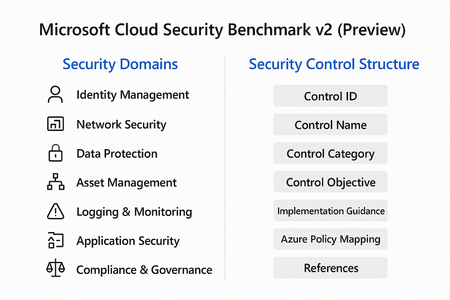
Cloud adoption is accelerating, but so are threats. Organizations often rush to deploy workloads without a clear security baseline, leaving critical gaps that attackers can exploit. Enter Microsoft Cloud Security Benchmark (MCSB) v2, now in public preview, designed to help you start well-protected and evolve securely. What Is Microsoft Cloud Security Benchmark v2? MCSB v2 is a comprehensive set of best practices and controls for securing cloud resources across Azure and hybrid environments. It aligns with: Industry standards: NIST, CIS, ISO Microsoft Secure Future Initiative (SFI) Zero Trust principles This benchmark provides prescriptive guidance for identity, network, data, and workload security helping organizations establish a strong foundation before customizing for their unique needs. Security Domains in MCSB v2 The benchmark organizes guidance into security domains, each representing a critical area of cloud security: Identity Management MFA enforcement, Conditional Access, privileged identity management. Network Security Segmentation, firewall rules, private endpoints. Data Protection Encryption at rest and in transit, key management. Asset Management Resource inventory, tagging, and governance. Logging & Monitoring Centralized logging, alerting, and SIEM integration. Incident Response Playbooks, automation, and escalation workflows. Application Security Secure coding practices, vulnerability scanning. Compliance & Governance Policy enforcement, regulatory alignment. Security Control Structure Each control in MCSB v2 follows a structured format for clarity and implementation: Control ID: Unique identifier for tracking. Control Name: Descriptive title (e.g., “Enable MFA for all users”). Control Category: Maps to a security domain. Control Objective: What the control aims to achieve. Implementation Guidance: Detailed steps for configuration. Azure Policy Mapping: Built-in policy definitions for automation. References: Links to Microsoft Learn and industry standards. This structure ensures consistency, traceability and ease of adoption across large environments. Integration with Azure Policy & Defender for Cloud One of the most powerful aspects of MCSB v2 is its native integration with Azure governance and security tools: Azure Policy Pre-built policy initiatives mapped to MCSB controls. Enables policy-as-code for automated enforcement across subscriptions. Supports compliance dashboards for visibility and reporting. Microsoft Defender for Cloud Monitors compliance against MCSB controls in real time. Provides secure score and recommendations for remediation. Integrates with workflows for alerting and automation. How to Get Started Review the Benchmark Explore the full guidance here: https://learn.microsoft.com/en-us/security/benchmark/azure/overview Apply Built-In Policies Use Azure Policy initiatives mapped to MCSB controls for quick enforcement. Monitor Compliance Leverage Microsoft Defender for Cloud to track adherence and remediate gaps. Tune for Your Needs Start with the baseline, then customize based on workload sensitivity and business requirements. Best Practices for Organizations Enable MFA and Conditional Access for all identities. Segment networks and enforce least privilege. Encrypt data at rest and in transit using Azure-native capabilities. Enable Defender for Cloud for continuous posture management. Automate compliance with policy-as-code. Cloud security isn’t static. Threats evolve, and so should your defenses. MCSB v2 gives you a future-ready foundation that scales with your business and integrates with Microsoft’s security ecosystem.180Views1like0CommentsSecurity Review for Microsoft Edge version 141
We have reviewed the new settings in Microsoft Edge version 141 and determined that there are no additional security settings that require enforcement. The Microsoft Edge version 139 security baseline continues to be our recommended configuration which can be downloaded from the Microsoft Security Compliance Toolkit. Microsoft Edge version 141 introduced 6 new Computer and User settings; we have included a spreadsheet listing the new settings to make it easier for you to find. As a friendly reminder, all available settings for Microsoft Edge are documented here, and all available settings for Microsoft Edge Update are documented here. Please continue to give us feedback through the Security Baselines Discussion site or this post.