santoshpargi
12 Topics
Using the Microsoft Defender for Endpoint Files API to Validate Malware Hashes
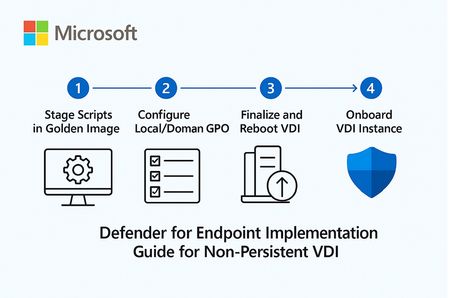
Introduction Security advisories frequently include file hashes (SHA-1 or SHA-256) as indicators of compromise (IoCs). Microsoft Defender for Endpoint (MDE) exposes a Files API that lets SecOps quickly look up Microsoft’s verdict and metadata for a given hash. This enables rapid assessment—whether a file is classified as Malicious, Suspicious, Clean, or Unknown—and helps analysts decide the next response action without needing to download or execute the sample. What is the Files API in MDE and why is it used in Security Operations? The Files API is part of the Defender for Endpoint REST APIs that returns a file profile by hash identifier. Analysts use it to: • Validate whether Microsoft has a global verdict for a hash named in an advisory. • Retrieve telemetry such as global prevalence and first/last observed times to gauge risk and spread. • Pivot to related alerts and devices when needed. This lookup shortens triage time and avoids unnecessary handling of potentially dangerous samples. Prerequisites To call the Files API using application (client credentials) context, you need: A Microsoft Entra ID App Registration (Web app / service). API permissions on the WindowsDefenderATP resource (Microsoft Defender for Endpoint). Minimum: File.Read.All (Application). Admin consent granted for the permissions. Network access to the MDE API endpoint (region-based base URL) and the Microsoft identity platform (OAuth 2.0). Tip: For interactive testing, you can also use the API Explorer in the Microsoft Defender portal under Partners & APIs, which runs requests under your user context and RBAC scope. How to use the Files API via PowerShell 1) Acquire an OAuth token from the Microsoft identity platform using your app’s client ID and secret with the .default scope for the Defender API. 2) Send an HTTP GET request to the Files endpoint with the hash (SHA-1 or SHA-256) as the identifier. 3) Inspect the JSON response field "fileClassification" and other metadata (globalPrevalence, first/last observed). 4) Use the verdict to decide next actions (e.g., create an Indicator to block, hunt in Advanced Hunting, or open related alerts). Actual Script ===== STEP 1: Get OAuth Token (MDE v1) ===== $tenantId = "xxxxxxxxxxxxxxxxxxxxxxxxxxxxxx" $appId = "xxxxxxxxxxxxxxxxxxxxxxxxxxx" $appSecret = "xxxxxxxxxxxxxxxxxxxxxxxxxxx" # update with your tenant and app values $tokenUri = "https://login.microsoftonline.com/$tenantId/oauth2/v2.0/token" $body = @{ client_id = $appId scope = "https://api.securitycenter.microsoft.com/.default" client_secret = $appSecret grant_type = "client_credentials" } $tokenResponse = Invoke-RestMethod -Uri $tokenUri -Method Post -Body $body -ContentType "application/x-www-form-urlencoded" $token = $tokenResponse.access_token # ===== STEP 2: Call MDE v1 Files API ===== $hash = "97bf5e1a903a978b2281496e0a897688e9d8e6f981238cf91e39bae20390defe" # Replace with your actual hash values. $uri = "https://api.securitycenter.microsoft.com/api/v1.0/files/$hash" try { $response = Invoke-RestMethod -Uri $uri -Headers @{ Authorization = "Bearer $token" Accept = "application/json" } -Method Get } catch { Write-Error "API call failed: $($_.Exception.Message)" if ($_.ErrorDetails.Message) { Write-Host $_.ErrorDetails.Message } return } switch ($response.fileClassification) { "Malicious" { Write-Host "MDE recognises this hash as MALICIOUS. Threat Name: $($response.threatName)" -ForegroundColor Red } "Suspicious" { Write-Host "MDE recognises this hash as SUSPICIOUS." -ForegroundColor Yellow } "Clean" { Write-Host "MDE recognises this hash as CLEAN." -ForegroundColor Green } default { Write-Host "MDE does NOT have a signature for this hash (Unknown)." -ForegroundColor Gray } } $response | ConvertTo-Json -Depth 5 Script Explanation Token acquisition: Uses OAuth 2.0 client credentials flow to obtain an access token; scope targets Defender for Endpoint API. Endpoint call: Builds a GET request to the Files endpoint with the hash identifier. Error handling: Catches HTTP errors and prints server-provided details if available. Verdict mapping: Reads the fileClassification field and prints a color-coded verdict (Malicious, Suspicious, Clean, Unknown). Response output: Prints the full JSON for deeper analysis and logging. Recommended Inputs The Files endpoint accepts SHA-1 or SHA-256 identifiers; ensure you pass the correct hash type. Consider using certificate credentials or managed identity instead of client secrets for production automation. Sample Output API Explorer - Other Option to query File API The Microsoft Defender for Endpoint API Explorer is a tool that helps you explore various Defender for Endpoint APIs interactively. The API Explorer makes it easy to construct and do API queries, test, and send requests for any available Defender for Endpoint API endpoint. Use the API Explorer to take actions or find data that might not yet be available through the user interface. The tool is useful during app development. It allows you to perform API queries that respect your user access settings, reducing the need to generate access tokens. You can also use the tool to explore the gallery of sample queries, copy result code samples, and generate debug information. With the API Explorer, you can: Run requests for any method and see responses in real-time. Quickly browse through the API samples and learn what parameters they support. Make API calls with ease; no need to authenticate beyond the management portal signin. Access API Explorer From the left navigation menu, select Partners & APIs > API Explorer. Supported APIs API Explorer supports all the APIs offered by Defender for Endpoint. The list of supported APIs is available in the APIs documentation. Get started with the API Explorer In the left pane, there's a list of sample requests that you can use. Follow the links and click Run query. Some of the samples may require specifying a parameter in the URL, for example, {File Hash}. Permissions Required You need to log in with an account that has appropriate RBAC roles in Microsoft Defender for Endpoint. API Explorer enforces the same role-based access control (RBAC) as the portal: Security Administrator or Global Administrator for high-privilege actions (e.g., offboarding a device, submitting indicators). Lower roles (e.g., Security Reader) can only run read-only queries like Get file information or Get alerts. No additional API permissions or app registration are needed because requests run under your user context. Conclusion The MDE Files API gives SecOps an immediate way to validate hashes from advisories and threat feeds, reducing time-to-triage and enabling consistent response. When a hash is classified as Malicious or Suspicious, teams can move directly to containment (e.g., creating an Indicator to block). When it is Clean or Unknown, analysts can pivot to hunting, sandboxing, or further intelligence before acting. Integrating this lookup into runbooks helps security operations quickly and safely respond to emerging threats. References Get file information API: https://learn.microsoft.com/en-us/defender-endpoint/api/get-file-information Supported MDE APIs (Endpoint URI & versioning): https://learn.microsoft.com/en-us/defender-endpoint/api/exposed-apis-list Access the Microsoft Defender for Endpoint APIs (intro & app context): https://learn.microsoft.com/en-us/defender-endpoint/api/apis-intro Create an app to access MDE without a user (app registration & permissions): https://learn.microsoft.com/en-us/defender-endpoint/api/exposed-apis-create-app-webapp API Explorer: https://learn.microsoft.com/en-us/defender-endpoint/api/api-explorerMDE for Non‑Persistent VDI — Implementation Guide & Best Practices.
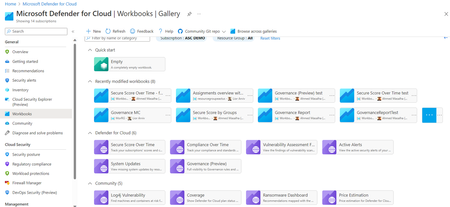
1. Overview: Microsoft Defender for Endpoint (MDE) for Non‑Persistent VDI Non‑persistent VDI instances are reset or reprovisioned frequently. To ensure immediate protection and clean device inventory, MDE provides a dedicated onboarding path that calculates a persistent device ID and onboard early in the boot process. Key considerations: Use the VDI onboarding package and choose the single‑entry method (recommended) to avoid duplicate devices when hosts are recreated with the same name. Place the onboarding script in the golden image but ensure it executes only on child VMs (first boot) after the final hostname is assigned and the last reboot completes. Never fully onboard or boot the golden/template/replica image into production; if it happens, offboard and clean registry artifacts before resealing. Consider enabling the portal feature “Hide potential duplicate device records” to reduce inventory noise during transition periods. 2. Stage the scripts in the Golden Image (do NOT onboard the image) Goal: Ensure early, reliable onboarding of pooled VDI instances without tattooing the master image. Download the Windows onboarding package (Deployment method: VDI onboarding scripts for non‑persistent endpoints). Extract and copy the files to: C\Windows\System32\GroupPolicy\Machine\Scripts\Startup Configure Local/Domain GPO to run the PowerShell script at startup (SYSTEM, highest privileges). For single‑entry, add Onboard-NonPersistentMachine.ps1 on the PowerShell Scripts tab. Ensure the script runs only after final hostname and the last reboot in your provisioning flow to prevent duplicate objects. Example (Domain GPO scheduled task at startup as SYSTEM): Program/Script: C\Windows\System32\WindowsPowerShell\v1.0\powershell.exe Arguments: -ExecutionPolicy Bypass -File \srvshare\onboard\Onboard-NonPersistentMachine.ps1 3. Never Onboard the Golden/Template/Replica VM If the golden image was accidentally onboarded (Sense service started), you must offboard and clean before resealing: sc query sense del "C:\ProgramData\Microsoft\Windows Defender Advanced Threat Protection\Cyber\*.*" /f /s /q reg delete "HKLM\SOFTWARE\Microsoft\Windows Advanced Threat Protection" /v senseGuid /f Run the official offboarding script for your tenant before cleanup, when available. 4. (Optional) Tag Devices Automatically from the Image Tags simplify scoping of device groups and policies. Add a DeviceTagging registry value during image build: reg add "HKLM\SOFTWARE\Policies\Microsoft\Windows Advanced Threat Protection\DeviceTagging" /v Group /t REG_SZ /d "VDI-NonPersistent" /f Tag appears after device info refresh; a reboot accelerates reporting. 5. Performance & AV Configuration for VDI (Important) 5.1 Shared Security Intelligence & Cache Maintenance Purpose: Reduce CPU and disk spikes at sign‑in by offloading unpackaging of definitions to a shared source and by pre‑running cache maintenance on the master image. Step‑by‑step GPO configuration: Create a secure UNC share for definition packages (e.g., \srvshare\WDAV-Update) and grant read to VDI computer accounts. GPO → Computer Configuration → Administrative Templates → Windows Components → Microsoft Defender Antivirus → Security Intelligence Updates → Enable “Define security intelligence location for VDI clients” and set \srvshare\WDAV-Update. In the same node, set update cadence (daily time) and enable randomization to avoid I/O storms. PowerShell examples: Set-MpPreference -SignatureUpdateInterval 4 Set-MpPreference -SignatureFallbackOrder "InternalDefinitionUpdateServer|MicrosoftUpdateServer" Run Windows Defender Cache Maintenance on the golden image before sealing: schtasks /Run /TN "\Microsoft\Windows\Windows Defender\Windows Defender Cache Maintenance" 5.2 FSLogix Exclusions Why exclusions matter: FSLogix mounts user profiles as VHD/VHDX files. Scanning these at attach/detach causes logon delays, black screens, and app launch slowness. Paths and extensions to exclude: %TEMP%\*.VHD %TEMP%\*.VHDX %Windir%\TEMP\*.VHD %Windir%\TEMP\*.VHDX \\<storage>\<share>\*.VHD \\<storage>\<share>\*.VHDX \\<storage>\<share>\*.VHD.lock \\<storage>\<share>\*.VHD.meta \\<storage>\<share>\*.VHD.metadata \\<storage>\<share>\*.VHDX.lock \\<storage>\<share>\*.VHDX.meta \\<storage>\<share>\*.VHDX.metadata GPO: Computer Configuration → Administrative Templates → Windows Components → Microsoft Defender Antivirus → Exclusions (File/Folder and Extension). PowerShell examples: Add-MpPreference -ExclusionExtension VHD,VHDX Add-MpPreference -ExclusionPath "C:\ProgramData\FSLogix","\\storage\fslogix-share\*.VHD*" 5.3 General Scan Posture Real‑time & cloud‑delivered protection (GPO): Enable Real‑time protection, Cloud‑delivered protection, Join MAPS, and “Block at first sight.” Scheduled scans (GPO): Daily Quick Scan (e.g., 02:00) with randomization window. Weekly Full Scan (e.g., Sunday 03:00). Consider “Start the scheduled scan only when computer is on but not in use” to reduce user impact. CPU throttling settings: Set-MpPreference -ScanAvgCPULoadFactor 30 # 5..100 (0 = no throttling) Additional scheduling/throttling options (Intune/Policy CSP as applicable): ScanOnlyIfIdleEnabled = True DisableCpuThrottleOnIdleScans = True ThrottleForScheduledScanOnly = True EnableLowCPUPriority = True Validation commands: Get-MpPreference | fl ScanAvgCPULoadFactor,ScanScheduleQuickScanTime,SignatureUpdateInterval Get-MpComputerStatus | fl AMServiceEnabled,AntivirusSignatureVersion,RealTimeProtectionEnabled 6. Validate Onboarding After first boot of a pooled VM, verify device appears in Defender portal (Assets → Devices). For single‑entry method, reboot/redeploy a few instances with the same hostname and confirm one device object is reused. Optionally enable “Hide potential duplicate device records” (Settings → Endpoints → Advanced features). This is like only filtering the view of Devices list does actual remove the records from the MDE portal. Run a detection test if needed (per Microsoft guidance) to verify sensor connectivity. 7. Quick Checklist — Build Step Download VDI onboarding package from Defender portal. Copy scripts to Startup folder in golden image; configure GPO/Task to run PS1 at boot as SYSTEM. Do NOT onboard/boot the golden image into production; if it happens, offboard + clean senseGuid & Cyber cache. (Optional) Set DeviceTagging registry value for scoping (e.g., VDI-NonPersistent). Configure Shared Security Intelligence path; schedule updates; run Cache Maintenance on master image. Apply FSLogix AV exclusions (paths + extensions). Set scan posture (RTP + cloud, schedules, CPU throttling). Validate onboarding behavior and inventory cleanliness. 8. Summary & Best Practices Checklist for golden image: Script staged, not executed on master; executes only on child VMs at final boot stage. Shared Security Intelligence path configured; cache maintenance pre-run. FSLogix exclusions present prior to first user logon. RTP and cloud protection enabled; scans scheduled with randomization; CPU load factor tuned. Common pitfalls & fixes: Golden image onboarded → Offboard + clean registry/cache; reseal. Script runs before final hostname → Duplicate device records. Delay script until last reboot/final rename. No exclusions for FSLogix → Long logons/black screens. Add VHD/VHDX exclusions and share paths. Simultaneous scans across hosts → Enable randomization; schedule during off‑hours. References Onboard non‑persistent VDI devices: https://learn.microsoft.com/en-us/defender-endpoint/configure-endpoints-vdi Onboard Windows devices in Azure Virtual Desktop: https://learn.microsoft.com/en-us/defender-endpoint/onboard-windows-multi-session-device Configure Microsoft Defender Antivirus on RDS/VDI: https://learn.microsoft.com/en-us/defender-endpoint/deployment-vdi-microsoft-defender-antivirus FSLogix prerequisites (AV exclusions): https://learn.microsoft.com/en-us/fslogix/overview-prerequisites Configure AV exclusions (file/extension/folder): https://learn.microsoft.com/en-us/defender-endpoint/configure-extension-file-exclusions-microsoft-defender-antivirus Create and manage device tags: https://learn.microsoft.com/en-us/defender-endpoint/machine-tags Advanced features (hide duplicate records): https://learn.microsoft.com/en-us/defender-endpoint/advanced-features Schedule antivirus scans using Group Policy: https://learn.microsoft.com/en-us/defender-endpoint/schedule-antivirus-scans-group-policy Troubleshoot MDAV scan issues (CPU throttling, idle scans): https://learn.microsoft.com/en-us/defender-endpoint/troubleshoot-mdav-scan-issuesUpdate Coverage Workbook in Microsoft Defender for Cloud to Include Defender for AI Plan status
Option 1: Update the Existing Coverage Workbook Enhance the current workbook by adding a query that checks Defender for AI plan enablement across subscriptions. Steps Open the Coverage Workbook in Defender for Cloud. Edit the workbook and update the query section to include the line below. AIServices = defenderPlans.AI Display the results in a table or chart alongside other Defender plans. Save and publish the updated workbook for organization-wide visibility. Pros Single pane of glass for all Defender coverage. Easy for SOC teams already using the workbook. Cons Requires manual customization and maintenance. Updates may be overwritten during workbook template refresh. Option 2: Use Azure Resource Graph Explorer Run a Resource Graph query to check Defender for AI enablement status across multiple subscriptions without modifying the workbook. Steps Go to Azure Resource Graph Explorer in the Azure portal. Run the following query: __________________________________________________________________________________ securityresources | where type =~ "microsoft.security/pricings" | extend pricingTier = properties.pricingTier, subPlan = properties.subPlan | extend planSet = pack(name, level = case(isnotempty(subPlan),subPlan,pricingTier)) | summarize defenderPlans = make_bag(planSet) by subscriptionId | project subscriptionId, CloudPosture = defenderPlans.CloudPosture, VirtualMachines = defenderPlans.VirtualMachines, AppServices = defenderPlans.AppServices, AIServices = defenderPlans.AI, SqlServers = defenderPlans.SqlServers, SqlServerVirtualMachines = defenderPlans.SqlServerVirtualMachines, OpenSourceRelationalDatabases = defenderPlans.OpenSourceRelationalDatabases, CosmosDB = defenderPlans.CosmosDbs, StorageAccounts = defenderPlans.StorageAccounts, Containers = defenderPlans.Containers, KeyVaults = defenderPlans.KeyVaults, Arm = defenderPlans.Arm, DNS = defenderPlans.Dns, KubernetesService = defenderPlans.KubernetesService, ContainerRegistry = defenderPlans.ContainerRegistry The output appears as shown below. Export results to CSV or Power BI for reporting. Optionally, schedule the query using Azure Automation or Logic Apps for periodic checks. Pros No dependency on workbook customization. Flexible for ad hoc queries and automation. Cons Separate reporting interface from the Coverage Workbook. Requires manual execution or automation setup. Recommendation If your organization prefers a centralized dashboard, choose Option 1 and update the Coverage Workbook. For quick checks or automation, Option 2 using Resource Graph Explorer is simpler and more scalable.Optimizing Microsoft Sentinel: Resolving AMA-Induced Syslog & CEF Duplicates
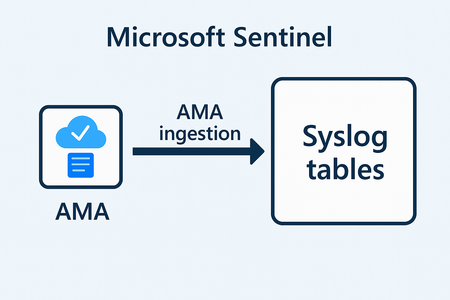
2) Recommended Solutions When collecting both Syslog and CEF logs from the same Linux collector using the Azure Monitor Agent (AMA) in Microsoft Sentinel, duplicate log entries can occur. These duplicates arise because the same event may be ingested through both the Syslog and CEF pipelines, leading to redundancy in the Log Analytics Workspace (LAW). The following solutions aim to eliminate or reduce duplicate log ingestion, ensuring that: CEF events are parsed correctly and only once. Syslog data remains clean and non-redundant. Storage and analytics efficiency is improved. Alerting and incident investigation are not skewed by duplicate entries. Each option provides a different strategy based on your environment’s flexibility and configuration capabilities—from facility-level separation, to ingestion-time filtering, to daemon-side log routing. Option 1: Facility Separation (Preferred) Configure devices to emit CEF logs on a dedicated facility (for example, 'local4'), and adjust the Data Collection Rules (DCRs) so that the CEF stream includes only that facility, while the Syslog stream excludes it. This ensures CEF events are parsed once into 'CommonSecurityLog' and never land in 'Syslog'. CEF via AMA DCR (include only CEF facility): { "properties": { "dataSources": { "syslog": [ { "streams": ["Microsoft-CommonSecurityLog"], "facilityNames": ["local4"], "logLevels": ["*"], "name": "cefDataSource" } ] }, "dataFlows": [ { "streams": ["Microsoft-CommonSecurityLog"], "destinations": ["laDest"] } ] } } Syslog via AMA DCR (exclude CEF facility): { "properties": { "dataSources": { "syslog": [ { "streams": ["Microsoft-Syslog"], "facilityNames": [ "auth","authpriv","cron","daemon","kern","mail", "syslog","user","local0","local1","local2","local3", "local5","local6","local7" ], "logLevels": ["*"], "name": "syslogDataSource" } ] }, "dataFlows": [ { "streams": ["Microsoft-Syslog"], "destinations": ["laDest"] } ] } } Option 2: Ingest-time Transform (Drop CEF from Syslog) If facility separation is not feasible, apply a transformation to the Syslog stream in the DCR so that any CEF-formatted messages are dropped during ingestion. Syslog stream transformKql: { "properties": { "dataFlows": [ { "streams": ["Microsoft-Syslog"], "transformKql": "source | where not(SyslogMessage startswith 'CEF:')", "destinations": ["laDest"] } ] } } Option 3: Daemon-side Filtering/Rewriting (rsyslog/syslog-ng) Filter or rewrite CEF messages before AMA sees them. For example, route CEF messages to a dedicated facility using syslog-ng and stop further processing: # Match CEF filter f_cef { message("^CEF:"); }; # Send CEF to local5 and stop further processing log { source(s_src); filter(f_cef); rewrite { set_facility(local5); }; destination(d_azure_mdsd); flags(final); } 3) Verification Steps with KQL Queries Detect CEF messages that leaked into Syslog: Syslog | where TimeGenerated > ago(1d) | where SyslogMessage startswith "CEF:" | summarize count() by Computer | order by count_ desc Estimate duplicate count across Syslog and CommonSecurityLog: let sys = Syslog | where TimeGenerated > ago(1d) | where SyslogMessage startswith "CEF:" | extend key = hash_sha256(SyslogMessage); let cef = CommonSecurityLog | where TimeGenerated > ago(1d) | extend key = hash_sha256(RawEvent); cef | join kind=innerunique (sys) on key | summarize duplicates = count() Note : You should identify the RawEvent that might be causing the duplicates. 3.1) Duplicate Detection Query Explained This query helps quantify duplicate ingestion when both Syslog and CEF connectors ingest the same events. It works as follows: Build the Syslog set (sys): Filter the 'Syslog' table for the last day and keep only messages that start with 'CEF:'. Compute a SHA-256 hash of the entire message as a stable join key ("key"). Build the CEF set (cef): Filter the 'CommonSecurityLog' table for the last day and compute a SHA-256 hash of the 'RawEvent' field as the same-style join key. Join on the key: Use 'join kind=innerunique' to find messages that exist in both sets (i.e., duplicates). Summarize: Count the number of matching rows to get a duplicate total. 4) Common Pitfalls - Overlapping DCRs applied to the same collector VM causing overlapping facilities/severities. - CEF and Syslog using the same facility on sources, leading to ingestion on both streams. - rsyslog/syslog-ng filters placed after AMA’s own configuration include (ensure your custom rules run before '10-azuremonitoragent.conf'). 5) References - Microsoft Learn: Ingest syslog and CEF messages to Microsoft Sentinel with AMA (https://learn.microsoft.com/en-us/azure/sentinel/connect-cef-syslog-ama)Azure Arc and Defender for Servers: Connectivity and Monitoring Script
2. Overview of Defender for Servers Microsoft Defender for Servers is a plan within Microsoft Defender for Cloud that provides advanced threat protection for Windows and Linux servers, whether they are hosted in Azure, on-premises, or in other cloud environments. It includes capabilities such as endpoint detection and response (EDR), vulnerability assessment, file integrity monitoring, and adaptive application controls. Defender for Servers integrates with Microsoft Defender for Endpoint to provide unified security management and threat detection. For more information on Defender for servers visit documentation at the link below. https://learn.microsoft.com/en-us/azure/defender-for-cloud/tutorial-enable-servers-plan 3. Onboarding On-Premises Servers via Azure Arc To onboard on-premises servers to Defender for Servers, Azure Arc is used to project non-Azure machines into Azure. This enables the application of Azure policies, monitoring, and security configurations. The onboarding process involves: - Installing the Azure Connected Machine Agent on the server - Registering the server with Azure Arc - Enabling Defender for Servers in Microsoft Defender for Cloud - Ensuring the server is reporting and compliant with security policies. For more information on connecting on-premises servers to Azure Arc visit documentation in the link below. Connect hybrid machines to Azure using a deployment script - Azure Arc | Microsoft Learn 4. Script Purpose and Details This PowerShell script is designed to help infrastructure administrators verify the health of the HIMDS service (used by Microsoft Defender for Endpoint) and the connectivity status of the Azure Connected Machine Agent (Azure Arc) on multiple servers. It is especially useful in scenarios where administrators do not have access to the Azure portal but need to ensure that servers are properly onboarded and connected. Key functions of the script include: - Reading a list of computer names from a CSV file - Checking the status of the HIMDS service on each machine - Running the 'azcmagent show' command remotely to verify Azure Arc connectivity - Logging and displaying the results with color-coded output 5. PowerShell Script # Path to the CSV file $csvPath = "C:\Path\To\computers.csv" # Import computer names from CSV $computers = Import-Csv -Path $csvPath | Select-Object -ExpandProperty ComputerName # Array to store connected machines $connectedMachines = @() foreach ($computer in $computers) { Write-Host "Checking $computer..." -ForegroundColor Cyan try { # Check HIMDS service $himdsService = Get-Service -ComputerName $computer -Name "himds" -ErrorAction Stop $himdsStatus = $himdsService.Status # Run azcmagent show remotely and parse output $azcmOutput = Invoke-Command -ComputerName $computer -ScriptBlock { try { $output = azcmagent show | Out-String return $output } catch { Write-Error "Failed to run azcmagent: $_" return $null } } if ($azcmOutput -ne $null) { $statusLine = $azcmOutput -split "`n" | Where-Object { $_ -match "Agent Status\s*:\s*Connected" } if ($statusLine) { Write-Host "[$computer] HIMDS Service: $himdsStatus, Azure Arc Status: Connected" -ForegroundColor Green $connectedMachines += $computer } else { Write-Host "[$computer] HIMDS Service: $himdsStatus, Azure Arc Status: Not Connected" -ForegroundColor Yellow } } else { Write-Host "[$computer] HIMDS Service: $himdsStatus, Azure Arc Status: Unknown (command failed)" -ForegroundColor Red } } catch { Write-Host "[$computer] Error: $_" -ForegroundColor Red } } # Output connected machines Write-Host "`nConnected Machines:" -ForegroundColor Cyan $connectedMachines | ForEach-Object { Write-Host $_ -ForegroundColor Green } 6. How It Simplifies Administrative Tasks This script streamlines the process of verifying Azure Arc connectivity across multiple servers. Instead of manually logging into each server and running individual checks, administrators can execute this script to: - Quickly identify which machines are connected to Azure Arc - Detect issues with the HIMDS service - Generate a list of healthy and connected machines - Save time and reduce the risk of human errorToken Protection by using Microsoft Entra ID.
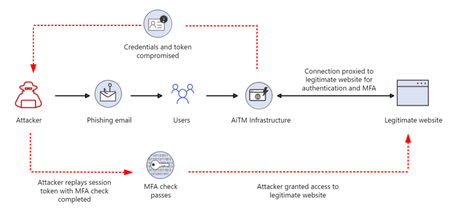
As organizations move to the cloud and adopt SaaS applications, identities are becoming increasingly crucial for accessing resources. Cybercriminals exploit legitimate and authorized identities to steal data and access credentials through methods like phishing, malware, data breaches, brute-force/password spray attacks, and prior compromises. As in past years, password-based attacks on users constitute most identity-related attacks. As MFA blocks most password-based attacks, threat actors are shifting their focus, moving up the cyberattack chain in three ways: 1) attacking infrastructure, 2) bypassing authentication, and 3) exploiting applications. They are leaning more heavily into adversary-in-the-middle (AiTM) phishing attacks and token theft. Over the last year, as Microsoft Digital Defense Report (MDDR 2024) a 146% rise in AiTM phishing attacks. In AiTM attack , the attackers steal tokens instead of passwords. The Frameworks used by attackers go far beyond credential phishing, by inserting malicious infrastructure between the user and the legitimate application the user is trying to access. When the user is phished, the malicious infrastructure captures both the credentials of the user, and the token. By compromising and replaying a token issued to an identity that has already completed multifactor authentication, the threat actor satisfies the validation of MFA and access is granted to organizational resources accordingly. Now it is imperative that tokens must be protected from token theft. Let us understand more on tokens. An Entra identity token is a security token issued by Microsoft Entra ID for authentication and authorization. There are several types: Access Tokens: Grant access to resources on behalf of an authenticated user, containing user and resource information. ID Tokens: Authenticate users, issued in the OpenID Connect flow, containing user identity and authentication details. Refresh Tokens: Obtain new access tokens without re-authentication, usually issued with access tokens and have a longer lifespan. Ensuring Token Security By following best practices, you can significantly enhance the security of your tokens and protect your applications from unauthorized access. Use Secure Transmission: Always transmit tokens over secure channels such as HTTPS to prevent interception by unauthorized parties. Token Binding: Implement Token Protection (formerly known as token binding) to cryptographically tie tokens to client secrets. This prevents token replay attacks from different devices. Conditional Access Policies: Use Conditional Access policies to enforce compliant network checks. This ensures that tokens are only used from trusted networks and devices. Continuous Access Evaluation (CAE): Implement CAE to continuously evaluate the security state of the session. This helps in detecting and revoking tokens if there are changes in the user's security posture, such as network location changes. Short Token Lifetimes: Use short lifetimes for access tokens and refresh tokens to limit the window of opportunity for attackers. Secure Storage: Store tokens securely on the client side, using secure storage mechanisms provided by the operating system, such as Keychain on iOS or Keystore on Android. Regular Audits and Monitoring: Regularly audit token usage and monitor for any unusual activity. This helps in early detection of potential security breaches. Now we will discuss Entra ID new features for Token Protection. Token protection using conditional access : This feature will provide refresh token protection. Compliant network check with Conditional Access: This feature will provide both refresh token and Access token protection. Token protection using conditional access: Token protection (sometimes referred to as token binding in the industry) attempts to reduce attacks using token theft by ensuring a token is usable only from the intended device. When an attacker is able to steal a token, by hijacking or replay, they can impersonate their victim until the token expires or is revoked. Token theft is thought to be a relatively rare event, but the damage from it can be significant. Token protection creates a cryptographically secure tie between the token and the device (client secret) it's issued to. Without the client secret, the bound token is useless. When a user registers a Windows 10 or newer device in Microsoft Entra ID, their primary identity is bound to the device. What this means: A policy can ensure that only bound sign-in session (or refresh) tokens, otherwise known as Primary Refresh Tokens (PRTs) are used by applications when requesting access to a resource. Token protection is currently in public preview Create a Conditional Access policy Users who perform specialized roles like those described in Privileged access security levels are possible targets for this functionality. We recommend piloting with a small subset to begin. The steps that follow help create a Conditional Access policy to require token protection for Exchange Online and SharePoint Online on Windows devices. Sign in to the Microsoft Entra admin center as at least a Conditional Access Administrator. Browse to Protection > Conditional Access > Policies. Select New policy. Give your policy a name. We recommend that organizations create a meaningful standard for the names of their policies. Under Assignments, select Users or workload identities. Under Include, select the users or groups who are testing this policy. Under Exclude, select Users and groups and choose your organization's emergency access or break-glass accounts. 6.Under Target resources > Resources (formerly cloud apps) > Include > Select resources Under Select, select the following applications supported by the preview: Office 365 Exchange Online Office 365 SharePoint Online Choose Select. 7. Under Conditions: Under Device platforms: Set Configure to Yes. Include > Select device platforms > Windows. Select Done. Under Client apps: Set Configure to Yes Under Modern authentication clients, only select Mobile apps and desktop clients. Leave other items unchecked. Select Done. 8. Under Access controls > Session, select Require token protection for sign-in sessions and select Select. 9. Confirm your settings and set Enable policy to Report-only. 10.Select Create to create to enable your policy. After administrators confirm the settings using report-only mode, they can move the Enable policy toggle from Report-only to On. Capture logs and analyze Monitoring Conditional Access enforcement of token protection before and after enforcement. Sign-in logs Use Microsoft Entra sign-in log to verify the outcome of a token protection enforcement policy in report only mode or in enabled mode. Sign in to the Microsoft Entra admin center as at least a Conditional Access Administrator. Browse to Identity > Monitoring & health > Sign-in logs. Select a specific request to determine if the policy is applied or not. Go to the Conditional Access or Report-Only pane depending on its state and select the name of your policy requiring token protection. Under Session Controls check to see if the policy requirements were satisfied or not. You can refer below link to know more about license requirements, prerequisites & limitations. Token protection in Microsoft Entra Conditional Access - Microsoft Entra ID | Microsoft Learn Enable compliant network check with Conditional Access Organizations who use Conditional Access along with the Global Secure Access, can prevent malicious access to Microsoft apps, third-party SaaS apps, and private line-of-business (LoB) apps using multiple conditions to provide defense-in-depth. These conditions might include device compliance, location, and more to provide protection against user identity or token theft. Global Secure Access introduces the concept of a compliant network within Microsoft Entra ID Conditional Access. This compliant network check ensures users connect from a verified network connectivity model for their specific tenant and are compliant with security policies enforced by administrators. The Global Secure Access Client installed on devices or users behind configured remote networks allows administrators to secure resources behind a compliant network with advanced Conditional Access controls. This compliant network feature makes it easier for administrators to manage access policies, without having to maintain a list of egress IP addresses. This removes the requirement to hairpin traffic through organization's VPN. Compliant network check enforcement Compliant network enforcement reduces the risk of token theft/replay attacks. Compliant network enforcement happens at the authentication plane (generally available) and at the data plane (preview). Authentication plane enforcement is performed by Microsoft Entra ID at the time of user authentication. If an adversary has stolen a session token and attempts to replay it from a device that is not connected to your organization’s compliant network (for example, requesting an access token with a stolen refresh token), Entra ID will immediately deny the request and further access will be blocked. Data plane enforcement works with services that support Continuous Access Evaluation (CAE) - currently, only SharePoint & Exchange Online. With apps that support CAE, stolen access tokens that are replayed outside your tenant’s compliant network will be rejected by the application in near-real time. Without CAE, a stolen access token will last up to its full lifetime (default 60-90 minutes). This compliant network check is specific to each tenant. Using this check, you can ensure that other organizations using Microsoft's Global Secure Access services can't access your resources. For example: Contoso can protect their services like Exchange Online and SharePoint Online behind their compliant network check to ensure only Contoso users can access these resources. If another organization like Fabrikam was using a compliant network check, they wouldn't pass Contoso's compliant network check. The compliant network is different than IPv4, IPv6, or geographic locations you might configure in Microsoft Entra. Administrators are not required to review and maintain compliant network IP addresses/ranges, strengthening the security posture and minimizing the ongoing administrative overhead. Enable Global Secure Access signaling for Conditional Access To enable the required setting to allow the compliant network check, an administrator must take the following steps. Sign in to the Microsoft Entra admin center as a Global Secure Access Administrator. Browse to Global Secure Access > Settings > Session management > Adaptive access. Select the toggle to Enable CA Signaling for Entra ID (covering all cloud apps). This will automatically enable CAE signaling for Office 365 (preview). Browse to Protection > Conditional Access > Named locations. a. Confirm you have a location called All Compliant Network locationswith location type Network Access. Organizations can optionally mark this location as trusted. You can refer below link to know more about license requirements, prerequisites & limitations Protect your resources behind the compliant network The compliant network Conditional Access policy can be used to protect your Microsoft and third-party applications. A typical policy will have a 'Block' grant for all network locations except Compliant Network. The following example demonstrates the steps to configure this type of policy: Sign in to the Microsoft Entra admin center as at least a Conditional Access Administrator. Browse to Protection > Conditional Access. Select Create new policy. Give your policy a name. We recommend that organizations create a meaningful standard for the names of their policies. Under Assignments, select Users or workload identities. Under Include, select All users. Under Exclude, select Users and groupsand choose your organization's emergency access or break-glass accounts. 6. Under Target resources > Include and select All resources (formerly 'All cloud apps'). If your organization is enrolling devices into Microsoft Intune, it is recommended to exclude the applications Microsoft Intune Enrollmentand Microsoft Intune from your Conditional Access policy to avoid a circular dependency. 7. Under Network. Set Configureto Yes. Under Include, select Any location. Under Exclude, select the All Compliant Network locationslocation. 8. Under Access controls: Grant, select Block Access, and select Select. 9. Confirm your settings and set Enable policy to On. 10. Select the Create button to create to enable your policy. User exclusions Conditional Access policies are powerful tools, we recommend excluding the following accounts from your policies: Emergency access or break-glass accounts to prevent lockout due to policy misconfiguration. In the unlikely scenario all administrators are locked out, your emergency-access administrative account can be used to log in and take steps to recover access. More information can be found in the article, Manage emergency access accounts in Microsoft Entra ID. Service accounts and Service principals, such as the Microsoft Entra Connect Sync Account. Service accounts are non-interactive accounts that aren't tied to any particular user. They're normally used by back-end services allowing programmatic access to applications but are also used to sign in to systems for administrative purposes. Calls made by service principals won't be blocked by Conditional Access policies scoped to users. Use Conditional Access for workload identities to define policies targeting service principals. If your organization has these accounts in use in scripts or code, consider replacing them with managed identities. Try your compliant network policy On an end-user device with the Global Secure Access client installed and running, browse to https://outlook.office.com/mail/ or https://yourcompanyname.sharepoint.com/, you have access to resources. Pause the Global Secure Access client by right-clicking the application in the Windows tray and selecting Pause. Browse to https://outlook.office.com/mail/ or https://yourcompanyname.sharepoint.com/, you're blocked from accessing resources with an error message that says You cannot access this right now. You can refer below link to know more about license requirements, prerequisites & limitations Enable compliant network check with Conditional Access - Global Secure Access | Microsoft LearnSentinel-Threat Intelligence Feeds Integration to strengthen Threat Detection & Proactive Hunting.
Combining threat intelligence feeds is important for detecting threats and identifying Indicators of Compromise (IOCs) in various scenarios. Here are some key situations where this approach is advantageous: Comprehensive Threat Detection Integrating multiple threat intelligence feeds can cover a wider range of threats. Different feeds may provide unique insights into malicious activities, IP addresses, domain names, and other IOCs. Reducing False Positives Combining feeds helps cross-verify data, decreasing the likelihood of false positives. This ensures that security teams focus on actual threats rather than inaccurate alerts. Enhanced Contextual Analysis Multiple feeds can offer richer context around threats, including tactics, techniques, and procedures (TTPs) used by attackers. This helps in understanding the threat landscape better and making informed decisions. Real-Time Threat Response Integrating feeds allows for real-time updates on emerging threats. This enables security teams to respond swiftly to new threats and mitigate potential damage. Proactive Threat Hunting Threat hunters can use combined feeds to identify patterns and anomalies that might indicate a threat. This proactive approach assists in detecting threats before they can cause significant harm. Improved Threat Intelligence Sharing Combining feeds from different sources, such as government agencies, commercial vendors, and open-source communities, enhances the overall quality and reliability of threat intelligence. Example Query in Microsoft Sentinel Here's an example of how you might combine two threat intelligence feeds using the coalesce function in KQL: _______________________________________________________________________________________ ThreatIntelFeed1 | extend CombinedIndicator = coalesce(ThreatIntelFeed1.Indicator, ThreatIntelFeed2.Indicator) | extend CombinedDescription = coalesce(ThreatIntelFeed1.Description, ThreatIntelFeed2.Description) | project CombinedIndicator, CombinedDescription _________________________________________________________________________________________ In the above example coalsce function is used. The coalesce function in Kusto Query Language (KQL) is used to evaluate a list of expressions and return the first non-null (or non-empty for strings) expression. This function is particularly useful in Microsoft Sentinel for handling data where some fields might be missing or null. Syntax coalesce(arg, arg_2, [arg_3, ...]) arg: The expression to be evaluated. All arguments must be of the same type. Maximum of 64 arguments is supported. Functions of coalesce in Sentinel Threat Intelligence Feeds Handling Missing Data: It helps in filling gaps where data might be missing by providing a fallback value. For example, if one threat intelligence feed lacks an IP address, coalesce can pull it from another feed. Data Normalization: Combines multiple fields into one, ensuring that you always have a value to work with. This is useful when different feeds provide similar data in different fields. Simplifying Queries: Reduces the need for complex conditional logic to handle null values, making queries more readable and maintainable. Let’s look at Threat Intelligence Analytic rule where caolsec function is used. The query combines threat intelligence indicators with DNS data to identify potential malicious activity. It ensures that only relevant and recent indicators are considered and matches them with DNS queries to detect suspicious behavior. This query ensures that you obtain the most comprehensive data by taking the first non-null value from either feed. Let's break down this KQL query step by step: Define Lookback Periods dt_lookBack: Sets a lookback period of 1 hour for DNS data. ioc_lookBack: Sets a lookback period of 14 days for threat intelligence indicators. Extract Relevant Threat Intelligence Indicators ThreatIntelligenceIndicator: Filters threat intelligence indicators generated within the last 14 days and not expired. arg_max(TimeGenerated, *) by IndicatorId: Summarizes to get the latest indicator for each IndicatorId. Active == true: Filters only active indicators. coalesce(NetworkIP, NetworkDestinationIP, NetworkSourceIP, EmailSourceIpAddress, "NO_IP"): Combines various IP fields into a single IoC field, defaulting to "NO_IP" if none are present. where IoC != "NO_IP": Filters out entries without valid IP addresses. Join with DNS Data join kind=innerunique: Joins the threat intelligence indicators with DNS data using an inner unique join to keep performance fast and result set low. _Im_Dns(starttime=ago(dt_lookBack)): Retrieves DNS data from the last hour. where isnotempty(DnsResponseName): Filters DNS records with non-empty response names. summarize imDns_mintime=min(TimeGenerated), imDns_maxtime=max(TimeGenerated) by SrcIpAddr, DnsQuery, DnsResponseName, Dvc, EventProduct, EventVendor: Summarizes DNS data by various fields. extract_all(@'(\d+\.\d+\.\d+\.\d+)', DnsResponseName): Extracts all IP addresses from the DNS response name. mv-expand IoC = addresses to typeof(string): Expands the extracted IP addresses into individual rows. Combined KQL looks like below _________________________________________________________________________________________ let dt_lookBack = 1h; let ioc_lookBack = 14d; let IP_TI = ThreatIntelligenceIndicator | where TimeGenerated >= ago(ioc_lookBack) and ExpirationDateTime > now() | summarize LatestIndicatorTime = arg_max(TimeGenerated, *) by IndicatorId | where Active == true | extend IoC = coalesce(NetworkIP, NetworkDestinationIP, NetworkSourceIP,EmailSourceIpAddress,"NO_IP") | where IoC != "NO_IP" ; IP_TI | join kind=innerunique // using innerunique to keep perf fast and result set low, we only need one match to indicate potential malicious activity that needs to be investigated ( _Im_Dns(starttime=ago(dt_lookBack)) | where isnotempty(DnsResponseName) | summarize imDns_mintime=min(TimeGenerated), imDns_maxtime=max(TimeGenerated) by SrcIpAddr, DnsQuery, DnsResponseName, Dvc, EventProduct, EventVendor | extend addresses = extract_all (@'(\d+\.\d+\.\d+\.\d+)', DnsResponseName) | mv-expand IoC = addresses to typeof(string) ) on IoC _________________________________________________________________________________________ Summary This article explores the importance of combining threat intelligence feeds to improve security operations. Key benefits include extending threat coverage, reducing false positives, and enhancing contextual analysis through detailed insights into attackers' tactics and techniques. The integration process also facilitates real-time threat updates and enables better collaboration between different intelligence sources. An example is provided using KQL (Kusto Query Language) to demonstrate how threat intelligence feeds can be combined effectively within Microsoft Sentinel. The query showcases steps like defining lookback periods, extracting relevant indicators, and correlating them with DNS data through an inner unique join. By leveraging this method, organizations can efficiently identify potential malicious activities and strengthen their threat response capabilities. The content emphasizes that integrating threat feeds is not just a technical function but a strategic necessity to fortify organizations against evolving cyber threats.Automate enabling Defender for servers P1 at resource group or individual machines using Tags.
By default, Defender for Servers is enabled as a subscription-wide setting, covering all Azure VMs, Azure Arc-enabled Servers and VMSS nodes at the same time. However, there are scenarios in which it makes sense only enable Defender for Servers Plan 1 on a subset of machines in a subscription. The document covers below steps. You can use one of the three options to enable defender plan selectively on individual VMs or Resource group. Before executing the option, you can use step #4 or #5 to add VM tags using script. Option 1: Enable Plan 1 with a power shell script Option 2: Enable Plan 1 with Azure Policy (on resource group) Option 3: Enable Plan 1 with Azure Policy (on resource tag) Assigning a VM Tag to the VMs listed in the CSV file Assigning a VM Tag to the VMs which are part of Azure Resource Group Option 1 : Enable Plan 1 with a script a) Download and save this file as a PowerShell file. b) Run the downloaded file. c) Customize as needed. Select resources by tag or by resource group. d) Follow the rest of the onscreen instructions. Option 2: Enable Plan 1 with Azure Policy (on resource group) a) Sign in to Azure portal and navigate to the Policy b) In the Policy dashboard, select Definitions from the left-side menu. c) In the Security Center – Granular Pricing category, search for and then select Configure Azure Defender for Servers to be enabled (with 'P1' subplan) for all resources (resource level). This policy enables Defender for Servers Plan 1 on all resources (Azure VMs, VMSS and Azure Arc-enabled servers) under the assignment scope. d) Select the policy and review it. e) Select Assign and edit the assignment details according to your needs. In the Basics tab, as Scope, select your relevant resource group. f) In the Remediation tab, select Create a remediation task. g) Once you edited all details, select **Review + create. Then select Create. Option 3: Enable Plan 1 with Azure Policy (on resource tag) a) Sign in to Azure portal and navigate to the Policy b) In the Policy dashboard, select Definitions from the left-side menu. c) In the Security Center – Granular Pricing category, search for and then select Configure Azure Defender for Servers to be enabled (with 'P1' subplan) for all resources with the selected tag. This policy enables Defender for Servers Plan 1 on all resources (Azure VMs, VMSS and Azure Arc-enabled servers) under the assignment scope. d) Select the policy and review it. e) Select Assign and edit the assignment details according to your needs. f) In the Parameters tab, clear Only show parameters that need input or review g) In Inclusion Tag Name, enter the custom tag name. Enter the tag's value in Inclusion Tag Values h) In the Remediation tab, select Create a remediation task. i) Once you edited all details, select **Review + create. Then select Create. Assigning a VM Tag to the VMs listed in the CSV file. PowerShell script that reads a list of computers from a CSV file and adds an Azure tag to each of them. The CSV file should have a column named "ComputerName" with the names of the computers. Below is the script copy to text file and save it as .ps1 file. ___________________________________________________________________________________________________ # Import the CSV file $computers = Import-Csv -Path "C:\path\to\your\computers.csv" # Define the Azure tag $tagName = "YourTagName" $tagValue = "YourTagValue" # Loop through each computer and add the Azure tag foreach ($computer in $computers) { $computerName = $computer.ComputerName # Add the Azure tag to the computer Set-AzResource -ResourceName $computerName -Tag @{ $tagName = $tagValue } -Force } Write-Output "Tags added to all computers successfully." _____________________________________________________________________________________________________ Make sure to replace "C:\path\to\your\computers.csv" with the actual path to your CSV file, and "YourTagName" and "YourTagValue" with the tag name and value you want to use. Before running the script, ensure you have the Azure PowerShell module installed and are authenticated to your Azure account. You can install the Azure PowerShell module using: Install-Module -Name Az -AllowClobber -Force And authenticate to your Azure account using: Connect-AzAccount Assigning a VM Tag to the VMs which are part of Azure Resource Group You can assign tags to multiple Azure VMs within a ResourceGroup using a PowerShell script. Here's a step-by-step guide to help you do that: Prerequisites Ensure you have the Azure PowerShell module installed. If not, you can install it using: Install-Module -Name Az -AllowClobber -Scope CurrentUser Sign in to your Azure account: Connect-AzAccount Script to Assign Tags to Multiple VMs Here's a PowerShell script to assign a tag to multiple Azure VMs: ------------------------------------------------------------------------------------------------------------ # Define the resource group and tag details $resourceGroupName = "YourResourceGroupName" $tagName = "Environment" $tagValue = "Production" # Get the list of VMs in the specified resource group $vms = Get-AzVM -ResourceGroupName $resourceGroupName # Loop through each VM and assign the tag foreach ($vm in $vms) { $vmId = $vm.Id $tags = @{} $tags[$tagName] = $tagValue # Assign the tag to the VM Set-AzResource -ResourceId $vmId -Tag $tags -Force Write-Output "Tag assigned to VM: $($vm.Name)" } ------------------------------------------------------------------------------------------------------------ Explanation Define Resource Group and Tag Details: Set the $resourceGroupName, $tagName, and $tagValue variables to your desired values. Get the List of VMs: Use Get-AzVM to retrieve all VMs in the specified resource group. Loop Through Each VM: For each VM, create a hashtable for the tags and assign the tag using Set-AzResource. Output: The script outputs the name of each VM to which the tag is assigned. Running the Script Save the script to a .ps1 file, for example, AssignTags.ps1. Open PowerShell with administrator permissions. Navigate to the directory where the script is saved. Run the script: .\AssignTags.ps1 This script will assign the specified tag to all VMs in the given resource group. If you need to assign tags to VMs across multiple resource groups or with different criteria, you can modify the script accordingly.End-to-End automation of Onboarding a Virtual Machine to a Defender for servers.
Overview: The Defender for Servers plan in Microsoft Defender for Cloud reduces security risk and exposure for machines in your organization by providing actionable recommendations to improve and remediate security posture. Defender for Servers also helps to protect machines against real-time security threats and attacks. Defender for servers Plan1 focuses on the EDR capabilities provided by the Defender for Endpoint integration. Microsoft Defender for Endpoint (MDE) is an enterprise endpoint security platform designed to help enterprise networks prevent, detect, investigate, and respond to advanced threats. For more information about MDE refer Microsoft Defender for Endpoint - Microsoft Defender for Endpoint | Microsoft Learn. This article focuses on the End-to-End automation of Onboarding a Virtual Mahine to a Defender for servers, MDE extension deployment and adding to a dynamic group to receive the desired MDE policy. High level steps include below. Deploy a virtual Machine (example Name: MDE) in Azure subscription. Create a dynamic group (example Name: MDE-Dynamic Group) in Intune (Endpoint.Microsoft.com) with a rule that Display Name starts with “MDE” add to “MDE-Dynamic Group”. Enable Microsoft Defender for Endpoint (MDE) security settings management. Create a AV policy (example Name: MDE-AV) in Intune and assigned to “MDE-Dynamic group”. Enabled Defender for servers plan on a subscription. Configure Endpoint protection auto provisioning in Settings & Monitoring. Device get onboarded to MDE (security.microsoft.com) automatically. Device get automatically added to MDE-Dynamic group. Device received the MDE-AV policy as it is part of MDE-Dynamic group. Let us go through the details steps of this Defender for servers onboarding and policy configuration. Deploy a virtual Machine (example Name: MDE) in Azure subscription. The below picture shows the Virtual Machine deployed in Azure Subscription. For instructions you can go through the link. Quickstart - Create a Windows VM in the Azure portal - Azure Virtual Machines | Microsoft Learn Create a dynamic group (example Name: MDE-Dynamic Group) in Intune To create a dynamic group in Intune: Sign in to the Microsoft Intune admin center. Go to Groups, then select New group. Set the following in the New Group pane: o Group type: Security o Group name: e.g., MDE-Dynamic Group o Group description: Optional o Membership type: Dynamic Device or Dynamic User Click Add dynamic query to define membership rules. In the Dynamic membership rules pane, use the rule builder or enter a custom query to specify criteria, e.g., (device.deviceOSType -eq "Windows") -and ((device.displayName -startsWith "MDE"). Save the query and Create the group. This will create a dynamic group that automatically includes devices or users based on your criteria. Enable Microsoft Defender for Endpoint (MDE) security settings management. When you integrate Microsoft Intune with Microsoft Defender for Endpoint, you can use Intune endpoint security policies to manage the Defender security settings on devices that are not enrolled with Intune. This capability is known as Defender for Endpoint security settings management. To support security settings management through the Microsoft Intune admin center, you must enable communication between them from within each console. The following sections guide you through that process. Configure Microsoft Defender for Endpoint In the Microsoft Defender portal, as a security administrator: a) Sign in to the Microsoft Defender portal and go to Settings > Endpoints > Configuration Management > Enforcement Scope and enable the platforms for security settings management. b) Initially, we recommend testing the feature for each platform by selecting the platforms option for On tagged devices and then tagging the devices with the MDE-Management tag. c) Configure the feature for Microsoft Defender for Cloud onboarded devices and Configuration Manager authority settings to fit your organization's needs: Configure Intune a) In the Microsoft Intune admin center, your account needs permissions equal to Endpoint Security Manager built-in Role based access control (RBAC) role. b) Sign in to the Microsoft Intune admin center. c) Select Endpoint security> Microsoft Defender for Endpoint, and set Allow Microsoft Defender for Endpoint to enforce Endpoint Security Configurations to On. d) When you set this option to On, all devices in the platform scope for Microsoft Defender for Endpoint that are not managed by Microsoft Intune qualify to onboard to Microsoft Defender for Endpoint. For detailed information click on the link Learn about using Intune to manage Microsoft Defender settings on devices that aren't enrolled with Intune | Microsoft Learn Create a AV policy(example Name :MDE-AV) in Intune and assigned to “MDE-Dynamic group”. Step 1: Create the AV Policy Sign in to the Microsoft Intune admin center. Navigate to Endpoint security and select Antivirus.Integrating Microsoft Intune with Microsoft Defender for Endpoint allows you to manage Defender security settings on non-enrolled devices using Intune's endpoint security policies. This feature is called Defender for Endpoint security settings management. Click on Create Policy. For the Platform, select Windows 10 and later. For the Profile, select Microsoft Defender Antivirus and then click Create. On the Basics page, provide a Name (e.g., MDE-AV) and an optional Description. On the Configuration settings page, configure the antivirus settings as needed. Click Next to proceed through the remaining pages and then click Create to finalize the policy. Step 2: Assign the AV Policy to the Dynamic Group After creating the policy, go to Devices > Configuration profiles. Select the MDE-AV policy you created. In the Properties pane, select Assignments > Edit. Under Included groups, click Add groups and select the MDE-Dynamic Group. Click Select and then Review + Save to apply the assignment. This will ensure that the AV policy is applied to all devices in the "MDE-Dynamic Group." Enabling Defender for server’s plan on a subscription. To enable the Defender for Servers plan in Microsoft Defender for Cloud: Sign in to the Azure portal. Search for and select "Microsoft Defender for Cloud". Go to Environment settings in the menu. Choose the relevant Azure subscription, AWS account, or GCP project. On the Defender plans page, toggle the Servers switch to On. By default, this activates Defender for Servers Plan 2. You can choose Plan 1 or Plan 2 in the popup window. 6. Configured Endpoint protection auto provisioning in Settings & Monitoring. To configure Endpoint protection auto-provisioning in Microsoft Defender for Cloud, follow these steps: Sign in to the Azure portal. Navigate to Microsoft Defender for Cloud. In the Defender for Cloud menu, select Environment settings. Select the relevant subscription. Go to the Auto-provisioning page. For the Log Analytics agent / Azure Monitoring Agent, select Edit Configuration. Set the Auto-provisioning switch to On for the desired agents. Device got onboarded to MDE (security.microsoft.com) Once above steps performed the machine MDE gets onboarded to the security.microsoft.com portal automatically along with the MDE extension deployed. Device got automatically added to MDE-Dynamic group. You will observe that device “MDE” gets added to the Dynamic group named “MDE-Dynamic” automatically. Device received the MDE-AV policy as it is part of MDE-Dynamic group. You will also observe that the device gets the AV policy configured and assigned to the dynamic group. Policies are deployed successfully Below is the status of device in Intune portal Below is the status of device in MDE portal Summary When Defender for server's plan is enabled, the device was successfully onboarded to MDE (security.microsoft.com) and automatically added to the MDE-Dynamic group. It received the MDE-AV policy as part of this group, with policies deployed successfully. The status of the device can be viewed in both the Intune and MDE portals.TLS for Sentinel Syslog CEF Data connector(Secure Transfer of logs to Sentinel Log analytics workspa
Sentinel Data connector Syslog CEF is a feature that allows you to collect data from various sources using the Common Event Format (CEF) or Syslog protocols and send it to Azure Sentinel, a cloud-native security information and event management (SIEM) solution. By using this connector, you can integrate your existing security tools and devices with Sentinel and gain more visibility and insights into your network and security events. Ingest syslog and CEF messages to Microsoft Sentinel - AMA | Microsoft Learn The connection using this method happens over TCP/UDP 514 which is in plain text. However, some sources may require a secure connection to transmit data using Syslog over TLS (Transport Layer Security). This ensures that the data is encrypted and authenticated between the sender and the receiver. In this article, we will show you how to configure TLS for Syslog on a Linux machine and connect it to Azure Sentinel using the Sentinel Data connector for CEF.