project for the web
5 TopicsTransitioning to Microsoft Planner and retiring Microsoft Project for the web
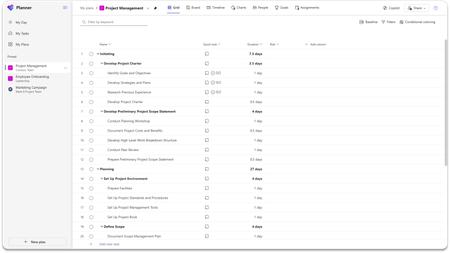
Today, we are announcing the transition to Planner, which aims to provide a unified work management experience through a modern work stack integrating Project for the web, To Do, and Planner. In August 2025, we will retire Project for the web, as well as the Project and Roadmap apps in Microsoft Teams. Users will be redirected to Planner for the web and Planner in Teams as Project for the web becomes Planner. Streamlined tools with a focus on innovation and user experience Previously, Project for the web, Project in Teams, and Roadmap in Teams operated as separate endpoints from Planner. Since Planner for the web and Planner in Teams include the same premium plans as Project for the web, we are consolidating our endpoints to ease confusion. Additionally, Planner integrates basic plans—those created with a Microsoft 365 E3 or E5 license—into a single solution. By unifying our platforms and capabilities, we’ve created an integrated experience within one app, allowing users to seamlessly access both premium and basic plans with a premium plan license for an improved work management experience. This transition is the next step in delivering the experience announced at Microsoft Ignite 2023. No migration or change in licensing is required—all plans previously created in Project for the web are accessible in both Planner for the web and Planner in Teams. With a premium license, Planner provides access to familiar capabilities such as basic plans, along with premium features like Goals, Sprints, Task History, Advanced Dependencies with lead and lag, Baselines, and more. Additionally, it includes our next-generation AI-powered work management tools, including Copilot and the Project Manager agent. Transitioning to Planner (redirect from Project for the web and Project and Roadmap apps in August 2025) Starting in early August, for users who have not already transitioned, when launching Project for the web or Roadmap for the web, users will see a page redirecting them to open Planner for the web https://planner.cloud.microsoft/; you may also use Planner in Teams. Existing Project and Roadmap tabs in Teams will no longer open the associated projects but will inform users to re-pin their tab using the Planner tab for Teams. The Project tab and Roadmap tab apps are no longer available in the Teams app store. Users can manage and create premium plans in Planner, like their current usage in Project for the web. The Project Power App will retain its user experience and be renamed “Planner Power App.” Benefits of using Planner, plus new capabilities Customers find that having too many work management apps can reduce collaboration, miss opportunities, and lower productivity. Planner addresses this by offering one work management solution: A consolidated view of all tasks in “My Tasks” and “My Day.” Access to premium and basic plans and features, from task management to enterprise-level capabilities with low code/no code extensibility. Planner supports your company's work management journey with familiar features, enhanced experiences, and a focus on innovation with a foundation of AI and security including: AI capabilities to automate and boost productivity. Enterprise-grade security at every level. Collaboration between humans and AI for efficient team project management. Copilot in Planner (public preview) and Microsoft 365 Copilot with the new Project Manager agent (public preview) help users work smarter. Project Manager agent automates project management tasks, from plan creation to task execution for you and your team. Easily create new plans, generate tasks by adding goals, assign tasks to the agent, and tracks the agent’s progress. Between late April and early September 2025, we will introduce the following functionalities to Planner: Planner rollout to Government Cloud Community (GCC) High. Users will be able view and manage non-default environment (named organization) plans directly in Planner. The Project Power App will be renamed “Planner Power App” (buttons will be updated accordingly). Project Microsoft 365 admin center settings will migrate to the Planner page. Tenants with premium licenses with no Microsoft 365 license will gain access to basic plan functionality in Planner. Project for the web features that will not be available in Planner to simplify the solution include: Roadmaps: Planner will not support opening Roadmaps. Instead, users can use the Planner Portfolio feature to re-create their existing Roadmaps as Portfolios. Note that Portfolios in Planner will not support adding rows for Azure DevOps or Project Online. Roadmap data will remain available in Dataverse. Import .mpp files: The ability to import a plan created in Project desktop is not available in Planner but can be done through Planner (formerly Project) Power Apps/Accelerator. Learn how to move your project from Project desktop to Planner Power Apps. Roadmap tab in Teams: Users are not able to pin Portfolios as a tab in Teams. How can you prepare for the transition? To ensure a smooth transition to Planner, we recommend that administrators notify users and update any internal documentation to reflect the changes. This retirement will happen automatically in August with no admin action required before or after the rollout. We recommend that you re-create existing Roadmaps as Portfolios in Planner before the redirect begins; and to proactively re-pin your Project in Teams tabs using the Planner in Teams tabs. Supporting resources are available, including detailed guidelines on how to re-create existing Roadmaps as Portfolios in Planner, how to create a new plan with Copilot in Planner (public preview), and how to access and use the Project Manager agent to generate tasks for a plan and assign Project Manager to tasks for execution. We also recommend visiting the Microsoft Planner adoption page for additional helpful resources and information. Resources Check out the “Transitioning to Planner and retiring Project for the web” section in our Frequently asked questions about Microsoft Planner article. Visit the Planner Adoption page. Visit the Microsoft 365 Roadmap for feature descriptions and estimated release dates. Stay up to date on the latest announcements from the Planner and Project team by visiting the Planner Blog and Project Blog. Visit the Planner help & learning page to learn more about existing capabilities in Planner. Watch Planner demos for inspiration on how to get the most out of Planner in Microsoft Teams.412KViews12likes138CommentsWhat's new in Microsoft Planner – June 2025
Discover the latest enhancements in Planner, designed to help you manage your work more efficiently. This month, we’re excited to highlight new features and updates that make planning, organizing, and tracking tasks simpler than ever. Get real-time task notifications for Project Manager agent via email In May, we introduced real-time task notifications for Project Manager agent in Planner in Teams, alerting you when a task is completed and ready for review or when your input is needed to move it forward. We’re now expanding these capabilities to send you notifications via email. This enhancement gives you more flexibility in how you stay informed, helping you maintain momentum on critical tasks—even when you’re away from Teams. Whether you prefer to manage your day from your inbox or your Activity feed, these notifications ensure you never miss a beat on the tasks assigned to Project Manager agent. Boost efficiency with Planner's bulk editing feature Planner’s new bulk editing feature is here to simplify task management. In the Grid view of any basic plan, you can now update multiple tasks simultaneously—assign tasks, adjust priorities, update progress, and modify start and due dates—all in one go. To get started, navigate to a basic plan and select the Grid view. Then, select a set of tasks you want to update by either selecting and dragging the tasks or by using Ctrl + the up arrow or down arrow. Use Project Manager agent to generate status reports - now in public preview The new Status Reports feature in Planner in Teams enables you to auto-synthesize your plan's progress, milestones, risks, and next steps, ensuring everyone on your team has shared visibility. All report features, including the ability to share the status report as a newsletter, are now available in public preview for all English users. Support for additional languages is being rolled out in the coming days. Learn more about how to generate status reports in minutes with Project Manager agent in Planner. Project Manager agent now supported in 40+ languages We’re excited to share that Project Manager agent is now multi-lingual! With this update, you can now use the Project Manager agent to generate and execute on tasks in any language that is also available for Microsoft 365 Copilot, excluding Arabic and Hebrew for now. Note that Arabic and Hebrew support, as well as the ability to generate status reports in these languages, will be available later this week. See the full list of supported languages for Microsoft 365 Copilot. ICYMI: A look back at what we shipped earlier this year Now that we’re halfway through the year, our team would love to recap some of our favorite Planner features that have shipped recently: Project Manager agent in public preview: The Project Manager agent is an AI-powered virtual project manager designed to enhance your planning experience by streamlining workflows and handling tasks on your behalf. The Project Manager agent integrates AI directly into your plans, empowering you to focus on strategy, while enabling smarter team collaboration. See our announcement blog post to learn more. Custom backgrounds: Personalize your workspace with images or themes, enhancing visual appeal and organization. To add a background, open the Plan details of any basic plan by either selecting the plan name or the dropdown menu next to it in the plan header. Board view in My Day and My Tasks: With Board view now available in My Day and My Tasks, you can manage and prioritize your tasks in a more visual way. Reorder columns across all plans: Previously, reordering columns was only available in premium plans. With this update, reordering columns is available across all Grid views. To try it out, simply select and drag the column headers to rearrange them, or use the CTRL + Shift + < and CTRL + Shift + > keyboard shortcuts. Generate status reports using Project Manager agent: The new Status Reports feature in Planner in Teams enables you to auto-synthesize your plan's progress, milestones, risks, and next steps, ensuring everyone on your team has shared visibility. Learn more about how to generate status reports in minutes with Project Manager agent in Planner. Retirement of Microsoft Project for the web: We also wanted to take this opportunity to remind everyone that starting August 1st, 2025, we will be transitioning all users to Microsoft Planner. As an effort to provide a unified work management experience, we are retiring Project for the web, as well as the Project and Roadmap apps in Microsoft Teams. No actions are necessary in preparation for this change as all licensing should carry over seamlessly. Learn more about this change in our announcement blog post. Do you have a Planner feature you’ve been enjoying recently? Let us know in the comments! Share your feedback Tell us what you think about the new Planner using the Feedback button in the top right corner of the app. We also encourage you to share any feature requests by adding your ideas to the Planner Feedback Portal. Your feedback helps inform our feature updates, and we look forward to hearing from you as you try Planner’s new and existing capabilities! Resources Check out the Planner adoption page. Sign up to receive future communication about Planner. Check out the Microsoft 365 roadmap for feature descriptions and estimated release dates for Planner. Watch Planner demos for inspiration on how to get the most out of Planner in Teams. Visit the Planner help page to learn more about the new Planner.10KViews4likes16CommentsWhat’s new in Microsoft Planner – May 2025
This month, explore the latest enhancements to Microsoft Planner, including the streamlined Status Reports feature for project updates, expanded functionality of the Project Manager across multiple views, and preparations for transitioning from Project for the web to Planner. Thank you as always for your feedback in shaping our product! Generate status reports in minutes Are you looking to streamline your project updates? The new Status Reports feature in Planner in Teams is here to help! You can quickly and easily auto-synthesize your plan's progress, milestones, risks, and next steps, ensuring everyone on your team has shared visibility. Customize these reports to fit any audience and timeframe, making your updates more relevant and impactful. To get started, navigate to the Planner app in Teams and open a premium plan, or a plan with Project Manager that has at least ten tasks. Select the Reports tab, specify the reporting period, and add any specific details you want to include. The generated report will be displayed in a Loop component for real-time coediting, making collaboration easier than ever. You can also share the newsletter in SharePoint. Please note, this feature is currently rolling out to English-US customers and requires a Microsoft 365 Copilot and Microsoft Loop license. For more information, see our latest blog post, “Generate status reports in minutes with Project Manager agent in Planner. Utilize Project Manager across multiple views Project Manager agent is no longer limited to Board view. Now users can also access the Project Manager in Grid, Timeline, and People view. This allows users to: Assign tasks to the Project Manager across all four views: Grid, Board, People, and Timeline. Access the Project Manager as a plan member in both People view and the assigned pivot in Board view. Drag and drop tasks to the Project Manager bucket to assign tasks to Project Manager in both Board and People view. Transition to Planner and prepare for the retirement of Project for the web Starting this August, Planner is set to replace Project for the web, bringing all your task management tools under one unified platform. Users will automatically be redirected to Planner, which offers enhanced features like Goals, Sprints, task history, and advanced dependencies, alongside AI powered tools like Copilot and Project Manager agent. No need to worry about migration or licensing changes—everything transitions seamlessly! To prepare for this change, administrators can notify users and update internal resources to reflect the new Planner environment. We’re currently working to close some of the gaps between Project for the web and Planner, such as the ability to view and manage non-default environment plans directly in Planner which was released last month. Learn more in our recent blog post, “Transitioning to Microsoft Planner and retiring Project for the web.” Share your feedback Tell us what you think about Planner using the Feedback button in the top right corner of the app. We also encourage you to share any feature requests by adding your ideas to the Planner Feedback Portal. Your feedback helps inform our feature updates, and we look forward to hearing from you as you try Planner’s new and existing capabilities! Resources Check out the Planner adoption page. Sign up to receive future communication about Planner. Check out the Microsoft 365 roadmap for feature descriptions and estimated release dates for Planner. Watch Planner demos for inspiration on how to get the most out of Planner in Teams. Visit the Planner help page to learn more about the new Planner.7.5KViews2likes29CommentsWhat’s new in Microsoft Planner – July 2025
Explore the newest updates in Planner, aimed at making your work management even more effective. This month, we share key updates on retiring Project for the web, expanding language support for Project Manager, and bringing Board view front and center across My Day and My Tasks. My Day and My Tasks now default to Board view We're rolling out a smoother planning experience—now, when you open My Day or My Tasks, you'll see your work organized in Board view by default instead of Grid view. This update makes it easier to visually arrange, prioritize, and track your tasks, helping you stay focused and productive at a glance. Status reports now available in 40+ languages Last month, we shared that status reports were available in public preview. With this update, you can now generate status reports in any language that is also available for Microsoft 365 Copilot. See the full list of supported languages for Microsoft 365 Copilot. Project for the web retirement next month Starting August 1st, 2025, we will be transitioning all users to Microsoft Planner. To provide a unified work management experience, we are retiring Project for the web, as well as the Project and Roadmap apps in Microsoft Teams. As part of this change, users are now able to view and manage non-default environment plans in Planner, and tenants with only Project licenses are able to access basic in addition to premium plan functionality in Planner. No action is necessary in preparation for this change as all licensing should carry over seamlessly. Learn more about this change in our announcement blog post. Share your feedback Tell us what you think about the new Planner using the Feedback button in the top right corner of the app. You can also leave thumbs up/thumbs down feedback any time you try a Project Manager-enabled capability. We encourage you to share any feature requests by adding your ideas to the Planner Feedback Portal. Your feedback helps inform our feature updates, and we look forward to hearing from you as you try Planner’s new and existing capabilities! Resources Check out the Planner adoption page. Sign up to receive future communication about Planner. Check out the Microsoft 365 roadmap for feature descriptions and estimated release dates for Planner. Watch Planner demos for inspiration on how to get the most out of Planner in Teams. Visit the Planner help page to learn more about the new Planner.4.3KViews4likes3CommentsFrom overwhelmed to organized: How subtasks transform project management
Do you often find yourself lost in a maze of tasks within your projects? Are checklists not enough for you to keep your projects organized? With the new Microsoft Planner, you can bring order to chaos with subtasks, enabling you to manage complex plans and projects with ease.42KViews3likes20Comments