pki
87 TopicsImplementing and Managing an ADCS Offline Root Certificate Authority (Part 1)
My name is Ron Arestia, and I am a Security Researcher with Microsoft’s Detection and Response Team (DART). We respond to customer cybersecurity incidents to assist with containment and recovery from threat actors. In this blog post, we will be covering the basics of implementing an Active Directory Certificate Services (ADCS) offline root Certificate Authority (CA) and how to manage it securely. This is the first in a series of follow up posts to my original article reviewing Secure Configuration and Hardening of Active Directory Certificate Services. In Part 1 of our series, we will focus on some high-level security discussions around your offline root certificate authority before you even begin installing the operating system. Secure Source, Secure Start Confidence in your PKI begins with a secure source Are you familiar with the concept of a “secure source?” The term itself might seem a bit nebulous, so let’s unpack the concept contextually with general understanding and expand to Public Key Infrastructure (PKI). In the larger context of “zero trust,” think of secure source as generally meaning a trusted publisher of some set of data such as software. Microsoft publishes the Windows operating system, and the binaries for those operating systems are available from locations such as the Volume Licensing portal or Visual Studio Enterprise. Each download is published with a corresponding SHA hash. Why? If you use a tool like Get-FileHash in PowerShell against the downloaded binary, it will output a hash of the file that is unique to the data therein. The software publisher, Microsoft in this case, has gone through this same process prior to publishing to verify that the data in the binary has not changed. You can use any hashing tool to check your file integrity the same way: This file is identical to the file published by Microsoft, and it can be considered a true source as published. If the source file was manipulated in transit or after download, the hashes would not be the same. Using more complex hashing algorithms, such as SHA256, provides greater confidence that the file has not been manipulated, and thus, you can trust that this is the operating system published by Microsoft. This is a secure source file. Using this source ISO ensures that you are using a true copy of the Windows operating system as provided by Microsoft. This can be extended to any modern operating system available for download (e.g., Linux). Now that you have a secure source file, take a look at your hardware. Are you going to use a physical server to house your root certificate authority (CA)? Or are you going to install the root CA as a virtual machine (VM) on an existing hypervisor? If you’re using a physical server, is the platform brand new from a trusted distributor, or are you piecing together a platform from spare parts? In the interest of secure source, I’d recommend you defer to the former, but if you’re confident in your spare parts inventory, you can use a previous platform with the caveat that you update all of the applicable firmware on either the new platform or the old. Why? Physical servers by major distributors such as Cisco, Dell, and HP are a complex set of hardware platforms including power management, remote access controllers, disk controllers, and mainboards. Since the physical server isn’t currently in use, it’s the best time to update all of the firmware and prepare all of the most up-to-date software drivers for your installation to ensure common platform security issues are patched to current. A truly offline CA likely won’t suffer a catastrophic security compromise but taking pains to update your architecture prior to its implementation is the best strategy to ensure you aren’t scrambling to secure your platforms under duress in the future. As with the operating system, make sure you are comparing hashes for all of your firmware and software updates and documenting those hashes for future security or compliance audits. If you are planning to implement an offline root CA on a virtualization platform, you are necessarily expanding your risk footprint unless you are installing the root CA virtual machine (VM) on a tier 0 hypervisor with strict access controls. Why? As discussed in my first post in this series, and as we will discuss later, the private key of your root CA is the most important logical piece of information for your public key infrastructure (PKI). Protection of the private key is tantamount to every other operation for your PKI. If your private key lives on the local disk of your server, who has access to that hard drive? In a virtual environment, you’re sharing physical disks with other servers. Are your VM infrastructure engineers trusted? If a threat actor compromises the account of one of those engineers, they could easily exfiltrate the VMDK or VHDX of your offline root and have their way with the private key for your root CA. Consider it best practice, when virtualizing your root CA, that the virtual machine live on a dedicated tier 0 hypervisor with limited, controlled access. If you have a dedicated platform for your other tier 0 assets, your root CA can live therein with the proper controls in place. If you don’t have a tier 0 hypervisor, you still have options. On a trusted workstation such as a secure/privileged access workstation (SAW or PAW) running Windows, you can install the Hyper-V role and setup a VM to run the offline root CA. In my experience, you still want to secure and segregate the disk, so installing a dedicated disk using a USB disk controller or even just a thumb drive to house your root CA installation is preferred. This also gives you the ability to lock the physical disk in a fire safe to control physical access to the private key. It’s also possible to take a physical desktop or laptop slated for decommissioning giving it a new life as your root CA. This physical system can be locked in a secure location for safekeeping the same as the hard drive in the previous example albeit requiring more physical space which is why we usually see customers using a USB drive on a trusted system to run the root CA. The length of time required for this system to be setup, perform the required signing operations, and shutdown for safekeeping should be less than a day. All of these ideas are tangential to the conversation of secure source, but it’s important to note that the secure source mentality should extend to the hardware you choose to use for your offline root CA. For instance, you would never use a laptop that was previously removed from inventory under suspicion of housing malware. Even if you completely wiped the disk, replaced the RAM, updated the UEFI/BIOS, there’s still a non-zero chance that the platform isn’t safe. Security of your offline root CA platform should be top-of-mind in every decision made. Finally, your root CA installation and setup should follow a clean source/clean keyboard mentality all the way through to go live. The system should never be attached to a network in any way. (This introduces some complications in a virtualization environment even if you never connect a virtual adapter to the VM; the hypervisor itself is connected to some network, introducing some risk even on a sanitized tier 0 platform.) If you’re not leveraging a hardware security module (HSM) for the private key, the disk should be completely sequestered from any environment where any untrusted identity could access it or any of its ephemeral existence (i.e., backups, checkpoints, snapshots). And you want to ensure that you have dedicated but secure access to console to manipulate the operating system during setup and for future use. This should include a strategy to move certificate signing requests (CSRs), certificate revocation lists (CRLs), and authority information access (AIA) data such as the root and issuing CA certificates to and from the new root CA. The Private Key (Why You Should Be Using HSM) The most important logical piece of your PKI should not be on disk I want to impress upon our customers the importance of the idea that the root certificate authority (CA) private key is the most important logical piece of information for your public key infrastructure (PKI). What does this mean? Think of the private key for your root CA as the key to the front door of your home. If you own your home, you are the sole responsible party for the safety of that key. If you purchased a brand-new home, you’re likely the only person who has that key. You will be very prescriptive with whom you share that key. Your spouse or significant other, responsible members of your immediate family, maybe even close friends or neighbors will have a copy of that key to help you maintain or watch over your home while you’re away or for your safety if you live alone. If you purchase a pre-owned home, you will likely prioritize changing the locks of your new home, because you don’t know the people who might have a copy of that old key, and you will distribute that new key to individuals named previously. You should feel safe and secure in your own home. Similar to the key to your home, the private key of your root CA should be safeguarded with the same zeal. If the private key of your root CA is in the hands of an individual or entity outside of your knowledge or control, the ability to sign certificates and certificate revocation lists (CRLs) is not exclusively under your control. If you’re not scrutinizing who is in your enterprise environment, anyone with a copy of that key could stand up a root CA, grab a copy of your root CA certificate, and use those two pieces of data to create certificates that look and act the same as certificates issued by your legitimate, known root CA. They can also generate CRLs that could be accepted as legitimate by your existing PKI sans certificates that you might have revoked for any reason. If every system in your enterprise trusts a single root CA, and that single root CA now exists as a rogue system in your environment, there’s nothing to prevent a threat actor from masquerading as a legitimate purveyor of certificates in your environment: server authentication certificates, user authentication/smart card certificates, and even code signing or trusted publisher certificates. The private key is the single most important logical piece of data for your PKI. This data is stored by default on the system drive in your Windows Active Directory Certificate Services (ADCS) CA. A simple Internet search will reveal common locations for this key, so I will not publish that through this forum in deference to security. Using certutil, however, you can backup the private key of your root CA, and it will exist on the local hard disk available to anyone with access to that system programmatically or physically through ownership of the disk or partition. (This includes via access to a virtual disk under virtual infrastructure.) Keeping the private key on the local hard disk of your root CA is akin to leaving your house key under your door mat. Is it safe there? Maybe, but there’s a non-zero chance that an untrusted person could simply lift the mat and gain access to your home. Keeping your root CA truly offline is arguably a better strategy and critical if you do not plan to implement a hardware security module (HSM). To continue with the house key analogy: it’s merely a clever way to obfuscate the key like one of those hide-a-key decorative rocks or placing the key in a more obscure location like under a sprinkler donut. So why should you invest in a hardware security module (HSM)? The most common reason to not use HSM is cost, but several retail companies provide USB HSM devices for under US$1,000 which makes the availability much more financially viable for small businesses. For larger businesses, I would recommend enterprise-class hardware usually in the form of a tamper-resistant rackmount device with some sort of authorization to access the data thereon, ideally through the use of multifactor authentication (MFA). Cloud providers such as Microsoft are also providing HSM-as-a-service (HSMaaS) with comprehensive integration capabilities you should also investigate if you are a cloud-only enterprise or looking to reduce your on-premises datacenter footprint. The HSM is a standalone platform dedicated to performing complex cryptographic operations such as random number generation, key generation, encryption and decryption, signing, and hashing. By offloading these operations to a dedicated platform, you are reducing the need to perform them on individual servers, possibly saving you processor time on individual servers and centralizing cryptographic operations on a secure platform that is physically and logically hardened against attackers. A driver and application programming interface (API) are used by the dependent system, such as your certificate or registration authorities, to perform key generation and access without exposing the key information. In the case of your offline root CA, this means that the generation of your private key and signing of certificate signing requests (CSRs) and certificate revocation lists (CRLs) with that key are not performed by the CA itself but through an interface to the HSM whereupon those operations are performed safely and the generated outputs passed to the CA for further operations. Since the private key never exists on the root CA in any form, the ability for a threat actor to gain access to this critical data is impossible. Note: HSMs are cryptographic devices subject to export controls. It’s possible that your country has strict regulations for these devices. Please familiarize yourself with your state or national laws concerning these devices and make choices appropriate for your enterprise. Without the private key of your root CA or any of your registration authorities (RA) or subordinate/issuing CAs, even the most advanced persistent threats would find it impractical to even try to masquerade as the same or perform any trusted cryptographic operations in your environment. They would move on to other high value targets in your environment not otherwise entangled with your PKI. One last important note: implementing HSMs in your environment does not negate the need for your root CA to be truly offline nor does it abrogate any of your administrative responsibilities to best practice adherence. They are advanced tools designed to provide a high level of assurance for your organization’s cryptographic operations, and as with any tool, there are avenues for misuse, misconfiguration, and abuse without proper training and diligence. Consult your Microsoft and HSM professionals for guidance on how to integrate HSM into your organization. Whether you’re starting fresh with PKI or you have a mature implementation, HSM should be considered universally for any security practitioner. That’s going to conclude Part 1 of our series on securing your ADCS offline root CA. In Part 2 we will discuss guidelines for CRL and AIA publishing.Secure Configuration and Hardening of Active Directory Certificate Services
This blog provides a detailed guide on securing and hardening Active Directory Certificate Services (ADCS), emphasizing best practices based on extensive Microsoft customer engagements. It covers four critical focus areas: maintaining an offline root certificate authority (CA), auditing certificate services correctly, applying role separation, and cleaning up certificate templates and their permissions
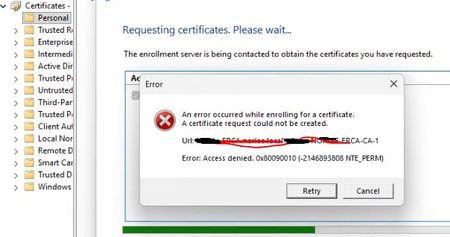
Access denied. 0x80090010 Enroll cert of Windows hello for Business with on-prem PKI CA Server
We have created Certficate Template from on-prem CA Server ( Windows server 2019 ) using this link : https://learn.microsoft.com/en-us/windows/security/identity-protection/hello-for-business/rdp-sign-in?tabs=intune However We can not Enroll Certificate Windows Hello for Business Certificate from User's Desktop ( Windows 11 ) and every time error occurred or Access Denied ( Certificate enrollment for Domain\UserName failed to enroll for a WHfBCertificateAuthentication certificate with request ID N/A from -ERCA.Domain.local\Domain-ERCA-CA-1 (Access denied. 0x80090010 (-2146893808 NTE_PERM)) We have also given Read and Enroll permission to EveryOne and Autheticated Users from CA Certficiate template , but still same erro Please advise if anything more can be done to resolve this issue.329Views0likes1Comment
NDES and the dreaded 2 & 10 Event ids stating “The parameter is incorrect"
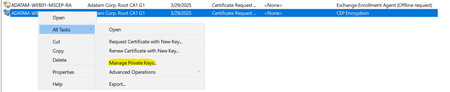
Hey Guys Rob here again, today I am going to go over a set of typical Network Device Enrollment Service Event ID’s that you will inevitably encounter if you are maintaining an environment with NDES installed. These two events always seem to run together and can be seen in the Application Event log. Log Name: Application Source: Microsoft-Windows-NetworkDeviceEnrollmentService Date: DATE_TIME Event ID: 2 Level: Error User: NDES_APPLICATION_POOL_IDENTITY Computer: NDES_SERVER_COMPUTER_NAME Description: The Network Device Enrollment Service cannot be started (0x80070057). The parameter is incorrect. Log Name: Application Source: Microsoft-Windows-NetworkDeviceEnrollmentService Date: DATE_TIME Event ID: 10 Level: Error User: NDES_APPLICATION_POOL_IDENTITY Computer: NDES_SERVER_COMPUTER_NAME Description: The Network Device Enrollment Service cannot retrieve one of its required certificates (0x80070057). The parameter is incorrect. As you can see, although it is nice to see errors about a service or application, it does you no good if there is not enough information available to make something actionable about the event. Hopefully, this is where this blog will be helpful to all of you. The above errors happen for one of three common reasons. Access to the Private Keys for one or both Registration Authority (RA) certificates is not possible by the application pool identity account running the SCEP (Simple Certificate Enrolment Protocol) application pool. One or both RA certificates were NOT issued by the Certification Authority for which NDES is configured to forward Certificate Service Requests (CSR). The RA certificates are failing revocation checks. This means that either its certificates or one of the CA (certification authorities) certificates in the chain are failing revocation checks for some reason. If you try and access either the /CertSrv/MSCEP/MSCEP.dll or /CertSrv/MSCEP_Admin endpoints on the NDES Server you will also see an HTTP 500 error as well. Missing Private Key permissions Below are the steps for the first scenario to validate / add the application pool identity account. Private key Permissions: First, make sure you gave the Application Pool Identity account permission to the private keys on the newly issued certificates. Run: CertLM.msc Expand: Certificates - Local Computer\Personal\Certificates Click on the new certificate, and then right click on it, and select "All Tasks" Click on "Manage Private Keys" You should see the Permissions dialog box. Click the Add button, and type in the account running the SCEP Application Pool. Click the OK button. This account only requires "Allow" "Read" permissions. Once the permissions have been configured, click the OK button. Do this for all certificates that were recently renewed / issued. Open an elevated command prompt and type: IISReset Then, test accessing the website. If you are unsure what account is being used for the SCEP application pool, you can find this out by doing the following: Run: InetMgr.exe Navigate to: SERVERNAME\Application Pools Find the application pool named SCEP, and then look at the Identity column. NOTE: If the NDES role was configured with a non-domain service account and it is leveraging the Application PoolIdentity, please understand the ApplicatonPoolIdentity, and NetworkService are not the computer account. You will need to add NetworkService to the private key permissions for these two accounts. These accounts have very restricted rights on the system itself. Registration Authority certificates issued by wrong CA. The second scenario can only happen in a situation where you have more than one Certification Authority in the environment, where you have renewed the Registration Authority certificates, and one or both certificates were NOT issued by the Certification Authority that NDES is sending the certificate service requests to. The first thing we need to determine is what CA issued the two NDES certificates. Run: CertLM.msc Expand: Certificates - Local Computer\Personal\Certificates Look at the Issued By column for the current RA certificate. This will tell us the CA that issued the certificates. To find out the CA NDES is configured to use run: Regedit.exe Navigate to: HKEY_LOCAL_MACHINE\SOFTWARE\Microsoft\Cryptography\MSCEP\CAInfo The registry value named Configuration shows you the CA computer \ CA Name that NDES is using. Validate that this is the CA that issued both RA certificates. If not, delete the certificates not issued by this CA and enroll again. NOTE: If you are using the MMC (Microsoft Management Console) to do the enrollment, you can specify the CA to use when you are filling out the information. You would click on the Certification Authority tab and select the CA to use. After procuring the NDES certificates from the correct CA, you must perform an IISESET from an elevated command prompt. One or both RA certificates are failing chaining or revocation checks. The third scenario is a bit trickier as most customers are not familiar with CAPI2 operational logging and how to interpret the data being provided. I am going to concentrate on looking at the NDES RA certificates to determine if they are failing a revocation check. By no means is this meant to be an exhaustive guide on how to use CAPI2 to troubleshoot chaining or revocation checking failures. The first two problems usually show themselves once the NDES has been in place for one or more years, and it failed just after replacing the existing NDES certificates. So, if everything was working before replacing the RA certificates, please review the two previous scenarios before jumping to an issue with certificate chaining or revocation checking. What is certificate chaining? Certificate chaining refers to the computer being able to take an end entity certificate and follow the chain all the way up to a Root CA certificate that is in the Trusted Root store of the computer. If the certificate cannot be chained to a Root CA certificate, then the certificate would not be considered a ‘Trusted’ certificate since the computer does not trust the root CA that issued the entire certificate chain. What is revocation checking? All certificates except Root CA certificates have a field on them called CRL Distribution Points (CDP). This lists different URLs that host a file known as a Certificate Revocation List (CRL). This file lists all issued certificates that, for several reasons, the CA Manager decided should no longer be trusted, and they wanted the world to know about this fact. Just like certificates, these CRL files have a finite lifetime restricting how long they can be used. Once the CRL’s Next update value has been reached it is no longer trusted, and the computer MUST download the newest CRL at that time. If it fails to download the CRL because the URL is not reachable, or the CRL has not been updated at the URL, then it will generate a revocation check failure. When the revocation check fails, the computer can no longer trust the certificate it was trying to use. In this case, it would mean that NDES would not trust the RA certificate and thus NDES would fail to start / run. Keep in mind that in a two-tier PKI hierarchy where you have an Offline Root CA and an Online Enterprise Issuing CA that issued the RA certificates, the following checks will happen: The RA certificate is going to be looked at to find the download locations of the Online Enterprise Issuing CA’s CRL. Then, we will validate that the RA certificate has NOT been revoked by the Online Enterprise Issuing CA Manager. The Online Enterprise Issuing CA’s CRL certificate is going to be looked at to find the download locations of the Offline Root CA’s CRL. Then, we will validate that the Online Enterprise Issuing CA certificate has NOT been revoked by the Offline Root CA Manager. As you can see, this can get complicated quickly depending on how many tiers the PKI hierarchy has within the environment. Enabling logging and data collection. First, we must enable CAPI2 Operational Event logging on the NDES server in question. Run: Eventvwr.msc Navigate to: Event Viewer\Applications and Services Logs\Microsoft\Windows\CAPI2\Operational Right click on Operational log, and we are going to do two things: Increase the log file size to at least 10000. A 1 MB log file is not going to be enough, and if the server is busy 10 MBs might not be enough, but it is a start. Enable the log. Click the OK button. A few commands need to be run in an elevated command prompt. IISReset This makes IIS (Internet Information Services) reload / reset and will cause the NDES application pool to try and load the certificates again once someone hits either the /CertSrv/MSCEP/MSCEP.dll or /CertSrv/MSCEP_Admin sites. b. CertUtil -SetReg Chain\ChainCacheResyncFileTime @Now This command tells CryptoAPI (CAPI) not to rely on the Crypto cache and instead attempt to access the real locations for AIA (Authority Information Access) and CDP locations. If these fail, it still allows the Crypto cache to be used so it will NOT cause an outage. It just helps with putting more error events in the log. c. CertUtil -URLCache * Delete This command tells CryptoAPI to delete everything in its FILE cache. This will NOT delete anything in its memory cache or per process Memory cache. 6. Lastly, try and access the /CertSrv/MSCEP_Admin page. You should see a HTTP 500 error, which is fine at this time, and you should also see the NetworkDeviceEnrollment events of 2 and 10 in the application event logs. Log Name: Application Source: Microsoft-Windows-NetworkDeviceEnrollmentService Date: DATE_TIME Event ID: 2 Level: Error User: NDES_APPLICATION_POOL_IDENTITY Computer: NDES_SERVER_COMPUTER_NAME Description: The Network Device Enrollment Service cannot be started (0x80070057). The parameter is incorrect. Log Name: Application Source: Microsoft-Windows-NetworkDeviceEnrollmentService Date: DATE_TIME Event ID: 10 Level: Error User: NDES_APPLICATION_POOL_IDENTITY Computer: NDES_SERVER_COMPUTER_NAME Description: The Network Device Enrollment Service cannot retrieve one of its required certificates (0x80070057). The parameter is incorrect. 7. Once the issue is reproduced, I suggest you return to the CAPI2 Operational Event log properties and disable it. We do not want other CryptoAPI calls happening on the server to push or overwrite the data in the event log. The CAPI2 event logs could have quite a few events in them. A good event ID based filter to start with is to only show the following events: 11,30,41-42,51-53,90 To find out what events are of interest for the Registration Authority (RA) certificates, you will want to do a Find in the event logs for either the thumbprint value of the certificate or the subject name of the certificate. Example of a common RA certificate subject name is: ADATAM-WEB01-MSCEP-RA The subject name is usually defined as the NDES servers name-MSCEP-RA. Once the certificate has been renewed at least you will want to validate the current subject name is of the Exchange Enrollment Agent (Offline request), and CEP Encryption based templates that are in use. CAPI2 Events of Interest It is well to understand a little bit about the different CAPI2 events that you are going to see in the event log that are related to chaining and revocation checking: Event ID 90 X509 Objects (X509Objects) - Shows all the certificates, CRL’s and OCSP (Online Certificate Status Protocol) Responses it was able to collect either via the certificate stores, or via CryptoAPI cache. This is a good event to review to see if the OS (operating systems) found all certificates in the chain or not. If you do not see a required certificate, then the chaining function will not succeed. This event also shows more detail about each certificate than the other events in the log. Event ID 11 Build Chain (CertGetCertificateChain) - Shows if the certificate chains to a valid root certification authority. In addition, it does revocation checks to see if all certificates in the chain succeed or fail their revocation check. Event ID 30 Verify Chain Policy (CertVerifyChainPolicy) - First thing with this event is to determine what Policy is getting verified. There are several types of policy checks that this event will check against (See CertVerifyChainPolicy link above for the list of policy checks). Given the policy it will either show success or failure. The policy check could pass and still show as a failure if Event ID 11 fails because of a revocation check failure you will see this same failure here. Event ID 41 Verify Revocation (CertVerifyRevocation) - Shows what CAPI2 knows about the status of the CryptoAPI cache in reference to revocation information. Event ID 42 Reject Revocation Information (CertRejectedRevocationInfo) - Shows that CryptoAPI cached data is being rejected as it is either stale or needs to go off system to get the latest CRL / OCSP response from the network. Event ID 53 Retrieve Object from Network (CryptRetrieveObjectByUrlWire) - Shows the status of attempting to access a specific AIA or CDP URI (Uniform Resource Identifier). It will give you the call status too. Example of troubleshooting with CAPI2 logging enabled First filter the collected CAPI2 event log with the following: 11,30,41-42,51-53,90 Click on Find and type something unique about the certificate. Either Subject Name or thumbprint value. We can see the first instance where the subject name is found, and it is shown as an error. When looking at these events you want to have the Detail, Friendly View when reviewing the entries. 4. Now when looking at the event, we will be interested in looking at multiple events in the logs to determine what is going on. Typically, in this type of problem, you want to look at the events in the following order: 90, 11, 30, and lastly 53. 5. We can see in event 11 that this is failing a revocation check. You will want to pay attention to the TrustStatus field in the Details section. The first TrustStatus is the overall TrustStatus. This tells you about the entire chain and specifically that one of the certificates in the trust path failed revocation. Below the overall TrustStatus, it will show each individual Chain Element (each certificate in the chain) in the certificate trust path and its TrustStatus. From looking at the above, we can determine that the ADATAM-WEB01-MSCEP-RA certificate is the one that is failing the revocation check. This means we need to look at the CA that issued this certificate and validate that its CRL is reachable and valid at the URIs (Uniform Resource Identifier) in question. If the PKI hierarchy has more CA’s, you may discover that the RA certificate is valid and that the Issuing CA’s certificate failed validation. If that is the case, it would mean that there is an issue with the Root CA’s CRLs (certificate revocation lists). 6. We are not going to look at the Event 30s as there are no policy checks that would be validated in the context of NDES RA certificates being valid or not. 7. Next we would typically jump right to Event 53s to see what might be going on with accessing the CRL / OCSP URLs. First thing to look at is the URL in the event. This tells us what path it is trying to access: The next part is we can see the HTTP Request and HTTP Response from the OCSP Server. It was an error of HTTP 503. This tells us there is an issue with the OCSP Server that must be addressed to resolve the NDES problem. 8. Another example is trying to access a Certificate Revocation List (CRL) file. It was able to successfully download the CRL file as evident by the following HTTP 200 (OK): 9. But after successfully downloading the CRL file we see Event 42 error. So, we can see that it is stating that the CRL at the HTTP URL path is no longer valid. Usually, when an HTTP 500 error is seen and is related to revocation checking, it is an unreachable or expired CRL. Most of the cases I have seen where this is the issue, it is that the Root CA’s CRL that has expired, and the customer has forgotten to boot the Root CA and publish the new CRL that gets created at service start.
Does the CDN for Microsoft Windows Update seem to be malfunctioning?
I purchased a code signing certificate, but strangely, Windows did not automatically download the missing root certificate. When I tried to manually download the root certificate according to the manual, I found that the CDN seemed to return the wrong certificate and I was unable to establish a secure connection with the website. (At least in Chinese Mainland) https://ctldl.windowsupdate.com/msdownload/update/v3/static/trustedr/en/test/authrootstl.cab Can other regions be accessed normally?44Views0likes0CommentsFirst Issuance manual, with automated renewals
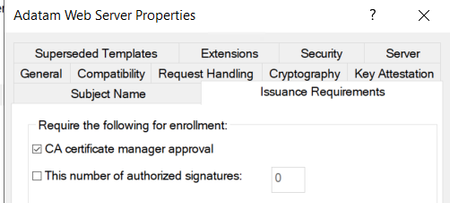
Hey all Rob Greene again. Seems like I have been on this PKI kick lately, and today is not going to be any different. Occasionally, I will get a customer who must get certificates issued for things like Web sites, and they must have custom Subject Alternative Name (SAN) DNS values on the issued certificate. They hate that their web server admins must submit the request, and then as Certificate Authority Managers, they must look in the Certification Authorities database and review the Pending Requests table. Some background The first question that they ask is if there is a way to not require them (the CA Manager) to approve the request as this slows down the process of getting the certificate issued. From a technical perspective most of you would know that the answer is YES, you can configure the certificate template to automatically issue. However, this is NOT a good thing to do, and is seen as a Microsoft CA vulnerability; if you have a CA audit happen you might fail the audit because you allowed this. This specific vulnerability is considered the ESC1 vulnerability. ESC1 wants either an Enrollment Agent to cross sign the certificate request, a CA Manager to review the request, or both to validate the information in the Subject Alternative Name (SAN), when the certificate template’s Subject Name tab is set to “Supply in the request”, before allowing the certificate to be issued. This is recommended since the submitter is allowed to enter unvalidated information in the SAN, unlike when the certificate templates Subject Name tab is configured for “Build from this Active Directory information”. How to protect the template against ESC1? Given this background information, you should already be thinking to yourself, “Rob is not going to tell me to break anything security wise.”, and you would be correct. Rather, I am going to tell you that any certificate template that you have configured for “Supply in the request”, should at a minimum be configured to require CA Manager approval. Then for something like the certificate template that Network Device Enrollment Services (NDES) uses for its certificate, I would advise you to use the Enrollment Agent configuration. The Exchange Enrollment Agent (Offline request) template has the Enhanced Key Usage (EKU) of “Certificate Request Agent”, and this is the certificate NDES uses to sign the Certificate Service Request (CSR) that the SCEP client sends to the NDES Server. Of course, I am just giving some good examples of real-world certificate templates that you are going to be using within the environment. The last part is that the security permissions SHOULD be locked down as to who can enroll for each of these certificate templates. Specifically, enrollment for the two Certificate templates needed by the NDES services, it should be the CA Manager NDES Admin and the NDES Server. The Exchange Enrollment Agent (Offline request) and CEP Encryption certificate templates should be locked down as to who can request enrollments. Just like the custom Adatam Web Server certificate template, only IIS (Internet Information Services) Admins, and IIS Web Servers should have access to this template to be able to enroll with it. So what can you do for me here? Let’s first discuss the scenario that I am going to cover in the blog. Although I would love to cover all the possible uses that all you lovely internetz users might have for certificate enrollment, this blog will have to end at some point. The Scenario IIS Admins are tired of remembering to go to all their web servers and request new certificates for them before they expire. The CA Manager is also tired of the IIS Admins always sending emails nagging that they need their certificate enrollment requests issued. Then always having to go to the Certification Authority snap-in to approve/issue the same certificates over and over each year because of rules that web server certificates can only be valid for 398 days. See (https://thehackernews.com/2020/09/ssl-tls-certificate-validity-398.html) What is the solution? Side bar: If you want to modify the settings of any default certificate template, it is best to duplicate the original certificate template and then make changes to it. This is recommended so that you always have the default templates available in case you must create a new template in the future that is based off the original template. If the original template is modified two to three years down the line, you may not remember what was changed so that it could be changed back to the original template configuration. As far as naming goes, we would recommend that you put your company name or initials in the template name and keep the original template name after that. In this blog you will see the template used is called Adatam Web Server. This is a customized template based off the Web Server template. Keep in mind that this can be done for any certificate template that has the Subject Name tab configured for “Supply in the request”, this not limited to just web server certificates. I am in, so what’s next As you can imagine, there are several things that need to be configured to get this working: A Security group needs to be created for Users who are going to request the certificate via the Local Computer Certificate enrollment wizard based on the certificate template. A security group needs to be created for the computer accounts that need the certificate issued based on the security template. Certificate template needs to be created. Certificate template changes need to be made to support this enrollment method. Certificate template Permissions need to be configured. Group Policy setting for Computer Certificate Autoenrollment Security groups need to be created. The first two steps should be self-explanatory as to how to create groups and set up the group scopes. We are not going to cover group creation in this blog. I do want to point out one thing that happens often: Most Administrators seem to remember that if you add a user to a group, the user needs to log off and back on before the group can be added to their tokens. When adding a computer account to a new group it also needs to log off and back on before the group membership can be added to its token. Typically, the log off and back on for a computer will be a computer reboot; that needs to happen after the new group membership is added to its token. Certificate Template creation and changes The base template that you use to duplicate can of course be anything you would like, but in our example, we are just going to duplicate the good’ol faithful Web Server certificate template. Launch the Certificate Template snapin: CertTmpl.msc Find the certificate template named: Web Server Right click on the Web Server template and select Duplicate Template. The Compatibility tab, set the values as you wish. NOTE: Stay away from using anything higher than Windows Server 2012 R2/Windows 8.1 for your templates if you are using CEP and CES as these two web services have problems seeing templates with compatibility higher than this. The General tab, type in a descriptive name for the new certificate name you are configuring. The Request Handling tab, set the values that make sense for your template. NOTE: It might make sense to set the checkbox “Renew with the same key”. The Cryptography tab, you may want to modify the Minimum key size value and select the Provider Category and Providers that makes sense for the certificate templates use. NOTE: I would strongly suggest NOT setting Use alternate signature format on the template either. This is a proprietary format that many applications will not understand. This check box will only be available when you are using a Key Storage Provider (KSP) provider type. The Issuance Requirements tab is where the heavy lifting is happening. Check the box “CA certificate manager approval”. Select the radio option “Valid existing certificate” under the Require the following for reenrollment section toward the bottom of the dialog box. The Security tab is where the security groups that were created for the server admins and the servers themselves need to be configured on the template. You would add both security groups, and they only need the Allow Enroll permissions. Neither group should have the Autoenroll permission defined on it. When done setting the other options for the template, click the OK button. Setup the computer certificate autoenrollment group policy Next, we are not going to cover how to create a Group Policy Object, and things like GPO ordering, etc. We are going to discuss just the policy settings that are important for the discussion of this blog. Launch Group Policy Management Console: GPMC.msc Either create a new Group Policy or modify an existing one. Navigate to: Computer Configuration\Policies\Windows Settings\Security Settings\Local Policies\Public Key Policies. Double click on the policy setting “Certificate Services Client - Auto-Enrollment”. Enable the policy, and check the two boxes: Renew expired certificates, update pending certificates, and remove revoked certificates. Update certificates that use certificate templates. NOTE: To learn more about these two settings I would recommend going over to Vadims blog. He does a great job of explaining what each of these do: https://www.sysadmins.lv/blog-en/certificate-autoenrollment-in-windows-server-2016-part-3.aspx Click the OK button on the dialog box. Close the Group Policy Management Editor. Link the Group Policy object to what seems appropriate within your Active Directory structure. Trying to test this feature, but it seems like the renewal does not work. Of course, with any of these things, you should always test things before relying on the solution in a production environment. I do want to caution you about setting up a test environment and then setting up the certificate for a short issuance period as this tends not to work out well for most customers, and they eventually end up calling stating that autoenrollment is not working. There are few things to keep in mind about certificate automatic enrollment / automatic renewal process. The first thing to remember is that certificate auto enrollment / renewal only happens on the following triggers: At User logon, or computer boot, for the corresponding security context. Every 8 hours after user logon, or computer boot. This means that after the user or computer has been logged in or turned on for 8 hours then the auto enrollment code will happen again for the security context in question. To trigger auto-enrollment to run manually you have two options. Run GPUpdate /Force. Part of the function that this does is it causes an autoenrollment cycle to happen. This can be a bit much especially if you are applying a lot of user and computer group policy. This will trigger both computer and user autoenrollment to run. Use one of the two CertUtil command lines based on which security context you want enrollment to run against. For computer: CertUtil -Pulse For User: CertUtil -User -Pulse Certificate renewal WILL NOT happen until 90% of the Certificate lifetime has expired. Trying to use the template setting “Renewal period” does not change this fact. Auto enrollment / renewal attempt MUST happen while the certificate is still valid, and after the start of the 10% certificate lifetime left and the expiration time of the certificate. (MUST NOT BE EXPIRED). Like being unable to re-animate something that is already dead, you cannot renew a certificate that has already expired. The math that needs to be done is: (CertLifeTimeInDays * 24) * .10 The value from the above MUST be larger than 8 hours. Let's do some math Here is an example: Set up a certificate that is valid for two days for testing and we will run through the exercise here: Find out how many hours the certificate is valid for: 2*24 = 48 Hrs. Figure out what 10% of certificate lifetime in hours is: 48 *.10 = 4.8 Hrs. This shows us that for one of these certificates to be renewed, the process that runs only every 8 hours would have to run within this 4.8 Hrs. window. This is going to tell us that sometimes you would get lucky with a certificate renewal attempt being done, but more than likely MOST of the time you would fail to renew the certificate because it would expire before the auto enrollment cycle happens. Another example is a certificate that is valid for 4 days. Let us run through the exercise here. Find out how many hours the certificate is valid for: 4*24 = 96 Hrs. Figure out what 90% of certificate lifetime in hours is: 96 *.10 = 9.6 Hrs. This shows us that for at a 10% lifetime left it is still valid for over 8 hours. This certificate would always get at least one auto enrollment cycle to be run to renew the certificate. Assuming you don’t have anything else wrong, the renewal would happen successfully. This is the minimum lifetime that any certificate testing should be set to. Test, test, and more testing! Well, now you got your test lab, issuing short lived certificates and getting them automatically renewed, but… Now you are noticing that your application is not using the new certificate. Unfortunately, there are going to be some applications for which the automatic renewal might not work out well in your organization. However, the certificate could still be renewed manually by your IIS admins, and it would still not require the CA manager to be involved in the renewal process. The key thing is your IIS Admins would need to go through the manual certificate renewal process BEFORE the current certificate expires, as it is used to cross sign the renewal request. UPDATE 5/30/2024: After release of the blog it was brought to my attention of two different things to consider. First unknown to me (as I am not an IIS support engineer) apparently there is a setting within the IIS Management console to help with updating the site binding configuration so that this automatic renewal behavior would work. This feature is called Certificate Rebind and was new in IIS 8.5. https://learn.microsoft.com/en-us/iis/get-started/whats-new-in-iis-85/certificate-rebind-in-iis85 Second, we recently has a case were the customer had several websites running on an IIS Web Server. These websites all used unique certificates and were all generated manually using the same certificate template. When one of the certificates were ready to be renewed, they found that all website certificates were archived, and only one of the website certificates were automatically renewed. This would be by design behavior. The only thing that we could really recommend in this situation is to use one certificate for all websites and make sure that all the websites DNS names were added to the certificates Subject Alternative Name (SAN) field. Failure to do this will result in going through the entire manual issuance of the certificate all over again. And, going through the CA Manager approval process as well, since this would be a new certificate request. Hopefully, you found some good nuggets of information about how to lockdown certificate templates to protect against ESC1 vulnerabilities and what some of those less often used tabs do. And of course, how the certificate renewal process works, especially around shot lived certificates. Rob “I coulda been a Welder” Greene Extra credit for those who can figure out where the saying came from.11KViews6likes14CommentsADCS / New CA / Chicken or Egg?
Hello, I am fairly knowledgeable about PKI and ADCS, but have a few question about AD behavior after we created a new sub CA. We have a two tier PKI with an offline root, and two subordinate CAs. These have been around for several years, and we have had minimal problems. Our CAs are nearing the end of their lifecycle, so we recently provisioned a new sub CA. We installed the role on the new server, got the offline request signed by the root, and completed the install. I am assuming that when you install the CA certificate onto a new enterprise subordinate CA, it goes ahead and publishes a bunch of stuff to the various AD containers relating to PKI (Certificate Authorities, Enrollment Services, NTAuth, CDP, AIA, etc. This is probably why you need EA permissions on the domain to complete the install.) Anyway, we completed the install and started the CA service. Immediately, the DCs auto-enrolled for the Kerberos Authentication Template. This is not necessarily a bad thing, as we use Smart Card Login (SCL) and the DCs need to have a certificate issued by the new CA. Almost immediately, we began seeing an error when attempting to RDP or login stating "An Untrusted Certification Authority was detected while processing the domain controller certificate used for authentication" and users were kicked back to login. UN/PW/2FA worked, so we were not totally sunk. The issue gradually cleared itself up over the course of a few hours. My theory is that not all workstations and servers immediately got the new CA cert, which would have been propagated through routine GP updates, and that when windows saw domain controllers presenting untrusted domain controller certs, they balked at it. Either that, or the clients were seeing an untrusted cert in NTAuth. So what is the best way to mitigate this? Remove all certificate templates from the new CA before you turn the service on? Let the new CA cert propagate around before you start issuing DC certs? Thank you for the insight!232Views0likes1Comment