microsoft authenticator
71 Topics
Introducing the Entra Helpdesk Portal: A Zero-Trust, Dockerized ITSM Interface for Tier 1 Support
Hello everyone, If you manage identity in Microsoft Entra ID at an enterprise scale, you know the struggle: delegating day-to-day operational tasks (like password resets, session revocations, and MFA management) to Tier 1 and Tier 2 support staff is inherently risky. The native Azure/Entra portal is incredibly powerful, but it’s complex and lacks mandatory ITSM enforcement. Giving a helpdesk technician the "Helpdesk Administrator" role grants them access to a portal where a single misclick can cause a major headache. To solve this, I’ve developed the Entra Helpdesk Portal (Community Edition)—an open-source, containerized application designed to act as an isolated "airlock" between your support team and your Entra ID tenant. Why This Adds Value to Your Tenant Instead of having technicians log into the Azure portal, they log into this clean, Material Design web interface. It leverages a backend Service Principal (using MSAL and the Graph API) to execute commands on their behalf. Strict Zero Trust: Logging in via Microsoft SSO isn’t enough. The app intercepts the token and checks the user’s UPN against a hardcoded ALLOWED_ADMINS whitelist in your Docker environment file. Mandatory ITSM Ticketing: You cannot enforce ticketing in the native Azure Portal. In this app, every write action prompts a modal requiring a valid ticket number (e.g., INC-123456). Local Audit Logging: All actions, along with the actor, timestamp, and ticket number, are written to an immutable local SQLite database (audit.db) inside the container volume. Performance: Heavy Graph API reads are cached in-memory with a Time-To-Live (TTL) and smart invalidation. Searching for users or loading Enterprise Apps takes milliseconds. What Can It Do? Identity Lifecycle: Create users, auto-generate secure 16-character passwords, revoke sign-in sessions, reset passwords, and delete specific MFA methods to force re-registration. Diagnostics: View a user's last 5 sign-in logs, translating Microsoft error codes into plain English. Group Management: Add/remove members to Security and M365 groups. App/SPN Management: Lazy-load raw requiredResourceAccess Graph API payloads to audit app permissions, and instantly rotate client secrets. Universal Restore: Paste the Object ID of any soft-deleted item into the Recycle Bin tab to instantly resurrect it. How Easy Is It to Setup? I wanted this to be universally deployable, so I compiled it as a multi-architecture Docker image (linux/amd64 and linux/arm64). It will run on a massive Windows Server or a simple Raspberry Pi. Setup takes less than 5 minutes: Create an App Registration in Entra ID and grant it the necessary Graph API Application Permissions (e.g., User.ReadWrite.All, AuditLog.Read.All). Create a docker-compose.yml file. Define your feature toggles. You can literally turn off features (like User Deletion) by setting an environment variable to false. version: '3.8' services: helpdesk-portal: image: jahmed22/entra-helpdesk:latest container_name: entra_helpdesk restart: unless-stopped ports: - "8000:8000" environment: # CORE IDENTITY - TENANT_ID=your_tenant_id_here - CLIENT_ID=your_client_id_here - CLIENT_SECRET=your_client_secret_here - BASE_URL=https://entradesk.jahmed.cloud - ALLOWED_ADMINS=email address removed for privacy reasons # CUSTOMIZATION & FEATURE FLAGS - APP_NAME=Entra Help Desk - ENABLE_PASSWORD_RESET=true - ENABLE_MFA_MANAGEMENT=true - ENABLE_USER_DELETION=false - ENABLE_GROUP_MANAGEMENT=true - ENABLE_APP_MANAGEMENT=true volumes: - entra_helpdesk_data:/app/static/uploads - entra_helpdesk_db:/app volumes: entra_helpdesk_data: entra_helpdesk_db: 4.Run docker compose up -d and you are done! I built this to give back to the community and help secure our Tier 1 operations. If you are interested in testing it out in your dev tenants or want to see the full architecture breakdown, you can read the complete documentation on my website here I’d love to hear your thoughts, feedback, or any feature requests you might have!10Views0likes0Comments
'Microsoft App Access Panel' and Conditional Access with SSPR combined registration bug
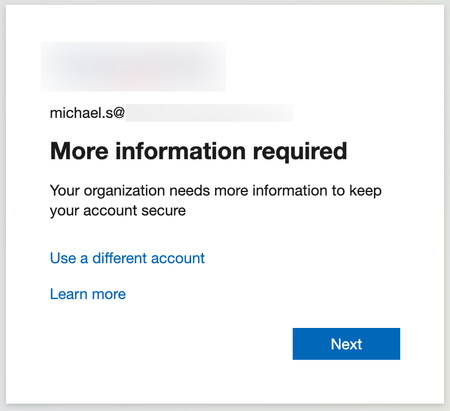
Currently, enabling self-service password reset (SSPR) registration enforcement causes the app 'Microsoft App Access Panel' to be added to the login flow of users who have SSPR enabled. This app is not able to be excluded from Conditional Access (CA) polices and is caught by 'All cloud apps', which breaks secure zero-trust scenarios and CA policy configurations. Best way to demonstrate this is through examples... ----Example 1---- Environment: CA Policy 1 - 'All cloud apps' requiring hybrid/compliant device, but excluding [App] (for all non-guest accounts) CA Policy 2 - [App] requiring MFA only (for contractor accounts, etc) CA Policy 3 - [App] requiring hybrid/compliant device (for internal accounts, etc) SSPR registration enforcement (Password reset > Registration) - set to 'Yes' MFA registration enforcement (Security > Authentication Methods > Registration campaign) - set to 'Enabled' Scenario: A new user requires access to web [App] on an unenrolled device and is assigned an account that falls under CA Policy 1 and 2, however [App] is excluded from 1 and shouldn't apply to this login. When accessing [App] for the first time, users must register SSPR/MFA. They see the below message, click 'Next' and are directed to https://accounts.activedirectory.windowsazure.com/passwordreset/register.aspx: Then they see this screen, which will block the login and try to get the user to download the Company Portal app: While behind the scenes, the login to [App] is being blocked by 'Microsoft App Access Panel' because it is seemingly added to the login flow and caught in CA Policy 1 in Req 2/3: CA Policy 1 shows as not applied on Req 1, CA Policy 2 shows as successful for Req 1/2/3 and CA Policy 3 shows as not applied for Req 1/2/3. Creating a CA policy for the 'Register security information' user action has no effect on this scenario and also shows as not applied on all the related sign-in logs. ----Example 2---- Environment: Same as above, but SSPR registration enforcement - set to 'No' Scenario: Same as above, but when accessing the [App] for the first time, they see the below message instead, click 'Next' and are directed to https://accounts.activedirectory.windowsazure.com/proofup.aspx: Then they are directed to the combined SSPR/MFA registration experience successfully: The 'Microsoft App Access Panel' doesn't show in the sign-in logs and the sign-in is successful after registration. From the two examples, it seems to be a bug with the SSPR registration enforcement and the combined registration experience. ----Workarounds---- 1 - Prevent using 'All cloud apps' with device based CA policies (difficult, requires redesigning/thinking/testing policies, could introduce new gaps, etc) 2 - Turn off SSPR registration enforcement and turn on MFA registration enforcement like in example 2 (easy, but only enforces MS MFA App registration, doesn't seem to re-trigger registration if the MS MFA App is removed, no other methods are supported for registration, and doesn't remind users to update) 3 - Disable SSPR entirely for affected users (medium depending on available security groups, and doesn't allow for affected users to use SSPR) ----Related links---- https://feedback.azure.com/d365community/idea/d5253b08-d076-ed11-a81b-000d3adb7ffd https://feedback.azure.com/d365community/idea/1365df89-c625-ec11-b6e6-000d3a4f0789 Conditional Access Policies, Guest Access and the "Microsoft Invitation Acceptance Portal" - Microsoft Community Hub MS, please either: 1 - Allow 'Microsoft App Access Panel' to be added to CA policies so it can be excluded 2 - Prevent 'Microsoft App Access Panel' from showing up in the CA login flow when SSPR registration enforcement is enabled20KViews2likes15Comments
MFA catch-22 during onboarding due to registration policy
Hi, We are experiencing a catch-22 scenario during user onboarding related to MFA. New users are required to install the Microsoft Authenticator app via our Company Portal. However, they are prompted to complete MFA registration before they can access or download anything from the Company Portal. Since they do not yet have the Authenticator app installed, they are effectively blocked from completing the MFA setup. From our investigation, it appears that the Multi-Factor Authentication registration policy is enforcing MFA registration for new users. In our scenario, this creates a circular dependency. We have attempted to exclude our office network from MFA using Conditional Access, but this does not resolve the issue because the MFA registration policy is triggered before Conditional Access policies are evaluated. Our questions: Is there a recommended way to handle MFA onboarding in this type of scenario? Can Conditional Access policies be used instead of the MFA registration policy for initial MFA enrollment?293Views0likes4Comments
Passwordless POC Blocked by CA BYOD Policy – Looking for Workarounds
We’re currently running a POC for passwordless authentication in our environment. One challenge we’ve hit is that our CA BYOD policy blocks personal devices, which prevents users from enabling passwordless sign-in via the Microsoft Authenticator app. Since Authenticator is not a cloud app, we can’t exclude it from the CA policy using the usual cloud app filters. This is causing issues when users try to register or use passwordless sign-in from their personal phones. Has anyone dealt with this scenario or found a workaround that allows passwordless sign-in while still enforcing BYOD restrictions? Any ideas, suggestions, or creative solutions would be much appreciated! Thanks in advance!188Views0likes1CommentDisable MFA for User with certain admin roles
Hello all, we have a user with sharepoint administrator role and a self build application support manager role (the suer is allowed to create apps in Azure). We are now at a point where this user has to register an app for our helpdesk tool, but we have to remove the MFA for the registration. We excluded the user from the "MFA is mandatory for all users"-policy, the "MFA is mandatory for admins"-policy and set his MFA in the MFA-per-user setting on disabled. We have no other policy that enforces MFA for this user. Wenn we try to log in with the user (under http://www.office.com), we still get the request to register MFA Authenticator. I am aware that MS enforced MFA for admins, when they try to log in into the admin portals. Does this also apply for sharepoint admins? Does anyone have an idea, where the MFA request for this user could come from. Any help is appreciated. Cheers, Erik272Views0likes2CommentsUnwanted MFA Method Options Displayed During Login
We have DUO configured and enforced as an MFA provider via an external authentication setup. However, during the login process, users are still being presented with additional method options, including: • Email (Receive a code to reset password) • Hardware token (Sign in with a code from a hardware token) • Phone (Call or text) • Microsoft Authenticator We want to remove at minimum the Email and Hardware token options from being shown, as these are not approved methods in our security policy. They are shown as disabled in Entra with the screenshots provided. What’s been done: • DUO is configured as an external authentication method • An exemption group has been added in Azure AD Authentication Methods policy to exclude users from using SMS and Microsoft Authenticator, yet users are still prompted to set up another authentication method during login We are in the process of transitioning users over to DUO so still need to have Microsoft authenticator as an option, but want users who are configured to use the DUO authentication method to not require another form446Views0likes3CommentsUnwanted MFA Method Options Displayed During Login
Description: We have DUO configured and enforced as the sole MFA provider via an external authentication setup. However, during the login process, users are still being presented with additional method options, including: • Email (Receive a code to reset password) • Hardware token (Sign in with a code from a hardware token) • Phone (Call or text) • Microsoft Authenticator We want to remove at minimum the Email and Hardware token options from being shown, as these are not approved methods in our security policy. What’s been done: • DUO is configured as the default and only intended MFA method. • An exemption group has been added in Azure AD Authentication Methods policy to exclude users from using SMS and Microsoft Authenticator, yet users are still prompted to set up another authentication method during login We are in the process of transitioning users over to DUO so still need to have Microsoft authenticator as an option, but want users who are configured to use the DUO authentication method to not require another form145Views0likes1Comment
Kid finds a way into my account using an old PIN
I have set up parental controls. Somehow my sone managed to find the password logged in the Microsoft Familly app and changed the settings at will. I have changed my password in the meantime but he found an easy way around it as he selects use other methods to sign in and then selects PIN, inputs my old PIN and he is back in. How is this possible? I have changed the password, I have changed the PIN, turned on 2FA and reset Windows Hello and he just goes around all this in one go by introducing my old PIN. Is there a fix for this ?157Views0likes1CommentIssues with Passkey Login Hanging on "Connecting to Your Device"
Hi everyone, I'm currently working on enabling passkey login for some users. I have a test account where I enabled the passkey and enrolled it in Microsoft Authenticator. However, when I try to log in and scan the key, it hangs on "connecting to your device." Has anyone encountered this issue before? How can I find the root cause, and which log would show what might be blocking me? Thanks in advance for your help!395Views1like0CommentsEntra ID FIDO2 with multiple accounts returns "something went wrong" for the first sign-in attempt
I am finding there seems to be a bug possibly with Entra ID authentication when using FIDO2. In a scenario where a user has multiple accounts registered on their FIDO2 security key or Microsoft Authenticator in the same tenant, the first time they sign in the authentication process only sees one account. For example, an IT staff member may have a separate account used for administrative access. The first authentication attempt returns Something went wrong, trying again shows both accounts registered on the FIDO2 device, and the login is successful. I am able to consistently reproduce this with both a hardware FIDO2 token and using Microsoft Authenticator Cross-Device authentication on Android. This happens when authenticating to the Azure Admin portal, some Microsoft 365 PowerShell modules and some 3rd party applications. Interestingly it seems that possibly a newer authentication library for developers fixes the problem. I used to have the behavior in Exchange Online PowerShell, but the most current version of it never has the problem. Does anyone else see this behavior?132Views0likes0Comments