llms
14 TopicsThe Rise of vLLM in Modern Cloud Development: Revolutionizing AI Inference
Large Language Models (LLMs) are powerful but expensive to run in the cloud because they require large amounts of GPU memory. During inference, they generate text token-by-token and store intermediate results in a growing Key-Value (KV) cache. Traditional systems allocate this cache in large, contiguous memory blocks, which causes severe GPU memory fragmentation and waste—up to 80% of memory remains unused, limiting concurrency and throughput.492Views0likes0CommentsThe Hidden Memory Architecture of LLMs
Your LLM is not running out of intelligence. It is often hitting context and runtime memory limits. I’m Hazem Ali — Microsoft AI MVP, Distinguished AI and ML Engineer / Architect, and Founder and CEO of Skytells. I’ve built and led engineering work that turns deep learning research into production systems that survive real-world constraints. I speak at major conferences and technical communities, and I regularly deliver deep technical sessions on enterprise AI and agent architectures. If there’s one thing you’ll notice about me, it’s that I’m drawn to the deepest layers of engineering, the parts most teams only discover when systems are under real pressure. My specialization spans the full AI stack, from deep learning and system design to enterprise architecture and security. One of the most distinctive parts of that work lives in the layer most people don’t see in demos: inference runtimes, memory and KV-cache behavior, serving architecture, observability, and zero-trust governance. So this article is written from that lens: translating “unexpected LLM behavior” into engineering controls you can measure, verify, and enforce. I’ll share lessons learned and practical guidance based on my experience. Where latency is percentiles, not averages. Where concurrency is real. Where cost has a curve. Where one bad assumption turns into an incident. That is why I keep repeating a simple point across my writing. When AI fails in production, it usually isn’t because the model is weak. It is because the architecture around it was never built for real conditions. I wrote about that directly in AI Didn’t Break Your Production, Your Architecture Did. If you have not read it yet, it will give you the framing. This article goes one layer deeper, So, think of this as an engineering deep-dive grounded in published systems work. Because the subsystem that quietly decides whether your GenAI stays stable under pressure is memory. Not memory as a buzzword. Memory as the actual engineering stack you are shipping: prefill and decode behavior, KV cache growth, attention budgets, paging and fragmentation, prefix reuse, retrieval tiers, cache invalidation, and the trust boundaries that decide what is allowed into context and what is not. That stack decides time to first token, tokens per second, throughput, tail latency, and cost per request. It also decides something people rarely connect to architecture: whether the agent keeps following constraints after a long session, or slowly drifts because the constraints fell out of the effective context. If you have watched a solid agent become unreliable after a long conversation, you have seen this. If you have watched a GPU sit at low utilization while tokens stream slowly, you have seen this. If you increased context length and your bill jumped while quality did not, you have seen this. So here is the goal of this piece. Turn the hidden memory mechanics of LLMs into something you can design, measure, and defend. Not just vaguely understand. Let’s break it down. A quick grounding: What evolved, and what did not! The modern LLM wave rides on the Transformer architecture introduced in Attention Is All You Need. What changed since then is not the core idea of attention. What changed is the engineering around it: kernels got smarter about memory movement inference got separated into phases and pipelines KV cache went from a tensor to an allocator problem serving systems started looking like OS schedulers So yes, the model evolved. But the deeper truth is this: LLM performance is now strongly shaped by memory behavior, not just FLOPs. That is not a vibe. It is why whole research lines exist around IO-aware attention and KV cache management. A Story from CognitionX 2025 This happened live at CognitionX Dubai Conference 2025 Most CognitionX events are community-focused on engineering-first learning, turning modern AI and cloud capabilities, including Microsoft technologies, into practical systems people can build, measure, and operate, bringing together Microsoft MVPs and practitioners to share proven patterns and hands-on best practices. I wanted to land a point in a way engineers can’t unsee.. GenAI performance is often constrained by the serving system (memory, bandwidth, scheduling, batching, and initialization paths) before it is constrained by model quality. So I ran a live demo on an NVIDIA A100 80GB instance. Before anything, we intentionally warmed the runtime. The very first request on a fresh process or fresh GPU context can include one-time overhead that is not representative of steady-state inference things like model weight loading, CUDA context creation, kernel/module initialization, allocator warm-up, and framework-level graph/runtime setup. I didn’t want the audience to confuse “first-request overhead” with actual steady-state behavior. Then I started with a clean run: a short input, fast output, stable behavior. This is what most demos show: a model that looks powerful and responsive when prompt length is small, concurrency is low, and runtime state is minimal. > After that, I changed one variable on purpose. I kept adding constraints and context exactly the way real users do: more requirements, more follow-ups, more iterations back to back. Same model, same serving stack, same GPU. The only thing that changed was the amount of context being processed and retained by the runtime across tokens, which increases memory pressure and reduces scheduling flexibility. You could see the system react in measurable ways. As context grew and request patterns became less predictable, end-to-end latency increased and sustained throughput dropped, and the available memory headroom tightened. Nothing “mystical” happened to the model. We simply pushed the serving system into a regime where it was more constrained by memory footprint, memory bandwidth, batching efficiency, and scheduler behavior than by raw compute. Then I connected it directly to LLM inference mechanics. Text generation follows the same pattern, except the dominant runtime state has a name: the KV cache. Findings During prefill, the model processes the full prompt to initialize attention state and populate the KV cache. During decode, that state is reused and extended one token at a time. KV cache memory grows linearly with sequence length per request, and it also scales with the number of concurrent sequences and with model configuration details such as number of layers, number of attention heads, head dimension, and dtype (FP16/BF16/FP8, etc.). As prompt length and concurrency increase, the serving bottleneck often shifts from pure compute to system-level constraints: HBM bandwidth and access patterns, KV residency and paging behavior, allocator efficiency and fragmentation, and batching and scheduling dynamics. That is the mental model behind the rest of this article. The mental model that fixes most confusion LLM inference is the runtime forward pass where the model turns input tokens into a probability distribution for the next token. It runs in two phases: prefill (process the whole prompt once and build KV cache) then decode (generate tokens one-by-one while reusing KV cache). Performance and stability are dominated by context limits + KV cache memory/bandwidth, not just compute. The key is that inference is not one big compute job. It is one prompt pass, then many per-token passes. Prefill builds reusable state. Decode reuses and extends it, token by token, while repeatedly reading KV cache. Once you see it this way, production behavior becomes predictable, especially why long context and high concurrency change throughput and tail latency. LLM inference has two phases Prefill You process the full prompt tokens in parallel, and you create the KV cache. Decode You generate tokens autoregressively, one token at a time, reusing the KV cache. Now the first real punchline: Prefill is compute heavy. Decode is memory hungry. Decode reuses prior keys and values, which means you are constantly reading KV cache from GPU memory. That is why decode often becomes memory-bandwidth bound and tends to underutilize GPU compute. So when people ask why the GPU looks bored while tokens are slowly streaming, the answer is usually: Because decode is waiting on memory. Each generated token forces the model to pull past keys and values from KV cache, layer by layer, from GPU memory. So even if your GPU has plenty of compute left, throughput can stall on memory bandwidth and memory access patterns. KV cache is not an optimization. It is the runtime state In a Transformer decoder, each layer produces keys and values per token. If you had to recompute those for every new token, latency would explode. So we cache K and V. That cache grows with sequence length. That is the KV cache, Now here is the engineering detail that matters more than most people admit: The KV cache is one of the largest pieces of mutable state in LLM inference. And it is dynamic. It grows per request, per turn, per decoding strategy. This is exactly the problem statement that the vLLM PagedAttention paper attacks (arXiv) High-throughput serving needs batching, but KV cache memory becomes huge and changes shape dynamically, and naive management wastes memory through fragmentation and duplication. Why this starts behaving like distributed memory Well, A single GPU can only hold so much. At scale, you do all the usual tricks: batching continuous batching kv reuse prefix caching paging speculative decoding sharding multi GPU scheduling And once you do that, your system starts looking like a memory manager. Not metaphorically. Literally. The constraint isn’t just weights, it’s live KV cache, which grows with tokens and concurrency. So serving becomes memory admission control, can you accept this request without blowing the KV budget and collapsing batch size? PagedAttention explicitly takes the OS route: Paging KV into fixed-size blocks to avoid fragmentation and keep packing/batching stable under churn. (arXiv) That is not blog language. That is the core design. So if you want a rare angle that most people cannot talk about, here it is: GenAI serving is OS design wearing a Transformer costume. It means the hardest production problems stop being attention math and become OS problems: admission control, paging/fragmentation, scheduling (prefill vs decode), and isolation for shared caches. Paging: the KV cache allocator is the hidden bottleneck Paging shows up when you stop pretending every request has a clean, contiguous memory layout. Real traffic creates fragmentation. Variable length sequences create uneven allocations. And once you batch requests, wasted KV memory becomes lost throughput. Let’s get concrete. The classical failure mode: fragmentation If you allocate KV cache as big contiguous tensors per request, two things happen: you over allocate to plan for worst case length you fragment memory as requests come and go PagedAttention addresses this by storing KV cache in non contiguous blocks allocated on demand, eliminating external fragmentation by making blocks uniform, and reducing internal fragmentation by using smaller blocks. The vLLM paper also claims near zero waste in KV cache memory with this approach, and reports 2 to 4 times throughput improvements compared to prior systems in its evaluation. If you are building your own serving stack and you do not understand your KV allocator, you are basically shipping an OS with malloc bugs and hoping Kubernetes fixes it. It will not. Attention Budgets: The real meaning of context limits Context window is often marketed like a feature. In production it behaves like a budget that you spend. > Spend it on the wrong tokens and quality drops. > Spend too much of it and performance collapses under concurrency. Most people talk about context window like it is a product feature. Engineers should talk about it like this: Context is an attention budget with quadratic pressure. The FlashAttention paper opens with the key fact: Transformers get slow and memory hungry on long sequences because self-attention has quadratic time and memory complexity in sequence length. That pressure shows up in two places: Attention compute and intermediate memory Naive attention wants to touch (and often materialize) an N×N attention structure. As N grows, the cost curve explodes. KV cache is linear in size, but decode bandwidth scales with length KV cache grows with tokens (O(n)), but during decode every new token repeatedly reads more past KV. Longer contexts mean more memory traffic per token and higher tail-latency risk under load. FlashAttention exists because naive attention spends too much time moving data between HBM and SRAM, so it uses tiling to reduce HBM reads/writes and avoids materializing the full attention matrix. So when you choose longer contexts, you are not choosing more text. You are choosing: more KV cache to store more memory bandwidth pressure during decode more IO pressure inside attention kernels more tail latency risk under concurrency This is why context length is not a free upgrade. It is an architectural trade. Prefill decode disaggregation: when memory becomes a network problem Prefill–decode disaggregation is when you run the prefill phase on one GPU/node, then ship the resulting KV cache (or a reference to it) to a different GPU/node that runs the decode phase. So instead of one engine doing prefill → decode end-to-end, you split inference into two stages with a KV transfer boundary in the middle. The reason people do it: prefill is typically compute/throughput-oriented, while decode is latency + memory-bandwidth-oriented, so separating them lets you size and schedule hardware differently, but it turns KV into distributed state you must move, track, and retire safely. Once you treat prefill and decode as different phases, the next question is obvious: > Should they run on the same device? In many systems the answer becomes no, because the resource profiles differ. But the moment you split them, KV cache becomes a transferable object and decode is now gated by network tail latency as much as GPU speed. Some systems split them so prefill happens on one engine and decode on another. This is literally called prefill decode disaggregation, and technical reports describe it as splitting inference into a prefill stage and a decode stage across different GPUs or nodes, including cross-engine KV cache transfer. Now you have a new engineering reality: The KV cache becomes a distributed object. That means you inherit distributed systems issues: serialization / layout choices transfer overhead and tail latency correctness: ordering, cancellation, retries, duplication, versioning admission control under congestion / backpressure isolation between tenants If you are reading this as a CTO or SRE, this is the part you should care about. Because this is where systems die in production. Consistency: what it even means for KV cache Consistency is not a buzzword here, It is the difference between safe reuse and silent corruption. When you reuse KV state, you are reusing computation under assumptions. If those assumptions are wrong, you may get fast answers that are simply not equivalent to running the model from scratch. Let’s define terms carefully, In classic distributed systems, consistency is about agreement on state. In LLM serving, KV cache consistency usually means these constraints: Causal alignment The KV cache you reuse must correspond exactly to the same prefix tokens (same token IDs, same order, same positions) the model already processed. Parameter + configuration alignment KV computed under one model snapshot/config must not be reused under another: different weights, tokenizer, RoPE/positioning behavior, quantization/dtype, or other model-level settings can invalidate equivalence. Conditioning alignment If the prompt includes more than text (multimodal inputs, system/tool metadata), the cache key must include all conditioning inputs, Otherwise “same text prefix” can still be a different request. (This is a real-world footgun in practice.) This is why prefix caching is implemented as caching KV blocks for processed prefixes and reusing them only when a new request shares the same prefix, so it can skip computation of the shared part. And the vLLM docs make an explicit claim: prefix caching is widely used, is “almost a free lunch,” and does not change model outputs when the prefix matches. The moment you relax the prefix equality rule, you are not caching. You are approximating. That is a different system. So here is the consistency rule that matters: Only reuse KV state when you can prove token identity, not intent similarity. Performance without proof is just corruption with low latency. — Hazem Ali So my recommendation, treat KV reuse as a correctness feature first, not a speed feature. Cache only when you can prove token identity, and label anything else as approximation with explicit guardrails. Multi-tenancy: The memory security problem nobody wants to own Most senior engineers avoid this layer because it’s as unforgiving as memory itself, and I get why even principals miss it. This is deep-systems territory, where correctness is invisible until it breaks. However, let me break it down and make it easy for you to reason about. Memory is not only a performance layer, It is also a security surface. Yes, you read that right. Memory is not only a performance layer. It is also a security surface. I remember my session at AICO Dubai 2025, where the whole point was Zero-Trust Architecture. What most teams miss is that the exact same Zero-Trust logic applies one layer deeper, at the memory level as well. Once you batch users, cache prefixes, and reuse state, you are operating a multi-tenant platform whether you admit it or not. That means isolation and scope become first-class design constraints. If you ignore this, performance optimizations become exposure risks. Now we get to the part most GenAI articles avoid. If your serving layer does any form of cross-request reuse, batching, or shared caches, then you have a trust boundary issue. The boundary isn’t just the model. It is the serving stack: the scheduler, the cache namespace, the debug surface, and the logs. User → serving → tenant-scoped cache → tools/data. Performance wants sharing; security demands scoping. In my Zero-Trust agent article, I framed the mindset clearly: do not trust the user, the model, the tools, the internet, or the documents you ground on, and any meaningful action must have identity, explicit permissions, policy checks outside the prompt, and observability. That same mindset applies here. Because KV cache can become a leakage channel if you get sloppy: cross-tenant prefix caching without strict scoping and cache key namespaces shared batch scheduling that can leak metadata through timing and resource signals debug endpoints that expose tokenization details or cache keys logs that accidentally store prompts, prefixes, or identifiers I am not claiming a specific CVE here, I am stating the architectural risk class. And the mitigation is the same pattern I already published: Once an agent can call tools that mutate state, treat it like a privileged service, not a chatbot. - Hazem Ali I would extend that line to serving, Once your inference stack shares memory state across users, treat it like a multi-tenant platform, not a demo endpoint. Speculative decoding: latency tricks that still depend on memory Speculative decoding is a clean example of a pattern you’ll keep seeing. A lot of speedups aren’t about changing the model at all. They’re about changing how you schedule work and how you validate tokens. Speculative decoding flow. A draft model proposes N tokens; the target model verifies them in parallel; accepted tokens are committed and extend KV; rejected tokens fall back to standard decode. But even when you make decode faster, you still pay the memory bill: KV reads, KV writes, and state that keeps growing. Speculative decoding is one of the most practical ways to speed up decode without touching the target model. The idea is simple: a smaller draft model proposes N tokens, then the larger target model verifies them in parallel. If most of them get accepted, you effectively get multiple tokens per expensive target-model step, while still matching the target distribution. It helps, but it doesn’t make memory go away: verification still has to attend over the current prefix and work against KV state acceptance rate is everything: poor alignment means more rejections and less real gain batching and scheduler details matter a lot in production (ragged acceptance, bookkeeping, and alignment rules can change the outcome) Figure 12B, Speedup vs acceptance rate (and the memory floor). Higher acceptance drives real gains, but KV reads/writes and state growth remain a bandwidth floor that doesn’t disappear. So speculative decoding isn’t magic. 😅 It’s a scheduling + memory strategy dressed as an algorithm. If you turn it on, benchmark it under your actual workload. Even practical inference guides call out that results depend heavily on draft/target alignment and acceptance rate you measure it, you don’t assume it. Azure: Why it matters here? Azure matters here for one reason: it gives you production control points that map directly to the failure modes we’ve been talking about memory pressure, batching behavior, cache scope, isolation, and ops. Not because you can buy a bigger GPU. Because in production, survivability comes from control points. 1. Foundry Agent Service as a governed agent surface The point isn’t agents as a feature. The point is that orchestration changes memory patterns and operational risk. According to the product documentation, Foundry Agent Service is positioned as a platform to design, deploy, and scale agents, with built-in integration to knowledge sources (e.g., Bing, SharePoint, Fabric, Azure AI Search) and a large action surface via Logic Apps connectors. Why that matters in this article: once you add tools + retrieval + multi-step execution, you amplify token volume and state. 2. Tools + grounding primitives you can actually audit Grounding is not free. It expands context, increases prefill cost, and changes what you carry into decode. According to the latest documentation, Foundry’s tools model explicitly separates knowledge tools and public web grounding That separation is operationally important: it gives you clearer “what entered the context” boundaries, so when quality drifts, you can debug whether it’s retrieval/grounding vs serving/memory. 3. AKS + MIG: when KV cache becomes a deployment decision GPU utilization isn’t just “do we have GPUs?” It’s tenancy, isolation, and throughput under hard memory budgets. According to AKS Docs, Azure AKS supports Multi-Instance GPU (MIG), where supported NVIDIA GPUs can be partitioned into multiple smaller GPU instances, each with its own compute slices and memory. That turns KV cache headroom from a runtime detail into a deployment constraint. This is exactly where the KV cache framing becomes useful: Smaller MIG slices mean tighter KV cache budgets Batching must respect per-slice memory headroom Paging and prefix caching become more important You are effectively right-sizing memory domains 4. Managed GPU nodes: reducing the ops entropy around inference A lot of production pain lives around the model: drivers, plugins, telemetry, node lifecycle. As documented, AKS now supports fully managed GPU nodes (preview) that install the NVIDIA driver, device plugin, and DCGM metrics exporter by default, reducing the moving parts in the layer that serves your KV-heavy workloads. Architectural Design: AI as Distributed Memory on Azure Now we get to the interesting part: turning the ideas into a blueprint you can actually implement. The goal is simple, keep control plane and data plane clean, and treat memory as a first-class layer. If you do that, scaling becomes a deliberate engineering exercise instead of a firefight. The moment you treat inference as a multi-tenant memory system, not a model endpoint, you stop chasing incidents and start designing control. — Hazem Ali Control plane: The Governance Unit Use Foundry Hubs/Projects as the governance boundary: a place to group agents, model deployments, tools, and access control so RBAC, policies, and monitoring attach to a single unit of ownership. Then enforce identity + least privilege for any tool calls outside the prompt, aligned with your zero-trust framing. Data plane: Where tokens turn into latency Pick one of two concrete paths: Option A: Managed models + managed orchestration Use Foundry Models / model catalog with Foundry Agent Service orchestration when you want faster time-to-prod and more managed control points. Option B: Self-hosted inference on AKS Run inference on AKS with your serving stack (e.g., vLLM + PagedAttention), and add MIG slicing where it matches your tenancy model, because KV budget becomes an actual scheduling constraint. Memory layer decisions Long prompts + repeated prefixes: enable prefix caching, and scope it properly per tenant / per model config. OOM or low batch size: treat KV cache as an allocator problem, adopt paging strategies (PagedAttention-style thinking). Tail latency spikes: consider separating prefill and decode where it fits, but accept KV becomes a distributed object with transfer + consistency overhead. Decode feels slow / GPU looks bored: consider speculative decoding, but benchmark it honestly under your workload and acceptance rate. Runtime Observability: Inside the Serving Memory Stack Before we get into metrics, a quick warning, This is where GenAI stops being a model you call and becomes a system you operate. The truth won’t show up in prompt tweaks or averages. It shows up one layer deeper, in queues, schedulers, allocators, and the KV state that decides whether your runtime stays stable under pressure. Remember what I told you above? latency is percentiles, not averages. So if you can’t see memory behavior, you can’t tune it, and you’ll keep blaming the model for what the serving layer is doing. Most teams instrument the model and forget the runtime. That’s backwards. This whole article is about the fact that performance is often constrained by the serving system (memory, bandwidth, scheduling, batching) before it’s constrained by model quality, and the dominant runtime state is the KV cache. So if you want to run an AI like an engineer, you track: TTFT (time to first token) Mostly prefill + queueing/scheduling. This is where the system feels slow starts. TPOT / ITL (time per output token / inter-token latency) Mostly decode behavior. This is where memory bandwidth and KV reads show up hardest. KV cache footprint + headroom During decode, KV grows with sequence length and with concurrency. Track how much VRAM is living state vs available runway. KV fragmentation / allocator efficiency Because your max batch size is often limited by allocator reality, not theoretical VRAM. Batch size + effective throughput (system tokens/sec) If throughput dips as contexts get longer, you’re usually watching memory pressure and batching efficiency collapse, not model randomness. Prefix cache hit rate This is where prompt engineering becomes performance engineering. When done correctly, prefix caching skips recomputing shared prefixes. Tail latency under concurrency (p95/p99) Because production is where mostly fine still means “incident.” These are the levers that make GenAI stable, everything else is vibes. Determinism Under Load: When the Serving Runtime Changes the Output In well-controlled setups, an LLM can be highly repeatable. But under certain serving conditions, especially high concurrency and dynamic/continuous batching.. You may observe something that feels counter-intuitive.. Same model. Same request. Same parameters. Different output. First, Let me clarify something here, I'm not saying here that LLMs are unreliable by design. I'm saying something more precise, and more useful. Reproducibility is a systems property. Why? Because in real serving, the model is only one part of the computation. What actually runs is a serving runtime, batching and scheduling decisions, kernel selection, numeric precision paths, and memory pressure. Under load, those factors can change the effective execution path. And if the runtime isn’t deterministic enough for the guarantees you assume, then “same request” does not always mean “same execution.” This matters because AI is no longer a toy. It’s deployed across enterprise workflows, healthcare, finance, and safety-critical environments. Places where small deviations aren’t “interesting,” they’re risk. In precision-critical fields like healthcare, tiny shifts can matter, not because every use case requires bit-identical outputs, but because safety depends on traceability, validation, and clear operating boundaries. When systematic decisions touch people’s lives, you don’t want “it usually behaves.” You want measurable guarantees, clear operating boundaries, and engineering controls. — Hazem Ali 1. First rule: “Same request” must mean same token stream + same model configuration Before blaming determinism, verify the request is identical at the level that matters: Same tokenizer behavior and token IDs (same text ≠ same tokens across versions/config) Same system prompt/template/tool traces (anything that enters the final serialized prompt) Same weights snapshot + inference configuration (dtype/quantization/positioning settings that affect numerics) If you can’t prove token + config equivalence, don’t blame hardware yet, you may be debugging input drift. Once equivalence is proven, runtime nondeterminism becomes the prime suspect. Prove byte-level equivalence before blaming runtime: same_text_prompt ≠ same_token_ids same_model_name ≠ same_weights_snapshot + quantization/dtype + RoPE/position config same_api_call ≠ same_final_serialized_context (system + tools + history) Common failure modes in the wild: Tokenizer/version changes → different token IDs Quantization/dtype paths → different numerics (often from the earliest layers) RoPE/position config mismatches → representation drift across the sequence Verify (practically): Hash the final serialized prompt bytes Hash the token ID sequence Log/hash the model revision + tokenizer revision + dtype/quantization + RoPE/position settings + decode config across runs 2. Temperature=0 reduces randomness, but it does not guarantee bit-identical execution Greedy decoding { temperature = 0 } is deterministic only if the logits are identical at every step. What greedy actually removes is one source of variability, sampling. It does not guarantee identical results by itself, because the logits are produced by a GPU runtime that may not be strictly deterministic under all serving conditions. Deterministic only if the logits match exactly next_id = logits.argmax() # Deterministic only if logits are bit-identical. # In practice, kernel selection, parallel reductions, atomic operations, # and precision paths can introduce tiny rounding differences # that may flip a borderline argmax. Reality? greedy fixes the decision rule “pick the max”. The serving runtime still controls the forward-pass execution path that produces the logits. If you need strict repeatability, you must align the runtime: deterministic algorithm settings where available, consistent library/toolkit behavior, and stable kernel/math-mode choices across runs. But GPU stacks do not automatically guarantee bit-identical logits across runs. **PyTorch** documents that reproducibility can require avoiding nondeterministic algorithms, and it provides ``deterministic`` enforcement that forces deterministic algorithms where available and errors when only nondeterministic implementations exist. So the accurate statement is: [ temp=0 ] makes the decoding rule deterministic, but it doesn’t make the runtime deterministic. 3. Why tiny runtime differences can become big output differences Sometimes a tiny runtime delta stays tiny. Sometimes it cascades. The difference is autoregressive decoding plus sequence length (prompt + generated tokens within the context window). During decode, the model generates one token at a time, and each chosen token is appended back into the context for the next step: So if two runs differ at a single step, because two candidates were near-tied and a tiny numeric delta flipped the choice then the prefixes diverge: From that moment on, the model is conditioning on a different history, so future token distributions can drift. This is not “model mood.” It’s a direct consequence of the autoregressive feedback loop. Where the context window matters is simple and fully mechanical: A longer sequence means more decode steps. More steps means more opportunities for near-ties where a tiny delta can flip a decision. Once a token flips, the rest of the generation can follow a different trajectory because the prefix is now different. So yes: small runtime differences can become big output differences—especially in long generations and long contexts. For example, this snippet demonstrates two facts: Near-tie + tiny delta can flip argmax One flipped choice can cause trajectory divergence in an autoregressive loop. import numpy as np # 1) Near-tie: tiny perturbation can flip argmax z = np.array([0.5012, 0.5008, 0.1, -0.2]) # top-2 are close a = int(np.argmax(z)) b = int(np.argsort(z)[-2]) margin = z[a] - z[b] eps = 3e-4 # tiny perturbation scale print("Top:", a, "Second:", b, "Margin:", margin) # Worst-case-style delta: push top down, runner-up up (illustrative) delta = np.zeros_like(z) delta[a] -= eps delta[b] += eps z2 = z + delta print("Argmax before:", int(np.argmax(z)), "after tiny delta:", int(np.argmax(z2))) # 2) Autoregressive divergence (toy transition model) rng = np.random.default_rng(0) V, T = 8, 30 W = rng.normal(size=(V, V)) # logits for next token given current token def next_token(prev: int, tweak: bool = False) -> int: logits = W[prev].copy() if tweak: top = int(np.argmax(logits)) second = int(np.argsort(logits)[-2]) logits[top] -= 1e-3 logits[second] += 1e-3 return int(np.argmax(logits)) yA = [0] yB = [0] inject_step = 3 for t in range(1, T): yA.append(next_token(yA[-1], tweak=False)) yB.append(next_token(yB[-1], tweak=(t == inject_step))) # single tiny change once first_div = next((i for i, (x, y) in enumerate(zip(yA, yB)) if x != y), None) print("First divergence step:", first_div) print("Run A:", yA) print("Run B:", yB) This toy example isn’t claiming GPU deltas always happen or always flip tokens, only the verified mechanism, near-ties exist, argmax flips are possible if logits differ, and autoregressive decoding amplifies a single early difference into a different continuation. To visualize what’s happening exactly, look at this diagram. On the left, it shows the decode loop as a stateful sequence generator: at step t the model produces logits zt, We pick the next token yt (greedy or sampling), then that token is appended to the prefix and becomes part of the next step’s conditioning. That feedback loop is the key, one token is not “just one token”, it becomes future context. On the right, the diagram highlights the failure mode that surprises people in serving: when two candidates are near-tied, a tiny numeric delta (from runtime execution-path differences under load) can flip the choice once. After that flip, the two runs are no longer evaluating the same prefix, so the distributions naturally drift. With a longer context window and longer generations, you simply have more steps where near-ties can occur and more opportunity for a single flip to branch the trajectory. That’s the point to internalize. The runtime doesn’t need to “break” the model to change the output. It only needs to nudge one early decision in a near-tie autoregressive conditioning does the rest. 4. Under concurrency, serving can change the execution path (and that can change results) Once you go online, the request is not executed alone. It enters a scheduler. Under load, the serving layer is allowed to reshape work to hit latency/throughput goals: Continuous/dynamic batching: requests arrive at different times, get grouped differently, and may be processed with different batch composition or ordering. Chunked or staged execution: some systems split or chunk prefill work to keep the pipeline moving and to avoid blocking decode. Runtime features that change what’s computed and when: prefix caching, speculative decoding, verification passes, paging, and other optimizations can change the shape of the forward-pass workload for “the same” logical request. None of that automatically means outputs must differ. The point is narrower and more important: If batch shape, scheduling, or kernel/math paths can change under pressure, then the effective execution path can change. And repeatability becomes a property of that path, not of your request text. This is exactly why vLLM documents that it does not guarantee reproducibility by default for performance reasons, and points to Batch Invariance when you need outputs to be independent of batch size or request order in online serving. 5. Nondeterminism isn’t folklore. The stack literally tells you it exists If you’ve ever looked at two runs that should match and thought, let me put it very clear, “This doesn’t make sense.” 👈 That reaction is rational. Your engineering brain is detecting a missing assumption. The missing assumption is that inference behaves like a pure function call. In real serving, determinism is not a property of the model alone. It’s a property of the full compute path. Framework level: what the software stack is willing to guarantee At the framework layer, reproducibility is explicitly treated as conditional. PyTorch documents that fully reproducible results are not guaranteed across releases or platforms, and it provides deterministic controls that can force deterministic algorithms where available. The important detail is that when you demand determinism, PyTorch may refuse to run an operation if only nondeterministic implementations exist. That’s not a bug. That’s the framework being honest about the contract you asked for. This matters because it draws a clean boundary: You can make the decision rule deterministic, but you still need the underlying compute path to be deterministic for bit-identical outputs. Now lets dive deeper into the most interesting part here, The GPU Level, And yes, i do understand how complex it is, but let me break it down in details. GPU level: where tiny numeric deltas can come from Now lets go one a bit deeper. A lot of GPU deep learning kernels rely on heavy parallelism, and many of the primitives inside them are reductions and accumulations across thousands of threads. Floating-point arithmetic is not strictly order independent, so if the accumulation order changes, you can get tiny rounding differences even with identical inputs. cuDNN treats this as a real engineering topic. Its documentation explicitly discusses determinism and notes that bitwise reproducibility is not guaranteed across different GPU architectures. Most of the time, these deltas are invisible. But decode is autoregressive. If the model hits a near-tie between candidates, a tiny delta can flip one token selection once. After that, the prefixes diverge, and every subsequent step is conditioned on a different history. So the runs naturally drift. That’s mechanics, not “model mood.” Why you notice it more under concurrency Under light traffic, your serving path often looks stable. Under real traffic, it adapts. Batch shape, request interleaving, and scheduling decisions can change across runs. Some stacks explicitly acknowledge this tradeoff. vLLM, for example, documents that it does not guarantee reproducible results by default for performance reasons, and it points to batch-invariance mechanisms when you need outputs that are insensitive to batching and scheduling variation in online serving. The correct interpretation So the right interpretation is not that the model became unreliable. It’s this: You assumed repeatability was a property of the request. In serving, repeatability is a property of the execution path. And under pressure, the execution path is allowed to change. 6. What engineering determinism looks like when you take it seriously Most teams say they want determinism. What they often mean is: “I want it stable enough that nobody notices.” That’s not a guarantee. That’s a hope. If reproducibility matters, treat it like a contract. A real contract has three parts. 1. Name the guarantee you actually need Different guarantees are different problems: Repeatable run-to-run on the same host Repeatable under concurrency (batch/order effects) Repeatable across replicas and rollouts Bitwise repeatable vs “functionally equivalent within tolerance” If you don’t name the target, you can’t validate it. 2. Lock the execution envelope, not just the prompt The envelope is everything that can change the compute path: Final serialized context (system, tools, history, templates) Token IDs Model snapshot / revision Tokenizer revision Precision and quantization path Positioning / RoPE configuration Serving features that reshape work (batching policy, caching, paging, speculative verification) This is exactly why PyTorch calls out that reproducibility is conditional across platforms/releases, and why deterministic enforcement can fail fast when a deterministic implementation doesn’t exist. It’s also why vLLM documents reproducibility as something you must explicitly configure for, and highlights batch invariance for reducing batch/scheduling sensitivity. 3. Make determinism observable, so it stops being a debate This is where teams usually lose time: they only notice drift after users see it. Treat it like any other system property: instrument it. Correlate divergence with what you already measure: Batch shape and scheduling conditions TTFT and TPOT KV headroom and memory pressure signals p95 and p99 under concurrency Which serving features were active (paging, prefix cache hits, speculative verification) Then something important happens: what “doesn’t make sense” becomes a measurable incident class you can reproduce, explain, and control. And this connects directly to Runtime Observability: Inside the Serving Memory Stack. If you already track TTFT/TPOT, KV headroom, batch shape, and p95/p99, You already have the signals needed to explain and control this class of behavior. Tying memory to trust boundaries Yes, I know this is a rare part, but this is where most teams split into two camps. One camp optimizes performance and treats security as someone else’s job. The other camp locks everything down and wonders why cost explodes. In reality, memory reuse is both a performance strategy and a security decision. Most people treat performance and security as separate conversations. That is a mistake. Memory reuse, batching, prefix caching, and distributed KV transfer create shared surfaces. Shared surfaces create trust boundary demands. So the real engineering posture is: Performance asks you to reuse and share Security asks you to isolate and scope Production asks you to do both, with observability That is why I keep repeating the same line across different domains: Production ready AI is defined by survivability under uncertainty, and memory is where that uncertainty becomes measurable. Closing: What you should take away If you remember one thing, make it this: LLM inference can behave like a stateful memory system first, and a model endpoint second. The serving layer (KV cache growth, memory bandwidth during decode, allocator/paging behavior, and batching/scheduling) is what decides whether your system is stable under real traffic, or only impressive in demos. The hidden thing behind the rarest and most confusing production incidents is not “the model got smarter or dumber.” It’s when you think you’re calling a pure function, but you’re actually running a system that may not be strictly deterministic (GPU execution order, atomics, kernel selection) and/or a system that reuses/moves state (KV, prefix cache, paging, continuous batching). In those conditions, same prompt + same params is not always enough to guarantee bit-identical execution. This is why the references matter, they don’t claim magic. they give you mechanisms. PyTorch explicitly documents that some ops are nondeterministic unless you force deterministic algorithms (and may error if no deterministic implementation exists). CUDA thread scheduling/atomics can execute in different orders across runs, and modern serving stacks (e.g., PagedAttention) explicitly treat KV like virtual memory to deal with fragmentation and utilization limits under batching. What this means, depending on your role Senior Engineer Your win is to stop debugging by folklore. When behavior is “weird!” ask first: did the effective input change (grounding/tool traces), did the runtime state change (KV length/concurrency), or did the execution path change (batching/kernels)? Then prove it with telemetry. Principal Engineer Your job is to make it predictable. Design the serving invariants: cache scoping rules, allocator strategy (paging vs contiguous), admission control, and a determinism stance (what you guarantee, what you don’t, and how you detect drift). PyTorch literally gives you switches for deterministic enforcement, use them deliberately, knowing the tradeoffs. SRE Treat inference like an OS workload, queues, memory headroom, allocator efficiency, and p95/p99 under concurrency. If you can’t see TTFT/TPOT + KV headroom + batching behavior, you’re not observing the system you’re operating. CTO / Platform Owner The win isn’t buying bigger GPUs. It’s building control points: governance boundaries, isolation/scoping for shared state, determinism expectations, and operational discipline that makes rare failures survivable. My recommendation > Be explicit about what you optimize and what you guarantee. > If you need strict reproducibility, enforce deterministic modes where possible and accept performance tradeoffs. > If you need scale, treat KV as a first-class resource: paging/fragmentation and scheduling will bound throughput long before “model quality” does. > And for both: measure under concurrency, because that’s where systems stop sounding like opinions and start behaving like physics. Acknowledgments While this article dives into the hidden memory mechanics that shape LLM behavior under load, I’m grateful it was peer-reviewed and challenged before publishing. A special thank you to Hammad Atta for peer-reviewing this piece and challenging it from a security-and-systems angle. A special thank you to Luis Beltran for peer-reviewing this piece and challenging it from an AI engineering and deployment angle. A special thank you to André Melancia for peer-reviewing this piece and challenging it from an operational rigor angle. If this article resonated, it’s probably because I genuinely enjoy the hard parts, the layers most teams avoid because they’re messy, subtle, and unforgiving, If you’re dealing with real AI serving complexity in production, feel free to connect with me on LinkedIn. I’m always open to serious technical conversations and knowledge sharing with engineers building scalable production-grade systems. Thanks for reading, Hope this article helps you spot the hidden variables in serving and turn them into repeatable, testable controls. And I’d love to hear what you’re seeing in your own deployments. — Hazem Ali Microsoft AI MVP, Distinguished AI and ML Engineer / Architect2KViews0likes0CommentsUnlocking AI-Driven Data Access: Azure Database for MySQL Support via the Azure MCP Server
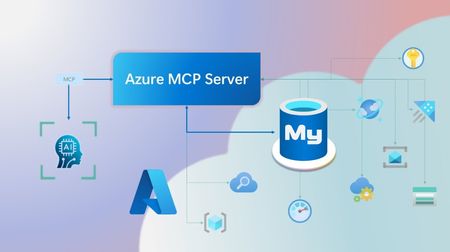
Step into a new era of data-driven intelligence with the fusion of Azure MCP Server and Azure Database for MySQL, where your MySQL data is no longer just stored, but instantly conversational, intelligent and action-ready. By harnessing the open-standard Model Context Protocol (MCP), your AI agents can now query, analyze and automate in natural language, accessing tables, surfacing insights and acting on your MySQL-driven business logic as easily as chatting with a colleague. It’s like giving your data a voice and your applications a brain, all within Azure’s trusted cloud platform. We are excited to announce that we have added support for Azure Database for MySQL in Azure MCP Server. The Azure MCP Server leverages the Model Context Protocol (MCP) to allow AI agents to seamlessly interact with various Azure services to perform context-aware operations such as querying databases and managing cloud resources. Building on this foundation, the Azure MCP Server now offers a set of tools that AI agents and apps can invoke to interact with Azure Database for MySQL - enabling them to list and query databases, retrieve schema details of tables, and access server configurations and parameters. These capabilities are delivered through the same standardized interface used for other Azure services, making it easier to the adopt the MCP standard for leveraging AI to work with your business data and operations across the Azure ecosystem. Before we delve into these new tools and explore how to get started with them, let’s take a moment to refresh our understanding of MCP and the Azure MCP Server - what they are, how they work, and why they matter. MCP architecture and key components The Model Context Protocol (MCP) is an emerging open protocol designed to integrate AI models with external data sources and services in a scalable, standardized, and secure manner. MCP dictates a client-server architecture with four key components: MCP Host, MCP Client, MCP Server and external data sources, services and APIs that provide the data context required to enhance AI models. To explain briefly, an MCP Host (AI apps and agents) includes an MCP client component that connects to one or more MCP Servers. These servers are lightweight programs that securely interface with external data sources, services and APIs and exposes them to MCP clients in the form of standardized capabilities called tools, resources and prompts. Learn more: MCP Documentation What is Azure MCP Server? Azure offers a multitude of cloud services that help developers build robust applications and AI solutions to address business needs. The Azure MCP Server aims to expose these powerful services for agentic usage, allowing AI systems to perform operations that are context-aware of your Azure resources and your business data within them, while ensuring adherence to the Model Context Protocol. It supports a wide range of Azure services and tools including Azure AI Search, Azure Cosmos DB, Azure Storage, Azure Monitor, Azure CLI and Developer CLI extensions. This means that you can empower AI agents, apps and tools to: Explore your Azure resources, such as listing and retrieving details on your Azure subscriptions, resource groups, services, databases, and tables. Search, query and analyze your data and logs. Execute CLI and Azure Developer CLI commands directly, and more! Learn more: Azure MCP Server GitHub Repository Introducing new Azure MCP Server tools to interact with Azure Database for MySQL The Azure MCP Server now includes the following tools that allow AI agents to interact with Azure Database for MySQL and your valuable business data residing in these servers, in accordance with the MCP standard: Tool Description Example Prompts azmcp_mysql_server_list List all MySQL servers in a subscription & resource group "List MySQL servers in resource group 'prod-rg'." "Show MySQL servers in region 'eastus'." azmcp_mysql_server_config_get Retrieve the configuration of a MySQL server "What is the backup retention period for server 'my-mysql-server'?" "Show storage allocation for server 'my-mysql-server'." azmcp_mysql_server_param_get Retrieve a specific parameter of a MySQL server "Is slow_query_log enabled on server my-mysql-server?" "Get innodb_buffer_pool_size for server my-mysql-server." azmcp_mysql_server_param_set Set a specific parameter of a MySQL server to a specific value "Set max_connections to 500 on server my-mysql-server." "Set wait_timeout to 300 on server my-mysql-server." azmcp_mysql_table_list List all tables in a MySQL database "List tables starting with 'tmp_' in database 'appdb'." "How many tables are in database 'analytics'?" azmcp_mysql_table_schema_get Get the schema of a specific table in a MySQL database "Show indexes for table 'transactions' in database 'billing'." "What is the primary key for table 'users' in database 'auth'?" azmcp_mysql_database_query Executes a SELECT query on a MySQL Database. The query must start with SELECT and cannot contain any destructive SQL operations for security reasons. “How many orders were placed in the last 30 days in the salesdb.orders table?” “Show the number of new users signed up in the last week in appdb.users grouped by day.” These interactions are secured using Microsoft Entra authentication, which enables seamless, identity-based access to Azure Database for MySQL - eliminating the need for password storage and enhancing overall security. How are these new tools in the Azure MCP Server different from the standalone MCP Server for Azure Database for MySQL? We have integrated the key capabilities of the Azure Database for MySQL MCP server into the Azure MCP Server, making it easier to connect your agentic apps not only to Azure Database for MySQL but also to other Azure services through one unified and secure interface! How to get started Installing and running the Azure MCP Server is quick and easy! Use GitHub Copilot in Visual Studio Code to gain meaningful insights from your business data in Azure Database for MySQL. Pre-requisites Install Visual Studio Code. Install GitHub Copilot and GitHub Copilot Chat extensions. An Azure Database for MySQL with Microsoft Entra authentication enabled. Ensure that the MCP Server is installed on a system with network connectivity and credentials to connect to Azure Database for MySQL. Installation and Testing Please use this guide for installation: Azure MCP Server Installation Guide Try the following prompts with your Azure Database for MySQL: Azure Database for MySQL tools for Azure MCP Server Try it out and share your feedback! Start using Azure MCP Server with the MySQL tools today and let our cloud services become your AI agent’s most powerful ally. We’re counting on your feedback - every comment, suggestion, or bug-report helps us build better tools together. Stay tuned: more features and capabilities are on the horizon! Feel free to comment below or write to us with your feedback and queries at AskAzureDBforMySQL@service.microsoft.com.330Views2likes0CommentsPrivyDoc: Building a Zero-Data-Leak AI with Foundry Local & Microsoft's Agent Framework
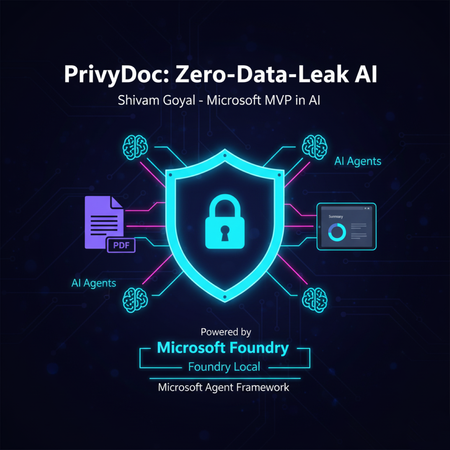
Tired of choosing between powerful AI insights and sacrificing your data's privacy? PrivyDoc offers a groundbreaking solution. In this article, Microsoft MVP in AI, Shivam Goyal, introduces his innovative project that brings robust AI document analysis directly to your local machine, ensuring zero data ever leaves your device. Discover how PrivyDoc leverages two cutting-edge Microsoft technologies: Foundry Local: The secret sauce for 100% on-device AI processing, allowing advanced models to run securely without cloud dependency. Microsoft Agent Framework: The intelligent orchestrator that builds a sophisticated multi-agent pipeline, handling everything from text extraction and entity recognition to summarization and sentiment analysis. Learn about PrivyDoc's intuitive web UI, its multi-format support, and crucial features that make it perfect for sensitive industries like legal, healthcare, and finance. Say goodbye to privacy concerns and hello to AI-powered document intelligence without compromise.468Views3likes0Comments
Do you have experience fine tuning GPS OSS models?
Hi I found this space called Affine. It is a daily reinforcement learning competition and I'm participating in it. One thing that I am looking for collaboration on is with fine tuning GPT OSS models to score well on the evaluations. I am wondering if anyone here is interested in mining? I feel that people here would have some good reinforcement learning tricks. These models are evaluated on a set of RL-environments with validators looking for the model which dominates the Pareto frontier. I'm specifically looking to see any improvements in the coding deduction environment and the new ELR environment they made. I would like to use a GPT OSS model here but its hard to fine-tune these models in GRPO. Here is the information I found on Affine: https://www.reddit.com/r/reinforcementlearning/comments/1mnq6i0/comment/n86sjrk/?utm_source=share&utm_medium=web3x&utm_name=web3xcss&utm_term=1&utm_content=share_button69Views0likes0CommentsA Recap of the Build AI Agents with Custom Tools Live Session
Artificial Intelligence is evolving, and so are the ways we build intelligent agents. On a recent Microsoft YouTube Live session, developers and AI enthusiasts gathered to explore the power of custom tools in AI agents using Azure AI Studio. The session walked through concepts, use cases, and a live demo that showed how integrating custom tools can bring a new level of intelligence and adaptability to your applications. 🎥 Watch the full session here: https://www.youtube.com/live/MRpExvcdxGs?si=X03wsQxQkkshEkOT What Are AI Agents with Custom Tools? AI agents are essentially smart workflows that can reason, plan, and act — powered by large language models (LLMs). While built-in tools like search, calculator, or web APIs are helpful, custom tools allow developers to tailor agents for business-specific needs. For example: Calling internal APIs Accessing private databases Triggering backend operations like ticket creation or document generation Learn Module Overview: Build Agents with Custom Tools To complement the session, Microsoft offers a self-paced Microsoft Learn module that gives step-by-step guidance: Explore the module Key Learning Objectives: Understand why and when to use custom tools in agents Learn how to define, integrate, and test tools using Azure AI Studio Build an end-to-end agent scenario using custom capabilities Hands-On Exercise: The module includes a guided lab where you: Define a tool schema Register the tool within Azure AI Studio Build an AI agent that uses your custom logic Test and validate the agent’s response Highlights from the Live Session Here are some gems from the session: Real-World Use Cases – Automating customer support, connecting to CRMs, and more Tool Manifest Creation – Learn how to describe a tool in a machine-understandable way Live Azure Demo – See exactly how to register tools and invoke them from an AI agent Tips & Troubleshooting – Best practices and common pitfalls when designing agents Want to Get Started? If you're a developer, AI enthusiast, or product builder looking to elevate your agent’s capabilities — custom tools are the next step. Start building your own AI agents by combining the power of: Microsoft Learn Module YouTube Live Session Final Thoughts The future of AI isn't just about smart responses — it's about intelligent actions. Custom tools enable your AI agent to do things, not just say things. With Azure AI Studio, building a practical, action-oriented AI assistant is more accessible than ever. Learn More and Join the Community Learn more about AI Agents with https://aka.ms/ai-agents-beginnersOpen Source Course and Building Agents. Join the Azure AI Foundry Discord Channel. Continue the discussion and learning: https://aka.ms/AI/discord Have questions or want to share what you're building? Let’s connect on LinkedIn or drop a comment under the YouTube video!300Views0likes0CommentsHow to build Tool-calling Agents with Azure OpenAI and Lang Graph
Introducing MyTreat Our demo is a fictional website that shows customers their total bill in dollars, but they have the option of getting the total bill in their local currencies. The button sends a request to the Node.js service and a response is simply returned from our Agent given the tool it chooses. Let’s dive in and understand how this works from a broader perspective. Prerequisites An active Azure subscription. You can sign up for a free trial here or get $100 worth of credits on Azure every year if you are a student. A GitHub account (not necessarily) Node.js LTS 18 + VS Code installed (or your favorite IDE) Basic knowledge of HTML, CSS, JS Creating an Azure OpenAI Resource Go over to your browser and key in portal.azure.com to access the Microsoft Azure Portal. Over there navigate to the search bar and type Azure OpenAI. Go ahead and click on + Create. Fill in the input boxes with appropriate, for example, as shown below then press on next until you reach review and submit then finally click on Create. After the deployment is done, go to the deployment and access Azure AI Foundry portal using the button as show below. You can also use the link as demonstrated below. In the Azure AI Foundry portal, we have to create our model instance so we have to go over to Model Catalog on the left panel beneath Get Started. Select a desired model, in this case I used gpt-35-turbo for chat completion (in your case use gpt-4o). Below is a way of doing this. Choose a model (gpt-4o) Click on deploy Give the deployment a new name e.g. myTreatmodel, then click deploy and wait for it to finish On the left panel go over to deployments and you will see the model you have created. Access your Azure OpenAI Resource Key Go back to Azure portal and specifically to the deployment instance that we have and select on the left panel, Resource Management. Click on Keys and Endpoints. Copy any of the keys as shown below and keep it very safe as we will use it in our .env file. Configuring your project Create a new project folder on your local machine and add these variables to the .env file in the root folder. AZURE_OPENAI_API_INSTANCE_NAME= AZURE_OPENAI_API_DEPLOYMENT_NAME= AZURE_OPENAI_API_KEY= AZURE_OPENAI_API_VERSION="2024-08-01-preview" LANGCHAIN_TRACING_V2="false" LANGCHAIN_CALLBACKS_BACKGROUND = "false" PORT=4556 Starting a new project Go over to https://github.com/tiprock-network/mytreat.git and follow the instructions to setup the new project, if you do not have git installed, go over to the Code button and press Download ZIP. This will enable you get the project folder and follow the same procedure for setting up. Creating a custom tool In the utils folder the math tool was created, this code show below uses tool from Langchain to build a tool and the schema of the tool is created using zod.js, a library that helps in validating an object’s property value. The price function takes in an array of prices and the exchange rate, adds the prices up and converts them using the exchange rate as shown below. import { tool } from '@langchain/core/tools' import { z } from 'zod' const priceConv = tool((input) =>{ //get the prices and add them up after turning each into let sum = 0 input.prices.forEach((price) => { let price_check = parseFloat(price) sum += price_check }) //now change the price using exchange rate let final_price = parseFloat(input.exchange_rate) * sum //return return final_price },{ name: 'add_prices_and_convert', description: 'Add prices and convert based on exchange rate.', schema: z.object({ prices: z.number({ required_error: 'Price should not be empty.', invalid_type_error: 'Price must be a number.' }).array().nonempty().describe('Prices of items listed.'), exchange_rate: z.string().describe('Current currency exchange rate.') }) }) export { priceConv } Utilizing the tool In the controller’s folder we then bring the tool in by importing it. After that we pass it in to our array of tools. Notice that we have the Tavily Search Tool, you can learn how to implement in the Additional Reads Section or just remove it. Agent Model and the Call Process This code defines an AI agent using LangGraph and LangChain.js, powered by GPT-4o from Azure OpenAI. It initializes a ToolNode to manage tools like priceConv and binds them to the agent model. The StateGraph handles decision-making, determining whether the agent should call a tool or return a direct response. If a tool is needed, the workflow routes the request accordingly; otherwise, the agent responds to the user. The callModel function invokes the agent, processing messages and ensuring seamless tool integration. The searchAgentController is a GET endpoint that accepts user queries (text_message). It processes input through the compiled LangGraph workflow, invoking the agent to generate a response. If a tool is required, the agent calls it before finalizing the output. The response is then sent back to the user, ensuring dynamic and efficient tool-assisted reasoning. //create tools the agent will use //const agentTools = [new TavilySearchResults({maxResults:5}), priceConv] const agentTools = [ priceConv] const toolNode = new ToolNode(agentTools) const agentModel = new AzureChatOpenAI({ model:'gpt-4o', temperature:0, azureOpenAIApiKey: AZURE_OPENAI_API_KEY, azureOpenAIApiInstanceName:AZURE_OPENAI_API_INSTANCE_NAME, azureOpenAIApiDeploymentName:AZURE_OPENAI_API_DEPLOYMENT_NAME, azureOpenAIApiVersion:AZURE_OPENAI_API_VERSION }).bindTools(agentTools) //make a decision to continue or not const shouldContinue = ( state ) => { const { messages } = state const lastMessage = messages[messages.length -1] //upon tool call we go to tools if("tool_calls" in lastMessage && Array.isArray(lastMessage.tool_calls) && lastMessage.tool_calls?.length) return "tools"; //if no tool call is made we stop and return back to the user return END } const callModel = async (state) => { const response = await agentModel.invoke(state.messages) return { messages: [response] } } //define a new graph const workflow = new StateGraph(MessagesAnnotation) .addNode("agent", callModel) .addNode("tools", toolNode) .addEdge(START, "agent") .addConditionalEdges("agent", shouldContinue, ["tools", END]) .addEdge("tools", "agent") const appAgent = workflow.compile() The above is implemented with the following code: Frontend The frontend is a simple HTML+CSS+JS stack that demonstrated how you can use an API to integrate this AI Agent to your website. It sends a GET request and uses the response to get back the right answer. Below is an illustration of how fetch API has been used. const searchAgentController = async ( req, res ) => { //get human text const { text_message } = req.query if(!text_message) return res.status(400).json({ message:'No text sent.' }) //invoke the agent const agentFinalState = await appAgent.invoke( { messages: [new HumanMessage(text_message)] }, {streamMode: 'values'} ) //const agentFinalState_b = await agentModel.invoke(text_message) /*return res.status(200).json({ answer:agentFinalState.messages[agentFinalState.messages.length - 1].content })*/ //console.log(agentFinalState_b.tool_calls) res.status(200).json({ text: agentFinalState.messages[agentFinalState.messages.length - 1].content }) } There you go! We have created a basic tool-calling agent using Azure and Langchain successfully, go ahead and expand the code base to your liking. If you have questions you can comment below or reach out on my socials. Additional Reads Azure Open AI Service Models Generative AI for Beginners AI Agents for Beginners Course Lang Graph Tutorial Develop Generative AI Apps in Azure AI Foundry Portal4.7KViews1like2CommentsCreate your own QA RAG Chatbot with LangChain.js + Azure OpenAI Service
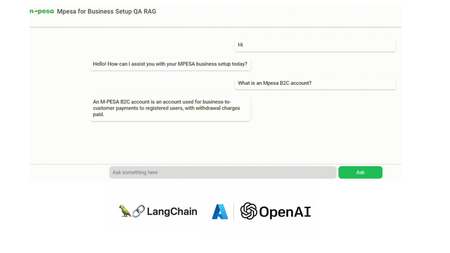
Demo: Mpesa for Business Setup QA RAG Application In this tutorial we are going to build a Question-Answering RAG Chat Web App. We utilize Node.js and HTML, CSS, JS. We also incorporate Langchain.js + Azure OpenAI + MongoDB Vector Store (MongoDB Search Index). Get a quick look below. Note: Documents and illustrations shared here are for demo purposes only and Microsoft or its products are not part of Mpesa. The content demonstrated here should be used for educational purposes only. Additionally, all views shared here are solely mine. What you will need: An active Azure subscription, get Azure for Student for free or get started with Azure for 12 months free. VS Code Basic knowledge in JavaScript (not a must) Access to Azure OpenAI, click here if you don't have access. Create a MongoDB account (You can also use Azure Cosmos DB vector store) Setting Up the Project In order to build this project, you will have to fork this repository and clone it. GitHub Repository link: https://github.com/tiprock-network/azure-qa-rag-mpesa . Follow the steps highlighted in the README.md to setup the project under Setting Up the Node.js Application. Create Resources that you Need In order to do this, you will need to have Azure CLI or Azure Developer CLI installed in your computer. Go ahead and follow the steps indicated in the README.md to create Azure resources under Azure Resources Set Up with Azure CLI. You might want to use Azure CLI to login in differently use a code. Here's how you can do this. Instead of using az login. You can do az login --use-code-device OR you would prefer using Azure Developer CLI and execute this command instead azd auth login --use-device-code Remember to update the .env file with the values you have used to name Azure OpenAI instance, Azure models and even the API Keys you have obtained while creating your resources. Setting Up MongoDB After accessing you MongoDB account get the URI link to your database and add it to the .env file along with your database name and vector store collection name you specified while creating your indexes for a vector search. Running the Project In order to run this Node.js project you will need to start the project using the following command. npm run dev The Vector Store The vector store used in this project is MongoDB store where the word embeddings were stored in MongoDB. From the embeddings model instance we created on Azure AI Foundry we are able to create embeddings that can be stored in a vector store. The following code below shows our embeddings model instance. //create new embedding model instance const azOpenEmbedding = new AzureOpenAIEmbeddings({ azureADTokenProvider, azureOpenAIApiInstanceName: process.env.AZURE_OPENAI_API_INSTANCE_NAME, azureOpenAIApiEmbeddingsDeploymentName: process.env.AZURE_OPENAI_API_DEPLOYMENT_EMBEDDING_NAME, azureOpenAIApiVersion: process.env.AZURE_OPENAI_API_VERSION, azureOpenAIBasePath: "https://eastus2.api.cognitive.microsoft.com/openai/deployments" }); The code in uploadDoc.js offers a simple way to do embeddings and store them to MongoDB. In this approach the text from the documents is loaded using the PDFLoader from Langchain community. The following code demonstrates how the embeddings are stored in the vector store. // Call the function and handle the result with await const storeToCosmosVectorStore = async () => { try { const documents = await returnSplittedContent() //create store instance const store = await MongoDBAtlasVectorSearch.fromDocuments( documents, azOpenEmbedding, { collection: vectorCollection, indexName: "myrag_index", textKey: "text", embeddingKey: "embedding", } ) if(!store){ console.log('Something wrong happened while creating store or getting store!') return false } console.log('Done creating/getting and uploading to store.') return true } catch (e) { console.log(`This error occurred: ${e}`) return false } } In this setup, Question Answering (QA) is achieved by integrating Azure OpenAI’s GPT-4o with MongoDB Vector Search through LangChain.js. The system processes user queries via an LLM (Large Language Model), which retrieves relevant information from a vectorized database, ensuring contextual and accurate responses. Azure OpenAI Embeddings convert text into dense vector representations, enabling semantic search within MongoDB. The LangChain RunnableSequence structures the retrieval and response generation workflow, while the StringOutputParser ensures proper text formatting. The most relevant code snippets to include are: AzureChatOpenAI instantiation, MongoDB connection setup, and the API endpoint handling QA queries using vector search and embeddings. There are some code snippets below to explain major parts of the code. Azure AI Chat Completion Model This is the model used in this implementation of RAG, where we use it as the model for chat completion. Below is a code snippet for it. const llm = new AzureChatOpenAI({ azTokenProvider, azureOpenAIApiInstanceName: process.env.AZURE_OPENAI_API_INSTANCE_NAME, azureOpenAIApiDeploymentName: process.env.AZURE_OPENAI_API_DEPLOYMENT_NAME, azureOpenAIApiVersion: process.env.AZURE_OPENAI_API_VERSION }) Using a Runnable Sequence to give out Chat Output This shows how a runnable sequence can be used to give out a response given the particular output format/ output parser added on to the chain. //Stream response app.post(`${process.env.BASE_URL}/az-openai/runnable-sequence/stream/chat`, async (req,res) => { //check for human message const { chatMsg } = req.body if(!chatMsg) return res.status(201).json({ message:'Hey, you didn\'t send anything.' }) //put the code in an error-handler try{ //create a prompt template format template const prompt = ChatPromptTemplate.fromMessages( [ ["system", `You are a French-to-English translator that detects if a message isn't in French. If it's not, you respond, "This is not French." Otherwise, you translate it to English.`], ["human", `${chatMsg}`] ] ) //runnable chain const chain = RunnableSequence.from([prompt, llm, outPutParser]) //chain result let result_stream = await chain.stream() //set response headers res.setHeader('Content-Type','application/json') res.setHeader('Transfer-Encoding','chunked') //create readable stream const readable = Readable.from(result_stream) res.status(201).write(`{"message": "Successful translation.", "response": "`); readable.on('data', (chunk) => { // Convert chunk to string and write it res.write(`${chunk}`); }); readable.on('end', () => { // Close the JSON response properly res.write('" }'); res.end(); }); readable.on('error', (err) => { console.error("Stream error:", err); res.status(500).json({ message: "Translation failed.", error: err.message }); }); }catch(e){ //deliver a 500 error response return res.status(500).json( { message:'Failed to send request.', error:e } ) } }) To run the front end of the code, go to your BASE_URL with the port given. This enables you to run the chatbot above and achieve similar results. The chatbot is basically HTML+CSS+JS. Where JavaScript is mainly used with fetch API to get a response. Thanks for reading. I hope you play around with the code and learn some new things. Additional Reads Introduction to LangChain.js Create an FAQ Bot on Azure Build a basic chat app in Python using Azure AI Foundry SDK673Views0likes0CommentsOptimizing Retrieval for RAG Apps: Vector Search and Hybrid Techniques
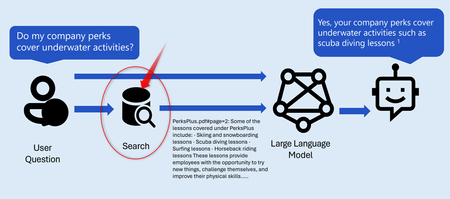
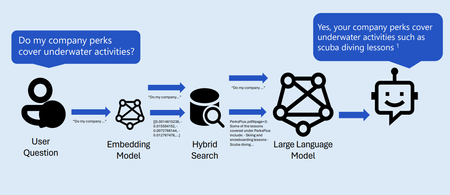
In this blog we are going to dive into optimizing our search strategy with Hybrid search techniques. Common practices for implementing the retrieval step in retrieval-augmented generation (RAG) applications are; Keyword search Vector Search Hybrid search (Keyword + Vector) Hybrid + Semantic ranker9.9KViews3likes0CommentsWhy Should Business Adopt RAG and migrate from LLMs?
In this blog we are going to discuss the importance of migrating your product or startup project from LLMS to RAG. Adopting RAG empowers businesses to leverage external knowledge, enhance accuracy, and create more robust AI applications. It’s a strategic move toward building intelligent systems that bridge the gap between generative capabilities and authoritative information. Below are topics in this blog. Brief History of AI What are Large Language Models (LLMS). Limitation of LLMS. How can we incorporate domain knowledge. What is Retrieval Augmented Generation (RAG). What is Robust retrieval for RAG Apps. Once we are done with these concepts, I hope to convince you to adopt RAG in your project.3.7KViews2likes0Comments