kaustubhdwivedi
2 TopicsBulk Device Tagging in MDE: PowerShell & API Approach
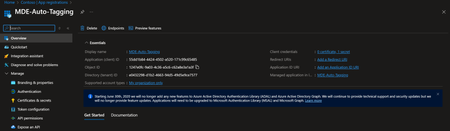
Effective device management is critical for ensuring security hygiene and maintaining operational agility within enterprise environments. In Microsoft Defender for Endpoint (MDE), device tagging plays a key role by enabling logical grouping, targeted policy application, efficient incident response, compliance tracking, and automation. It elevates device management from a manual, error-prone process to a scalable, context-aware workflow that aligns with both security and operational objectives. This guide presents a streamlined method for bulk tagging devices in MDE using the API and PowerShell automation. By following the outlined steps, security teams can automate the tagging process, minimize manual work, and maintain consistent device categorization to support compliance, reporting, and policy enforcement. Objective Use Microsoft Defender for Endpoint API to add tags for multiple devices efficiently. Step 1: Create App Registration in Entra ID Go to Entra ID (Azure Active Directory) → App registrations → New registration. Enter: Name: e.g., MDE-Auto-Tagging. Supported account types: Choose Single tenant (or multi-tenant if required). Redirect URI: Leave blank for now (not needed for client credentials flow). Click Register. Note down: Application (Client) ID Directory (Tenant) ID Step 2: Create Client Secret In the registered app → Certificates & secrets → New client secret. Add description and expiry (e.g., 6 months or 12 months). Copy the Value immediately (you won’t see it again). Step 3: Assign API Permissions In the app → API permissions → Add a permission. Select: APIs my organisation uses → Search for WindowsDefenderATP. Choose: Machine.ReadWrite.All (required for tagging). Application permissions → Expand Machine → Select: Click Add permissions. Grant admin consent for your organisation. Step 4: Validate Permissions Ensure status shows Granted for . (as shown below) If not, click Grant admin consent again. Step 5: Use PowerShell Script to apply tags to multiple devices Please review the PowerShell script hosted here: Microsoft-Unified-Security-Operations-Platform/Microsoft Defender for Endpoint/AddBulkTags.ps1 at main · Abhishek-Sharan/Microsoft-Unified-Security-Operations-Platform This script: Fetches Bearer token using Client ID, Tenant ID, and Client Secret. Reads Device IDs from CSV. Applies tags to each device via Defender API. How to Run (I am using Azure Shell for demo) Update the script with: $TenantId, $ClientId, $ClientSecret and Tag Value Path to your CSV file containing DeviceId. Upload MachineIDs.csv in Azure Shell, template shown below (line 2 and 3 are DeviceIDs) Upload the PowerShell script in Azure Shell as well Execute the PowerShell script, read the Disclaimer and provide your consent for further execution if you’re comfortable As shown below, it will apply the tags. Step 6: Validate tags Go to Devices page and check if the tags are applied or not. Security Best Practices Rotate client secrets regularly. Restrict app permissions to only what’s needed. Store secrets securely (e.g., Azure Key Vault). By implementing this automated tagging workflow, organisations can significantly simplify device management within MDE. Regularly rotating client secrets, restricting app permissions, and securely storing credentials are recommended best practices to maintain a robust security posture. With PowerShell automation and API integration, bulk tagging becomes a scalable solution—enabling teams to efficiently update device tags and leverage exclusion lists, ultimately saving time and reducing operational overhead. Reference Documentation: Add or remove a tag for multiple machines - Microsoft Defender for Endpoint | Microsoft LearnImporting AWS Security Hub Findings into Microsoft Sentinel
This blog explores how to ingest AWS Security Hub findings into Microsoft Sentinel using native solutions. Although a GitHub reference for deploying an Azure Function-based solution is included, my experience assisting a customer with its implementation provided valuable insights. Instead of step-by-step instructions, I’ll provide a high-level overview and guidance to navigate potential challenges. Let’s dive in! Ingest AWS Security Hub Events to Azure Sentinel https://github.com/Azure/Azure-Sentinel/blob/master/DataConnectors/AWS-SecurityHubFindings/README.md#ingest-aws-security-hub-events-to-azure-sentinel What is AWS Security Hub? AWS Security Hub is a cloud security posture management (CSPM) service that performs automated, continuous security best practice checks against your AWS resources to help you identify misconfigurations, and aggregates your security alerts (i.e. findings) in a standardized format so that you can more easily enrich, investigate, and remediate them. As of November 2024, we already have an S3 connector that ingests logs from specific AWS services: VPC Flow Logs, Amazon GuardDuty, CloudTrail, and CloudWatch, by pulling them from an S3 bucket. We will rely on this connector to receive findings from AWS Security Hub into the AWSCloudWatch table in Microsoft Sentinel, as these findings are sent to the CloudWatch service. While the data ingested into the AWSCloudWatch table may not be parsed exactly as expected, a KQL transformation rule will help address this — more on that later. The flow would look like this AWS services are configured to send their logs to S3 (Simple Storage Service) storage buckets. The S3 bucket sends notification messages to the SQS (Simple Queue Service) message queue whenever it receives new logs. The Microsoft Sentinel AWS S3 connector polls the SQS queue at regular, frequent intervals. If there is a message in the queue, it will contain the path to the log files. The connector reads the message with the path, then fetches the files from the S3 bucket. To connect to the SQS queue and the S3 bucket, Microsoft Sentinel uses a federated web identity provider (Microsoft Entra ID) for authenticating with AWS through OpenID Connect (OIDC), and assuming an AWS IAM role. The role is configured with a permissions policy giving it access to those resources. Reference https://learn.microsoft.com/en-us/azure/sentinel/connect-aws?tabs=s3#architecture-overview To forward findings from AWS Security Hub to CloudWatch, we will use EventBridge. First, we will create a CloudWatch log group to serve as the destination for these events before setting up the EventBridge rule. Creating a CloudWatch log group Follow the steps here for creating a CloudWatch log groups Working with log groups and log streams — Amazon CloudWatch Logs To be able to add a CloudWatch log group as a target in the EventBridge rule. The log group must start with /aws/events. For reference Configuring an EventBridge rule for Security Hub findings — AWS Security Hub Create a new EventBridge rule with event pattern In my example I am not filtering out any findings but if you like to filter for example based on severity like INFORMATIONAL, LOW you can update the event pattern. Refer here for Configuring an EventBridge rule for Security Hub findings — AWS Security Hub Exporting logs from CloudWatch log group to S3 bucket Logs arriving in the CloudWatch log group are in GZIP format, which is accepted by Microsoft Sentinel. These logs can now be sent over to Sentinel. Exporting log data to Amazon S3 — Amazon CloudWatch Logs We can even automate the process which is defined here. Automate! Export of Cloudwatch Logs to S3 Bucket Using Lambda with Eventbridge Trigger — DEV Community Now we can rely on the instructions of setting up S3 Connector in Sentinel Connect Microsoft Sentinel to Amazon Web Services to ingest AWS service log data | Microsoft Learn We have already configured an AWS service(CloudWatch) to export logs to an S3 bucket so skip the mentioned step. Logs arriving in Microsoft Sentinel will appear in the AWSCloudWatch table but won't be parsed as expected. The finding is stored in the Message column. KQL Transformation We can use this KQL transformation query to parse the logs. AWSCloudWatch | where isnotempty(Message) // Ensure message is not empty | extend CleanMessage = replace_regex(Message, @"^\S+\s", "") // Remove the timestamp at the beginning | extend ParsedMessage = parse_json(CleanMessage) // Parse the cleaned message as JSON | where isnotempty(ParsedMessage) // Filter only rows where parsing was successful | extend FindingsArray = ParsedMessage.detail.findings // Extract 'findings' array | mv-expand FindingsArray // Expand findings array into rows | extend Findings = parse_json(FindingsArray) // Parse each finding as JSON | extend Region = tostring(ParsedMessage.region), // Extract region from the top-level message Severity = tostring(Findings.Severity.Label), // Extract Severity from findings Account = tostring(ParsedMessage.account), // Extract account from the top-level message Product = tostring(Findings.ProductName) // Extract Product from findings | project Title = tostring(Findings.Title), Region, Severity, Account, Product // Extract Title, Region, Severity, Account, and Product Tranformation query for parsing AWS Security Hub findings. Debugging Tips #1 Not able to add a CloudWatch log group as a target in the eventbridge rule. To add a CloudWatch log group as a target, you can either create a new log group or use an existing log group. The log group must start with /aws/events. #2 Cannot search the CloudWatch log group. Ensure that AWS service is selected in the target group. #3 Error enabling and configuring event notifications using the Amazon S3 console When configuring your S3 bucket to send notification messages to your SQS queue as part of the S3 connector setup, you might encounter an issue related to the queue name. In my experience, I received an access policy error even though the queue name was visible. If you face a similar issue, I recommend loosening the access policy attached to the queue temporarily and testing the setup again. Once it works, you can refine the policy to meet your security requirements.