kql
434 Topics
How Should a Fresher Learn Microsoft Sentinel Properly?
Hello everyone, I am a fresher interested in learning Microsoft Sentinel and preparing for SOC roles. Since Sentinel is a cloud-native enterprise tool and usually used inside organizations, I am unsure how individuals without company access are expected to gain real hands-on experience. I would like to hear from professionals who actively use Sentinel: - How do freshers typically learn and practice Sentinel? - What learning resources or environments are commonly used by beginners? - What level of hands-on experience is realistically expected at entry level? I am looking for guidance based on real industry practice. Thank you for your time.108Views0likes2Comments
Missing details in Azure Activity Logs – MICROSOFT.SECURITYINSIGHTS/ENTITIES/ACTION
The Azure Activity Logs are crucial for tracking access and actions within Sentinel. However, I’m encountering a significant lack of documentation and clarity regarding some specific operation types. Resources consulted: https://learn.microsoft.com/en-us/azure/sentinel/audit-sentinel-data https://learn.microsoft.com/en-us/rest/api/securityinsights/entities?view=rest-securityinsights-2024-01-01-preview https://learn.microsoft.com/en-us/rest/api/securityinsights/operations/list?view=rest-securityinsights-2024-09-01&tabs=HTTP My issue: I observed unauthorized activity on our Sentinel workspace. The Azure Activity Logs clearly indicate the user involved, the resource, and the operation type: "MICROSOFT.SECURITYINSIGHTS/ENTITIES/ACTION" But that’s it. No detail about what the action was, what entity it targeted, or how it was triggered. This makes auditing extremely difficult. It's clear the person was in Sentinel and perform an activity through it, from search, KQL, logs to find an entity from a KQL query. But, that's all... Strangely, this operation is not even listed in the official Sentinel Operations documentation linked above. My question: Has anyone encountered this and found a way to interpret this operation type properly? Any insight into how to retrieve more meaningful details (action context, target entity, etc.) from these events would be greatly appreciated.219Views0likes3Comments
KQL Policy Definition ID to displayName and Description
I'm new to KQL and I have a KQL query (CIS Benchmark). Among other things, the query returns me the policyDefinitionId. Unfortunately, this is not readable. How do I do a join so I can retrieve the policy definition displayname and description? Here is the query: PolicyResources | where type =~ 'Microsoft.PolicyInsights/PolicyStates' and properties.policyAssignmentId =~ '/providers/microsoft.management/managementgroups/xxx/providers/microsoft.authorization/policyassignments/8e0161c630a04095a6f38306' |project subscriptionId, properties,id, resource_id=tolower(tostring(properties.resourceId)) | join kind=leftouter (resources | project resource_id=tolower(tostring(id)),resource_name=name) on resource_id | join kind=inner (resourcecontainers | where type == 'microsoft.resources/subscriptions' | project subscriptionId,subscription_contact=tostring(tags.resourcecontact), sbg=tostring(tags.sbg), management_group=tostring(properties.managementGroupAncestorsChain[0].displayName),subscription_name=name)on subscriptionId | project management_group, subscription_name, subscriptionId, subscription_contact, properties.complianceState, properties.policyDefinitionReferenceId, AssignmentID = tostring(id), properties.resourceType, InstanceID = tostring(properties.resourceId), resource_name1.1KViews0likes1Comment
Stuck looking up a watchlist value
Hiya, I get stuck working with watchlists sometimes. In this example, I'm wanting to focus on account activity from a list of UPNs. If I split the elements up, I get the individual results, but can't seem to pull it all together. ===================================================== In its entirety, the query returns zero results: let ServiceAccounts=(_GetWatchlist('ServiceAccounts_Monitoring'))| project SearchKey; let OpName = dynamic(['Reset password (self-service)','Reset User Password','Change user password','User reset password','User started password reset','Enable Account','Change password (self-service)','Update PasswordProfile','Self-service password reset flow activity progress']); AuditLogs | where OperationName has_any (OpName) | extend upn = TargetResources.[0].userPrincipalName | where upn in (ServiceAccounts) //<=This is where I think I'm wrong | project upn ===================================================== This line on its own, returns the user on the list: let ServiceAccounts=(_GetWatchlist('ServiceAccounts_Monitoring'))| project SearchKey; ===================================================== This section on its own, returns all the activity let OpName = dynamic(['Reset password (self-service)','Reset User Password','Change user password','User reset password','User started password reset','Enable Account','Change password (self-service)','Update PasswordProfile','Self-service password reset flow activity progress']); AuditLogs | where OperationName has_any (OpName) | extend upn = TargetResources.[0].userPrincipalName | where upn contains "username" //This is the name on the watchlistlist - so I know the activity exists) ==================================================== I'm doing something wrong when I'm trying to use the watchlist cache (I think) Any help\guidance or wisdom would be greatly appreciated! Many thanksSolved32Views0likes2CommentsI'm stuck!
Logically, I'm not sure how\if I can do this. I want to monitor for EntraID Group additions - I can get this to work for a single entry using this: AuditLogs | where TimeGenerated > ago(7d) | where OperationName == "Add member to group" | where TargetResources[0].type == "User" | extend GroupName = tostring(parse_json(tostring(parse_json(tostring(TargetResources[0].modifiedProperties))[1].newValue))) | where GroupName == "NameOfGroup" <-- This returns the single entry | extend User = tostring(TargetResources[0].userPrincipalName) | summarize ['Count of Users Added']=dcount(User), ['List of Users Added']=make_set(User) by GroupName | sort by GroupName asc However, I have a list of 20 Priv groups that I need to monitor. I can do this using: let PrivGroups = dynamic[('name1','name2','name3'}); and then call that like this: blahblah | where TargetResources[0].type == "User" | extend GroupName = tostring(parse_json(tostring(parse_json(tostring(TargetResources[0].modifiedProperties))[1].newValue))) | where GroupName has_any (PrivGroup) But that's a bit dirty to update - I wanted to call a watchlist. I've tried defining with: let PrivGroup = (_GetWatchlist('TestList')); and tried calling like: blahblah | where TargetResources[0].type == "User" | extend GroupName = tostring(parse_json(tostring(parse_json(tostring(TargetResources[0].modifiedProperties))[1].newValue))) | where GroupName has_any ('PrivGroup') I've tried dropping the let and attempted to lookup the watchlist directly: | where GroupName has_any (_GetWatchlist('TestList')) The query runs but doesn't return any results (Obvs I know the result exists) - How do I lookup that extracted value on a Watchlist. Any ideas or pointers why I'm wrong would be appreciated! Many thanksSolved200Views0likes3CommentsRSAC 2026: What the Sentinel Playbook Generator actually means for SOC automation
RSAC 2026 brought a wave of Sentinel announcements, but the one I keep coming back to is the playbook generator. Not because it's the flashiest, but because it touches something that's been a real operational pain point for years: the gap between what SOC teams need to automate and what they can realistically build and maintain. I want to unpack what this actually changes from an operational perspective, because I think the implications go further than "you can now vibe-code a playbook." The problem it solves If you've built and maintained Logic Apps playbooks in Sentinel at any scale, you know the friction. You need a connector for every integration. If there isn't one, you're writing custom HTTP actions with authentication handling, pagination, error handling - all inside a visual designer that wasn't built for complex branching logic. Debugging is painful. Version control is an afterthought. And when something breaks at 2am, the person on call needs to understand both the Logic Apps runtime AND the security workflow to fix it. The result in most environments I've seen: teams build a handful of playbooks for the obvious use cases (isolate host, disable account, post to Teams) and then stop. The long tail of automation - the enrichment workflows, the cross-tool correlation, the conditional response chains - stays manual because building it is too expensive relative to the time saved. What's actually different now The playbook generator produces Python. Not Logic Apps JSON, not ARM templates - actual Python code with documentation and a visual flowchart. You describe the workflow in natural language, the system proposes a plan, asks clarifying questions, and then generates the code once you approve. The Integration Profile concept is where this gets interesting. Instead of relying on predefined connectors, you define a base URL, auth method, and credentials for any service - and the generator creates dynamic API calls against it. This means you can automate against ServiceNow, Jira, Slack, your internal CMDB, or any REST API without waiting for Microsoft or a partner to ship a connector. The embedded VS Code experience with plan mode and act mode is a deliberate design choice. Plan mode lets you iterate on the workflow before any code is generated. Act mode produces the implementation. You can then validate against real alerts and refine through conversation or direct code edits. This is a meaningful improvement over the "deploy and pray" cycle most of us have with Logic Apps. Where I see the real impact For environments running Sentinel at scale, the playbook generator could unlock the automation long tail I mentioned above. The workflows that were never worth the Logic Apps development effort might now be worth a 15-minute conversation with the generator. Think: enrichment chains that pull context from three different tools before deciding on a response path, or conditional escalation workflows that factor in asset criticality, time of day, and analyst availability. There's also an interesting angle for teams that operate across Microsoft and non-Microsoft tooling. If your SOC uses Sentinel for SIEM but has Palo Alto, CrowdStrike, or other vendors in the stack, the Integration Profile approach means you can build cross-vendor response playbooks without middleware. The questions I'd genuinely like to hear about A few things that aren't clear from the documentation and that I think matter for production use: Security Copilot dependency: The prerequisites require a Security Copilot workspace with EU or US capacity. Someone in the blog comments already flagged this as a potential blocker for organizations that have Sentinel but not Security Copilot. Is this a hard requirement going forward, or will there be a path for Sentinel-only customers? Code lifecycle management: The generated Python runs... where exactly? What's the execution runtime? How do you version control, test, and promote these playbooks across dev/staging/prod? Logic Apps had ARM templates and CI/CD patterns. What's the equivalent here? Integration Profile security: You're storing credentials for potentially every tool in your security stack inside these profiles. What's the credential storage model? Is this backed by Key Vault? How do you rotate credentials without breaking running playbooks? Debugging in production: When a generated playbook fails at 2am, what does the troubleshooting experience look like? Do you get structured logs, execution traces, retry telemetry? Or are you reading Python stack traces? Coexistence with Logic Apps: Most environments won't rip and replace overnight. What's the intended coexistence model between generated Python playbooks and existing Logic Apps automation rules? I'm genuinely optimistic about this direction. Moving from a low-code visual designer to an AI-assisted coding model with transparent, editable output feels like the right architectural bet for where SOC automation needs to go. But the operational details around lifecycle, security, and debugging will determine whether this becomes a production staple or stays a demo-only feature. Would be interested to hear from anyone who's been in the preview - what's the reality like compared to the pitch?Solved72Views0likes1CommentSecurity Copilot Integration with Microsoft Sentinel - Why Automation matters now
Security Operations Centers face a relentless challenge - the volume of security alerts far exceeds the capacity of human analysts. On average, a mid-sized SOC receives thousands of alerts per day, and analysts spend up to 80% of their time on initial triage. That means determining whether an alert is a true positive, understanding its scope, and deciding on next steps. With Microsoft Security Copilot now deeply integrated into Microsoft Sentinel, there is finally a practical path to automating the most time-consuming parts of this workflow. So I decided to walk you through how to combine Security Copilot with Sentinel to build an automated incident triage pipeline - complete with KQL queries, automation rule patterns, and practical scenarios drawn from common enterprise deployments. Traditional triage workflows rely on analysts manually reviewing each incident - reading alert details, correlating entities across data sources, checking threat intelligence, and making a severity assessment. This is slow, inconsistent, and does not scale. Security Copilot changes this equation by providing: Natural language incident summarization - turning complex, multi-alert incidents into analyst-readable narratives Automated entity enrichment - pulling threat intelligence, user risk scores, and device compliance state without manual lookups Guided response recommendations - suggesting containment and remediation steps based on the incident type and organizational context The key insight is that Copilot does not replace analysts - it handles the repetitive first-pass triage so analysts can focus on decision-making and complex investigations. Architecture - How the Pieces Fit Together The automated triage pipeline consists of four layers: Detection Layer - Sentinel analytics rules generate incidents from log data Enrichment Layer - Automation rules trigger Logic Apps that call Security Copilot Triage Layer - Copilot analyzes the incident, enriches entities, and produces a triage summary Routing Layer - Based on Copilot's assessment, incidents are routed, re-prioritized, or auto-closed (Forgive my AI-painted illustration here, but I find it a nice way to display dependencies.) +-----------------------------------------------------------+ | Microsoft Sentinel | | | | Analytics Rules --> Incidents --> Automation Rules | | | | | v | | Logic App / Playbook | | | | | v | | Security Copilot API | | +-----------------+ | | | Summarize | | | | Enrich Entities | | | | Assess Risk | | | | Recommend Action| | | +--------+--------+ | | | | | v | | +-----------------------------+ | | | Update Incident | | | | - Add triage summary tag | | | | - Adjust severity | | | | - Assign to analyst/team | | | | - Auto-close false positive| | | +-----------------------------+ | +-----------------------------------------------------------+ Step 1 - Identify High-Volume Triage Candidates Not every incident type benefits equally from automated triage. Start with alert types that are high in volume but often turn out to be false positives or low severity. Use this KQL query to identify your top candidates: SecurityIncident | where TimeGenerated > ago(30d) | summarize TotalIncidents = count(), AutoClosed = countif(Classification == "FalsePositive" or Classification == "BenignPositive"), AvgTimeToTriageMinutes = avg(datetime_diff('minute', FirstActivityTime, CreatedTime)) by Title | extend FalsePositiveRate = round(AutoClosed * 100.0 / TotalIncidents, 1) | where TotalIncidents > 10 | order by TotalIncidents desc | take 20 This query surfaces the incident types where automation will deliver the highest ROI. Based on publicly available data and community reports, the following categories consistently appear at the top: Impossible travel alerts (high volume, around 60% false positive rate) Suspicious sign-in activity from unfamiliar locations Mass file download and share events Mailbox forwarding rule creation Step 2 - Build the Copilot-Powered Triage Playbook Create a Logic App playbook that triggers on incident creation and leverages the Security Copilot connector. The core flow looks like this: Trigger: Microsoft Sentinel Incident - When an incident is created Action 1 - Get incident entities: let incidentEntities = SecurityIncident | where IncidentNumber == <IncidentNumber> | mv-expand AlertIds | join kind=inner (SecurityAlert | extend AlertId = SystemAlertId) on $left.AlertIds == $right.AlertId | mv-expand Entities | extend EntityData = parse_json(Entities) | project EntityType = tostring(EntityData.Type), EntityValue = coalesce( tostring(EntityData.HostName), tostring(EntityData.Address), tostring(EntityData.Name), tostring(EntityData.DnsDomain) ); incidentEntities Note: The <IncidentNumber> placeholder above is a Logic App dynamic content variable. When building your playbook, select the incident number from the trigger output rather than hardcoding a value. Action 2 - Copilot prompt session: Send a structured prompt to Security Copilot that requests: Analyze this Microsoft Sentinel incident and provide a triage assessment: Incident Title: {IncidentTitle} Severity: {Severity} Description: {Description} Entities involved: {EntityList} Alert count: {AlertCount} Please provide: 1. A concise summary of what happened (2-3 sentences) 2. Entity risk assessment for each IP, user, and host 3. Whether this appears to be a true positive, benign positive, or false positive 4. Recommended next steps 5. Suggested severity adjustment (if any) Action 3 - Parse and route: Use the Copilot response to update the incident. The Logic App parses the structured output and: Adds the triage summary as an incident comment Tags the incident with copilot-triaged Adjusts severity if Copilot recommends it Routes to the appropriate analyst tier based on the assessment Step 3 - Enrich with Contextual KQL Lookups Security Copilot's assessment improves dramatically when you feed it contextual data. Before sending the prompt, enrich the incident with organization-specific signals: // Check if the user has a history of similar alerts (repeat offender vs. first time) let userAlertHistory = SecurityAlert | where TimeGenerated > ago(90d) | mv-expand Entities | extend EntityData = parse_json(Entities) | where EntityData.Type == "account" | where tostring(EntityData.Name) == "<UserPrincipalName>" | summarize PriorAlertCount = count(), DistinctAlertTypes = dcount(AlertName), LastAlertTime = max(TimeGenerated) | extend IsRepeatOffender = PriorAlertCount > 5; userAlertHistory // Check user risk level from Entra ID Protection AADUserRiskEvents | where TimeGenerated > ago(7d) | where UserPrincipalName == "<UserPrincipalName>" | summarize arg_max(TimeGenerated, RiskLevel), RecentRiskEvents = count() | project RiskLevel, RecentRiskEvents Including this context in the Copilot prompt transforms generic assessments into organization-aware triage decisions. A "suspicious sign-in" for a user who travels internationally every week is very different from the same alert for a user who has never left their home country. Step 4 - Implement Feedback Loops Automated triage is only as good as its accuracy over time. Build a feedback mechanism by tracking Copilot's assessments against analyst final classifications: SecurityIncident | where Tags has "copilot-triaged" | where TimeGenerated > ago(30d) | where Classification != "" | mv-expand Comments | extend CopilotAssessment = extract("Assessment: (True Positive|False Positive|Benign Positive)", 1, tostring(Comments)) | where isnotempty(CopilotAssessment) | summarize Total = dcount(IncidentNumber), Correct = dcountif(IncidentNumber, (CopilotAssessment == "False Positive" and Classification == "FalsePositive") or (CopilotAssessment == "True Positive" and Classification == "TruePositive") or (CopilotAssessment == "Benign Positive" and Classification == "BenignPositive") ) by bin(TimeGenerated, 7d) | extend AccuracyPercent = round(Correct * 100.0 / Total, 1) | order by TimeGenerated asc For this query to work reliably, the automation playbook must write the assessment in a consistent format within the incident comments. Use a structured prefix such as Assessment: True Positive so the regex extraction remains stable. According to Microsoft's published benchmarks and community feedback, Copilot-assisted triage typically achieves 85-92% agreement with senior analyst classifications after prompt tuning - significantly reducing the manual triage burden. A Note on Licensing and Compute Units Security Copilot is licensed through Security Compute Units (SCUs), which are provisioned in Azure. Each prompt session consumes SCUs based on the complexity of the request. For automated triage at scale, plan your SCU capacity carefully - high-volume playbooks can accumulate significant usage. Start with a conservative allocation, monitor consumption through the Security Copilot usage dashboard, and scale up as you validate ROI. Microsoft provides detailed guidance on SCU sizing in the official Security Copilot documentation. Example Scenario - Impossible Travel at Scale Consider a typical enterprise that generates over 200 impossible travel alerts per week. The SOC team spends roughly 15 hours weekly just triaging these. Here is how automated triage addresses this: Detection - Sentinel's built-in impossible travel analytics rule flags the incidents Enrichment - The playbook pulls each user's typical travel patterns from sign-in logs over the past 90 days, VPN usage, and whether the "impossible" location matches any known corporate office or VPN egress point Copilot Analysis - Security Copilot receives the enriched context and classifies each incident Expected Result - Based on common deployment patterns, around 70-75% of impossible travel incidents are auto-closed as benign (VPN, known travel patterns), roughly 20% are downgraded to informational with a triage note, and only about 5% are escalated to analysts as genuine suspicious activity This type of automation can reclaim over 10 hours per week - time that analysts can redirect to proactive threat hunting. Getting Started - Practical Recommendations For teams ready to implement automated triage with Security Copilot and Sentinel, here is a recommended approach: Start small. Pick one high-volume, high-false-positive incident type. Do not try to automate everything at once. Run in shadow mode first. Have the playbook add triage comments but do not auto-close or re-route. Let analysts compare Copilot's assessment with their own for two to four weeks. Tune your prompts. Generic prompts produce generic results. Include organization-specific context - naming conventions, known infrastructure, typical user behavior patterns. Monitor accuracy continuously. Use the feedback loop KQL above. If accuracy drops below 80%, pause automation and investigate. Maintain human oversight. Even at 90%+ accuracy, keep a human review step for high-severity incidents. Automation handles volume - analysts handle judgment. The combination of Security Copilot and Microsoft Sentinel represents a genuine step forward for SOC efficiency. By automating the initial triage pass - summarizing incidents, enriching entities, and providing classification recommendations - analysts are freed to focus on what humans do best: making nuanced security decisions under uncertainty. Feel free to like or/and connect :)14Views0likes0Comments
KQL query not working
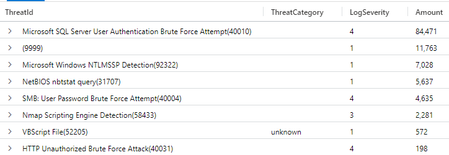
Hi everyone, I'm not a kusto expert so bare with me. I'm trying to replace a text to another text... The one in bold is what I'm tryng to use but is not working. Basically the log doesn't make a reference for (9999) which is actually "URL filtering log"... and I need this this to show on the results... not as (9999) but as "URL filtering log". I've been trying to use CommonSecurityLog | where DeviceProduct has 'PAN-OS' | where DeviceVendor =~ 'Palo AltoNetworks' //| where DeviceEventClassID =~ 'correlation' | extend ThreatId = extract('cat=([^;]+)', 1, AdditionalExtensions) | extend ThreatCategory = extract('PanOSThreatCategory=([^;]+)', 1, AdditionalExtensions) | extend str=strcat("9999", "9999", "URL") | extend replaced=replace_string(str, '9999', 'URL') | summarize Amount=count() by ThreatId, ThreatCategory, LogSeverity | top 20 by Amount RESULTS:Solved3.5KViews1like6Comments
Understand New Sentinel Pricing Model with Sentinel Data Lake Tier
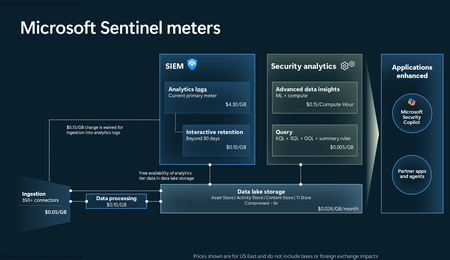
Introduction on Sentinel and its New Pricing Model Microsoft Sentinel is a cloud-native Security Information and Event Management (SIEM) and Security Orchestration, Automation, and Response (SOAR) platform that collects, analyzes, and correlates security data from across your environment to detect threats and automate response. Traditionally, Sentinel stored all ingested data in the Analytics tier (Log Analytics workspace), which is powerful but expensive for high-volume logs. To reduce cost and enable customers to retain all security data without compromise, Microsoft introduced a new dual-tier pricing model consisting of the Analytics tier and the Data Lake tier. The Analytics tier continues to support fast, real-time querying and analytics for core security scenarios, while the new Data Lake tier provides very low-cost storage for long-term retention and high-volume datasets. Customers can now choose where each data type lands—analytics for high-value detections and investigations, and data lake for large or archival types—allowing organizations to significantly lower cost while still retaining all their security data for analytics, compliance, and hunting. Please flow diagram depicts new sentinel pricing model: Now let's understand this new pricing model with below scenarios: Scenario 1A (PAY GO) Scenario 1B (Usage Commitment) Scenario 2 (Data Lake Tier Only) Scenario 1A (PAY GO) Requirement Suppose you need to ingest 10 GB of data per day, and you must retain that data for 2 years. However, you will only frequently use, query, and analyze the data for the first 6 months. Solution To optimize cost, you can ingest the data into the Analytics tier and retain it there for the first 6 months, where active querying and investigation happen. After that period, the remaining 18 months of retention can be shifted to the Data Lake tier, which provides low-cost storage for compliance and auditing needs. But you will be charged separately for data lake tier querying and analytics which depicted as Compute (D) in pricing flow diagram. Pricing Flow / Notes The first 10 GB/day ingested into the Analytics tier is free for 31 days under the Analytics logs plan. All data ingested into the Analytics tier is automatically mirrored to the Data Lake tier at no additional ingestion or retention cost. For the first 6 months, you pay only for Analytics tier ingestion and retention, excluding any free capacity. For the next 18 months, you pay only for Data Lake tier retention, which is significantly cheaper. Azure Pricing Calculator Equivalent Assuming no data is queried or analyzed during the 18-month Data Lake tier retention period: Although the Analytics tier retention is set to 6 months, the first 3 months of retention fall under the free retention limit, so retention charges apply only for the remaining 3 months of the analytics retention window. Azure pricing calculator will adjust accordingly. Scenario 1B (Usage Commitment) Now, suppose you are ingesting 100 GB per day. If you follow the same pay-as-you-go pricing model described above, your estimated cost would be approximately $15,204 per month. However, you can reduce this cost by choosing a Commitment Tier, where Analytics tier ingestion is billed at a discounted rate. Note that the discount applies only to Analytics tier ingestion—it does not apply to Analytics tier retention costs or to any Data Lake tier–related charges. Please refer to the pricing flow and the equivalent pricing calculator results shown below. Monthly cost savings: $15,204 – $11,184 = $4,020 per month Now the question is: What happens if your usage reaches 150 GB per day? Will the additional 50 GB be billed at the Pay-As-You-Go rate? No. The entire 150 GB/day will still be billed at the discounted rate associated with the 100 GB/day commitment tier bucket. Azure Pricing Calculator Equivalent (100 GB/ Day) Azure Pricing Calculator Equivalent (150 GB/ Day) Scenario 2 (Data Lake Tier Only) Requirement Suppose you need to store certain audit or compliance logs amounting to 10 GB per day. These logs are not used for querying, analytics, or investigations on a regular basis, but must be retained for 2 years as per your organization’s compliance or forensic policies. Solution Since these logs are not actively analyzed, you should avoid ingesting them into the Analytics tier, which is more expensive and optimized for active querying. Instead, send them directly to the Data Lake tier, where they can be retained cost-effectively for future audit, compliance, or forensic needs. Pricing Flow Because the data is ingested directly into the Data Lake tier, you pay both ingestion and retention costs there for the entire 2-year period. If, at any point in the future, you need to perform advanced analytics, querying, or search, you will incur additional compute charges, based on actual usage. Even with occasional compute charges, the cost remains significantly lower than storing the same data in the Analytics tier. Realized Savings Scenario Cost per Month Scenario 1: 10 GB/day in Analytics tier $1,520.40 Scenario 2: 10 GB/day directly into Data Lake tier $202.20 (without compute) $257.20 (with sample compute price) Savings with no compute activity: $1,520.40 – $202.20 = $1,318.20 per month Savings with some compute activity (sample value): $1,520.40 – $257.20 = $1,263.20 per month Azure calculator equivalent without compute Azure calculator equivalent with Sample Compute Conclusion The combination of the Analytics tier and the Data Lake tier in Microsoft Sentinel enables organizations to optimize cost based on how their security data is used. High-value logs that require frequent querying, real-time analytics, and investigation can be stored in the Analytics tier, which provides powerful search performance and built-in detection capabilities. At the same time, large-volume or infrequently accessed logs—such as audit, compliance, or long-term retention data—can be directed to the Data Lake tier, which offers dramatically lower storage and ingestion costs. Because all Analytics tier data is automatically mirrored to the Data Lake tier at no extra cost, customers can use the Analytics tier only for the period they actively query data, and rely on the Data Lake tier for the remaining retention. This tiered model allows different scenarios—active investigation, archival storage, compliance retention, or large-scale telemetry ingestion—to be handled at the most cost-effective layer, ultimately delivering substantial savings without sacrificing visibility, retention, or future analytical capabilities.Solved2.1KViews2likes5Comments
Ingest Microsoft XDR Advanced Hunting Data into Microsoft Sentinel
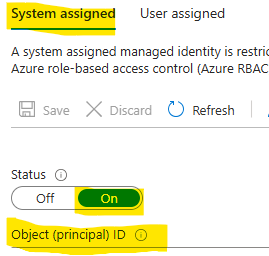
I had difficulty finding a guide that can query Microsoft Defender vulnerability management Advanced Hunting tables in Microsoft Sentinel for alerting and automation. As a result, I put together this guide to demonstrate how to ingest Microsoft XDR Advanced Hunting query results into Microsoft Sentinel using Azure Logic Apps and System‑Assigned Managed Identity. The solution allows you to: Run Advanced Hunting queries on a schedule Collect high‑risk vulnerability data (or other hunting results) Send the results to a Sentinel workspace as custom logs Create alerts and automation rules based on this data This approach avoids credential storage and follows least privilege and managed identity best practices. Prerequisites Before you begin, ensure you have: Microsoft Defender XDR access Microsoft Sentinel deployed Azure Logic Apps permission Application Administrator or higher in Microsoft Entra ID PowerShell with Az modules installed Contributor access to the Sentinel workspace Architecture at a Glance Logic App (Managed Identity) ↓ Microsoft XDR Advanced Hunting API ↓ Logic App ↓ Log Analytics Data Collector API ↓ Microsoft Sentinel (Custom Log) Step 1: Create a Logic App In the Azure Portal, go to Logic Apps Create a new Consumption Logic App Choose the appropriate: Subscription Resource Group Region Step 2: Enable System‑Assigned Managed Identity Open the Logic App Navigate to Settings → Identity Enable System‑assigned managed identity Click Save Note the Object ID This identity will later be granted permission to run Advanced Hunting queries. Step 3: Locate the Logic App in Entra ID Go to Microsoft Entra ID → Enterprise Applications Change filter to All Applications Search for your Logic App name Select the app to confirm it exists Step 4: Grant Advanced Hunting Permissions (PowerShell) Advanced Hunting permissions cannot be assigned via the portal and must be done using PowerShell. Required Permission AdvancedQuery.Read.All PowerShell Script # Your tenant ID (in the Azure portal, under Azure Active Directory > Overview). $TenantID=”Your TenantID” Connect-AzAccount -TenantId $TenantID # Get the ID of the managed identity for the app. $spID = “Your Managed Identity” # Get the service principal for Microsoft Graph by providing the AppID of WindowsDefender ATP $GraphServicePrincipal = Get-AzADServicePrincipal -Filter "AppId eq 'fc780465-2017-40d4-a0c5-307022471b92'" | Select-Object Id # Extract the Advanced query ID. $AppRole = $GraphServicePrincipal.AppRole | ` Where-Object {$_.Value -contains "AdvancedQuery.Read.All"} # If AppRoleID comes up with blank value, it can be replaced with 93489bf5-0fbc-4f2d-b901-33f2fe08ff05 # Now add the permission to the app to read the advanced queries New-AzADServicePrincipalAppRoleAssignment -ServicePrincipalId $spID -ResourceId $GraphServicePrincipal.Id -AppRoleId $AppRole.Id # Or New-AzADServicePrincipalAppRoleAssignment -ServicePrincipalId $spID -ResourceId $GraphServicePrincipal.Id -AppRoleId 93489bf5-0fbc-4f2d-b901-33f2fe08ff05 After successful execution, verify the permission under Enterprise Applications → Permissions. Step 5: Build the Logic App Workflow Open Logic App Designer and create the following flow: Trigger Recurrence (e.g., every 24 hours Run Advanced Hunting Query Connector: Microsoft Defender ATP Authentication: System‑Assigned Managed Identity Action: Run Advanced Hunting Query Sample KQL Query (High‑Risk Vulnerabilities) Send Data to Log Analytics (Sentinel) On Send Data, create a new connection and provide the workspace information where the Sentinel log exists. Obtaining the Workspace Key is not straightforward, we need to retrieve using the PowerShell command. Get-AzOperationalInsightsWorkspaceSharedKey ` -ResourceGroupName "<ResourceGroupName>" ` -Name "<WorkspaceName>" Configuration Details Workspace ID Primary key Log Type (example): XDRVulnerability_CL Request body: Results array from Advanced Hunting Step 6: Run the Logic app to return results In the logic app designer select run, If the run is successful data will be sent to sentinel workspace. Step 7: Validate Data in Microsoft Sentinel In Sentinel, run the query: XDRVulnerability_CL | where TimeGenerated > ago(24h) If data appears, ingestion is successful. Step 8: Create Alerts & Automation Rules Use Sentinel to: Create analytics rules for: CVSS > 9 Exploit available New vulnerabilities in last 24 hours Trigger: Email notifications Incident creation SOAR playbooks Conclusion By combining Logic Apps, Managed Identities, Microsoft XDR, and Microsoft Sentinel, you can create a powerful, secure, and scalable pipeline for ingesting hunting intelligence and triggering proactive detections.88Views1like1Comment