hyper-v
4 TopicsGetting Started with Windows Admin Center Virtualization Mode
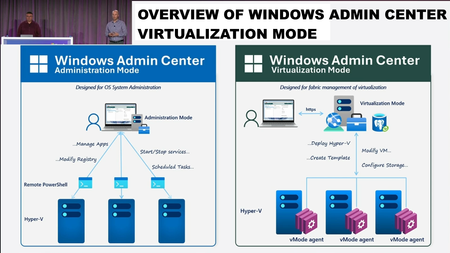
Getting Started with Windows Admin Center Virtualization Mode Windows Admin Center (WAC) Virtualization Mode is a new, preview experience for managing large Hyper-V virtualization fabrics—compute, networking, and storage—from a single, web-based console. It’s designed to scale from a handful of hosts up to thousands, centralizing configuration and day-to-day operations. This post walks through: • What Virtualization Mode is and its constraints • How to install it on a Windows Server host • How to add an existing Hyper-V host into a resource group Prerequisites and Constraints Before you begin, note the current preview limitations: • The WAC Virtualization Mode server and the Hyper-V hosts it manages must be in the same Active Directory domain. • You cannot install Virtualization Mode side-by-side with a traditional WAC deployment on the same server. • Do not install Virtualization Mode directly on a Hyper-V host you plan to manage. – You can install it on a VM running on that host. • Plan for at least 8 GB RAM on the WAC Virtualization Mode server. For TLS, the walkthrough assumes you have an Enterprise CA and are deploying domain-trusted certificates to servers, so browsers automatically trust the HTTPS endpoint. You can use a self signed certificate, but you’ll end up with all the fun that entails when you use WAC-V from a host on which the self signed cert isn’t installed. Given the domain requirements of WAC-V and the hosts it manages, going the Enterprise CA method seemed the path of least resistance. Step 1 – Install the C++ Redistributable On your Windows Server 2025 host that will run WAC Virtualization Mode: 1. Open Windows Terminal or PowerShell. 2. Use winget to search for the VC++ redistributable: powershell winget search "VC Redist" 3. Identify the package corresponding to “Microsoft Visual C++ 2015–2022 Redistributable” (or equivalent). 4. Install it with winget, for example: powershell winget install "Microsoft.VC++2015-2022Redist-x64" This fulfills the runtime dependency for the WAC Virtualization Mode installer. Step 2 – Install Windows Admin Center Virtualization Mode 1. Download the installer 1. Download the Windows Admin Center Virtualization Mode installer from the Windows Insider Preview location provided in the official documentation. Save it to a local folder on the WAC host. 2. Run the setup wizard 1. Double-click the downloaded binary. 2. Approve the UAC prompt. 3. In the Welcome page, proceed as with traditional WAC setup. 3. Accept the license and choose setup type 1. Accept the license agreement. 2. Choose Express setup (suitable for most lab and PoC deployments). 4. Select a TLS certificate 1. When prompted for a TLS certificate: 1. Select a certificate issued by your Enterprise CA that matches the server name. 2. Using CA-issued certs ensures all domain-joined clients will trust the site without manual certificate import. 5. Configure PostgreSQL for WAC 1. Virtualization Mode uses PostgreSQL as its configuration and state database. 2. When prompted: 1. Provide a strong password for the database account WAC will use. 2. Record this securely if required by your org standards. 6. Configure update and diagnostic settings 1. Choose how WAC should be updated (manual/automatic). 2. Set diagnostic data preferences according to your policy. 7. Complete the installation 1. Click Install to deploy: 1. The WAC Virtualization Mode web service 2. The PostgreSQL database instance 2. When installation completes, click Finish. Step 3 – Sign In to Virtualization Mode 1. Open a browser on a domain-joined machine and browse to the WAC URL (for example, https://wac-vmode01.contoso.internal). 2. Sign in with your domain credentials that have appropriate rights to manage Hyper-V hosts (for example, DOMAIN\adminuser). 3. You’ll see the new Virtualization Mode UI, which differs significantly from traditional WAC and is optimized for fabric-wide management. Step 4 – Create a Resource Group Resource groups help you logically organize Hyper-V servers you’ll manage (for example, by site, function, or cluster membership). 1. In the Virtualization Mode UI, select Resource groups. 2. Click Create resource group. 3. Provide a name, such as Zava-Nested-Vert. 4. Save the resource group. You now have a logical container ready for one or more Hyper-V hosts. Step 5 – Prepare the Hyper-V Host Before adding an existing Hyper-V host: 1. Ensure the host is: 1. Running Hyper-V and reachable by FQDN (for example, zava-hvA.zavaops.internal). 2. In the same AD domain as the WAC Virtualization Mode server. 2. Temporarily open File and Printer Sharing from the Hyper-V host’s firewall to the WAC Virtualization Mode server: 1. This is required for initial onboarding. 2. After onboarding, you can re-lock firewall rules according to your security baseline. Step 6 – Add a Hyper-V Host to the Resource Group 1. In the WAC Virtualization Mode UI, go to your resource group. 2. Click the ellipsis (…) and choose Add resource. 3. On the Add resource page, select Compute (you’re adding a Hyper-V server, not a storage fabric resource). 4. Enter the Hyper-V host’s FQDN (for example, zava-hvA.zavaops.internal). 5. Confirm the host resolves correctly and proceed. Configure Networking Template 1. On the Networking page, assign fabric roles to NICs using the network template model: 1. Each NIC can be tagged for one or more roles: 1. Compute 2. Management 3. Storage 2. In a simple, single-NIC lab scenario, you may assign Compute, Management, and Storage all to Ethernet0. 3. All three roles must be fully assigned across available adapters before you can proceed. Configure Storage 1. On the Storage page, specify the storage model: 1. For an existing host using local disks, choose Use existing storage. 2. In future, you can select SAN or file server storage when those options are available and configured in your environment. Configure Compute Properties 1. On the Compute page, configure host-level defaults: 1. Enable or disable Enhanced Session Mode. 2. Set the maximum concurrent live migrations. 3. Confirm or update the default VM storage path. 2. Review the configuration, click Next, then Submit. 3. The Hyper-V host is registered into the resource group and becomes manageable via Virtualization Mode. Step 7 – Verify Host and VM Management With the host onboarded: 1. Open the resource group and select the Hyper-V host. 2. You’ll see a streamlined view similar to traditional WAC, with nodes for: 1. Event logs 2. Files 3. Networks 4. Storage 5. Windows Update 6. Virtual Machines 3. To validate functionality, create a test VM: 1. Go to Virtual Machines → Add. 2. Provide a VM name (for example, WS25-temp). 3. Set vCPUs (for example, 2). 4. Optionally enable nested virtualization. 5. Select the appropriate virtual switch. 6. Click Create, then attach an ISO or existing VHDX and complete OS setup. ▶️ Public Preview: https://aka.ms/WACDownloadvMode ▶️ Documentation: https://aka.ms/WACvModeDocs2.5KViews2likes6CommentsEnable Nested Virtualization on Windows Server 2025
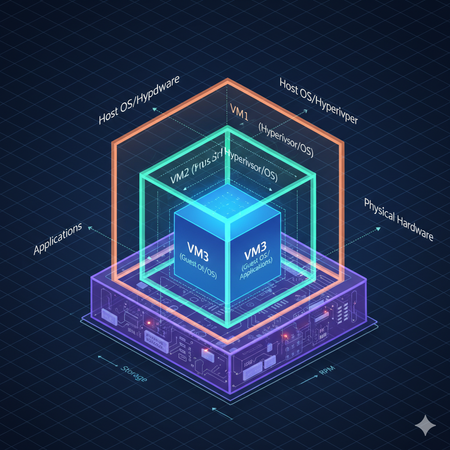
Nested virtualization allows you to run Hyper-V inside a VM, opening up incredible flexibility for testing complex infrastructure setups, demos, or learning environments, all without extra hardware. First, ensure you’re running a Hyper-V host capable of nested virtualization and have the Windows Server 2025 VM on which you want to enable as a Hyper-V host ready. To get started, open a PowerShell window on your Hyper-V host and execute: Set-VMProcessor -VMName "<Your-VM-Name>" -ExposeVirtualizationExtensions $true Replace <Your-VM-Name> with the actual name of your VM. This command configures Hyper-V to allow nested virtualization on the target VM. Boot up the Windows Server 2025 VM that you want to configure as a Hyper-V host. In the VM, open Server Manager and attempt to install the Hyper-V role via Add Roles and Features. Most of the time, this should work right away. However in some cases you might hit an error stating: “Hyper-V cannot be installed because virtualization support is not enabled in the BIOS.” To resolve this error run an elevated PowerShell session inside the VM on which you want to enable Hyper-V and run the command: bcdedit /set hypervisorlaunchtype auto This command ensures the Hyper-V hypervisor starts up correctly the next time you boot. Restart your VM to apply the change. After the reboot, head back to Add Roles and Features and try installing Hyper-V again. This time, it should proceed smoothly without the BIOS virtualization error. Once Hyper-V is installed, perform a final reboot if prompted. Open Hyper-V Manager inside your VM and you’re now ready to run test VMs in your nested environment!939Views1like1Comment
How to enable DHCP on Hyper-V switch
Hi, When any VM connected to "Default Switch", they get automatic IP and can reach each other. When I create manually any switch: Internal, Private, External - DHCP does not exist and I have to assign IP address as static or run a DHCP server on one of VMs... Question: How to enable DHCP on Hyper-V switch Thanks 8]51KViews1like3CommentsHyper-V for Developers on Windows 10
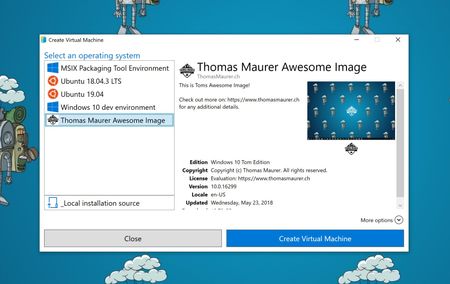
Hyper-V is more known as a server virtualization technology; however, since Windows 8, it is also available in the client operating system. In Windows 10, Microsoft improved the experience drastically to make Hyper-V a great solution for developers and IT Pros.35KViews6likes7Comments