entraid
2 TopicsConditional Access for Agent Identities in Microsoft Entra
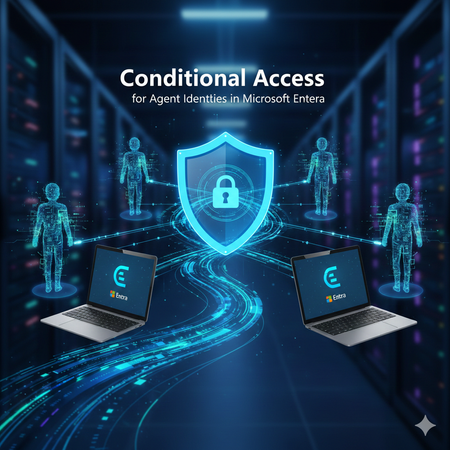
AI agents are rapidly becoming part of everyday enterprise operations summarizing incidents, analyzing logs, orchestrating workflows, or even acting as digital colleagues. As organizations adopt these intelligent automations, securing them becomes just as important as securing human identities. Microsoft Entra introduces Agent Identities and extends Conditional Access to them but with very limited controls compared to traditional users and workload identities. This blog breaks down what Agent Identities are, how Conditional Access applies to them, and what are current limitations. What Exactly Are Agent Identities? Microsoft Entra now supports a new identity type designed specifically for AI systems: Agent Identity – like an app/service principal but specialized for AI Agent User – an identity that behaves more like a human user Agent Blueprint – a template used to create agent identities This model exists because AI systems behave differently than humans or applications: they can act autonomously, operate continuously, and make decisions without user input. AI-driven automation must be governed and that’s where Conditional Access comes in. Conditional Access for Agents, but with Important Limitations Today, Conditional Access for agent identities is purposely minimal. Microsoft clearly states: Conditional Access applies only when: An agent identity requests a token An agent user requests a token It does NOT apply when: A blueprint acquires a token to create identities An agent performs intermediate token exchange What Controls Are Actually Available Today? ✔ Supported Today Category Supported? Details Identity Targeting ✔ Yes You can include/exclude agent identities & agent users Block Access ✔ Yes This is the only Grant control currently available Agent Risk (Preview) ✔ Yes Early stage risk evaluation Sign-in evaluation ✔ Yes Token acquisition governed by CA ❌NOT Supported Today These CA controls do not apply to Agent Identities: MFA Authentication strength Device compliance Approved client apps App protection policies Session controls User sign-in frequency Terms of Use Location conditions (network/device-based) Client apps (legacy/modern access) Why? Because agents do not perform interactive authentication and do not use device signals or session context like humans. Their authentication is purely machine‑driven. How Conditional Access Works for Agents When an agent identity (or agent user) requests a token, Microsoft Entra: Identifies the requesting agent Checks CA policy assignments Evaluates any agent-risk conditions Allow/Blocks token issuance if conditions meet That’s it. No MFA prompt. No device check. No authentication strength evaluation. This makes CA for agents fundamentally different from CA for humans. Why Is Conditional Access So Limited for Agents? Two major reasons: Agents cannot satisfy user-based controls AI agents cannot: Perform MFA Use biometrics Run on compliant devices Follow session prompts These are human-driven processes. Agents authenticate via secure credential flows They use: Client credentials Federated identity credentials Token exchange flows So CA is limited to identity-level allow/block and risk-based token decisions. Practical Use Cases (Given Today’s Limitations) Even with limited controls, CA for agents is still important. Stop compromised agents from continuing to operate If Microsoft Entra detects high agent risk: CA can block token issuance This halts the agent’s ability to act immediately Enforce separation of duties for AI agents Even though you cannot apply MFA or auth strength, you can: Separate agents into “allowed” vs “blocked” groups Apply different CA rules per department or system Prevent AI sprawl Large enterprises may generate hundreds of AI agents. CA gives central admin control: Only approved, vetted agents can operate Others are blocked at token-request time Why Agent Blueprints Cannot Be Governed by CA Blueprints are templates, not active identities. Blueprint token flows are system-level operations, not access attempts. Therefore: ❌ No CA evaluation ❌ No controls applied ❌ Not counted as agent activity Only actual agent identities are governed by CA. What the Future Might Include Microsoft hints the capabilities will expand: Agent risk scoring Agent behaviour analytics More granularity in CA for agents Additional grant controls Policy scoping at task or capability level But as of today, CA for agents remains intentionally constrained to allow safe onboarding of the new identity type without accidental disruption. Final Summary Conditional Access for Agent Identities is currently a lightweight enforcement mechanism designed to block unauthorized or risky agents, not a full policy suite like we have for human users. ✔ What it does: Controls whether an agent identity can acquire a token Allows blocking specific agents Implements early agent‑risk logic Applies Zero Trust principles at the identity perimeter ❌ What it does not do: Enforce MFA Enforce authentication strength Enforce device or location conditions Apply session controls Govern blueprints As organizations adopt more autonomous agents, this foundational layer keeps AI identities visible and controllable and sets the stage for richer governance in the future.Entra Group Source of Authority CONVERSION: Enabling Cloud-First Identity Management
As organizations modernize their identity infrastructure, Microsoft Entra’s Group Source of Authority (SOA) Conversion feature enables a granular migration of group management from on-premises AD to Microsoft Entra ID without disabling sync or rearchitecting the entire directory. What Is Group Source of Authority? Group SOA defines where a group object is mastered either in on-prem AD or in Entra ID. With SOA conversion, administrators can selectively convert AD-synced groups into cloud-native groups, making them editable and governable directly in Entra ID. Permissions Required To perform SOA conversion, the following Microsoft Entra roles and Graph API permissions are required: Hybrid Administrator: Required to call Microsoft Graph APIs to read and update SOA of groups. Application Administrator or Cloud Application Administrator: Required to grant user consent to the app or Graph Explorer. Graph API Permission Scope: Group-OnPremisesSyncBehavior.ReadWrite.All must be granted to the app calling the onPremisesSyncBehavior endpoint. Prerequisites Before initiating SOA conversion, ensure the following: Licensing Microsoft Entra Free or Basic license is sufficient. Sync Clients Microsoft Entra Connect Sync: Minimum version 2.5.76.0 Microsoft Entra Cloud Sync: Minimum version 1.1.1370.0 Group Eligibility Groups must not be mail-enabled or tied to Exchange on-premises (DLs or MESGs). If provisioning back to AD is planned, change group scope to Universal. How to Convert Group SOA from AD to Entra Here’s a simplified step-by-step guide: Identify Target Groups Use Entra Admin Center or Graph Explorer to list synced groups. Confirm they are not Exchange-dependent. Grant Permissions Use Graph Explorer or your app registration to grant Group-OnPremisesSyncBehavior.ReadWrite.All. Execute SOA Conversion If we see Group1, which is in scope of conversion is synchronized from on-prem. Execute the below from Graph Explorer to convert “Group1” to cloud managed PATCH https://graph.microsoft.com/beta/groups/{group-id}/OnPremisesSyncbehavior { "isCloudManaged": true } We can verify the change by executing below query on Graph API Explorer This marks the group as cloud-managed. AD sync will stop honoring changes to this group. Validate Conversion Confirm blockOnPremisesSync = true in the Entra Admin Center. Use audit logs to verify the change. Apply Governance Apply lifecycle policies, access reviews, and provisioning rules using Entra ID Governance. Use Cases: Migrating from On-Prem to Cloud Use Case 1: Retiring Legacy AD Groups Scenario: A customer has migrated all mailboxes to Exchange Online and no longer needs certain AD groups. Solution: Convert those groups to cloud-native Entra ID groups and delete them from AD, reducing footprint and simplifying governance. Use Case 2: Governing On-Prem Apps from the Cloud Scenario: A customer uses AD security groups to secure on-prem apps (e.g., Kerberos-based apps). Solution: Convert the group SOA to Entra ID, apply governance policies, and use Group Provision to AD to sync cloud-managed groups back to AD. Use Case 3: Migrating DLs and MESGs to Cloud Scenario: A customer wants to migrate all distribution lists and mail-enabled security groups to the cloud. Solution: Convert SOA to Entra ID, recreate mail-enabled groups in Exchange Online, and decommission AD-based mail groups. Use Case 4: Enabling Access Reviews Scenario: A federal customer wants to run access reviews on group memberships but the groups are AD-synced. Solution: Convert SOA to Entra ID, enabling full access review capabilities and lifecycle workflows. Use Case 5: Hybrid Identity Cleanup Scenario: A customer is migrating from Entra Connect Sync to Cloud Sync and wants to clean up group sprawl. Solution: Use SOA conversion to move group management to the cloud, then decommission legacy sync rules and OUs. Strategic Impact Group SOA Conversion is more than a technical enhancement, it’s a strategic enabler for identity modernization. It supports: AD DS minimization: Shrinking on-prem footprint. Cloud-first governance: Centralized access control and lifecycle management. Phased migration: Avoiding disruption while modernizing.