defender av
9 Topics
Windows Defender Cannot Be Activated After Uninstalling Comodo Anti Virus– Help Needed (Windows 10)
Hello Community, I’m experiencing a problem with my Windows 10 laptop and hope to get some guidance. Official support is no longer available for my system, so I’m turning to the community for help. Problem Comodo Anti Virus /Internet Security / Internet Security Essentials had been installed on my laptop for a long time. While Comodo was active, I could not load certain websites properly, and games like League of Legends would not run. For this reason, I recently uninstalled Comodo. After the uninstallation, the previously blocked websites and games work again. Current issue: My Windows Defender Antivirus cannot be activated. In Windows Security, it shows: “Virus & threat protection: Action required” “The threat service has stopped. Start it now” Clicking “Start now” only shows a loading indicator and then an “An unexpected error has occurred” message. I have administrator rights, but Defender still cannot be activated. Steps I’ve Tried 1. Registry checks Path: HKEY_LOCAL_MACHINE\SOFTWARE\Policies\Microsoft\Windows Defender Checked entries like DisableAntiSpyware and DisableRealtimeMonitoring Modifications often failed → access denied 2. PowerShell commands Set-MpPreference -DisableRealtimeMonitoring $false → errors: “Parameter not found” or “Access denied” Other commands like Set-ItemProperty or Set-Content → errors: “UnauthorizedAccessException” or “InvalidArgument” 3. CMD / SC commands sc config WinDefend start=auto Error: “SC Open Service Error 5 – Access denied” 4. Service check Get-Service WinDefend | Select-Object Status, StartType → Status: Running, StartType: Automatic Despite the service running, Defender cannot be enabled in Windows Security 5. System restore point created (For Comodo Revomal Tool) Drive C: protection enabled Backup created as a precaution Insights / Analysis (Speculations) After uninstalling Comodo, websites and games work again → this suggests that Comodo previously installed network filters or drivers that blocked them. It is possible that remnants of Comodo (drivers, services, registry entries) are preventing Windows Defender from starting. Firewall, App & Browser protection, and Exploit protection are active → partial protection, but Defender is not functional. I am not certain if there are other causes, but based on my experience, it seems strongly related to leftover Comodo components. Has anyone experienced similar issues where Defender remains blocked after uninstalling Comodo? Are there safe methods to fully reactivate Defender without risking system stability? Should I use the official Comodo Removal Tool to remove all remnants? Are there alternative steps to try before using a removal tool? I would greatly appreciate any guidance, tips, or steps I can try to get Windows Defender working again. Thank you in advance!205Views0likes5Comments
Using the Microsoft Defender for Endpoint Files API to Validate Malware Hashes
Introduction Security advisories frequently include file hashes (SHA-1 or SHA-256) as indicators of compromise (IoCs). Microsoft Defender for Endpoint (MDE) exposes a Files API that lets SecOps quickly look up Microsoft’s verdict and metadata for a given hash. This enables rapid assessment—whether a file is classified as Malicious, Suspicious, Clean, or Unknown—and helps analysts decide the next response action without needing to download or execute the sample. What is the Files API in MDE and why is it used in Security Operations? The Files API is part of the Defender for Endpoint REST APIs that returns a file profile by hash identifier. Analysts use it to: • Validate whether Microsoft has a global verdict for a hash named in an advisory. • Retrieve telemetry such as global prevalence and first/last observed times to gauge risk and spread. • Pivot to related alerts and devices when needed. This lookup shortens triage time and avoids unnecessary handling of potentially dangerous samples. Prerequisites To call the Files API using application (client credentials) context, you need: A Microsoft Entra ID App Registration (Web app / service). API permissions on the WindowsDefenderATP resource (Microsoft Defender for Endpoint). Minimum: File.Read.All (Application). Admin consent granted for the permissions. Network access to the MDE API endpoint (region-based base URL) and the Microsoft identity platform (OAuth 2.0). Tip: For interactive testing, you can also use the API Explorer in the Microsoft Defender portal under Partners & APIs, which runs requests under your user context and RBAC scope. How to use the Files API via PowerShell 1) Acquire an OAuth token from the Microsoft identity platform using your app’s client ID and secret with the .default scope for the Defender API. 2) Send an HTTP GET request to the Files endpoint with the hash (SHA-1 or SHA-256) as the identifier. 3) Inspect the JSON response field "fileClassification" and other metadata (globalPrevalence, first/last observed). 4) Use the verdict to decide next actions (e.g., create an Indicator to block, hunt in Advanced Hunting, or open related alerts). Actual Script ===== STEP 1: Get OAuth Token (MDE v1) ===== $tenantId = "xxxxxxxxxxxxxxxxxxxxxxxxxxxxxx" $appId = "xxxxxxxxxxxxxxxxxxxxxxxxxxx" $appSecret = "xxxxxxxxxxxxxxxxxxxxxxxxxxx" # update with your tenant and app values $tokenUri = "https://login.microsoftonline.com/$tenantId/oauth2/v2.0/token" $body = @{ client_id = $appId scope = "https://api.securitycenter.microsoft.com/.default" client_secret = $appSecret grant_type = "client_credentials" } $tokenResponse = Invoke-RestMethod -Uri $tokenUri -Method Post -Body $body -ContentType "application/x-www-form-urlencoded" $token = $tokenResponse.access_token # ===== STEP 2: Call MDE v1 Files API ===== $hash = "97bf5e1a903a978b2281496e0a897688e9d8e6f981238cf91e39bae20390defe" # Replace with your actual hash values. $uri = "https://api.securitycenter.microsoft.com/api/v1.0/files/$hash" try { $response = Invoke-RestMethod -Uri $uri -Headers @{ Authorization = "Bearer $token" Accept = "application/json" } -Method Get } catch { Write-Error "API call failed: $($_.Exception.Message)" if ($_.ErrorDetails.Message) { Write-Host $_.ErrorDetails.Message } return } switch ($response.fileClassification) { "Malicious" { Write-Host "MDE recognises this hash as MALICIOUS. Threat Name: $($response.threatName)" -ForegroundColor Red } "Suspicious" { Write-Host "MDE recognises this hash as SUSPICIOUS." -ForegroundColor Yellow } "Clean" { Write-Host "MDE recognises this hash as CLEAN." -ForegroundColor Green } default { Write-Host "MDE does NOT have a signature for this hash (Unknown)." -ForegroundColor Gray } } $response | ConvertTo-Json -Depth 5 Script Explanation Token acquisition: Uses OAuth 2.0 client credentials flow to obtain an access token; scope targets Defender for Endpoint API. Endpoint call: Builds a GET request to the Files endpoint with the hash identifier. Error handling: Catches HTTP errors and prints server-provided details if available. Verdict mapping: Reads the fileClassification field and prints a color-coded verdict (Malicious, Suspicious, Clean, Unknown). Response output: Prints the full JSON for deeper analysis and logging. Recommended Inputs The Files endpoint accepts SHA-1 or SHA-256 identifiers; ensure you pass the correct hash type. Consider using certificate credentials or managed identity instead of client secrets for production automation. Sample Output API Explorer - Other Option to query File API The Microsoft Defender for Endpoint API Explorer is a tool that helps you explore various Defender for Endpoint APIs interactively. The API Explorer makes it easy to construct and do API queries, test, and send requests for any available Defender for Endpoint API endpoint. Use the API Explorer to take actions or find data that might not yet be available through the user interface. The tool is useful during app development. It allows you to perform API queries that respect your user access settings, reducing the need to generate access tokens. You can also use the tool to explore the gallery of sample queries, copy result code samples, and generate debug information. With the API Explorer, you can: Run requests for any method and see responses in real-time. Quickly browse through the API samples and learn what parameters they support. Make API calls with ease; no need to authenticate beyond the management portal signin. Access API Explorer From the left navigation menu, select Partners & APIs > API Explorer. Supported APIs API Explorer supports all the APIs offered by Defender for Endpoint. The list of supported APIs is available in the APIs documentation. Get started with the API Explorer In the left pane, there's a list of sample requests that you can use. Follow the links and click Run query. Some of the samples may require specifying a parameter in the URL, for example, {File Hash}. Permissions Required You need to log in with an account that has appropriate RBAC roles in Microsoft Defender for Endpoint. API Explorer enforces the same role-based access control (RBAC) as the portal: Security Administrator or Global Administrator for high-privilege actions (e.g., offboarding a device, submitting indicators). Lower roles (e.g., Security Reader) can only run read-only queries like Get file information or Get alerts. No additional API permissions or app registration are needed because requests run under your user context. Conclusion The MDE Files API gives SecOps an immediate way to validate hashes from advisories and threat feeds, reducing time-to-triage and enabling consistent response. When a hash is classified as Malicious or Suspicious, teams can move directly to containment (e.g., creating an Indicator to block). When it is Clean or Unknown, analysts can pivot to hunting, sandboxing, or further intelligence before acting. Integrating this lookup into runbooks helps security operations quickly and safely respond to emerging threats. References Get file information API: https://learn.microsoft.com/en-us/defender-endpoint/api/get-file-information Supported MDE APIs (Endpoint URI & versioning): https://learn.microsoft.com/en-us/defender-endpoint/api/exposed-apis-list Access the Microsoft Defender for Endpoint APIs (intro & app context): https://learn.microsoft.com/en-us/defender-endpoint/api/apis-intro Create an app to access MDE without a user (app registration & permissions): https://learn.microsoft.com/en-us/defender-endpoint/api/exposed-apis-create-app-webapp API Explorer: https://learn.microsoft.com/en-us/defender-endpoint/api/api-explorerMDE for Non‑Persistent VDI — Implementation Guide & Best Practices.
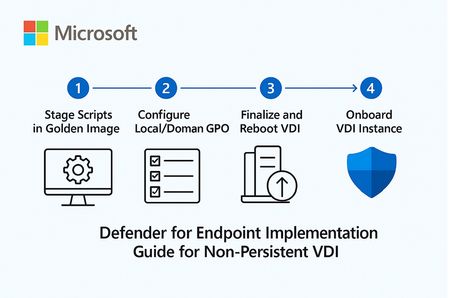
1. Overview: Microsoft Defender for Endpoint (MDE) for Non‑Persistent VDI Non‑persistent VDI instances are reset or reprovisioned frequently. To ensure immediate protection and clean device inventory, MDE provides a dedicated onboarding path that calculates a persistent device ID and onboard early in the boot process. Key considerations: Use the VDI onboarding package and choose the single‑entry method (recommended) to avoid duplicate devices when hosts are recreated with the same name. Place the onboarding script in the golden image but ensure it executes only on child VMs (first boot) after the final hostname is assigned and the last reboot completes. Never fully onboard or boot the golden/template/replica image into production; if it happens, offboard and clean registry artifacts before resealing. Consider enabling the portal feature “Hide potential duplicate device records” to reduce inventory noise during transition periods. 2. Stage the scripts in the Golden Image (do NOT onboard the image) Goal: Ensure early, reliable onboarding of pooled VDI instances without tattooing the master image. Download the Windows onboarding package (Deployment method: VDI onboarding scripts for non‑persistent endpoints). Extract and copy the files to: C\Windows\System32\GroupPolicy\Machine\Scripts\Startup Configure Local/Domain GPO to run the PowerShell script at startup (SYSTEM, highest privileges). For single‑entry, add Onboard-NonPersistentMachine.ps1 on the PowerShell Scripts tab. Ensure the script runs only after final hostname and the last reboot in your provisioning flow to prevent duplicate objects. Example (Domain GPO scheduled task at startup as SYSTEM): Program/Script: C\Windows\System32\WindowsPowerShell\v1.0\powershell.exe Arguments: -ExecutionPolicy Bypass -File \srvshare\onboard\Onboard-NonPersistentMachine.ps1 3. Never Onboard the Golden/Template/Replica VM If the golden image was accidentally onboarded (Sense service started), you must offboard and clean before resealing: sc query sense del "C:\ProgramData\Microsoft\Windows Defender Advanced Threat Protection\Cyber\*.*" /f /s /q reg delete "HKLM\SOFTWARE\Microsoft\Windows Advanced Threat Protection" /v senseGuid /f Run the official offboarding script for your tenant before cleanup, when available. 4. (Optional) Tag Devices Automatically from the Image Tags simplify scoping of device groups and policies. Add a DeviceTagging registry value during image build: reg add "HKLM\SOFTWARE\Policies\Microsoft\Windows Advanced Threat Protection\DeviceTagging" /v Group /t REG_SZ /d "VDI-NonPersistent" /f Tag appears after device info refresh; a reboot accelerates reporting. 5. Performance & AV Configuration for VDI (Important) 5.1 Shared Security Intelligence & Cache Maintenance Purpose: Reduce CPU and disk spikes at sign‑in by offloading unpackaging of definitions to a shared source and by pre‑running cache maintenance on the master image. Step‑by‑step GPO configuration: Create a secure UNC share for definition packages (e.g., \srvshare\WDAV-Update) and grant read to VDI computer accounts. GPO → Computer Configuration → Administrative Templates → Windows Components → Microsoft Defender Antivirus → Security Intelligence Updates → Enable “Define security intelligence location for VDI clients” and set \srvshare\WDAV-Update. In the same node, set update cadence (daily time) and enable randomization to avoid I/O storms. PowerShell examples: Set-MpPreference -SignatureUpdateInterval 4 Set-MpPreference -SignatureFallbackOrder "InternalDefinitionUpdateServer|MicrosoftUpdateServer" Run Windows Defender Cache Maintenance on the golden image before sealing: schtasks /Run /TN "\Microsoft\Windows\Windows Defender\Windows Defender Cache Maintenance" 5.2 FSLogix Exclusions Why exclusions matter: FSLogix mounts user profiles as VHD/VHDX files. Scanning these at attach/detach causes logon delays, black screens, and app launch slowness. Paths and extensions to exclude: %TEMP%\*.VHD %TEMP%\*.VHDX %Windir%\TEMP\*.VHD %Windir%\TEMP\*.VHDX \\<storage>\<share>\*.VHD \\<storage>\<share>\*.VHDX \\<storage>\<share>\*.VHD.lock \\<storage>\<share>\*.VHD.meta \\<storage>\<share>\*.VHD.metadata \\<storage>\<share>\*.VHDX.lock \\<storage>\<share>\*.VHDX.meta \\<storage>\<share>\*.VHDX.metadata GPO: Computer Configuration → Administrative Templates → Windows Components → Microsoft Defender Antivirus → Exclusions (File/Folder and Extension). PowerShell examples: Add-MpPreference -ExclusionExtension VHD,VHDX Add-MpPreference -ExclusionPath "C:\ProgramData\FSLogix","\\storage\fslogix-share\*.VHD*" 5.3 General Scan Posture Real‑time & cloud‑delivered protection (GPO): Enable Real‑time protection, Cloud‑delivered protection, Join MAPS, and “Block at first sight.” Scheduled scans (GPO): Daily Quick Scan (e.g., 02:00) with randomization window. Weekly Full Scan (e.g., Sunday 03:00). Consider “Start the scheduled scan only when computer is on but not in use” to reduce user impact. CPU throttling settings: Set-MpPreference -ScanAvgCPULoadFactor 30 # 5..100 (0 = no throttling) Additional scheduling/throttling options (Intune/Policy CSP as applicable): ScanOnlyIfIdleEnabled = True DisableCpuThrottleOnIdleScans = True ThrottleForScheduledScanOnly = True EnableLowCPUPriority = True Validation commands: Get-MpPreference | fl ScanAvgCPULoadFactor,ScanScheduleQuickScanTime,SignatureUpdateInterval Get-MpComputerStatus | fl AMServiceEnabled,AntivirusSignatureVersion,RealTimeProtectionEnabled 6. Validate Onboarding After first boot of a pooled VM, verify device appears in Defender portal (Assets → Devices). For single‑entry method, reboot/redeploy a few instances with the same hostname and confirm one device object is reused. Optionally enable “Hide potential duplicate device records” (Settings → Endpoints → Advanced features). This is like only filtering the view of Devices list does actual remove the records from the MDE portal. Run a detection test if needed (per Microsoft guidance) to verify sensor connectivity. 7. Quick Checklist — Build Step Download VDI onboarding package from Defender portal. Copy scripts to Startup folder in golden image; configure GPO/Task to run PS1 at boot as SYSTEM. Do NOT onboard/boot the golden image into production; if it happens, offboard + clean senseGuid & Cyber cache. (Optional) Set DeviceTagging registry value for scoping (e.g., VDI-NonPersistent). Configure Shared Security Intelligence path; schedule updates; run Cache Maintenance on master image. Apply FSLogix AV exclusions (paths + extensions). Set scan posture (RTP + cloud, schedules, CPU throttling). Validate onboarding behavior and inventory cleanliness. 8. Summary & Best Practices Checklist for golden image: Script staged, not executed on master; executes only on child VMs at final boot stage. Shared Security Intelligence path configured; cache maintenance pre-run. FSLogix exclusions present prior to first user logon. RTP and cloud protection enabled; scans scheduled with randomization; CPU load factor tuned. Common pitfalls & fixes: Golden image onboarded → Offboard + clean registry/cache; reseal. Script runs before final hostname → Duplicate device records. Delay script until last reboot/final rename. No exclusions for FSLogix → Long logons/black screens. Add VHD/VHDX exclusions and share paths. Simultaneous scans across hosts → Enable randomization; schedule during off‑hours. References Onboard non‑persistent VDI devices: https://learn.microsoft.com/en-us/defender-endpoint/configure-endpoints-vdi Onboard Windows devices in Azure Virtual Desktop: https://learn.microsoft.com/en-us/defender-endpoint/onboard-windows-multi-session-device Configure Microsoft Defender Antivirus on RDS/VDI: https://learn.microsoft.com/en-us/defender-endpoint/deployment-vdi-microsoft-defender-antivirus FSLogix prerequisites (AV exclusions): https://learn.microsoft.com/en-us/fslogix/overview-prerequisites Configure AV exclusions (file/extension/folder): https://learn.microsoft.com/en-us/defender-endpoint/configure-extension-file-exclusions-microsoft-defender-antivirus Create and manage device tags: https://learn.microsoft.com/en-us/defender-endpoint/machine-tags Advanced features (hide duplicate records): https://learn.microsoft.com/en-us/defender-endpoint/advanced-features Schedule antivirus scans using Group Policy: https://learn.microsoft.com/en-us/defender-endpoint/schedule-antivirus-scans-group-policy Troubleshoot MDAV scan issues (CPU throttling, idle scans): https://learn.microsoft.com/en-us/defender-endpoint/troubleshoot-mdav-scan-issuesMicrosoft Defender for Endpoint (MDE) Live Response and Performance Script.
Importance of MDE Live Response and Scripts Live Response is crucial for incident response and forensic investigations. It enables analysts to: Collect evidence remotely. Run diagnostics without interrupting users. Remediate threats in real time. For more information on MDE Live Response visit the below documentation. Investigate entities on devices using live response in Microsoft Defender for Endpoint - Microsoft Defender for Endpoint | Microsoft Learn PowerShell scripts enhance this capability by automating tasks such as: Performance monitoring. Log collection. Configuration validation. This automation improves efficiency, consistency, and accuracy in security operations. For more details on running performance analyzer visit the below link. Performance analyzer for Microsoft Defender Antivirus - Microsoft Defender for Endpoint | Microsoft Learn While performance analyzer is run locally on the system to collect Microsoft Defender Anti-Virus performance details , in this document we are describing on running the performance analyzer from MDE Live Response console. This is a situation where Security administrators do not have access to the servers managed by Infra administrators. Prerequisites Required Roles and Permissions To use Live Response in Microsoft Defender for Endpoint (MDE), specific roles and permissions are necessary. The Security Administrator role, or an equivalent custom role, is typically required to enable Live Response within the portal. Users must possess the “Manage Portal Settings” permission to activate Live Response features. Permissions Needed for Live Response Actions Active Remediation Actions under Security Operations: Take response actions Approve or dismiss pending remediation actions Manage allowed/blocked lists for automation and indicators Unified Role-Based Access Control (URBAC): From 16/02/2025, new customers must use URBAC. Roles are assigned to Microsoft Entra groups. Access must be assigned to device groups for Live Response to function properly. Setup Requirements Enable Live Response: Navigate to Advanced Features in the Defender portal. Only users with the “Manage Portal Settings” permission can enable this feature. Supported Operating System Versions: Windows 10/11 (Version 1909 or later) Windows Server (2012 R2 with KB5005292, 2016 with KB5005292, 2019, 2022, 2025) macOS and Linux (specific minimum versions apply) Actual Script Details and Usage The following PowerShell script records Microsoft Defender performance for 60 seconds and saves the output to a temporary file: # Get the default temp folder for the current user $tempPath = [System.IO.Path]::GetTempPath() $outputFile = Join-Path -Path $tempPath -ChildPath "DefenderTrace.etl" $durationSeconds = 60 try { Write-Host "Starting Microsoft Defender performance recording for $durationSeconds seconds..." Write-Host "Recording will be saved to: $outputFile" # Start performance recording with duration New-MpPerformanceRecording -RecordTo $outputFile -Seconds $durationSeconds Write-Host "Recording completed. Output saved to $outputFile" } catch { Write-Host "Failed to start or complete performance recording: $_" } 🔧 Usage Notes: Run this script in an elevated PowerShell session. Ensure Defender is active, and the system supports performance recording. The output .etl file can be analyzed using performance tools like Windows Performance Analyzer. Steps to Initiate Live Response Session and Run the script. Below are the steps to initiate a Live Response session from Security.Microsoft.com portal. Below screenshot shows that console session is established. Then upload the script file to console library from your local system. Type “Library” to list the files. You can see that script got uploaded to Library. Now you execute the script by “run <file name>” command. Output of the script gets saved in the Library. Run “getfile <path of the file>” to get the file downloaded to your local system download folder. Then you can run Get-MpPerformanceReport command from your local system PowerShell as shown below to generate the report from the output file collected in above steps. Summary and Benefits This document outlines the use of MDE Live Response and PowerShell scripting for performance diagnostics. The provided script helps security teams monitor Defender performance efficiently. Similar scripts can be executed from Live Response console including signature updates , start/stop services etc. These scripts are required as a part of security investigation or MDE performance troubleshooting process. Benefits: Faster incident response through remote diagnostics. Improved visibility into endpoint behaviour. Automation of routine performance checks. Enhanced forensic capabilities with minimal user disruption.
Tamper Protection Not turing on on newly deployed devices
I have no issue with device deployed before. Now new devices with Windows 11 22H2 Build 22621.525 are having this issue. Tamper Protection is enabled in Defender 365 Portal for all Endpoints. Intune configuration policy: Windows Security Experience. TamperProtection (Device) On Fails with error type 2 Error code 65000. Checking Event logs. MDM ConfigurationManager: Command failure status. Configuration Source ID: (C127515F-5427-49C7-B6AE-4275FB1AE464), Enrollment Name: (MDMDeviceWithAAD), Provider Name: (Defender), Command Type: (Add: from Replace or Add), CSP URI: (./Vendor/MSFT/Defender/Configuration/TamperProtection), Result: (The system cannot find the file specified.). I only have this issue on newly deployed devices1.4KViews1like2Comments
Firewall Off despite policy being enabled
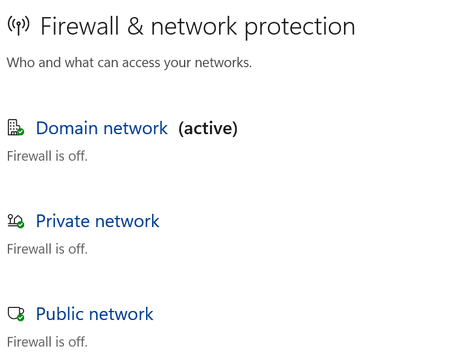
In Firewall and network protection, It says Firewall is off for all Network types. However it should be on. Is this normal/expected? However, In Sec. providers, Firewall is enabled. ========== In PS, Firewall appears to be enabled too. C:\Windows\System32>netsh advfirewall Show allprofiles Domain Profile Settings: ---------------------------------------------------------------------- State ON Firewall Policy BlockInbound,AllowOutbound LocalFirewallRules N/A (GPO-store only) LocalConSecRules N/A (GPO-store only) InboundUserNotification Enable RemoteManagement Disable UnicastResponseToMulticast Enable Logging: LogAllowedConnections Disable LogDroppedConnections Disable FileName %systemroot%\system32\LogFiles\Firewall\pfirewall.log MaxFileSize 4096 Private Profile Settings: ---------------------------------------------------------------------- State ON Firewall Policy BlockInbound,AllowOutbound LocalFirewallRules N/A (GPO-store only) LocalConSecRules N/A (GPO-store only) InboundUserNotification Enable RemoteManagement Disable UnicastResponseToMulticast Enable Logging: LogAllowedConnections Disable LogDroppedConnections Disable FileName %systemroot%\system32\LogFiles\Firewall\pfirewall.log MaxFileSize 4096 Public Profile Settings: ---------------------------------------------------------------------- State ON Firewall Policy BlockInbound,AllowOutbound LocalFirewallRules N/A (GPO-store only) LocalConSecRules N/A (GPO-store only) InboundUserNotification Enable RemoteManagement Disable UnicastResponseToMulticast Enable Logging: LogAllowedConnections Disable LogDroppedConnections Disable FileName %systemroot%\system32\LogFiles\Firewall\pfirewall.log MaxFileSize 4096 Ok. =========== In the Intune Firewall Policy the three options are enabled:Solved640Views0likes6CommentsDefender AV - Active/Passive Mode - Advanced Hunting
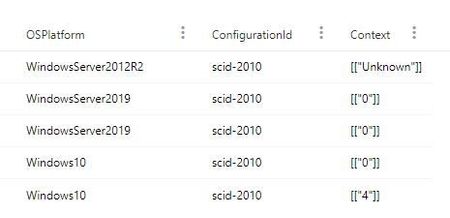
While researching how to verify if Defender AV is in active or passive mode I found an Advanced Hunting query that searches "DeviceTvmSecureConfigurationAssessment" and then filters "ConfigurationId" by "scid-2010" as the "Context" column contains the status of Defender AV. So far, I discovered that: "0" = Defender AV is active, "1" = Defender AV is passive, "4" = Defender AV is in "EDR Block Mode" I am not sure what "Unknown" in the "Context" column means though. Does it mean that Defender AV is not installed, or that it was manually disabled (via registry keys, GPO, ...) or that it running but not reporting?31KViews0likes8CommentsProhibit standard users from adding exclusions to Windows Defender (Windows Security)
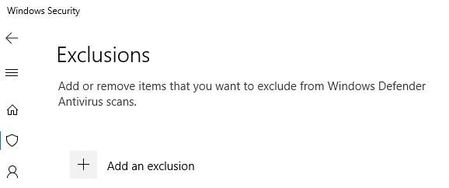
Hello there, How can I prohibit standard users from adding exclusions in Windows Defender? I would like to only control the Defender-exclusions from a central point and the standard users should not be able to add exclusions themselves. I've searched through GPO's and settings in Intune but can't seem to find the correct setting. Does anyone know if this is possible? If it is, where is the setting then? Windows 10 Enterprise, 1903 and 2004. Devices are Hybrid Azure AD JoinedSolved2KViews0likes2Comments
Scheduled Scans with Defender AV with ATP
Good afternoon. I'm working on migrating our company over to Microsoft Defender AV with Defender ATP as ATP is included in our E5 license. Is there any guidance regarding running scheduled AV scans with Defender Antivirus when making use of Defender ATP? Is there any need to run scheduled scans with Defender Antivirus or does Defender ATP cover that aspect? I have been looking online and reading through some other post but have not found anything definite regarding is scheduled quick or full scans with Defender Antivirus are recommend to supplement the protection provided by ATP so any assistance with this would be appreciated. Thank you.5.2KViews0likes3Comments